
Workspaces: switch, create and manage
What a Spatial Map workspace holds, how to switch between workspaces, create a new one, rename it, leave or delete it, and read its Trial and Pro badges.
What a workspace is
A workspace is the top-level container in Spatial Map. Every facility, solution, integration, table, report, file and member belongs to exactly one workspace. Workspaces are kept apart: people outside a workspace can’t see or change anything in it.
- Your first workspace is created when you sign up, and you are its owner.
- You can create more workspaces, for example one per company or per client.
- Other people can add you to their workspaces. Your role can differ from one workspace to the next.
- Each workspace has its own plan and facility limit. See Plan and billing.
Switch workspace
The workspace switcher is at the top of the sidebar. It shows the current workspace, its plan and your role, for example "Pro · Admin" or "Trial · Owner".
- 1Open the switcher
Click the workspace name at the top of the sidebar. The list shows every workspace you belong to, with your role in each.
- 2Pick a workspace
You go to that workspace’s Dashboard. The sidebar, breadcrumb and every page now show its content only.
The bottom of the list has Create workspace and Manage workspaces. Manage workspaces is also in the account menu at the bottom of the sidebar.
The Workspaces page
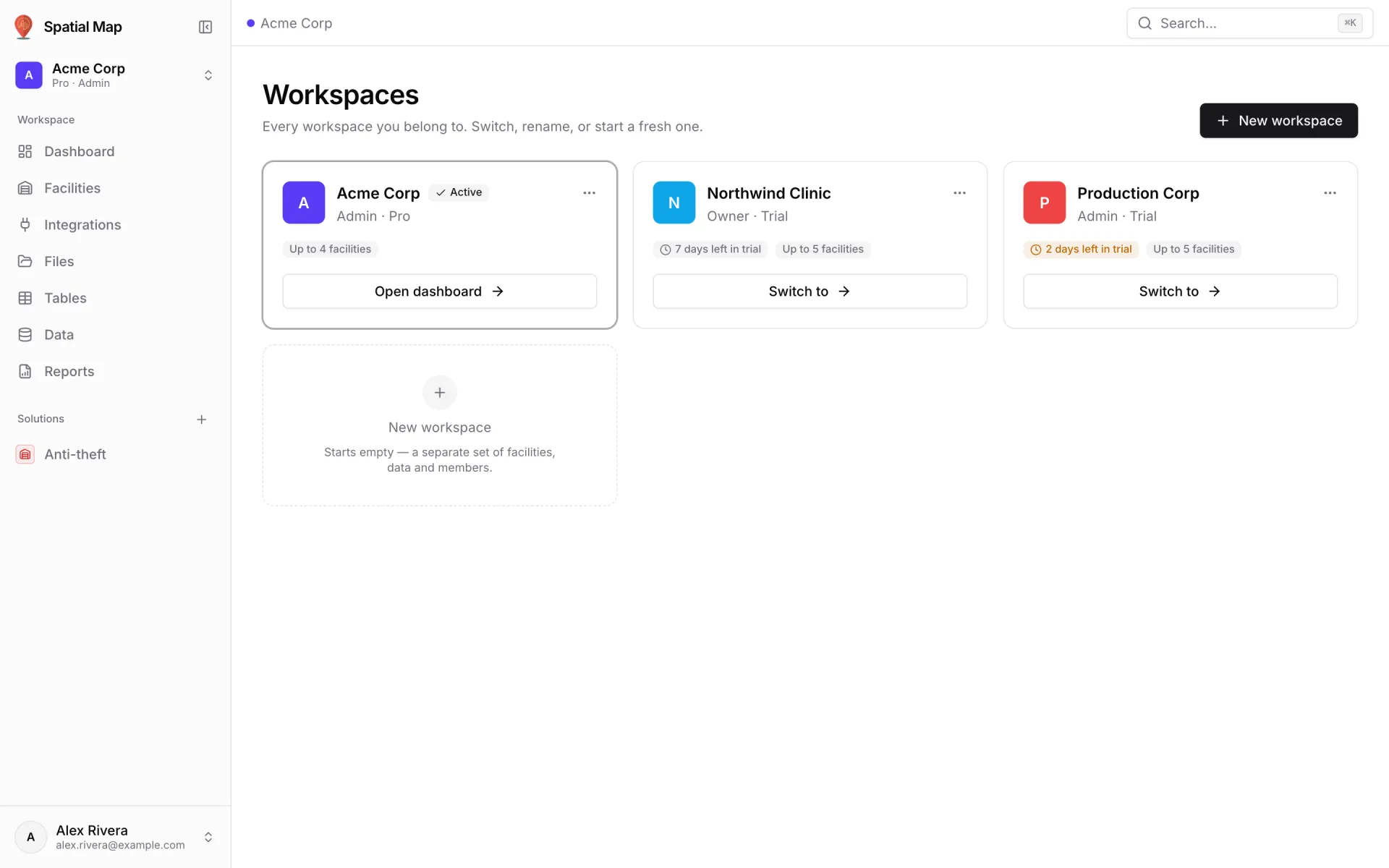
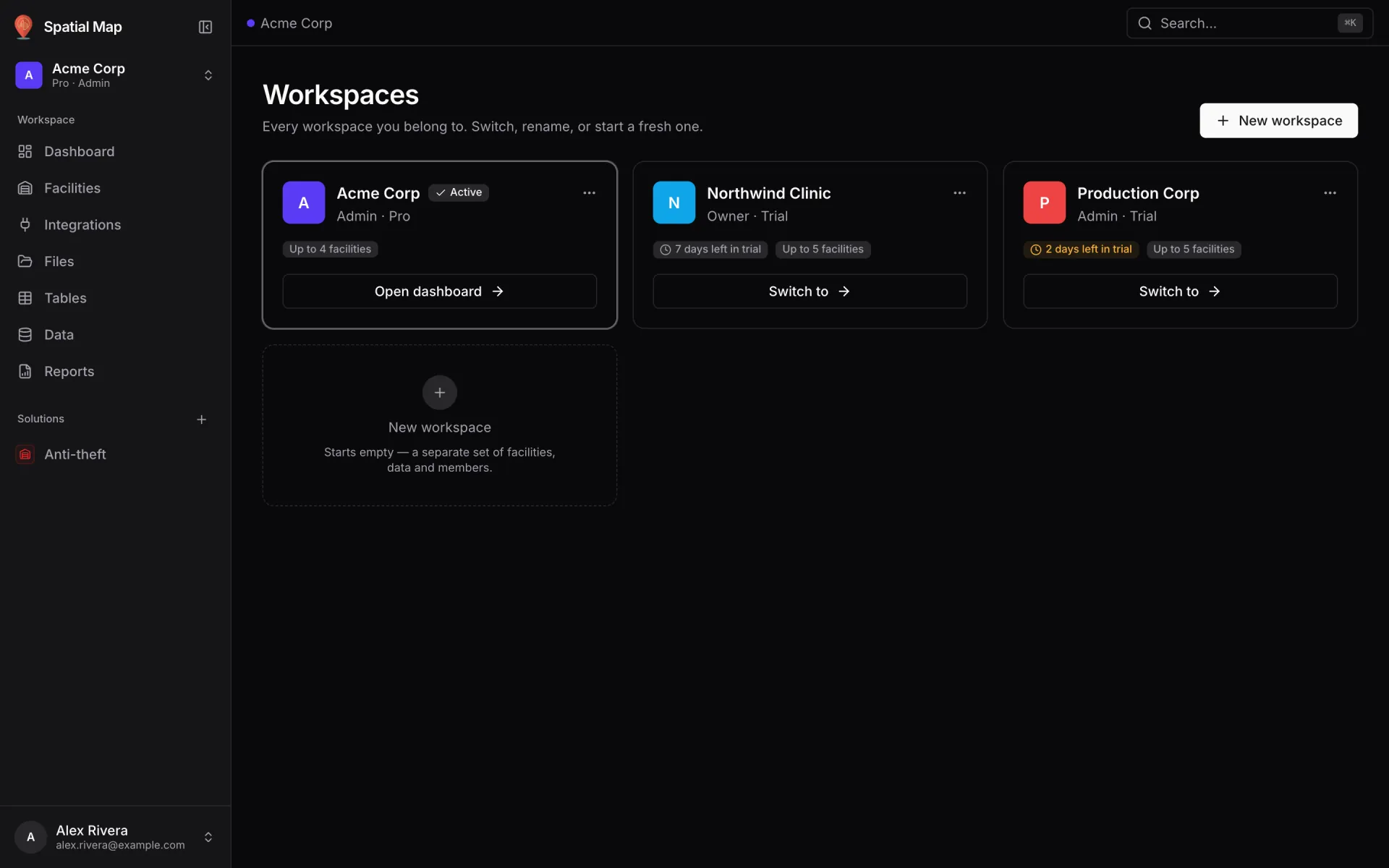
Manage workspaces opens the Workspaces page: "Every workspace you belong to. Switch, rename, or start a fresh one." Each workspace is a card.
| On the card | What it tells you |
|---|---|
| Colour tile and initial | The same mark the switcher uses, so you can tell workspaces apart quickly. |
| Active | The workspace you are in right now. |
| Role · Plan | Your role here (Owner, Admin, Editor or Viewer) and the plan (Trial, Pro…). |
| N days left in trial / Trial ends today | Shown while the workspace is on the trial. It turns amber when 3 days or fewer are left. |
| Locked — trial ended | The trial is over and no plan was chosen. Shown to the owner. |
| Up to N facilities / Unlimited facilities | The facility limit of the workspace’s plan. |
| Open dashboard / Switch to | Opens the workspace you are in, or switches to another one. |
The ⋯ menu on each card holds Rename & colour, Leave workspace and Delete workspace. An action you can’t take stays in the menu, greyed out, with the reason underneath.
Create a workspace
- 1Start a new workspace
Click New workspace on the Workspaces page, or Create workspace in the switcher.
- 2Name it and pick a colour
Type a Name (required) and choose a Colour. The colour is the dot shown next to the workspace name in the breadcrumb and switcher.
- 3Click Create workspace
You switch to the new workspace and land on its Dashboard, with the setup checklist ready.
A new workspace starts empty, with no facilities, integrations, data or other members, and you are its owner. It starts its own 7-day trial with room for up to 5 facilities.
Rename or recolour a workspace
Owners and admins can open ⋯ → Rename & colour on the Workspaces page. The Edit workspace dialog changes the name and colour, then you click Save. Nothing inside the workspace changes.
Leave or delete a workspace
| Action | Who | What happens |
|---|---|---|
| Leave workspace | Admins, editors and viewers | You lose access straight away, after a confirmation. Someone in the workspace can invite you back. |
| Delete workspace | The owner | You type the workspace name to confirm. Every facility, integration, file and data record inside is deleted permanently. |
- Owners can’t leave their own workspace. They delete it instead.
- You can’t leave or delete your only workspace.
Trial and Pro at a glance
| Trial | Pro | |
|---|---|---|
| Badge in the switcher | Trial | Pro |
| Price | Free, no card | $60 a month, or $600 a year |
| Facility limit | Up to 5 facilities | Up to 4 facilities |
| How long | 7 days from when the workspace is created | Until you cancel |
Owners also see a banner with the days left and a View plans button while the workspace is on the trial. Upgrading, cancelling and what happens when a trial ends are covered in Plan and billing. Inviting people and setting their roles is in Members and roles.
More in Workspace & team
- Workspace & team · ProfileYour profile, password, language and themeEdit your Spatial Map profile and photo, change your password, switch between six languages, and pick light, dark or system mode and a colour palette.
- Workspace & team · Plan & billingPlans, pricing and billingSpatial Map’s 7-day free trial and the Pro plan at $60/month or $600/year: facility limits, how to upgrade, when a trial ends, cancelling and refunds.
- Workspace & team · SolutionsGroup facilities and data into solutionsGroup the facilities, reports, tables and integrations for one use case, such as Warehouse or Anti-theft, into a solution with its own home page and sidebar.