
Troubleshooting common problems
Fixes for common Spatial Map problems: missing sign-in codes, facility limits, a blank map, a misaligned floor plan, empty data links or reports, dead links.
Find your problem
| Symptom | Jump to |
|---|---|
| The 6-digit code email never arrives | Verification code not arriving |
| "No Spatial Map account uses …" when inviting | Can’t invite a teammate |
| "… limit reached" or "trial has ended" when adding a facility | Can’t add a facility |
| Every page sends you to Plan & billing | Sent to Plan & billing |
| The map is blank, grey or flickers | Map is blank |
| The floor plan doesn’t line up with the map or the shapes | Floor plan not aligned |
| A data link shows nothing on the map | Data link shows nothing |
| A report shows no rows, or you can’t find a report | Report is empty or missing |
| "This link doesn’t work" on a share link | Share link stopped working |
Verification code not arriving
- Check spam, junk and promotions. Codes come from Spatial Map and sometimes land there. If you use Gmail or Outlook, the code screen has an Open Gmail or Open Outlook link.
- Check the address. The code screen shows where we sent it. If it is wrong, click Change email.
- Already have an account? Sign-up doesn’t send a code to an address that already has an account. It sends a sign-in reminder instead. Sign in, or reset your password if you have forgotten it.
- Wait for the timer, then Resend code. Resending opens up after 60 seconds. If you request several codes in a row, the wait gets longer ("You’ve already requested several codes…").
- Codes expire after 10 minutes, and 5 wrong tries block a code. In both cases, request a new one.
- Work email filters. Some company mail systems hold messages from new senders. Ask your IT team to allow mail from spatialmap.io.
Can’t invite a teammate
"No Spatial Map account uses …" means nobody has signed up with that email. Invites only work for people who already have an account. Ask them to sign up, then invite the exact email they used. No invitation email is sent, so tell them once they’ve been added.
If Invite people is greyed out, you are an editor or viewer. Only owners and admins can add members. See Members and roles.
Can’t add a facility
| Message in the New facility dialog | Why | Fix |
|---|---|---|
| warehouse limit reached for your plan — please upgrade | The workspace already has as many facilities as its plan allows: 5 on the trial, 4 on Pro. | Delete a facility you no longer need (owners and admins), or contact sales for more from the Business card on Plan & billing. |
| your trial has ended — please upgrade to keep creating warehouses | The 7-day trial is over and no plan has been chosen. | The workspace owner subscribes on Plan & billing. |
Only facilities count towards the limit. Floors, shapes, tables and reports don’t. If Add facility is greyed out, your role is Viewer. See Plan and billing.
Sent to Plan & billing on every page
You are the owner of a workspace whose trial has ended (or whose subscription has run out after cancelling). Until you subscribe, every page except Profile and Members sends you to Plan & billing. Nothing has been deleted. Subscribe to unlock it in place, or use the workspace switcher to go to another workspace. See When the trial ends.
The map is blank, grey or flickers
Spatial Map draws its maps with WebGL, which uses your computer’s graphics card. A blank or grey map almost always means WebGL is off or out of memory.
- 1Turn on hardware acceleration
In Chrome or Edge it is under Settings → System, "Use graphics acceleration when available". Restart the browser afterwards.
- 2Update the browser
Use a recent Chrome, Edge, Firefox or Safari.
- 3Close other map-heavy tabs
Each open map uses graphics memory. Close other Spatial Map tabs and reports with several maps, then reload.
- 4Lower the graphics quality
In the viewer, open the Quality pill and turn off 3D shadows and Ambient occlusion. See Graphics and style.
- 5Check your network
The base map and its tiles load from Mapbox (api.mapbox.com). A company firewall or a content blocker that blocks that address leaves the map empty.
If the map loads but your shapes don’t show, a floor plan may be hidden. Hiding a floor plan also hides every shape on that floor. See Layers, floors and basemap.
Floor plan not aligned
Select the floor plan in the layout editor. The side panel has everything you need to line it up.
- Lower the Opacity to see the street map underneath, then use Move and Rotate (or the Rotation box) until the building outline matches.
- Wrong size? Type the building’s real Width and Height with Lock aspect ratio on, or use the Scale slider. Check the units at the bottom of the panel (m or ft).
- Imported a PDF? The size comes from the drawing scale you chose on import. If that was wrong, every distance is off by the same factor. Import it again with the right scale, or fix the size by hand. See Import a PDF or DWG floor plan.
- Imported a DWG? Check Drawing units on import (Millimeters, Centimeters, Meters, Inches or Feet). If the drawing doesn’t declare its units, pick the one that gives a believable building size. A wrong unit makes the plan many times too big or too small.
- Shapes keep their own positions. Moving or resizing the floor plan doesn’t move the shapes already drawn on it, so line the plan up first, then draw.
More in the Floor plan tool and Selection and transforms.
Data link shows nothing
Work down this list. Most empty links are caught by the first three checks.
- 1Is the link switched on?
Open Data links in the editor. The On switch for the link must be on. In the viewer, also check the link’s toggle in the Layers panel. See Data links manager.
- 2Are you looking at the right floor?
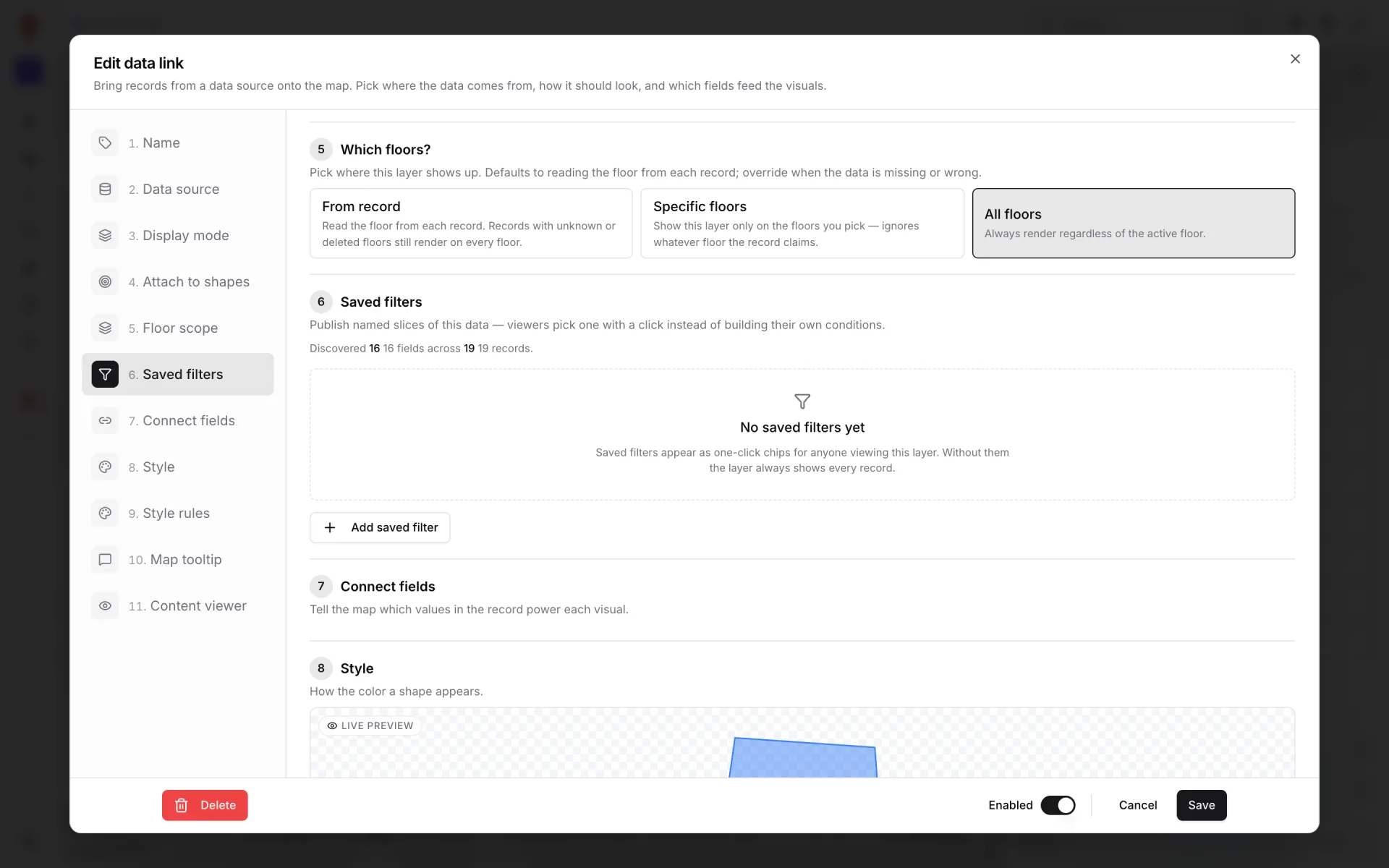
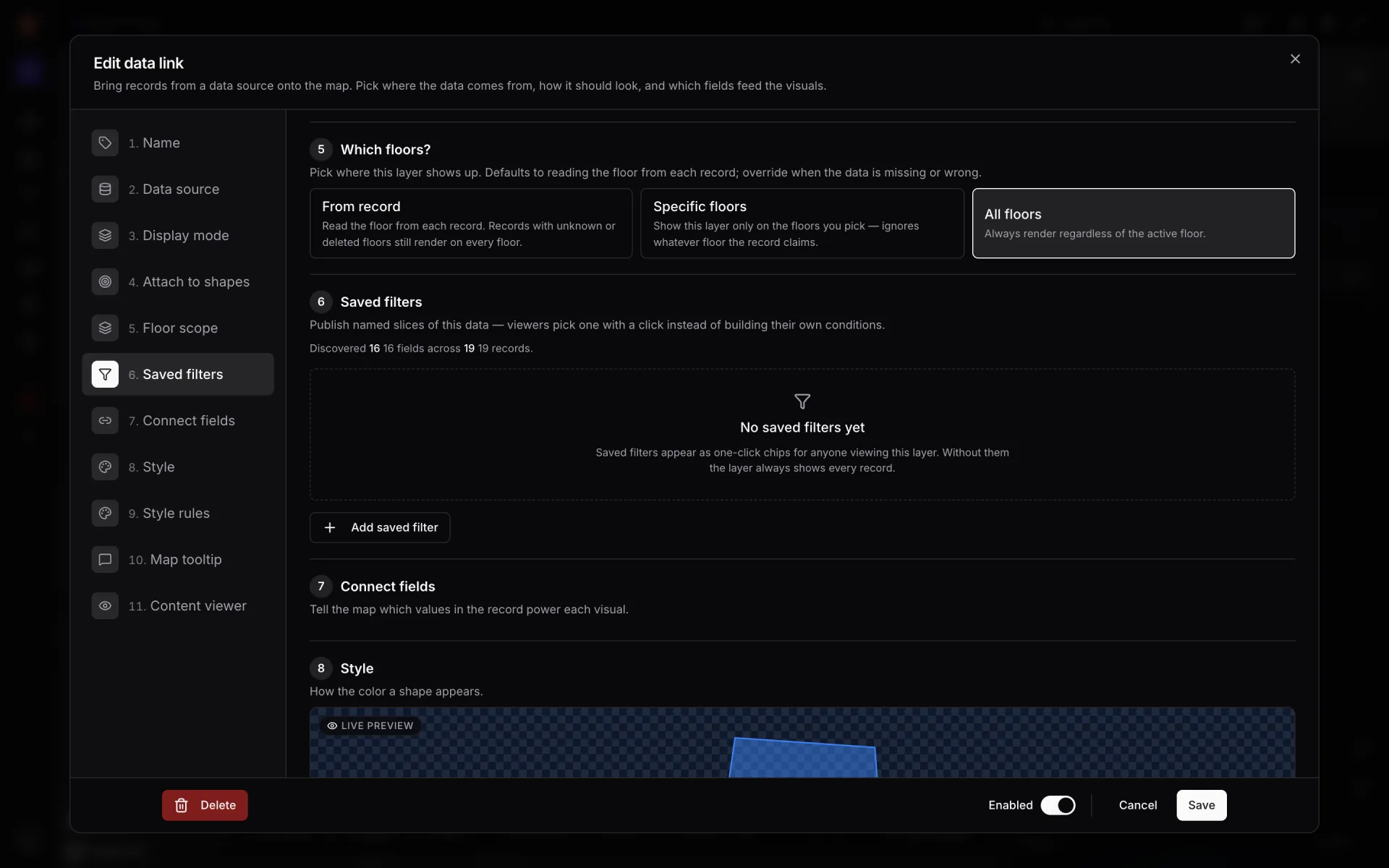
Open the link and check Floor scope ("Which floors?"). With From record, each record shows on the floor it names, so switch the viewer to that floor or choose All floors. With Specific floors, only the floors you ticked show it. See Shapes and floors.
- 3Are the fields connected?
In Connect fields, point markers need a Longitude and Latitude field with numbers in them. Tinted shapes need the matching key in Attach to shapes (for example a room name or code) to equal the value on the shape. See Connect fields.
- 4Does the source have records?
Open the table or integration and check it has rows, and that the last run succeeded. See the Data screen and Integrations.
- 5Is a filter hiding everything?
A saved filter or a viewer filter with no matches leaves the layer empty. Clear the filter and look again. See Saved filters.
- 6Viewing through a share link?
The link’s Data links tab can turn individual data links off for that share link. See Share links — Data links.
Report is empty or missing
- Clear the viewer filters. Click Clear all in the filter bar above the report. Filters are kept in the report’s link, so a link someone sent you may already have filters set.
- Reset parameters. If the report has parameters (for example a date range), click Reset all, or pick a wider preset such as Last 90 days.
- Check the time window. History reports only look back a set number of days (Window (days) on the Time window step of the builder). Older records don’t show.
- Check the builder’s Filters step. A filter with a fixed value applies to everyone, every time. "No filters — every row will show" means none are set.
- Check the source. If the table or integration has no rows yet, the report has nothing to show. See the Data screen.
- Can’t find the report at all? Editors and viewers only see reports they created or were given access to. Ask an owner or admin to add you on the report’s Review & save step.
See Reports and Report builder.