
Hide viewer controls on a share link (kiosk mode)
On the Share dialog's Viewer chrome tab, hide the floor, layers, filter, map style and quality controls from guests, or lock pan and zoom for a kiosk display.
What Viewer chrome does
The Viewer chrome tab decides which controls a link's guests get around the map: "Choose which viewer UI elements appear for anyone opening this link. All ON by default." Every switch starts on, so an untouched link gives guests every control. The map itself is never affected, only the pills and badges on top of it.
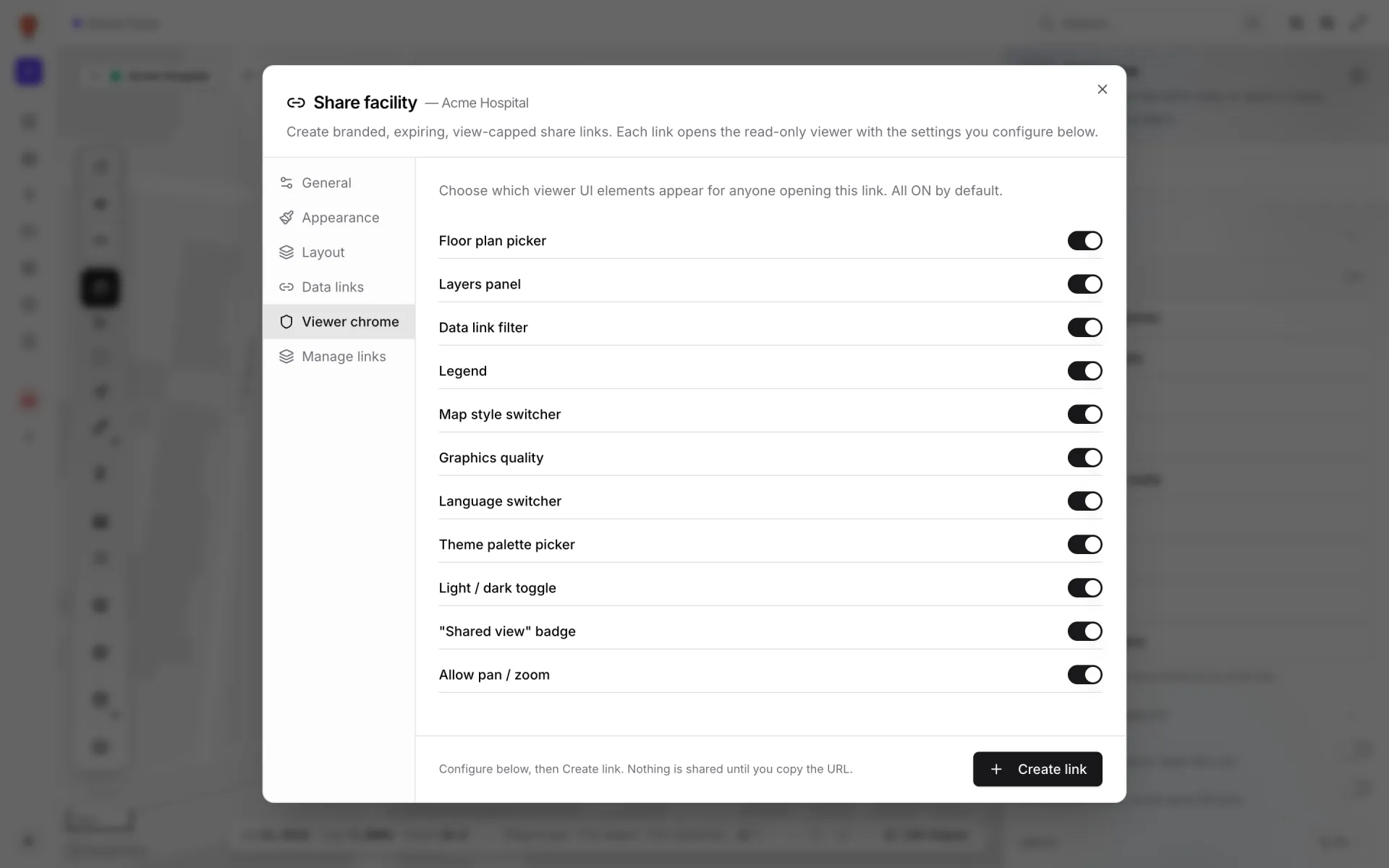
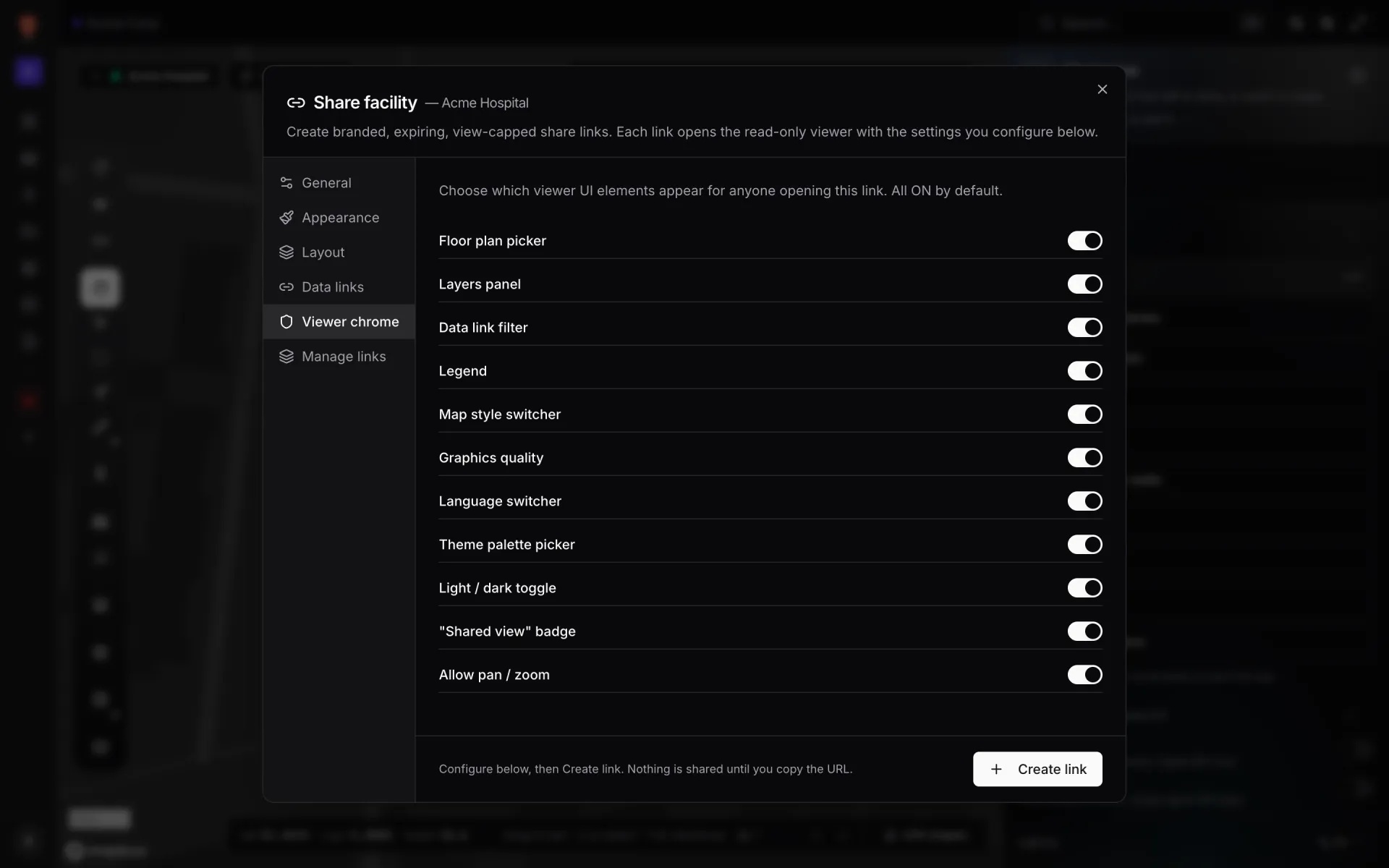
The switches that work
| Switch | Turning it off |
|---|---|
| Floor plan picker | Hides the floor switcher, including the Auto / Shell / Interior buttons. Guests stay on the floor they open on (see Layout). |
| Layers panel | Hides the Layers pill. Guests see exactly what the Layout and Data links tabs leave on. |
| Data link filter | Hides the Filters pill. Each layer shows its default saved filter, or all records. |
| Map style switcher | Hides the map-style pill. Guests stay on the style from the Appearance tab. |
| Graphics quality | Hides the Quality pill. Guests keep their own browser's graphics settings. |
| "Shared view" badge | Hides the "Shared view — <label>" badge in the bottom-right corner. |
| Allow pan / zoom | Locks the camera (see below). |
The Navigate and Auto-rotate buttons in the bottom-left corner have no switch and are always shown.
Kiosk mode: Allow pan / zoom
With Allow pan / zoom off, guests can't drag, scroll-zoom, double-click-zoom, pinch, rotate or use the keyboard to move the map. The camera stays where the facility opens. Use it for lobby screens and wall displays where passers-by shouldn't be able to knock the view off. Auto-rotate still works, so a locked screen can keep turning slowly.
Switches that aren't active yet
Four switches on this tab are saved with the link but don't change anything on the guest's page yet: Legend, Language switcher, Theme palette picker and Light / dark toggle. The share page has none of those controls today. Guests get the light/dark mode and accent colour from the Appearance tab, and the page follows their browser's language.
Common set-ups
| For | Keep on | Turn off |
|---|---|---|
| A sales walkthrough | Everything | Nothing |
| A wall display or kiosk | "Shared view" badge if you want it | Floor plan picker, Layers panel, Data link filter, Map style switcher, Graphics quality, Allow pan / zoom |
| A manager who wants to slice the data | Layers panel, Data link filter | Map style switcher, Graphics quality |
More in Viewer & sharing
- Viewer & sharing · ViewerThe Viewer: a read-only facility mapOpen a facility read-only in the Viewer: floors, layers, live data links, a detail drawer and indoor directions, for teammates on /view and guests on /share.
- Viewer & sharing · ViewerShow and hide layers in the ViewerUse the Viewer's Layers panel to hide shape kinds, list and zoom to items, and switch data-link layers off for your visit or turn them off for everyone.
- Viewer & sharing · ViewerSwitch floors in the ViewerShow one floor, several or all of them in the Viewer's floor switcher, see how share links lock a floor, and set a building shell to Auto, Shell or Interior.
- Viewer & sharing · ViewerFilter live data in the ViewerThe Viewer's Filters pill lets anyone pick a saved filter per data link and fill in runtime values, then Apply. It appears once a link has saved filters.