
Group facilities and data into solutions
Group the facilities, reports, tables and integrations for one use case, such as Warehouse or Anti-theft, into a solution with its own home page and sidebar.
What a solution is
A solution is a named group inside a workspace for one use case — say "Warehouse", "Retail" or "Anti-theft". It points at the facilities, reports and data sources (tables and integrations) that belong to that use case, and gives them their own home page, their own entry in the sidebar, and a scope bar that filters the rest of the app down to just those items.
A solution is a view, not a folder. Nothing is moved or copied when you add an item, so the same facility, report or table can sit in several solutions at once. Everyone in the workspace sees the same solutions with the same roles — there are no per-solution permissions.
Create a solution
Solutions live in the Solutions section of the sidebar, under the Workspace pages. Owners, admins and editors can create them; viewers see the list but not the + button.
- 1Click + next to "Solutions" in the sidebar
The button is labelled New solution. If the workspace has no solutions yet, the section shows a short explainer with a Create a solution link that does the same thing.
- 2Pick a template
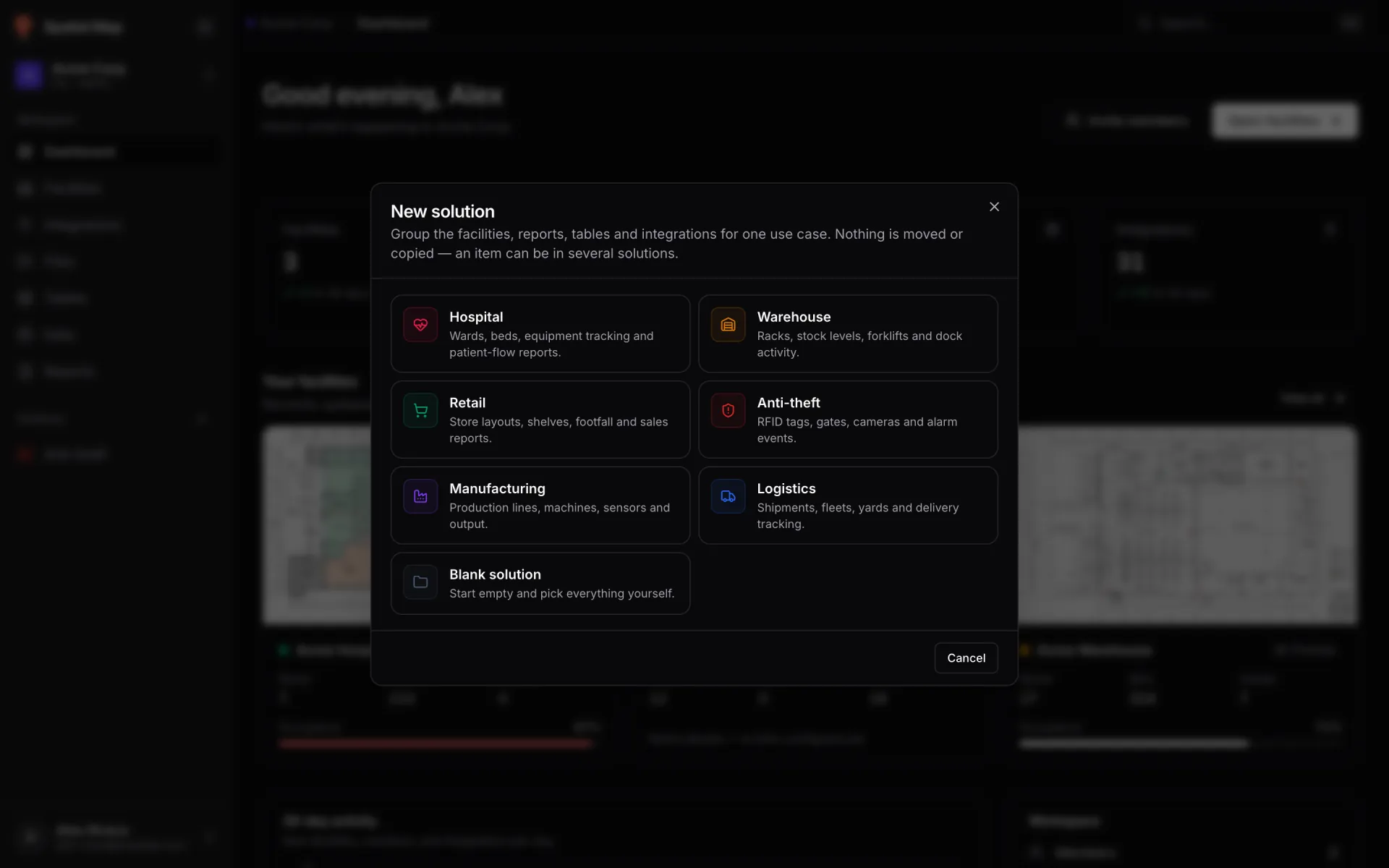
The New solution dialog opens on a grid of seven starting points, such as Warehouse, Retail, Anti-theft, Manufacturing and Logistics, plus Blank solution. A template only presets the name, description, icon and colour — and suggests matching items (next step).
- 3Name it and choose a look
Edit the Name (required, up to 80 characters) and the optional Description (up to 500). Pick an Icon from 16 choices and a Colour from 9 swatches — this is how your team will recognise the solution in the sidebar and the scope bar.
- 4Confirm the contents
Under Contents, tick the facilities, reports, tables and integrations that belong here. The footer counts how many items are selected. Use the back arrow next to the title to return to the templates.
- 5Click "Create solution"
The solution is created and you land on its home page. It appears in the sidebar straight away for everyone in the workspace.
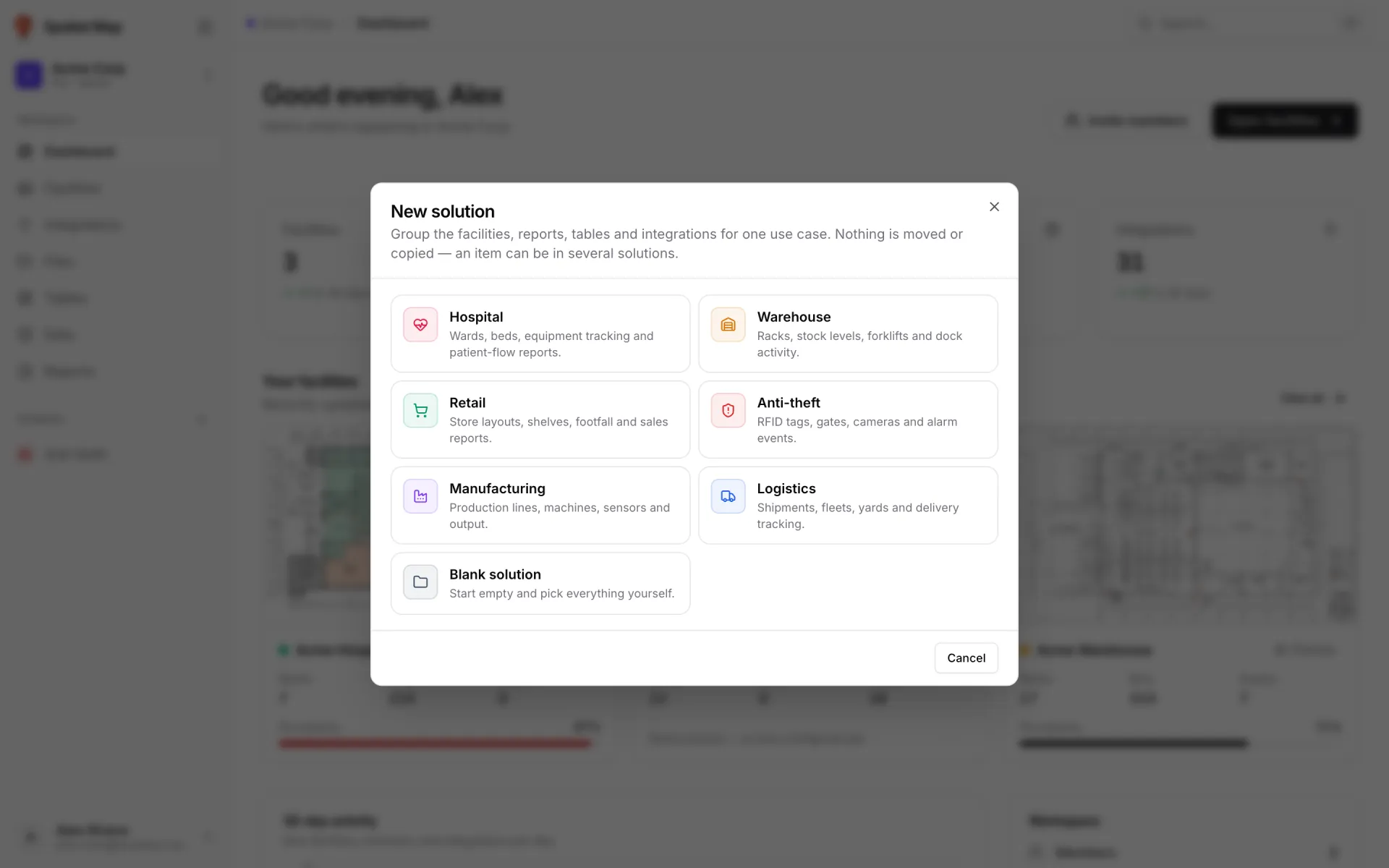
| Template | What it is for |
|---|---|
| Warehouse | Racks, stock levels, forklifts and dock activity. |
| Retail | Store layouts, shelves, footfall and sales reports. |
| Anti-theft | RFID tags, gates, cameras and alarm events. |
| Manufacturing | Production lines, machines, sensors and output. |
| Logistics | Shipments, fleets, yards and delivery tracking. |
| Hospital | Rooms, equipment tracking and occupancy reports. |
| Blank solution | Start empty and pick everything yourself. |
Suggested items
Every template except Blank carries a short keyword list. When you pick it, Spatial Map pre-ticks the existing items whose name (or facility name / address) contains one of those words, and shows "Matching items are pre-ticked — adjust as you like." above the picker. Items that match but you have unticked keep a Suggested badge so you can find them again. Some of the keyword lists:
| Template | Keywords it matches |
|---|---|
| Warehouse | warehouse, stock, inventory, rack, pallet, forklift, dock, bin |
| Retail | supermarket, retail, store, shop, aisle, checkout, shelf, sales |
| Anti-theft | theft, security, rfid, tag, alarm, gate, camera, alert |
| Manufacturing | factory, plant, production, machine, line, sensor, output |
| Logistics | shipment, truck, fleet, logistics, delivery, yard, route |
The picker has four tabs — Facilities, Reports, Tables and Integrations — each showing a selected / total count. Search narrows the current tab, and Select all / Clear act on whatever the search is showing.
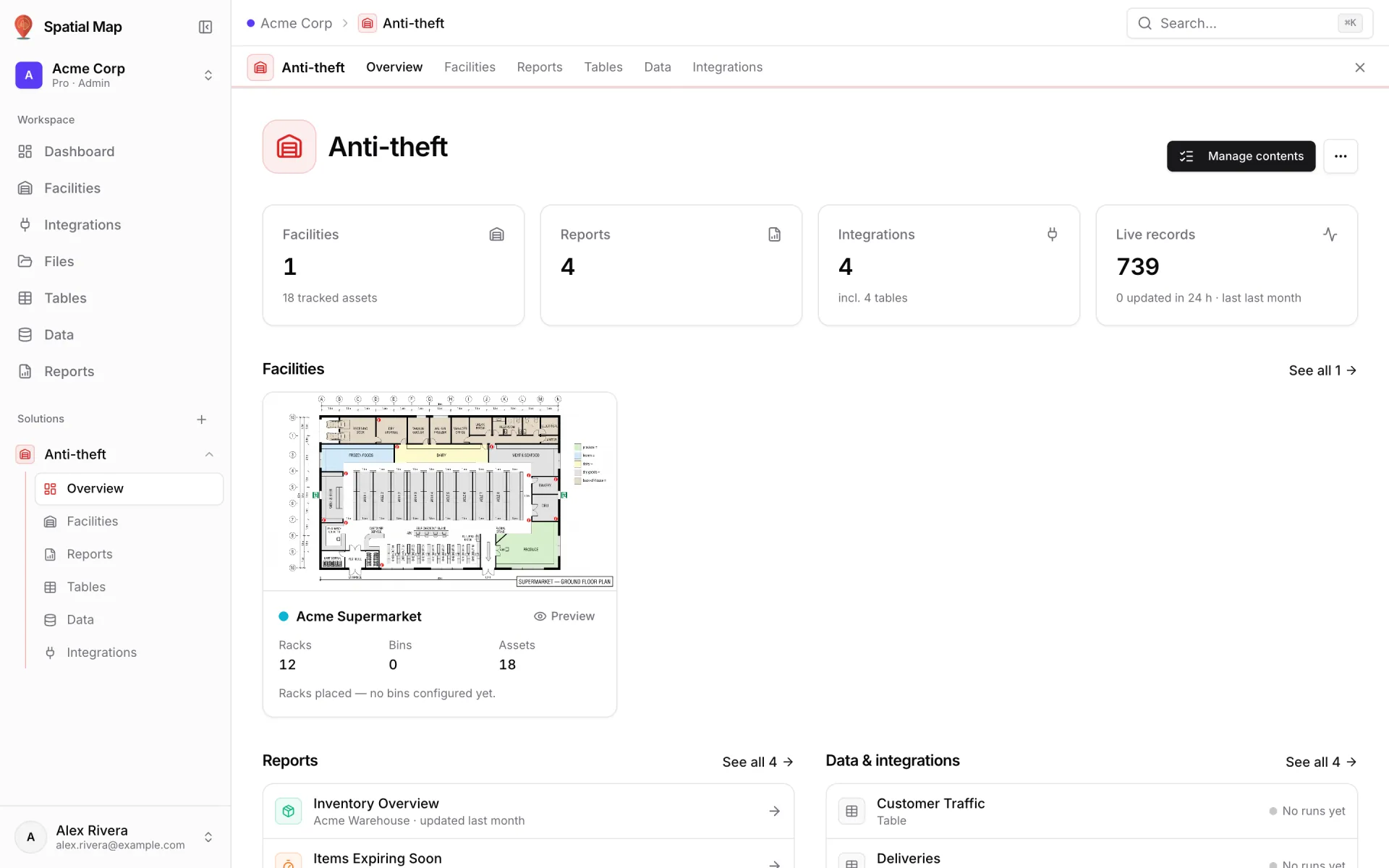
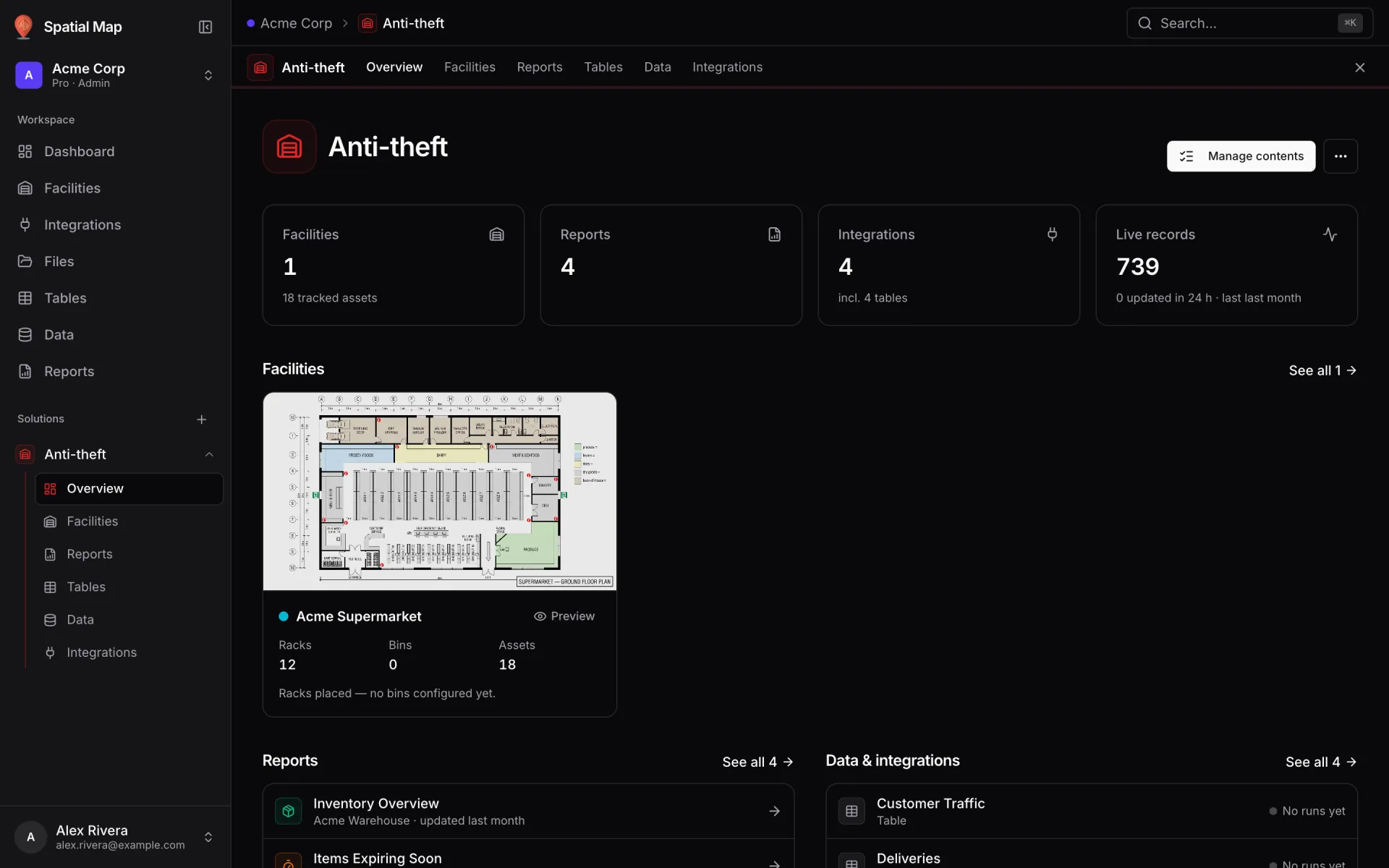
The solution home page
Click a solution in the sidebar to open its home at /solutions/:id — a dashboard for just its items. It refreshes every 30 seconds.
| Block | What it shows |
|---|---|
| Facilities KPI | How many facilities are in the solution, with the number of tracked assets across them. |
| Reports KPI | How many reports are in the solution. |
| Integrations KPI | Integrations plus tables in the solution — the hint says how many need attention, or how many of them are tables. |
| Live records KPI | Total records those sources have brought in, with "N updated in 24 h · last …" or "No data received yet". |
| Facilities | Up to six facility cards (floor-plan thumbnail, racks, bins, assets, occupancy) with "See all N". |
| Reports | Up to six reports with their facility (or "All facilities") and when they were last updated. |
| Data & integrations | Up to eight tables and integrations, each with a health dot and status. |
| Recent imports | The latest import runs from the solution’s sources — success or failure, and when. "See all" opens the Data screen’s runs. |
Each integration in Data & integrations carries a health status from its last run:
- Healthy — the last run succeeded.
- Partial — the last run only partly succeeded.
- Failing — the last run errored. Failing and Partial sources are what the Integrations KPI counts as "need attention".
- No runs yet — the source has never run (typical for a new table or a source that is not scheduled).
An empty solution shows "Nothing in this solution yet" with an Add contents button instead of the KPIs. See Integrations for how runs and health are produced.
Manage contents
To change what a solution holds, click Manage contents in the solution’s page header (or in the scope bar on any of its other pages). The dialog — titled "What’s in …" — is the same four-tab picker you used on create.
- 1Open Manage contents
From the solution home header, or from the scope bar while you are on its Facilities, Reports, Tables, Data or Integrations page.
- 2Tick or untick items
Switch tabs to see facilities, reports, tables and integrations. Unticking an item only takes it out of this solution — it stays in the workspace and in any other solution.
- 3Click Save
The home page, the KPIs and every scoped list update straight away.
Working inside a solution
Expand a solution in the sidebar (the chevron next to its name, "Show … pages") to see its pages: Overview, Facilities, Reports, Tables, Data and Integrations. The same six tabs appear in the scope bar — a strip under the top bar, tinted with the solution’s colour — on every page of the solution.
Those pages are the regular screens with ?solution=<id> added to the URL (for example /warehouses?solution=12), so everything you already know about Facilities, Reports, Tables, Data and Integrations still applies — the lists and KPIs simply cover the solution’s items only. The breadcrumb in the top bar reads Workspace › Solution › Page.
| Page | What the scope does |
|---|---|
| Facilities | Lists only the solution’s facilities; the KPI strip totals just those. |
| Reports | Lists only the solution’s reports, with the solution’s facilities as the facility tabs. |
| Tables | Lists only the solution’s tables. |
| Data | Every record, room/bin, file and run comes only from the solution’s tables and integrations. |
| Integrations | Shows only the solution’s integrations and tables. |
To leave, click the × at the end of the scope bar ("Leave solution — show the whole workspace"). You return to the same page, unscoped.
Create items inside a solution
When you create something from a solution-scoped page, it joins the solution automatically — no extra step.
- Facilities — Add facility on the scoped Facilities page. The toast reads "… created in …". An empty scoped page also offers Add existing, which opens Manage contents.
- Reports — New report on the scoped Reports page (owners and admins) opens the builder with the solution attached; the saved report joins it. See Reports.
- Tables — Create new table on the scoped Tables page (owners and admins); the new table joins the solution.
Rename or delete a solution
Both actions live in the ⋯ More actions menu in the solution home header (owners, admins and editors).
- 1Edit name & look
Opens the Edit solution dialog with the same Name, Description, Icon and Colour fields as on create. Click Save.
- 2Delete solution
Asks "Delete “…”?" and explains that only the solution is removed. Confirm with Delete solution — you return to the Dashboard and the entry disappears from the sidebar.
Looking for what Spatial Map can do for a specific industry rather than how the feature works? See Solutions.
More in Workspace & team
- Workspace & team · WorkspacesWorkspaces: switch, create and manageWhat a Spatial Map workspace holds, how to switch between workspaces, create a new one, rename it, leave or delete it, and read its Trial and Pro badges.
- Workspace & team · MembersInvite members and set rolesAdd teammates to a Spatial Map workspace as Admin, Editor or Viewer, change a role, remove a member, and see exactly what each of the four roles can do.
- Workspace & team · ProfileYour profile, password, language and themeEdit your Spatial Map profile and photo, change your password, switch between six languages, and pick light, dark or system mode and a colour palette.