
Keyboard shortcuts
Every Spatial Map keyboard shortcut: one-key drawing tools, draw modifiers, nudge, rotate, scale and raise, selection, undo and redo, and the ⌘K palette.
How shortcuts work
Most shortcuts work in the layout editor. Every drawing tool is one key away, and a selected shape can be moved, rotated, scaled and raised from the keyboard. Shortcuts are paused while you type in a text field, so typing a name never switches tools.
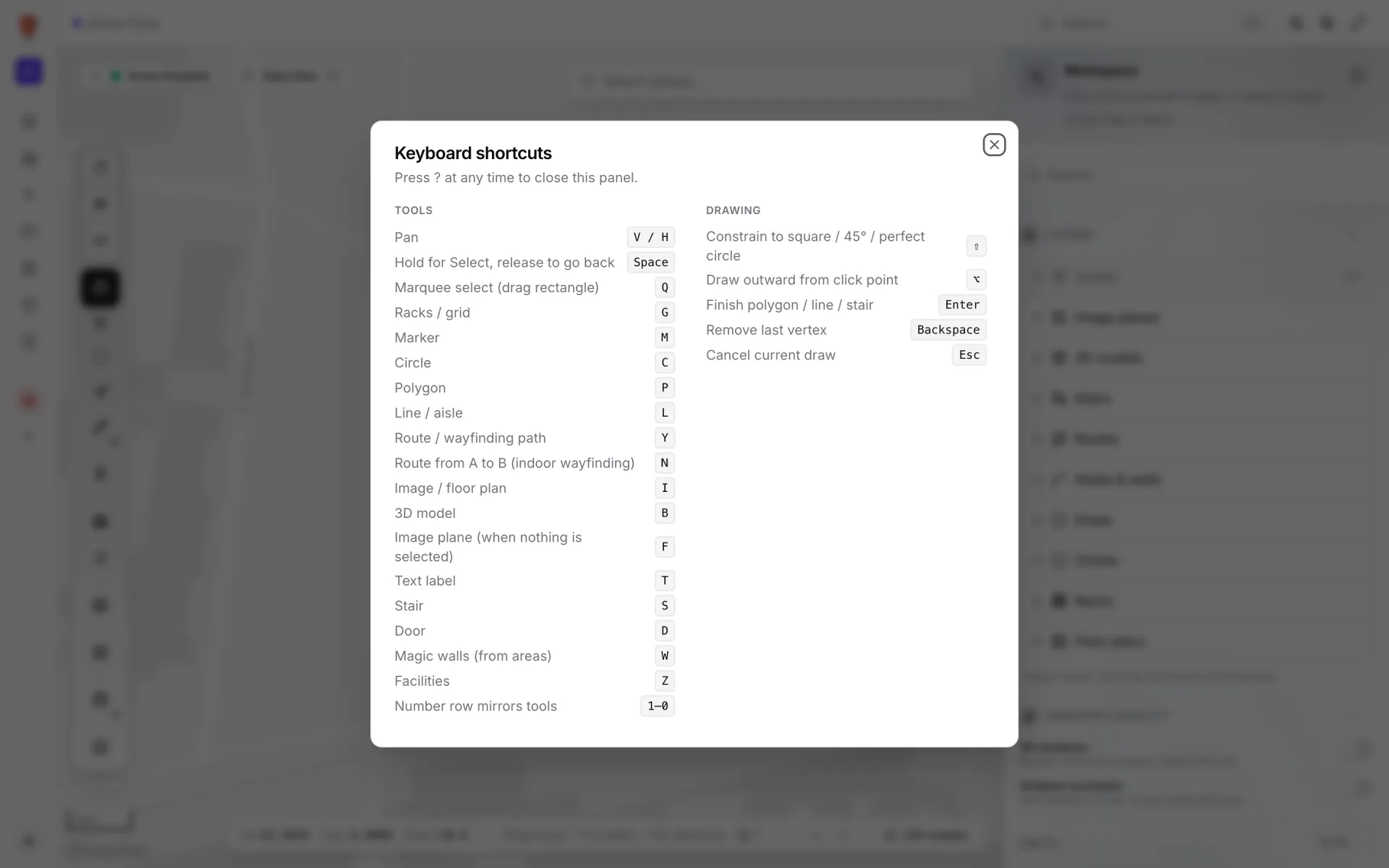
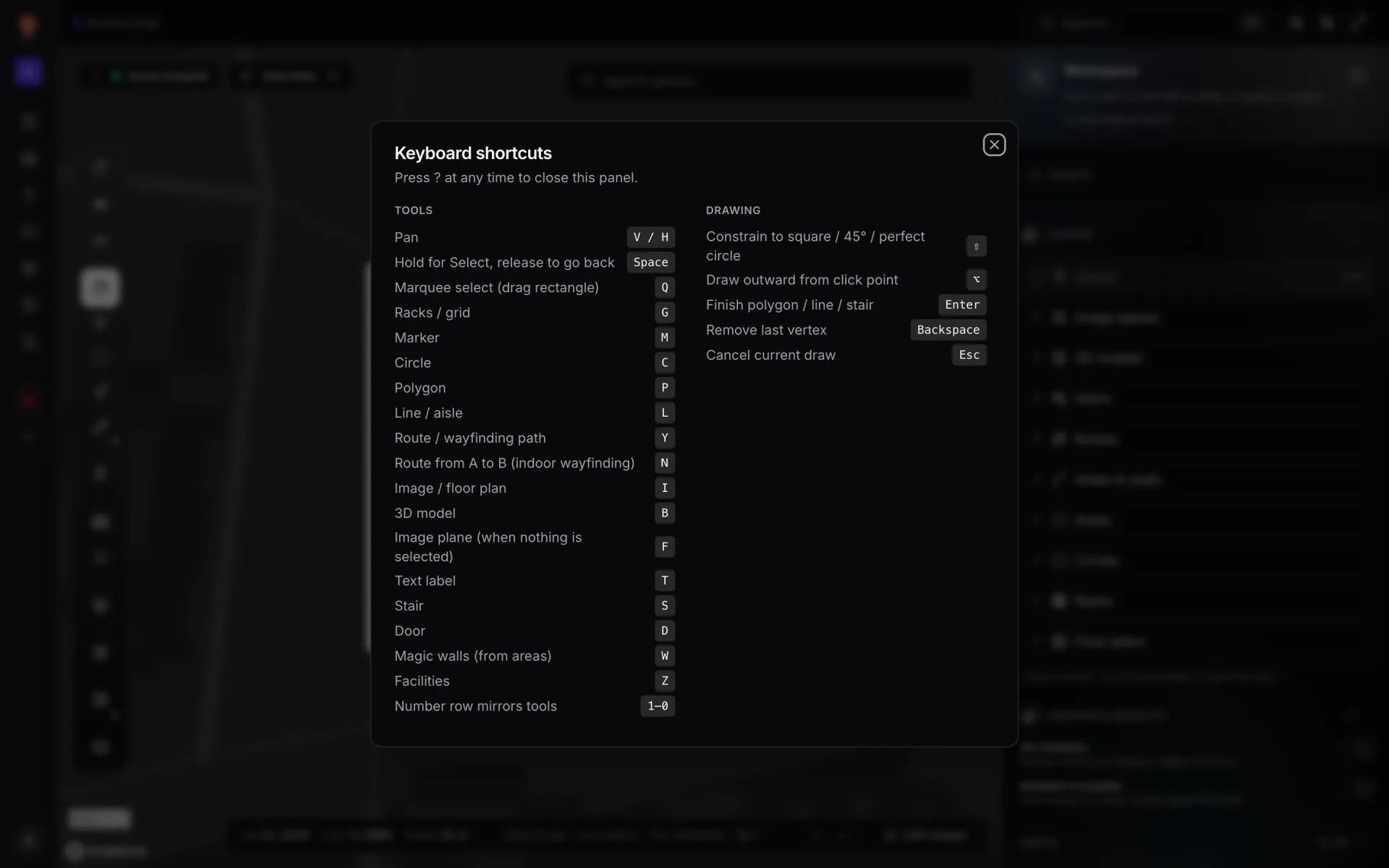
Where this page says ⌘/Ctrl, use ⌘ (Command) on a Mac and Ctrl on Windows or Linux. The in-app panel shows the right key for your computer.
Anywhere in the app
| ⌘/Ctrl + K | Open or close the command palette: go to a page, switch theme or switch language. |
| Esc | Close the command palette or a dialog. |
| ⌘/Ctrl + S | Save your changes on the Profile page. |
See the command palette for what it can do.
Pick a tool
A single key switches the active tool. The number row from 1 to 0, plus - and =, picks the same tools, so you can use either hand.
| V H 1 | Pan: drag to move the map. Nothing is created. |
| 2 | Select. |
| Space (hold) | Select while held. Release to go back to the previous tool. |
| Q | Marquee select: drag a rectangle to select every shape inside it. |
| G R 3 | Rack (grid). With a rack selected, R redraws it instead. |
| M 4 | Asset (marker). |
| C O 5 | Circle. |
| P 6 | Area (polygon). |
| L 7 | Aisle (line). |
| Y | Route: draw a wayfinding path. |
| N | Route from A to B: click a start and an end to preview a walking route. |
| I 8 | Floor plan: an image, a PDF sheet or a DWG drawing. |
| B 9 | 3D model. |
| F 0 | Image plane (when nothing is selected). |
| T | Text label. |
| S - | Stair. With a shape selected, - scales it down instead. |
| D = | Door. With a shape selected, = scales it up instead. |
| W | Magic walls: build walls around the areas you pick. |
| Z | Facilities: click a facility on the map to focus it. |
In Preview mode the keys that create shapes are switched off. Pan, Select, Marquee and Route from A to B still work. The AI Map tool is coming soon, so it has no key yet. See AI Map.
While drawing
| Shift | Constrain: a square, 45° angles, or a perfect circle, depending on the tool. |
| Alt / ⌥ | Draw outward from the point you clicked instead of corner to corner. |
| Enter | Finish an area, aisle or stair you are drawing point by point. |
| Backspace / Delete | Remove the last point you placed. |
| Esc | Cancel the current drawing. |
Move, rotate, scale and raise a selected shape
| ← → ↑ ↓ | Nudge 0.5 m. |
| Shift + arrow | Nudge 5 m. |
| [ ] | Rotate −1° / +1°. |
| Shift + [ ] | Rotate 15°. |
| - + (or =) | Scale down / up by 5%. |
| PgUp PgDn | Raise / lower by 0.5 m (never below 0). |
| Enter | Confirm a move or rotation in progress. |
| Esc | Cancel a move or rotation in progress and put the shape back. |
Selection
| Shift + click | Add a shape to the selection, or take it out. |
| ⌘/Ctrl + click | Same as Shift + click. |
| Delete Backspace | Delete the selection. |
| ⌘/Ctrl + D | Duplicate the selection. |
| F | Fit the map to the selection. |
| R | Redraw the selected rack. |
| Esc | Deselect. |
For selecting many shapes at once, see Multi-select and bulk editing and Selection and transforms.
Undo, redo and export
| ⌘/Ctrl + Z | Undo. |
| ⌘/Ctrl + Shift + Z ⌘/Ctrl + Y | Redo. |
| ⌘/Ctrl + E | Export the facility’s shapes as GeoJSON. |
| ? | Show or hide the shortcuts panel. |