
Publish saved filters for a data link
Saved filters are named slices of a data link, like "Rooms in use" or "Needs attention", that viewers pick with one click. Build conditions and see live counts.
What saved filters are for
Saved filters — "Publish named slices of this data — viewers pick one with a click instead of building their own conditions." You write the conditions once; everyone who opens the map, preview or a share link picks the filter by name and gets the same result.
For Room status you might publish "Rooms in use" (`status` equals In use) and "Needs attention" (`status` any of Cleaning, Out of service). A facilities manager then picks one in the viewer's Filters dialog instead of hunting through every room.
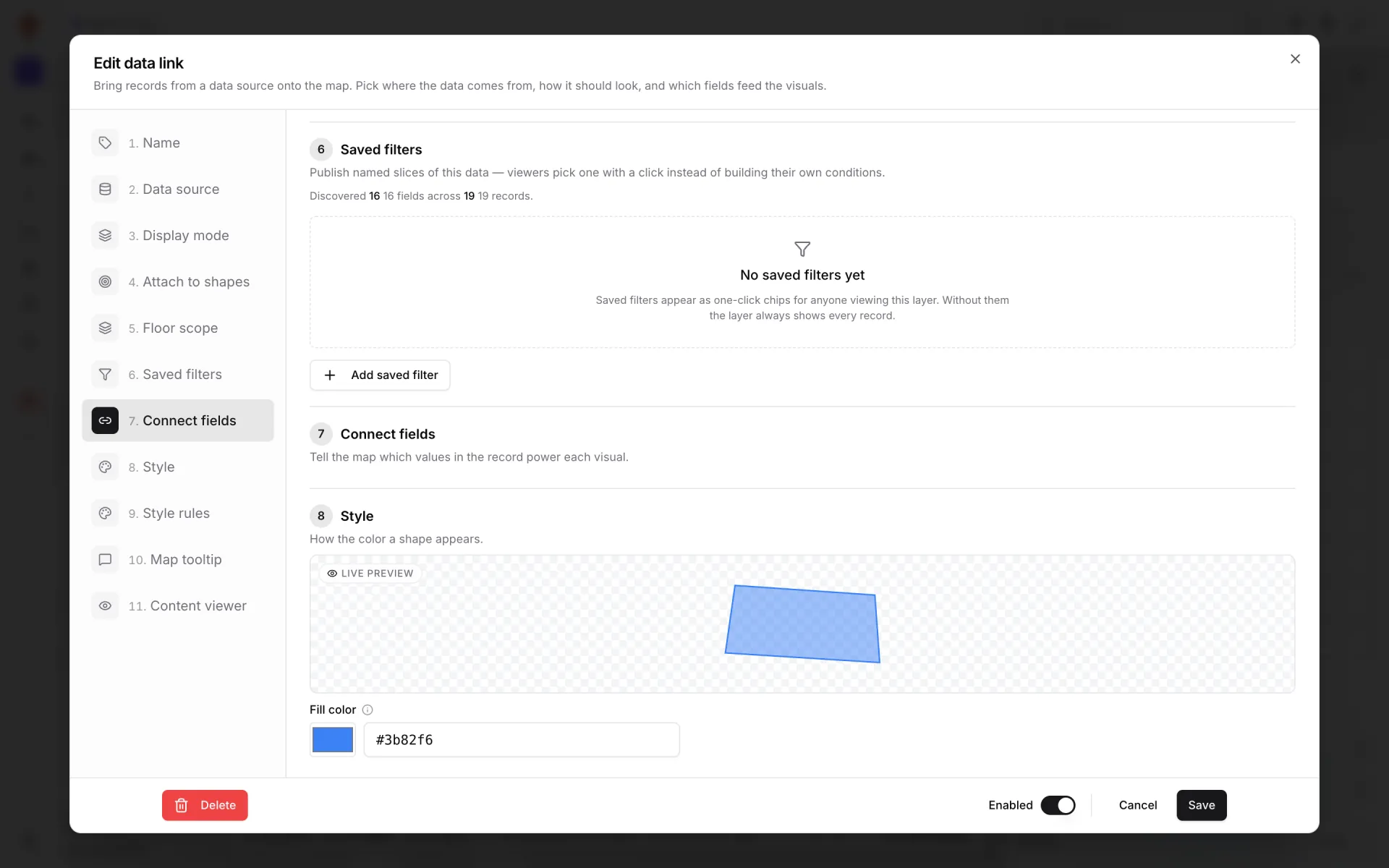
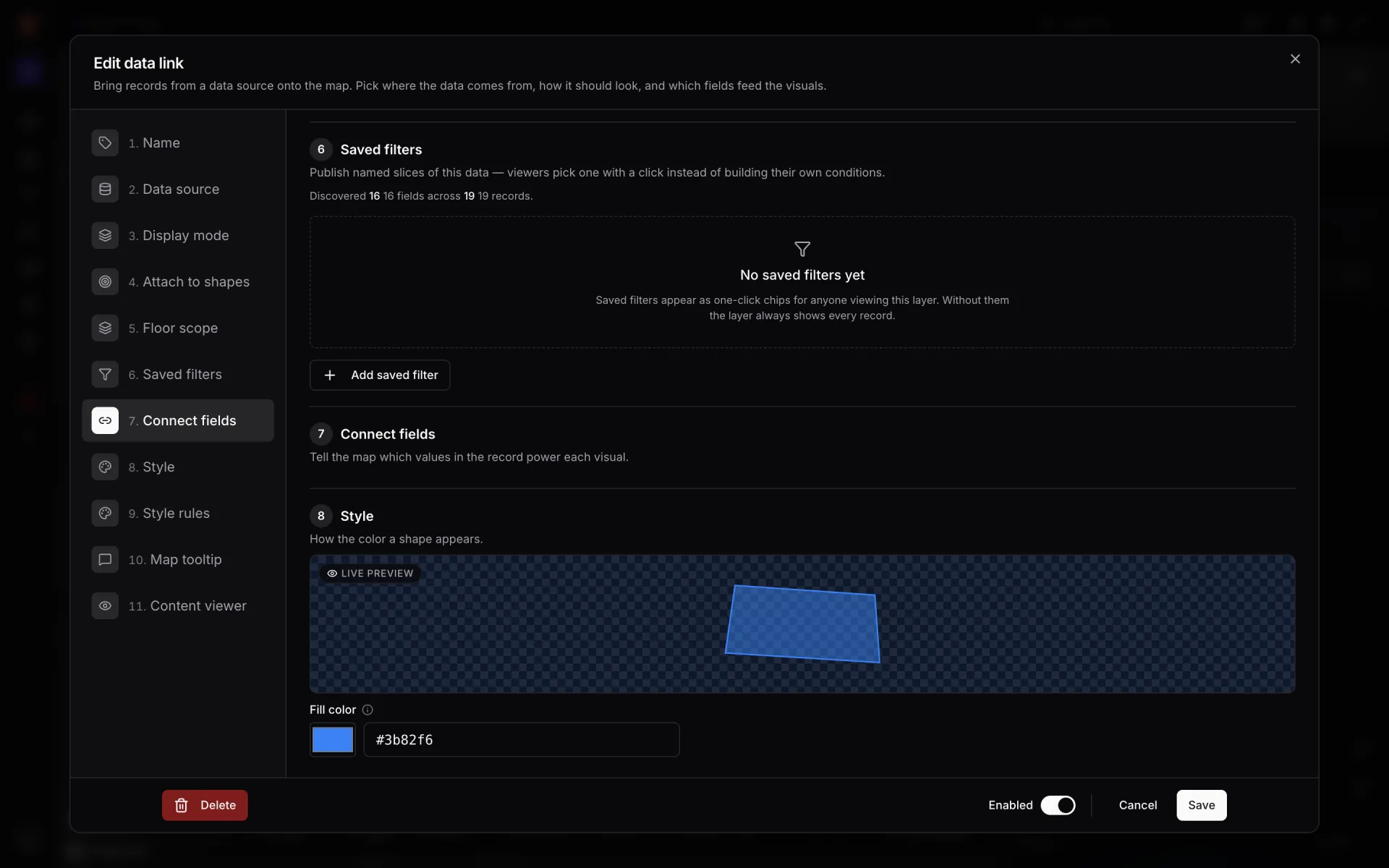
The line at the top reports what the source holds, for example "Discovered 16 fields across 19 records" ("Inspecting data source…" while it loads). The field list in the condition builder comes from it.
Add a saved filter
- 1Click "Add saved filter"
The New saved filter dialog opens: "Name the slice of data this filter represents. Viewers pick it by name — they never see the underlying conditions as editable controls."
- 2Name and describe it
Filter name (required, "e.g. Active pallets") and Description (optional), "Shown as a tooltip in the viewer".
- 3Choose whether it applies by default
"Apply this filter by default when the layer loads". Only one filter per link can be the default.
- 4Build the conditions
Under Conditions, add conditions and groups (below). The footer counts matches as you edit.
- 5Save filter
Enabled once the filter has a name and at least one complete condition. The filter is kept with the link when you click Save on the data link.
Conditions and groups
Each group has an AND/OR switch — "match all of these" or "match any of these". + Condition adds a Field · Operator · Value row; + Group nests a group, up to three levels deep. Picking a field narrows the operators to those that suit its type.
| Field type | Operators |
|---|---|
| Text | equals · not equals · contains · starts with · ends with · matches regex · any of · none of · has value · empty |
| Number | equals · not equals · greater than · at least · less than · at most · between · any of · none of · has value · empty |
| Date | before · after · last N days · next N days · between · has value · empty |
| Boolean | equals · not equals · has value · empty |
- equals is exact and case-sensitive for text; contains, starts with and ends with ignore case.
- between includes both ends. any of / none of take a comma-separated list, such as `Cleaning, Out of service`.
- has value means present and not empty; empty means missing or an empty string.
- matches regex uses a PostgreSQL regular expression.
Ask the viewer for a value
Leave a condition's value blank on purpose and the viewer is asked for it — "Viewers will be asked to fill in these values before the filter applies." A filter "Assigned to me" with `assigned_to` equals (blank) lets each person type their own name. The filter shows an "N asked at runtime" badge.
Match counts
| Where | What it says |
|---|---|
| Dialog footer | "N of M records match" — re-counted against the real source as you edit ("Calculating…"). With blank values it reads "~N of M match so far (plus runtime prompts)" or "Match count depends on runtime values". Empty: "Add at least one condition to save this filter." |
| Filter list | "N records" beside each filter, amber at zero (usually a typo in a value). "count unavailable" if the count failed. |
Manage saved filters
Each saved filter shows its name, a Default badge if it is the default, its description, its count and a one-line summary of its conditions. The icons on the right:
| Icon | Action |
|---|---|
| Star | "Apply this filter by default in the viewer" — making one default clears the others. |
| Pencil | Edit the filter. |
| Copy | Duplicate it as "… (copy)", not default. |
| Bin | Delete it. Nothing is final until you save the data link, so Cancel on the link brings it back. |
Next: Connect fields.
More in Data links
- Data links · OverviewData links: put live data on the mapA data link turns rows from a table, REST API or file into markers, tinted shapes, badges or heatmaps on a facility map. Learn the modes and the editor.
- Data links · ManagerManage a facility's data linksOpen the Data links list for a facility to search, switch on or off, edit and delete every data link — and find the shortcuts from the toolbar and shapes.
- Data links · Source and modePick a data source and display modeThe first three sections of a data link: name it, pick the table, REST API or file it reads, and choose one of nine display modes for the map.
- Data links · StyleStyle a data link layerSet a data link's base look — icon, colours, marker size, fill opacity, clustering, heatmap radius — and tick which facility style rules may recolour it.