
Attach data link records to shapes and floors
Match each data-link record to a shape by name, role or external code, or pin a link to one shape, then choose which floors of the facility the layer shows on.
Two "where" questions
Attach to which shapes? ("How each record finds the shape it should render on.") decides which shape each record paints. It appears only for the five shape modes — Info marker on shape, Value badge on shape, Color a shape, Camera field of view and Pulsing zone activity — as section 4. Which floors? decides which floors the layer shows on, and appears for every mode (section 5 for shape modes, section 4 otherwise).
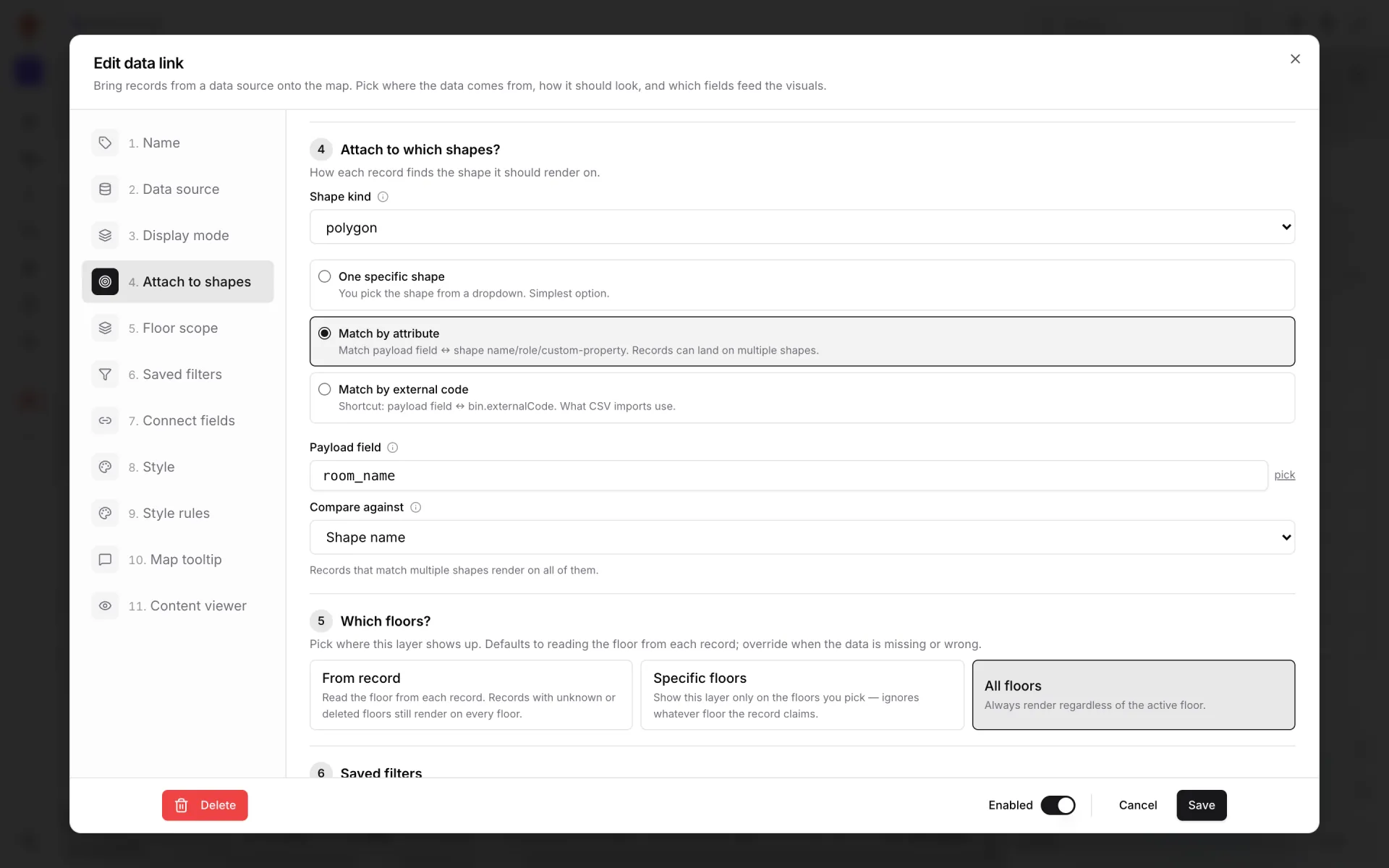
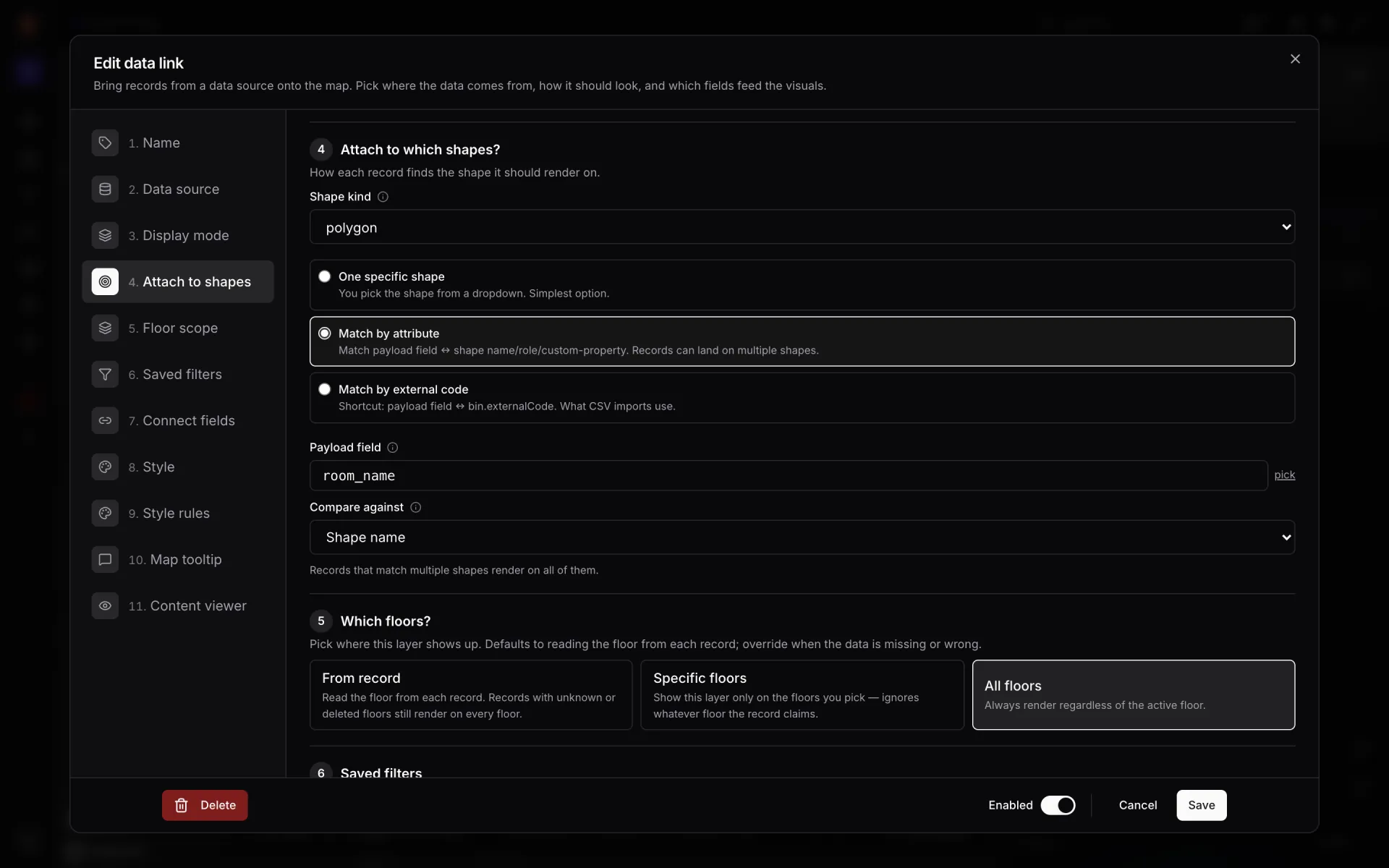
Shape kind
Shape kind — "Restricts the match to shapes of this kind." The choices are polygon (areas and rooms), circle, marker, line and model (placed 3D models). Changing the kind clears a picked shape, so pick again afterwards.
Three ways to match
| Card | Card text | Use it when |
|---|---|---|
| One specific shape | "You pick the shape from a dropdown. Simplest option." | Every row belongs on one place — a single sensor reading for one cold room. |
| Match by attribute | "Match payload field ↔ shape name/role/custom-property. Records can land on multiple shapes." | Each row names its place — Room status matches `room_name` to the area named Room 101. |
| Match by external code | "Shortcut: payload field ↔ bin.externalCode. What CSV imports use." | Rows carry the code of a rack cell or bin, like `bin_code` A-B01-L1. |
One specific shape
Pick from the Shape menu ("Every record from this source renders on this one shape."). It lists the facility's shapes of the chosen kind by name, starting at "— select a shape —"; if there are none it says "No polygons in this warehouse yet." Save stays disabled until you pick one ("Finish the matching step so each record knows where to land on the map.").
Match by attribute
| Field | What it is |
|---|---|
| Payload field | The field in each row to compare — "e.g. 'room' → 'Room-A12'". Pick it from the sample row or type a path. |
| Compare against | Shape name, Shape role (polygon / circle), Bin external code or Bin custom property. |
| Custom key | Only for Bin custom property: the property's key, for example `room_name`. |
Both sides are compared loosely: letters and digits only, ignoring case, so "Room 101", "room-101" and "ROOM101" all match. A row that matches several shapes paints all of them — "Records that match multiple shapes render on all of them."
Worked example — Room status. Source: a rooms table with `room_name` and `status`. Shape kind: polygon. Match by attribute, Payload field `room_name`, Compare against Shape name. The row whose `room_name` is "Room 101" tints the area named Room 101; "Meeting Room" tints the Meeting Room area.
Match by external code
One input: the Payload field carrying the code ("Compared to bin.externalCode."), with `external_code` as the default. It works exactly like Match by attribute with Bin external code, and is there because spreadsheets from warehouse and inventory systems usually carry that code.
Which floors?
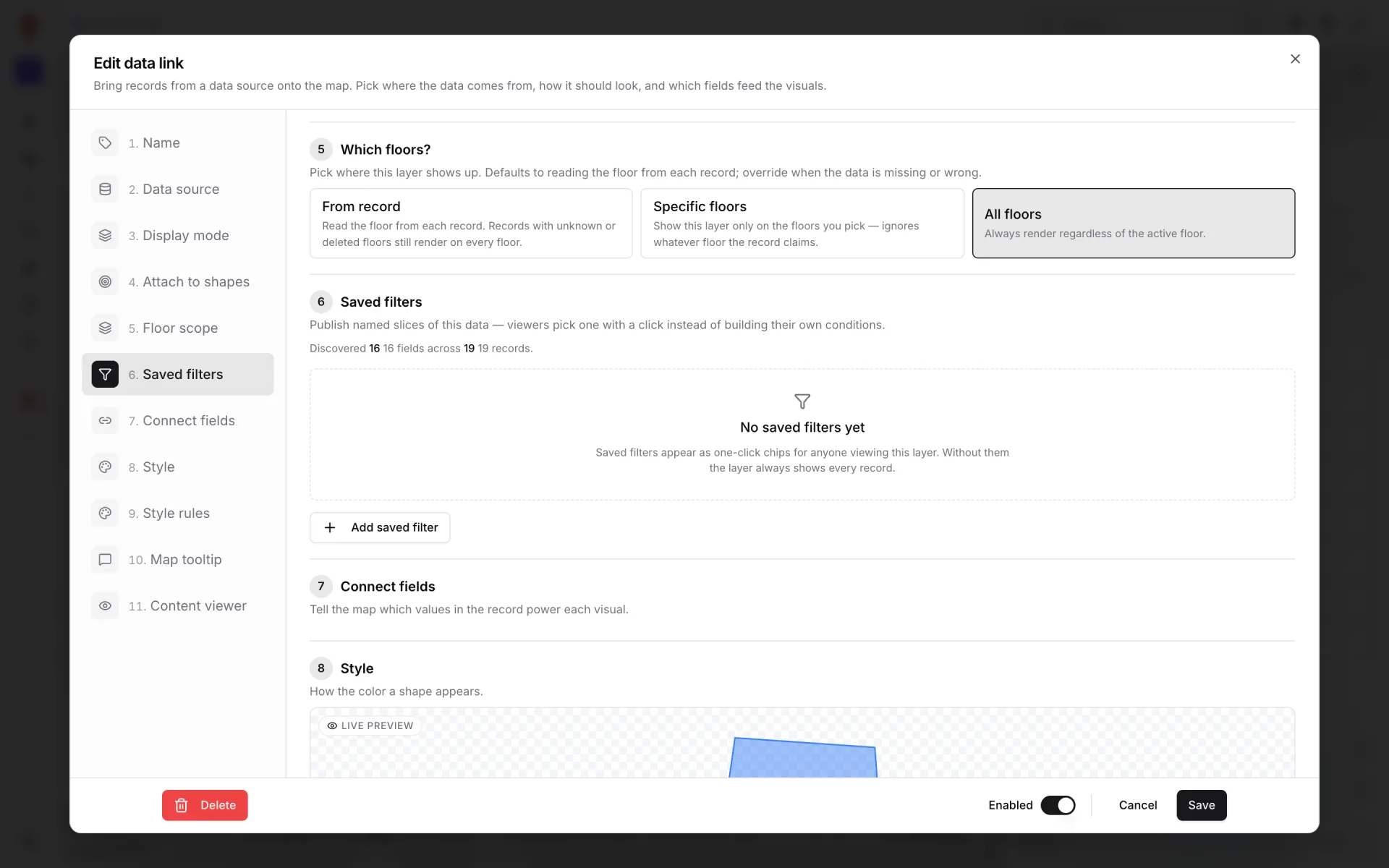
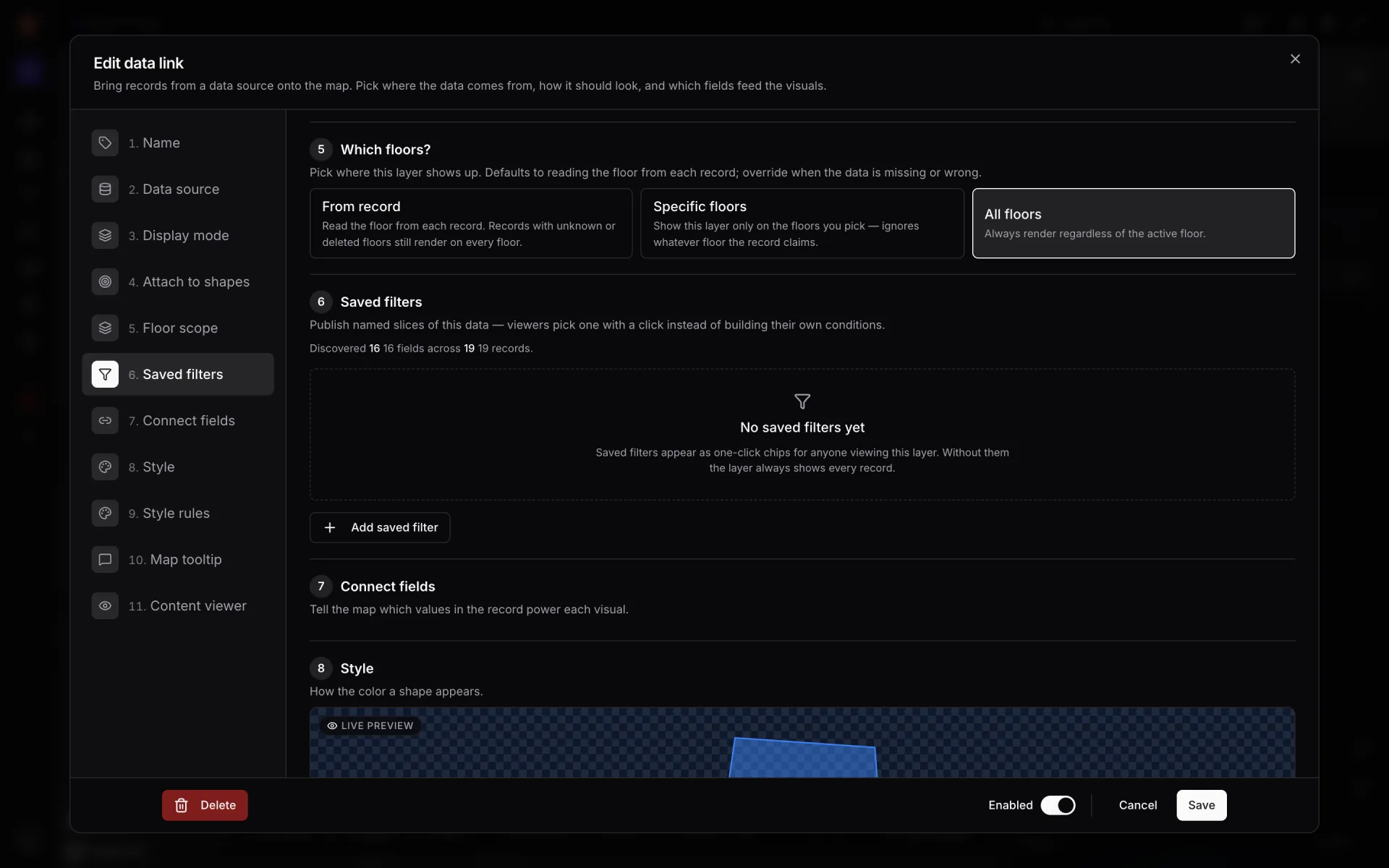
"Pick where this layer shows up. Defaults to reading the floor from each record; override when the data is missing or wrong."
| Card | Card text | Behaviour |
|---|---|---|
| From record (default) | "Read the floor from each record. Records with unknown or deleted floors still render on every floor." | Reads `floorPlanId`, `floorId` or `floor` from the row — or, for shape modes, the matched shape's own floor. Optionally map a text field to floors (below). |
| Specific floors | "Show this layer only on the floors you pick — ignores whatever floor the record claims." | Tick floors under "Floors this layer belongs to". Ticking none hides the layer everywhere. |
| All floors | "Always render regardless of the active floor." | No further settings. A good default for a single-floor facility. |
Map floor names to floors
Under From record, Field to read the floor from is optional. If your rows say "F1" or "Ground" instead of a floor number, pick that field (for example `floor_name`), then use Value → floor and + Add row to map each value to a real floor plan. Matching ignores case. Values with no row fall back to the usual floor fields, and then to "unknown", which shows on every floor.
Choosing floors decides where a layer is visible, not how high markers float. Height comes from the Elevation setting in Connect fields — "Elevation still comes from the record's elevation field (mapped in the next section) when set — otherwise the layer sits at ground level." Next: Saved filters.
More in Data links
- Data links · OverviewData links: put live data on the mapA data link turns rows from a table, REST API or file into markers, tinted shapes, badges or heatmaps on a facility map. Learn the modes and the editor.
- Data links · ManagerManage a facility's data linksOpen the Data links list for a facility to search, switch on or off, edit and delete every data link — and find the shortcuts from the toolbar and shapes.
- Data links · Connect fieldsConnect fields: coordinates, labels and elevationTell a data link which fields hold longitude, latitude, label, value and elevation — so staff, equipment and sensor markers land in the right place and floor.
- Data links · StyleStyle a data link layerSet a data link's base look — icon, colours, marker size, fill opacity, clustering, heatmap radius — and tick which facility style rules may recolour it.