
Create and manage facilities
Add a facility with a name, address and colour, then open, preview, share, duplicate, configure or delete it from the Facilities screen in Spatial Map.
What a facility is
A facility is one building or site: a warehouse, a store, a factory, a yard. It holds its floor plans, the shapes you draw on them (areas, racks, walls, doors, stairs, lifts, labels, 3D models), and the data links that put live records on the map. Everything in this group of guides happens inside one facility.
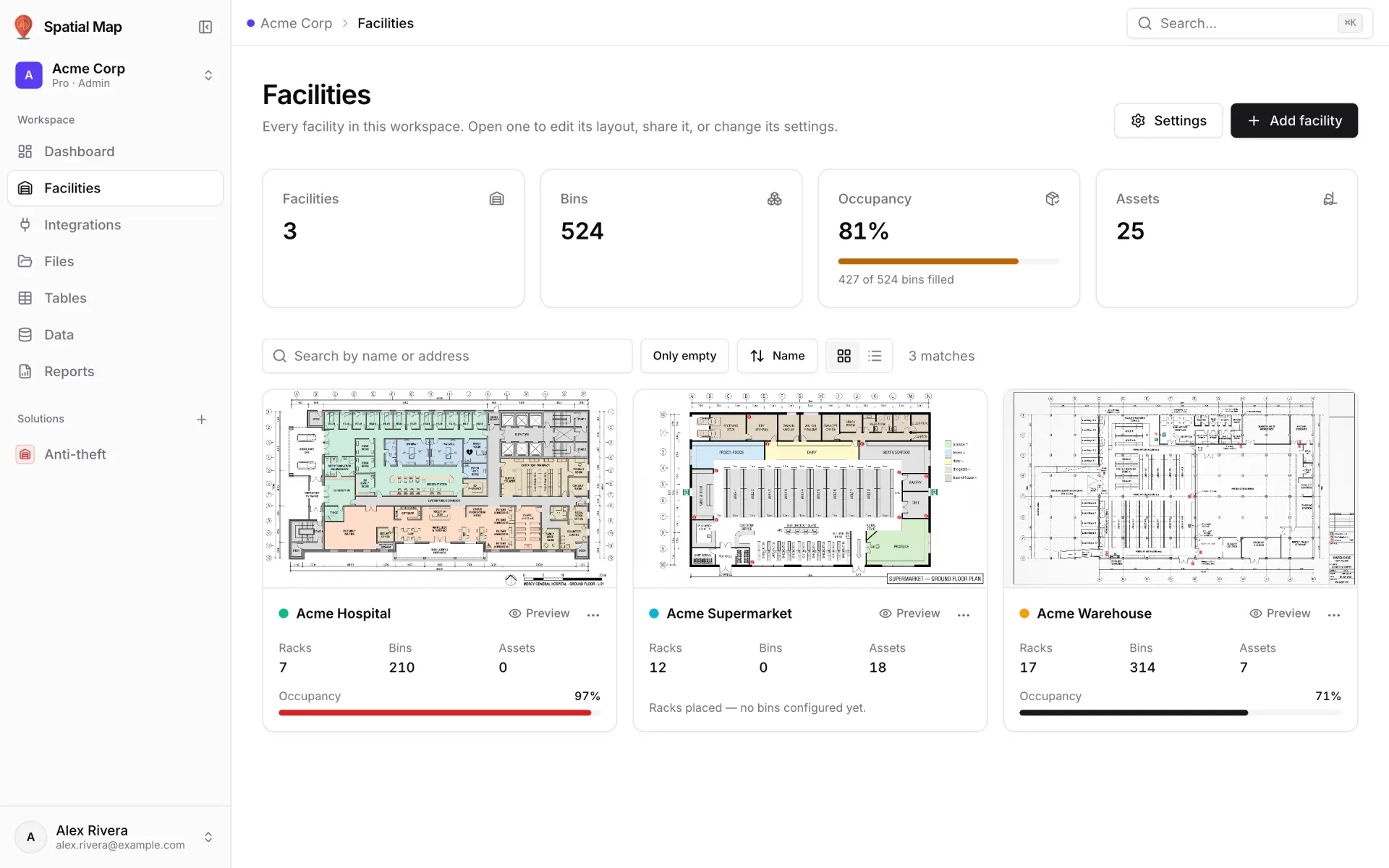
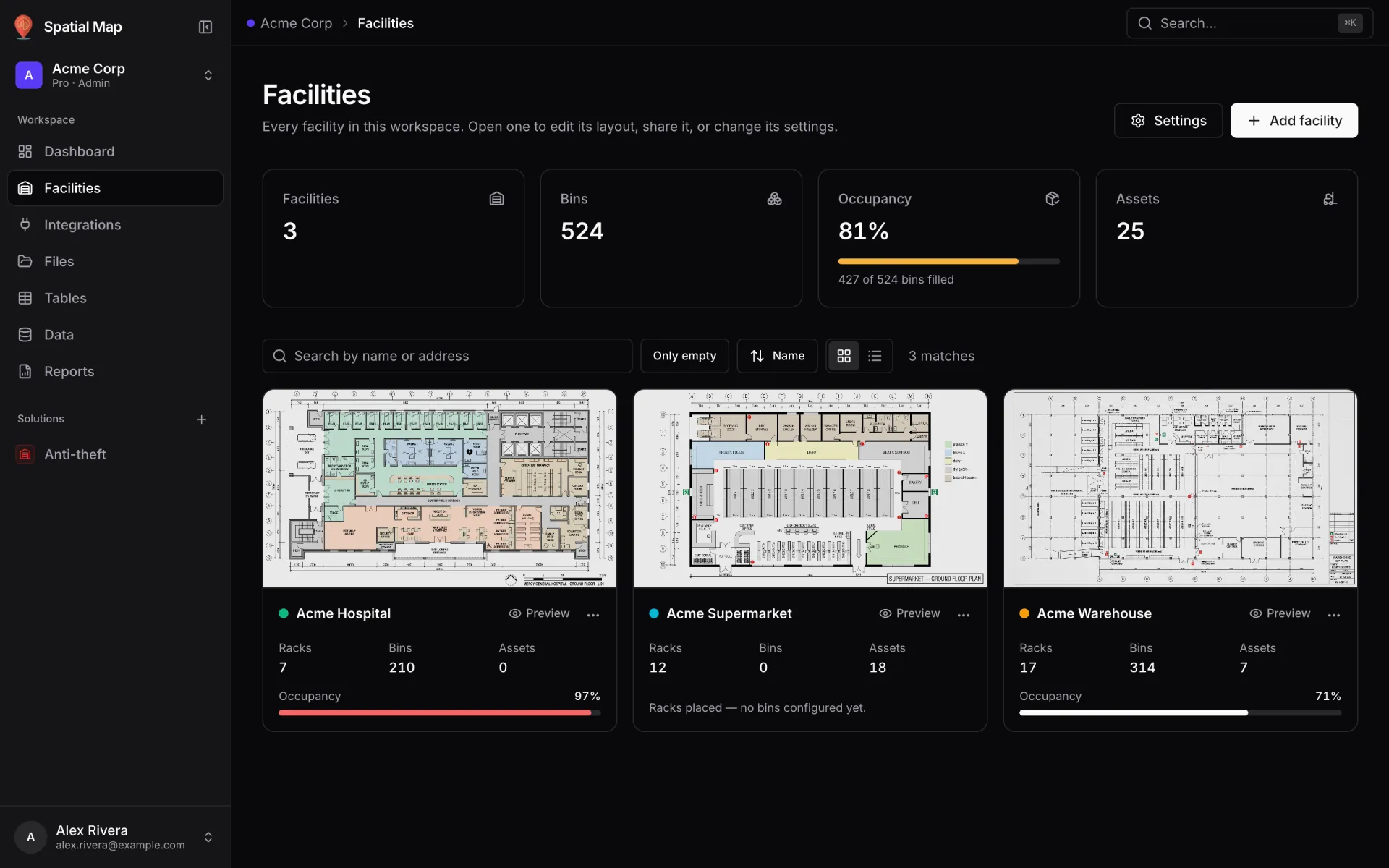
The Facilities screen in the sidebar lists every facility in the workspace: "Every facility in this workspace. Open one to edit its layout, share it, or change its settings." The demo workspace Acme Corp has three, among them Acme Supermarket and Acme Warehouse.
| Role | What they can do here |
|---|---|
| Owner, Admin | Everything: create, share, duplicate, change settings, delete, and bulk-delete several facilities. |
| Editor | Create, share, duplicate and change settings. Can’t delete. |
| Viewer | Open a facility (Edit layout) and Preview it. The other actions are greyed out with "You have view-only access in this workspace." |
Roles are explained in Members and roles.
Create a facility
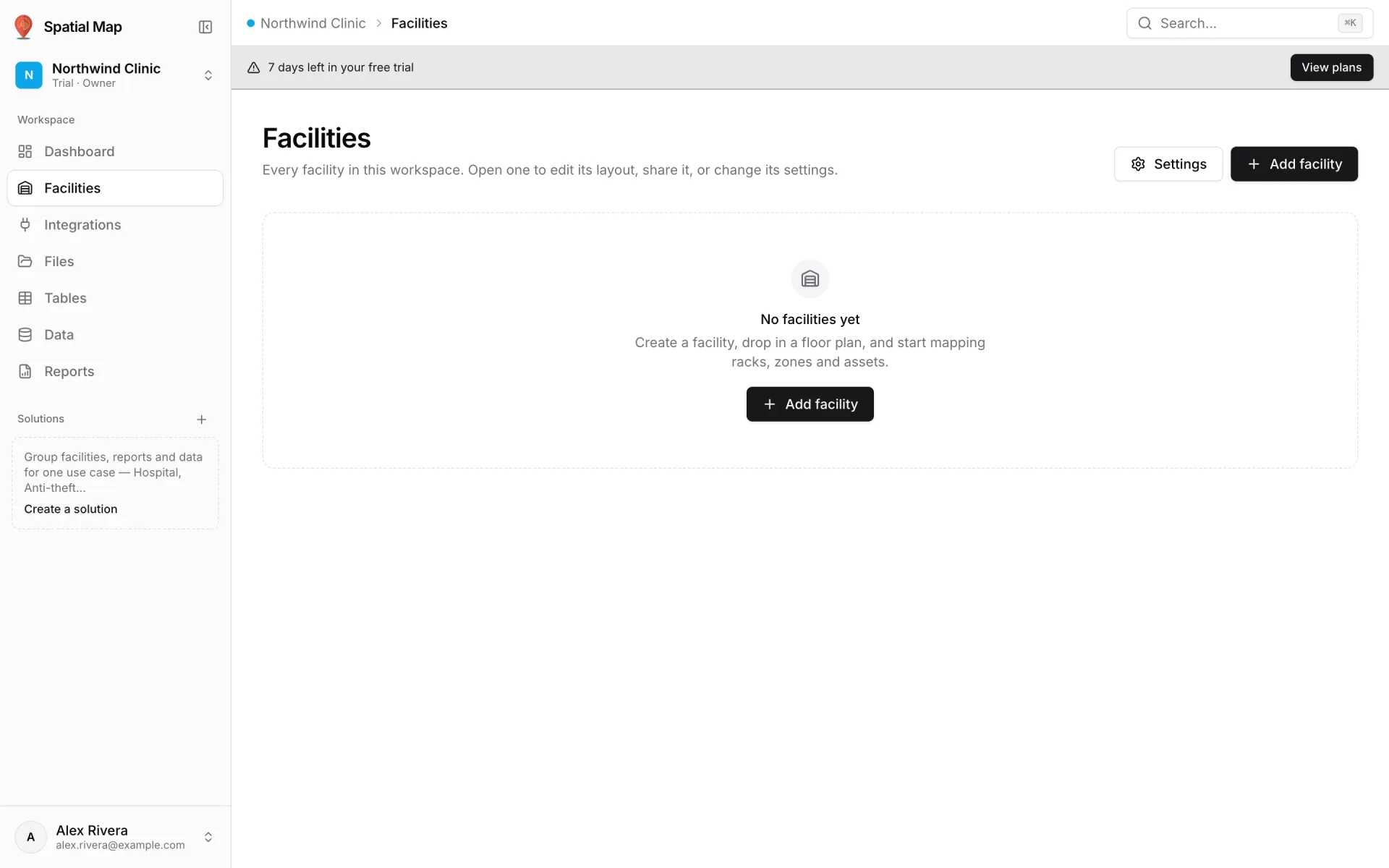
A new workspace starts empty: "No facilities yet — Create a facility, drop in a floor plan, and start mapping racks, zones and assets." Both Add facility buttons open the same dialog.
- 1Click "Add facility"
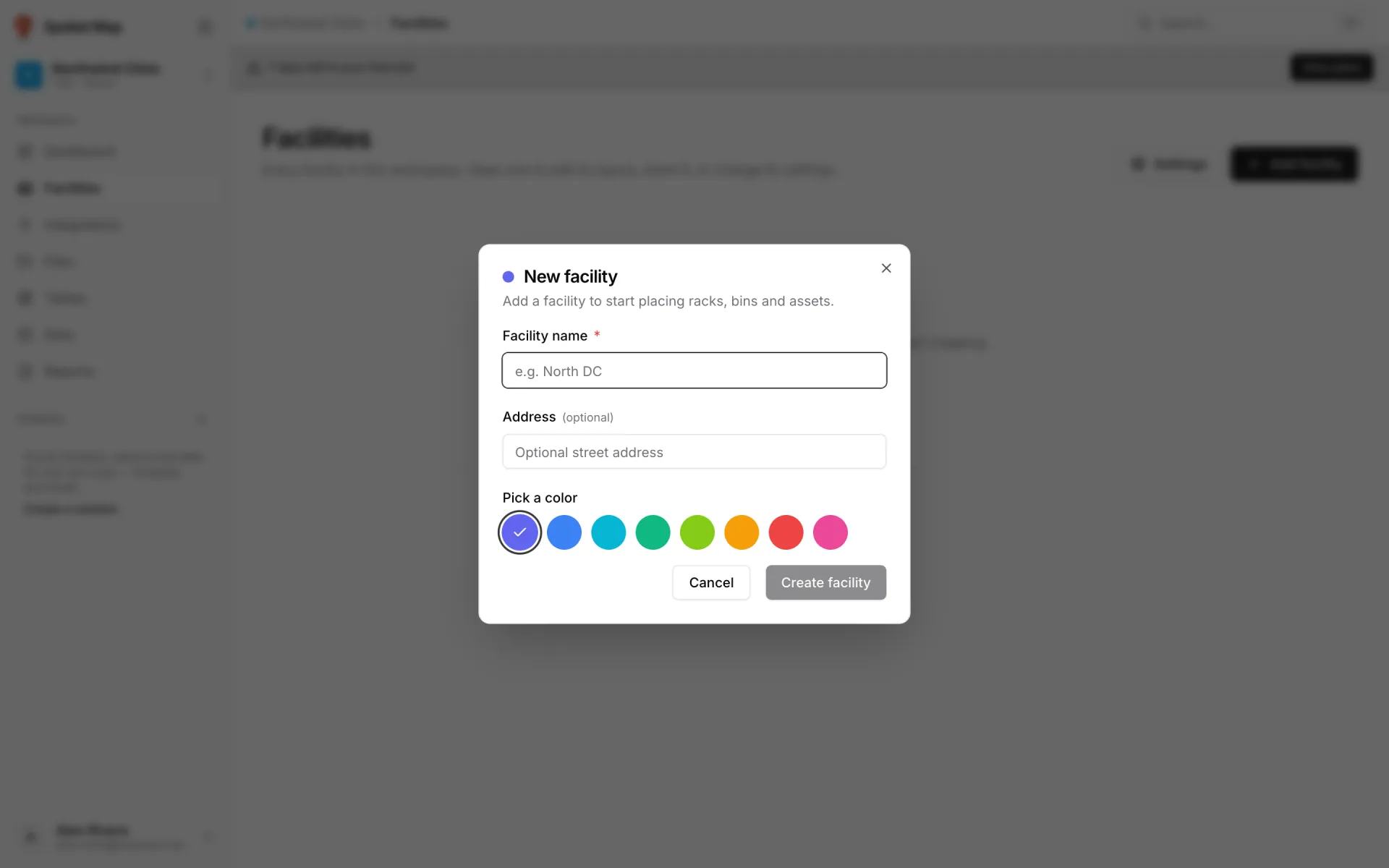
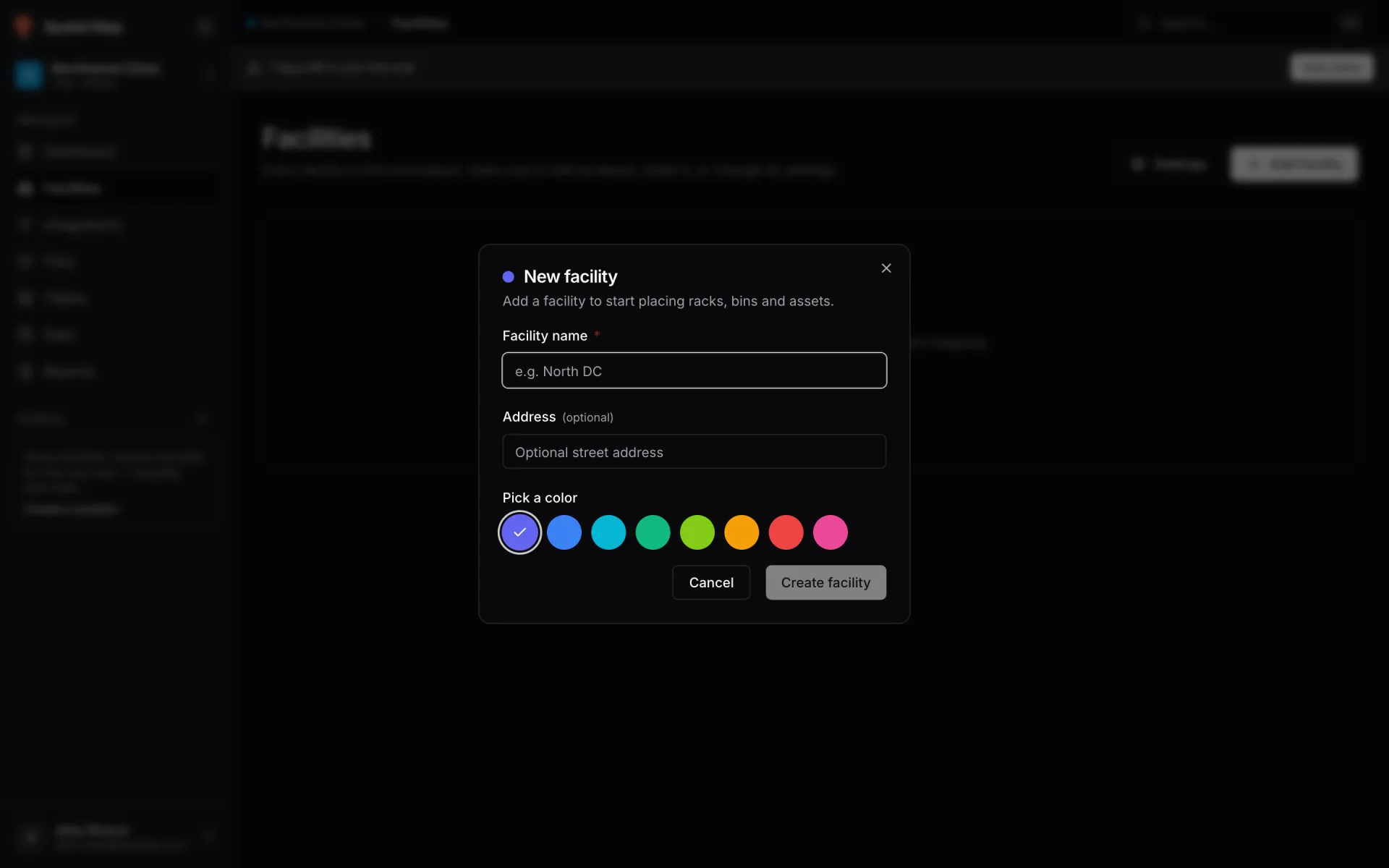
Top right of the page. The New facility dialog opens: "Add a facility to start placing racks, bins and assets."
- 2Name it
Facility name is the only required field (the placeholder suggests "e.g. North DC"). Create facility stays disabled until it has a name.
- 3Add an address (optional)
Address is shown in the table view and is searchable ("Search by name or address"). It does not move the map: you find the building with Search places… in the editor.
- 4Pick a colour
Eight swatches under Pick a color. The colour marks the facility on its card, in table rows and in the editor’s facility pill, which helps when you have many.
- 5Click "Create facility"
A toast confirms "Acme Warehouse created" (or "… created in Inventory" when you are working inside a solution, which the new facility joins). The dialog closes and the facility appears in the list.
Every new facility also gets a set of eight ready-made reports (Overview, Floors, Areas, Racks and more) that fill in as you draw. They are covered in Built-in facility reports.
Find a facility: search, sort, grid and table
The four KPI cards (Facilities, Bins, Occupancy, Assets) total whatever the list currently shows. Search or filter and they narrow with it; the Facilities card then reads "Showing 2 of 3".
- Search matches the name or the address.
- Only empty shows facilities that have no bins yet.
- Sort: Name, Occupancy, Most bins, Most assets, Most racks or Most floors.
- Grid / Table switches between cards and a sortable table. The match count ("3 matches") sits beside the toggle.
| View | What you see |
|---|---|
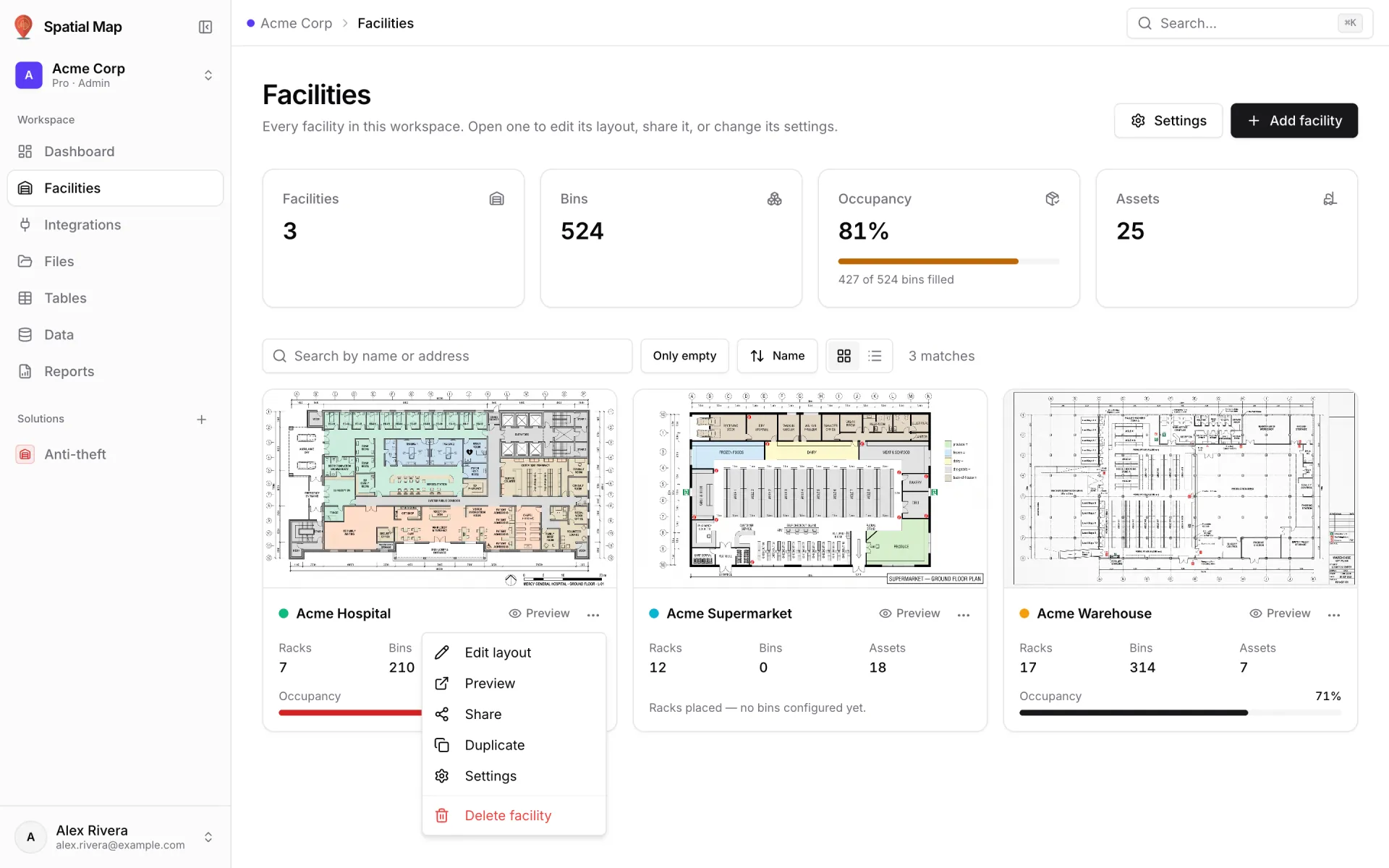
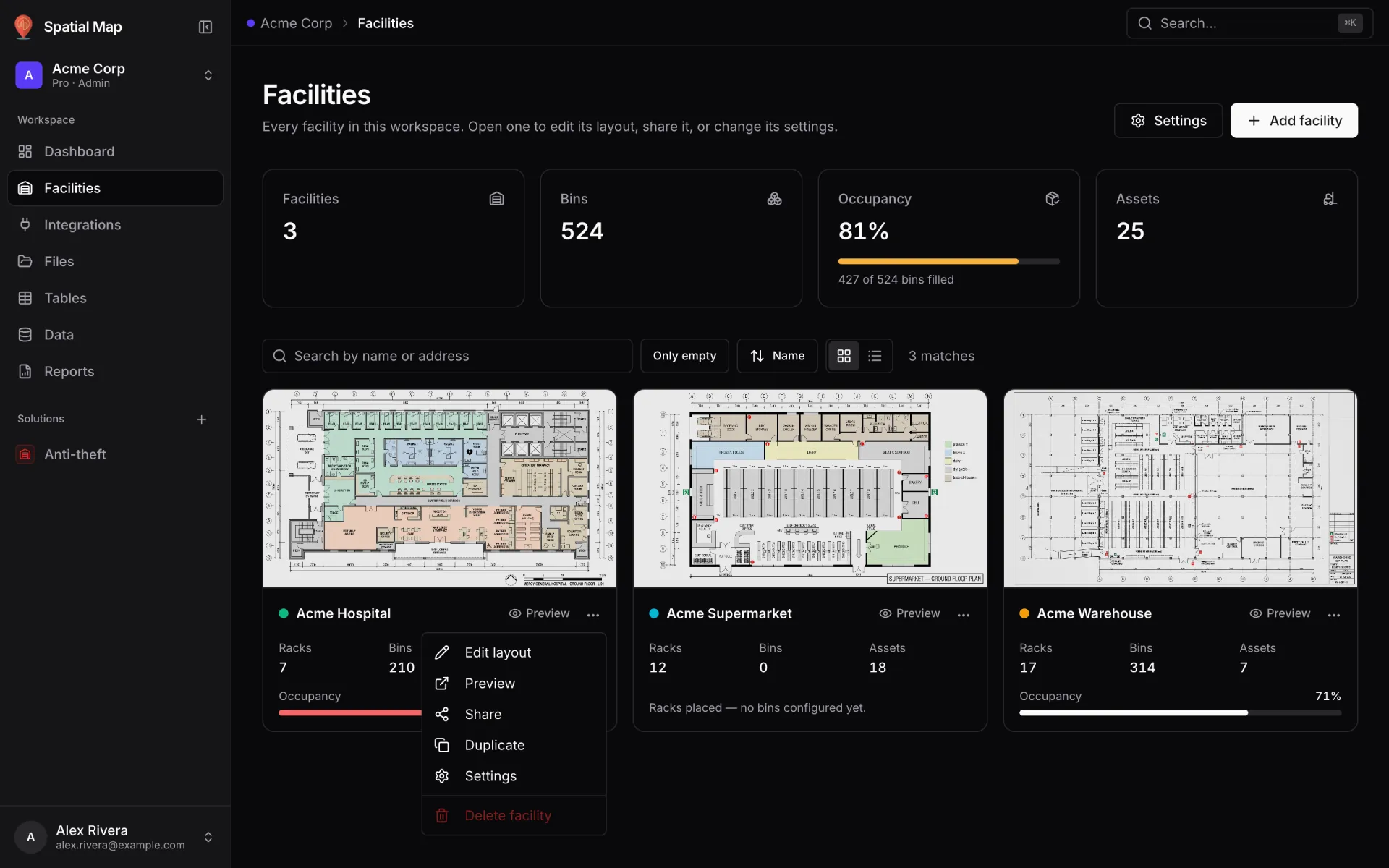
| Grid | One card per facility: a floor-plan thumbnail, the name with its colour dot, Racks / Bins / Assets, and an Occupancy bar ("Racks placed — no bins configured yet." when there are racks but no bins). Click anywhere on the card to open the editor. Preview on the card opens the read-only view; ⋯ opens the actions menu. |
| Table | Columns Name, Address, Share links, Racks, Bins, Occupancy, Assets and Floors; click a header to sort. Rows per page: 10, 25, 50 or 100. |
In the table the Share links column shows a chip per link: click it to copy the link, use the pencil to configure it, or +N to open Manage share links. A facility without links offers Create link.
Facility actions
The ⋯ button on a card or table row opens the same menu in both views.
| Action | What it does |
|---|---|
| Edit layout | Opens the facility in the layout editor (the same as clicking the card). |
| Preview | Opens the read-only viewer in a new tab, with live data on: what your team and share-link visitors see. See Viewer overview. |
| Share | Opens Share facility: on Manage links if the facility already has links, otherwise on a new link. See Share links. |
| Duplicate | Opens Duplicate facility (next section). |
| Settings | Opens the Settings dialog on the Facility tab (below). |
| Delete facility | Permanently deletes the facility. Owners and admins only. |
Duplicate a facility
Duplicate facility "Creates a new facility with the same racks, shapes, bins, style rules and data sources as" the original. The name is pre-filled with " (copy)" and the colour with the original’s; change either, then confirm. The copy also gets its own eight facility reports.
Facility settings
Settings on a facility’s menu opens the Settings dialog ("Edit facility sharing and default view, or change global defaults.") on its Facility tab.
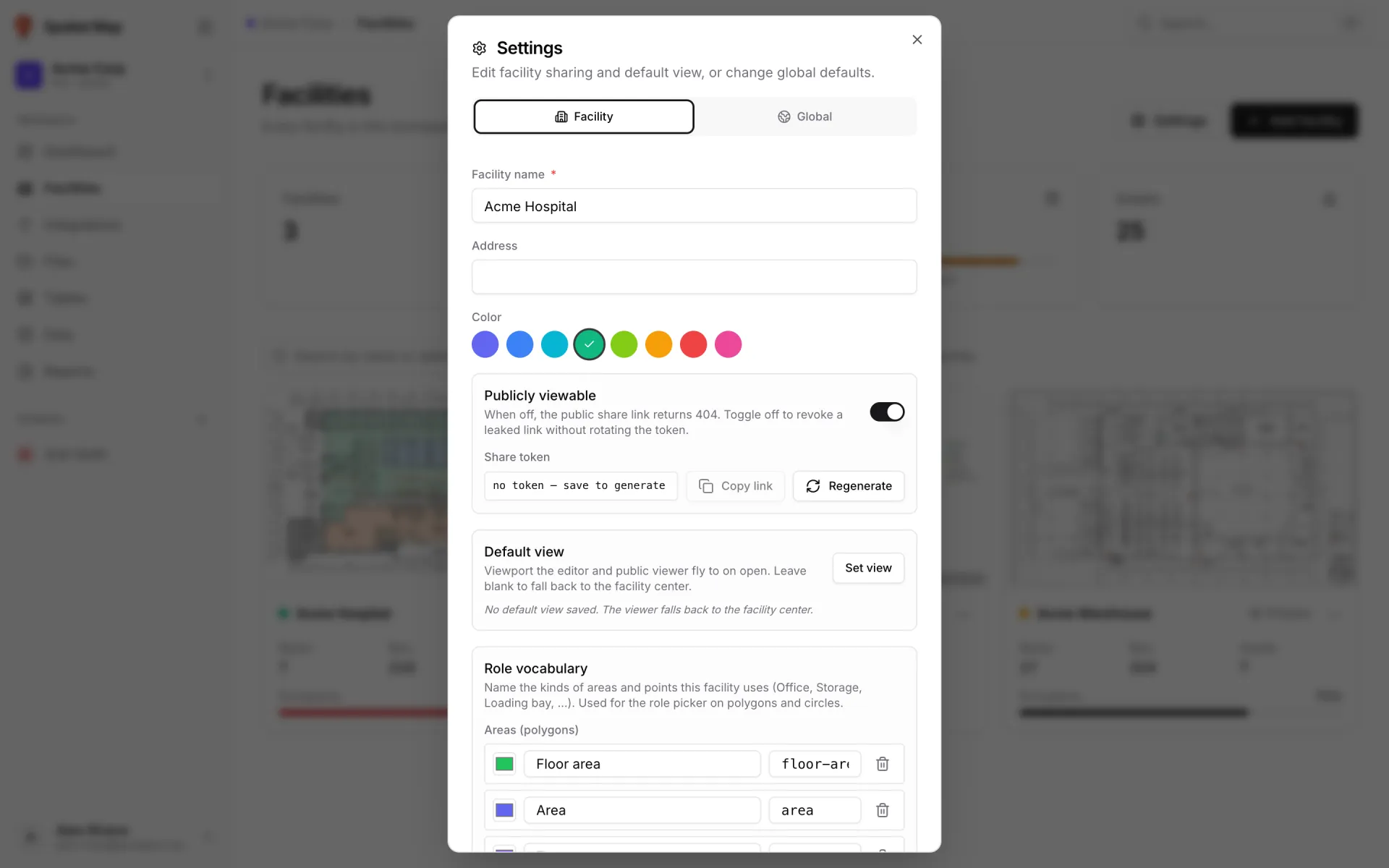
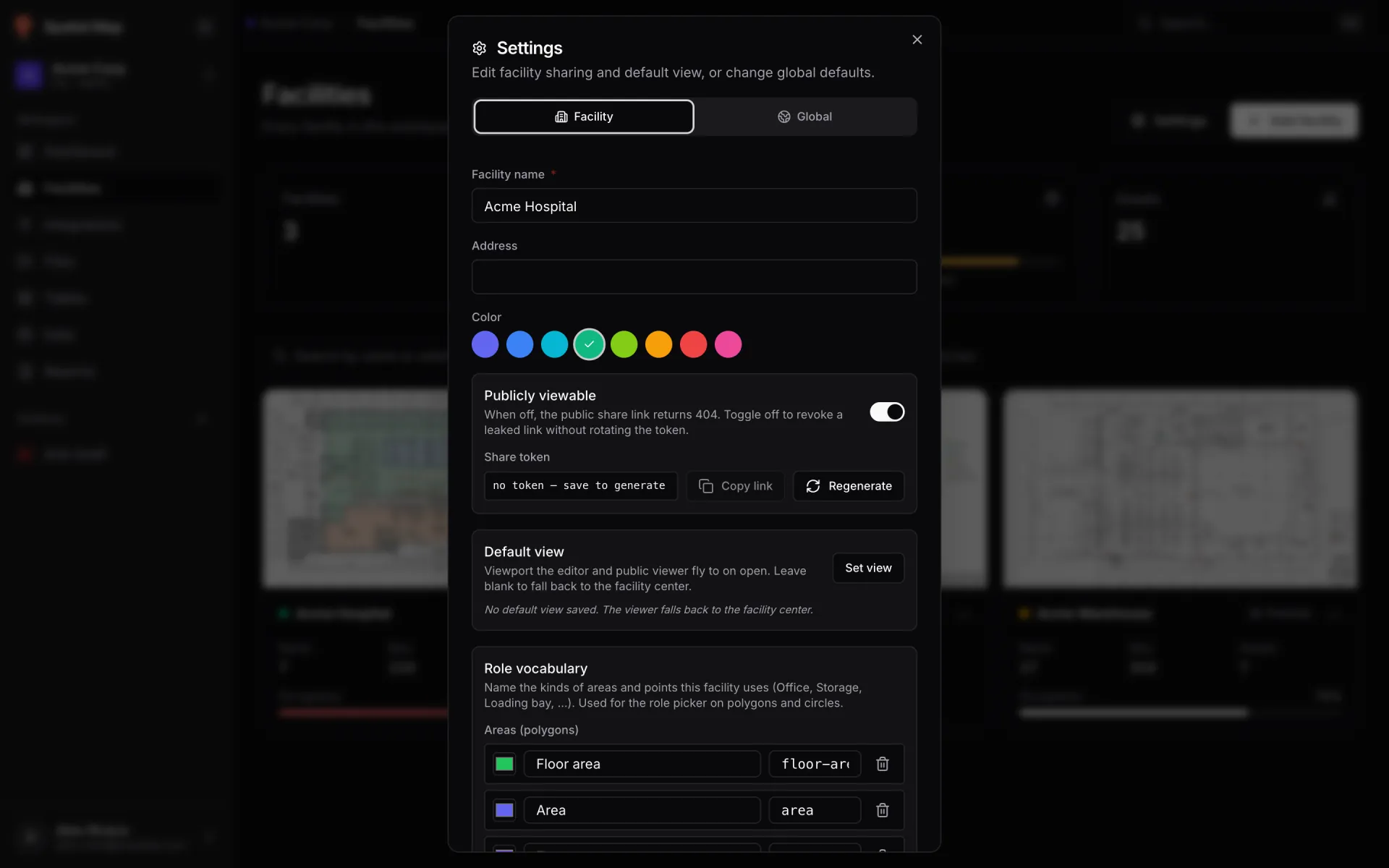
| Setting | What it does |
|---|---|
| Facility name, Address, Color | Rename the facility or change its address and colour. |
| Publicly viewable · Share token | The facility’s single built-in public link, separate from share links. Copy link copies it. Switching Publicly viewable off makes that link return 404 without changing the token; Regenerate issues a new token, and the old link stops working once you save. |
| Default view | Where the camera opens when the facility has nothing drawn yet. Set view starts from the facility’s centre; adjust Lng, Lat, Zoom, Pitch and Bearing, or Clear it. Once a floor plan is placed, the editor and viewer frame the floor plans instead. |
| Role vocabulary | The kinds of Areas (polygons) and Points (circles) this facility uses ("Office, Storage, Loading bay, …"), each with a label, key and colour. They fill the Role picker on areas and circles in the editor. |
Delete facilities
Delete facility asks "Delete facility?" and explains that it "permanently deletes … its floor plans, racks, bins, shapes, share links and data links." Type the facility’s name to enable the button. Tables, integrations and their records belong to the workspace and are not touched.
Owners and admins can also clear out several at once. Hover a card (or use the table’s checkboxes and Select all), tick the facilities, then click Delete in the bar that shows "N selected". The confirmation reads "This permanently removes the selected facilities and every shape, bin, and rule attached to them."
Open the editor
Click a card, or Edit layout in its menu, to open the facility in the layout editor. A facility with a floor plan opens framed on it; a brand-new one opens on a world view, so type the address into Search places… at the top of the map and fly there before you place your first floor plan.
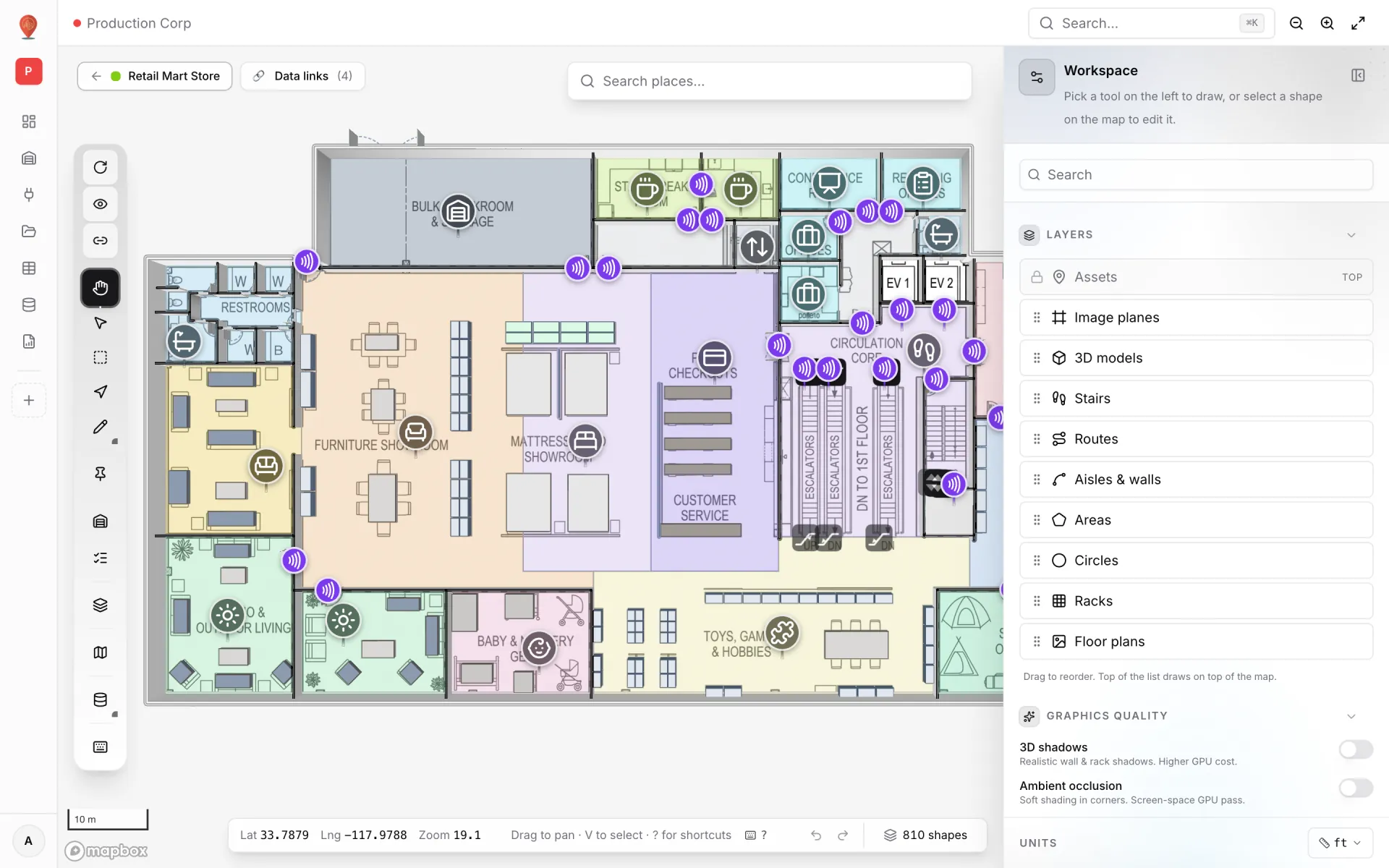
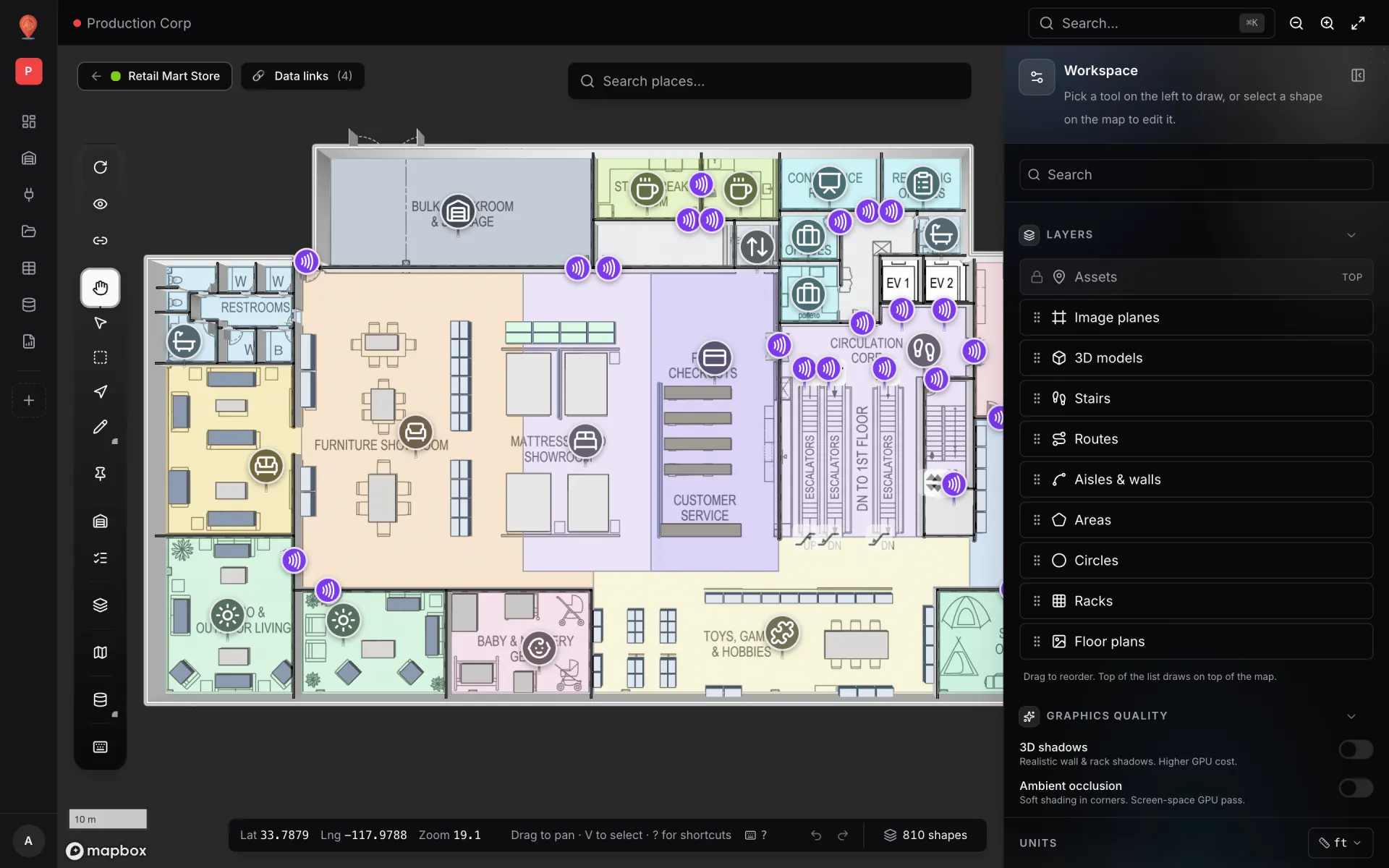
- Tour of the layout editor: what every part of the screen does.
- Import a PDF or DWG floor plan: put your building’s drawing on the map.
- Add a floor plan to the map: place, align and stack floors.
More in Build a facility
- Build a facility · ImportImport a PDF or DWG floor planTurn a PDF drawing sheet or an AutoCAD DWG file into a true-to-scale floor plan image: pick the sheet or layers, confirm scale or units, then place it.
- Build a facility · Floor plan toolAdd a floor plan to the mapPlace a floor plan image, PDF sheet or DWG drawing on the map, resize, rotate and crop it, reuse earlier uploads and stack several floors by elevation.
- Build a facility · Area toolDraw rooms and zones with the Area toolTrace rooms, offices and zones on a floor plan with the Area tool (P). Give each area a role, extrude it in 3D and reshape it with Edit vertices.
- Build a facility · Magic wallsGenerate walls from areas with Magic wallsTurn drawn rooms into walled enclosures in one click: Magic walls (W) traces a 3D wall around every area you pick, using your Aisle tool wall settings.