
Draw 3D stairs with the stairs & lifts tool
Draw straight, L-shape and U-shape 3D staircases with Add stairs & lifts (S). Set steps, riser and tread depth, and check the live building-code badge.
When to use the Stair tool
A stair is a parametric 3D staircase drawn between two or three anchor points on the map. Every step is a real extruded solid, so you can see the run from any camera angle. Reach for the tool whenever the facility connects two levels — mezzanine access, loading-dock stairs, plant catwalks, retail floor changes.
To open the tool: open the Draw flyout on the left toolbar and pick Add stairs & lifts, or press S on the keyboard. The `-` (minus) key also opens it when nothing is selected.
| S - | Open the stairs & lifts tool (Add stairs & lifts). |
Escalators and elevators are drawn with the same tool — see Lifts & escalators. The Retail Mart Store demo uses it for the escalators in the middle of the store. With one selected, the side panel is the same one a stair gets, with Escalator picked under Lifts instead of a shape under Stairs.
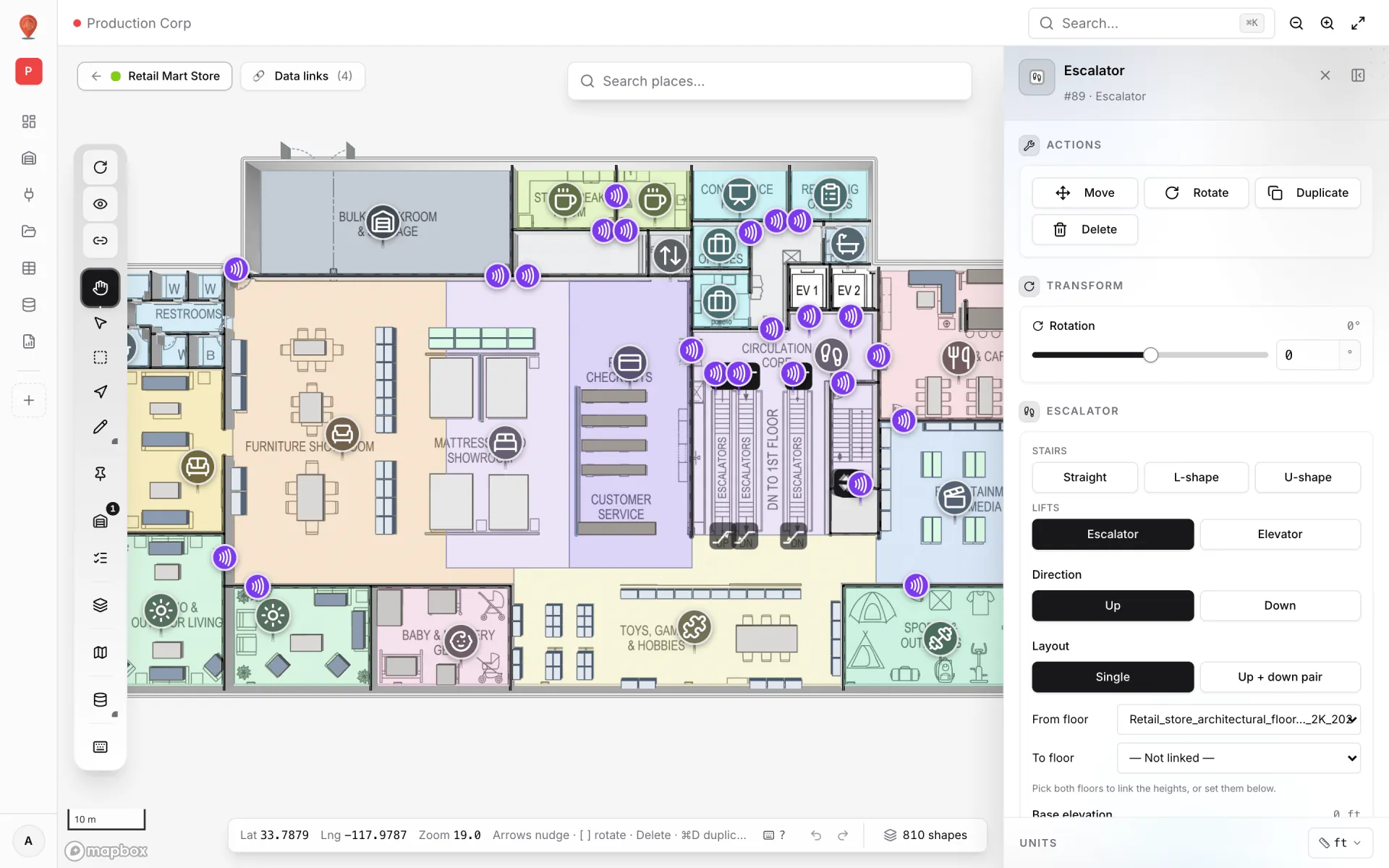
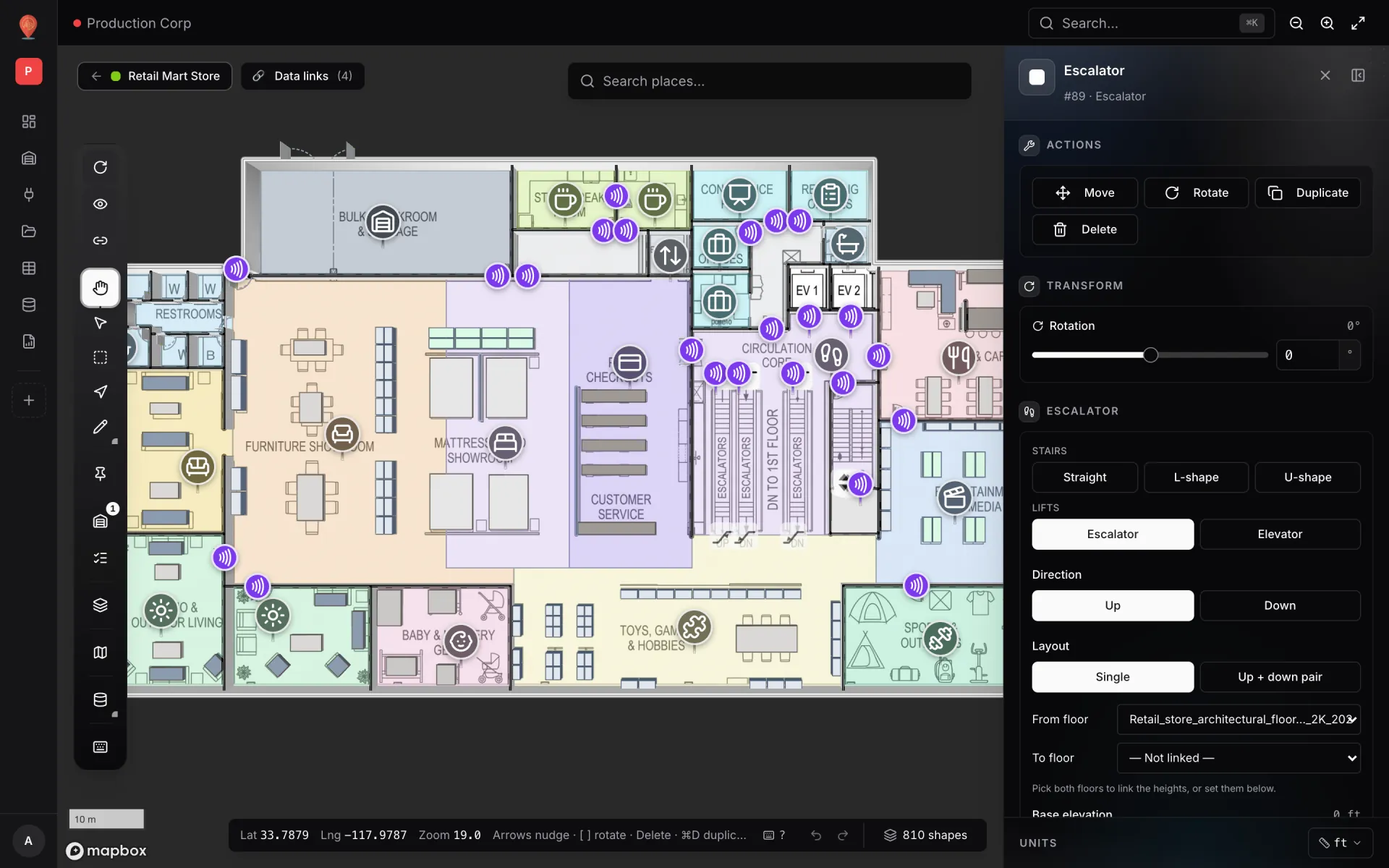
Three stair types
The Geometry section starts with the type picker. A one-line hint under it describes the click flow, and the number of clicks depends on the type.
| Type | Anchors | How you draw |
|---|---|---|
| Straight | 2 | Click the bottom of the run, then the top. |
| L-shape | 3 | Click the bottom, then the corner where the run turns, then the top. Each flight uses the full step count. |
| U-shape | 2 | Click the bottom, then the top of flight 1. Flight 2 mirrors back at the same length automatically. |
Drawing a staircase
- 1Pick a type and set the basics
Open the tool; the side panel shows the Placement hint plus the Geometry and Appearance sections. Change any of these before you click on the map — the preview uses whatever you set.
- 2Click the first anchor (the bottom)
After the first click, a preview of the whole staircase follows your cursor.
- 3Click the remaining anchor(s)
For Straight or U, one more click at the top commits the stair. For L, click the corner first, then the top of the second flight.
- 4Camera lands on the new stair
After the final click the tool switches to Select, the camera flies to the centre of the stair at zoom ≥ 19 and pitch ≥ 45°, and the side panel opens on the new stair so you can tweak it. Every new stair is named "Stairs" (click the name in the panel header to rename it, for example to "Stair 1") and is pinned to the Default floor plan if one is set. While placing, the Placement section has an Exit stair tool button; Enter and Backspace do nothing for stairs.
| Esc | With anchors placed — cancel the chain but stay in the tool. Empty — exit to Pan. |
The side-panel sections
When one stair is selected, the side panel shows Actions on top, then Transform, Geometry and Appearance. Click the name in the header to rename it.
| Section | What lives there |
|---|---|
| Actions | Move · Rotate · Duplicate · Delete. |
| Transform | Rotation slider (−180° to +180°) — spins the stair around its centre. |
| Geometry | Type picker · Steps (slider 1–40) · Width · Riser height · Tread depth (Auto or Manual) · Landing depth (L + U) · Open well (U) · Base elevation. Ends with a live compliance badge. |
| Appearance | Tread colour · Risers and sides · Railing (Metal / Glass / None) · Handrail colour (hidden when Railing is None) · Border · Border width · Opacity. |
Geometry — every field explained
| Field | Default | What it does |
|---|---|---|
| Stair type | Straight | Straight / L-shape / U-shape (or a lift type). Switches the click flow and the fields the panel shows. |
| Steps | 10 | Number of steps per flight (1–40). |
| Width | 1.2 m | Stair width perpendicular to the run. |
| Riser height | 0.178 m (7 in) | Rise per step — the IBC public-stair maximum. |
| Tread depth | 0.279 m (11 in) | Depth of each step — the IBC public-stair minimum. See Auto vs Manual below. |
| Landing depth (L + U) | 2.4 m | Depth of the turn platform along the run direction. |
| Open well (U) | 0.3 m | Central void between the two flights of a U-shape. 0 = flush flights. |
| Base elevation | 0 m | Height of the first step above the ground. Set it to a floor's altitude when the stair starts partway up a building. |
Tread depth — Auto vs Manual
The Tread depth row has a two-button mode picker:
| Mode | What it does | When to reach for it |
|---|---|---|
| Auto (default) | Tread depth follows the drag length. You set the number of steps and the riser height; the tread depth follows the run you draw. | Fastest way to draw a stair that fits an available space. |
| Manual | Tread depth is a fixed value you type in; the top anchor is recomputed from the step count and tread depth. | When you need a specific tread depth — the geometry follows the numbers, not the mouse. |
The compliance badge
At the bottom of the Geometry section a coloured badge updates live. It shows the Blondel comfort number — "2R + T = … cm (target 60–63 cm)" — and lists any rule the current riser and tread break. With the default riser (0.178 m) and tread (0.279 m), 2R + T is 63.5 cm, so the badge shows a Comfort warning with the default settings until you adjust one of them.
| Badge | What it means |
|---|---|
| Geometry OK | Riser and tread are inside the code limits and 2R + T is within 60–63 cm. |
| Comfort warning | Code-legal, but 2R + T is outside the 60–63 cm comfort range. |
| Code violation | Riser over 17.8 cm (IBC) or 19 cm (OSHA industrial), riser under 10 cm, or tread under 27.9 cm. |
Move, Rotate, Duplicate, Delete
Stairs have Move and Rotate. There is no on-map Scale — resize by editing Steps, Width, Riser height and Tread depth instead. Every edit re-renders the stair live.
| Button | What it does | Shortcut |
|---|---|---|
| Move | Drag the whole staircase to a new position, keeping its orientation and shape. | Arrow keys: 0.5 m along the stair's own heading (Shift = 5 m). |
| Rotate | Spin the stair around its centre. The Transform slider sets the same value. | [ ] (Shift = 15°) |
| Duplicate | Copy the stair as "<name> (copy)", offset a few metres so you can tell the two apart. | ⌘/Ctrl + D |
| Delete | Remove the stair immediately (undo with ⌘/Ctrl + Z). | Delete |
Stairs and wayfinding
Indoor routing works one floor at a time: the route search runs on the current floor's walkable areas, walls and doors. Stairs, escalators and lifts are drawn and labelled, but they are not part of the route search — there is no automatic cross-floor routing. For a multi-floor trip, route to the stair or lift, then route again on the next floor. See Wayfinding.
Editing many stairs at once
Shift-click (or ⌘/Ctrl-click) stairs to build a multi-selection. The panel switches to "N stairs selected" with Fit and Delete all (two-click confirm). Unlike most other kinds, stair bulk mode exposes several geometry fields — facilities often standardise every stair to the same proportions.
| Section | Bulk-editable fields |
|---|---|
| Appearance | Fill · Border · Border width · Opacity. |
| Dimensions | Steps · Riser height · Tread depth · Width · Elevation. |
More in Build a facility
- Build a facility · FacilitiesCreate and manage facilitiesAdd a facility with a name, address and colour, then open, preview, share, duplicate, configure or delete it from the Facilities screen in Spatial Map.
- Build a facility · EditorTour of the layout editorA guided tour of the Spatial Map layout editor: the tool rail with its Draw and Data menus, the top pills, the side panel and the status bar.
- Build a facility · ImportImport a PDF or DWG floor planTurn a PDF drawing sheet or an AutoCAD DWG file into a true-to-scale floor plan image: pick the sheet or layers, confirm scale or units, then place it.
- Build a facility · Floor plan toolAdd a floor plan to the mapPlace a floor plan image, PDF sheet or DWG drawing on the map, resize, rotate and crop it, reuse earlier uploads and stack several floors by elevation.