
Invite members and set roles
Add teammates to a Spatial Map workspace as Admin, Editor or Viewer, change a role, remove a member, and see exactly what each of the four roles can do.
Members at a glance
Everyone who can sign in to a workspace is a member with exactly one role: Owner, Admin, Editor or Viewer. The Members page lists them. Open it with Invite members on the Dashboard, or with Manage members in the account menu at the bottom of the sidebar.
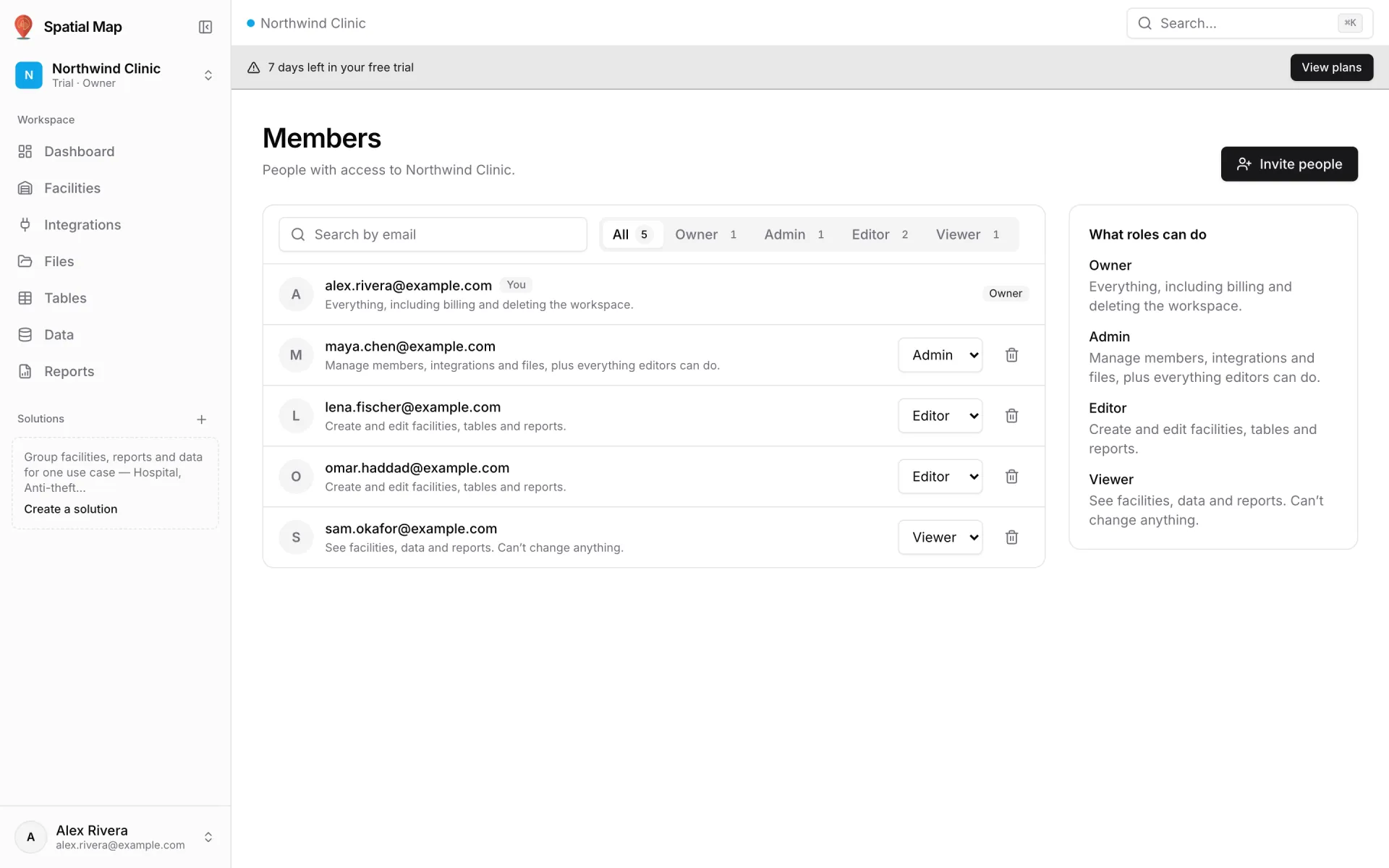
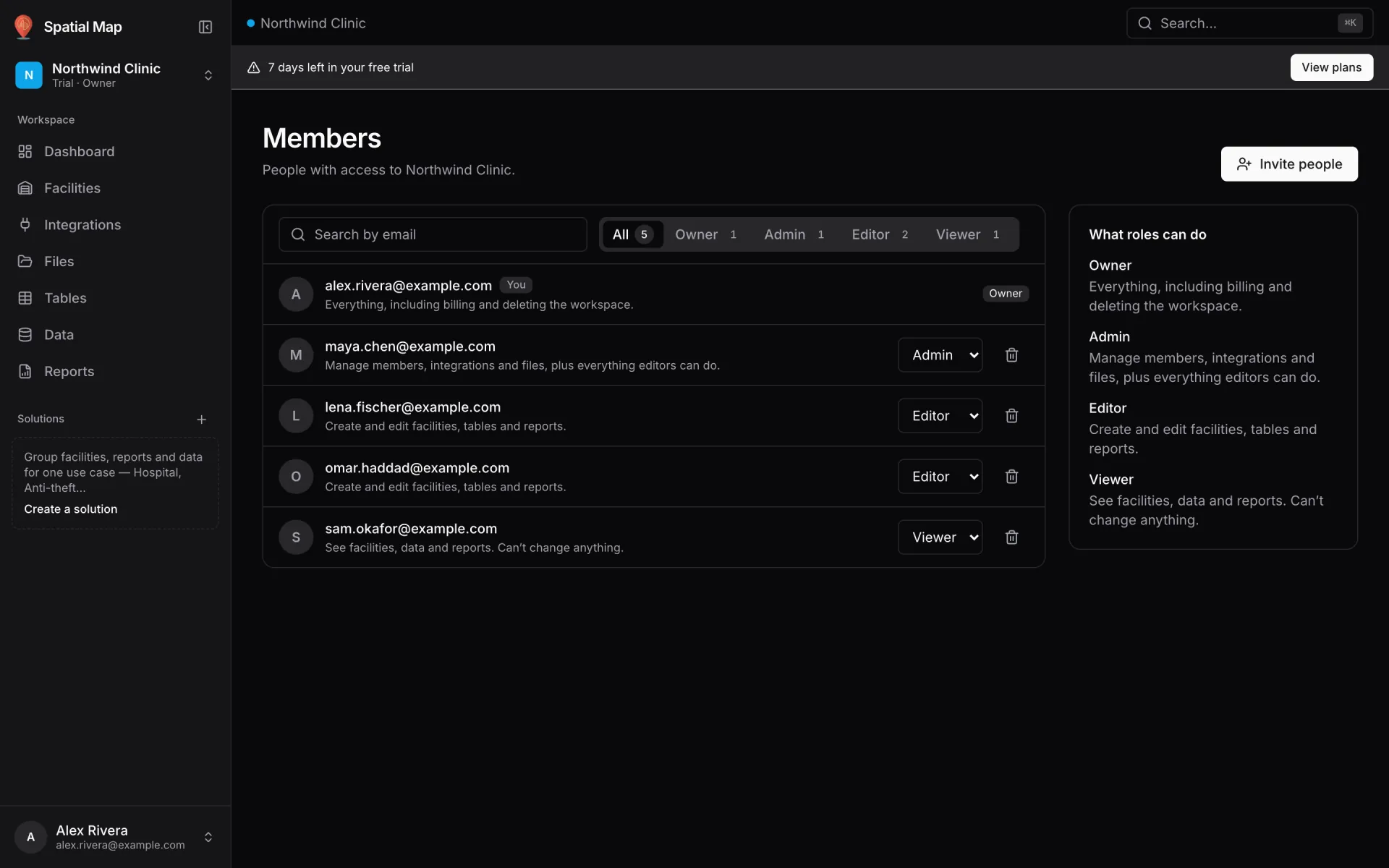
- Each row shows the member’s email, a one-line summary of their role, and, if you can manage members, a role dropdown and a remove button.
- Your own row has a You badge. The owner’s row shows a plain Owner label.
- Use Search by email and the role chips (All, Owner, Admin, Editor, Viewer, each with a count) to narrow a long list.
- Only owners and admins can invite people or change roles. Editors and viewers see the list read-only, and Manage members is greyed out in their account menu.
Invite someone
- 1Click Invite people
The Invite to … dialog opens: "The invitee must already have an account. They’ll see this workspace after their next sign-in."
- 2Enter their email and pick a role
Type the Email they sign in with and choose Admin, Editor or Viewer. The role starts on Editor. Each choice shows what that role can do.
- 3Click Add to workspace
They are added straight away and a confirmation appears, such as "[email protected] added as Editor". The workspace appears in their switcher after they next sign in.
| Message | What it means |
|---|---|
| No Spatial Map account uses …. Ask them to sign up first, then invite them here. | There is no account with that email. Check the spelling, or ask them to sign up. |
| … is already a member (…). | They are already in this workspace. Change their role from the list instead. |
What each role can do
The Members page summarises each role in one line. The API checks permissions too, not just the buttons on screen.
| Role | Summary shown in the app |
|---|---|
| Owner | Everything, including billing and deleting the workspace. |
| Admin | Manage members, integrations and files, plus everything editors can do. |
| Editor | Create and edit facilities, tables and reports. |
| Viewer | See facilities, data and reports. Can’t change anything. |
In more detail, this is what each role can do today:
| Action | Owner | Admin | Editor | Viewer |
|---|---|---|---|---|
| Open facilities in the viewer, see data and the reports shared with them | Yes | Yes | Yes | Yes |
| Create, duplicate and configure facilities | Yes | Yes | Yes | — |
| Create and edit share links | Yes | Yes | Yes | — |
| Create, edit and delete solutions | Yes | Yes | Yes | — |
| Edit rows in a table | Yes | Yes | Yes | — |
| Edit a report they created or were given Edit on | Yes | Yes | Yes | — |
| Delete facilities and delete share links | Yes | Yes | — | — |
| Create new reports and see every report | Yes | Yes | — | — |
| Add integrations, create tables, manage files | Yes | Yes | — | — |
| Invite members, change roles, remove members | Yes | Yes | — | — |
| Rename and recolour the workspace | Yes | Yes | — | — |
| Subscribe, manage billing, delete the workspace | Yes | — | — | — |
Change a role
- 1Find the member
Use the search box or a role chip if the list is long.
- 2Pick the new role from their dropdown
The change saves at once and a message confirms it, for example "[email protected] is now Admin". Click Undo in that message to switch back.
- You can’t change the owner’s role, and you can’t change your own.
- There is one owner per workspace: the person who created it. Ownership can’t be passed to someone else from the app.
Remove a member
- 1Click the bin icon on their row
A dialog asks "Remove …?" and explains what will happen.
- 2Click Remove
They lose access to the workspace straight away. Everything they created stays. You can invite them again later.
The owner can’t be removed. Members who want to go can leave by themselves from the Workspaces page.
People outside your team
To show a facility to someone who shouldn’t be a member, such as a customer, an auditor or a screen in a lobby, don’t invite them as a viewer. Create a share link instead. It opens a read-only map without a sign-in. You can set it to expire, cap how many times it opens, and revoke it at any time. See Share links.
More in Workspace & team
- Workspace & team · Plan & billingPlans, pricing and billingSpatial Map’s 7-day free trial and the Pro plan at $60/month or $600/year: facility limits, how to upgrade, when a trial ends, cancelling and refunds.
- Workspace & team · SolutionsGroup facilities and data into solutionsGroup the facilities, reports, tables and integrations for one use case, such as Warehouse or Anti-theft, into a solution with its own home page and sidebar.