
Tour of the layout editor
A guided tour of the Spatial Map layout editor: the tool rail with its Draw and Data menus, the top pills, the side panel and the status bar.
Where you build a facility
The layout editor is where a facility takes shape: you place its floor plans on a real-world map and draw areas, racks, walls, doors, stairs, lifts, labels and 3D models on top. Open it from a facility’s card or Edit layout on the Facilities screen.
This tour uses the demo Retail Mart Store: three floors of departments and shelving joined by an escalator core and lifts, 810 shapes in all.
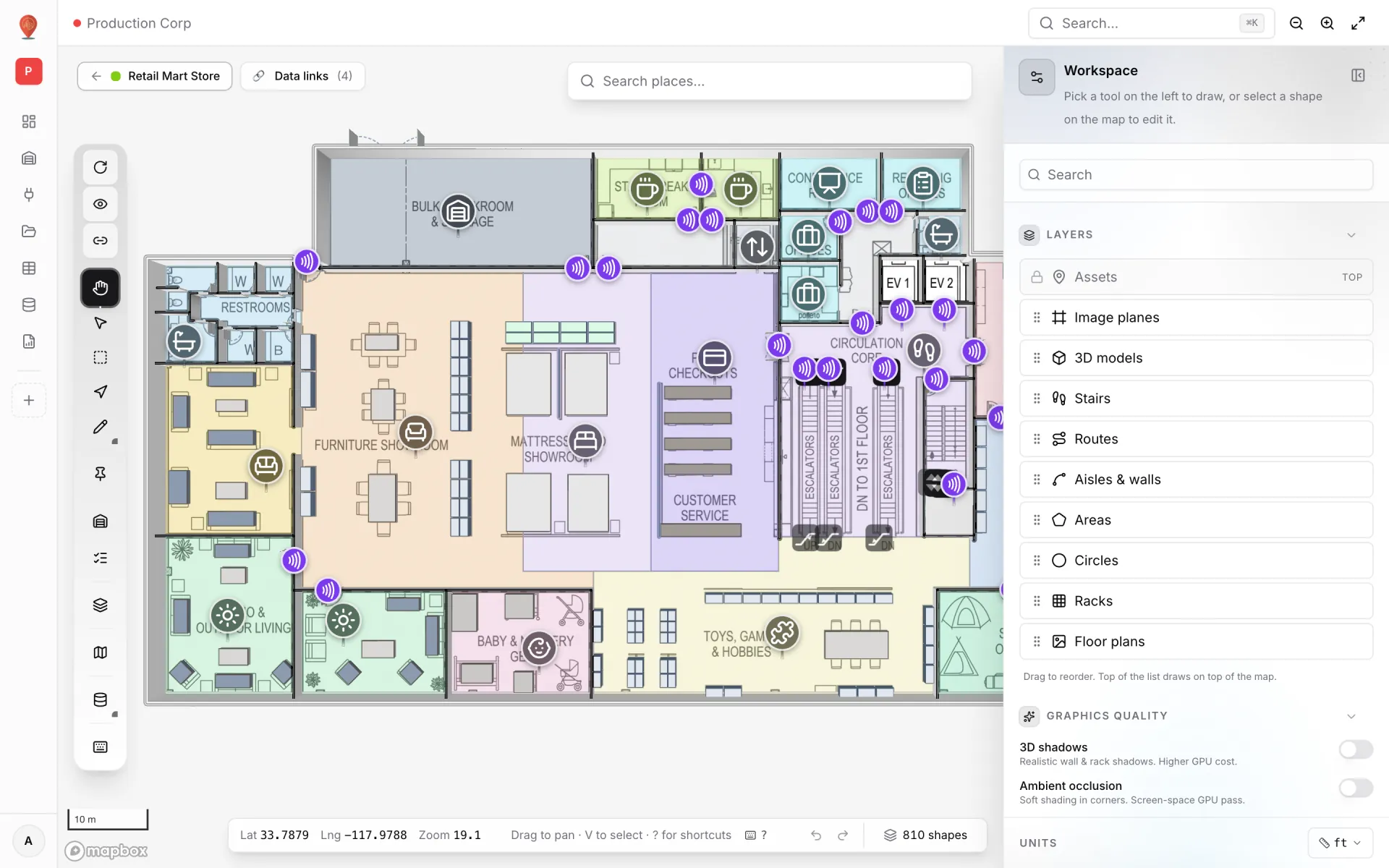
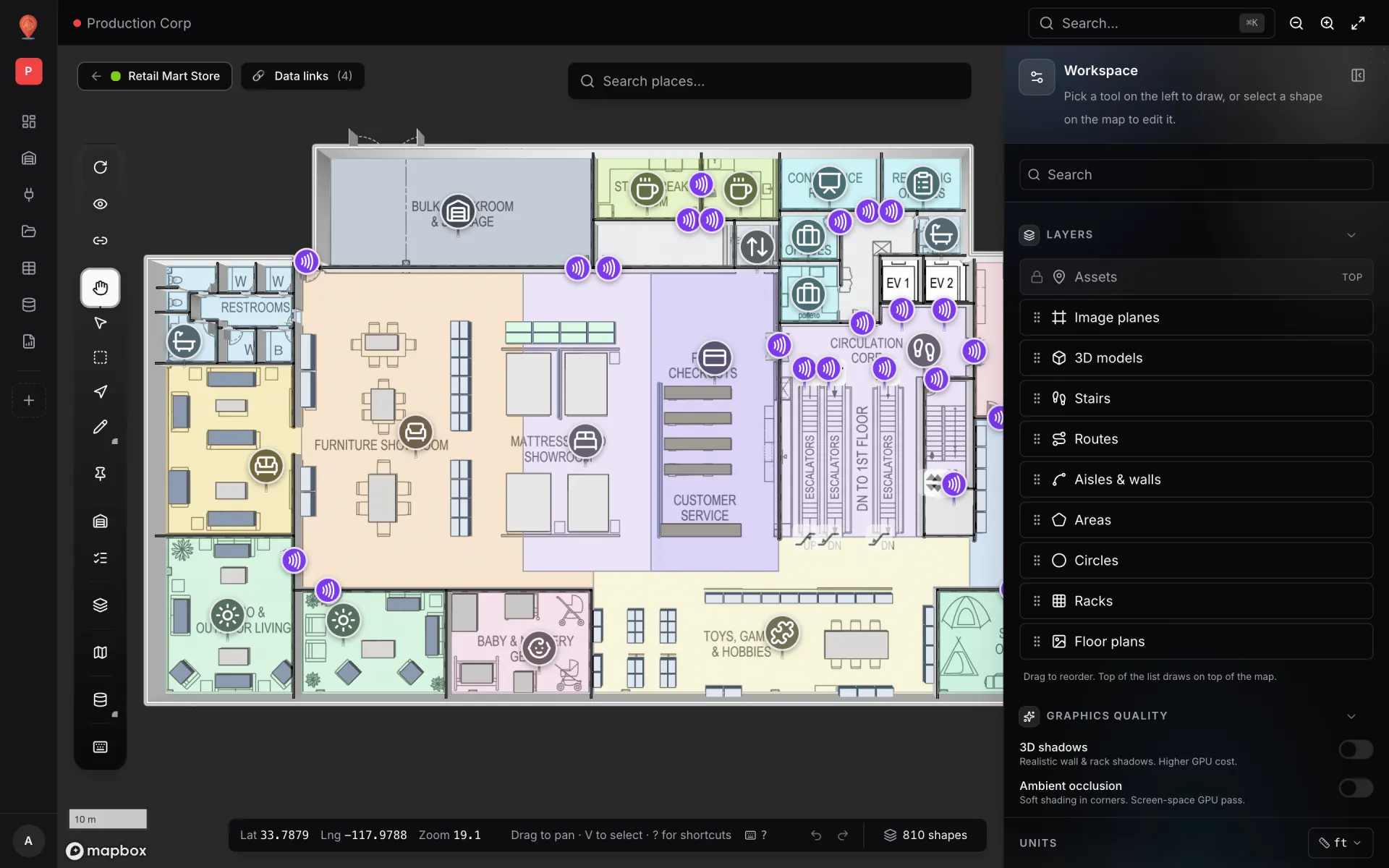
Five areas surround the map. The rest of this page walks through them in the order you’ll use them.
| Area | Where | What it’s for |
|---|---|---|
| Tool rail | Left edge of the map | Pick a mode or a drawing tool, and reach layers, map style, data and shortcuts. |
| Top pills | Top left of the map | Back to Facilities, the facility’s data links, the save state, and a place search. |
| Side panel | Right side | Everything about the current tool or selection; when nothing is selected, the facility’s lists. |
| Status bar | Bottom of the map | Coordinates, a hint for what to do next, undo / redo, and the shape count. |
| App header | Top right of the page | Search… (⌘K / Ctrl+K command palette), zoom out, zoom in and fullscreen. |
The tool rail
The rail runs top to bottom in groups. Hover any button for its name and shortcut, for example "Add floor plan (I)".
| Button | What it does |
|---|---|
| Auto-rotate map view | Slowly spins the camera around the centre, for demos and wall displays. Click again (Stop auto-rotate) to stop. |
| Preview | Opens this facility in the read-only viewer with live data. See Preview mode. |
| Create share link | Opens Share facility. See Share links. |
| Pan | Drag to move the map; nothing is created. V or H. |
| Select | Click shapes to select them. Hold Space to select for a moment and go back to your tool on release. |
| Marquee select (drag rectangle) | Drag a box to select every shape inside it, of any kind. Q. |
| Route from A to B (indoor wayfinding) | Click a start and an end to preview a walking route. N. See Wayfinding. |
| Draw | Opens the menu of drawing tools (below). The button shows the icon of the tool in use. |
| Default floor plan for new shapes | The pin. Chooses the floor plan new shapes land on. See Layers, floors and map styles. |
| Assign selection | Moves the selected shapes to another facility or floor plan. A badge shows how many are selected. |
| Configure properties (schema) | Defines the custom fields each shape kind can carry. |
| Layers | Show or hide each kind of shape on the map. |
| Change map style | Swap the basemap (8 styles). |
| Data | Opens the data menu (below). |
| Keyboard shortcuts (?) | Opens the shortcut cheatsheet. |
| Draw menu, left to right | Key | Guide |
|---|---|---|
| Draw rack | G | Rack tool |
| Add asset | M | Asset tool |
| Add circle | C | Circle tool |
| Add area | P | Area tool |
| Add aisle | L | Aisle tool |
| Add route | Y | Route tool |
| Add floor plan | I | Floor plan tool |
| Add 3D model | B | 3D model tool |
| Add image plane | F | Image plane tool |
| Add text | T | Text label tool |
| Add stairs & lifts | S | Stair tool and Lifts & escalators |
| Add door | D | Door tool |
| Magic walls (from areas) | W | Magic walls |
| AI Map | — | Coming soon. See AI Map. |
Both menus open on hover or click and close once you pick something. Keyboard shortcuts pick a tool directly without opening the menu.
| Data menu | What it does |
|---|---|
| Import | Adds shapes from a GeoJSON file. |
| Manage data links | Opens the data link manager. See Data links overview. |
| Export | Export shapes… (GeoJSON, JSON, Excel or CSV, for everything, chosen kinds or the selection), Export as GeoJSON, or Export as PNG (a picture of the map). |
The top pills
- ← Retail Mart Store: the facility you are editing, with its colour. Click it to go back to the Facilities screen.
- Data links (4): how many data links this facility has. Click to add or edit them in the data link manager.
- Saving… / Saved: appears after your first edit. See Autosave, undo and redo.
- Search places…: type an address or place name and the map flies there. Use it to find your building before placing a floor plan.
The side panel
The side panel changes with what you are doing. Its header always says what it’s showing; the button at the top right folds it away to give the map more room.
| When | Header | What’s below |
|---|---|---|
| Nothing selected, no tool | Workspace: "Pick a tool on the left to draw, or select a shape on the map to edit it." | A Search box, then Layers (paint order), Graphics quality, one list per kind of shape (Racks, Assets, Areas, Floor plans, Stairs, Doors, Text labels, …), Style rules and Data sources. |
| A drawing tool is active | What to do, e.g. "Place a floor plan" | The tool’s options and a hint. |
| One shape selected | Its name (click to rename) and number, e.g. "Escalator" over "#89 · Escalator" | Sections such as Role, Actions, Dimensions, Appearance and 3D & Altitude. The × deselects. |
| Several shapes of one kind | "8 areas selected" | Bulk edits. See Multi-select and bulk edit. |
| Shapes of several kinds | "16 selected · 3 kinds" | Change floor, Hide, Show, Delete, Clear selection. |
A small pulsing dot next to the header means an edit is waiting to save ("Unsaved changes — auto-saving…"). Units at the bottom of the panel sets the display unit for lengths: Meters, Feet, Yards, Kilometers or Miles.
The status bar
The bar along the bottom of the map shows, from left to right:
- Lat, Lng, Zoom of the map centre (on wide screens).
- A hint for the current tool or selection. It changes as you work, and shows "Shift held" or "Alt held" while a modifier is down.
- A ? button that opens the shortcut cheatsheet.
- Undo and Redo.
- N shapes: click it for "Shapes in this facility", a count per kind.
| You are… | The hint reads |
|---|---|
| Not doing anything | Drag to pan · V to select · ? for shortcuts |
| Drawing an area or aisle | Click to add vertex · Enter to finish · ⌫ undo vertex · ⇧ constrain |
| With a shape selected | Arrows nudge · [ ] rotate · - + scale · Delete · ⌘D duplicate · ? help (areas, aisles and stairs leave out "- + scale") |
| Moving, rotating or scaling | Arrows move · [ ] rotate · - + scale · PgUp/PgDn elevation · Enter commit · Esc cancel |
The shortcut cheatsheet
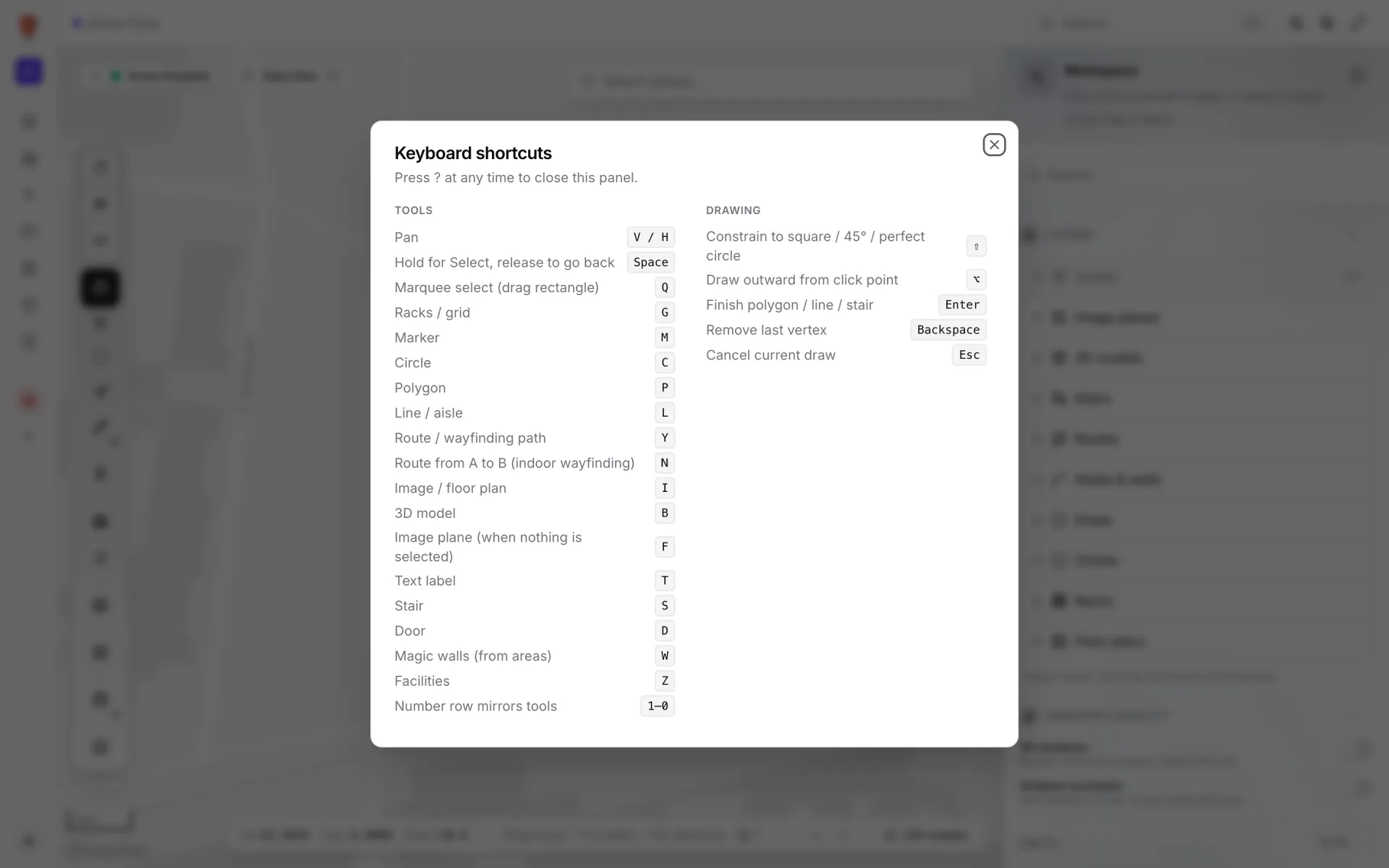
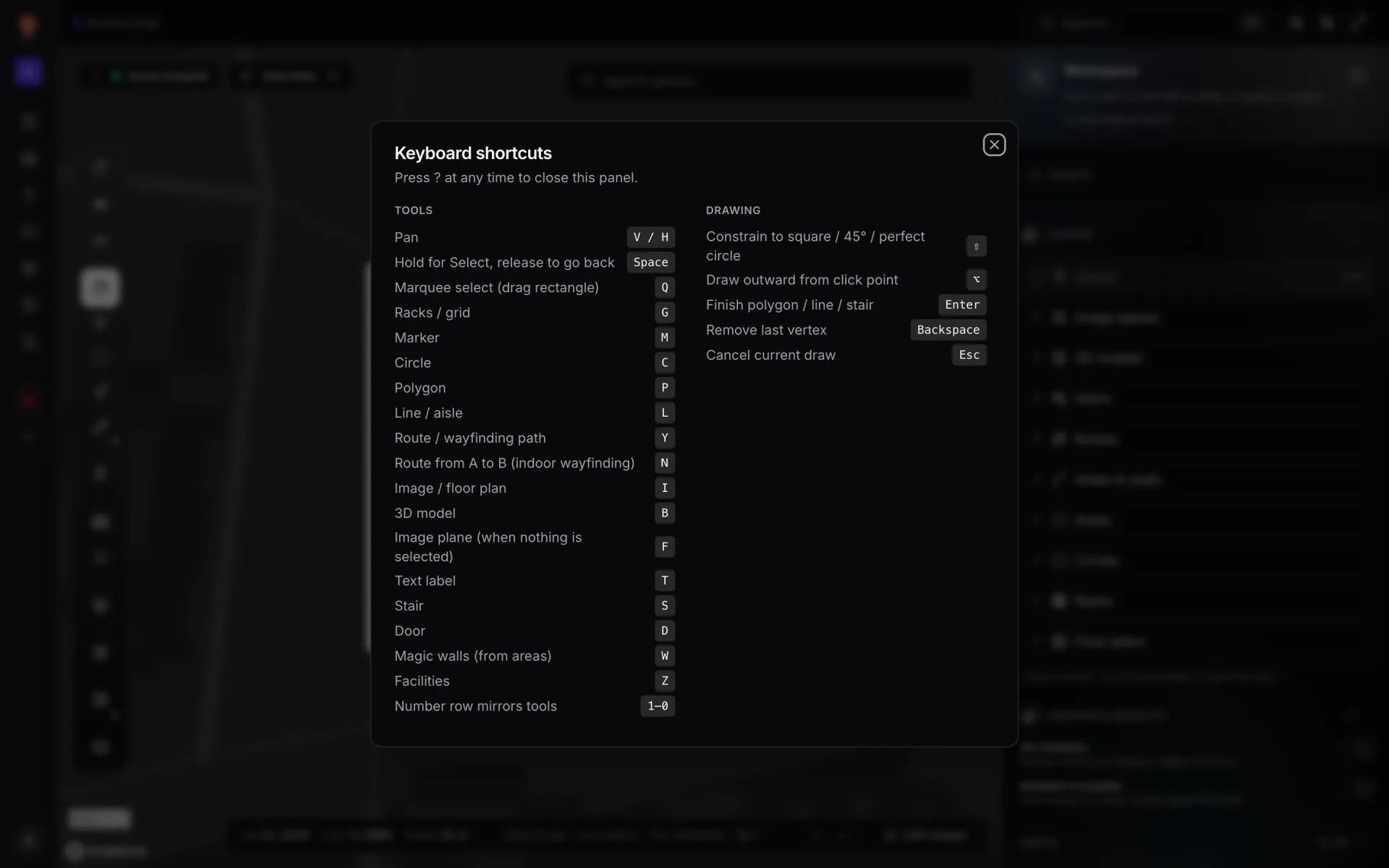
Press ? at any time (except while typing in a field) to open Keyboard shortcuts; press it again to close. It groups the shortcuts into Tools, Drawing, Transform selected shape, Selection and App. The full list is in Keyboard shortcuts.
Where to go next
More in Build a facility
- Build a facility · Floor plan toolAdd a floor plan to the mapPlace a floor plan image, PDF sheet or DWG drawing on the map, resize, rotate and crop it, reuse earlier uploads and stack several floors by elevation.
- Build a facility · Area toolDraw rooms and zones with the Area toolTrace rooms, offices and zones on a floor plan with the Area tool (P). Give each area a role, extrude it in 3D and reshape it with Edit vertices.
- Build a facility · Magic wallsGenerate walls from areas with Magic wallsTurn drawn rooms into walled enclosures in one click: Magic walls (W) traces a 3D wall around every area you pick, using your Aisle tool wall settings.
- Build a facility · Aisle toolDraw aisles and 3D walls with the Aisle toolDraw aisles, lane markings and 3D walls click by click with the Aisle tool (L). Set wall height and thickness, dash style, labels and snap hints.