
Report widgets and export
Every report widget kind, the facility map & list, and how to export a report or one widget to PDF, Excel, CSV, JSON or PNG, or move it between workspaces.
How widgets work
A report is made of widgets, and each widget reads one query. In the builder's Widgets step, each widget either has Own data (its own source, metric, grouping, filters and row limit) or uses Share a query to read primary, totals or one of your extra queries. A new report also gets a primary widget from its type: a data table, an editable table, a KPI strip with a chart, or a trend chart with a table.
- Widget title (optional): shown on the card, and used to name exported files.
- Column span: Half width or Full width. In the Document layout, two half-width widgets sit side by side.
- Widget settings (⌄): the options for that kind, such as tone, format, stacking or legend.
- If a widget is missing something, Review & save names it, for example "Widget "By status" needs a group-by field."
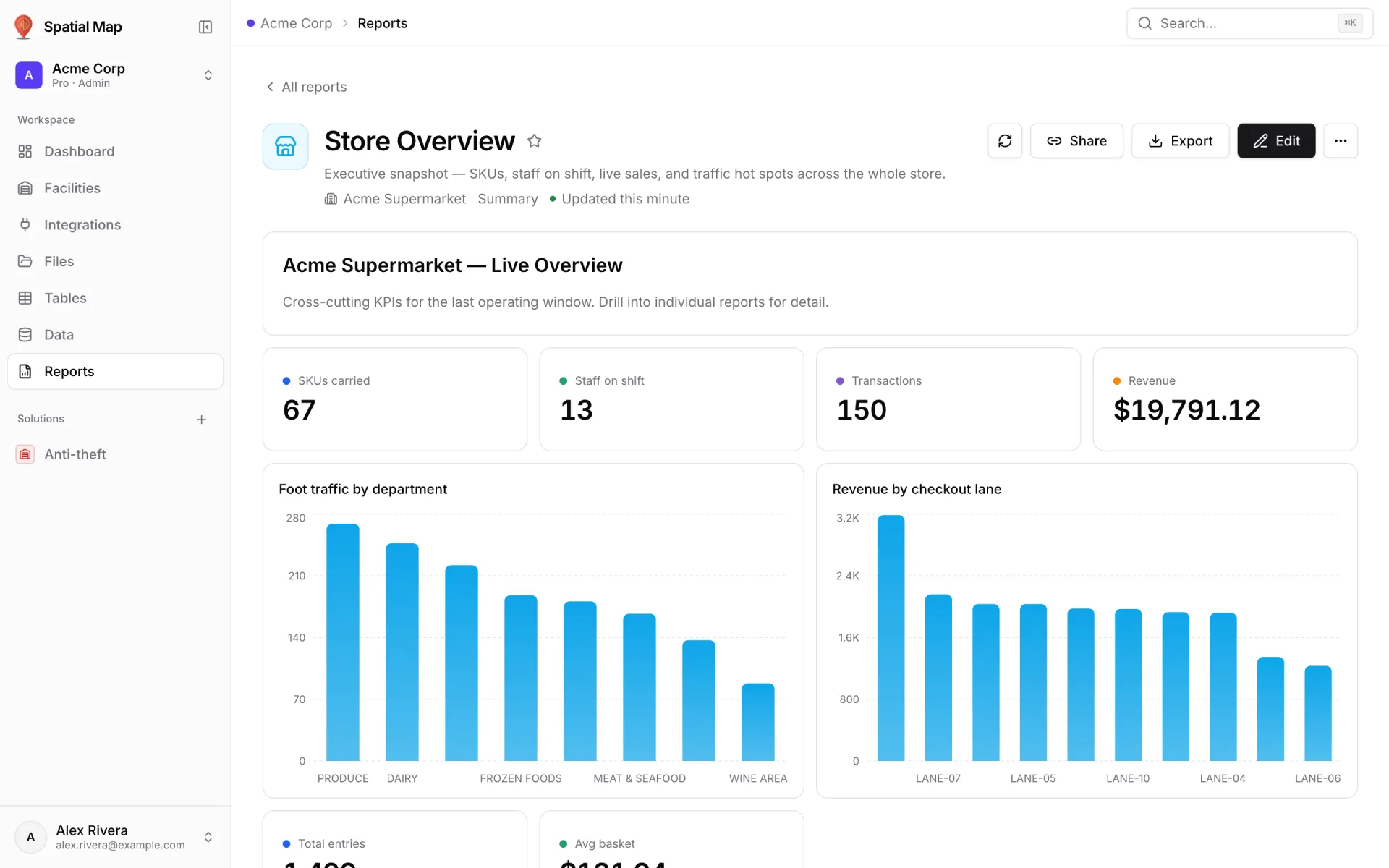
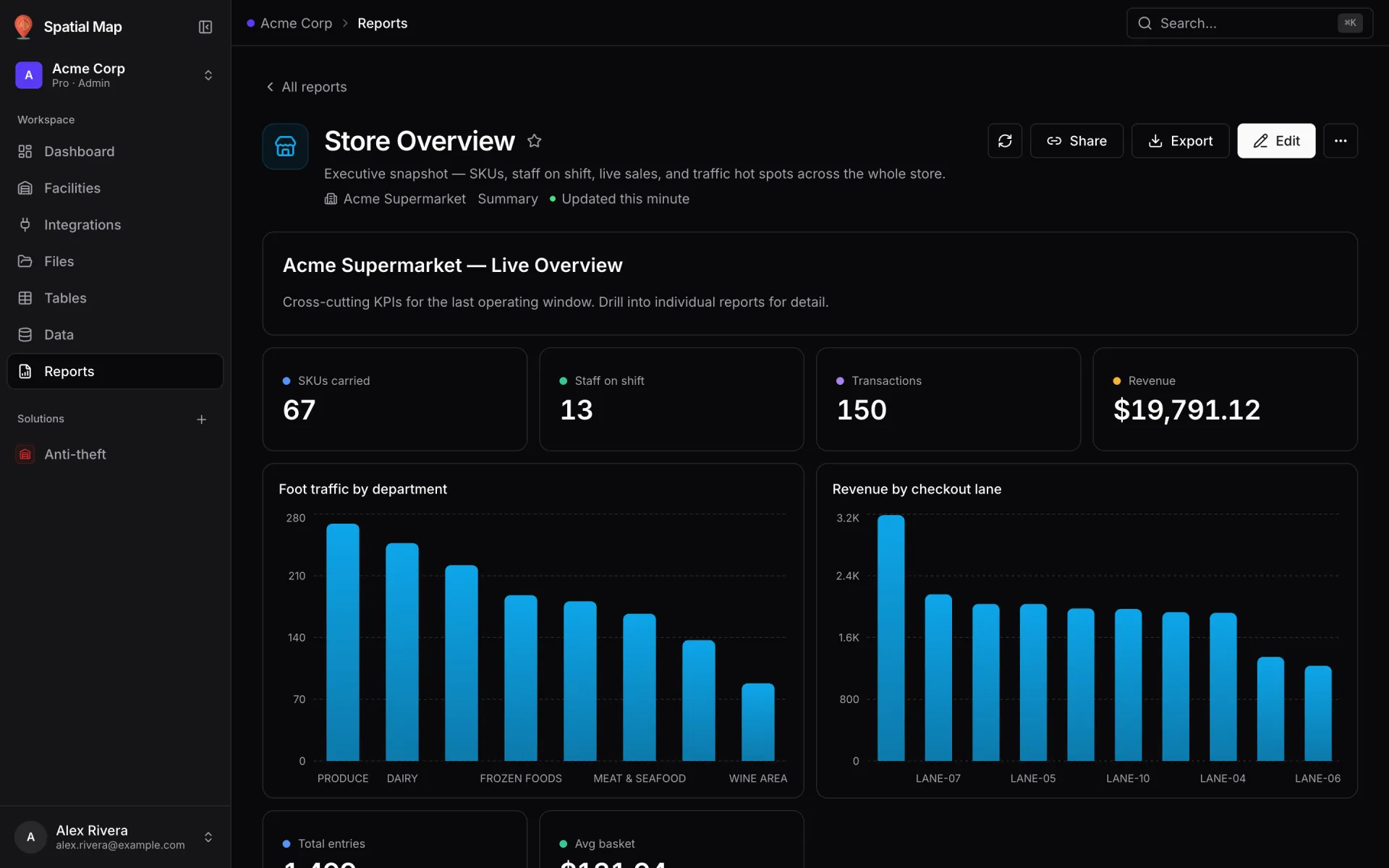
The 23 widget kinds
The last column says how each kind gets into a report. Add widget means the Widgets step palette (most kinds can also be dragged in from Insert in the Layout step). Report type means the wizard creates it. Spec JSON means it renders when a spec contains it but has no palette entry. Not yet means a saved spec shows a "coming soon" card.
| Widget | Best for | Key options | How you add it |
|---|---|---|---|
| Facility map & list | Facility items or linked data beside a live facility map. | Facility, tabs, row title, fields under each row, editable fields | Add widget |
| KPI | One headline number. | Value, Label override, Tone, Format (Auto, Number, Percent, Currency, Date, Text) | Add widget |
| Big value + delta | A number, optionally with its change. | Value to show, Delta (optional), Down is good, Tone, Format | Add widget · Report type (Summary) |
| Line chart | Trends over time, like readings per day over the last 30 days. | X-axis (group by), Series (one line per metric), Stacked, Hide legend | Add widget · Report type (History) |
| Bar chart | Comparing categories, like Foot traffic by department. | X-axis, Series, Stacked, Hide legend | Add widget · Report type (Summary) |
| Area chart | Volume over time. | X-axis, Series, Stacked, Hide legend | Add widget · Report type (Summary) |
| Pie chart | Share of a whole across a few categories. | Slice by, Slice value | Add widget · Report type (Summary) |
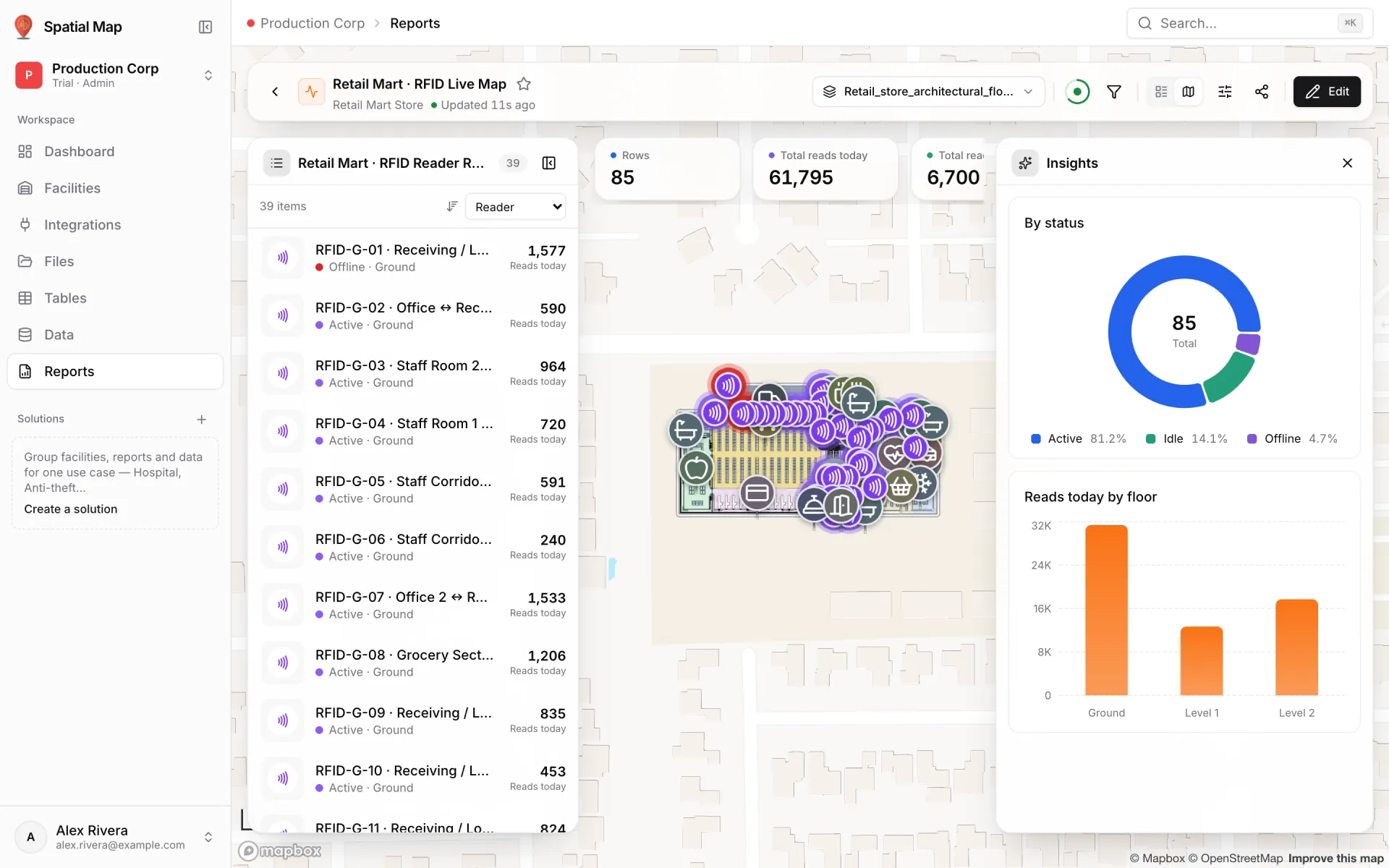
| Donut chart | Share of a whole with the total in the centre, like By status on the Rack Inventory report. | Slice by, Slice value | Add widget · Report type (Summary) |
| Scatter plot | How two numbers relate. | X-axis (numeric), Y-axis (numeric), Bubble size, Colour by | Add widget |
| Heatmap | Intensity across two dimensions, such as hour × day. | X-axis, Y-axis, Intensity | Add widget |
| Data table | Browsing records, like an event log. | Columns to show, Row limit; viewers get search, a column toggle, sortable headers and pages | Add widget · Report type (Detail, History) |
| Editable table | Fixing records in place, one row or many. | Editable columns and Bulk edit (Edit form step) | Report type (Editable) |
| Table | The original paginated, sortable table. | Header, hide, chip, conditional formatting and a footer total per column | Spec JSON |
| History | Inserts, updates and deletes on a table over a time window. | Source, Window (days), Bucket, Recent events | Spec JSON |
| Text | Headings, paragraphs, lists and rules. | Content | Spec JSON |
| Note | An explanation or caveat beside the data. | Content, Tone: Plain, Info, Tip, Warn | Add widget |
| Alert banner | A message that has to stand out. | Message, Tone: Info, Success, Warn, Error | Add widget |
| Divider | A break between sections. | None | Add widget |
| Map | A plain basemap of a site, up to 4 per report. | Set in the spec | Spec JSON |
| Sankey | Flows between stages. | — | Not yet |
| Tabs | Grouping widgets behind tabs. | — | Not yet |
| Accordion | Collapsible sections. | — | Not yet |
| Dimension grid | Click-to-filter tiles. | Use the Dimension grid parameter, which works today. | Not yet (as a widget) |
The facility map & list
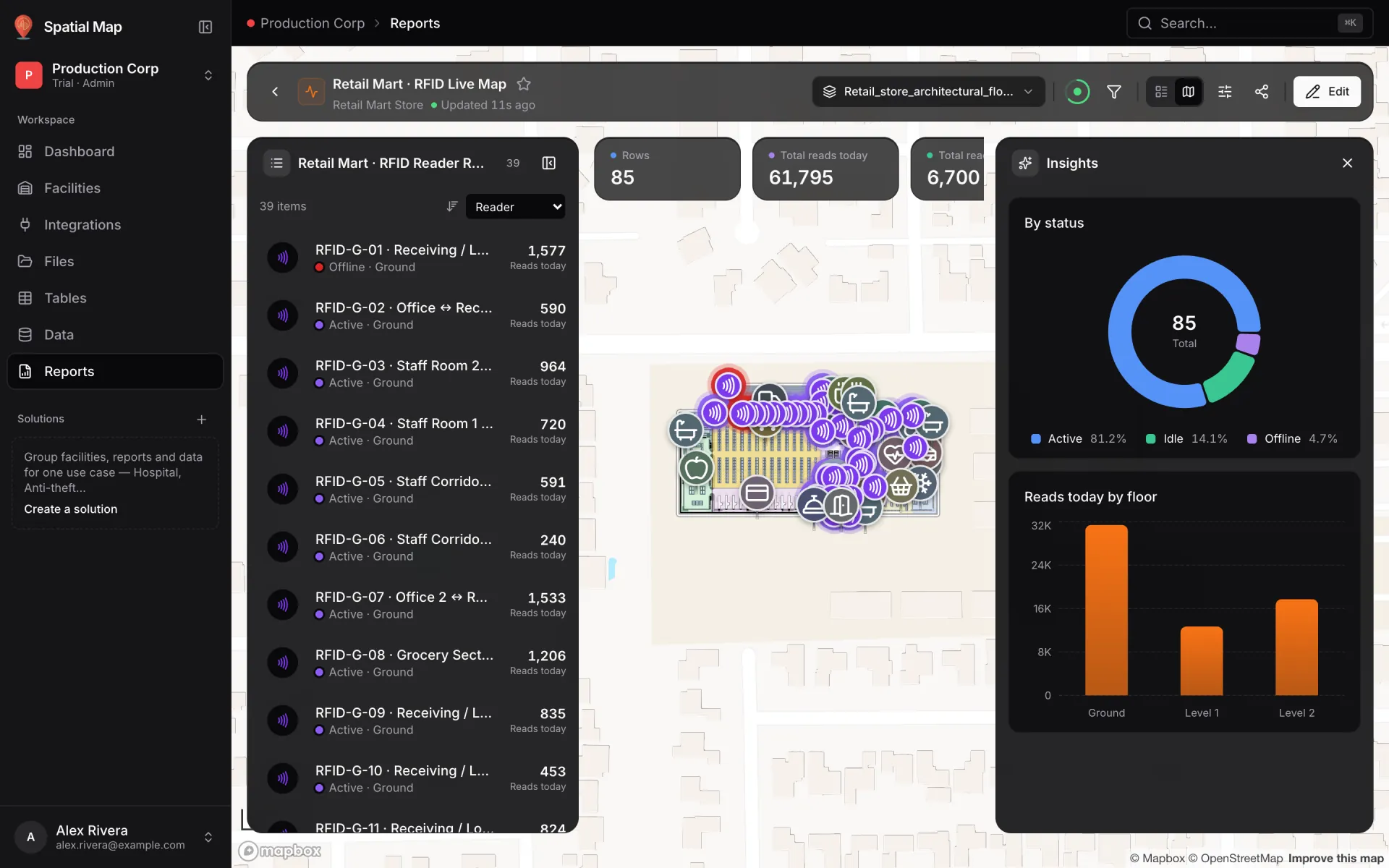
The Facility map & list puts a list of items beside a live map of the facility. Pick a row and its shape lights up on the map; click a shape and its row is picked. Every built-in report ends with one, and every full-map report is built around one.
- 1Pick the facility
Under Facility, choose the site the map shows. A report shows one facility at a time, so every map & list in a report must use the same one.
- 2Choose what the list shows
Under What the list shows, pick Facility items (floors, areas, racks, markers, walls, doors, stairs, lifts, escalators, text labels, 3D models) and/or Linked data: tables connected to this facility's map through a data link. Each one becomes a tab.
- 3Tune each tab
Set the Tab name, the Row title, and up to 4 fields Shown under each row (they also become the list's sort options). For facility items, choose what's Editable in the detail panel; changes save straight to the map. Rows of a linked table are read-only here, and viewers open the table to edit them.
The detail panel shows a preview and every property of the picked item, with Previous / Next to step through the list. For facility items: Edit then Save changes, Delete (not for floors) and Open in editor; items hidden in the editor carry a Hidden badge. For linked rows: the record's status and numbers, where it sits On the map (or "Not on the map — no matching shape"), and Open in table.
Export a report (PDF, Excel, CSV, JSON)
On a report, click Export in the header (on the full map: Share & export → Export…). Export report lets you pick a format, tick the widgets to Include (Select all / Clear) and set options. Your options are remembered in this browser.
| Format | What you get | Options |
|---|---|---|
| The report as it looks: charts, colours and full tables. Open print dialog opens your browser's print dialog; choose "Save as PDF". | Paper (A4 / Letter), Orientation (Portrait / Landscape), Colour (Colour / Greyscale), Show applied filters, Show when it was generated | |
| Excel | A sheet per table and chart, with real numbers and dates; colours kept. | Header colour (Report colour / Neutral / None), Keep conditional colours, Freeze header row, Add filter buttons |
| CSV | Plain rows for any tool, one file per table. | Separator (Comma / Semicolon / Tab), Header row, Excel-friendly encoding, Protect against formulas |
| JSON | Structured data with column types, for developers and APIs. | Rows as (Objects / Arrays), Include displayed text, Readable formatting |
Every format asks which Rows to include: As on screen (each table's current sort, search and hidden columns) or All loaded rows. Excel and CSV also ask for Values: Formatted or Raw. If a table hit its query's row limit, the dialog warns that there may be more rows.
Export a single widget (including PNG)
Hover over a widget and click its ⋯ Widget menu for one-click exports of just that widget, using your remembered options. More export options… opens the full dialog with only that widget ticked.
| Widget | Menu items |
|---|---|
| Line, bar, area, pie, donut, scatter | Export PNG, Export CSV, Export Excel, Export JSON, Copy for a spreadsheet |
| Data table, editable table, table, heatmap | Export CSV, Export Excel, Export JSON, Copy for a spreadsheet |
| KPI, big value + delta | Export PNG, Export JSON, Copy value |
| Text, note, alert banner | Copy text |
Import and export report JSON
A whole report (its sources, parameters, viewer filters, queries, widgets and layout) is stored as one JSON document, the spec. Download it to copy a report into another workspace or keep it in version control.
- 1Export the spec
Open the report in the builder and go to Review & save. Click Download spec JSON, or open View generated spec (advanced) to read it in place.
- 2Import it
On the Reports screen, pick the facility tab the report should belong to, then click Import JSON (owners and admins). Enter a Name, paste the Spec JSON and click Create report. The new report opens straight away.
- 3Re-point its sources
The spec refers to data sources and facilities by id. In a different workspace, open the builder and re-pick the Data source, any widget's own source, and the facility of any map & list, so the report reads this workspace's data.
{
  "v": 2,
  "reportType": "detail",
  "sources": [{ "kind": "dataSource", "id": 208 }],
  "params": [{ "id": "vf_status", "label": "Status", "input": { "kind": "dropdown" } }],
  "queries": [{ "name": "rows", "sourceRef": { "kind": "dataSource", "id": 208 } }],
  "layout": { "kind": "map", "mapSlots": { "chart_status": "insights" } },
  "widgets": [
    { "id": "kpi_rows", "kind": "bigValue", "title": "Rows", "queryRef": "kpi_rows" },
    { "id": "chart_status", "kind": "donut", "title": "By status", "queryRef": "chart_status" },
    { "id": "explorer", "kind": "facilityExplorer", "queryRef": "rows" }
  ]
}More in Reports
- Reports · OverviewView and share live reportsFind, open and use live reports in Spatial Map: the Reports screen, stars, refresh, viewer filters, run history, sharing a link and who can see each report.
- Reports · Built-inBuilt-in facility reportsThe reports every facility gets automatically: Overview, Floors, Areas, Racks, Markers and more, plus a live report for each table you link to the map.
- Reports · BuilderBuild a report step by stepUse the report builder to pick a report type and data source, add filters, viewer filters, parameters and widgets, choose a layout, set access and save.