
The Dashboard and app layout
Your Spatial Map workspace at a glance: the setup checklist, KPI cards, recent facilities, plan and usage, plus the sidebar, account menu and ⌘K palette.
What the Dashboard shows
The Dashboard is the first page after you sign in and the first item in the sidebar. It covers the workspace you are in, not every workspace you belong to, and it keeps itself up to date while it is open: counts refresh every 20 seconds and facility cards every 30.
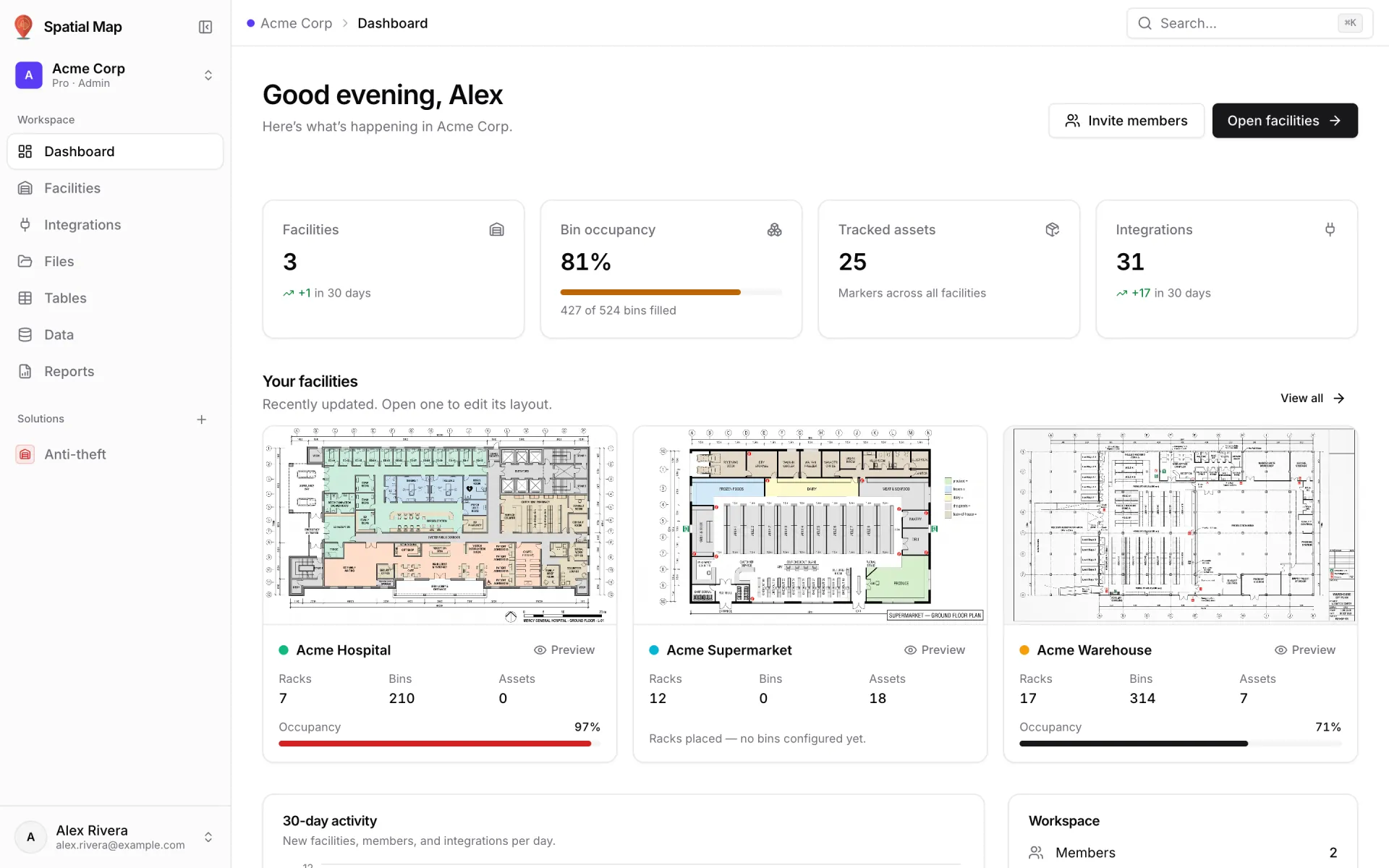
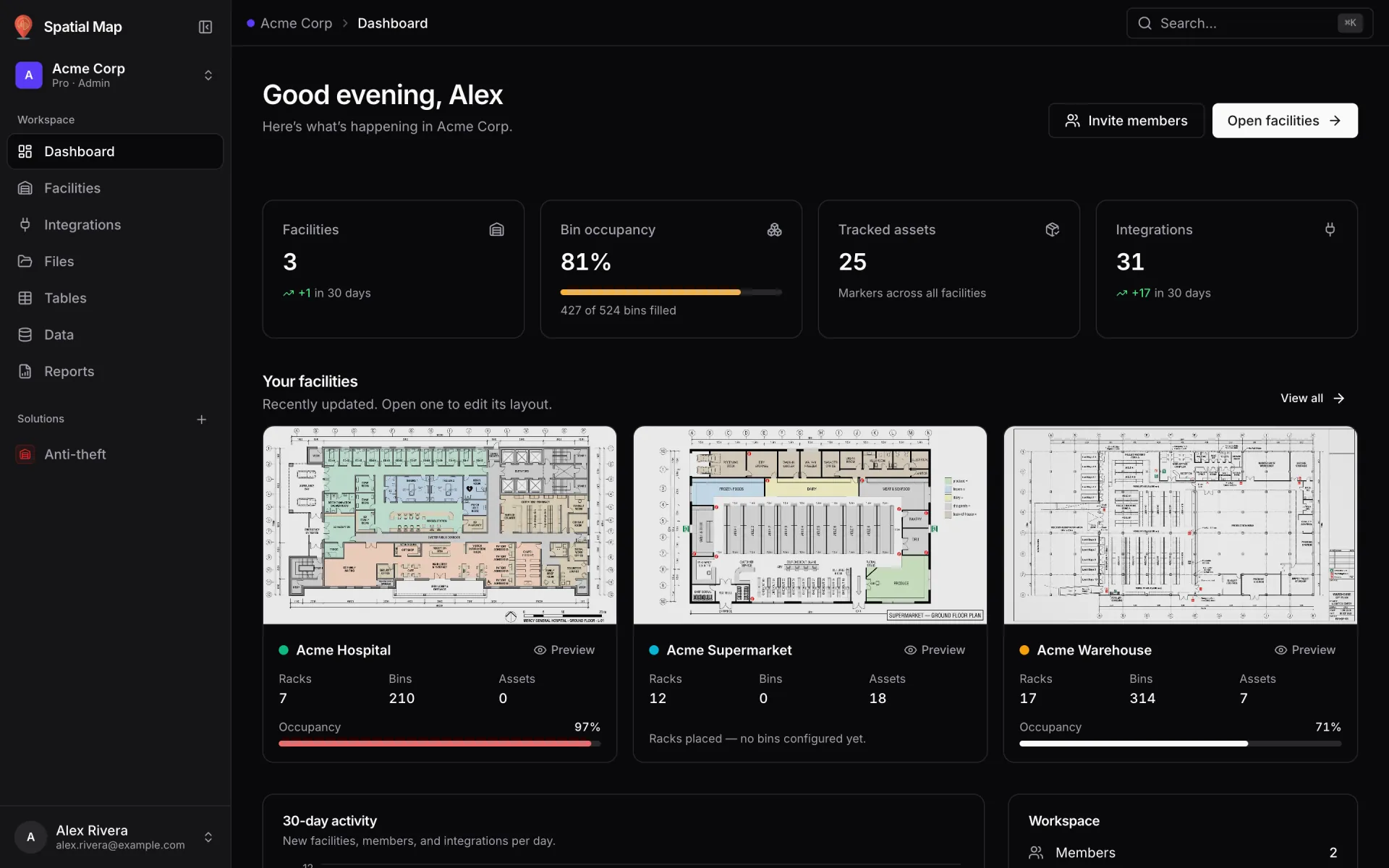
From top to bottom: the header, the setup checklist (until you finish it or hide it), four KPI cards, Your facilities, the 30-day activity chart next to the Plan and Workspace cards, and finally Jump back in next to Quick actions.
Header
The title greets you by first name with "Good morning", "Good afternoon" or "Good evening", depending on your local time. Under it, "Here’s what’s happening in …" names the workspace. Set a display name on your profile if the greeting doesn’t show your name.
- Invite members opens the Members page. Only owners and admins see it. See Members and roles.
- Open facilities opens the facility list. See Facilities.
Finish setting up your workspace
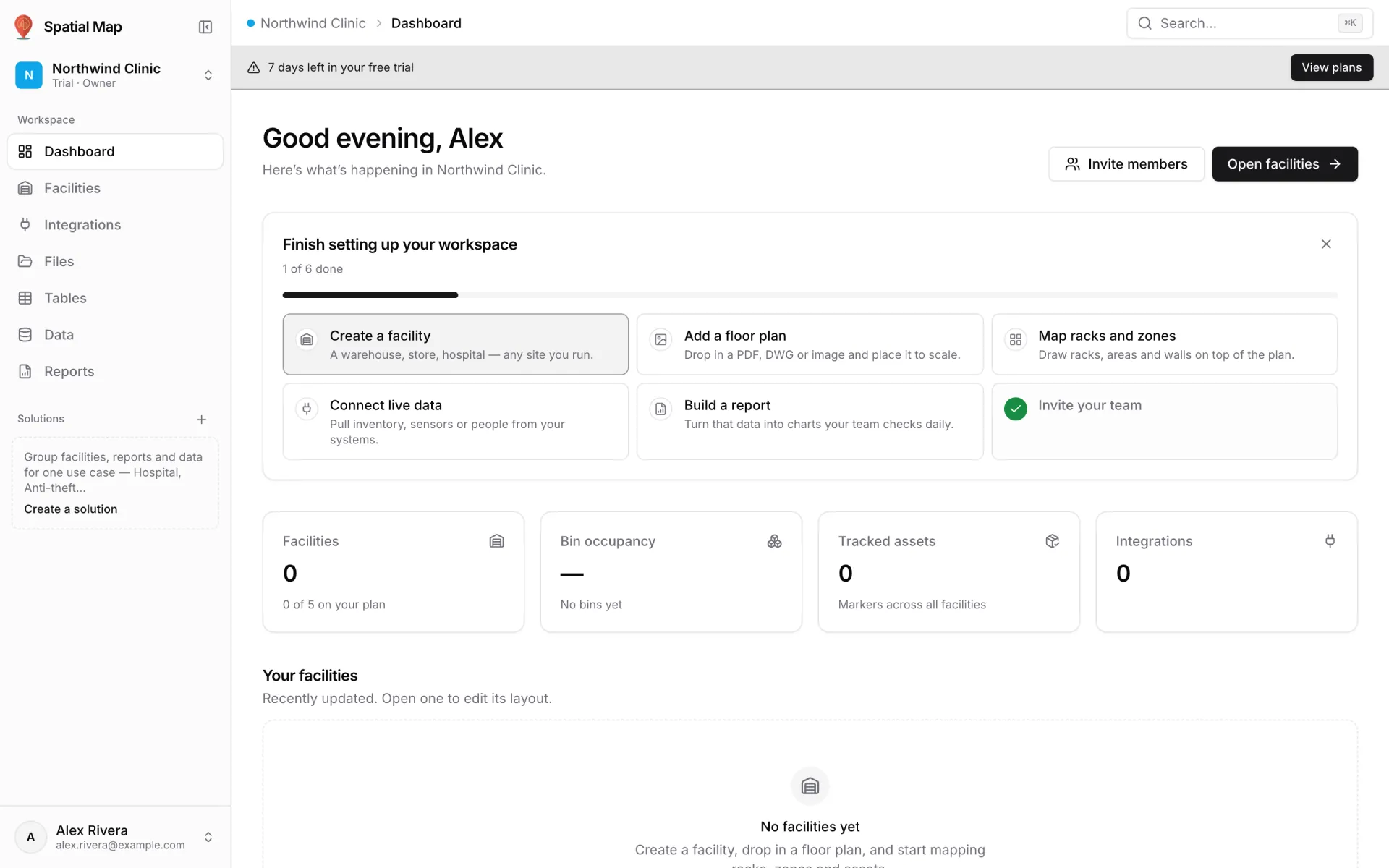
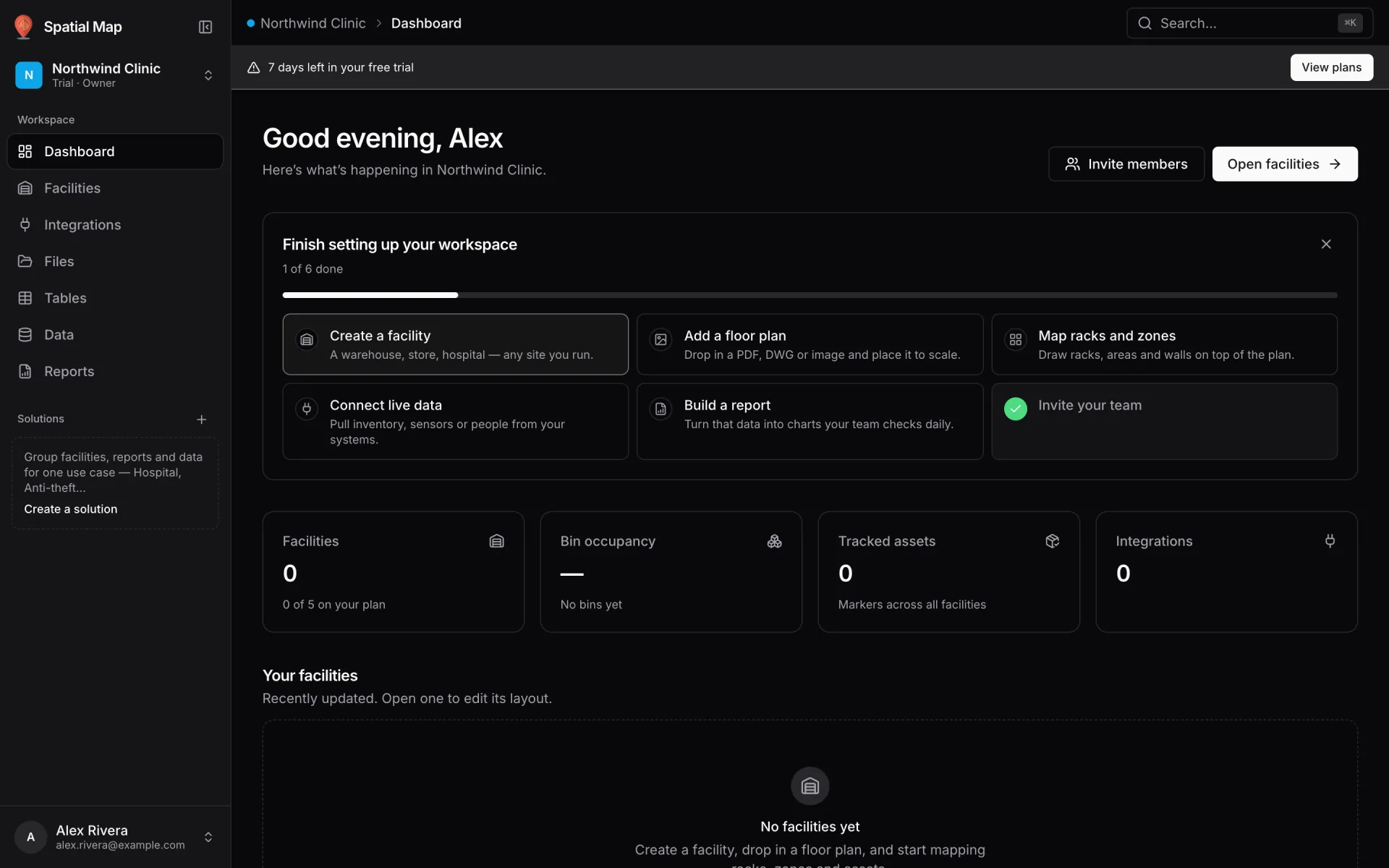
A new workspace shows a setup checklist with a progress bar ("1 of 6 done"). Each step is ticked from what is really in the workspace, so there is nothing to tick by hand. The next step to do is highlighted. Click a step to go where you do it.
| Step | Done when | Takes you to |
|---|---|---|
| Create a facility | The workspace has at least one facility. | Facilities |
| Add a floor plan | A facility has a floor plan (an image, PDF or DWG placed on the map). | The layout editor of your most recently updated facility |
| Map racks and zones | A facility has at least one rack. | The layout editor |
| Connect live data | The workspace has at least one integration. Shown to owners and admins only. | Integrations |
| Build a report | The workspace has at least one report. | The report builder |
| Invite your team | The workspace has more than one member. Shown to owners and admins only. | Members |
KPI cards and activity
| Card | What it counts |
|---|---|
| Facilities | Facilities in the workspace, how many were added in the last 30 days, and "N of M on your plan" while the plan has a facility limit. Click it to open Facilities. |
| Bin occupancy | Filled bins as a share of all bins across every facility, with a bar and "X of Y bins filled". Shows "No bins yet" until racks have bins. |
| Tracked assets | Markers across all facilities. |
| Integrations | Data sources in the workspace, with how many were added in the last 30 days. Click it to open Integrations. |
The 30-day activity chart below stacks new facilities, members and integrations per day. A new workspace shows "No workspace activity in the last 30 days." until something is created.
Your facilities
Your facilities shows up to six facilities, most recently updated first. View all opens the full list.
- Each card shows the floor-plan thumbnail (or a tint in the facility’s colour), the name, and its Racks, Bins and Assets counts with an Occupancy bar.
- Click the card to open the facility in the layout editor. See the Editor overview.
- Click Preview on the card to open the read-only viewer instead. See the Viewer overview.
With no facilities yet, the section shows "No facilities yet" and a Create facility button.
Plan, workspace usage and shortcuts
| Card | What it is for |
|---|---|
| Plan (owners only) | The plan badge, days left in the trial or "Subscription active.", a "Facilities: used / limit" bar and a Manage plan button. When the trial has ended, the card turns red and the button becomes Upgrade now. |
| Workspace | Members, Live streams, Files and Storage used. Members and Files link to their pages for owners and admins. |
| Jump back in | The six most recently updated facilities, reports and tables, each with its kind and how long ago it changed. |
| Quick actions | Add a facility, Connect data, Create a table and Build a report. Connect data and Create a table appear for owners and admins only. |
Prices, limits and upgrading are covered in Plan and billing.
The sidebar and top bar
Every signed-in page shares the same frame: a sidebar on the left and a slim top bar above the page.
| Sidebar area | Contents |
|---|---|
| Workspace switcher | The current workspace with its plan and your role (for example "Trial · Owner"). Opens the list of your workspaces, plus Create workspace and Manage workspaces. See Workspaces. |
| Workspace | Dashboard, Facilities, Integrations, Files, Tables, Data, Reports. |
| Solutions | One entry per solution, each expandable into its own pages, and a + to create one. |
| Account menu | Your name and email at the bottom. Opens Profile, Manage workspaces, Manage members, Plan & billing, Language, Appearance (Light, Dark, System), Palette and Sign out. |
- Collapse the sidebar to a narrow icon rail with the panel button next to the logo. The choice is remembered in this browser. The layout editor always uses the rail so the map gets the room.
- On a phone, the sidebar slides in from the menu button in the top bar.
- The top bar shows where you are (Workspace › Page, or Workspace › Solution › Page inside a solution) and the Search… button. On map pages it also has zoom in, zoom out and full screen.
The command palette (⌘K)
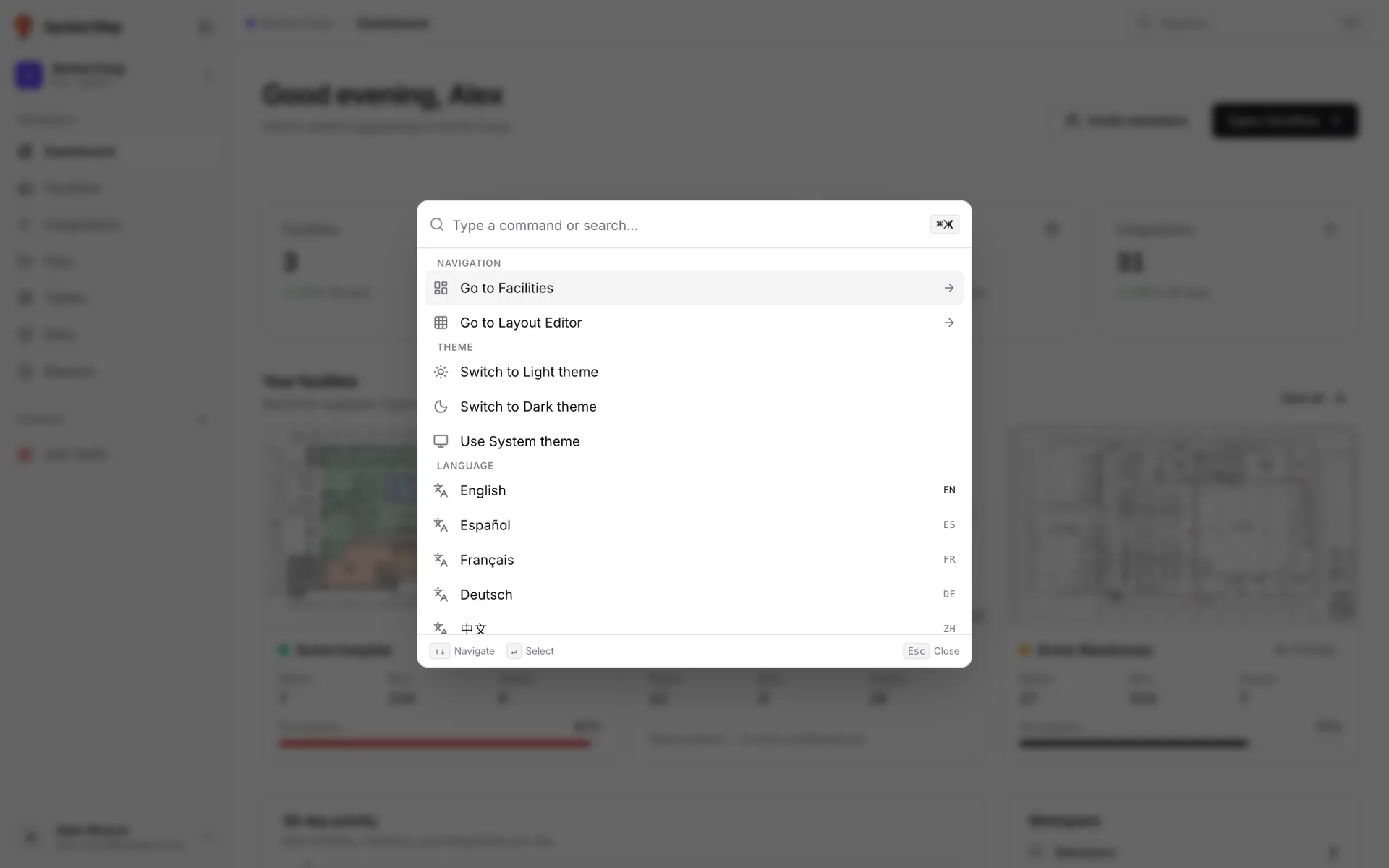
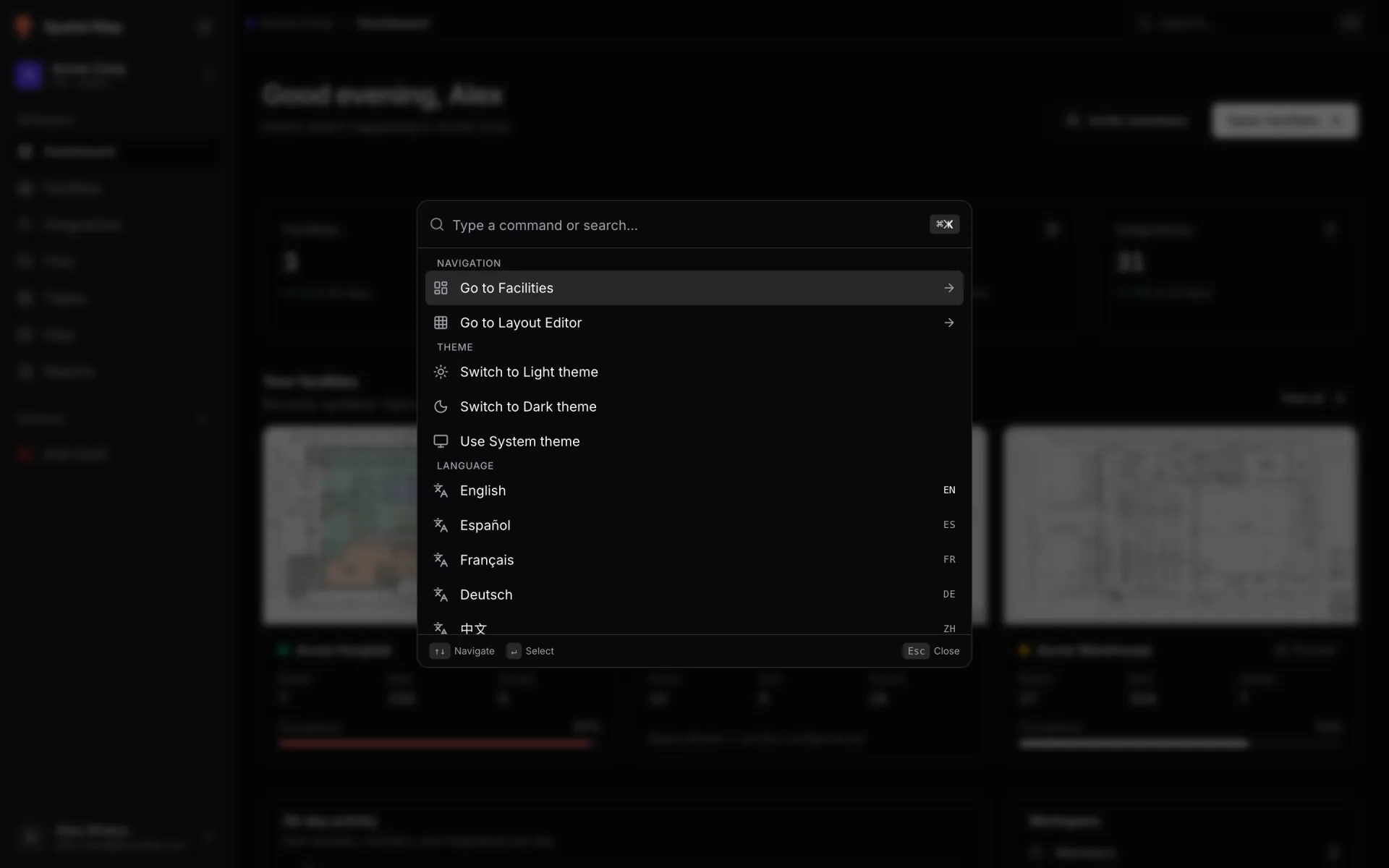
Press ⌘K on a Mac or Ctrl K on Windows and Linux, or click Search… in the top bar. Type to filter, use the arrow keys to move, Enter to run, and Esc to close.
| Group | Commands |
|---|---|
| Navigation | Go to Facilities (it currently opens the Dashboard) and Go to Layout Editor. |
| Actions | Toggle Side Panel, only while you are in the layout editor. |
| Theme | Switch to Light theme, Switch to Dark theme, Use System theme. |
| Language | English, Español, Français, Deutsch, 中文 and العربية. |
Shortcuts for drawing and editing are on Keyboard shortcuts.