
Your profile, password, language and theme
Edit your Spatial Map profile and photo, change your password, switch between six languages, and pick light, dark or system mode and a colour palette.
Open your profile
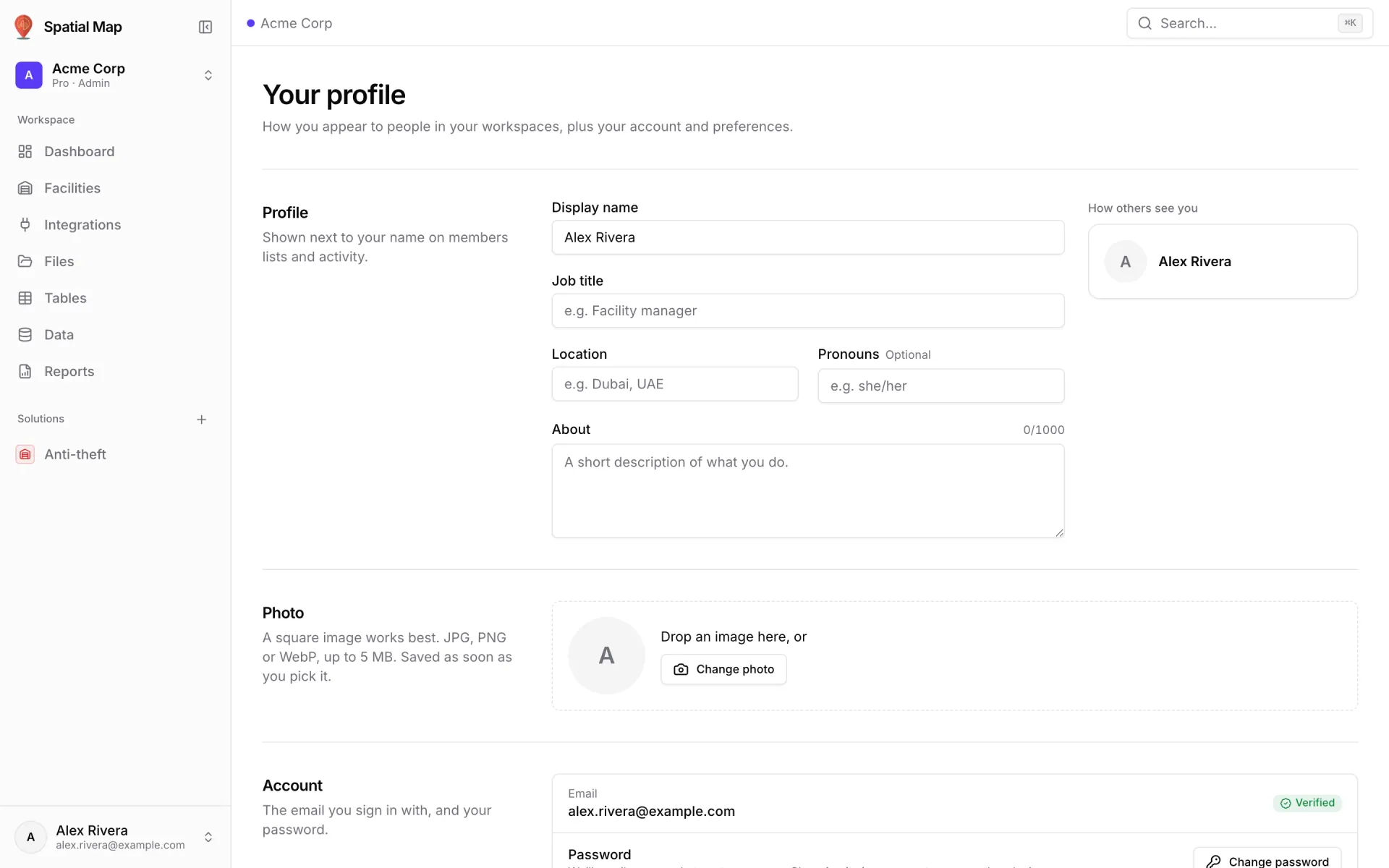
Click your name at the bottom of the sidebar to open the account menu, then choose Profile. The page has four sections: Profile, Photo, Account and Preferences. Your profile belongs to you, not to a workspace, so it is the same in every workspace you belong to.
Profile details
| Field | Notes |
|---|---|
| Display name | Up to 80 characters. Your first name is used in the Dashboard greeting. |
| Job title | Up to 120 characters, for example "Facility manager". |
| Location | Up to 120 characters. |
| Pronouns | Optional, up to 40 characters. |
| About | A short description of what you do, up to 1,000 characters. A counter shows how many you have used. |
- The How others see you card updates as you type.
- Once you change something, a bar appears with Reset and Save changes. You can also press ⌘S (Mac) or Ctrl S (Windows, Linux) to save.
- If you try to leave with unsaved changes, the browser asks you to confirm first.
Profile photo
Drop an image on the Photo box, or click Change photo and pick one. A square JPG, PNG or WebP image of up to 5 MB works best. The photo saves as soon as you pick it, with no need to click Save. Larger files and non-image files are refused with a message.
Email and password
The Account section shows the email you sign in with and a Verified badge. The email can’t be changed from this page.
- 1Click Change password
This opens the password reset flow with your email filled in.
- 2Enter the code we email you
The 6-digit code is valid for 10 minutes.
- 3Choose the new password
Type it twice and click Reset password. It needs at least 12 characters, at least 3 of lowercase, uppercase, digits and symbols, and must not be a commonly guessed password.
Language, appearance and palette
The Preferences section only affects you, on this device. The same settings are in the account menu (Language, Appearance, Palette) and in the command palette.
| Setting | Choices |
|---|---|
| Language | English, Español, Français, Deutsch, 中文 and العربية. In Arabic the whole interface switches to right-to-left. The first time you visit, Spatial Map uses your browser’s language if it is one of these six. |
| Appearance | Light, Dark or System (follows your computer’s setting). |
| Palette | The accent colour of the interface, such as buttons and highlights. Choose Default or one of 45 named palettes, from Blue and Emerald to Navy and Midnight. Every palette works in light and dark mode. |
Share links have their own appearance settings, chosen by whoever creates the link. See Share links — Appearance.
More in Workspace & team
- Workspace & team · WorkspacesWorkspaces: switch, create and manageWhat a Spatial Map workspace holds, how to switch between workspaces, create a new one, rename it, leave or delete it, and read its Trial and Pro badges.
- Workspace & team · SolutionsGroup facilities and data into solutionsGroup the facilities, reports, tables and integrations for one use case, such as Warehouse or Anti-theft, into a solution with its own home page and sidebar.