
Import a PDF or DWG floor plan
Turn a PDF drawing sheet or an AutoCAD DWG file into a true-to-scale floor plan image: pick the sheet or layers, confirm scale or units, then place it.
Every drawing becomes a floor plan image
Spatial Map doesn’t need your drawing in a special format. Whether you start from a PDF set, an AutoCAD DWG or a plain image, the result is the same: one floor plan picture placed on the map, which you then draw on. Nothing is extracted automatically; walls, rooms and doors are drawn with the editor’s tools.
Imports start in the Floor plan tool: pick Add floor plan from the Draw menu or press I, open Upload new, and drop a file on "Drop a floor plan here". The file type decides what happens next.
| File | What happens | Size on the map |
|---|---|---|
| PNG, JPEG, GIF, WebP | Uploads straight away. | Whatever box you drag. |
| Opens Import floor plan from PDF: choose the sheet and its drawing scale. | True size when you set a scale; the dragged size with Not to scale. | |
| DWG (AutoCAD R2004 to R2018) | Opens Import floor plan from CAD drawing: confirm the units and choose the layers. | Always true size, because a DWG is drawn in real-world units. |
Import a PDF drawing
A drawing set has many sheets, and a PDF never records the scale it was plotted at. So the dialog ("Choose the sheet to place, then set its drawing scale.") asks both before anything is placed.
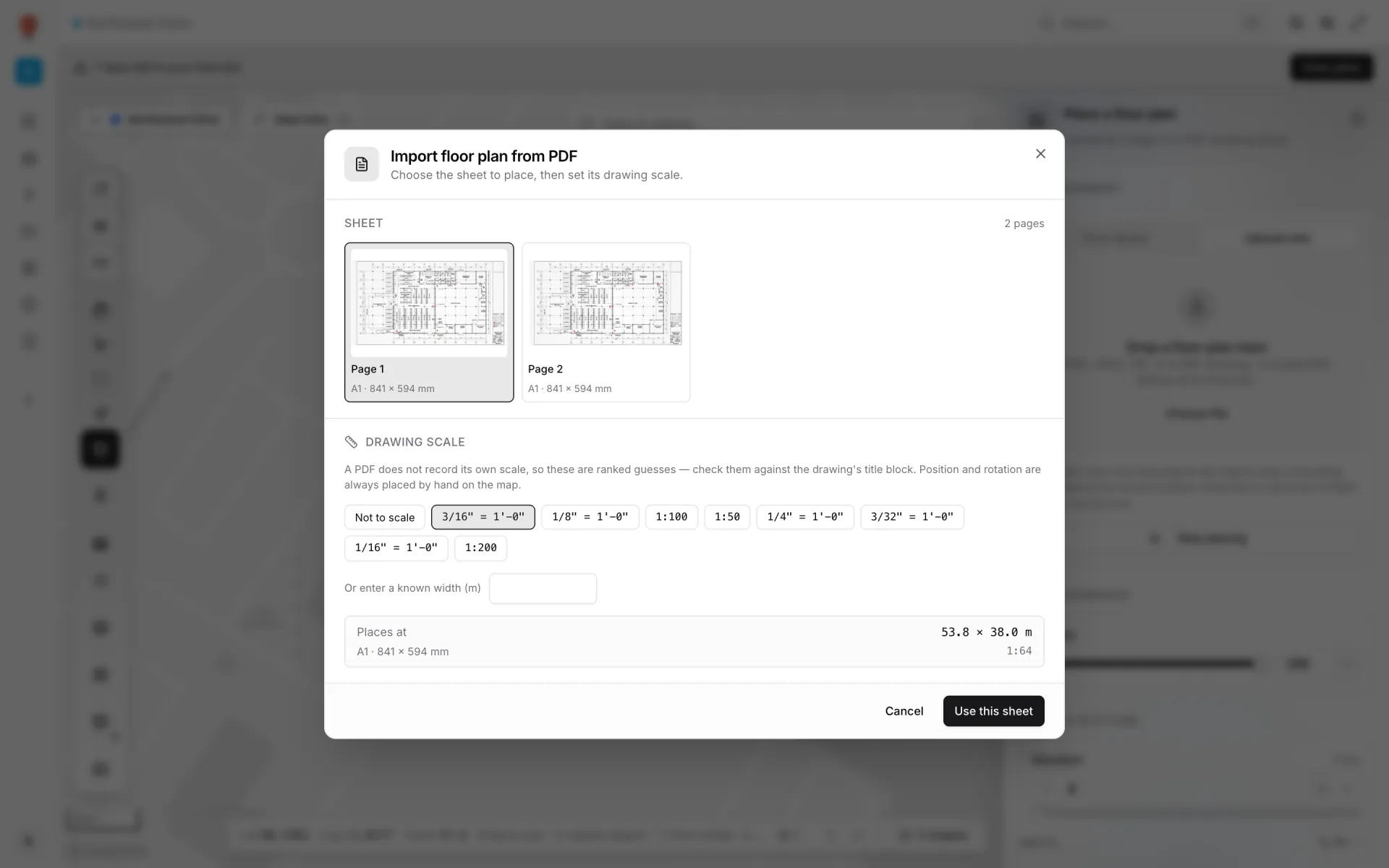
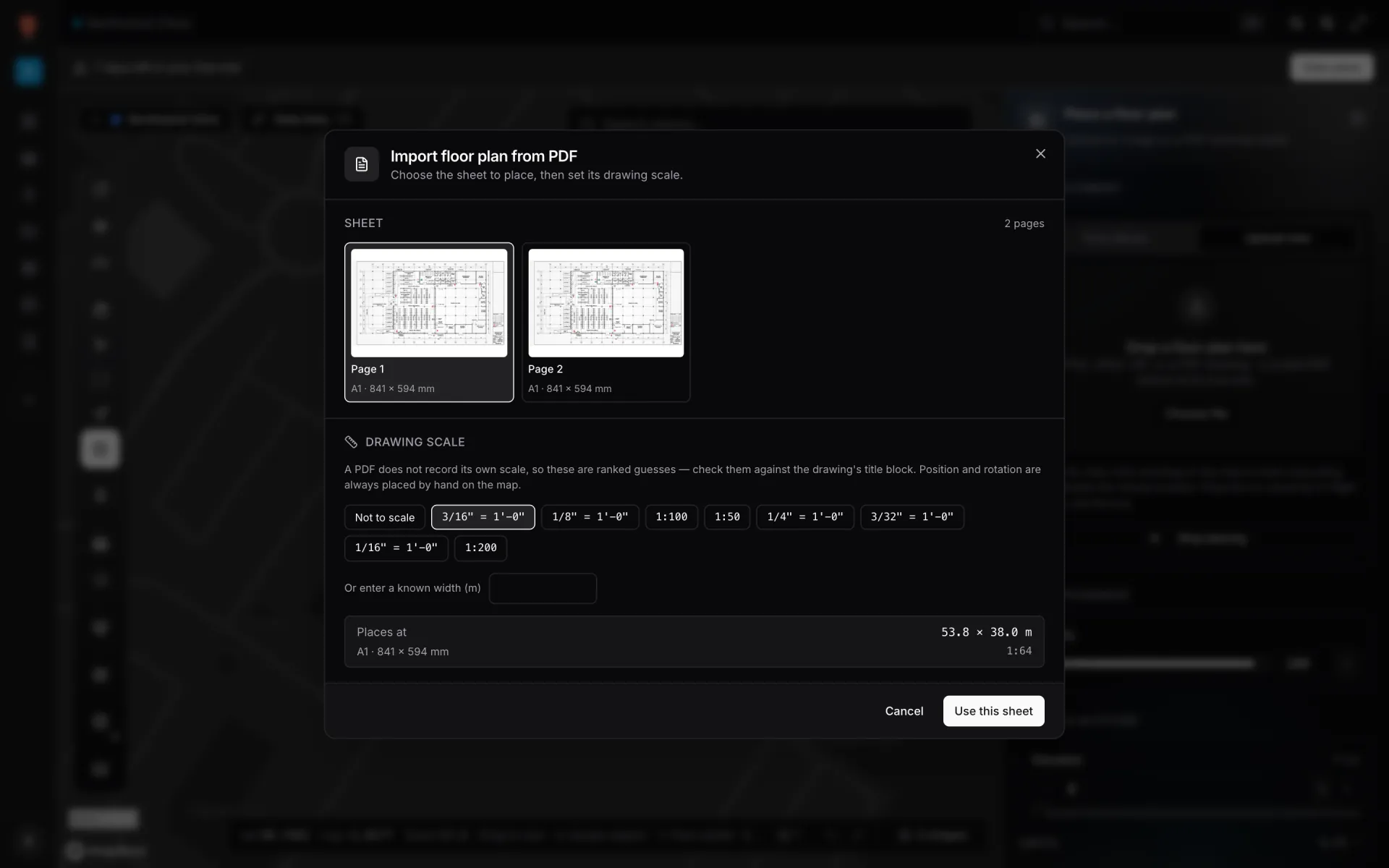
- 1Choose the sheet
After "Reading PDF…", the Sheet section shows a thumbnail per page ("Page 1", "Page 2", …) with its recognised paper size underneath. A PDF with more than 24 pages shows a Page number box instead.
- 2Check the drawing scale
The Drawing scale chips are ranked guesses such as 1:100 or 1/8" = 1'-0", and the top one is preselected. "A PDF does not record its own scale, so these are ranked guesses — check them against the drawing’s title block." Choose Not to scale if you don’t know: "The sheet will be sized by the box you drag on the map."
- 3Or type a known width
If you know how wide the whole sheet covers on the ground, type it in metres in Or enter a known width (m), and the scale is worked out from that.
- 4Check the size and confirm
Places at shows the real-world width × height the sheet will have, with its paper size and scale. Click Use this sheet. The page is rendered to a picture and you’re back on the map, ready to place it.
| Paper sizes recognised (17) | Matched in either orientation |
|---|---|
| ISO A | A0, A1, A2, A3, A4 |
| ANSI | ANSI A, B, C, D, E |
| ARCH | ARCH A, B, C, D, E, E1 |
Import a DWG drawing
Spatial Map reads DWG files itself; you don’t need AutoCAD. The drawing is drawn as black linework on white and placed as a floor plan picture. The dialog ("Confirm the drawing units, then choose the layers to import.") settles the two things a drawing can’t always answer on its own.
- 1Check what was read
After "Reading drawing…", the top line shows the AutoCAD release, the number of entities and layers, and the program that saved the file.
- 2Confirm the drawing units
Each chip under Drawing units (Millimeters, Centimeters, Meters, Inches, Feet) shows how big the building would be in that unit. If the file declares its units, you’ll see "This drawing declares … Override only if it looks wrong." If not: "Pick the one that gives a believable building size." An amber warning appears when no unit could be established with confidence.
- 3Choose the layers
Only layers with content are listed, each with a tick box, its colour, name and entity count. "Annotation, dimensions and title-block linework are left out by default — tick them back on if you need them." Layers switched off in the drawing carry an Off in CAD badge and also start unticked. Select all / Select none flips the whole list.
- 4Check the size and confirm
Places at shows the final width × height in metres and how many layers and entities you picked. Click Use this drawing; it stays disabled until at least one layer is ticked.
- Text isn’t drawn. Room names and dimension values don’t appear on the picture; add them with the Text label tool or by naming the areas you draw.
- Stray geometry is trimmed. Things far from the building (a legend off to the side, a line running to the origin) are dropped before the size is measured, so they don’t shrink the building into a corner.
- Missing references are flagged. If the drawing points to external drawings or blocks that aren’t in the file, the dialog warns that they "are missing and will not appear."
Place, scale and align the plan
A drawing knows its scale (once you give it one) but not where on Earth it is or which way is north. Position and rotation are always set by hand.
- 1Find the building
Use Search places… at the top of the map to fly to the site.
- 2Drag to place
For a scaled PDF or a DWG the panel says "Drag on the map to position the sheet — its size is fixed by the drawing scale": only the position follows your drag. For an image or an unscaled PDF, the box you drag is the size.
- 3Line it up
The new plan is selected. Lower Opacity so you can see the map underneath, then rotate with the Rotation slider or [ and ] (Shift for 15° steps) and nudge with the arrow keys until its outline sits on the building.
- 4Fix the size if needed
For an image or unscaled PDF, type the real Width or Height into Dimensions (with Lock aspect ratio on, the other follows).
Import each level the same way and give it its height under 3D & Altitude → Elevation; see Layers, floors and map styles. A PDF plan is named after its sheet and page (for example "A1 · p2"), a DWG plan after its file name; click the name in the side panel to rename it.
After the import
The plan is a backdrop. Make it a working map by drawing on it: rooms with the Area tool, walls with the Aisle tool or Magic walls, doors, stairs, lifts and escalators and racks.
Troubleshooting imports
| What you see | Why | What to do |
|---|---|---|
| "… is older than this reader supports — re-save as AutoCAD R2004 or later" | The DWG was saved as R13, R14 or R2000. | Save it as a DWG between R2004 and R2018. |
| "… is newer than this reader supports — re-save as AutoCAD R2018 or earlier" | The DWG is newer than the R2018 format. | Save it as AutoCAD 2018 DWG (or any release back to R2004). |
| The building is tiny, or kilometres wide | The wrong drawing unit was used. | Import again and pick the unit chip whose size matches the real building. |
| A wing or the site plan is missing | It lives in an external drawing or block that isn’t in the file. | Bind the external references in your CAD program, save and import again. |
| Dimensions and hatching clutter the plan | Annotation layers were ticked. | Import again and untick them. |
| Use this drawing stays greyed out | No layer is ticked. | Tick at least one layer. |
| A PDF lands at the wrong size | The preselected scale was a guess. | Import again and pick the scale in the title block, or enter a known width. |
| No thumbnails, just a Page number box | The PDF has more than 24 pages. | Type the page number of the floor plan. |
| The PDF dialog shows a red error instead of pages | The file is damaged, isn’t really a PDF, or is over 256 MB or 2,000 pages. | Export just the sheet you need as a smaller PDF. |
| An image shows on one computer but is blank on another | It’s larger than that device can draw (over 4096 px). | Export it at 4096 px or less and use Replace image. |
More fixes are collected in Troubleshooting.
More in Build a facility
- Build a facility · FacilitiesCreate and manage facilitiesAdd a facility with a name, address and colour, then open, preview, share, duplicate, configure or delete it from the Facilities screen in Spatial Map.
- Build a facility · Area toolDraw rooms and zones with the Area toolTrace rooms, offices and zones on a floor plan with the Area tool (P). Give each area a role, extrude it in 3D and reshape it with Edit vertices.
- Build a facility · Magic wallsGenerate walls from areas with Magic wallsTurn drawn rooms into walled enclosures in one click: Magic walls (W) traces a 3D wall around every area you pick, using your Aisle tool wall settings.
- Build a facility · Aisle toolDraw aisles and 3D walls with the Aisle toolDraw aisles, lane markings and 3D walls click by click with the Aisle tool (L). Set wall height and thickness, dash style, labels and snap hints.