
Manage floor plan and 3D model files
See every floor plan, image plane and 3D model your workspace stores, which facilities use them, and safely free up storage taken by unused files.
What the Files screen is for
Click Files in the sidebar to open /files: "Floor plans, image planes and 3D models stored in this workspace — see what's in use and free up what isn't." It lists only files this workspace uploaded or uses, never another workspace's.
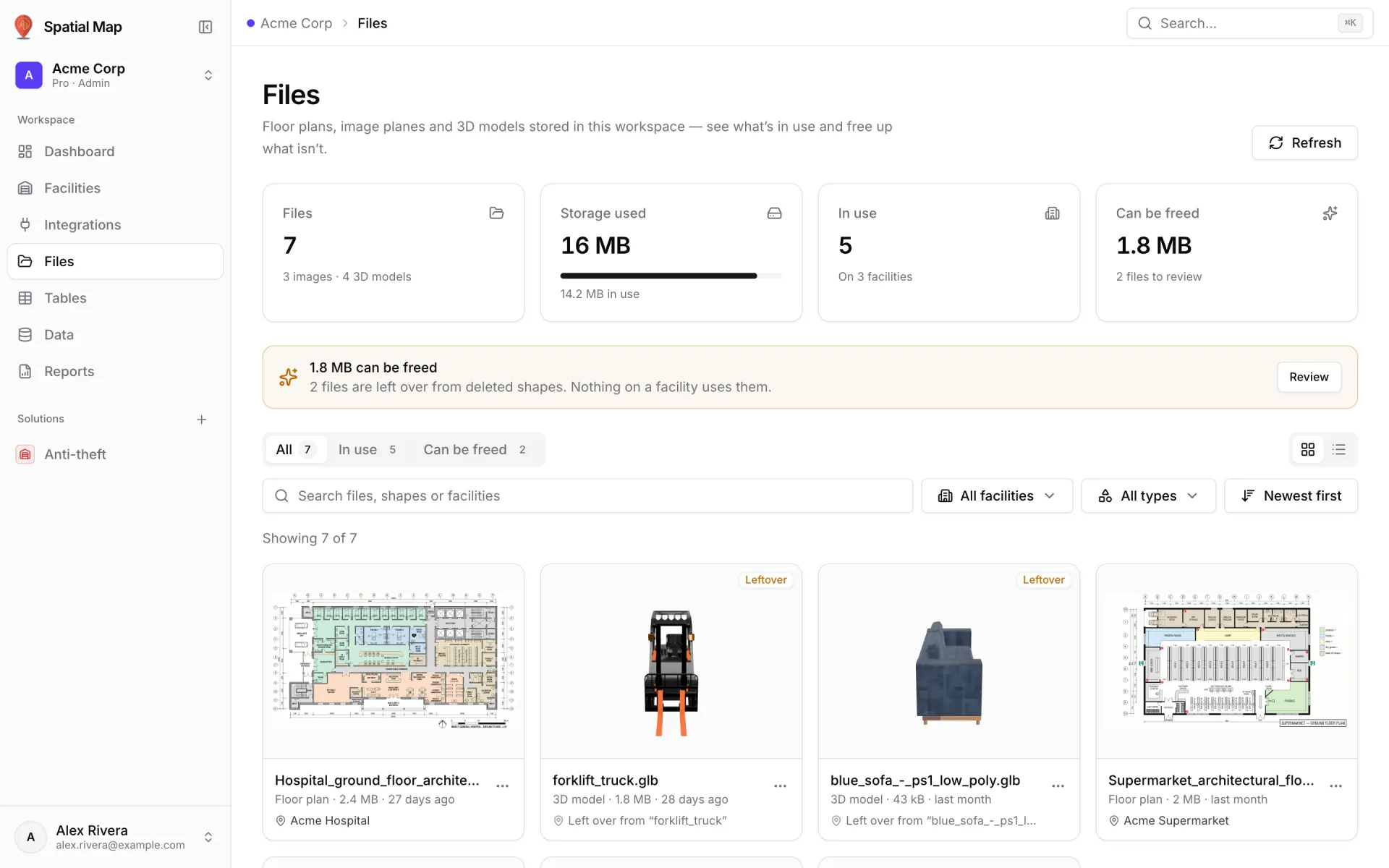
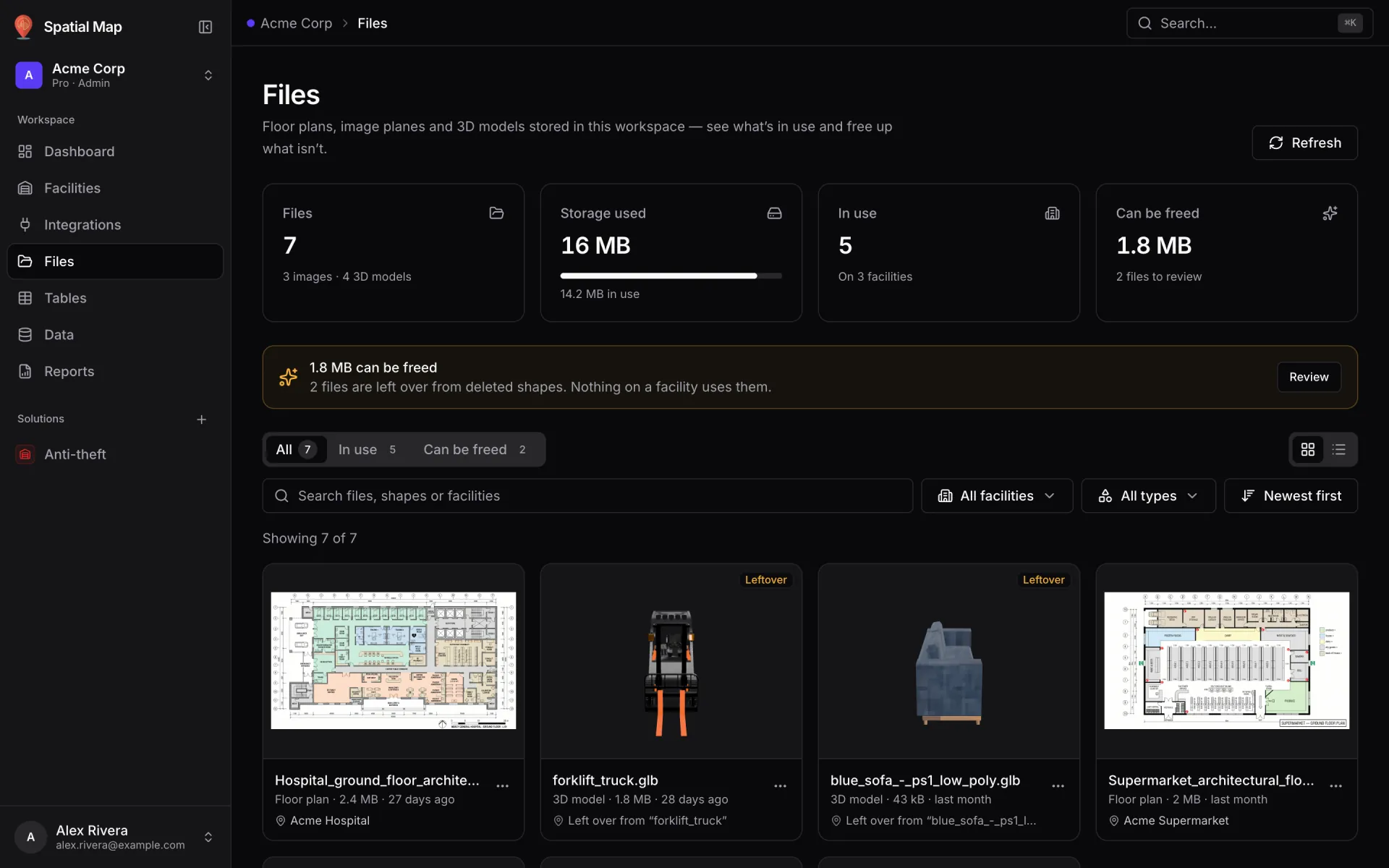
Storage at a glance
| KPI | What it counts |
|---|---|
| Files | Every stored file, split into images and 3D models. |
| Storage used | Total size, with how much of it is in use. |
| In use | Files shown on at least one facility, and on how many facilities. |
| Can be freed | Files nothing on a facility uses, with how many there are to review. Reads "Nothing to clean up" when there are none. |
Below the KPIs, up to two notices appear. "{size} can be freed" counts unused files and files left over from deleted shapes, with a Review button that filters the list to them. "N files are missing from storage" means a facility still points to files that are gone, so they show up blank; Show these lists them.
File statuses
Every file has one status, worked out from what in the workspace points to it. The status decides whether it can be deleted.
| Status | Meaning | Can you delete it? |
|---|---|---|
| In use | Shown on at least one facility. | No. Remove it from the facility first. |
| Leftover | Belongs to a shape or catalog model that is no longer on any facility. | Yes. The leftovers that point to it are removed too. |
| Unused | Nothing points to this file. | Yes. "Deleting it frees the space and can't break anything." |
| Missing | A facility points to it, but it is no longer in storage, so it shows blank. | Nothing to delete. Upload it again from the facility. |
Finding files
| Control | Options |
|---|---|
| Status tabs | All, In use and Can be freed (Leftover + Unused), each with a count. A Missing tab appears only when some files are missing. |
| Type | All types, Floor plan, Image plane, 3D model, Image, Other. |
| Facility | All facilities, or one facility. |
| Search | "Search files, shapes or facilities". |
| Sort | Newest first, Oldest first, Largest first, Name. |
| Layout | Grid (thumbnails) or List (Name, Type, Status, Size, Uploaded). |
The list loads 24 files at a time; Load N more (or scrolling to the end) fetches the next batch. Filters are kept in the page address, so a filtered view can be bookmarked or shared with another admin.
File details
Click a card to open its details panel: a preview (images as a picture, 3D models in a rotatable viewer), Details such as pixel dimensions and size, Where it's used with an Open link to each facility, and the file's Status. From the card's menu you can also Download, Copy link or Open in new tab.
Choosing delete on a file that is in use opens its details panel instead, which shows where it is used. "Why can't I delete this?" explains the rule.
Freeing up space
- 1Review what can go
Click Review on the "can be freed" notice, or open the Can be freed tab. Only Leftover and Unused files have a selection box.
- 2Select
Tick files one by one, or use Select all files that can be deleted. A bar at the bottom shows "N selected · size".
- 3Delete and confirm
The confirmation, "Delete N files?", says how much space it frees and that leftover shapes pointing to those files are removed too. It can't be undone.
The upload library in the editor
Every image you upload while editing is saved to the workspace, so you can reuse it. The Floor plan and Image plane tools have two tabs: From library and Upload new.
- Show uploads from: switch between This facility and Whole workspace. When this facility has nothing yet, Show the whole workspace (N) jumps to the wider list.
- Search with "Search uploads…". Each image is tagged Used here, Used in another facility, Uploaded here · not used yet or Not used yet.
- Identical uploads appear once, however many times they were uploaded.
- To swap a placed floor plan for another picture without moving it, select it and use Replace image: "Position and size stay the same."
The 3D model library
The 3D model tool opens Add 3D model: "Reuse a model from this workspace, pick a built-in one, or upload a .glb / .gltf."
| Part | What it does |
|---|---|
| Tabs | This facility, Whole workspace, Built-in (the built-in library of ready-made models). |
| Grid | Real thumbnails of every model, with "Search models…". |
| Preview | Select a model to turn it around in 3D and see its Source, Size, when it was Uploaded and its Usage, without placing it first. |
| Place | Place on map, or double-click / press Enter on a model. |
| Upload | Upload model takes a .glb (binary glTF with embedded textures) or .gltf; it is saved to the workspace for reuse. |
| Manage | Rename, or Remove from library. Removing deletes the file from the workspace, and any placements that use it are removed too. |
More in Data
- Data · IntegrationsConnect data with IntegrationsBring data into Spatial Map three ways: poll a REST API, upload a CSV, Excel, JSON or GeoJSON file, or create a table your systems write to.
- Data · TablesData tables: schema, records and API keysCreate your own data tables in Spatial Map: pick a kind, define fields, edit records in a grid, mint API keys and pull rows from a REST URL.
- Data · Table APIWrite rows with the table APIPush rows into a Spatial Map table from your own code: API keys, the 12 REST endpoints, bearer auth, bulk upsert, filters and the 60-requests-a-minute limit.