
Preview a facility before you share it
Use the editor's Preview button or a facility card's Preview to open the read-only Viewer, check what teammates will see, then go back to editing in one click.
What Preview does
Preview opens the facility you're working on in the read-only Viewer, at `/view/<facility-id>`. It shows the same shapes and data links, without the drawing tools. Use it to check your work, to walk a stakeholder through the facility on a screen share, or to leave it running on a wall screen with Auto-rotate.
Where to find it
| From | Click | Opens in |
|---|---|---|
| The editor | The eye-icon Preview button on the left toolbar, under Auto-rotate and above Create share link | The same tab |
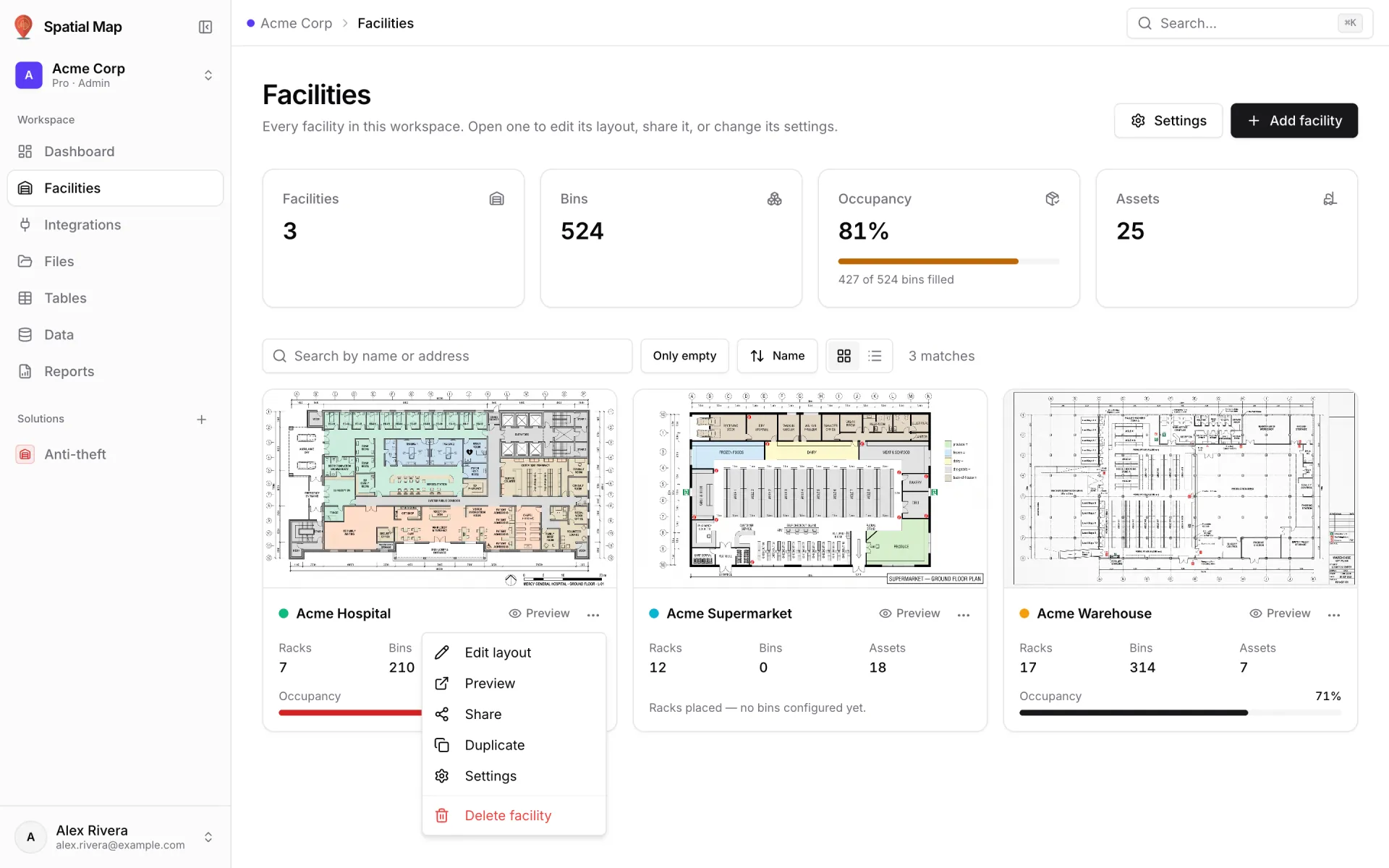
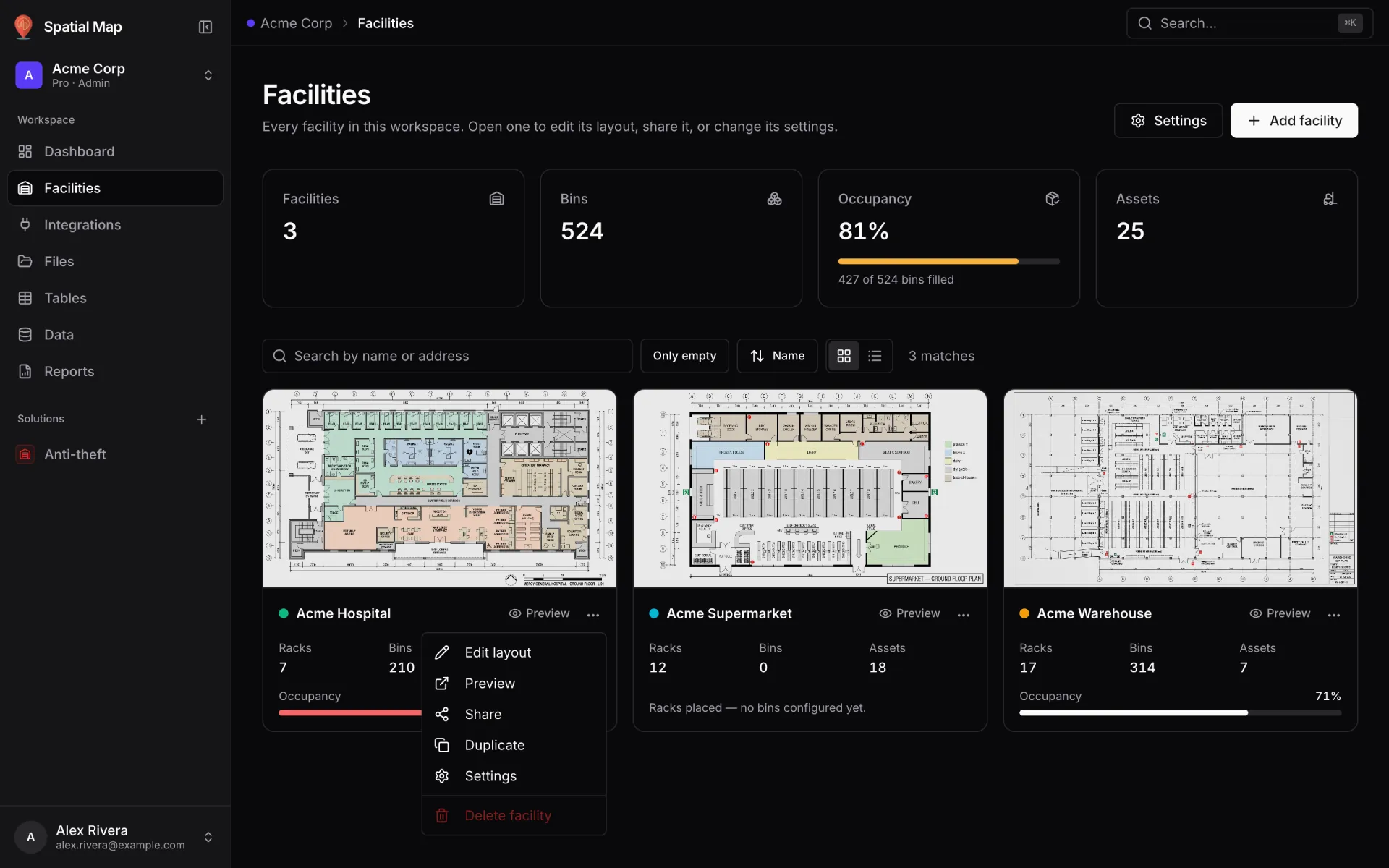
| A facility card | Preview next to the facility's name | The same tab |
| A facility's ⋯ menu | Preview | A new tab |
Getting back to the editor
In Preview, the top-left corner shows Back to editor and a "PREVIEW · <facility name>" pill. Back to editor goes back to the page you came from. If you opened Preview in a new tab, it opens the editor. Your sidebar and top bar stay available the whole time.
Preview without a facility open
If you opened the editor without choosing a facility (for example from the ⌘K command palette), the Preview button opens `/preview` instead: the editor itself with the drawing tools hidden. It has no share button. Use the browser's Back button to return. Open a facility first for the full Viewer.
More in Viewer & sharing
- Viewer & sharing · ViewerThe Viewer: a read-only facility mapOpen a facility read-only in the Viewer: floors, layers, live data links, a detail drawer and indoor directions, for teammates on /view and guests on /share.
- Viewer & sharing · ViewerShow and hide layers in the ViewerUse the Viewer's Layers panel to hide shape kinds, list and zoom to items, and switch data-link layers off for your visit or turn them off for everyone.
- Viewer & sharing · ViewerSwitch floors in the ViewerShow one floor, several or all of them in the Viewer's floor switcher, see how share links lock a floor, and set a building shell to Auto, Shell or Interior.
- Viewer & sharing · ViewerFilter live data in the ViewerThe Viewer's Filters pill lets anyone pick a saved filter per data link and fill in runtime values, then Apply. It appears once a link has saved filters.