
Place asset icons on the map
Drop asset icons on your indoor map with Add asset (M): pick from 1,700+ icons, point them with Bearing, raise them on a pole and attach linked data.
When to use the Asset tool
An asset is a labelled icon pinned to one point on the map. Reach for it whenever the thing you're drawing is a single object, not an area — a forklift, a dock door, a security camera, a fuel pump, a sensor, a checkpoint. Assets are ideal for anything that has a live feed behind it (a battery level, an alert status, a last-seen timestamp) because the side panel shows its linked data in place.
To open the tool: click the Draw button on the left toolbar and pick Add asset, or press M on the keyboard. 4 also opens it. Saved assets are listed under Assets in the side panel. Other parts of the app still use the older name: the toolbar's Layers menu calls the layer Markers and the shortcut sheet lists the tool as Marker.
| M 4 | Open the Asset tool (Add asset). |
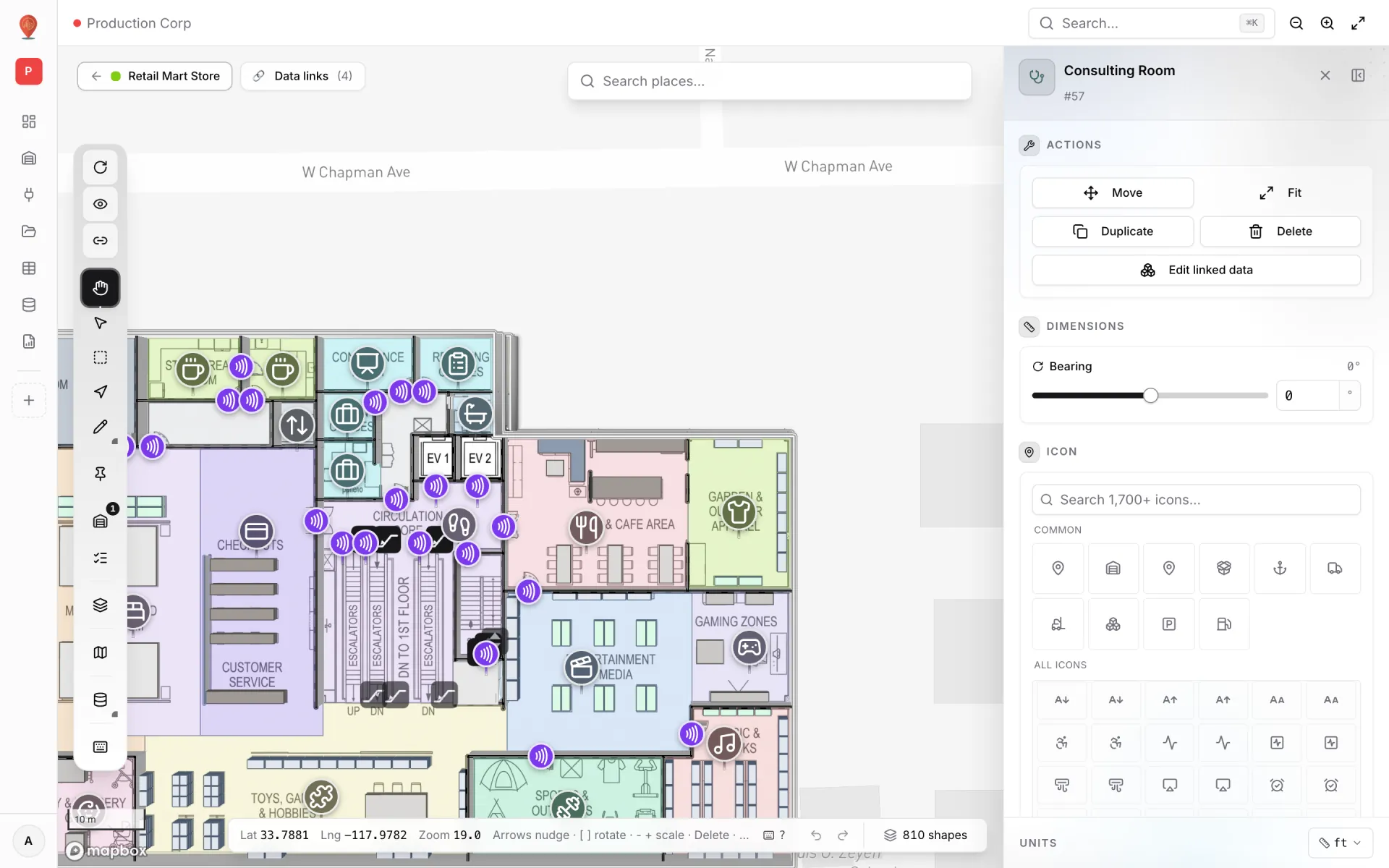
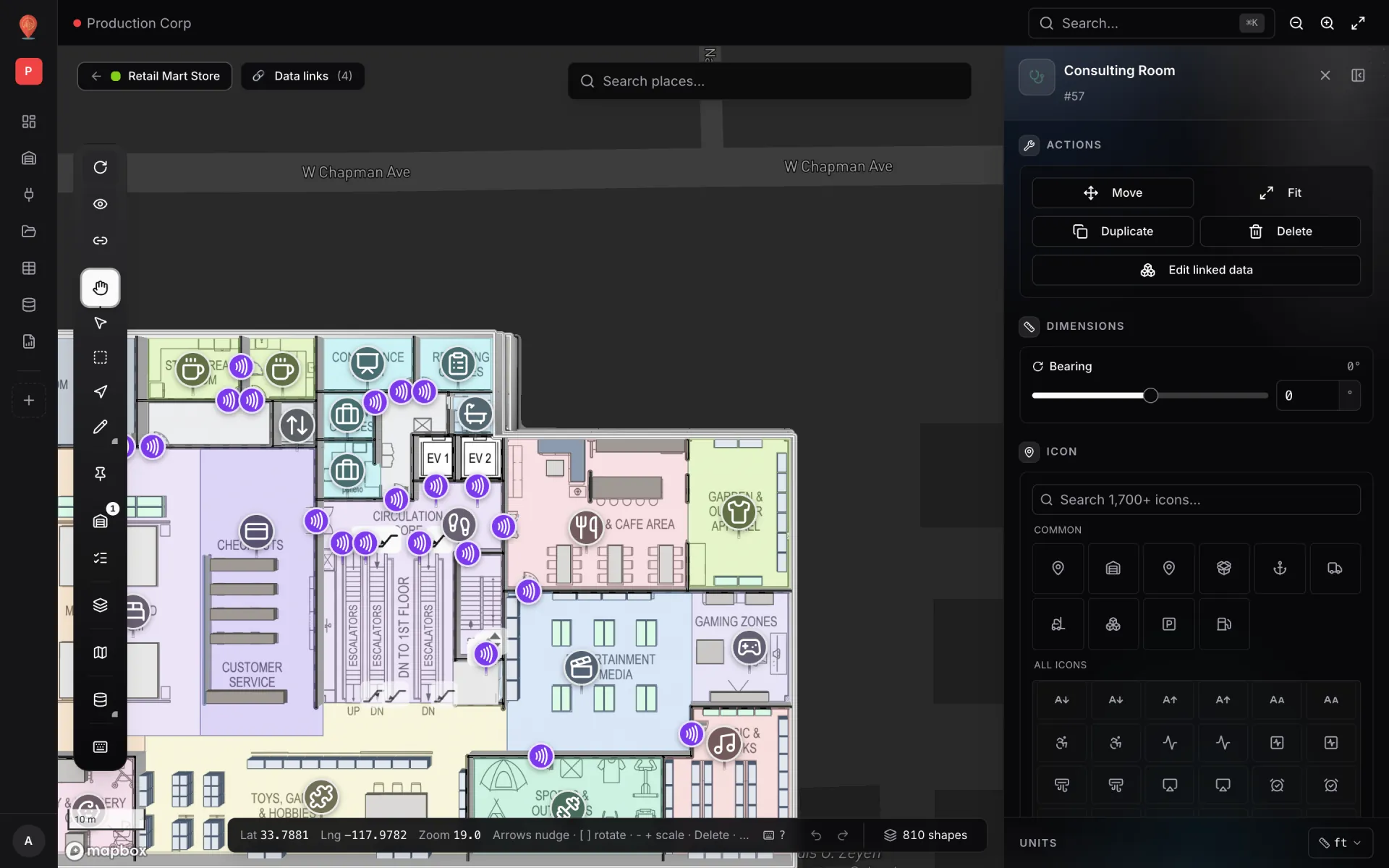
Placing an asset
The Asset tool is a one-click drop. Unlike the Rack tool, it stays active after each click — so you can drop several assets in a row without switching tools every time.
- 1Open the tool
The cursor turns into a crosshair. A ghost preview of the icon follows the mouse so you can see exactly where the asset will land — including its current colour and size.
- 2Adjust the icon before you click (optional)
While the tool is active the side panel shows the placement settings — icon, colour, size, opacity, elevation, pole, label and tooltip. Change any of them and the next asset you drop uses the new values. Your last-used settings are remembered in this browser. Set them before the first drop: once an asset is placed it is selected, and from then on the panel edits that asset.
- 3Click on the map to drop
A new asset lands at the click point, gets a default name ("Asset"), and is auto-selected so you can edit its properties right away. The tool stays active. If you set a default floor plan, the asset is pinned to it.
- 4Drop the next asset — or exit
Click again to drop another. Press Esc or click Pan on the toolbar to exit the tool. (The "Stop placing" button sits in the Placement section, which only shows until the first asset is placed and selected.)
Picking an icon
Every asset carries one icon. The Icon section of the side panel opens with a search box ("Search 1,700+ icons…"), a "Common" strip of 10 icons curated for warehouse and logistics work (shown while the search box is empty), and — under that — a scrollable grid of every icon in the lucide catalogue (~1,700 icons total).
| Quick pick | Icon | Common use |
|---|---|---|
| Pin | map-pin | Generic marker (the default). |
| Facility | warehouse | A warehouse or facility. |
| Facility | building-2 | A building or office. (Two quick picks currently share the "Facility" name.) |
| Shipping | package-open | A shipping bay or outbound station. |
| Receiving | anchor | A receiving bay or inbound station. |
| Dock door | truck | A dock door or bay. |
| Forklift | forklift | A vehicle or MHE. |
| Pick station | boxes | A pick station. |
| Parking | parking-square | A parking space or vehicle bay. |
| Fuel | fuel | A fuel pump or refuel point. |
Bearing — pointing the icon
When the icon has direction — a forklift, a truck, an arrow, a camera cone — the Bearing slider spins it. Bearing is in degrees from −180 to +180; 0 shows the icon in its normal upright orientation. It's a property of the asset, not a transform mode, so you edit it directly in the Dimensions section of the side panel.
The side-panel sections
When exactly one asset is selected, the side panel exposes these sections from top to bottom.
| Section | What lives there |
|---|---|
| Actions | Move · Fit · Duplicate · Delete · Edit linked data. |
| Linked data | A read-out of any data linked to this asset (shown when there is some). |
| Dimensions | Bearing — the icon's rotation. |
| Icon | Icon picker (10 common picks + full lucide search). |
| Appearance | Color, Size (12–64 px), Opacity (10–100%). |
| 3D & Altitude | Elevation (slider 0–500 m above the ground), Pole height. |
| Labels | Label text; once it has text, Label color, Label size and Label position (Top / Right / Bottom / Left). |
| Tooltip | Hover (the default) or Click: when the tooltip shows. |
| Position | Read-only Lat and Lng of the asset. |
| Data links | The data links that use this asset, with an Add button. See Data links. |
Elevation and the pole
Elevation floats the asset above the ground — useful when the asset is on an upper floor of a multi-storey building, on top of a rack, or on a rooftop. The pole is a thin line drawn from the icon straight down to the ground: a 3D depth cue that shows where the asset is actually anchored.
- Elevation 0 — the asset sits on the ground. The pole is hidden even if a value is set.
- Elevation > 0 with Pole height 0 ("No pole") — the asset floats without a pole. Hard to tell where it is at oblique camera angles.
- Elevation > 0 with pole > 0 — the asset floats with a visible pole from the icon down to the ground. This is the readable default for upper-floor assets.
Labels on assets
Every asset can carry a text label that appears next to the icon on the map. Labels are off by default; the moment you type any text into the Label field they turn on and the colour, size and position fields appear. Clear the text and they turn off. There's no separate toggle to remember.
| Field | What it does |
|---|---|
| Label | The text shown next to the icon. |
| Label color | Colour of the text. |
| Label size | Text size in pixels (8–32). |
| Label position | Where the label sits — top, right, bottom (default), or left. |
Actions on a selected asset
| Button | What it does | Shortcut |
|---|---|---|
| Move | Grab the asset and drag it to a new spot. Click Move again — or press Esc — to cancel. Arrow keys nudge the asset instead (Shift for bigger steps). | Arrow keys |
| Fit | Centre the map on the asset (zoom 16 or closer). | Button only |
| Duplicate | Copy the asset with " (copy)" appended to the name. The copy is offset by a few metres so it doesn't sit exactly on top. | ⌘/Ctrl + D |
| Delete | Remove the asset. Click once to arm — the button turns red and reads "Click to confirm". Click again to delete. | Delete |
| Edit linked data | Open the data card for this asset — status, SKU, capacity, notes, external code and custom properties, plus image, video or stream URLs that show up in its tooltip. | — |
Editing many assets at once
With the Select tool, Shift-click (or ⌘/Ctrl-click) assets on the map, or drag a rectangle with Marquee select (Q), to build a bulk selection. The side panel switches to "N assets selected" with Fit and Delete all buttons, followed by the bulk-edit fields.
- Color, Size, Opacity — under Appearance.
- Elevation, Pole height — under 3D & Altitude.
- Every field shows a "Mixed" badge when the selected assets disagree on the value. Change the field and every selected asset moves to the new value.
More in Build a facility
- Build a facility · FacilitiesCreate and manage facilitiesAdd a facility with a name, address and colour, then open, preview, share, duplicate, configure or delete it from the Facilities screen in Spatial Map.
- Build a facility · EditorTour of the layout editorA guided tour of the Spatial Map layout editor: the tool rail with its Draw and Data menus, the top pills, the side panel and the status bar.
- Build a facility · ImportImport a PDF or DWG floor planTurn a PDF drawing sheet or an AutoCAD DWG file into a true-to-scale floor plan image: pick the sheet or layers, confirm scale or units, then place it.
- Build a facility · Floor plan toolAdd a floor plan to the mapPlace a floor plan image, PDF sheet or DWG drawing on the map, resize, rotate and crop it, reuse earlier uploads and stack several floors by elevation.