
Sign up, sign in and reset your password
Create a Spatial Map account with an email code, sign in, show your password as you type, reset a forgotten password in three steps, and sign out.
Your account in short
You sign in to Spatial Map with an email address and a password. Two flows prove you own the address with a 6-digit code sent by email: creating an account, and resetting a forgotten password. The sign-in pages are at app.spatialmap.io.
- Sign up: app.spatialmap.io/signup. Three steps: Email, Verify, Password.
- Sign in: app.spatialmap.io/login. Email and password.
- Reset password: app.spatialmap.io/forgot-password. Three steps: Email, Verify, New password.
Create an account
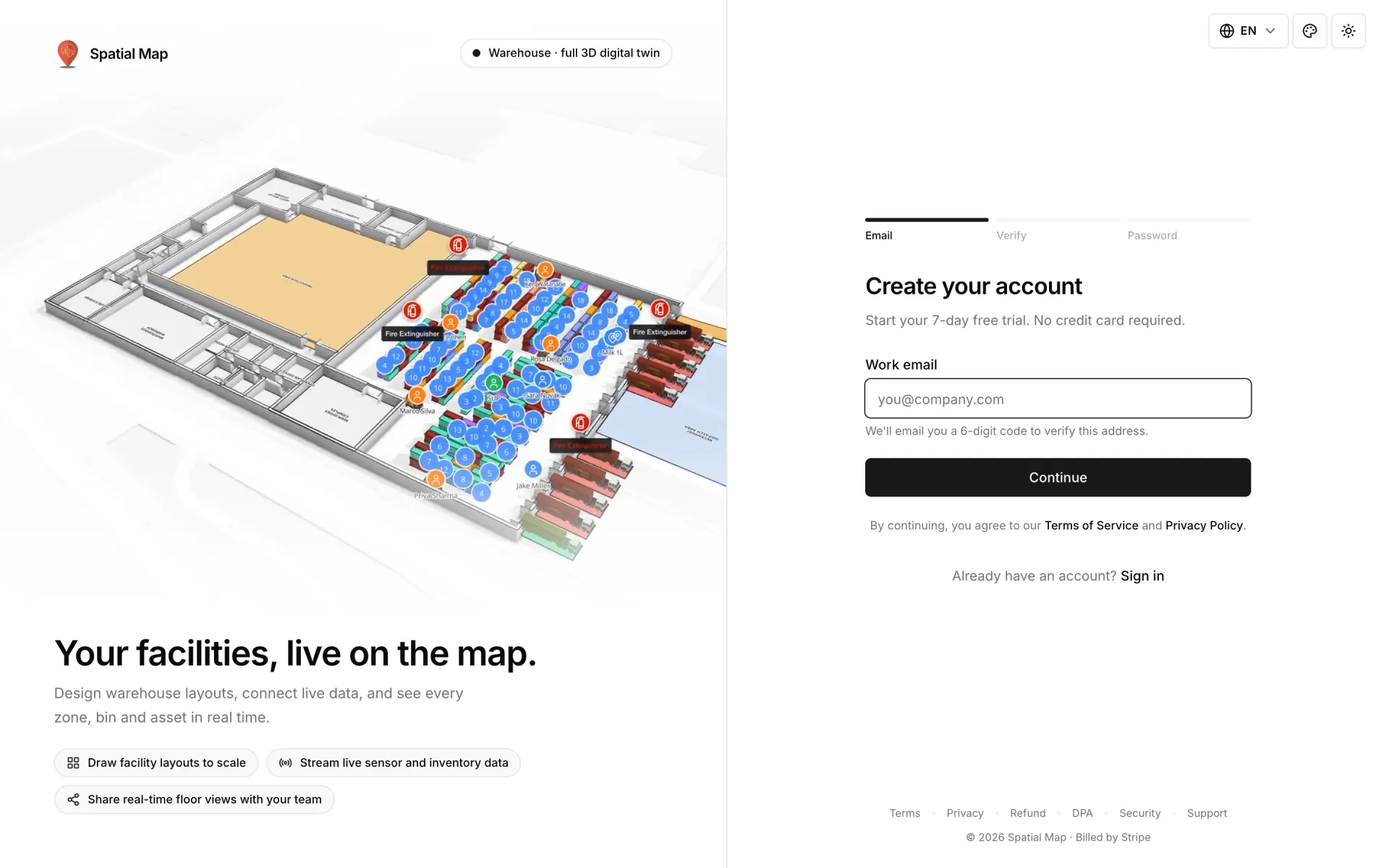
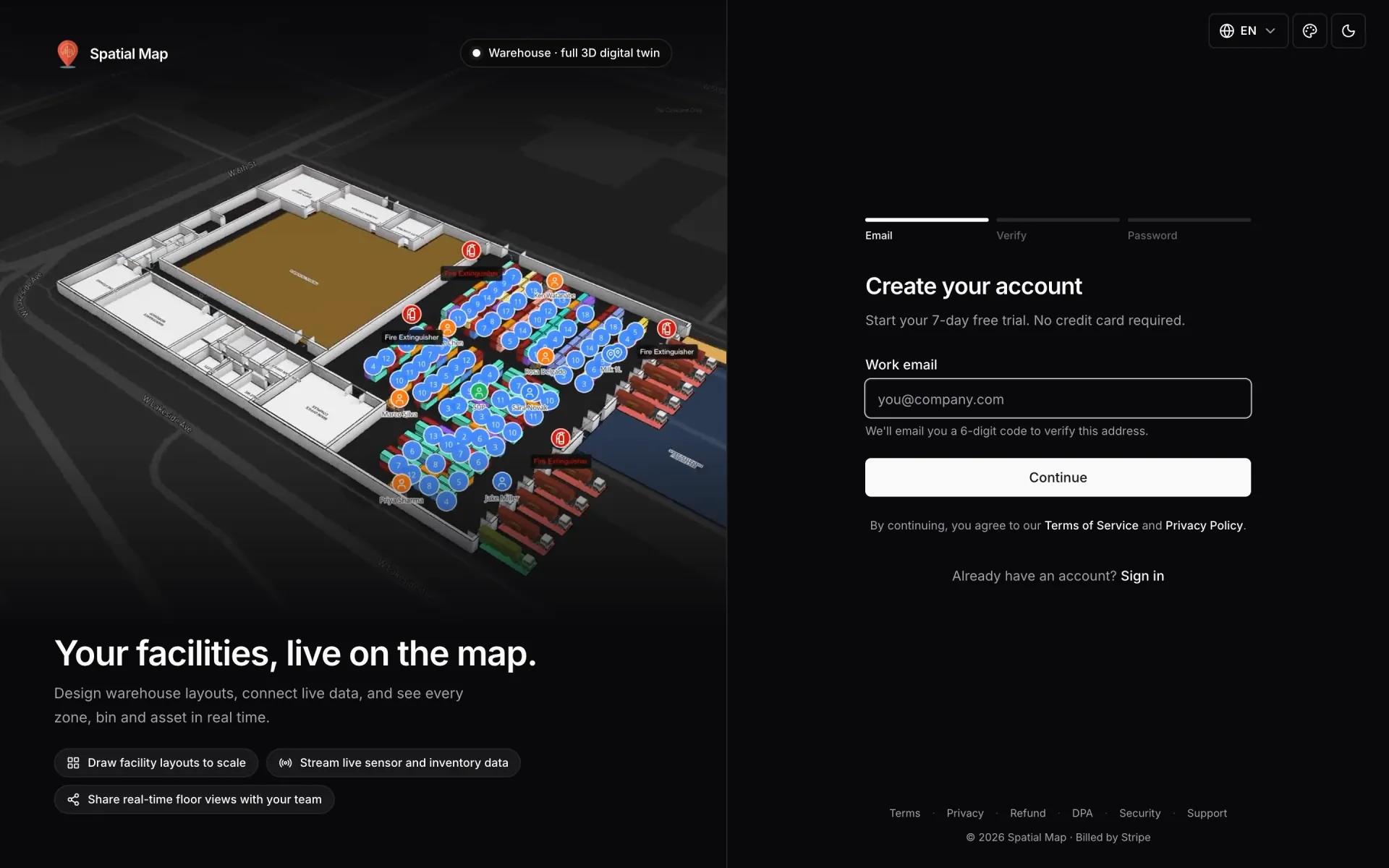
- 1Email
Enter your Work email and click Continue. By continuing you accept the Terms of Service and Privacy Policy linked under the button.
- 2Verify
On Check your email, type or paste the 6-digit code and click Verify code. Used the wrong address? Click Change email. If the address already has an account, we email a sign-in reminder instead of a code, so use Sign in instead.
- 3Password
On Set your password, choose a password. A checklist under the field turns green as each rule is met. Click Create account & start 7-day trial.
| Password rule | What it means |
|---|---|
| At least 12 characters | Length counts most. A short sentence works well. |
| Mix of at least 3 of: lowercase, uppercase, digits, symbols | For example, lowercase letters, digits and a symbol. |
| Not a commonly guessed password | Passwords like "password123" or "qwertyuiop" are refused. |
Your account and your first workspace are created together, and you are signed in. The workspace starts on a 7-day free trial with room for up to 5 facilities. See Plan and billing.
About the 6-digit code
- A code is valid for 10 minutes.
- After 5 wrong tries the code stops working ("Too many incorrect attempts"). Request a new one.
- Resend code becomes available after a 60-second countdown. If you ask for several codes in a row, the wait gets longer and the page says so.
- If you use Gmail or Outlook, the code screen has an Open Gmail or Open Outlook link.
- After you verify, you have 15 minutes to set the password. If that window runs out, you go back to the first step with "Your verification window expired". Ask for a new code and carry on.
Code not arriving? Check your spam or promotions folder first. More fixes are in Troubleshooting.
Sign in
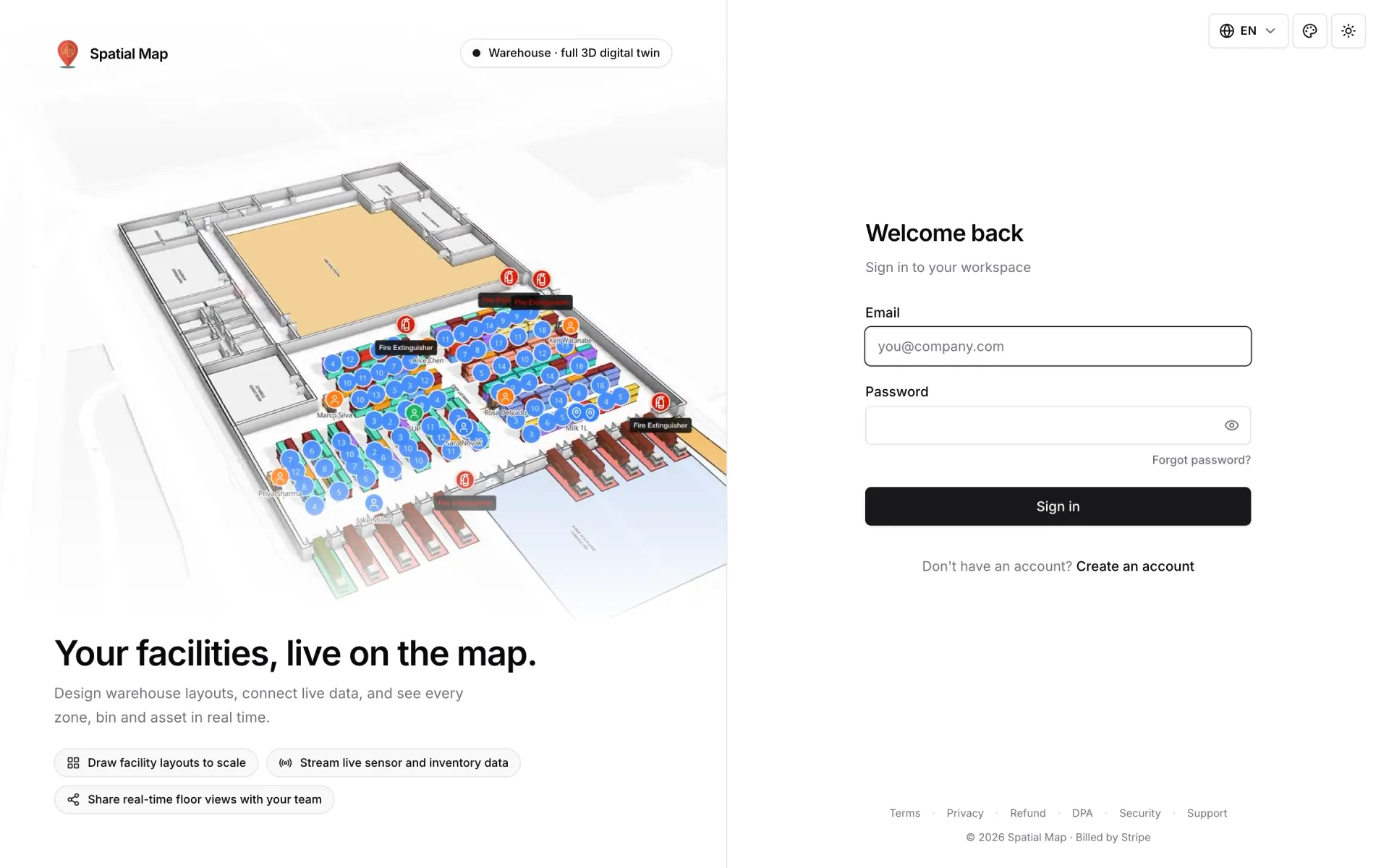
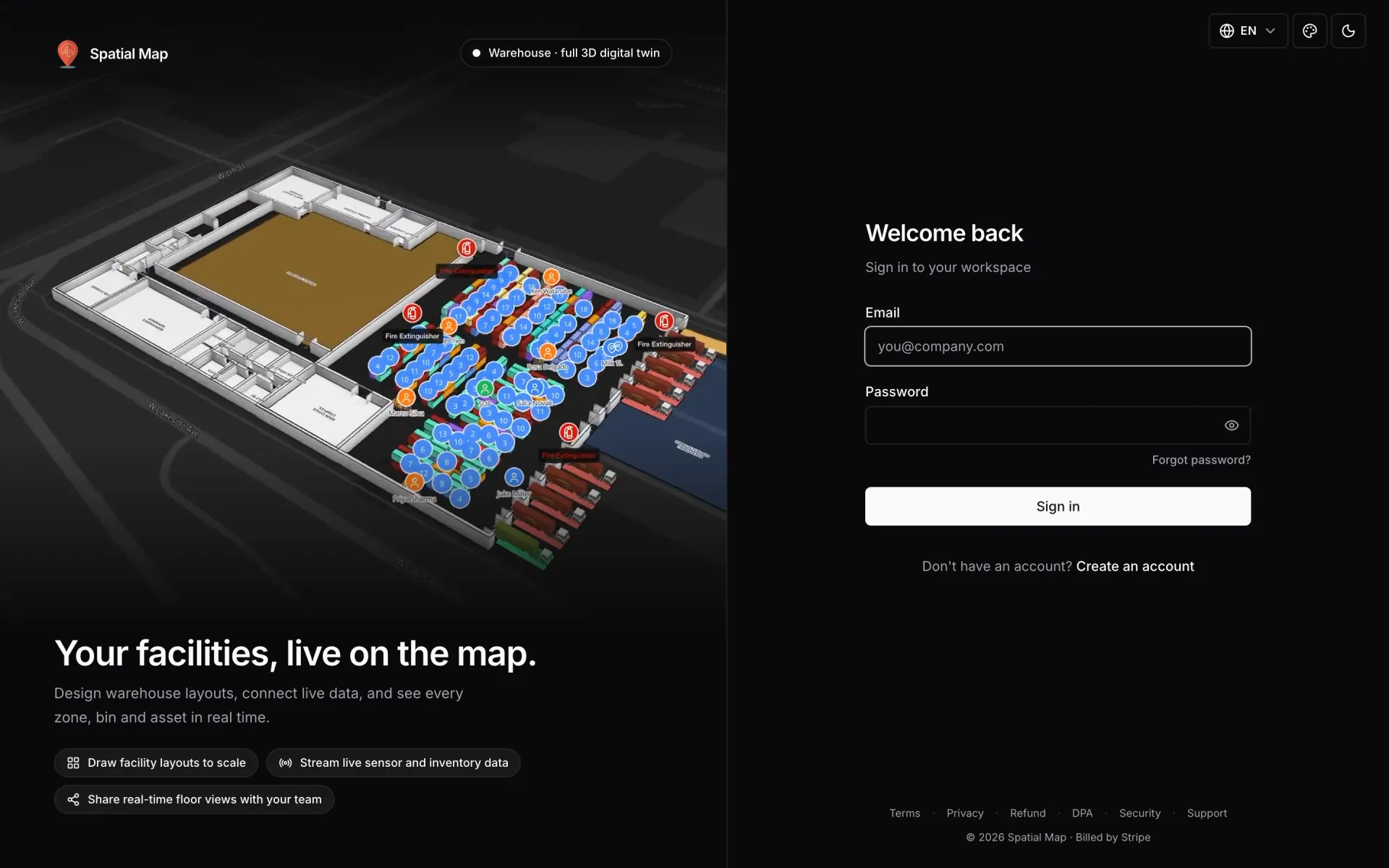
- 1Enter your email and password
Use the address you signed up with. To check what you typed, click the eye button in the password field (Show password). Click it again to hide it. If Caps Lock is on, a "Caps Lock is on" warning appears under the field.
- 2Click Sign in
You land on your Dashboard. If a page sent you to sign in, for example a report link a teammate shared, you go back to that page.
| Message | What to do |
|---|---|
| Incorrect email or password. | Check the email address, then retype the password (it is already selected for you). Still stuck? Reset it. |
| Too many attempts. Please wait … before trying again. | Sign-in is paused for a short while. The button counts down; try again when it reaches zero. |
| You’re offline. / Can’t reach Spatial Map right now. | Check your connection and try again. |
Reset a forgotten password
Click Forgot password? under the password field. If you have already typed your email, it is filled in for you.
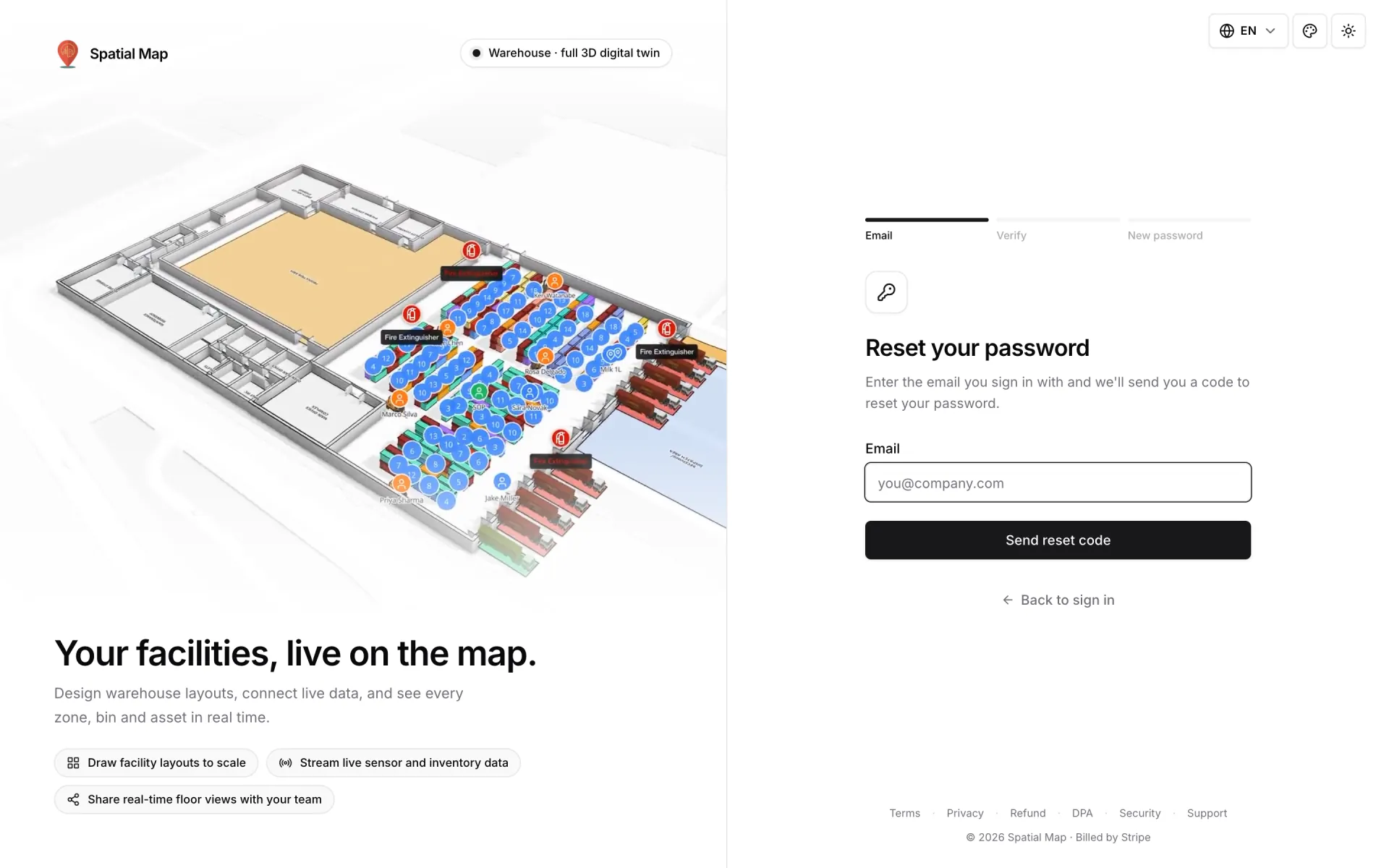
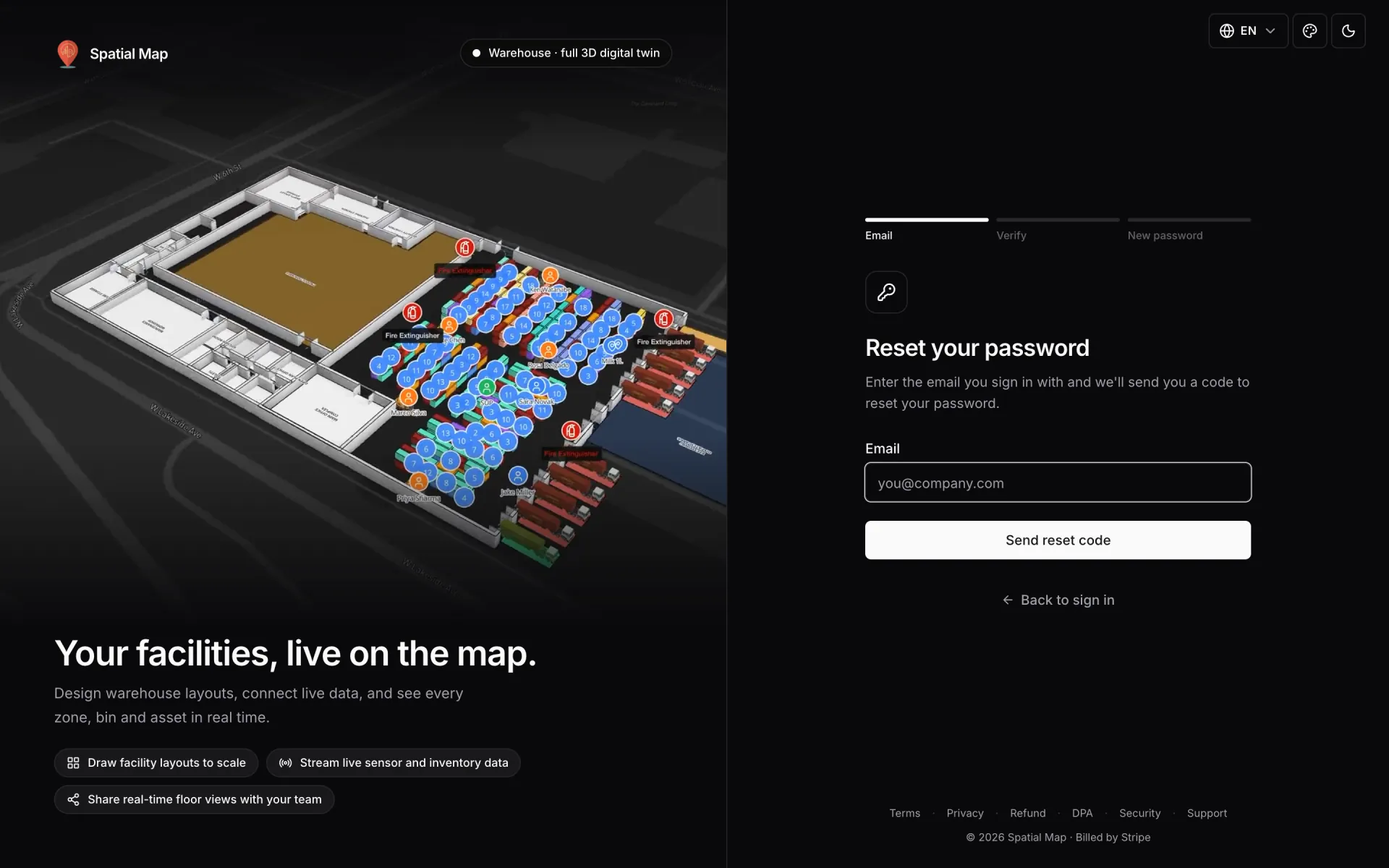
- 1Email
Enter the email you sign in with and click Send reset code. For privacy, the page answers the same way whether or not an account exists: "If an account exists for …, we’ve sent it a 6-digit code."
- 2Verify
Enter the code and click Continue. The same code rules apply: valid for 10 minutes, with Resend code after a countdown.
- 3New password
On Choose a new password, type the new password twice (New password and Confirm password). It must meet the same rules as at sign-up. Click Reset password.
You see Password updated. The reset signs you out on every device, including this one, so click Continue to sign in and sign in with the new password. If the reset session expires before you finish, you go back to step 1 with "Your reset session expired".
Staying signed in and signing out
- A sign-in lasts 7 days in that browser. After that, you are asked to sign in again.
- When your password changes, every other session ends. Those browsers show "Your password was changed, so you’ve been signed out." with your email filled in.
- To sign out, open the account menu at the bottom of the sidebar (your name and email) and choose Sign out. This signs out the current browser only.