
Pick a data source and display mode
The first three sections of a data link: name it, pick the table, REST API or file it reads, and choose one of nine display modes for the map.
Sections 1 to 3
Every data link starts with the same three sections: Name this link, Pick a data source and Choose how it looks on the map. The source decides which fields every later section offers; the display mode decides which later sections appear at all.
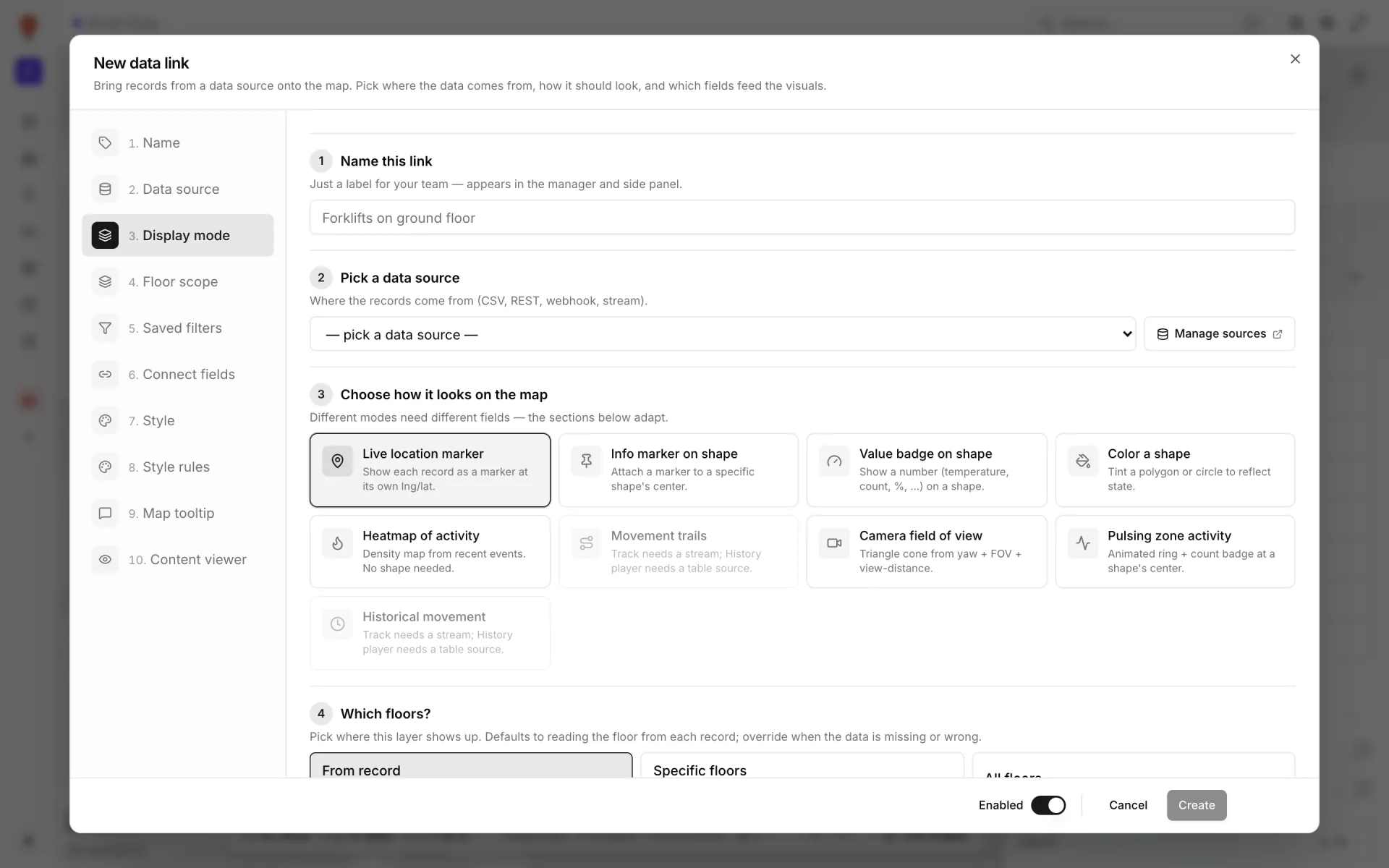
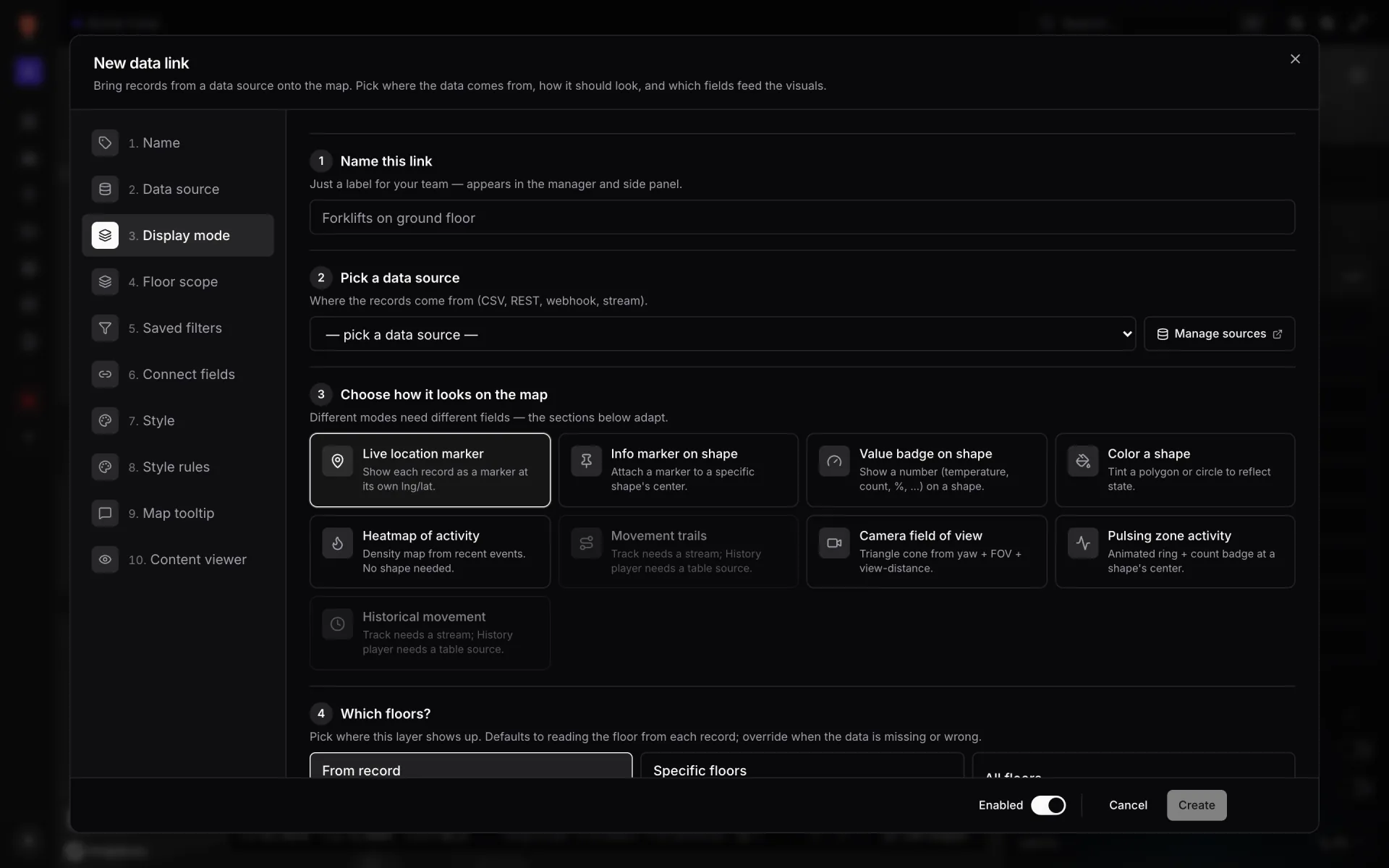
1 · Name this link
"Just a label for your team — appears in the manager and side panel." It also names the layer in the viewer's Layers panel and in share-link settings, so write it for the people reading the map: "Staff on duty" beats "staff_v2". Save stays disabled until it has a name ("Give this layer a name.").
2 · Pick a data source
"Where the records come from (CSV, REST, webhook, stream)." In practice that means your tables, REST APIs and uploaded files — webhook and stream sources can't be created in the app. The menu lists each source as name · kind of data · source type — for example "Rack Inventory · rack-cell · table" — and also includes built-in sources such as Areas, Racks and Markers that read the facility's own shapes. It offers sources tied to this facility plus workspace-wide ones; sources tied to a different facility are left out, so you can't paint one site with another's data. Manage sources opens Integrations in a new tab.
As soon as you pick a source, the dialog loads one row from it:
| State | What you see |
|---|---|
| Loading | "Fetching a sample record…" |
| Ready | "Sample record ready · N fields detected" — click to list every field with its value and type. These fields fill every picker below. |
| Empty table | "This table has no rows yet. Add rows from the Tables screen or push them via its API token — or type field paths by hand and the data will flow in later." |
| Empty REST or file source | The same hint plus Ingest records now, which runs the source once so you get a sample. |
| Error | "Couldn't fetch sample: …" |
Table sources add a note: "Rows are read straight from this table — no integration stream needed." If no sources exist yet, the menu says "No data sources yet. Add one from Integrations."
3 · Choose how it looks on the map
"Different modes need different fields — the sections below adapt." Nine cards; click one to pick it.
| Mode | Example | Adds or removes |
|---|---|---|
| Live location marker | Staff, Equipment, Environmental sensors | Longitude / latitude, elevation, icon and clustering. |
| Info marker on shape | An icon on each room from a room-status table | Adds Attach to shapes; icon options. |
| Value badge on shape | A temperature reading shown on each cold room | Adds Attach to shapes and a Value field. |
| Color a shape | Room status, Rack Inventory | Adds Attach to shapes; fill colour and opacity. |
| Heatmap of activity | Where equipment clusters across the floor | Removes the tooltip and content viewer sections. |
| Movement trails | — | Needs a live event stream; not available today. |
| Camera field of view | A cone from a camera marker | Adds Attach to shapes; reads `yaw`, `fovDeg`, `viewDistanceM`. |
| Pulsing zone activity | A ring and count on the receiving area | Adds Attach to shapes. |
| Historical movement | Replaying where equipment moved today | A player bar at the bottom of the map; table sources only. |
The section count follows from your pick: 11 for the five shape modes, 10 for Live location marker, Movement trails and Historical movement, and 8 for Heatmap of activity. See the overview for the full list.
Why some cards are greyed out
Two modes depend on the kind of source. A greyed-out card can't be clicked and shows the reason instead of its description.
| Your source | Movement trails | Historical movement |
|---|---|---|
| None picked yet | Greyed out: "Track needs a stream; History player needs a table source." | Greyed out |
| A table | Clickable, but Create stays disabled: "Needs an integration stream for its event history — not available for table sources." | Available |
| A REST API or file | Can be saved, but nothing is drawn: polling and file imports don't produce the event stream it reads. | Greyed out: "History player only works on table sources (they carry the change log)." |
Switching modes is safe: the controls the new mode needs appear and the others hide, and nothing is saved until you click Create or Save. Next: Attach to shapes and floors.
More in Data links
- Data links · OverviewData links: put live data on the mapA data link turns rows from a table, REST API or file into markers, tinted shapes, badges or heatmaps on a facility map. Learn the modes and the editor.
- Data links · Saved filtersPublish saved filters for a data linkSaved filters are named slices of a data link, like "Rooms in use" or "Needs attention", that viewers pick with one click. Build conditions and see live counts.
- Data links · Connect fieldsConnect fields: coordinates, labels and elevationTell a data link which fields hold longitude, latitude, label, value and elevation — so staff, equipment and sensor markers land in the right place and floor.
- Data links · StyleStyle a data link layerSet a data link's base look — icon, colours, marker size, fill opacity, clustering, heatmap radius — and tick which facility style rules may recolour it.