
Generate walls from areas with Magic walls
Turn drawn rooms into walled enclosures in one click: Magic walls (W) traces a 3D wall around every area you pick, using your Aisle tool wall settings.
When to use Magic walls
Magic walls is a shortcut: pick one or more areas you've already drawn, click Generate, and every selected area gets its own wall traced around its outline. Reach for it when the facility has already been sketched as rooms and you want to promote those rooms into walled enclosures without drawing every wall by hand.
To open the tool: open the Draw flyout on the left toolbar and pick Magic walls (from areas), or press W on the keyboard. There is no number-row alias.
| W | Open the Magic walls tool. |
Example: the offices, meeting rooms and stockrooms of a building are drawn as areas first. Picking them with Magic walls gives every room its own wall, so in 3D the floor reads as separate rooms rather than coloured floor patches.
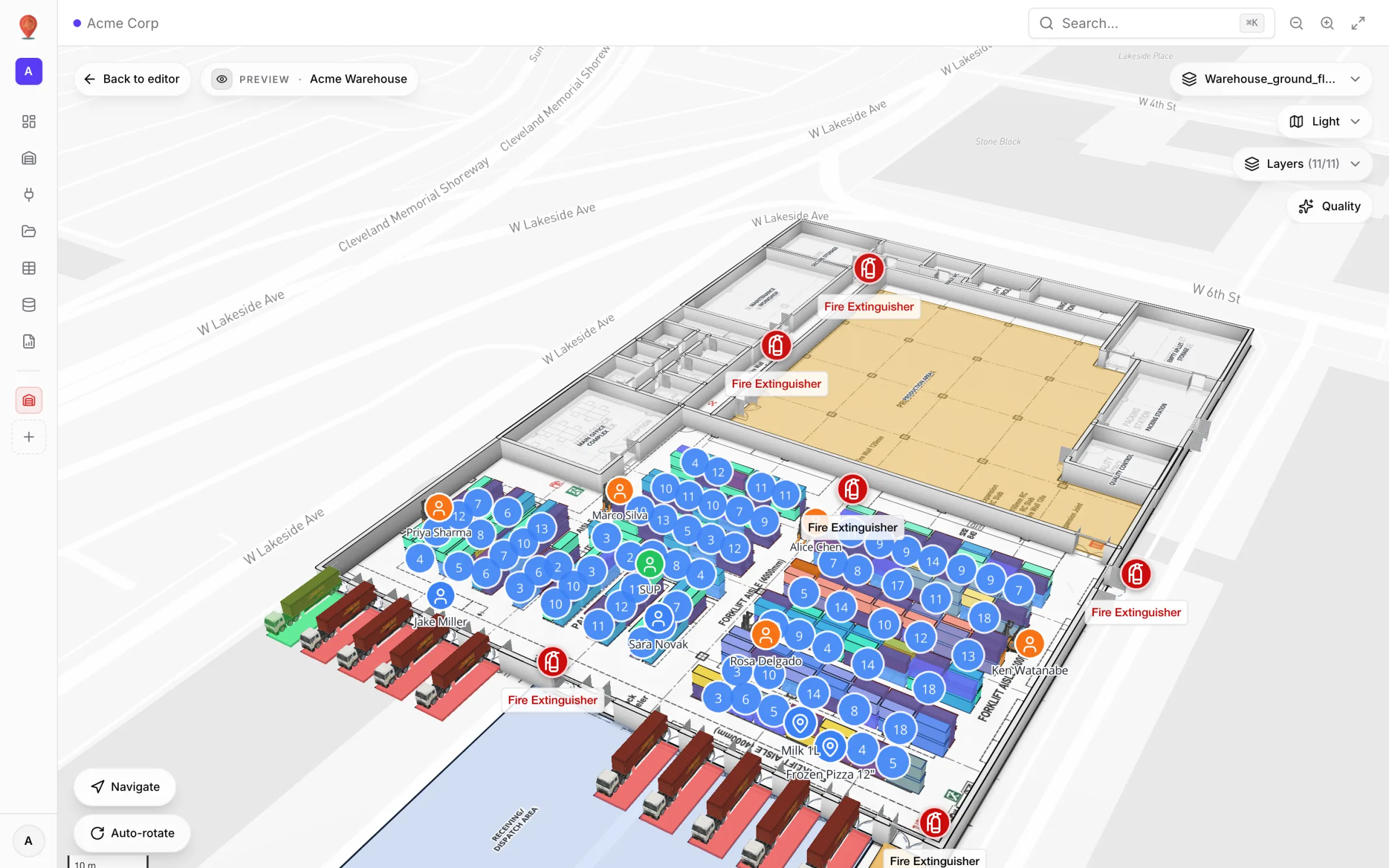
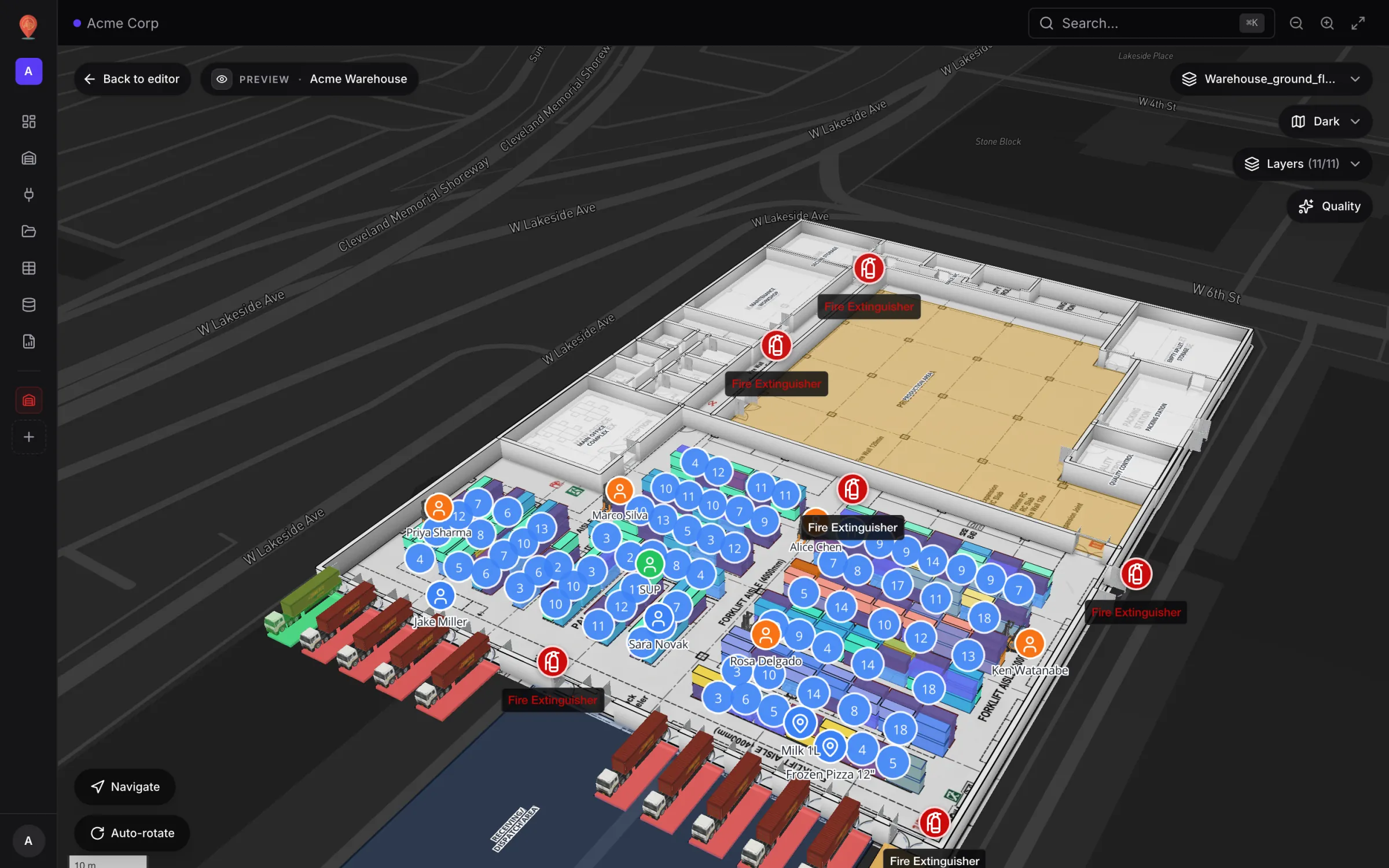
How to use it
- 1Draw the areas first
Magic walls only works with areas (polygons) that already exist. Draw them with the Area tool if you haven't already.
- 2Activate the tool
The map switches into selection mode for areas — clicking an area on the map adds it to the staging list, clicking a staged area removes it. The side panel counts your selection ("3 areas selected") and lists the staged areas with their colour swatches.
- 3Adjust the wall style
Below the selection list, the side panel shows the standard Aisle properties — colour, width, dash, border, opacity, elevation, wall height and wall thickness. Whatever you set here is what every generated wall uses. These are the same settings as the Aisle tool, so if you've been drawing 2 m-high walls all afternoon, that's what Magic walls uses too. Wall height starts at 0, which gives flat 2D lines; set it (for example 3 m) before you generate if you want 3D walls.
- 4Click Generate
The button reads "Generate walls (3 areas)". While it runs, a "Generating walls…" overlay asks you not to move anything. Every selected area gets one closed-ring wall named "Wall". The walls take the Elevation from these settings and go on the toolbar's Default floor plan if one is set, not on the source area's floor, so set both first when you work on an upper floor. The tool then switches to Select with the new walls selected so you can tweak them straight away.
What Generate actually produces
Each selected area produces exactly one wall — a closed ring that traces the area's outline, offset outward by half your wall thickness plus a small visible gap.
- One wall per area — not one wall per edge. The wall is a single aisle shape whose outline closes on itself.
- The wall centreline sits outside the area by half your wall thickness plus 10 cm. That 10 cm gap is what makes a visible strip between the area's fill and the wall's inner face.
- Near-collinear vertices are simplified so drawing jitter doesn't leak into the wall.
- Sharp corners are preserved as-is.
Safe to re-run
Magic walls never touches existing walls and never links a generated wall back to its source area. Re-running the tool on the same areas just creates another set of walls; deleting or moving one of your source areas doesn't delete its generated wall. Treat every generated wall as a normal Aisle shape from the moment it lands.
The side-panel sections
| Section | What lives there |
|---|---|
| Generate walls from areas | Hint text · selection counter · staged-area list (with colour swatches) · Generate walls button · Cancel button. |
| Appearance | Same as the Aisle tool — colour, width, dash, border colour, border width, opacity. |
| 3D & Altitude | Same as the Aisle tool — elevation, wall height, wall thickness (only visible when height > 0). |
| Labels | Label, then Label color, Label size and Label position (Start / Middle / End). Rarely useful for generated walls. |
| Tooltip | Hover (the default) or Click. |
Selection here is not the same as normal selection
While Magic walls is active, clicking an area on the map stages it for the tool — it does NOT open the area's properties or start a bulk selection. That's a deliberate separation: Magic walls has its own staged set so you can freely pick and unpick areas without accidentally editing them.
When you exit the tool (Cancel or after Generate), the staged selection is cleared. Opening the tool also clears any normal selection you had, as switching to any tool other than Select or Marquee select does.
Practical tips
- Set the wall height and thickness BEFORE you click Generate — the current values are what every generated wall uses, and the default height of 0 gives flat lines.
- Generating walls isn't on the undo history. If the result isn't what you wanted, press Delete straight away while the new walls are still selected (that delete can be undone).
- Adjacent rooms each get their own ring — plan for a doubled wall along shared edges.
- The 10 cm gap between the area fill and the wall's inner face is what lets a room read as "walls around a room" rather than "walls stamped on top of a fill". If you want the wall flush against the area, delete and redraw the wall as a normal Aisle.
- Every generated wall is a normal aisle — bulk-select and restyle them like any other. See the Aisle tool guide.
More in Build a facility
- Build a facility · FacilitiesCreate and manage facilitiesAdd a facility with a name, address and colour, then open, preview, share, duplicate, configure or delete it from the Facilities screen in Spatial Map.
- Build a facility · EditorTour of the layout editorA guided tour of the Spatial Map layout editor: the tool rail with its Draw and Data menus, the top pills, the side panel and the status bar.
- Build a facility · ImportImport a PDF or DWG floor planTurn a PDF drawing sheet or an AutoCAD DWG file into a true-to-scale floor plan image: pick the sheet or layers, confirm scale or units, then place it.
- Build a facility · Floor plan toolAdd a floor plan to the mapPlace a floor plan image, PDF sheet or DWG drawing on the map, resize, rotate and crop it, reuse earlier uploads and stack several floors by elevation.