
Full-map reports: live data on the floor plan
Show a report on a full-screen live facility map: a list on the left, the picked record on the right, key numbers and insights floating over the floor plan.
What a full-map report is
A full-map report puts your data where it happens. The live 3D facility map fills the page, and the report floats over it in glass panels: a list of records on the left, the record you pick on the right, Key numbers along the top and charts in an Insights panel. It's built for operations screens, such as RFID readers on a shop floor or rack cells in a warehouse.
Under the hood it's an ordinary report whose layout is set to Full map, built around one facility map & list widget. Any report that has a map & list can also be switched to the map by a viewer.
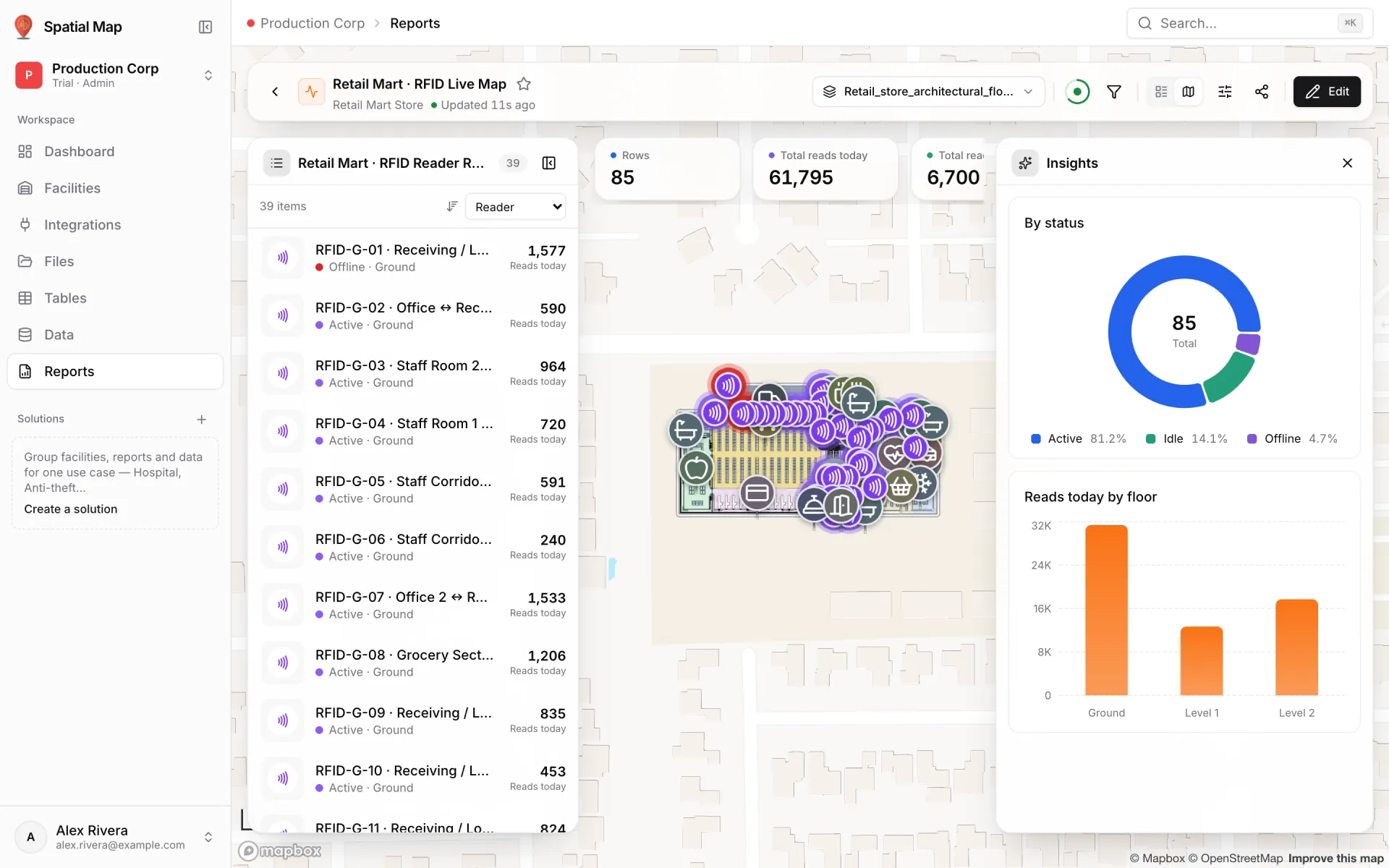
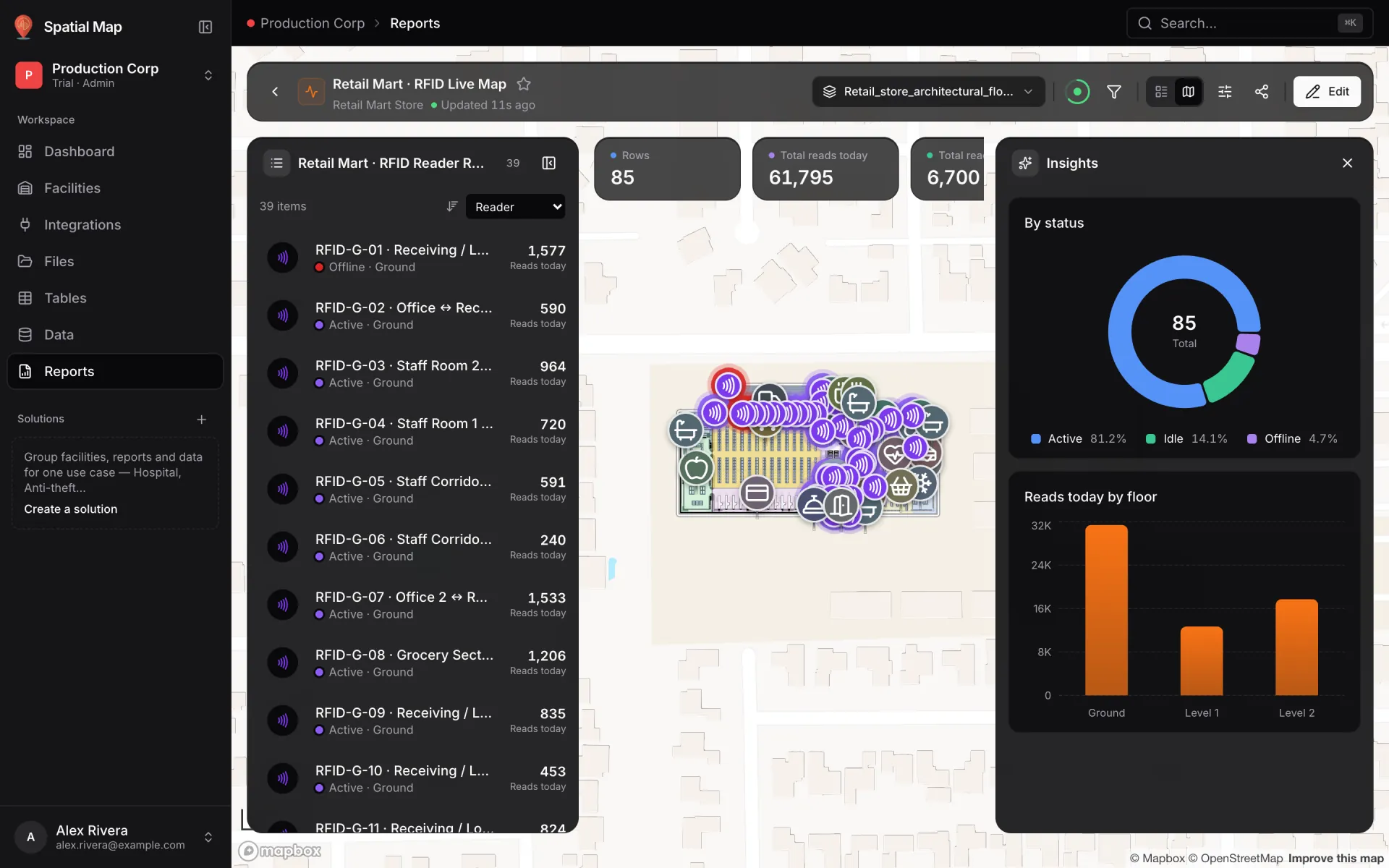
Example: RFID Live Map
In the Production Corp demo, Retail Mart · RFID Live Map lists the RFID readers of Retail Mart Store (RFID-G-01 and so on) with their status, floor and reads today. Key numbers show Rows, Total reads today, Total reads last hour and Total unique tags today. Insights show By status (Active, Idle, Offline) and Reads today by floor. The store has several floors, so a floor menu appears in the top bar, and the filters offer Floor, Status and Search by reader.
Each reader on the map is drawn by the store's RFID data link, and offline readers show in red, so a glance at the floor plan tells you where to look.
Pick a record on the list or the map
- 1Pick a row in the list
Its shape lights up and the map frames it in the space between the panels. The right-hand panel switches to Details.
- 2Or click the map
Click a room, rack cell or marker on the map and its row is picked in the list.
- 3Read the record
Details shows a Record badge with its place in the list (for example "3 of 39"), the row's title and status, its first numbers as tiles, where it sits On the map, and every other field. Use Previous / Next to step through the list.
- 4Go further
Open in editor opens the map editor with that shape selected. For a linked table, Open in table opens the row in Tables to edit it. When a report also has insights, Details and Insights become two tabs; closing the record brings Insights back.
- The list header shows the count (for example "39 items"), a sort-direction button and a sort menu (for example Reader). The fields shown under each row are the sort options.
- A row with nothing to point at on the map says so: "Not on the map — no matching shape".
- Filters narrow the list and the key numbers together, so "Status = Offline" shows only the offline readers.
The top bar
The top bar holds the back arrow, the report's icon, name and star, its facility, and how long ago it updated. On the right, from left to right:
| Control | What it does |
|---|---|
| Floors | Only when the facility has two or more floors. Show All floors (stacked), tick several floors, or use Only to isolate one. |
| Live (the ring) | The ring empties towards the next update. Click it for Refresh now, Update automatically (every 10 seconds, 30 seconds, 1 minute or 5 minutes) and Pause updates. |
| Filters (F) | Opens the report's filters over the map, with Reset all. A number on the button shows how many are active. |
| Page / Map | Switches back to the page layout. |
| Map style & panels | Pick a Map style (Standard, Standard simple, Monochrome light, Monochrome dark, Dusk, Streets, Dark, Light). Turn List, Insights and Key numbers on or off, and each widget under Widgets. |
| Share & export | Copy link, Export… and Run history. |
| Edit | Opens the builder. Only shown if you can edit the report. |
| L | Show / hide the list |
| I | Show / hide Insights |
| F | Open the filters (when the report has any) |
Live updates
A full map updates itself every 30 seconds by default, counted from when the last run finished. It doesn't update while a run is in progress or while the browser tab is in the background. Updates happen quietly: widgets keep their values instead of flashing a loading state.
When a key number changes on an update, its card glows briefly and shows the difference with ↑ or ↓ for a few seconds. On the page layout, reports only update when you click Refresh.
Open any map & list report as a full map
Reports laid out as a page still get a Page / Map switch in the header when they contain a facility map & list. That includes every built-in report. Click Map and the same widgets move onto the map: KPIs and big values go to Key numbers, everything else to Insights.
Build a full-map report
- 1Add a facility map & list
In the builder's Widgets step, click Add widget → Facility map & list. Pick the Facility, then under What the list shows choose facility items, or Linked data (tables linked to the facility's map). If your source is already on the map, the step offers Add map & list for you.
- 2Choose Full map
In the Layout step, click Full map. A small preview shows the list, the number strip and the Insights panel, with counts such as "4 key numbers · 2 insights".
- 3Place each widget
Under Where each widget goes, set every widget to Key numbers (the strip along the top), Insights (the right-hand panel) or Hidden at first (viewers can turn it on from Map style & panels). Use the arrows to change the order.
- 4Save
Click Save changes (or Create report). The report now opens as a full map.
- Only KPI and Big value + delta widgets fit Key numbers. Charts, tables, notes and alert banners go to Insights.
- Dividers and plain Map widgets have no place on the full map. They still show in the page layout.
- Until the report has a map & list with a facility and at least one tab, it opens as a page. The Layout step warns you and offers Add a map & list of <source> or Set one up in Widgets.
- Every map & list in a report must show the same facility, because a report shows one facility at a time.
Phones, exports and printing
On a phone the map still fills the screen. The panels become one bottom sheet with List, Insights and Details tabs, and the less-used buttons move into a ⋯ menu (Page view, Edit, Copy link, Export…, Run history).
Export… and PDFs always use the page layout, so a printed full-map report reads like a document. See Export a report.
More in Reports
- Reports · OverviewView and share live reportsFind, open and use live reports in Spatial Map: the Reports screen, stars, refresh, viewer filters, run history, sharing a link and who can see each report.
- Reports · Built-inBuilt-in facility reportsThe reports every facility gets automatically: Overview, Floors, Areas, Racks, Markers and more, plus a live report for each table you link to the map.