
Get started with Spatial Map
The whole path in one page: sign up, draw your first facility, bring in data, link it to the map, share a live view and a report your team can open.
From sign-up to a shared report
Spatial Map runs in the browser. You draw a facility (a store, a warehouse, a factory) on a real-world map, bring in your data, link that data to the shapes on the map, and then share a live map or a report. This page walks through the whole path once, in order. Each step links to the guide that covers it in full.
- 1Create your account
Email, a 6-digit code, then a password. Your first workspace is created for you, with a 7-day free trial.
- 2Look around your workspace
You start on the Dashboard. Its setup checklist ticks itself off as you work through the steps below.
- 3Create a facility and draw it
Add a floor plan (an image, a PDF or a DWG drawing), then draw areas, racks and assets on top of it.
- 4Bring your data in
Poll a REST API, upload a file, or create a table that your systems write to.
- 5Link the data to the map
A data link puts records on the map: it tints rooms by status, places markers by coordinates, or fills rack bins.
- 6Share a live view
Preview the facility in the read-only viewer, then create a share link that can expire.
- 7Open and share a report
Every facility comes with ready-made reports. You can also build your own and give teammates access.
1. Create your account
Go to app.spatialmap.io/signup. Sign-up has three steps (Email, Verify and Password), and a progress bar at the top shows where you are.
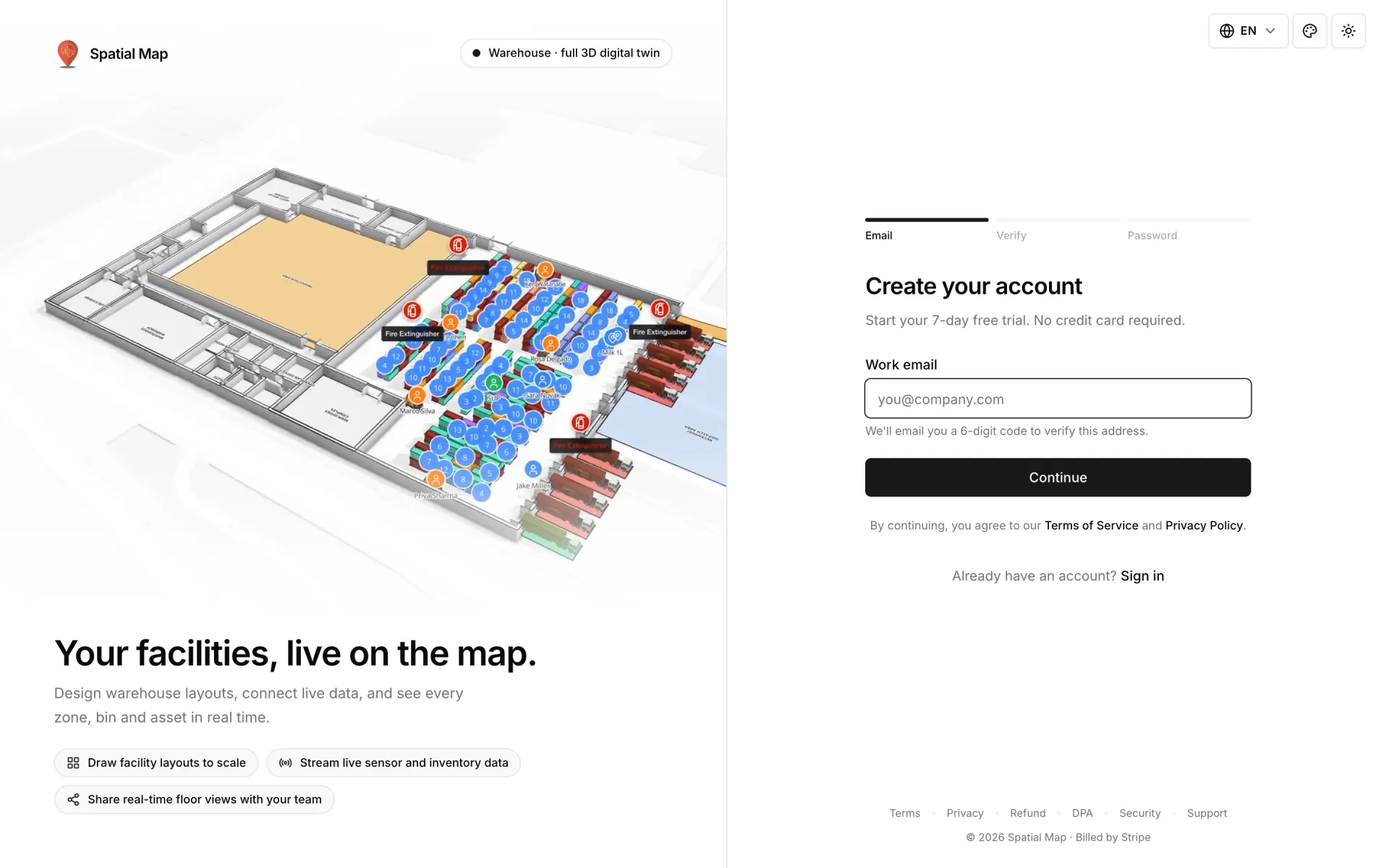
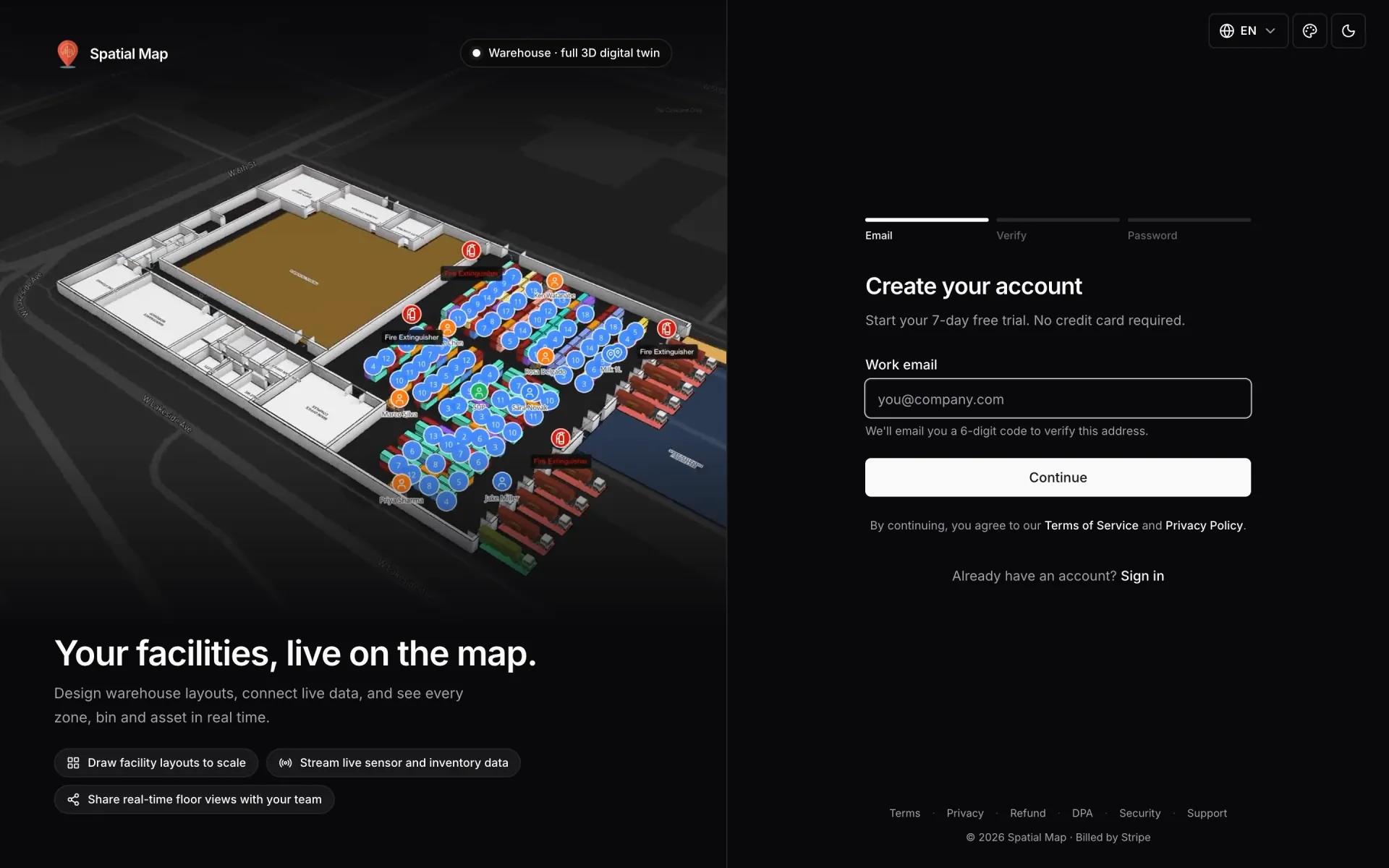
- Enter your Work email and click Continue. We email you a 6-digit code.
- Type or paste the code and click Verify code.
- Choose a password of at least 12 characters that uses at least 3 of these 4: lowercase letters, uppercase letters, digits and symbols. Then click Create account & start 7-day trial.
You are signed in and taken to your new workspace. The details (password rules, resending a code, and resetting a forgotten password) are in Sign up, sign in and reset your password.
2. Look around your workspace
Everything you create lives in a workspace. You own the one created at sign-up. It is on the free trial: 7 days, up to 5 facilities, no card needed. The banner at the top counts the days down, and View plans opens Plan & billing.
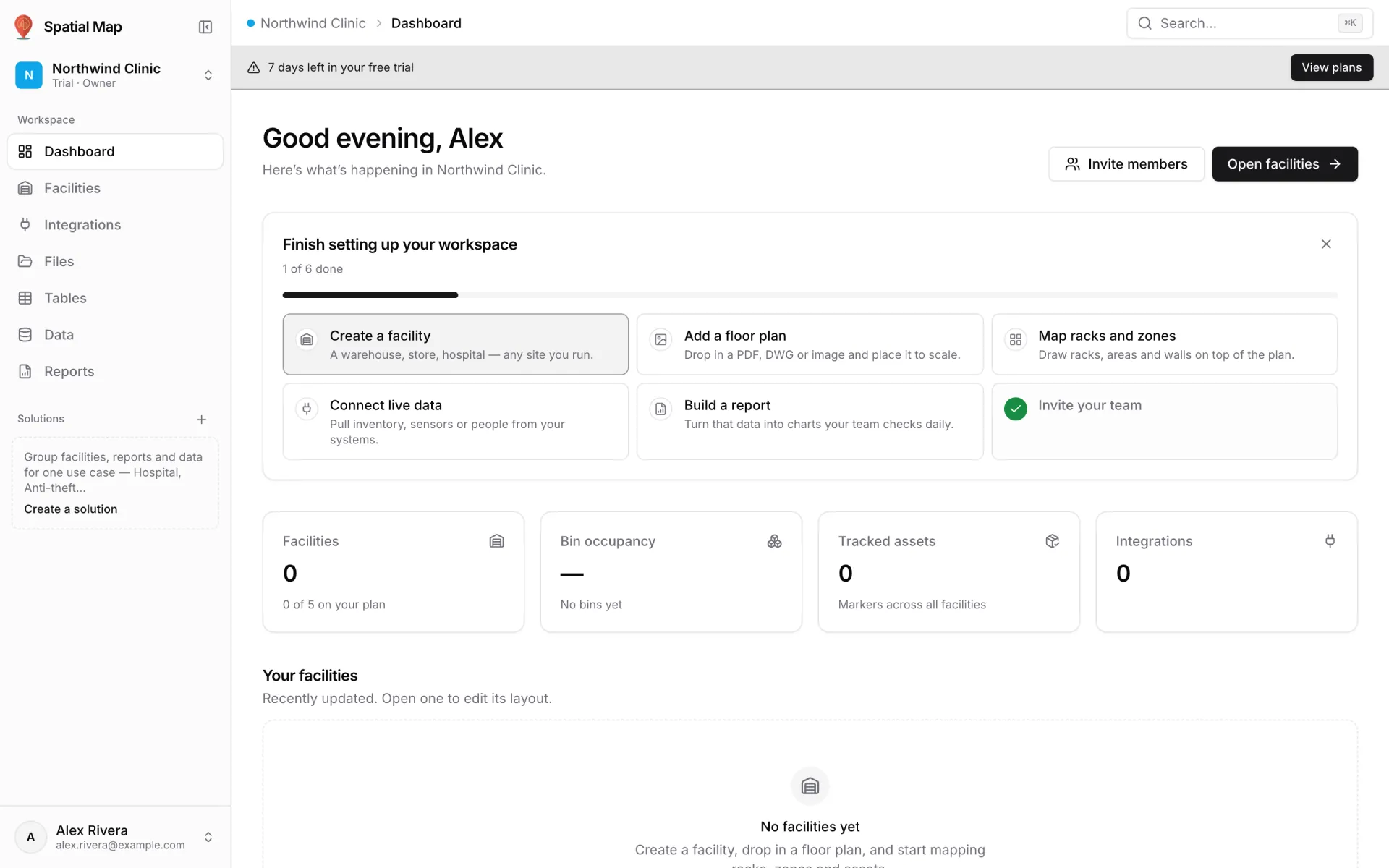
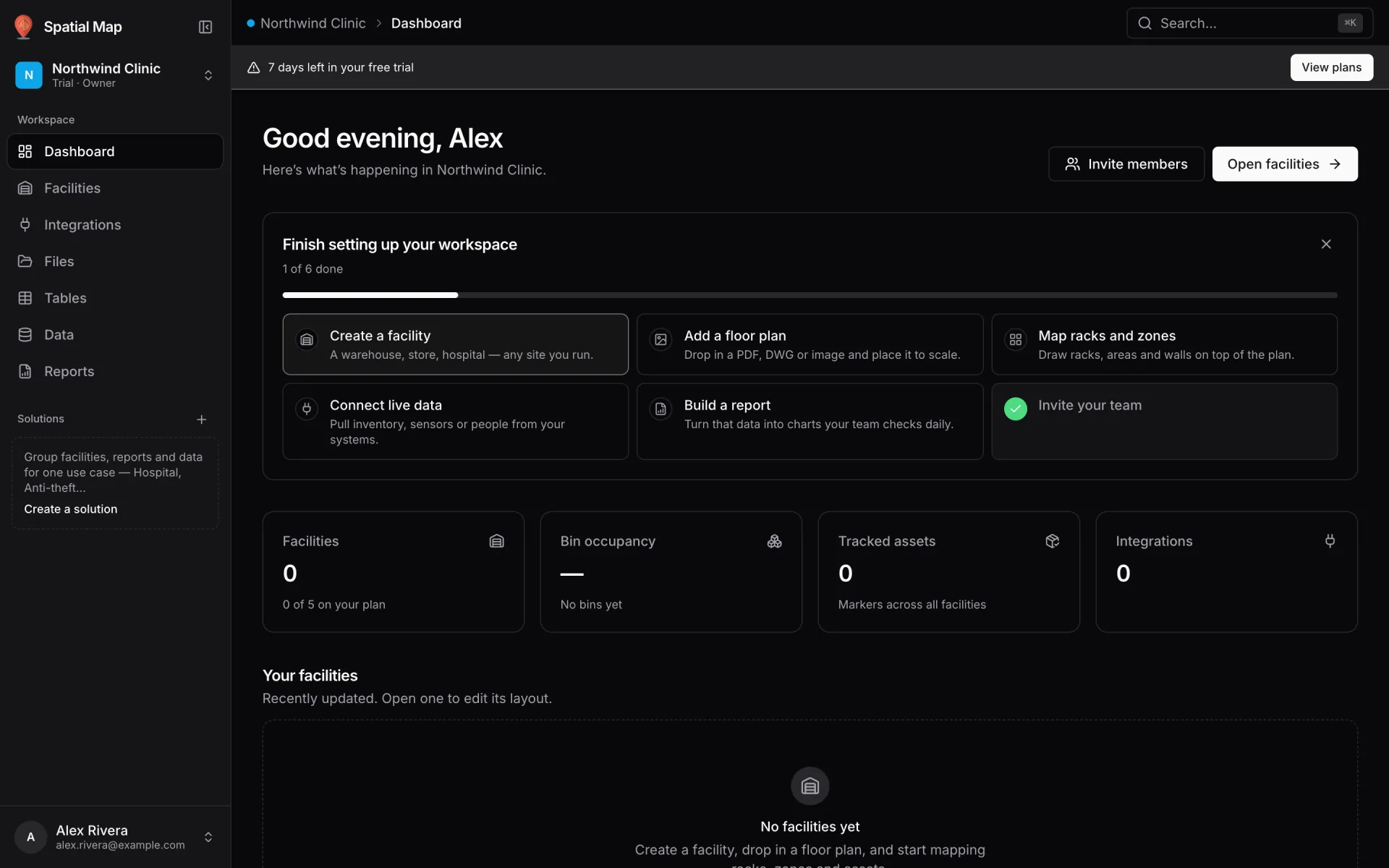
- The sidebar has Dashboard, Facilities, Integrations, Files, Tables, Data and Reports, plus your Solutions. The workspace switcher is at the top and your account menu is at the bottom.
- Finish setting up your workspace lists six steps: create a facility, add a floor plan, map racks and zones, connect live data, build a report, and invite your team. It ticks each one off from what is really in the workspace, so you never tick anything by hand.
- Press ⌘K (Mac) or Ctrl K (Windows, Linux) at any time to open the command palette.
Want your team in from the start? Click Invite members. Each person needs a Spatial Map account first. See Members and roles. The Dashboard guide explains every card, and Workspaces covers switching between workspaces and creating more.
3. Create a facility and draw it
A facility is one building or site. Go to Facilities and click Add facility. Type a Facility name, add an Address if you like (it is optional), pick a colour, and click Create facility.
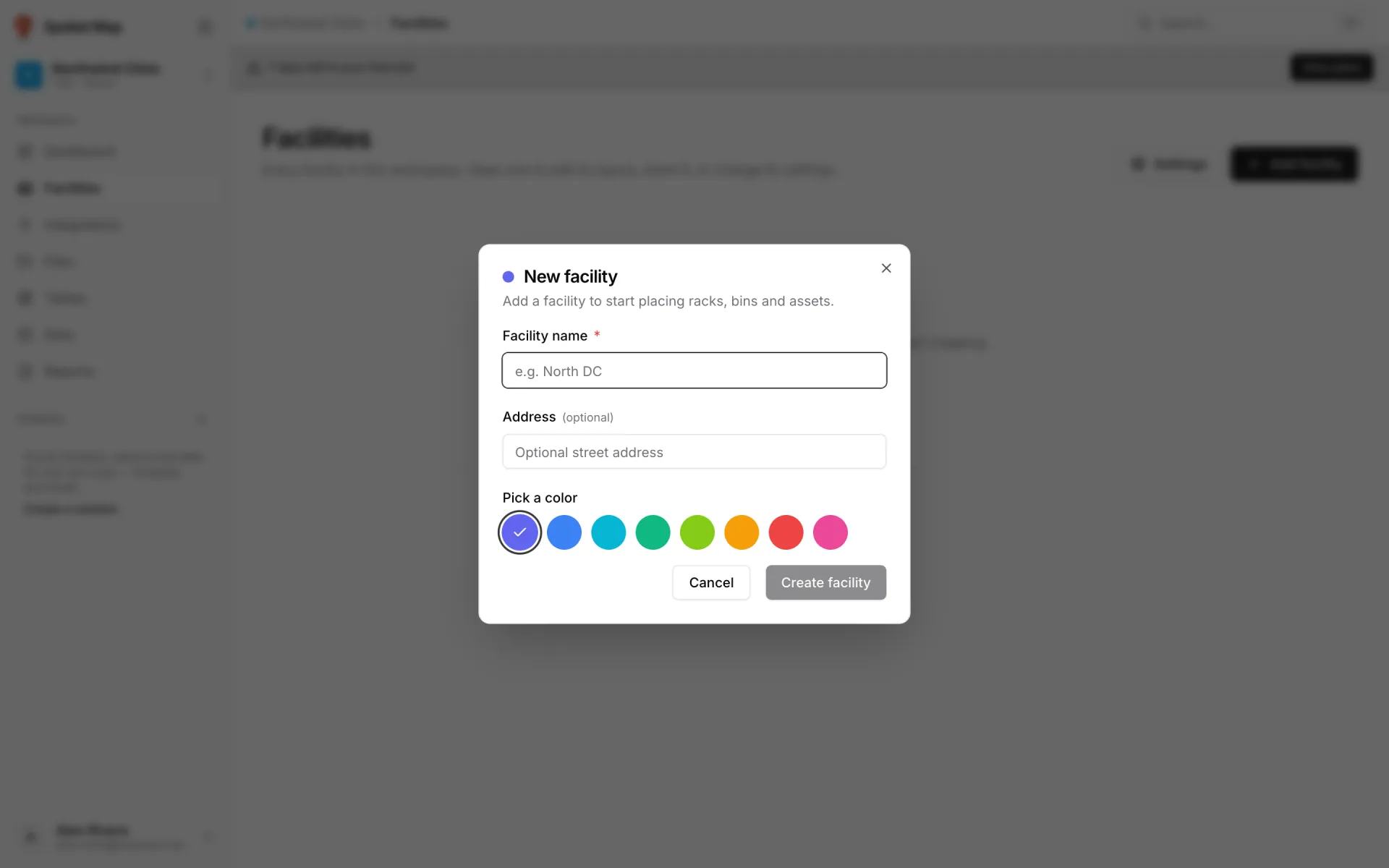
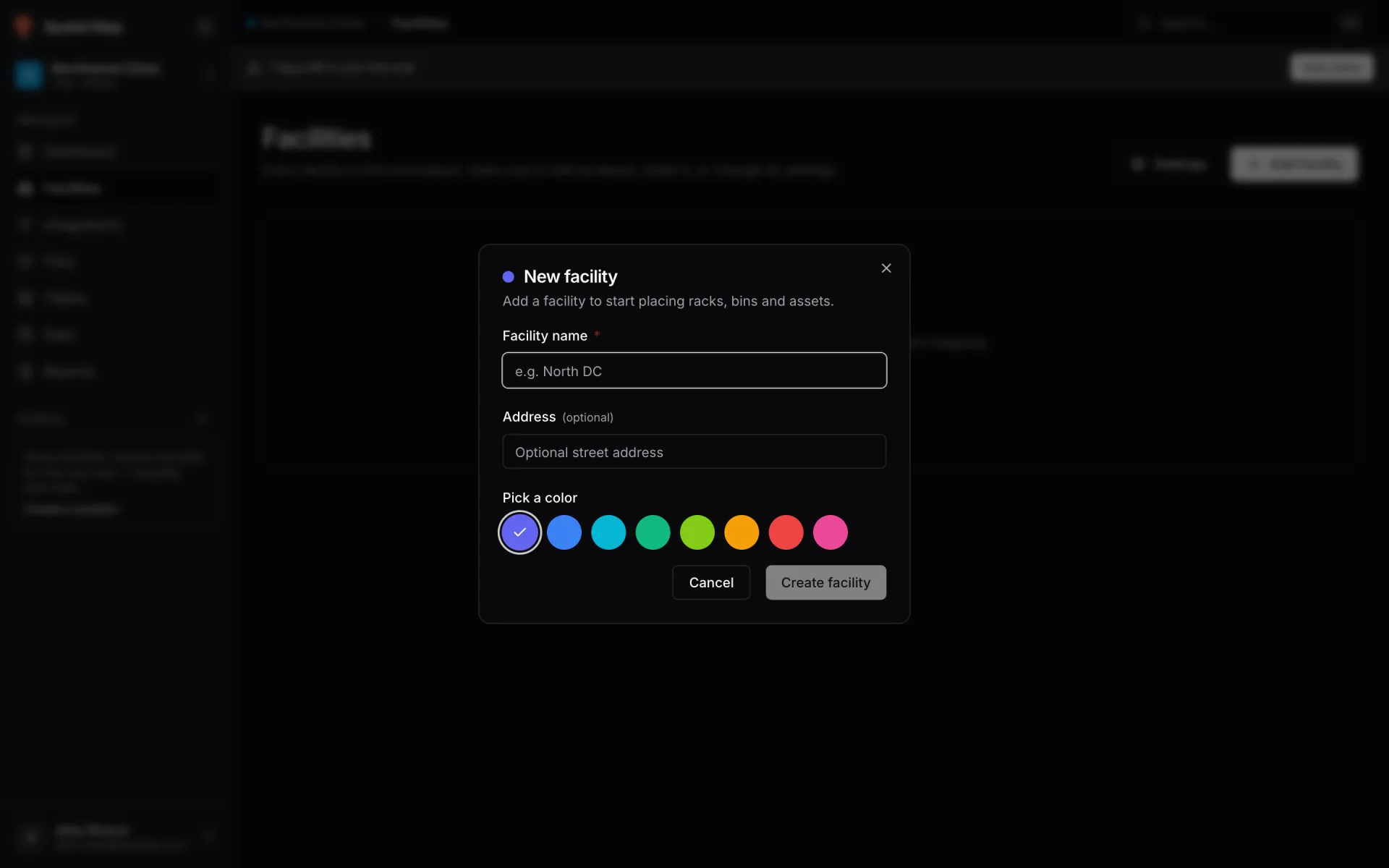
Click the facility card to open the layout editor, where you draw. A typical first session goes like this:
- 1Add a floor plan
Pick the Floor plan tool (press I) and upload an image, a PDF sheet or a DWG drawing. Then drag it to size and line it up with the map. A DWG or PDF becomes a picture of the drawing, not editable walls and rooms. See Import a PDF or DWG floor plan and the Floor plan tool.
- 2Trace what matters
Draw rooms and zones with the Area tool, shelving with the Rack tool, and equipment or people with the Asset tool. Add stairs, lifts and escalators if the building has several floors.
- 3Let it save
Changes save on their own. Undo and redo are ⌘/Ctrl Z and ⌘/Ctrl Shift Z. See Saving, undo and redo.
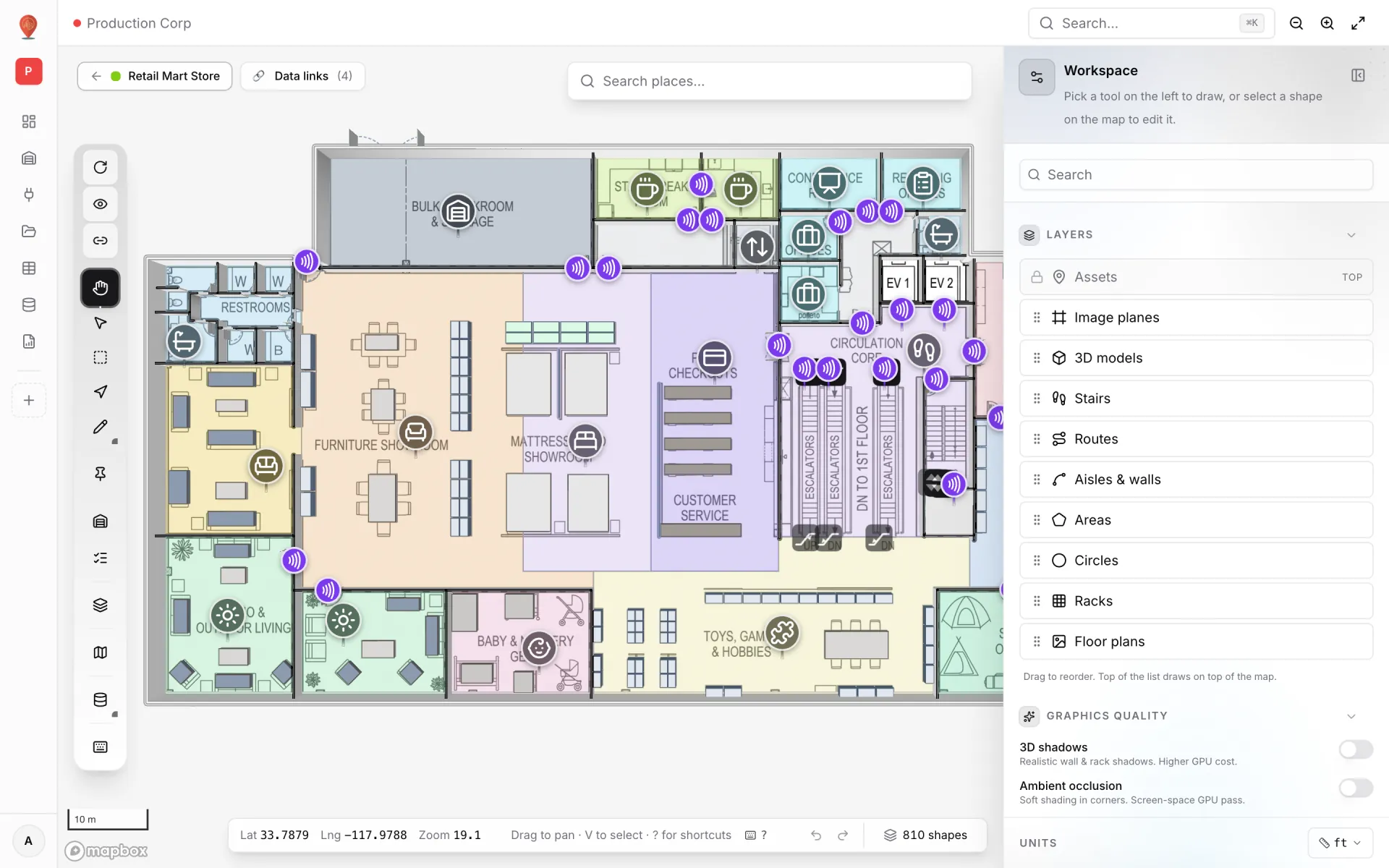
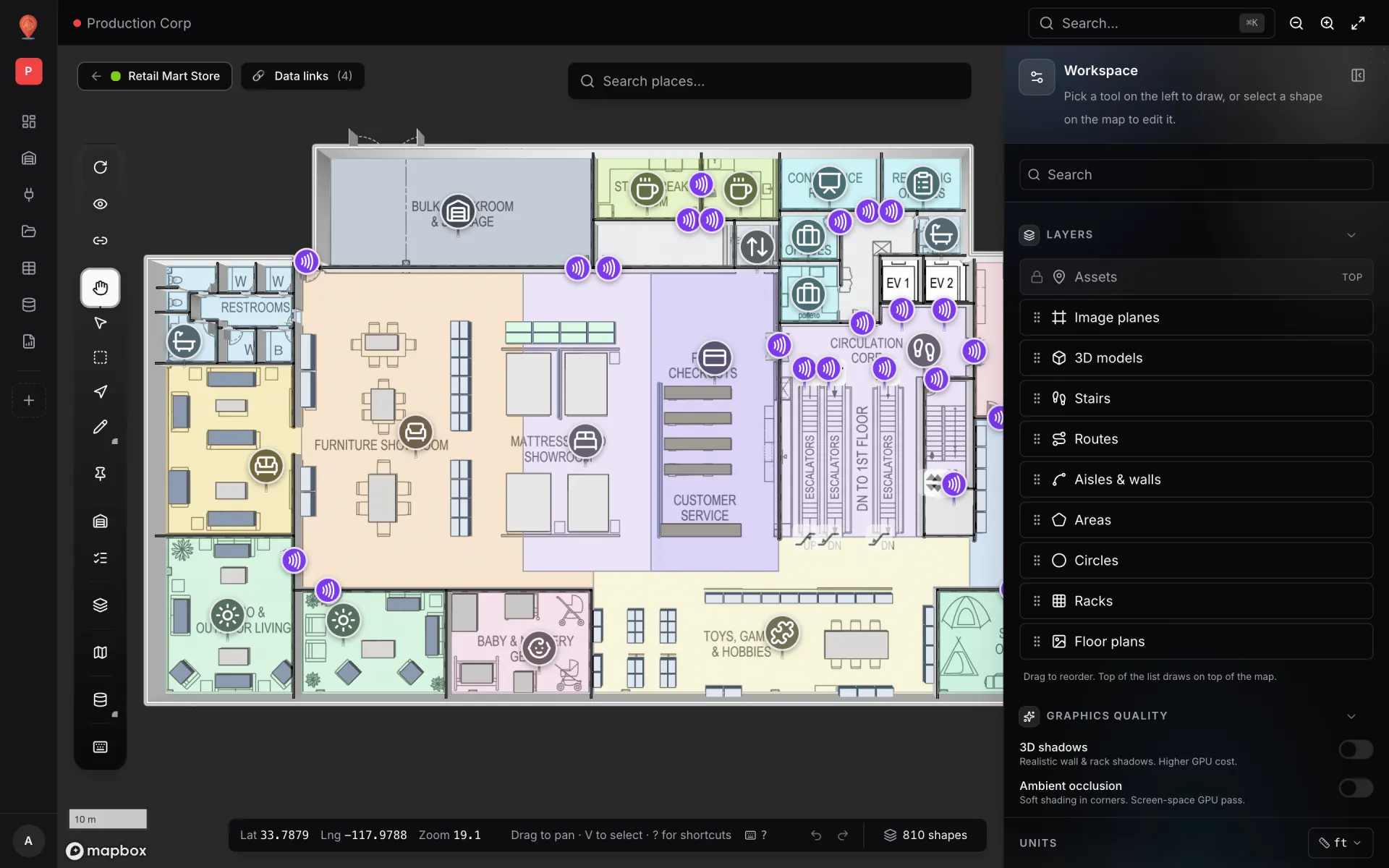
The Editor overview is a tour of the toolbar and side panel, and Facilities covers the facility list, settings, duplicating and deleting.
4. Bring your data in
Go to Integrations and click Add integration. There are three ways in:
| Option | Use it when | Guide |
|---|---|---|
| REST API | Your system already has an HTTP endpoint that returns JSON. Spatial Map pulls it on a schedule. | Integrations |
| Upload file | You have a CSV, XLSX, JSON or GeoJSON file, such as a stock export or a list of rooms. | Integrations |
| Table | You want your own schema in Spatial Map: edit rows in a grid, and let your systems write to it through its API. | Tables · Table write API |
Owners and admins add integrations and create tables. Every record that comes in can be browsed on the Data screen.
5. Link the data to the map
A data link connects one source to one facility and decides how its records show up on the map. In the layout editor, click the Data links pill at the top left, then New link. The editor walks you through it: choose the data source, choose how to show it (tint shapes, place points by coordinates, fill rack bins…), choose which shapes and floors it applies to, which fields hold the coordinates or the matching key, and how it looks.
In the Acme Warehouse demo, for example, Rack Inventory tints each rack cell by its bin status, and staff markers show where each person is. Start with the Data links overview. If a link shows nothing, see Troubleshooting.
6. Share a live view
Click Preview on a facility card to open the read-only viewer. It shows the same map with live data, floors, layers and a detail drawer for each shape. Anyone in the workspace can open it.
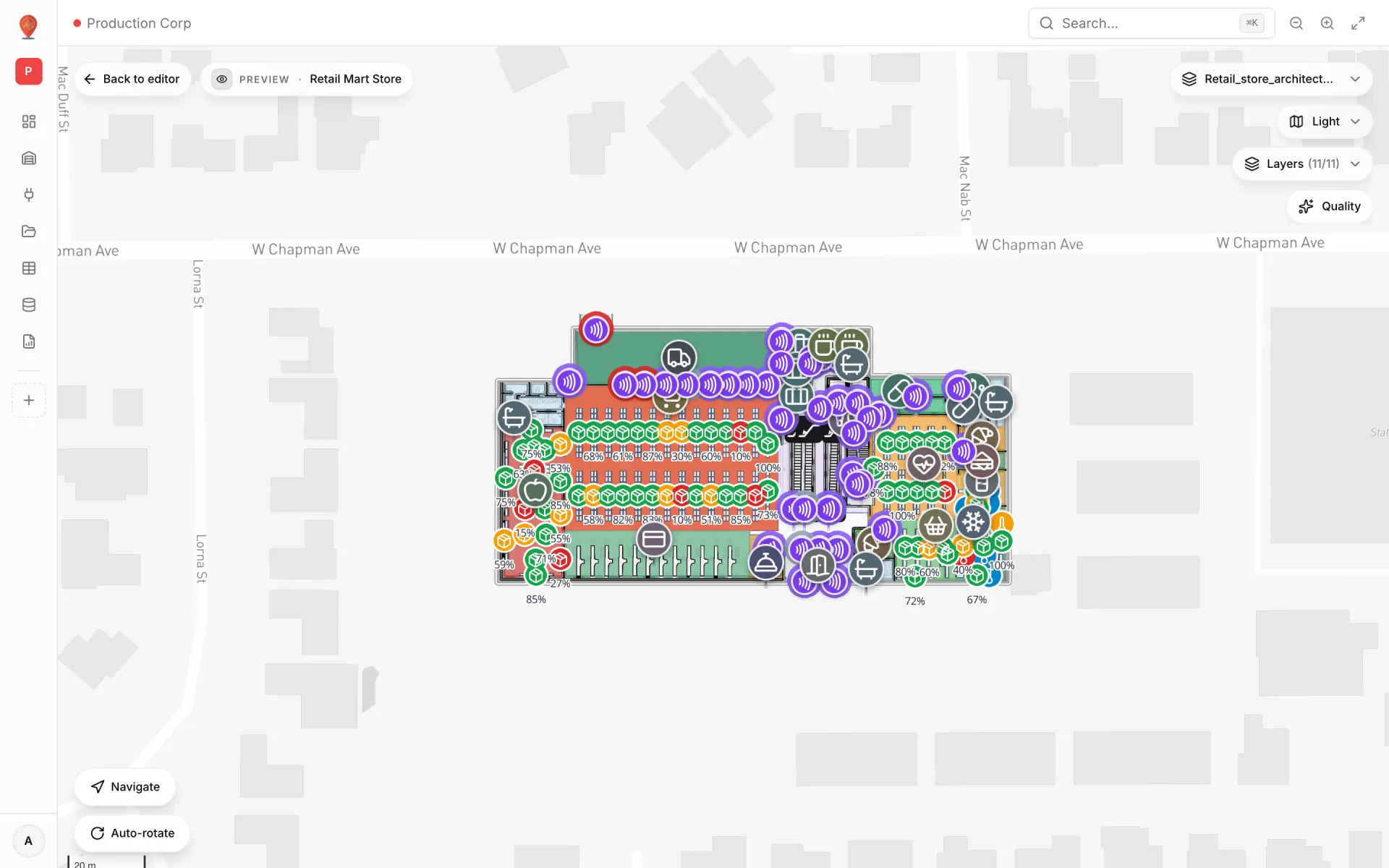
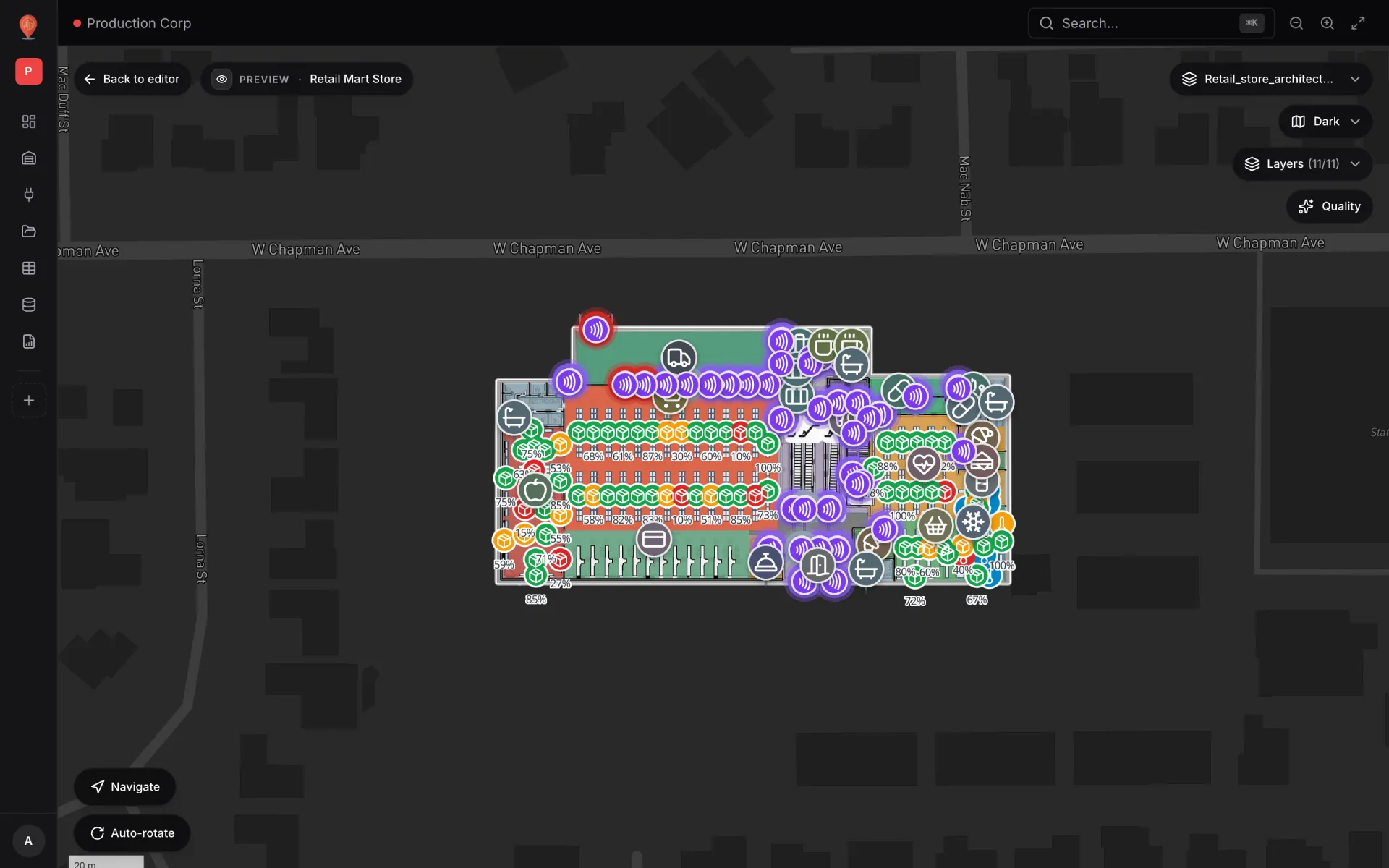
To show it to someone outside the workspace, open the facility card menu, choose Share, and create a share link. A share link opens the same viewer without a sign-in. You can set it to expire, cap its number of views, choose which layers and data links it shows, and revoke it later. See Viewer overview and Share links.
7. Open and share a report
You may not need to build anything. Every facility gets eight ready-made reports (Overview, Floors, Areas, Racks and more) when it is created. The first time you link a table to a facility, Spatial Map also creates a report for that table. Open them from Reports.
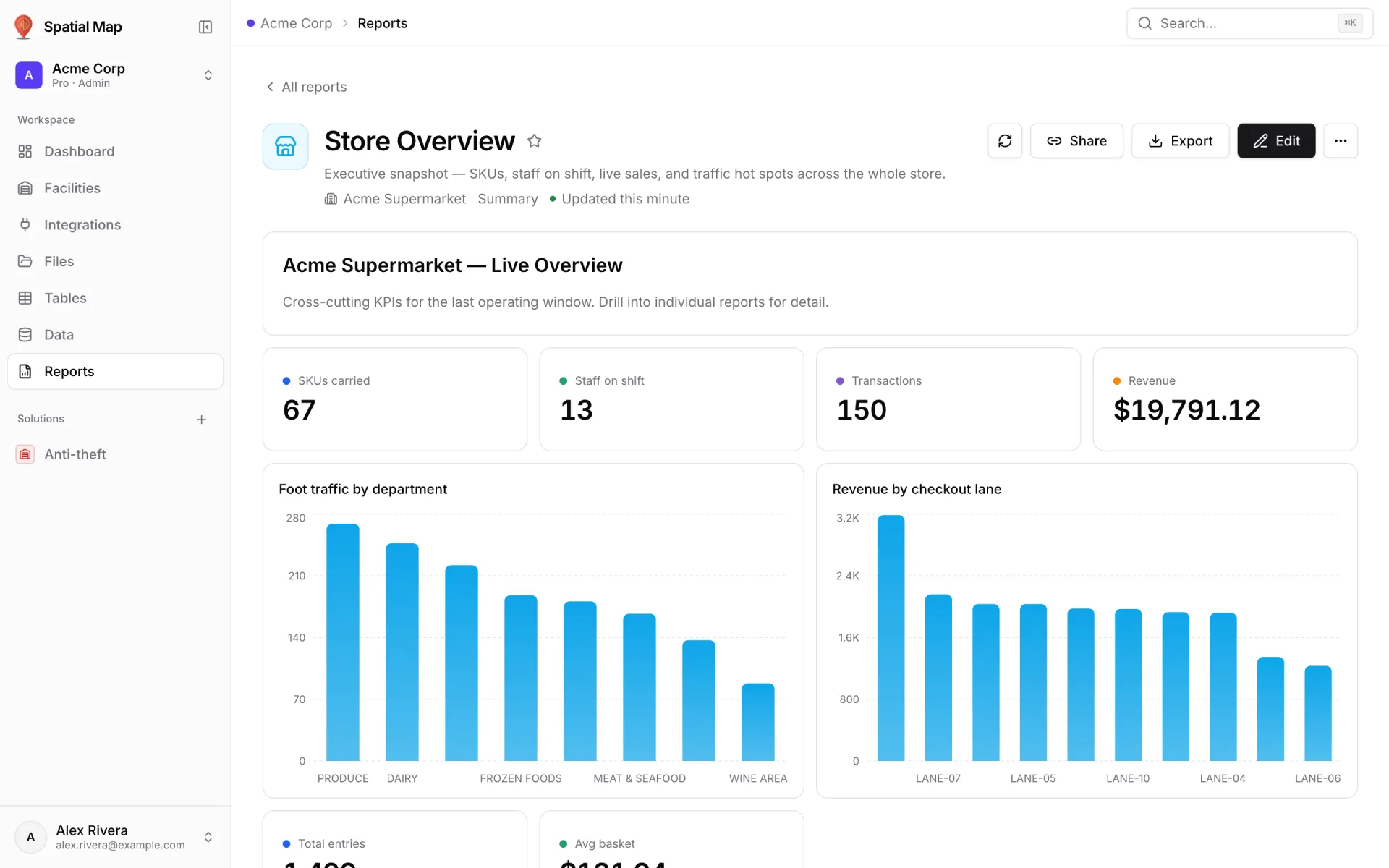
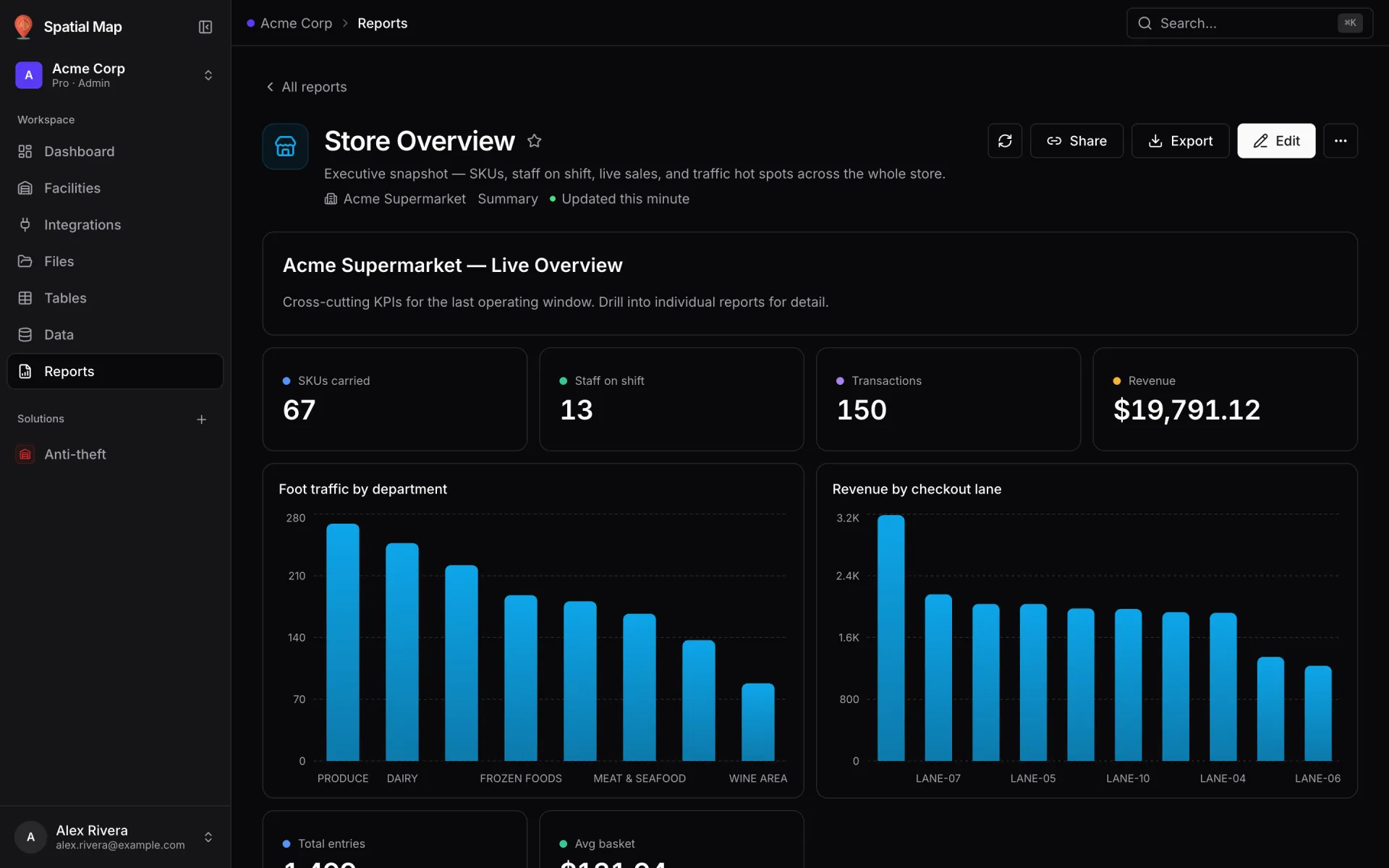
- Build your own: New report opens the step-by-step builder (owners and admins). See Report builder.
- Give teammates access: on the builder’s last step, Review & save, set each member to View or Edit. Owners and admins always see every report.
- Share it: Share copies the report’s link with the filters you have set. Export downloads it as PDF, Excel, CSV or JSON for people outside the workspace. See Report widgets and export.
Where to go next
| Group | Start with | Covers |
|---|---|---|
| Workspace & team | Workspaces | Switching and creating workspaces, members and roles, your profile, plan and billing, solutions. |
| Build a facility | Editor overview | Every drawing tool, floor plans and CAD import, floors and layers, selection and bulk edits. |
| Data | Integrations | REST APIs, file uploads, tables and their write API, the Data screen, files. |
| Data links | Data links overview | Each part of the data-link editor: source, shapes and floors, fields, filters, style, tooltips. |
| Viewer & sharing | Viewer overview | The read-only viewer, preview mode, and every share-link setting. |
| Reports | Reports | Built-in reports, the builder, full-map reports, widgets and export. |
| Reference | Keyboard shortcuts | Shortcuts, troubleshooting and the glossary. |