
Add lifts and escalators between floors
Place elevators and escalators with the Add stairs & lifts tool (S): link them to floors, set direction, stops and status, and see them as 3D models.
Escalators and elevators
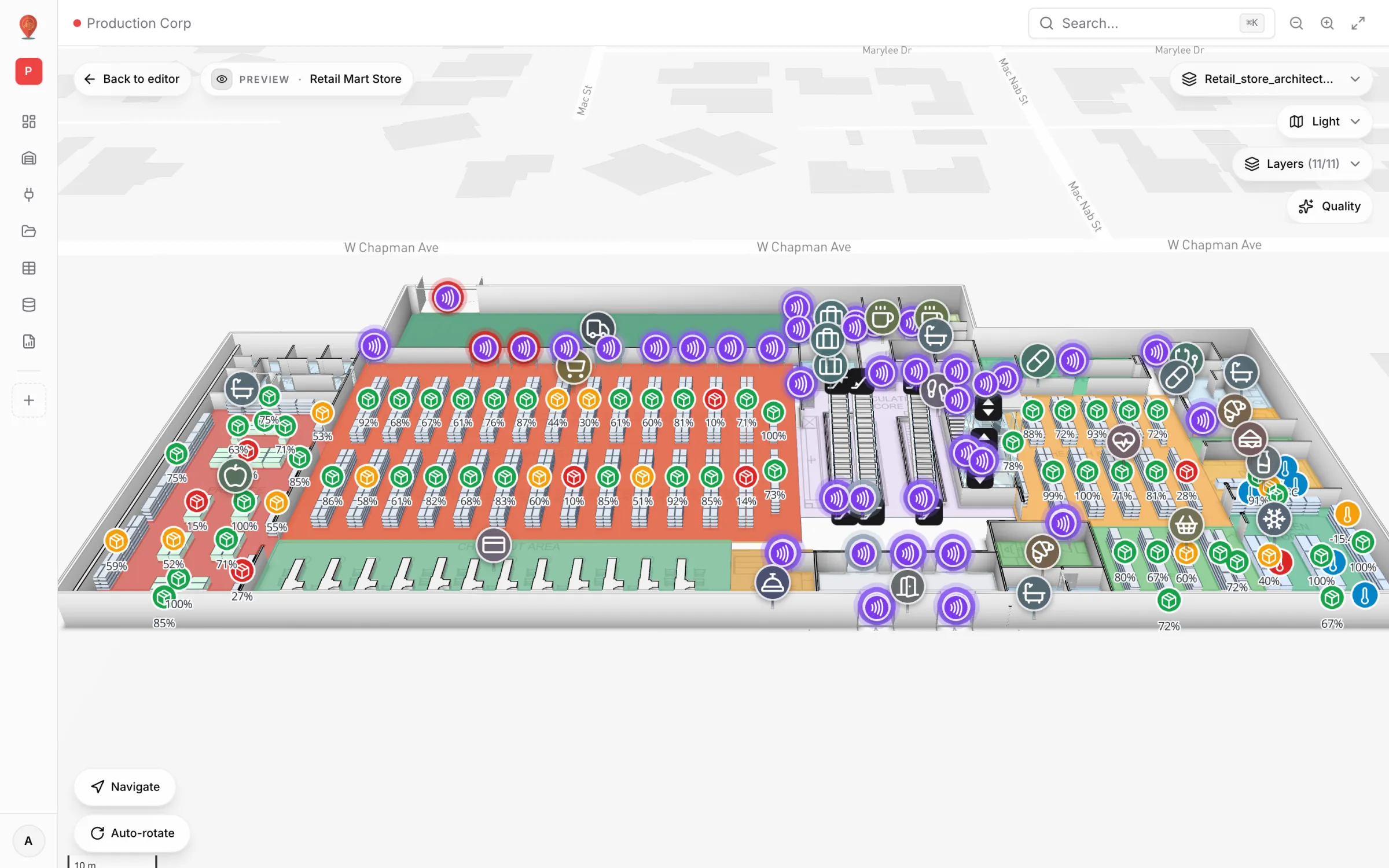
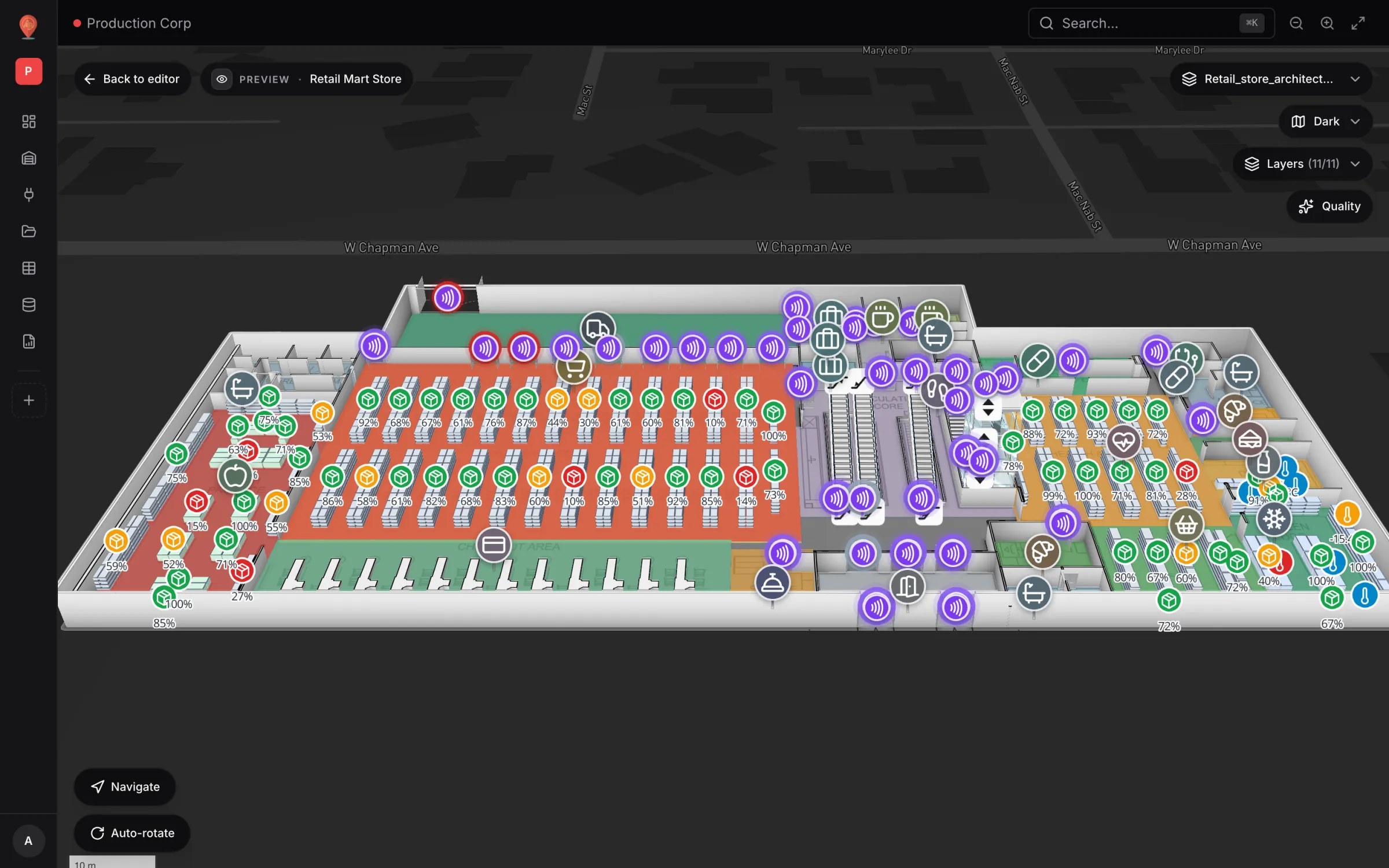
Spatial Map draws two kinds of lift: escalators and elevators. Both are built for you as detailed 3D models from a two-click placement: treads, balustrades and handrails for an escalator; a shaft, doors and a car for an elevator. Link them to your floor plans and they always meet each floor at the right height, even when you move a floor up or down.
In the demo data, the Retail Mart Store has three floors joined by escalators in its central circulation core and an elevator beside them.
Adding a lift
Lifts are part of the stairs & lifts tool; there is no separate lift tool or lift shortcut. Pick Add stairs & lifts from the Draw menu, or press S (or - when nothing is selected). The side panel opens with a type picker in two groups: Stairs (Straight, L-shape, U-shape) and Lifts (Escalator, Elevator).
| S - | Open the Stair tool, then choose Escalator or Elevator under Lifts. |
| Type | First click | Second click |
|---|---|---|
| Escalator | "Click the bottom landing of the escalator." | "Click towards the top landing." With Fit length to incline on, the length follows the rise, so only the direction of this click matters. |
| Elevator | "Standing in front of the lift, click the left corner of the door side." | "Click the right corner. The shaft extends back from this line." |
New lifts are named Escalator or Elevator; click the name in the side-panel header to rename one (for example Elevator 1, Elevator 2, or Service Elevator). When you pick a lift type in a facility with two or more floor plans, the floors are linked for you: an escalator from the floor at its base (or the lowest floor) to the next floor up, and an elevator to every floor. Check the links in the side panel.
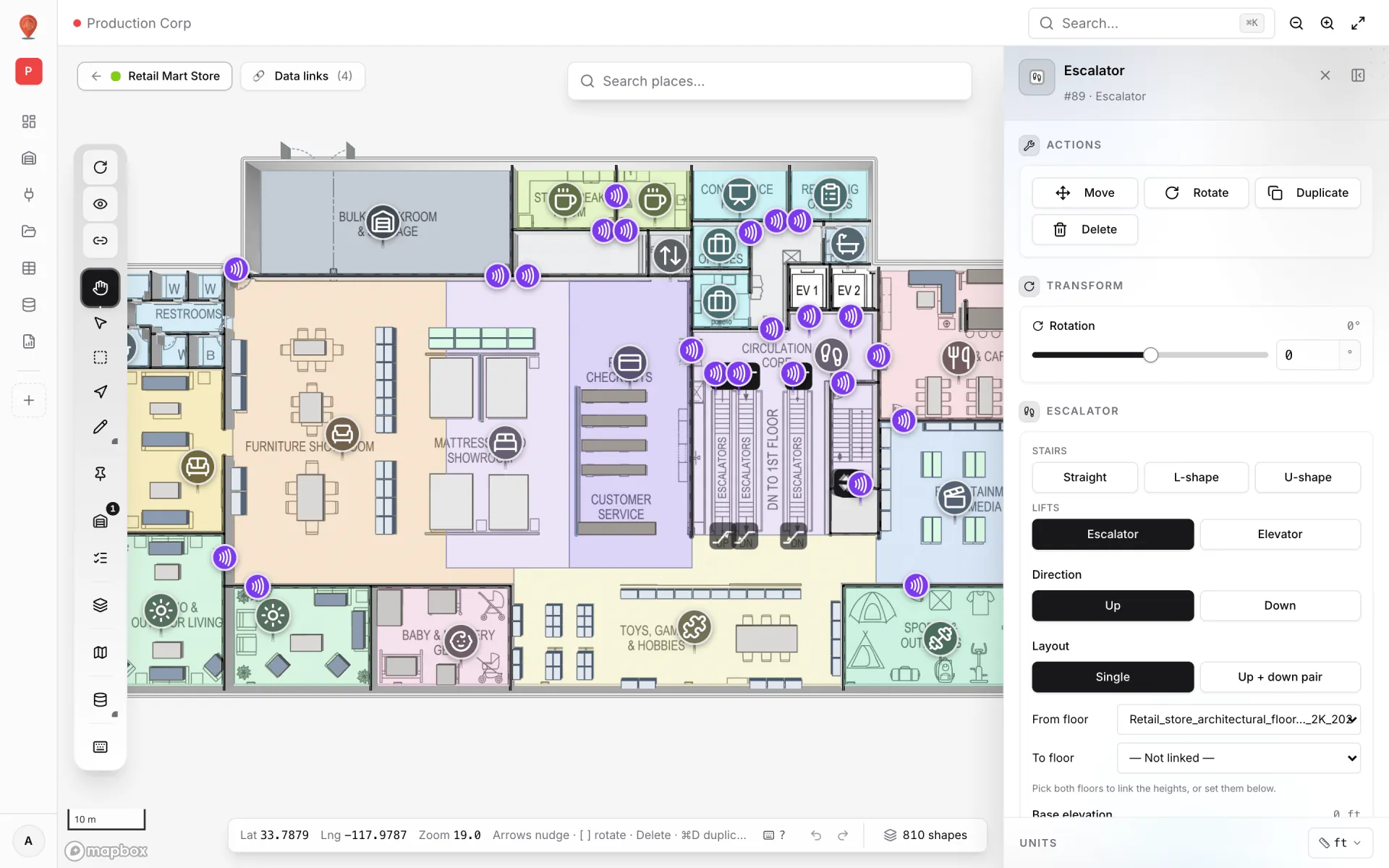
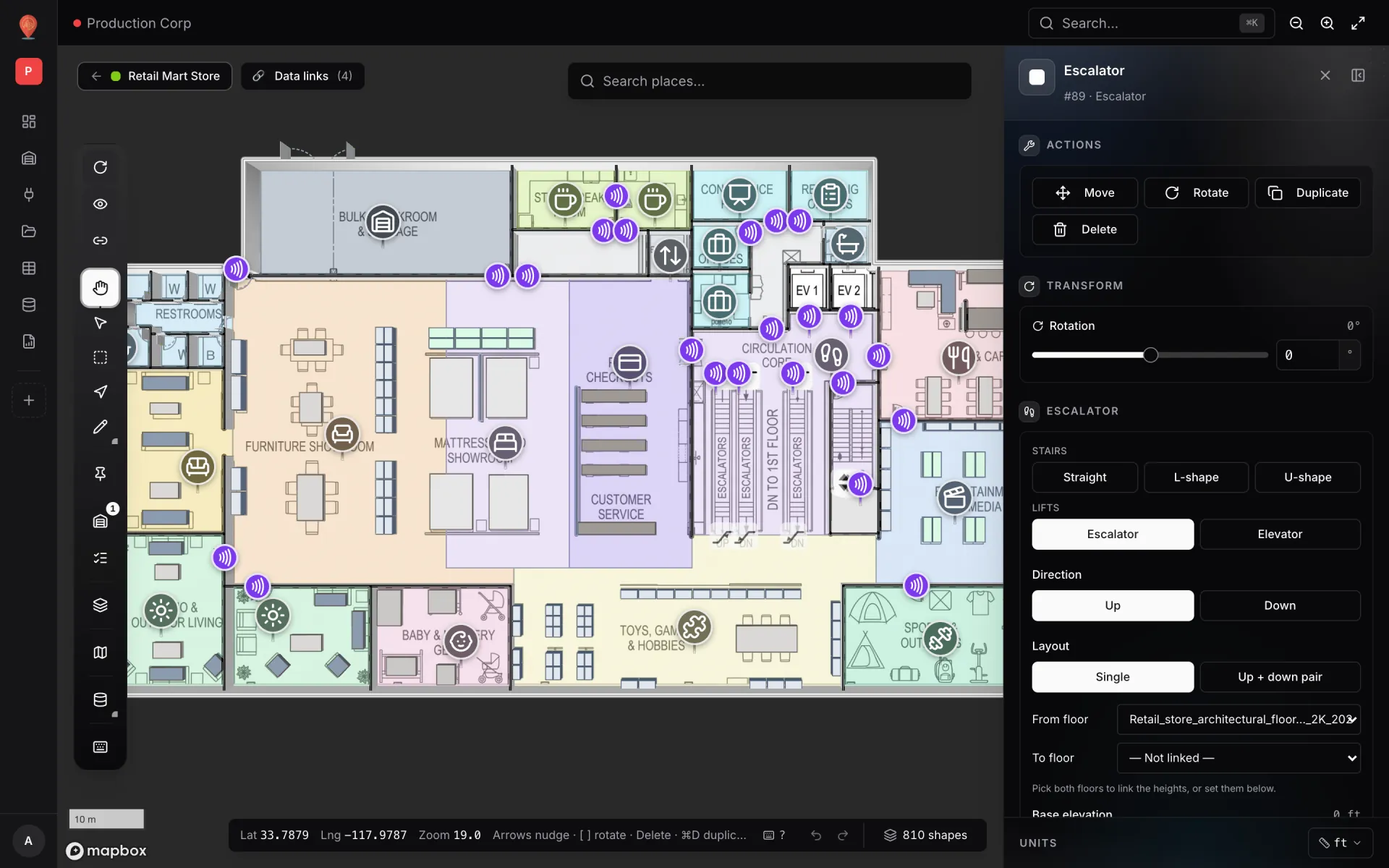
Escalator options
| Option | What it does |
|---|---|
| Direction | Up or Down. Sets which way the steps travel. |
| Layout | Single, or Up + down pair: "The second unit sits to the right and runs the other way." |
| From floor / To floor | Link the bottom and top to floor plans. Linked: "Heights follow the linked floors — moving a floor plan up or down moves the escalator with it." Until both ends are linked, the panel also shows Base elevation and Rise (floor to floor) (4.5 m by default), with the hint "Pick both floors to link the heights, or set them below." — or "Add a floor plan for each level to link them…" when the facility has fewer than two floors. |
| Step width | 0.4 to 2 m, 1.0 m by default. "Standard sizes: 0.6, 0.8 or 1.0 m." |
| Fit length to incline | On (default): the line you drew sets the direction and the length follows the rise. Off: your drawn length is used and the angle follows. |
| Length | On a placed escalator: the total footprint, landings included. Changing it switches Fit length to incline off. |
| Flat landing | The flat run at each end, 0.6 to 5 m (1.2 m by default; "typically 1–2.5 m"). |
| Incline | 25° to 35°, 30° by default. Shown while Fit length to incline is on. |
| Moving steps | Off by default. Animates the treads in the travel direction; this keeps the map redrawing while the escalator is in view. The animation is skipped when your system asks for reduced motion. |
| Status | In service or Out of service. |
Under the incline, a summary reads "30.0° incline · 12.5 m long · rise 4.5 m" (for example) with a check against the EN 115 / ASME A17.1 escalator limits:
- Green, "Incline within EN 115 / ASME A17.1." when the angle is fine.
- Amber when it is over 30° with more than 6 m of rise ("Over 30° is only allowed up to 6 m rise"), or unusually shallow (under 27°).
- Red when it is steeper than 35°: "not allowed for escalators. Lengthen the run."
Elevator options
| Option | What it does |
|---|---|
| Floors served | A tick box for each floor plan, highest first, with its elevation. "Doors open on each ticked floor and the shaft runs from the lowest to above the highest." |
| Stops, Floor to floor, Base elevation | Only when no floor is ticked: set the number of stops (2 to 10 on the slider, up to 200 typed), the height between them (4.5 m by default) and the bottom level by hand. |
| Car at | Which stop the car is parked at. |
| Shaft | Glass (the car is visible) or Solid (it isn't). |
| Shaft depth | 1.2 to 20 m, 2.2 m by default. "Measured back from the door side you drew." |
| Door width | 0.6 to 6 m, 1.1 m by default. |
| Status | In service or Out of service. |
Appearance and labels
| Field | Escalator | Elevator |
|---|---|---|
| Main colour | Body colour | Frame colour |
| Second colour | Step colour | Car colour |
| Safety edge | Step edge colour (yellow by default) and Step edge width (0 to 4 px; 0 removes it) | — |
| Outline | Border and Border width | Border and Border width |
| Opacity | None — lifts have no opacity control (stairs do). | None |
| Label | Switch on Label and type the text, for example "To food court". | Same. |
How they look in 3D
- Escalator: a flat entry landing, an inclined run of treads on a truss, and a flat exit landing, with side decks, glass balustrades and black handrails following the incline. A pair adds a second unit beside it running the other way.
- Elevator: a shaft that runs from the lowest stop to above the highest, a pair of door leaves at every stop, a roof, and the car parked at the stop you picked.
- Out of service: an escalator's steps turn grey, an elevator's doors and landing portals turn grey, and the map icon fades with a diagonal slash, so it reads as unavailable at a glance.
- Icons: escalators and elevators also get a map icon and their label. Turn these off with Lift icons in the editor's Graphics quality settings.
In the viewer, a lift shows on every floor it is linked to: an escalator on both its floors, an elevator on each floor it serves. That way the lift is visible whichever level a visitor is looking at.
Lifts, escalators and wayfinding
Lifts and escalators are visual and informational. They show where to change floor, and their status tells people when one is unavailable. They are not part of route finding: a wayfinding route stays on one floor and never passes through a lift or escalator, and there is no "prefer lifts" setting. To direct someone upstairs, route them to the lift on their floor, then route again from the landing on the floor above.
More in Build a facility
- Build a facility · FacilitiesCreate and manage facilitiesAdd a facility with a name, address and colour, then open, preview, share, duplicate, configure or delete it from the Facilities screen in Spatial Map.
- Build a facility · EditorTour of the layout editorA guided tour of the Spatial Map layout editor: the tool rail with its Draw and Data menus, the top pills, the side panel and the status bar.
- Build a facility · ImportImport a PDF or DWG floor planTurn a PDF drawing sheet or an AutoCAD DWG file into a true-to-scale floor plan image: pick the sheet or layers, confirm scale or units, then place it.
- Build a facility · Floor plan toolAdd a floor plan to the mapPlace a floor plan image, PDF sheet or DWG drawing on the map, resize, rotate and crop it, reuse earlier uploads and stack several floors by elevation.