
Built-in facility reports
The reports every facility gets automatically: Overview, Floors, Areas, Racks, Markers and more, plus a live report for each table you link to the map.
Reports you get without building anything
You don't have to open the report builder to see what's in a facility. Spatial Map creates two kinds of report for you:
- The facility set: eight reports about everything drawn in the editor (floors, areas, racks, markers, walls, doors, stairs, lifts, escalators, text labels and 3D models). Every facility gets them.
- A linked-data report for each table you connect to the facility's map with a data link, for example "Rack Inventory" in the Acme Warehouse demo.
Both kinds are ordinary reports. They appear under the facility's tab on the Reports screen, and you can open, star, share, export, edit, rename, duplicate or archive them like any other.
When they are created
| Report | Created when |
|---|---|
| The facility set (eight reports) | You create a facility, or duplicate one. The copy gets its own set. |
| A linked-data report | You save the first data link from a table (or another data source) to the facility's map. Linking the same table again doesn't add a second report. |
The eight facility reports
Each report of the set reads the built-in facility sources live, so it always matches the map. Each one has key numbers and charts for its subject, viewer filters, and a facility map & list: a list of items beside a live map of the facility, one tab per kind of item.
| Report | Key numbers | Charts | Map & list tabs | Viewer filters |
|---|---|---|---|---|
| Overview | Floors, Areas, Racks, Markers | What's on each floor; Areas by type | Areas, Racks, Markers, Doors | Floor, Search |
| Floors | Floors, Areas, Racks, Markers | What's on each floor; Floor height (m) | Floors | Search |
| Areas | Areas, Total floor area, Average size, Types | Areas by type; Floor area by floor (m²) | Areas | Floor, Type, Search, Visibility |
| Racks | Racks, Bays, Average levels, Areas with racks | Racks by floor; Bays by area (top 10) | Racks | Floor, Area, Search, Visibility |
| Markers & sensors | Markers, Kinds, Areas covered, Hidden | Markers by icon; Markers by area (top 10) | Markers | Floor, Icon, Area, Search, Visibility |
| Walls & doors | Walls, Wall length, Doors, Door types | Wall length by floor (m); Doors by type | Walls, Doors | Floor, Search |
| Stairs, lifts & escalators | Stairs, Lifts, Escalators | — | Stairs, Lifts, Escalators | Floor, Search |
| Labels & 3D models | Text labels, 3D models | — | Text labels, 3D models | Floor, Area, Search |
Linked-data reports
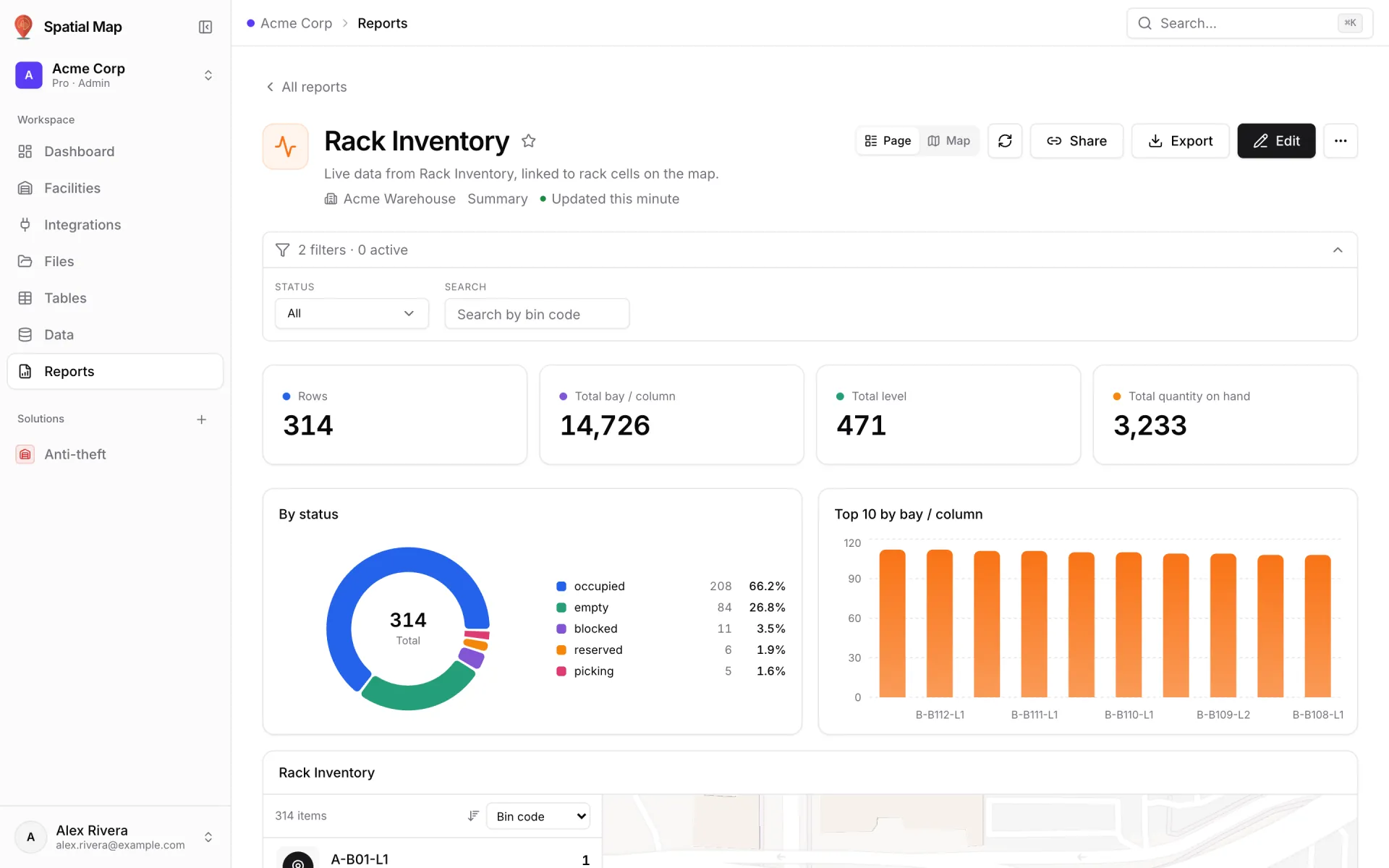
When you link a table to a facility's map, its report is named after the table and described as "Live data from <table>, linked to areas on the map" (or rack cells, markers, or placed by position, depending on the link). Spatial Map reads the table's fields and builds:
- Key numbers: Rows, plus up to three of the table's number fields, each as a total or an average (an average for fields such as percentages, temperatures or minutes).
- A donut "By <status>", when the table has a status-like field.
- A bar chart of the first number field by floor, or its Top 10 when there's no floor field.
- A facility map & list of every row, placed on the map by the data link's own matching rules, with the link's live layer drawn on the map.
- Viewer filters for the floor and status fields (when the table has them) and a Search box on the row's name.
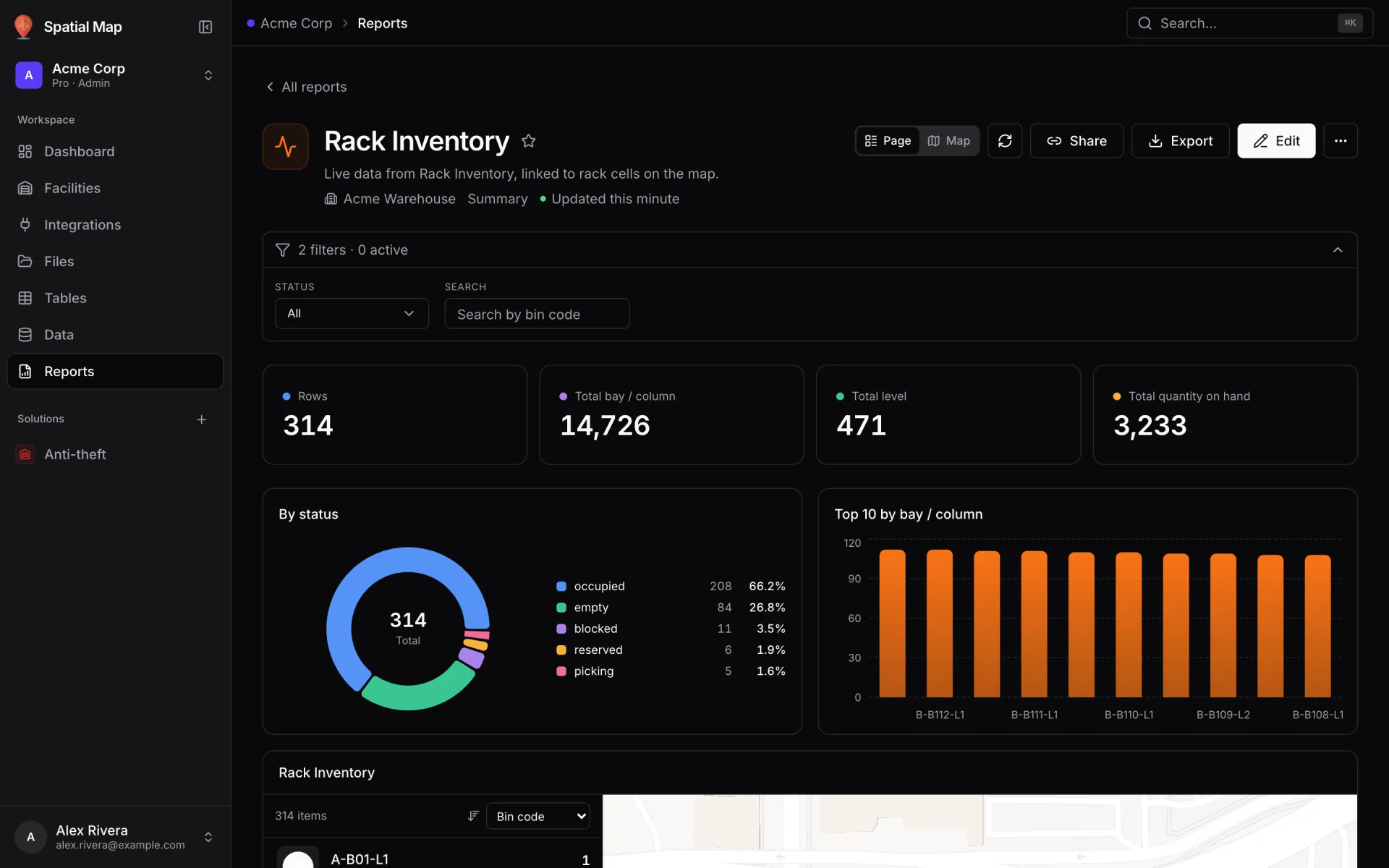
In the Acme Warehouse demo, Rack Inventory is one: it is described as "Live data from Rack Inventory, linked to rack cells on the map" and shows Rows 314, Total bay / column, Total level and Total quantity on hand, a By status donut (occupied, empty, blocked, reserved, picking), Top 10 by bay / column, and a list of bins (A-B01-L1 and so on) that you can filter by Status or Search by bin code.
Using the map & list
Every built-in report ends with a facility map & list. Pick a tab (for example Areas or Racks, each with its count), then pick a row: its shape lights up and the map frames it. Click a shape on the map and its row is picked. The list header shows the count (for example "314 items") and a Sort by menu built from the fields shown under each row.
Picking a row opens its detail panel: a preview, every property, Previous / Next to step through the list, and Open in editor, which opens the map editor with that item selected. Items hidden in the editor are still listed, with a Hidden badge, so you can find them.
Fix items straight from a report
The facility set lets you correct the map without opening the editor. In the detail panel, click Edit, change the fields, then Save changes. The toast says "Saved — the map is up to date". What you can change depends on the kind of item:
| Item | Editable in the detail panel |
|---|---|
| Floors | Name, Elevation (m), Visible |
| Areas | Name, Type, Colour, Visible |
| Racks | Name, Colour, Visible |
| Markers | Name, Icon, Label, Visible |
| Walls | Name, Thickness (m), Height (m), Colour, Visible |
| Text labels | Name, Text, Visible |
| Doors, stairs, lifts, escalators, 3D models | Name, Visible |
Delete removes the item from the map for everyone, the same as deleting it in the editor, and can't be undone. Floors can't be deleted from a report, because that would strand everything drawn on them. Do that in the editor.
Make them your own
- Edit opens the report in the builder. The facility set opens as an Editable report, and linked-data reports as Detail reports. Add widgets, change filters, or rename it.
- Switch it to a full map: in the builder's Layout step, choose Full map. Retail Mart · RFID Live Map in the demo is laid out that way over the store's RFID reader table. See Full-map reports.
- Duplicate (owners and admins) to keep the original and experiment on a copy.
- Archive a report you don't need. It doesn't come back on its own.
More in Reports
- Reports · Full mapFull-map reports: live data on the floor planShow a report on a full-screen live facility map: a list on the left, the picked record on the right, key numbers and insights floating over the floor plan.
- Reports · Widgets & exportReport widgets and exportEvery report widget kind, the facility map & list, and how to export a report or one widget to PDF, Excel, CSV, JSON or PNG, or move it between workspaces.