
View and share live reports
Find, open and use live reports in Spatial Map: the Reports screen, stars, refresh, viewer filters, run history, sharing a link and who can see each report.
What a report is
A report is a live page of widgets (key numbers, charts, tables, notes and a facility map with a list) built on your data. It reads from your tables, your integrations, or the built-in facility sources that list everything drawn on the map. Each time you open or refresh a report it runs its queries again, so the numbers are current. You never write SQL.
Reports come from three places. Every facility gets a set of built-in reports. Linking a table to a facility's map adds a report for that table. And you can build your own in the report builder. This page covers finding, opening and using reports day to day.
The Reports screen
Click Reports in the sidebar. The screen lists every report in the workspace that you can see. Inside a solution, it shows only that solution's reports, and a report you create there joins the solution.
| Part of the screen | What it does |
|---|---|
| KPI cards | Reports (and how many facilities they cover), Starred, Updated this week (with the latest one, for example "Latest: Store Overview, 1 hour ago") and Need setup (reports with no source or no widgets). |
| Facility tabs | All facilities, then one tab per facility. By default you land on the facility you last had open on the map. A report that belongs to no single facility is labelled Shared. |
| Type tabs | All, then one tab per type that occurs, with a count: Summary, Detail, History, Map or Dashboard. The type is worked out from a report's widgets: mostly KPIs and charts reads as Summary, mostly tables or map lists as Detail, and an even mix as Dashboard. The tabs only appear when your reports span more than one type. |
| Starred | Shows only the reports you have starred. Starred reports always sit at the top, whatever the sort. |
| Search reports | Matches the name, the description and the kinds of widget inside, so typing "donut" finds reports with a donut chart. |
| Sort | Recently updated (the default), Name (A–Z) or Most widgets. |
| Grid / List | Grid shows a card per report with a small preview of its layout. List shows one line per report. |
Report cards and actions
Each card shows a preview of the report's layout in the report's own colour, its icon, its facility (or Shared), its description, a type badge, the widget count and when it was last updated. A report with nothing to show yet carries a No source or No widgets badge instead of the date. Click the card to open the report, or the star in its corner to pin it.
| ⋯ menu action | What happens | Who sees it |
|---|---|---|
| Edit | Opens the report in the builder. | Anyone who can edit the report |
| Duplicate | Creates a copy named "<name> (Copy)" (then "(Copy 2)" and so on). The toast that follows has an Open button. | Workspace owners and admins |
| Archive | Removes the report from the list straight away. Its run history is kept, and the toast offers Undo. | Workspace owners and admins |
Create, import or seed reports
Workspace owners and admins see two buttons at the top of the Reports screen:
- 1New report
Opens the builder with an "Untitled report". Walk through the steps and click Create report. See Build a report step by step.
- 2Import JSON
Opens Import report from JSON. Enter a Name, paste the Spec JSON and click Create report. The report is filed under the facility tab you have selected (or as Shared on All facilities) and opens straight away. See Import and export report JSON.
In a workspace with no reports at all, the empty state also offers Seed demo data. It creates a sample "Demo · Warehouse Events" table and three reports to click through: "Demo · Warehouse Overview", "Demo · Recent Events" and "Demo · Event Trend".
Opening a report
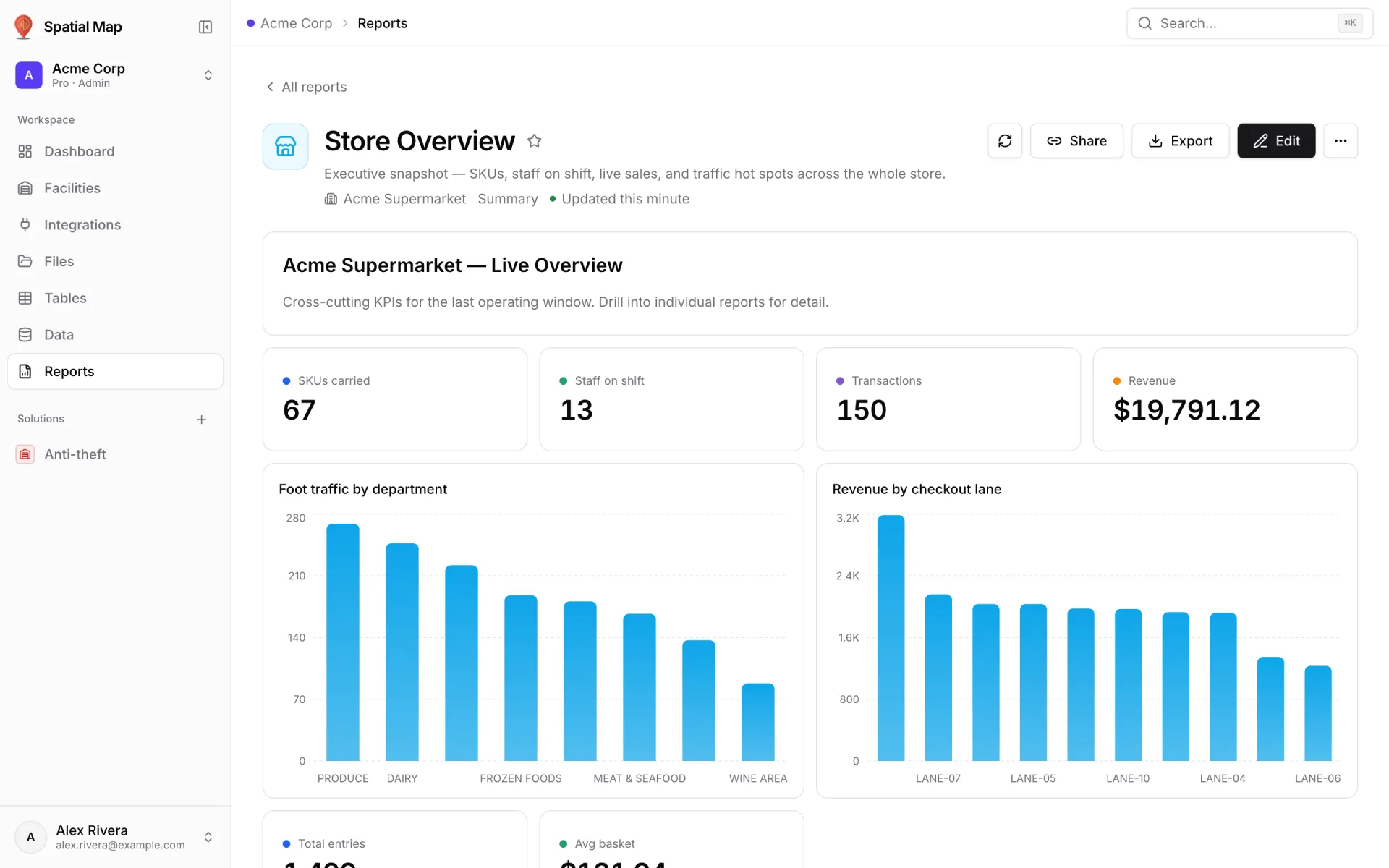
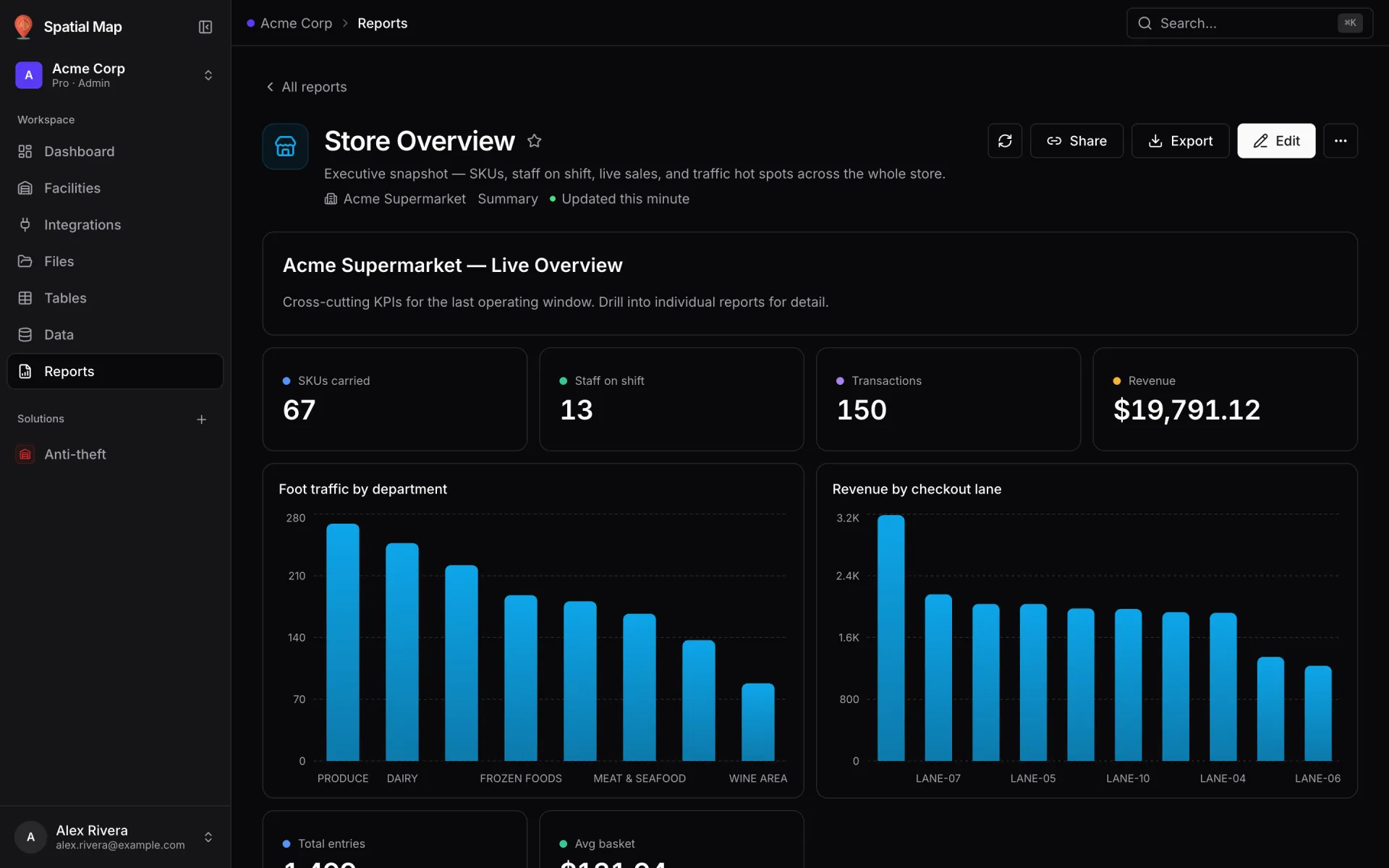
Click a card to open the report. The header shows its icon, name, star and description, then a line with its facility, its type and how fresh the data is: Updated this minute, or Refreshing… while it runs. Each widget loads on its own, with a placeholder in its shape. If one widget fails it shows an error with Retry, and the rest of the page keeps working.
Take Store Overview in the Acme Supermarket demo. Under a short note it opens with four key numbers (SKUs carried, Staff on shift, Transactions, Revenue), then the Foot traffic by department and Revenue by checkout lane bar charts, followed by more key numbers such as Total entries and Avg basket.
| Header control | What it does |
|---|---|
| Page / Map | Only on reports that contain a facility map & list. Switches between the page and the full map. |
| Refresh (↻) | Runs every query in the report again. |
| Share | Copies the report's link, including the filters you have set. See Share a report. |
| Export | Opens Export report: PDF, Excel, CSV or JSON. Greyed out when nothing in the report can be exported. See Export a report. |
| Edit | Opens the builder. Only shown if you can edit the report. |
| ⋯ More actions | Run history. On a phone, Map view, Refresh, Share and Export… move into this menu too. |
Refresh and run history
A report runs when you open it and when you click Refresh. On the page layout it doesn't update on its own. The full map does: it updates every 30 seconds by default, and you can change the interval or pause it.
⋯ More actions → Run history opens a side panel with the latest 50 runs. Each run shows when it happened, how many rows came back and how long it took. A failed run shows Failed and its error message, which helps you spot a filter that no longer matches the data.
Filters while viewing
When a report has viewer filters or parameters, a filter bar sits above the widgets. It starts open, so you see straight away what you can change, and its header counts them, for example "2 filters · 0 active". Changing a value re-runs only the queries that depend on it. Reset all puts every filter back to its default.
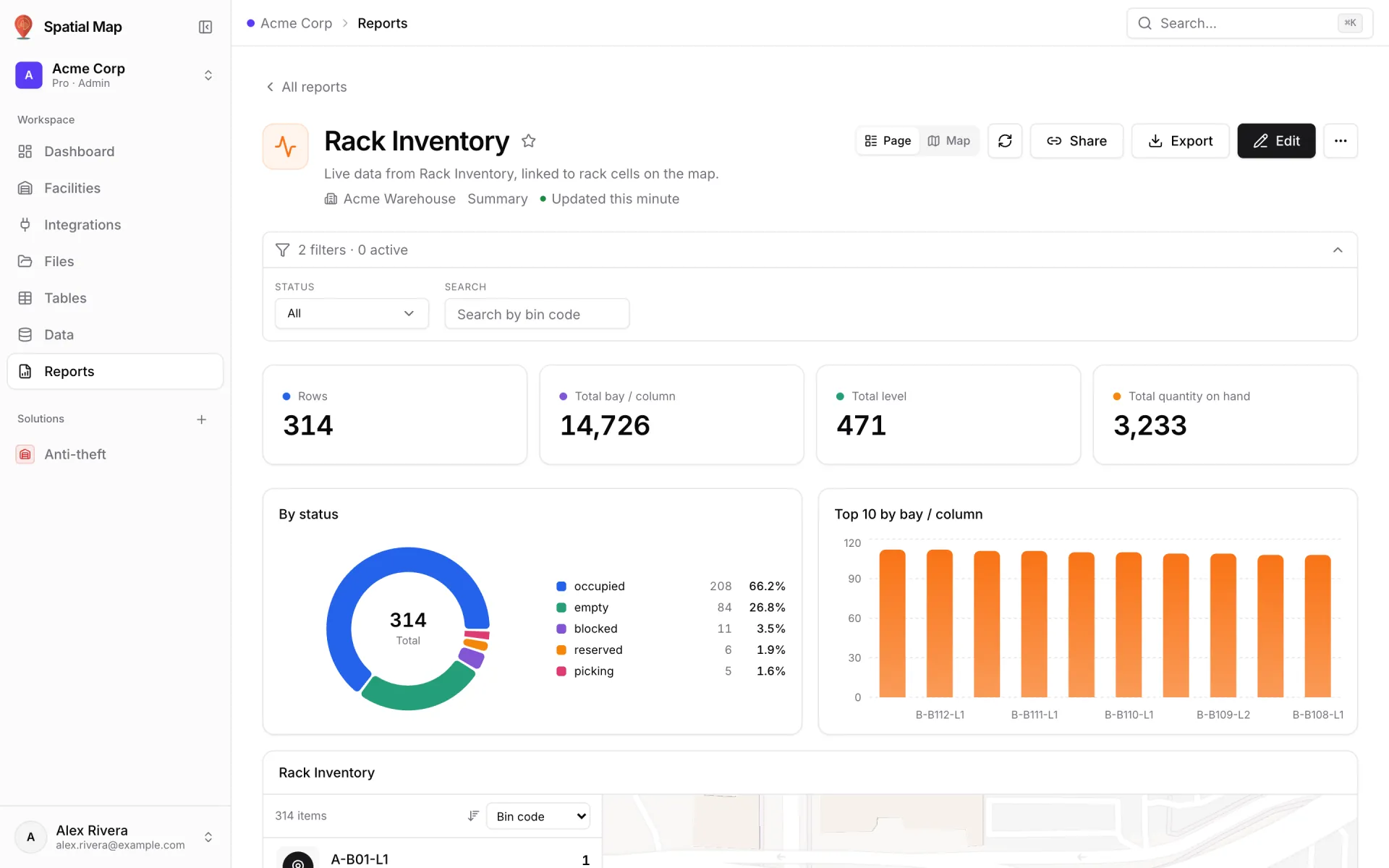
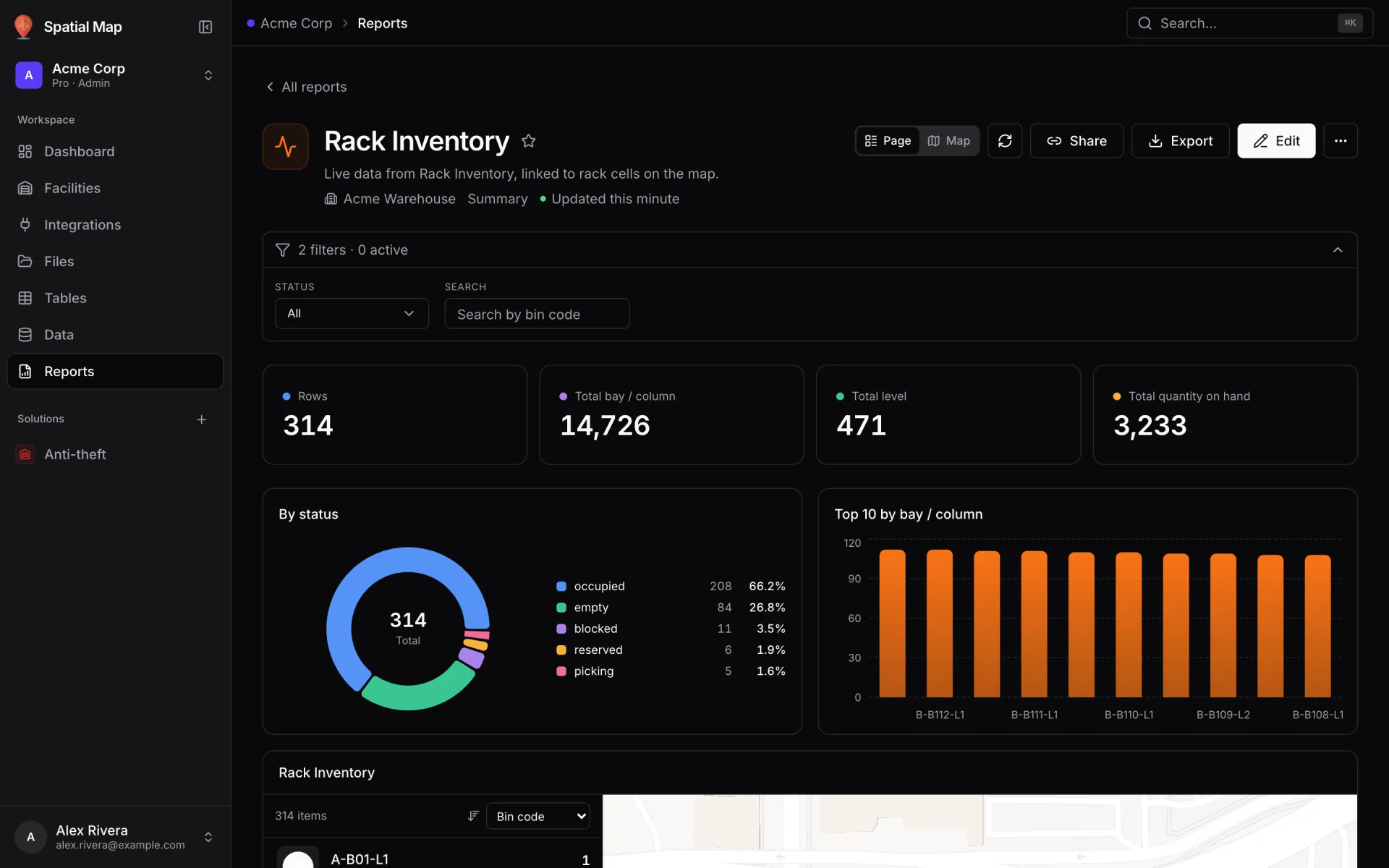
- Dropdowns and multi-selects take their options from the data, such as the facility's floors in height order or every status in a table.
- Search boxes narrow lists by name as you type ("Search by bin code", "Search by room").
- Date ranges come with quick presets such as Last 7, 30 or 90 days.
- Yes / No filters appear as two buttons, for example Visible / Hidden.
- Dimension grid parameters show one tile per column. Click values to include them.
Page view and full-map view
Any report with a facility map & list can open as a full map: the live map fills the screen, the list floats on the left, the picked record opens on the right, and the key numbers and charts float over the map. The author chooses which view a report opens in, and each viewer's own Page / Map choice is remembered in their browser. Exports and PDFs always use the page layout. Full-map reports covers it in detail.
Star your favourite reports
Click the star on a card, or next to the report's name when it's open. Starred reports float to the top of the Reports screen, the Starred card counts them, and the Starred toggle shows only them.
Who can see and change reports
| Workspace role | Sees | Can do |
|---|---|---|
| Owner / Admin | Every report. | Open, edit, export and share; New report, Import JSON, Duplicate and Archive. |
| Editor | Reports shared with them. | Open, export and share; edit the ones they were given Edit on. |
| Viewer | Reports shared with them. | Open, export and share. Never edit, even with Edit access. |
Access is set per report in the builder's Review & save step: give each member None, View or Edit. Owners and admins always have access. A member with no reports yet sees "When an admin shares a report with you, it shows up here." Roles are explained in Members and roles.
More in Reports
- Reports · BuilderBuild a report step by stepUse the report builder to pick a report type and data source, add filters, viewer filters, parameters and widgets, choose a layout, set access and save.
- Reports · Full mapFull-map reports: live data on the floor planShow a report on a full-screen live facility map: a list on the left, the picked record on the right, key numbers and insights floating over the floor plan.
- Reports · Widgets & exportReport widgets and exportEvery report widget kind, the facility map & list, and how to export a report or one widget to PDF, Excel, CSV, JSON or PNG, or move it between workspaces.