
The Viewer: a read-only facility map
Open a facility read-only in the Viewer: floors, layers, live data links, a detail drawer and indoor directions, for teammates on /view and guests on /share.
What the Viewer is
The Viewer is the read-only way to look at a facility. Teammates who don't need to draw can do everything they need here: switch floors, show or hide layers, watch the data-link layers, open a shape's details and get walking directions. Nothing on the map can be moved, reshaped or deleted from the Viewer.
The same screen has two addresses. Signed-in members open `/view/<facility-id>`, which is where the editor's Preview button goes. Anyone else opens a share link, `/share/<token>`, which needs no account. Both show the same map. The share-link page also applies whatever settings the link carries (see Share a facility with a link).
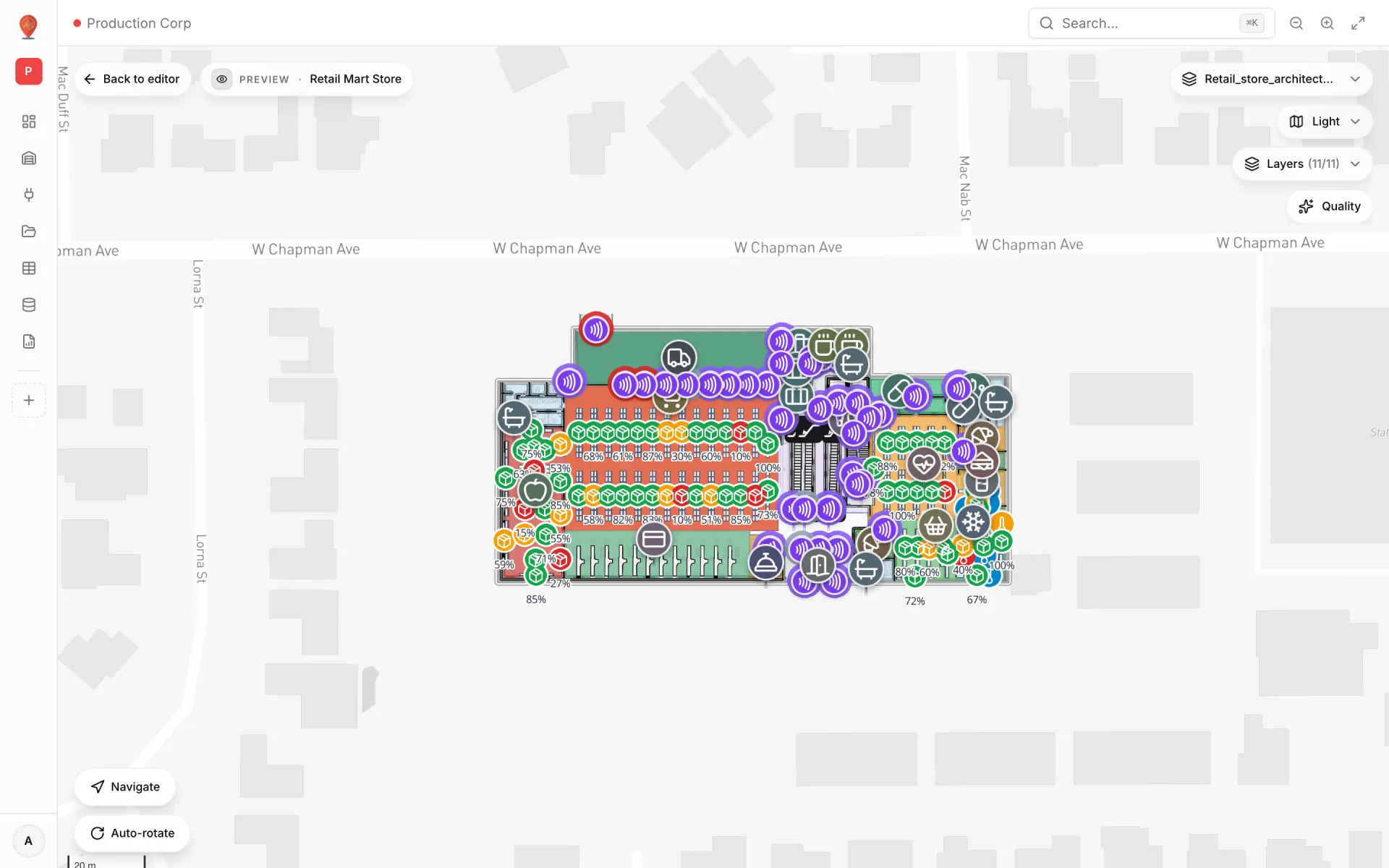
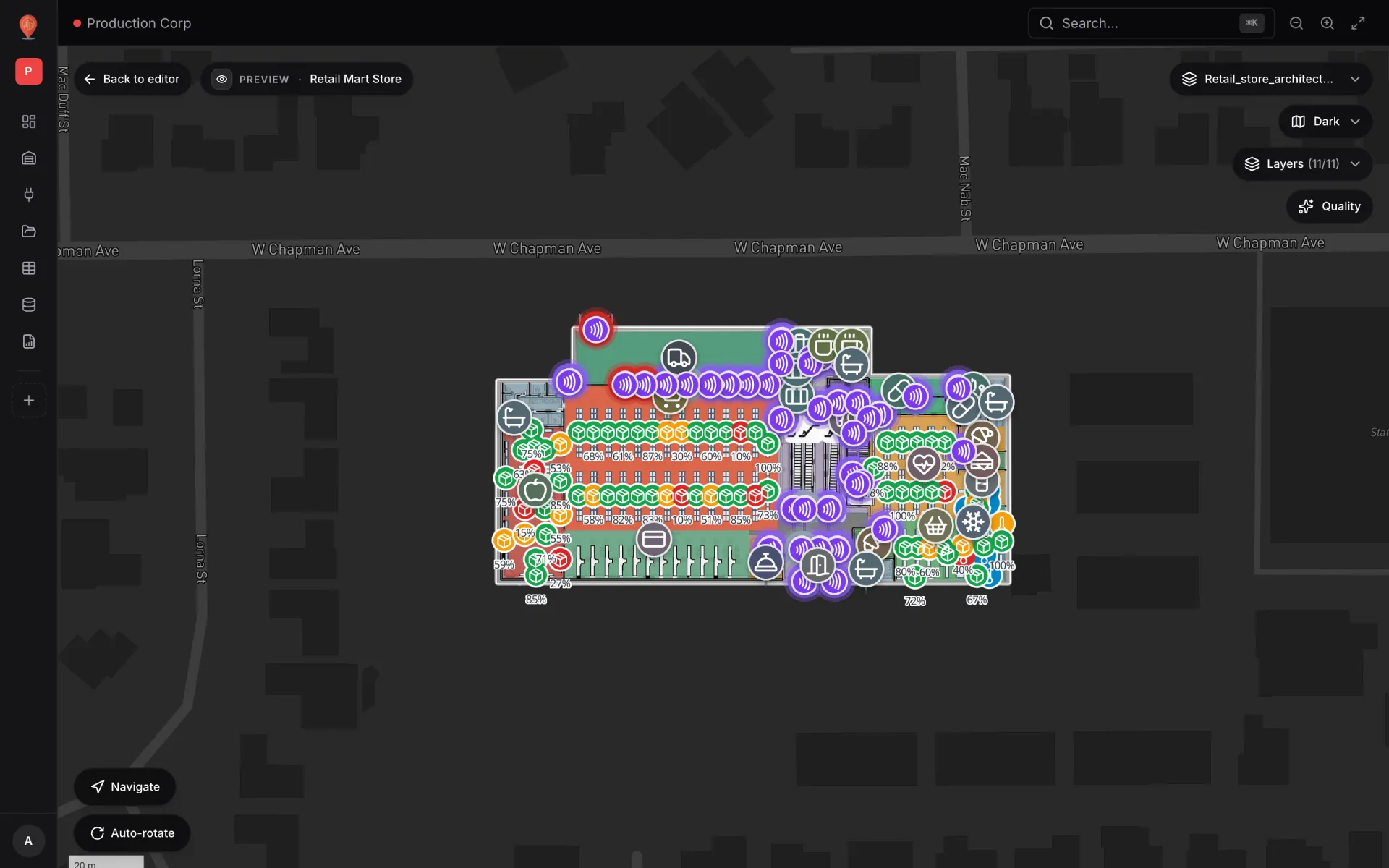
How to open it
- From the editor: click the eye-icon Preview button on the left toolbar. The Viewer opens in the same tab, and Back to editor brings you back. See Preview a facility.
- From the Facilities page: click Preview on a facility card to open it in the same tab, or use the card's ⋯ menu → Preview to open it in a new tab.
- From a share link: paste the `/share/…` URL into any browser. No sign-in needed.
Members' Viewer vs. the share-link page
| /view/<facility-id> | /share/<token> | |
|---|---|---|
| Who can open it | A signed-in member of the workspace, any role (including Viewer). | Anyone who has the URL, signed in or not. |
| Around the map | The usual app sidebar and top bar, plus Back to editor and a "PREVIEW · <facility name>" pill top-left. | Nothing but the map and its controls. An optional watermark and a "Shared view" badge sit at the bottom. |
| Settings applied | None. Everything starts on its default. | The link's settings: map style, light/dark mode, accent palette, floor lock, hidden layers and hidden controls. |
| Editor changes | Pushed through while the page is open. | Loaded when the page opens. Reload to see newer edits. |
Where the controls are
The map fills the screen and every control floats over it as a rounded pill.
| Position | Control | Guide |
|---|---|---|
| Top-left | Back to editor and the PREVIEW pill. Members only, never on a share link. | Preview a facility |
| Top-right, 1st | Floor switcher, e.g. "Ground Floor". Shown when the facility has floor plans. | Floors |
| Top-right, 2nd | Map style, e.g. "Light". | Map style & graphics |
| Top-right, 3rd | Layers (N/M) | Layers panel |
| Top-right, 4th | Filters. Only appears when a data link has saved filters. | Filters |
| Top-right, 5th | Quality | Map style & graphics |
| Bottom-left | Navigate and Auto-rotate | Below |
| Bottom | The History player, shown only for a data link that uses Historical movement. A share link can also add a watermark (centre) and a "Shared view" badge (right). | History player |
Clicking a marker, an area or a live data point opens a detail drawer on the side. A share link can hide most of the top-right pills, and it can lock panning and zooming. See Viewer chrome.
Auto-rotate
Auto-rotate slowly turns the camera around the centre of the screen, one full turn about every 24 seconds. It's meant for screens nobody touches, such as a lobby display or a control-room wall. You can still drag and zoom while it runs. Click Stop rotate to end it.
What appears on the map
The Viewer draws everything the editor does: floor plans, racks and bins, areas, circles, walls and aisles, stairs, lifts and escalators, doors, 3D models, image planes, text labels and markers. It also draws every enabled data link on the facility, such as the stock-level and RFID reader markers on the Retail Mart Store. Data-link layers keep themselves up to date while the page is open.
Shapes you hid with the editor's Layers menu still show here. The Viewer has its own Layers panel, and share links have their own layer settings.
Viewer vs. editor
| You want to… | Editor | Viewer |
|---|---|---|
| Draw, move, reshape or delete shapes | Yes | No |
| Show or hide layers | Layers menu on the toolbar | Layers pill, for this visit only |
| Change the map style | Yes | Yes |
| Click a shape | Side panel with the shape's settings | Read-only drawer with the data linked to it |
| Get directions | Route from A to B tool | Navigate button |
| Pick a saved filter for a data link | Saved filters are written in the data-link editor | Filters pill |
| Create or revoke share links | Yes | No |
Where to go next
More in Viewer & sharing
- Viewer & sharing · ViewerSwitch floors in the ViewerShow one floor, several or all of them in the Viewer's floor switcher, see how share links lock a floor, and set a building shell to Auto, Shell or Interior.
- Viewer & sharing · ViewerFilter live data in the ViewerThe Viewer's Filters pill lets anyone pick a saved filter per data link and fill in runtime values, then Apply. It appears once a link has saved filters.
- Viewer & sharing · ViewerChange map style and graphics quality in the ViewerSwitch between eight map styles and turn 3D shadows, ambient occlusion and "Hide items under floors" on or off in the Viewer, remembered in your browser.
- Viewer & sharing · ViewerInspect a shape's data in the ViewerClick a marker, an area or a live data point in the Viewer to open a detail drawer with its photo, fields, links and change history, or a list for a cluster.