
Data links: put live data on the map
A data link turns rows from a table, REST API or file into markers, tinted shapes, badges or heatmaps on a facility map. Learn the modes and the editor.
What a data link is
A data link is the recipe that turns rows from a data source into something you can see on a facility map. You pick the source (a table, a REST API or a file), how each row should look, and where it lands. The editor, preview mode, the viewer and share links then draw it and keep it up to date.
One link draws one layer. To show the same source as both a heatmap and markers, create two links on it. Links belong to one facility; the source they read can be shared by many.
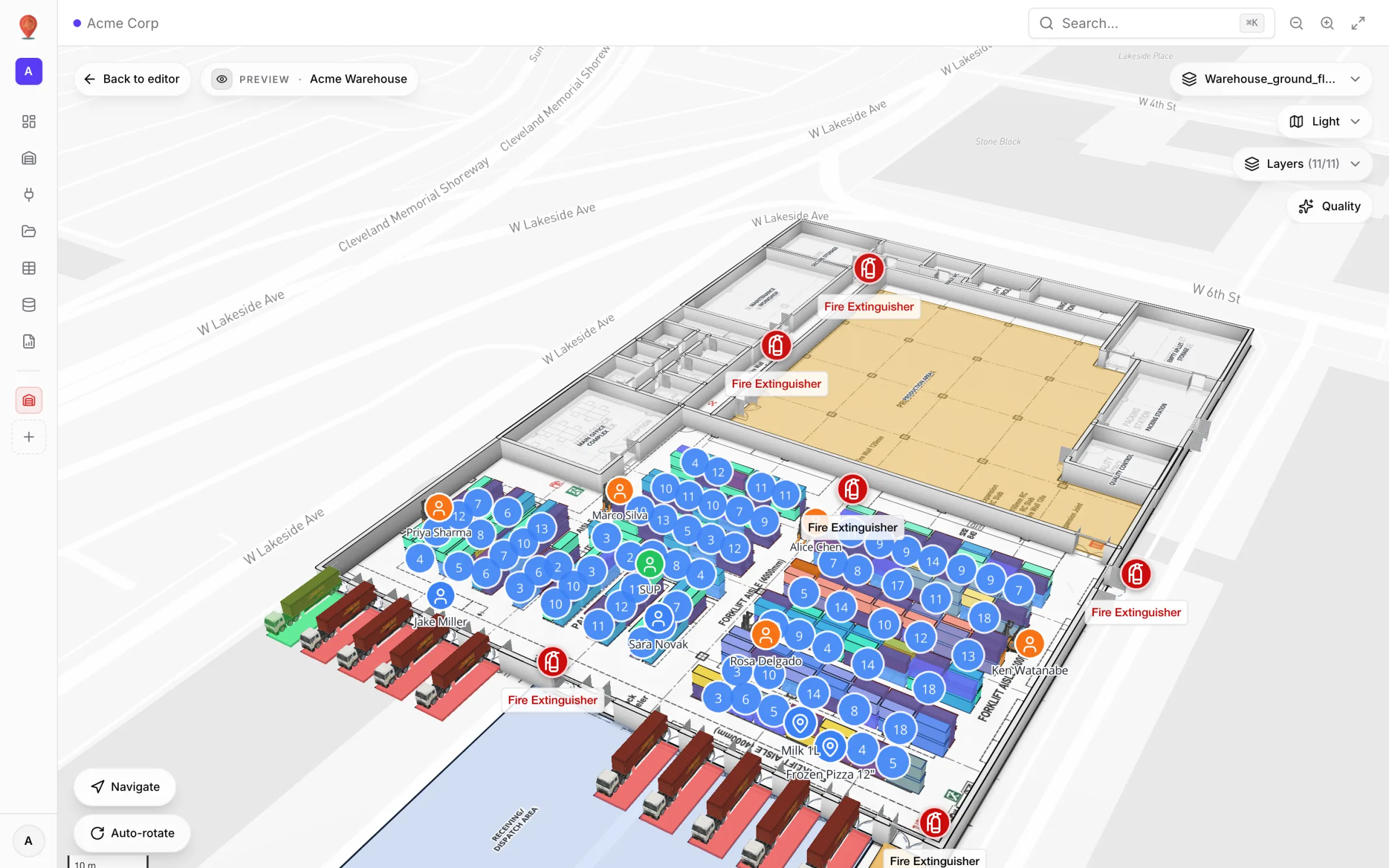
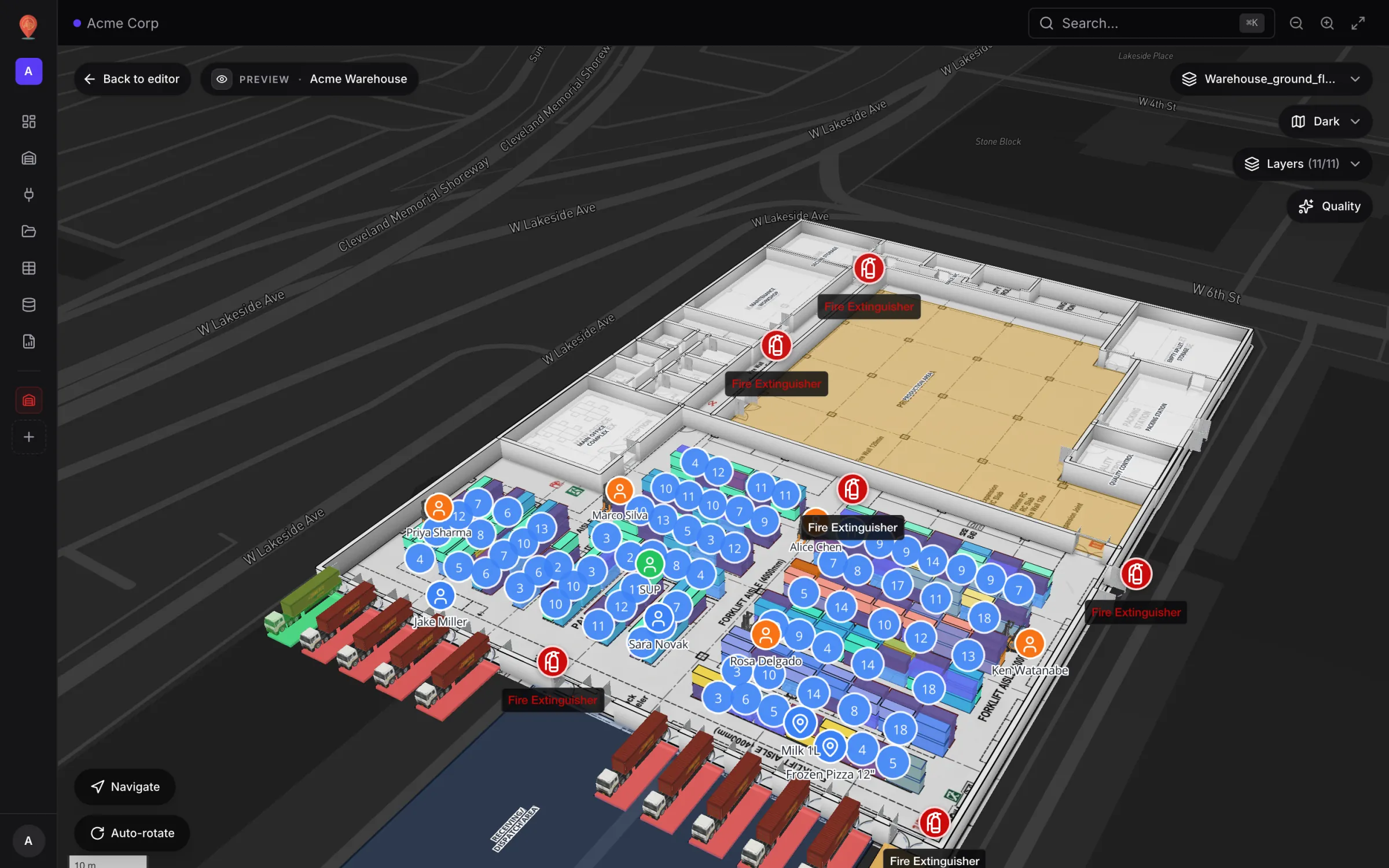
The example links used in these guides
These guides come back to a handful of links, all reading tables. Rack Inventory is a real link in the Acme Warehouse demo; the others are typical set-ups you can build on your own tables.
| Data link | Source table | Display mode | What you see |
|---|---|---|---|
| Room status | A rooms table (kind Polygon / area) with `room_name` and `status` | Color a shape | Each room's area tinted by its `status` (Available, In use, Cleaning, Out of service) through style rules. |
| Staff | A Staff table (kind Asset, mobile) | Live location marker | A person marker per staff member at their `lng` / `lat`, labelled with `name`. |
| Equipment | An Equipment table (kind Asset, mobile) | Live location marker | A marker per tagged item at its `lng` / `lat`, labelled with `asset_name`. |
| Environmental sensors | A sensors table with temperature and humidity readings | Live location marker | A thermometer marker per sensor, labelled with its reading, such as "21.8 °C". |
| Rack Inventory | Rack Inventory in the Acme Warehouse demo (314 rows) | Color a shape | Rack cells matched by `bin_code`, coloured by status (occupied, empty, blocked, reserved, picking). |
Where you create and edit links
- Data links (N) pill — next to the facility name at the top of the editor. Opens New data link straight away.
- Data flyout → Manage data links (the link icon) — opens the Data links list for the facility. See Manage data links.
- Selected shape — select an area, circle, line, marker or floor plan; the Data links box at the bottom of its side panel lists links that can paint it, with Add, edit and delete.
Nine display modes
The most important choice is the display mode — "Choose how it looks on the map". The editor shows nine cards:
| Mode | Card text | Needs |
|---|---|---|
| Live location marker | "Show each record as a marker at its own lng/lat." | Longitude and latitude fields. |
| Info marker on shape | "Attach a marker to a specific shape's center." | A shape match. |
| Value badge on shape | "Show a number (temperature, count, %, …) on a shape." | A shape match and a value field. |
| Color a shape | "Tint a polygon or circle to reflect state." | A shape match. |
| Heatmap of activity | "Density map from recent events. No shape needed." | Longitude and latitude fields. |
| Movement trails | "Draw each entity's path over time." | A live event stream — not available today (see below). |
| Camera field of view | "Triangle cone from yaw + FOV + view-distance." | A shape match and `yaw`, `fovDeg`, `viewDistanceM` fields. |
| Pulsing zone activity | "Animated ring + count badge at a shape's center." | A shape match. |
| Historical movement | "Scrub through the table's change log with a bottom-of-map player. Only for table sources." | A table source. |
The editor's sections depend on the mode
The New data link / Edit data link dialog is one scrolling form with a numbered list of sections on the left — click one to jump to it. It is not a wizard; nothing is locked. The sections you see depend on the display mode:
| Display mode | Sections | Count |
|---|---|---|
| Info marker on shape · Value badge on shape · Color a shape · Camera field of view · Pulsing zone activity | Name, Data source, Display mode, Attach to shapes, Floor scope, Saved filters, Connect fields, Style, Style rules, Map tooltip, Content viewer | 11 |
| Live location marker · Movement trails · Historical movement | Name, Data source, Display mode, Floor scope, Saved filters, Connect fields, Style, Style rules, Map tooltip, Content viewer | 10 |
| Heatmap of activity | Name, Data source, Display mode, Floor scope, Saved filters, Connect fields, Style, Style rules | 8 |
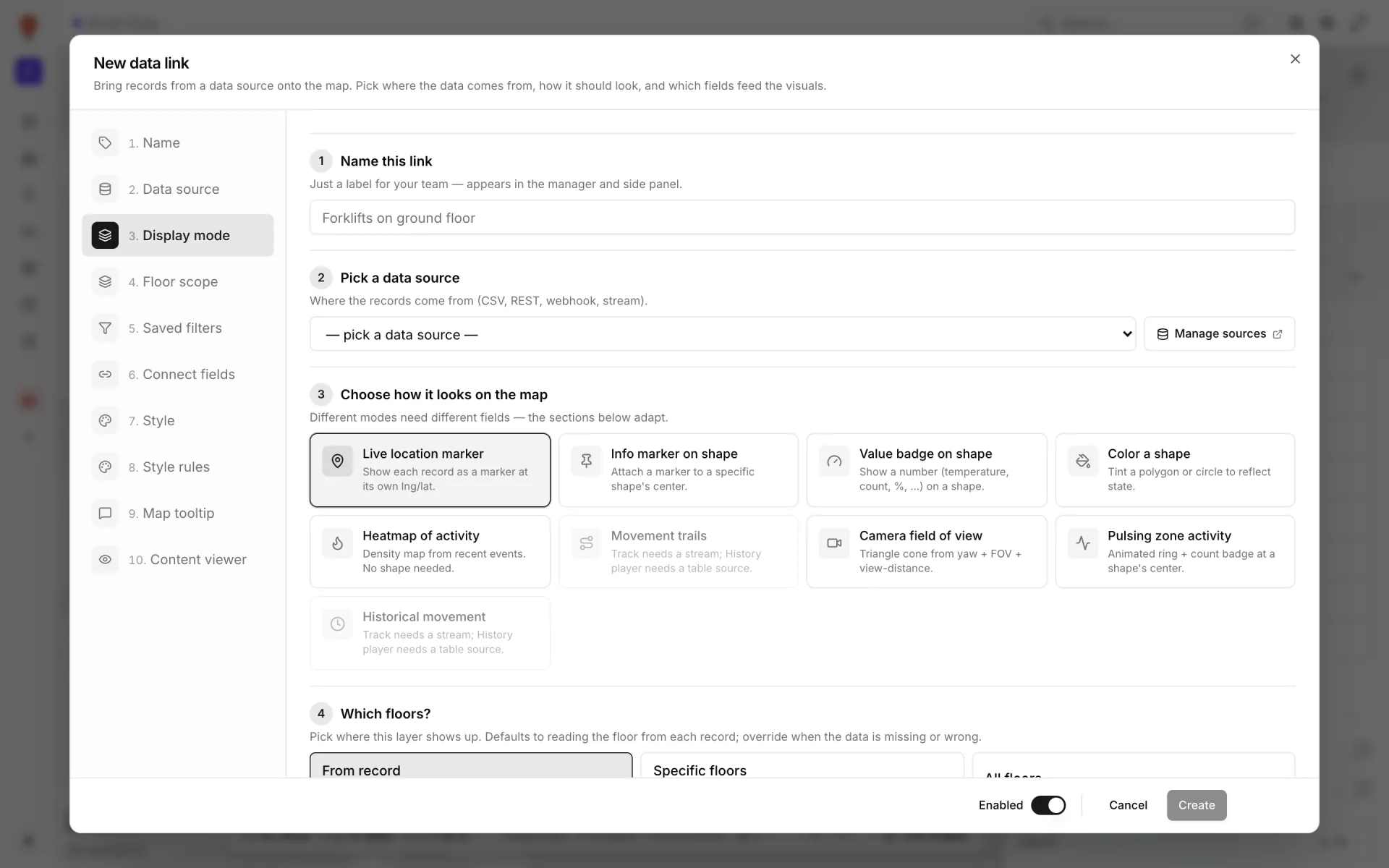
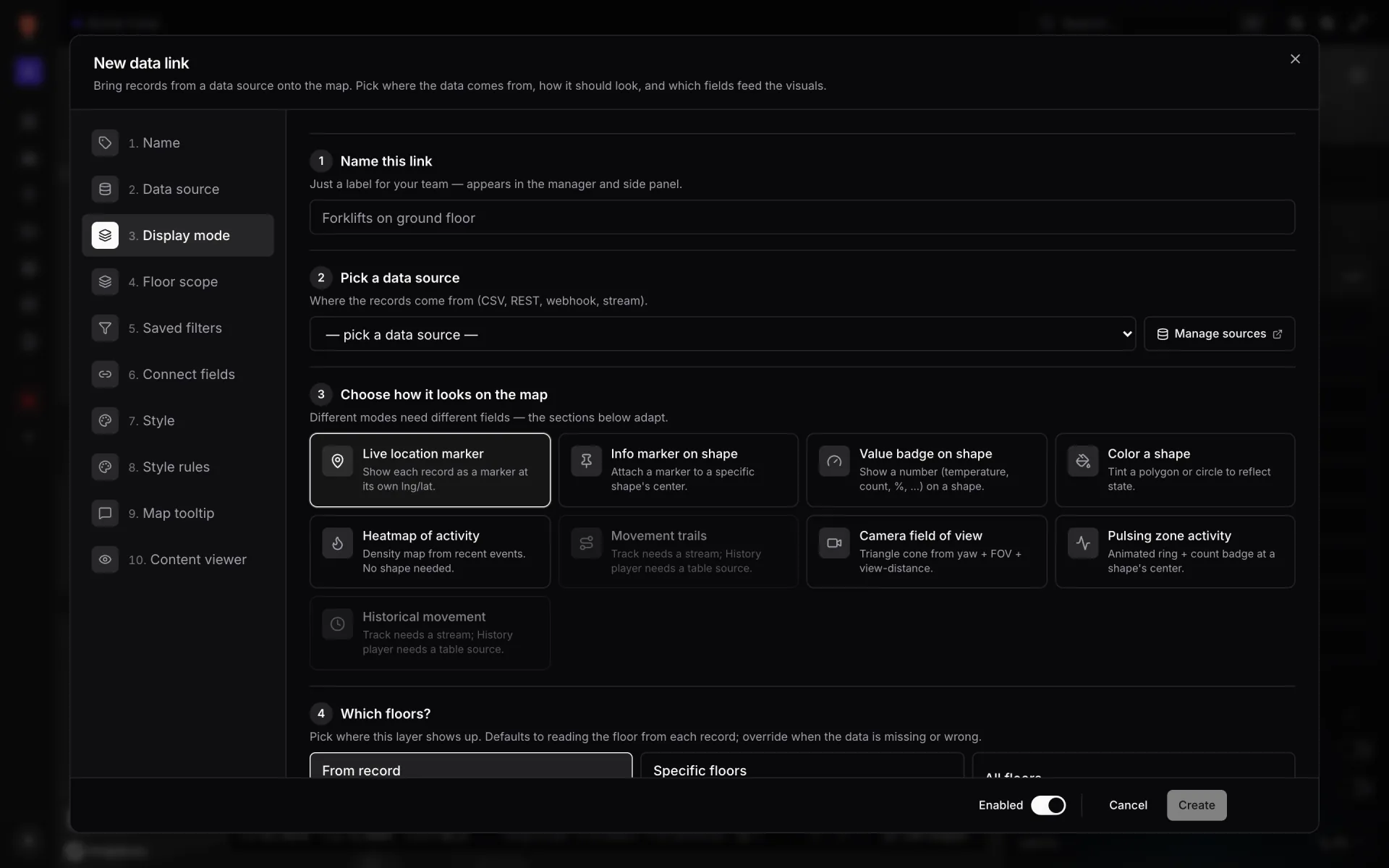
Picking a source loads one real row from it, and every field box in the dialog offers that row's fields — with their current values — so you rarely type a field name by hand.
Saving
The footer stays put while you scroll: Delete (existing links), the Enabled switch, Cancel, and Create or Save. Save stays disabled until the link has a name, a source and a complete match; hover it to see what is missing. The change shows on the map straight away, and open viewers and share links pick it up without a reload. Turn Enabled off to hide a link without deleting it.
The guides, in dialog order
- Manage data links — the list of links on a facility.
- Data source and display mode — sections 1–3.
- Attach to shapes and floors — Attach to shapes and Floor scope.
- Saved filters — named filters viewers pick from.
- Connect fields — coordinates, labels, values and elevation.
- Style and style rules — the layer's look and which rules recolour it.
- Style rules — writing the rules themselves.
- Map tooltip and content viewer — what people see on hover and click.
More in Data links
- Data links · Source and modePick a data source and display modeThe first three sections of a data link: name it, pick the table, REST API or file it reads, and choose one of nine display modes for the map.
- Data links · Shapes and floorsAttach data link records to shapes and floorsMatch each data-link record to a shape by name, role or external code, or pin a link to one shape, then choose which floors of the facility the layer shows on.
- Data links · Saved filtersPublish saved filters for a data linkSaved filters are named slices of a data link, like "Rooms in use" or "Needs attention", that viewers pick with one click. Build conditions and see live counts.
- Data links · Connect fieldsConnect fields: coordinates, labels and elevationTell a data link which fields hold longitude, latitude, label, value and elevation — so staff, equipment and sensor markers land in the right place and floor.