
Share a facility with a link
Create share links that open a facility read-only for anyone, with no account. Set expiry, a view cap, a floor lock, branding and which controls guests see.
What a share link is
A share link is a URL like `https://app.spatialmap.io/share/<token>` that opens one facility in the read-only Viewer. Whoever has it can open it, with no Spatial Map account. The page shows only the map and its controls, without the app around it.
Each link carries its own settings: how long it works, how many times it can be opened, the map style and colours, which floor and layers guests see, and which controls they get. A facility can have as many links as you like, for example one for a sales demo, one for a lobby screen and one for a contractor, each set up differently. You can change a link's settings later and the URL stays the same.
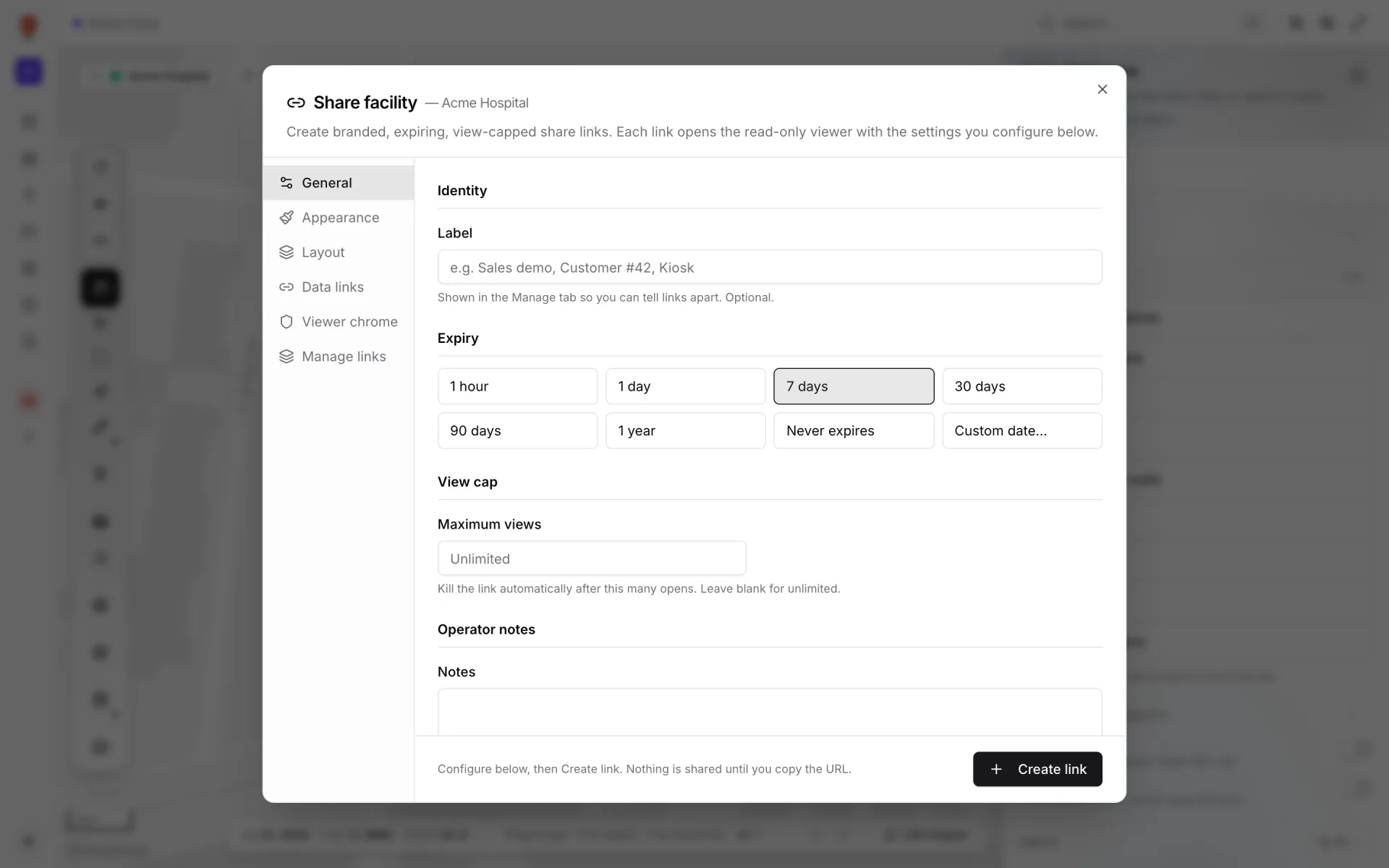
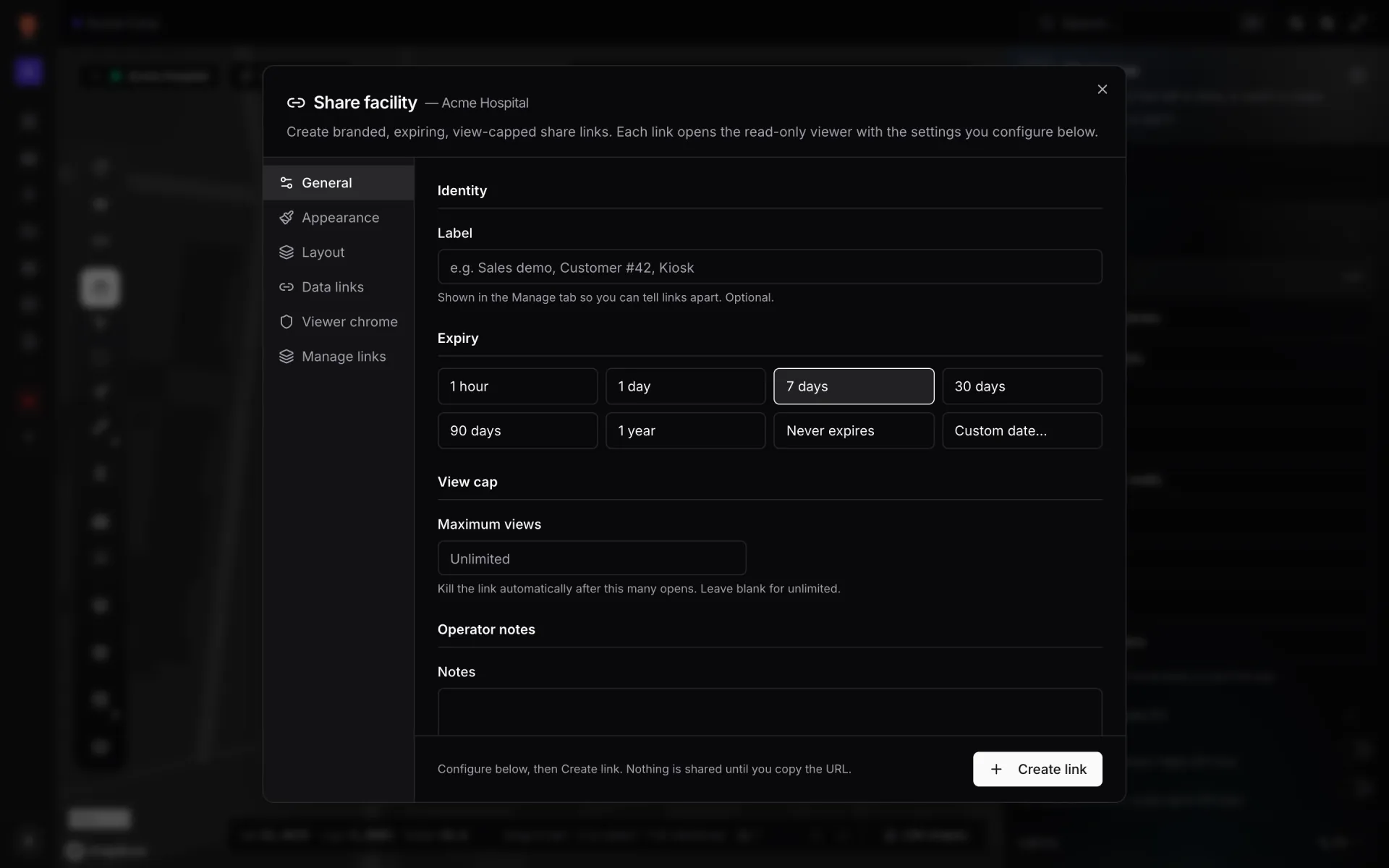
Where to open the Share dialog
Creating, editing and revoking links needs the Owner, Admin or Editor role. Deleting a revoked link needs Owner or Admin. For the Viewer role, the Share menu item is greyed out.
| From | Click | The dialog opens on |
|---|---|---|
| The editor | The link-icon Create share link button on the left toolbar, under Preview. It only shows when a facility is open. | General, ready to create a new link |
| A facility card or row | ⋯ → Share | Manage links if the facility already has links, otherwise General |
| The Facilities list view | The Share links column: Create link, a link's pencil ("Configure …") or the +N chip | General for a new link, that link in edit mode, or Manage links |
The six tabs
| Tab | What you set there |
|---|---|
| General | Label, expiry, maximum views and private notes. |
| Appearance | Map style, light/dark mode, accent colour and a watermark. |
| Layout | Which floor guests see, or lock them to one floor, and which kinds of shapes are shown. |
| Data links | Which data-link layers start switched on. |
| Viewer chrome | Which controls guests get, and whether they can pan and zoom. |
| Manage links | Every link for the facility: copy, open, edit, revoke and delete. |
Create a link
- 1Open the dialog
Use any of the entry points above. The title reads Share facility — <facility name>.
- 2Go through the tabs you need
Every setting is optional. A link you create without touching anything works for 7 days, shows everything and gives guests every control. Your changes are kept as you move between tabs.
- 3Click Create link
The link exists from this moment. The dialog switches to Manage links, with the new link at the top.
- 4Copy the URL
Click the copy button next to the URL and send it to whoever needs it.
What a guest sees
The guest gets the same Viewer members use, minus Back to editor, styled and limited by the link's settings. The page loads the facility when it opens, so the guest reloads to see later edits. A watermark, if set, sits at the bottom centre, and a "Shared view — <label>" badge sits at the bottom right unless the link hides it.
Turn off every link at once
Each facility's Settings dialog (⋯ → Settings, Facility tab) has a Publicly viewable switch: "When off, the public share link returns 404." Turn it off and every share link for that facility stops working straight away, which is useful if a link leaks and you haven't found out which one yet. Turning it back on restores links that are still active. While it's off, members' Preview doesn't load either.
More in Viewer & sharing
- Viewer & sharing · ViewerThe Viewer: a read-only facility mapOpen a facility read-only in the Viewer: floors, layers, live data links, a detail drawer and indoor directions, for teammates on /view and guests on /share.
- Viewer & sharing · ViewerShow and hide layers in the ViewerUse the Viewer's Layers panel to hide shape kinds, list and zoom to items, and switch data-link layers off for your visit or turn them off for everyone.
- Viewer & sharing · ViewerSwitch floors in the ViewerShow one floor, several or all of them in the Viewer's floor switcher, see how share links lock a floor, and set a building shell to Auto, Shell or Interior.
- Viewer & sharing · ViewerFilter live data in the ViewerThe Viewer's Filters pill lets anyone pick a saved filter per data link and fill in runtime values, then Apply. It appears once a link has saved filters.