
Draw racks and shelving with the Rack tool
Draw racks, shelving and storage grids in two clicks with Draw rack (G). Set cell size and levels, edit each bin and link bins to live stock data.
When to use the Rack tool
A rack is a rectangular grid of cells. Reach for it whenever the thing you're drawing has repeating cells — pallet racks, shelving units, parking bays, dock doors, storefronts. Each cell has a stable row/column address, which is what lets you bind cells to bin data from a spreadsheet or an integration and paint them by status.
To open the tool: click the Draw button on the left toolbar and pick Draw rack, or press G on the keyboard. R and 3 also open it, but only while nothing is selected: with one rack selected, R redraws that rack instead. In a facility with no racks yet, the side panel shows "No racks yet" with a Draw a rack button. Saved racks are listed under Racks in the side panel; the toolbar's Layers menu calls the layer Racks / grids, and the shortcut sheet calls the tool Racks / grid.
| G R 3 | Open the Rack tool (Draw rack). |
In the Acme Warehouse demo, the pallet racks are drawn with this tool and each rack cell is a bin. A data link matches the 314 rows of the Rack Inventory table to those bins and tints every cell by its status: occupied, empty, blocked, reserved or picking.
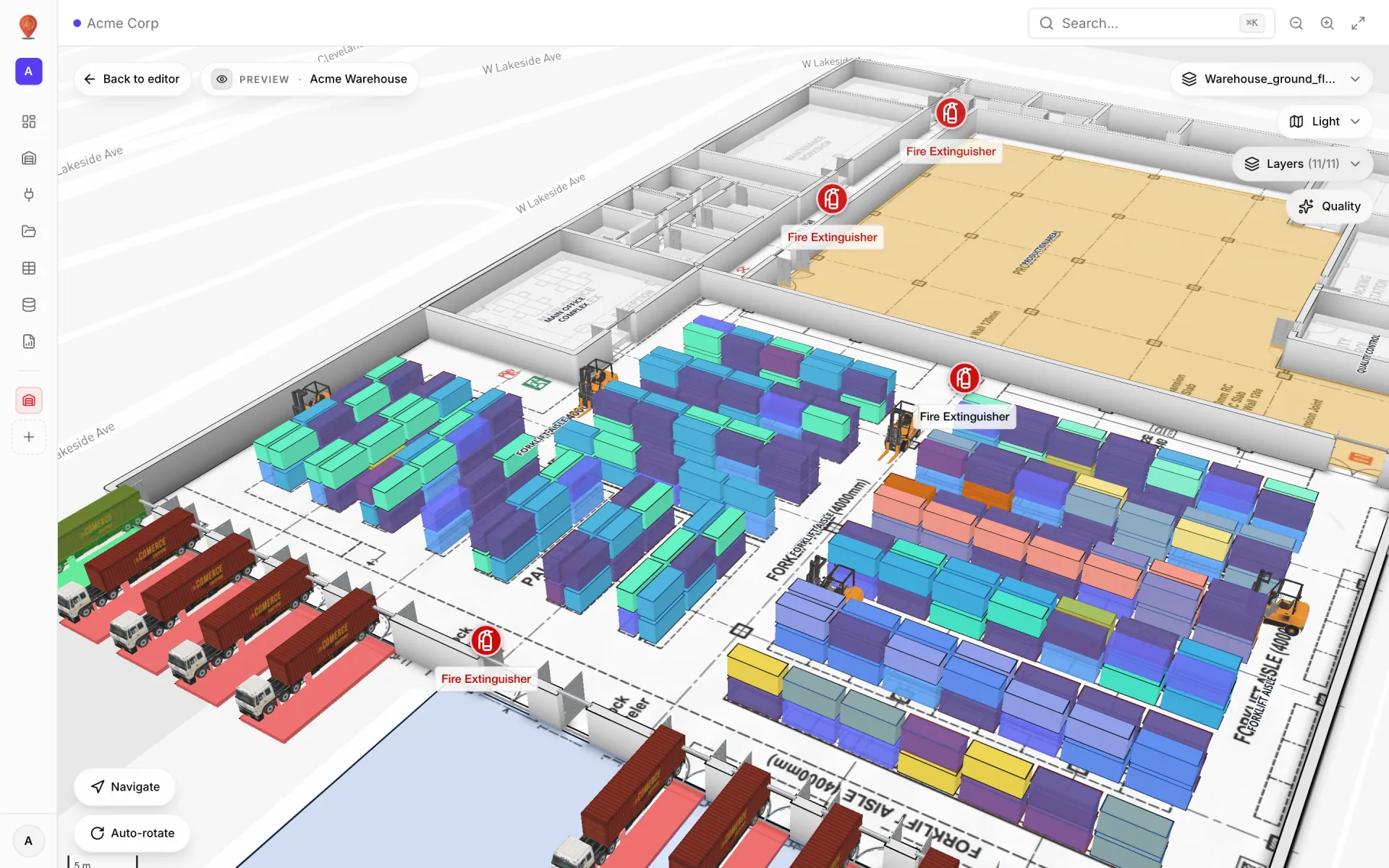
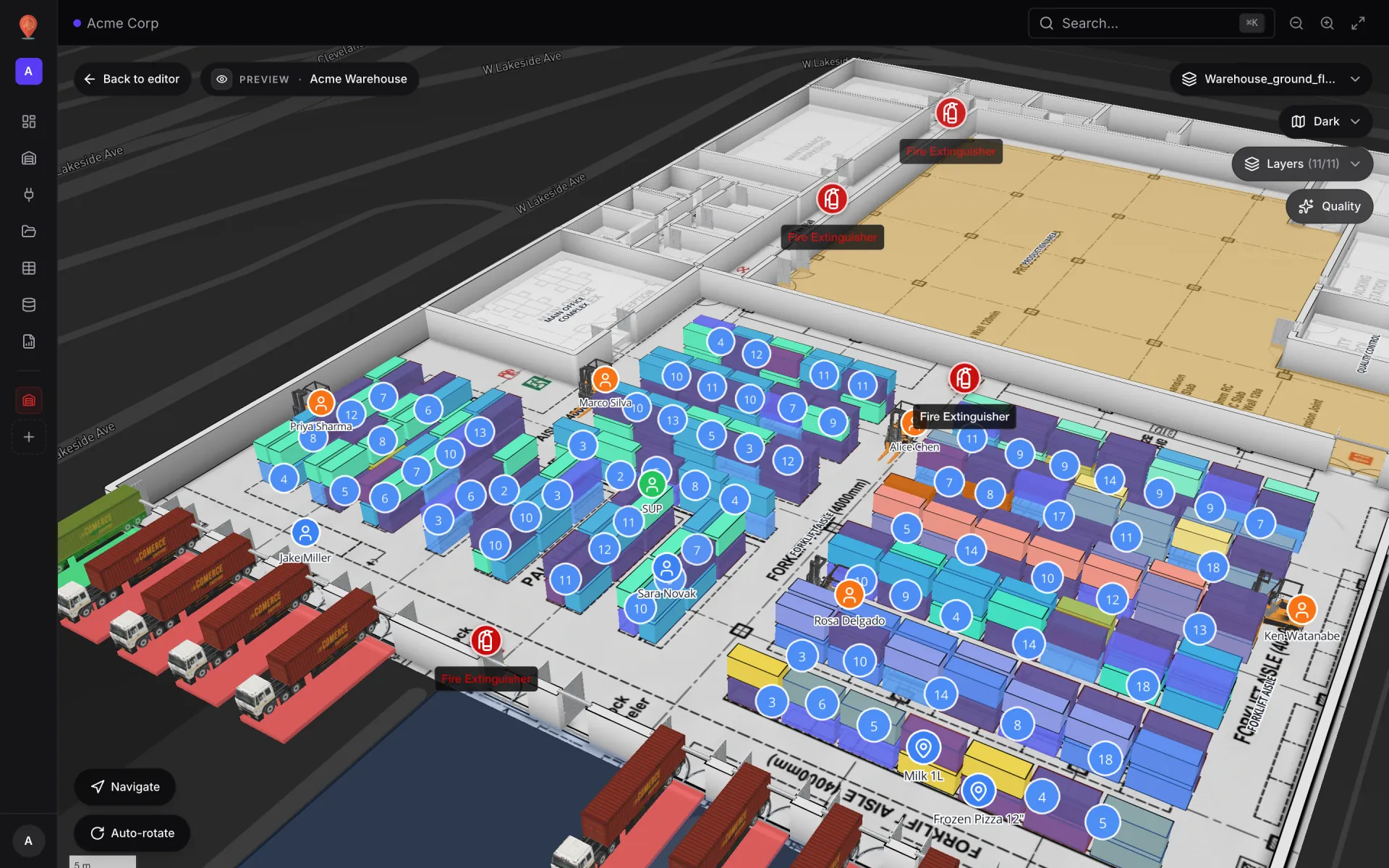
Drawing a rack — two clicks
The Rack tool is a two-click rectangle. Click one corner, click the opposite corner, done. Between the two clicks you can pan and zoom the map to line up the second click without losing your first one.
- 1Click the first corner
A small white dot appears at the corner you clicked. That is the anchor — it stays put while you look for the second corner.
- 2Move the mouse
As you move, the map draws a live preview of the rack using your current settings from the side panel — cell shape, cell size, colour. Nothing has been saved yet; the preview updates as you move.
- 3Click the second corner
The rack is saved, named after the date and time it was drawn (for example "Grid 2026-10-11T09:30"; click the name in the panel header to rename it), and shows up in the "Racks" list in the side panel. The tool exits back to Pan; to edit the new rack, click it in the Racks list or switch to Select (2, or hold Space) and click it on the map.
Cell shape and cell size
Every rack is a lattice of cells. While the Rack tool is active, the side panel shows the settings for the next rack: Shape (square, triangle, or hexagon) and Dimensions (cell size, cell gap, rotation), plus Appearance, 3D & Altitude, Vertical / Racking and Labels. The number of rows and columns is worked out from the footprint you draw and the cell size you chose — a 20 m × 5 m footprint with 1 m × 1 m cells gives 20 columns × 5 rows. Shape and cell size are picked before you draw; they are not shown in the panel of an existing rack.
| Setting | What it does |
|---|---|
| Shape | Square (the default), Triangle, or Hexagon. Only square racks support multi-level stacking. |
| X size | The width of one cell along X, in your display unit (default 10 m). |
| Y size | The depth of one cell along Y. Hexagons use a single Hex Radius instead of X and Y size. |
| Cell gap | Air between adjacent cells. Default 0 — cells butt up against each other. |
| Rotation | Rotate the rack from −180° to +180°. |
| Hex orientation | For hexagon racks only — Pointy or Flat. |
Editing a bin
Every cell in a rack can hold one bin — a small record with a status, an SKU, a capacity, notes, an external code and custom properties. Bins are what style rules read to paint the rack by status or any other field.
- 1Click a cell with the Select tool
Switch to Select (2, or hold Space) and click a cell — a click only picks a rack while Select is active (Marquee select picks by dragging a rectangle). The rack becomes selected and that cell becomes the active bin. The side panel's "Bin" section shows the current bin data (or a "ready to edit" hint if the cell has no bin yet).
- 2Fill in the bin details
Click "Edit bin properties" to open the bin dialog — Status (Empty, Occupied or Reserved), SKU, Capacity, Notes, and a Linked data block with an External code and custom key/value properties. Changes save as you edit; "Clear bin" empties the cell. On stacked racks a level ladder on the side switches between levels.
- 3Move to the next cell
Click another cell to edit its bin. To fill many bins at once, use a data link that matches each record to a bin (for example by external code).
Multi-shelf racking
A square rack can be stacked into multiple levels — the same footprint repeated at different heights, like a pallet rack. Every level keeps the same row and column addresses; bins on the second level show as L2.
- 1Open the Vertical / Racking section
It sits just above Labels in the side panel and is only visible for square racks — hexagon and triangle racks stay single-level.
- 2Set Levels
Anything above 1 turns the rack into a stack. Extra levels appear immediately, extruded above the base, and each level gets its own cell labels.
- 3Set Level height and Level gap
Both fields appear once Levels is above 1. Level height is how tall each level is (default 1.5 m); Level gap adds empty space between levels.
Appearance and 3D
The Appearance section controls how the rack paints on the map. The 3D & Altitude section controls where in space it sits. A rack with both Elevation and Height at zero renders as a flat 2D fill; set either above zero and the rack becomes a 3D extruded block.
| Section | Controls |
|---|---|
| Appearance | Color · Border · Border width (0–6 px) · Opacity (0–100%). |
| 3D & Altitude | Elevation — metres above the ground. Height — metres of extrusion above the elevation base. |
| Vertical / Racking (square only) | Levels · Level height · Level gap — and, on a selected rack, Cell gap (while drawing, Cell gap sits under Dimensions). |
| Labels | Show labels · Prefix · Start number · Direction (Along X or Along Y) · Label color · Label size · Label altitude (only once the rack has height). |
Actions on a selected rack
The Actions section (below the Bin section) holds every command you can run on the currently selected rack. Most of them also have a keyboard shortcut.
| Button | What it does | Shortcut |
|---|---|---|
| Move | Drag the rack to a new location without changing its shape. Arrow keys nudge it instead (Shift for bigger steps). | Arrow keys |
| Rotate | Drag a corner handle to spin the rack. The bracket keys rotate it ±1° (Shift ±15°). | [ ] |
| Scale | Drag the corner handle to resize the rack footprint (Shift for uniform scale). Disabled if the rack has bins linked to external data. The −/+ keys grow or shrink the cell size by 5% instead. | - + |
| Re-draw | Re-enter the two-click draw with the rack's first corner preloaded. Disabled if the rack has bins linked to external data. | R |
| Duplicate | Place a copy right next to the original (offset by one rack width), with a new name and the same settings. Bins are not copied, and the copy is not assigned to the original's floor plan, so reassign it in a multi-floor facility. | ⌘/Ctrl + D |
| Delete | Remove the rack. Click once to arm — the button turns red and reads "Click to confirm". Click again to delete. Undo with ⌘/Ctrl + Z. | Delete |
| Fit | Zoom the map to the rack. | F |
| GeoJSON | Download the rack's geometry as a GeoJSON file. | ⌘/Ctrl + E |
| PNG | Export the current map view as a PNG. | — |
Editing many racks at once
With the Select tool, Shift-click (or ⌘/Ctrl-click) racks on the map or in the Racks list to build a bulk selection — or drag a rectangle with Marquee select (Q). The side panel switches to a multi-rack view with two sections — Bulk Actions and Bulk Edit.
- Bulk Actions — Fit the camera to the selection, or Delete all (two-click confirm).
- Bulk Edit — Color, Border, Opacity, Elevation and Height. Each change is a partial patch: only the field you change moves on every selected rack, everything else stays at its own value. The fields start from the tool's defaults, not the racks' current values.
Redraw — retrace a rack in place
When the rack you drew is slightly wrong — the wrong corner, off by a metre — you don't have to delete it and start over. Click Re-draw (or press R with the rack selected) to re-enter the two-click draw with the rack's settings loaded. The anchor dot lands on the original first corner; move the mouse to see the new preview; click to commit the new opposite corner.
The rack's name, appearance, and bin data stay put — only the footprint is replaced, and the change can be undone with ⌘/Ctrl + Z. Bins are stored by row and column, so if the new footprint has a different row or column count, some bins will no longer sit on the cell you meant.
More in Build a facility
- Build a facility · FacilitiesCreate and manage facilitiesAdd a facility with a name, address and colour, then open, preview, share, duplicate, configure or delete it from the Facilities screen in Spatial Map.
- Build a facility · EditorTour of the layout editorA guided tour of the Spatial Map layout editor: the tool rail with its Draw and Data menus, the top pills, the side panel and the status bar.
- Build a facility · ImportImport a PDF or DWG floor planTurn a PDF drawing sheet or an AutoCAD DWG file into a true-to-scale floor plan image: pick the sheet or layers, confirm scale or units, then place it.
- Build a facility · Floor plan toolAdd a floor plan to the mapPlace a floor plan image, PDF sheet or DWG drawing on the map, resize, rotate and crop it, reuse earlier uploads and stack several floors by elevation.