
Build a report step by step
Use the report builder to pick a report type and data source, add filters, viewer filters, parameters and widgets, choose a layout, set access and save.
Opening the builder
Click New report on the Reports screen (workspace owners and admins), or Edit on any report you can change. The builder is a wizard with two panes: a rail of steps on the left, with a "Step 1 of 12" counter and progress bar, and the current step on the right with its title and a one-line hint.
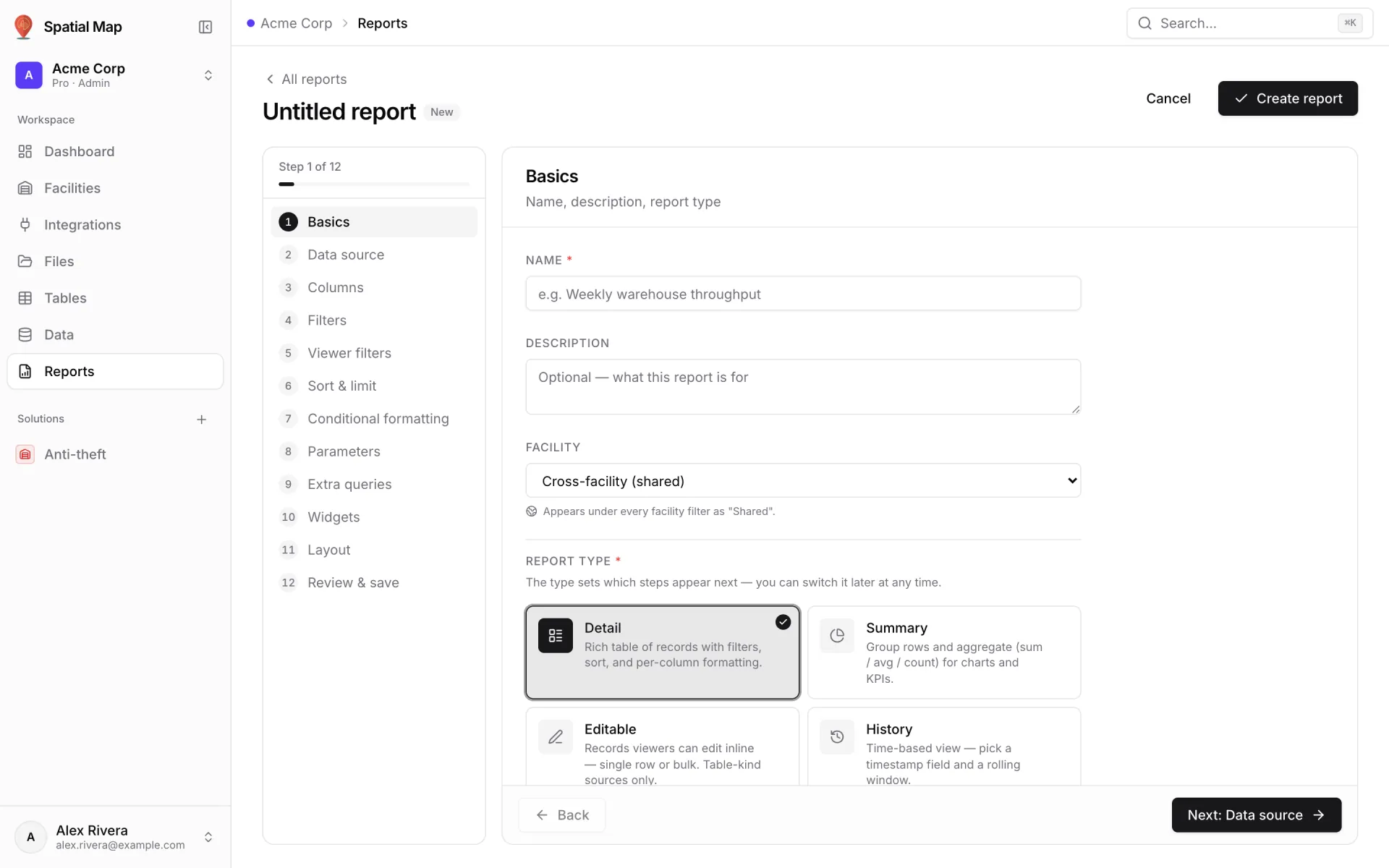
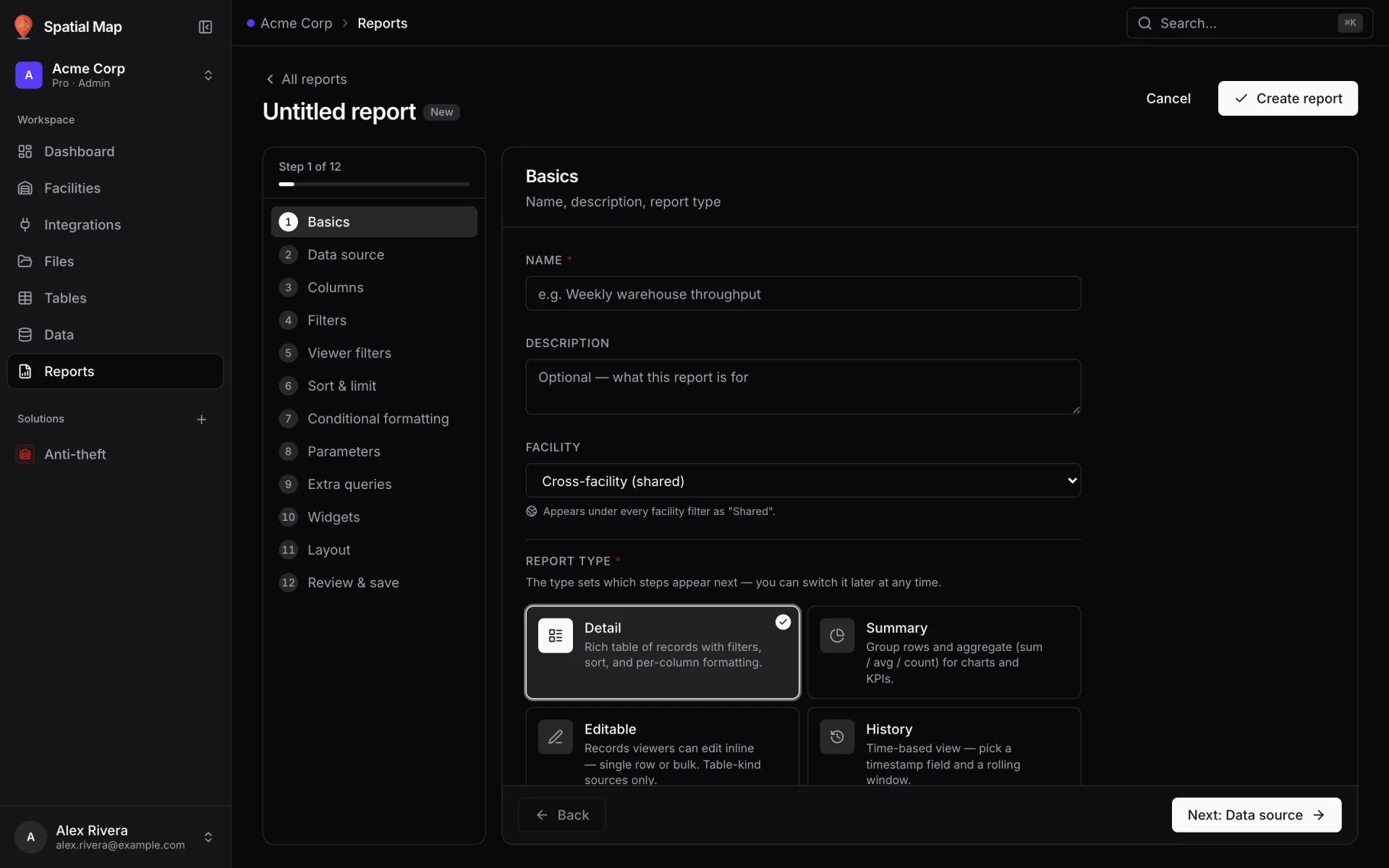
- Back and Next: <step> at the bottom move through the steps in order. You can also jump to any step from the rail.
- A red dot on a step means "Needs fixing before you can save"; an amber dot means "Needs attention". There are no "done" ticks, because visiting a step doesn't make it right.
- Saving is always in the header: Create report for a new report, Save changes when editing. ⌘S / Ctrl+S saves from any step.
- The header shows Unsaved changes or All changes saved. Cancel with unsaved edits asks "Discard unsaved changes?" first.
Report types and their steps
The Report type on the Basics step decides which steps follow. You can switch it at any time. In a new report, each type also creates a primary widget, so the report shows something before you add anything else.
| Type | Best for | Steps | Primary widget |
|---|---|---|---|
| Detail | A table of records with filters, sort and per-column formatting. | 12 | A searchable Data table of the chosen columns. |
| Summary | Grouped totals, averages and counts for charts and KPIs. | 13, with Group & aggregate | Up to four Big value cards (one per aggregation) and the chart you pick. |
| Editable | Records viewers can edit in place, one row or many. Tables and the built-in facility sources only. | 13, with Edit form | An Editable table. |
| History | Records over time: a timestamp field and a rolling window. | 13, with Time window | A trend Line chart above a Data table. |
Every type shares the same twelve steps. Summary, Editable and History add one more in the middle:
| Type | Steps in order |
|---|---|
| Detail | Basics · Data source · Columns · Filters · Viewer filters · Sort & limit · Conditional formatting · Parameters · Extra queries · Widgets · Layout · Review & save |
| Summary | … Sort & limit · Conditional formatting · Group & aggregate · Parameters · … |
| Editable | … Sort & limit · Conditional formatting · Edit form · Parameters · … |
| History | … Sort & limit · Time window · Conditional formatting · Parameters · … |
Basics, Data source and Columns
- 1Basics
Name is required. Description is optional and shows on the report card and under the report's title. Facility files the report under one facility's tab ("Only appears under this facility's tab. You can change this later."), or choose Cross-facility (shared) to show it under every tab as "Shared". Then pick a Report type.
- 2Data source
Sources come in two groups. Your data lists your tables and integrations, each tagged with its kind (for example "Table · Polygon"). Facility lists the built-in sources: everything drawn on the map, read live. For an Editable report, only tables and facility sources can be picked; the rest are marked not editable.
- 3Columns
Tick fields under Available source fields ("3 of 16 selected"). Under Column order + labels, drag them into order (or use Move up / Move down) and type a friendlier header. Computed columns below the list adds custom columns (next section).
| Built-in facility source | One row per… |
|---|---|
| Floors | Floor, with its elevation and counts of areas, racks, markers, walls and doors |
| Areas | Zone, room or office: type, floor, area (m²), perimeter, colour, visibility |
| Racks | Rack or shelving unit: bays, levels, rows, columns and the area it stands in |
| Markers | Marker, sensor or RFID reader: icon, label, area, floor, position |
| Walls · Doors | Wall (length, thickness, height) and door (type, width, state) |
| Stairs · Lifts · Escalators | Vertical transport and the floors it connects |
| Text labels · 3D models | Placed labels and models, with their area and floor |
Custom (computed) columns
A computed column is calculated in the browser after the report runs. It appears in tables and charts beside the real columns, and you can reorder and relabel it, but it can't be used in Filters or Sort. Click Add a custom column and start from a template:
| Template | What it does |
|---|---|
| Combine text | Joins two or more columns into one string, with a separator you choose. |
| If / then / else | Returns one value when a condition is true and another when it's false. |
| Arithmetic | Adds, subtracts, multiplies or divides two columns. |
| Match pattern | True when a column matches a regex or substring (optionally case-insensitive). |
| Function | Uppercase, lowercase, trim, length, round, absolute value. |
Filters, Viewer filters, Sort & limit
- 1Filters
Narrow which rows the report reads. All conditions must match. Operators: equals, not equals, greater than, at least, less than, at most, contains, starts with, ends with, is one of, is empty, has value. A condition can use a Fixed value, a Runtime prompt (Text input, Dropdown (from source), Search dropdown, Multi-select dropdown, Date picker, Date range or Checkbox (yes/no)), or be Bound to param to one of your Parameters.
- 2Viewer filters
The filters viewers change from the bar above the report. Pick a field under Add a filter (or Another field…), give it a Label, choose how to Show as (Dropdown, Pick several, Buttons, Search box, Date range, Yes / No) and tick which sources it Narrows. One viewer filter narrows every table, chart and KPI that reads a ticked source. The Filter bar preview shows what viewers will see.
- 3Sort & limit
Add keys under Default sort order (Ascending / Descending). Viewers can still re-sort tables by clicking a header. Row limit caps the rows fetched per run; the server caps it at 10,000.
Conditional formatting and the type steps
Conditional formatting colours table cells by value. Choose a column, click Add rule, then set When value (=, ≠, >, ≥, <, ≤ or contains) and Apply style: Green, Amber, Red, Blue, Purple, Muted, Bold or Strikethrough. Rules are checked from the top down and the first match wins. Excel exports keep the colours when Keep conditional colours is on.
| Step | Type | Settings |
|---|---|---|
| Group & aggregate | Summary | Group by: rows with the same values are collapsed together. Aggregations: count, distinct count, sum, average, min or max, each with an output name (count needs no field). Primary chart: bar, line, area, pie or donut, shown under a KPI strip. |
| Edit form | Editable | Editable columns: which selected columns viewers can change; the rest are read-only. Bulk edit: viewers can select several rows and edit them in one form. |
| Time window | History | Time field: the date or date-time column that says when each record happened. Window (days): how far back to look (30 is common). Bucket by: hour, day, week or month per chart point. |
Parameters and Extra queries
Parameters are prompts viewers change to reslice the report. Each has an id, which filters use as {{param.<id>}}, and a display label. Set a Default value, or Use data-driven default to start from a query result (First row, Min value or Max value). Sync to URL (on by default) keeps the value in the link, so a shared link opens with the same selection.
| Parameter kind | Use it for |
|---|---|
| Text | Free text, such as search boxes. |
| Dropdown | A menu built from a Static list or From query; tick Allow multiple selections for multi-select. |
| Button group | A segmented control for 2–5 choices. |
| Date | A single date, with Day, Month or Year granularity. |
| Date range | Two dates, with quick presets such as Last 7, 30 or 90 days. |
| Slider | A number between a min and a max, in steps you set. |
| Checkbox | An on/off toggle. |
| Dimension grid | One tile per pivot column; viewers click values to include them. Options come from a query. |
Extra queries let widgets read the same source in different ways. A wizard-built report already runs two Automatic queries: primary (what Filters and Sort declare) and totals (grand totals for the KPI strip). Click Add query to add your own: a name, its own filters, a row limit, an optional sort, and optionally Aggregate this query with Group by and Metrics.
Widgets
The Widgets step lists the report's Extra widgets with their title, kind, Move up / Move down, ⌄ settings and delete. Click Add widget under Add a widget to pick a kind: Facility map & list, KPI, Big value + delta, Line, Bar, Area, Pie or Donut chart, Scatter plot, Heatmap, Data table, Note, Alert banner or Divider. Each widget either has Own data (its own source, metric and grouping) or uses Share a query to read primary, totals or one of your extra queries. Every kind is described in Report widgets and export.
Layout: Document, Grid or Full map
| Mode | How it reads | Example |
|---|---|---|
| Document | Widgets stack top to bottom like a report; half-width widgets sit side by side. The default. | The built-in reports. |
| Grid | A 12-column grid. Drag widgets to place them and drag the corner handle to resize. Phones stack them top to bottom. | A dashboard with a row of KPIs above side-by-side charts. |
| Full map | The facility map fills the page; the list floats on the left, the picked record on the right, and other widgets float over the map. | RFID Live Map. |
- Insert: drag widget types from the side panel onto the canvas. The groups are KPIs, Charts, Data and Text.
- Filters bar: tick "Show N filters above report", or untick it to hide the bar.
- Hidden widgets: drag a widget here to take it off the canvas, and back to show it again. A widget still here when you save is left out of the report.
- In Full map mode you choose Where each widget goes instead: Key numbers, Insights or Hidden at first. See Build a full-map report.
Review & save
The last step shows a Summary of the report (name, type, source, columns, filters, widgets, parameters and extra queries) and then:
- Fix these before saving: problems that block the save: no name, no source, no columns in a wizard-built Detail or Editable report, an Editable report on a source that can't be edited, or map & list widgets showing different facilities.
- Before you save: warnings, such as a Summary with no aggregation or a widget with no data. "You can save anyway — the parts below will show empty until they're fixed." Otherwise you see Ready to save.
- Access: owners and admins always have access. Give every other member None, View or Edit. Members with the Viewer role can only ever view.
- Download spec JSON: the whole report as one file, ready for Import JSON. View generated spec (advanced) shows it in place. See Import and export report JSON.
Click Create report (or Save changes) and the report opens with your changes. Next: View and share live reports and Report widgets and export.
More in Reports
- Reports · OverviewView and share live reportsFind, open and use live reports in Spatial Map: the Reports screen, stars, refresh, viewer filters, run history, sharing a link and who can see each report.
- Reports · Widgets & exportReport widgets and exportEvery report widget kind, the facility map & list, and how to export a report or one widget to PDF, Excel, CSV, JSON or PNG, or move it between workspaces.