
Place 3D models on your indoor map
Add forklifts, trucks, shelving and your own .glb models with Add 3D model (B). Rotate on three axes, scale, tint, animate and fade building shells.
When to use the 3D model tool
A 3D model is a glTF / GLB asset placed at one point on the map. Reach for it when the thing you're drawing has real 3D shape that matters — a forklift on a warehouse floor, a shipping container in a yard, a self-checkout kiosk in a store, a whole building shell. Unlike a marker (a flat icon) a model has depth, materials, and rotation on every axis.
To open the tool: open the Draw flyout on the left toolbar and pick Add 3D model, or press B on the keyboard. 9 also opens it. Placed models are listed under 3D models in the side panel.
| B 9 | Open the 3D model tool (opens the model library). |
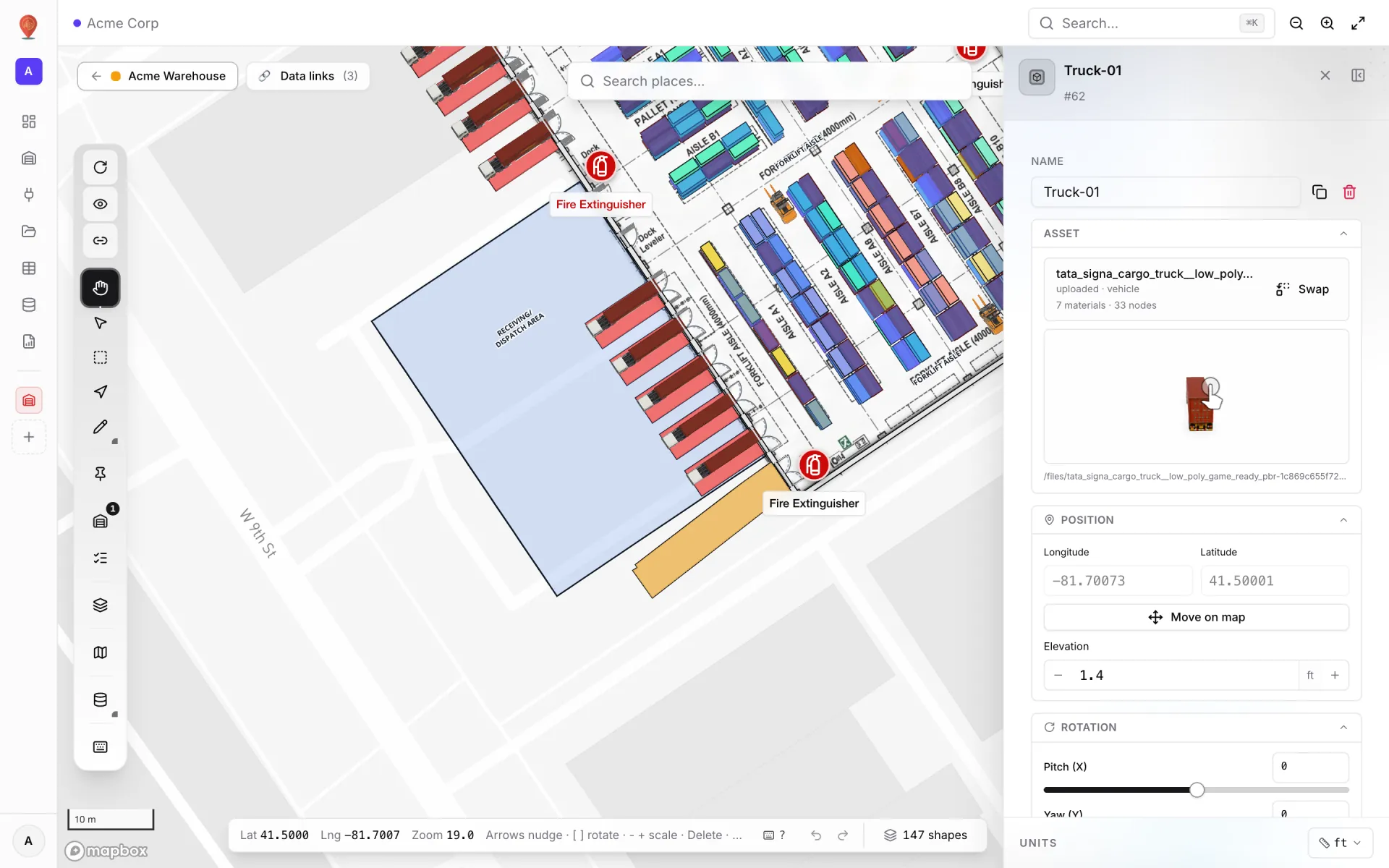
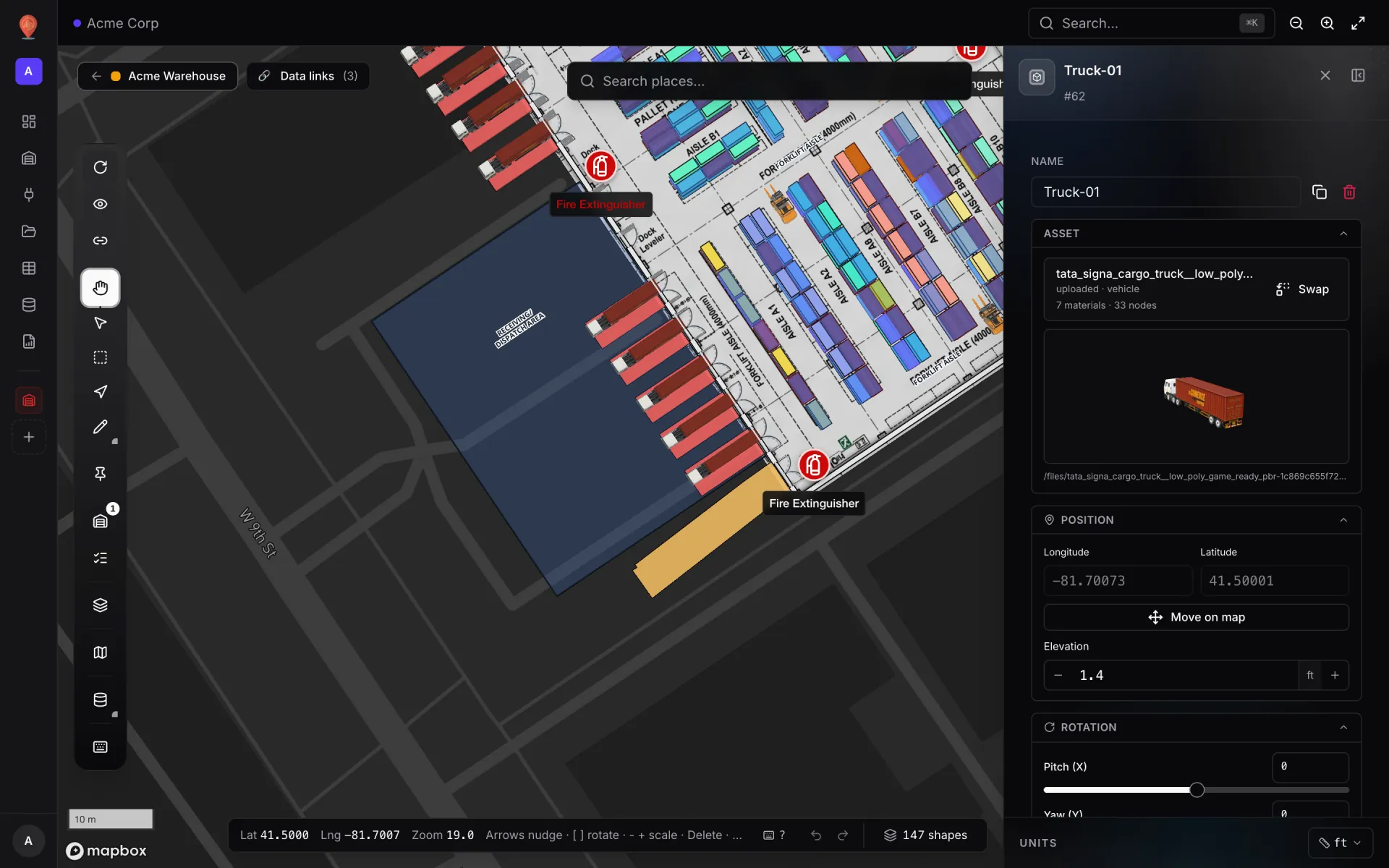
The Acme Warehouse demo uses the tool for its delivery trucks (Truck-01, Truck-02 and so on) parked at the dock doors. In a factory you might place machines or a forklift, in a store a checkout counter; anything you have as a .glb file can go on the map.
The model library
Activating the tool opens the "Add 3D model" library. The left side is a grid of thumbnails with a search box; the right side is a live, rotatable 3D preview of the selected model with its details, so you can check what a model is before placing it.
| Tab | What lives there |
|---|---|
| This facility | Models uploaded in — or already used in — the facility you're editing. |
| Whole workspace | Every model uploaded anywhere in the workspace. Upload once, reuse in any facility. |
| Built-in | The bundled catalog of 49 models: forklifts, trucks, a shipping container, boxes, warehouse and store shelving, kiosks, self-checkout, furniture, plants and more. |
The library opens on This facility when it has models, otherwise on Whole workspace, otherwise on Built-in. Every tile has a thumbnail — pre-rendered for built-in models and rendered in the browser for your uploads. Uploaded tiles also say where they're used ("Used here", "Used in Warehouse A", "Not used yet").
Uploading your own model
Click "Upload model" in the library (or drop a file on the empty-state drop zone). A .glb or .gltf file is accepted, but only that one file is uploaded, so a .gltf that points to separate .bin or texture files won't load. Use a .glb with embedded textures: it is a single self-contained file. The upload is saved to the workspace and selected straight away.
- The details panel shows an upload's Size, Uploaded date and Usage (built-in models show Source: Built-in library). Use the pencil to rename an upload.
- Identical uploads appear once in the library.
- "Remove from library" deletes an uploaded model after a confirmation. If it is placed anywhere, the dialog tells you how many placements use it — they are removed too. This can't be undone.
Placing the model
Once you pick a model, the library closes, the cursor turns to a crosshair, and a preview of the model follows the mouse. Click on the map to drop it.
- 1Preview it at the cursor
Move the mouse over the map — the model renders at its default settings so you can see where it will land.
- 2Click to drop
The model saves at the click point, named after the asset (for example "Forklift (rigged)"), and is selected. The tool stays active so you can drop several in a row.
- 3Exit when you're done
Press Esc, click Pan on the toolbar, or pick a different tool.
The side-panel sections
A selected model has its own dedicated editor. Asset, Position, Rotation and Appearance start open; the rest are collapsed.
| Section | What lives there |
|---|---|
| Header | Name input plus Duplicate and Delete icon buttons (Delete is immediate — undo with ⌘/Ctrl + Z). |
| Asset | The current model — its label, source and category, material / node / animation counts. "Swap" reopens the library as "Change 3D model" to change the asset without moving the instance (the scale resets to suit the new model). A small 3D preview confirms the file loads. |
| Position | Longitude and latitude (read-only) plus a "Move on map" button. Elevation (a number, 0–500 m above the ground). |
| Rotation | Pitch (X), Yaw (Y), Roll (Z) sliders, each −180° to +180°. |
| Scale | Uniform switch. On — one slider scales all three axes together. Off — X, Y, Z sliders separately. Range 0.01 × to 20 ×. |
| Appearance | Active switch · Global tint (picker + hex) · Mix (0–1) · Emissive (0–5) · Opacity (0–100 %). |
| Facility shell | Optional — mark this model as the building's outer shell so the viewer fades it out as you zoom in on the interior. |
| Materials (N) | Per-material overrides — one card per material in the file. |
| Nodes (N) | Per-node overrides — show/hide and Pitch / Yaw / Roll per named node. |
| Animation | Pick a glTF animation clip if the model declares any. |
| Extras | Read-only glTF metadata the exporter baked in (only when present). |
| Tooltip | Show the tooltip on hover or click. |
| Label | Show label switch plus label text, size and colour. Model labels don't render on the map yet. |
Below the editor, Edit linked data opens the linked-data editor for the model.
Positioning — Move, Rotate, Scale
Models have one on-map transform: Move. Rotation and scale live in the side panel as sliders, and the keyboard covers the common nudges.
- 1Move on map
Click "Move on map" in the Position section. An orange dot appears at the model's anchor; drag it to a new spot. The button reads "Drag the orange dot — click to finish" while active; click it again to stop moving (Esc doesn't end a model move).
- 2Rotate on any axis
Rotation section — three sliders. Pitch tips the model forward and back, Yaw spins it around the vertical axis (the usual "which way is it facing"), Roll tilts it sideways.
- 3Scale
Scale section — Uniform on by default with one slider. Turn Uniform off to stretch the model on one axis. Every axis takes 0.01 × to 20 ×.
| ← → ↑ ↓ | Move the selected model (Shift = bigger steps). |
| [ ] | Rotate around the vertical axis (Yaw) by 1° (Shift = 15°). |
| - + | Scale down / up. |
| PgUp PgDn | Raise / lower the elevation. |
| ⌘/Ctrl + D | Duplicate. |
| Delete | Delete the model (undo with ⌘/Ctrl + Z). |
Appearance — tint, glow, active
The Appearance section is where you recolour a model without editing its file.
| Control | What it does |
|---|---|
| Active switch | Turn off to render the model dimmed — reads as "off-shift" or "decommissioned" without hiding it. |
| Global tint | Colour blended over the source material. Has no effect while Mix is 0. |
| Mix (0–1) | Blend strength. 0 = ignore the tint, 1 = solid tint. Around 0.3–0.5 recolours while keeping shading detail. |
| Emissive (0–5) | Self-glow strength — useful for an "alert" or "selected" look. |
| Opacity (0–100 %) | Whole-model transparency. |
Per-material and per-node overrides
When the file exposes materials or named nodes, the panel shows a card per item. That lets you retint one part of the model (a truck cab, a piece of racking) or hide or rotate one sub-mesh (open a door, hide a fixture) without touching the rest.
- Materials — base colour, emissive, metallic, roughness and opacity per material.
- Nodes — a show/hide toggle and Pitch / Yaw / Roll per node.
- Only fields you change are stored; everything else renders with the file's own values.
Animation
When the file declares clips, the Animation section is a dropdown of every clip with its duration. The choice is stored on the shape; playback depends on the map runtime, and older runtimes treat it as metadata only.
If no clips are detected, the section shows a free-text field where you can type a clip name.
Facility shell — fade the outside on zoom-in
A model can be marked as the facility shell — the outer building volume you want visible when the map is zoomed out, and gone when the viewer zooms in to look inside.
- 1Open the Facility shell section
Tick "Treat as building shell (auto-fade on zoom)".
- 2Set the zoom range
Two sliders (zoom 10–22) — "Opaque below zoom" and "Vanish by zoom". Between them, the shell fades linearly. Defaults are 16 and 19.
- 3Check it in the viewer
In the viewer, the floor switcher of a facility with floor plans offers an Auto / Shell / Interior choice, so people can force the shell fully on or fully off. See Floors.
Editing many models at once
Shift-click (or ⌘/Ctrl-click) models on the map to build a multi-selection. The side panel switches to "N models selected" with Fit and Delete all (two-click confirm), plus the fields it's safe to change across many at once.
| Section | Bulk-editable fields |
|---|---|
| Appearance | Tint · Tint strength · Opacity · Glow. |
| 3D & Altitude | Elevation. |
More in Build a facility
- Build a facility · FacilitiesCreate and manage facilitiesAdd a facility with a name, address and colour, then open, preview, share, duplicate, configure or delete it from the Facilities screen in Spatial Map.
- Build a facility · EditorTour of the layout editorA guided tour of the Spatial Map layout editor: the tool rail with its Draw and Data menus, the top pills, the side panel and the status bar.
- Build a facility · ImportImport a PDF or DWG floor planTurn a PDF drawing sheet or an AutoCAD DWG file into a true-to-scale floor plan image: pick the sheet or layers, confirm scale or units, then place it.
- Build a facility · Floor plan toolAdd a floor plan to the mapPlace a floor plan image, PDF sheet or DWG drawing on the map, resize, rotate and crop it, reuse earlier uploads and stack several floors by elevation.