
Stadium and venue operations on a live 3D map: gates, seats, concourses and crews
Run a stadium or convention center on a live 3D map: turnstiles, crowd counters, 30,513 seats as rack cells, concessions, safety points and steward links.
Key takeaways
A small city that opens for four hours
A stadium on match day is a small city that fills, peaks and empties in an afternoon. Access control counts people through the turnstiles. Stewards watch the concourses and the stairways into the stands. Concessions and hospitality run their own point-of-sale systems. Guest services answers questions about seats and restrooms. The safety officer needs to know that every exit is clear and every first aid point is ready. Each team has a screen, and each screen answers a different question.
What none of them shows well is where. A turnstile total is a number; a stand filling faster than the others is a place. A venue operations map flips the order: the building comes first — bowl, concourses, gates, kiosks — and every feed is pinned to the shape it describes. That is what a stadium digital twin should mean in practice: the floor plan as the shared index for every system on the day.
Model the bowl once: concourses, gates and service points
Everything starts with the building. In the Spatial Map editor you place each level’s plan — a PDF is scaled from its sheet size, a DWG is rendered as a floor-plan image, or use a PNG or JPG — and draw on top of it at true scale. Crown Park has two floors, one per concourse level, stacked in the 3D viewer with a floor switcher.
- Areas — the pitch, seating blocks, concourse zones, concession stands, hospitality suites and back-of-house rooms as polygons, each with an optional role you define (for example Concourse, Concession or Suite).
- Markers — gate assembly points, turnstiles, crowd counters, first aid and AED points, wheelchair platforms, CCTV cameras and sensors, each with its own icon. See asset markers.
- Racks — every seating section as a grid of cells, one cell per seat (more on that below).
- Stairs, lifts and escalators — drawn in 3D and linked from one floor to the next, so step-free routes between levels are visible. See lifts and escalators.
- Walls and doors — so walking routes for guests and stewards pass through real openings.
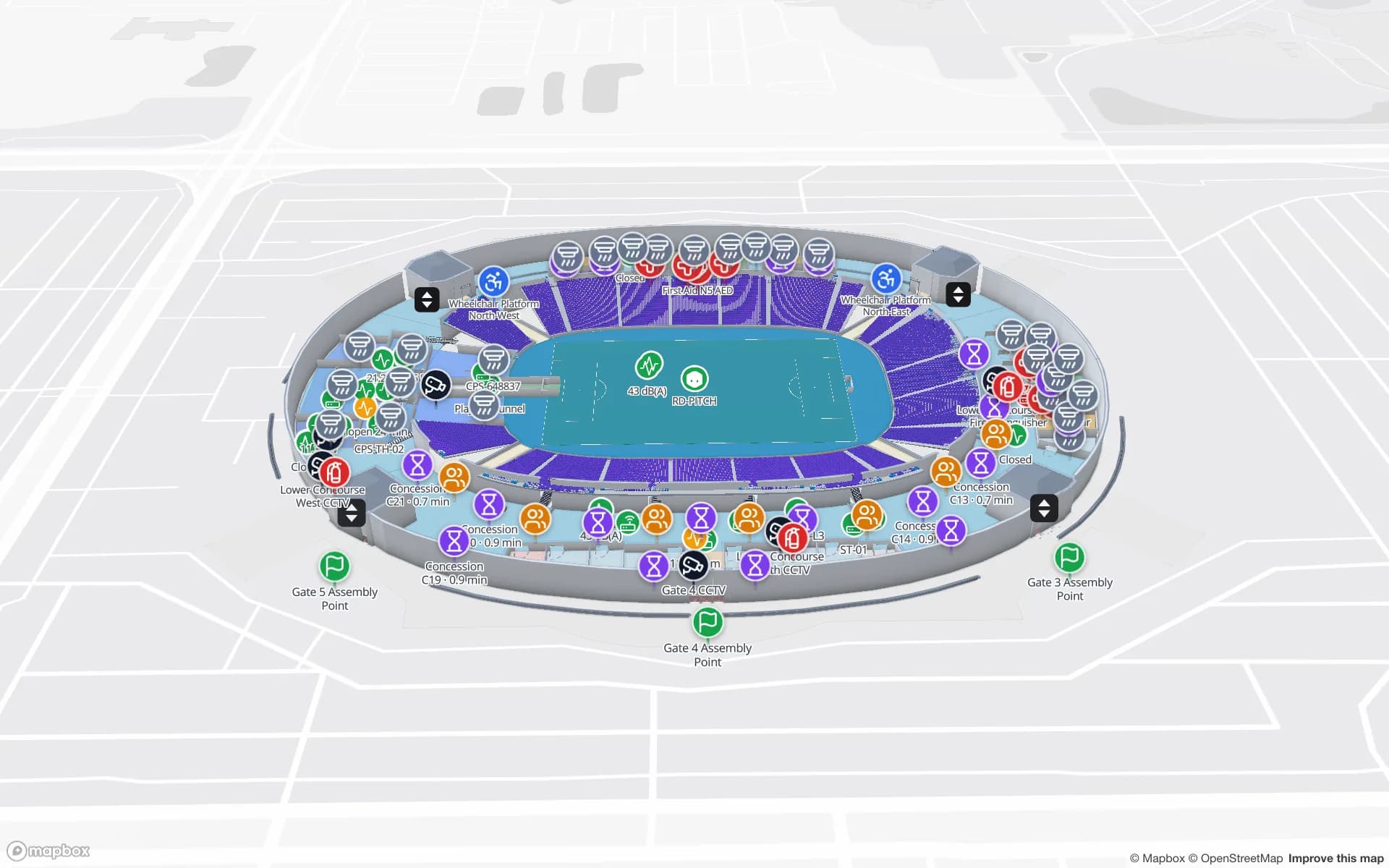
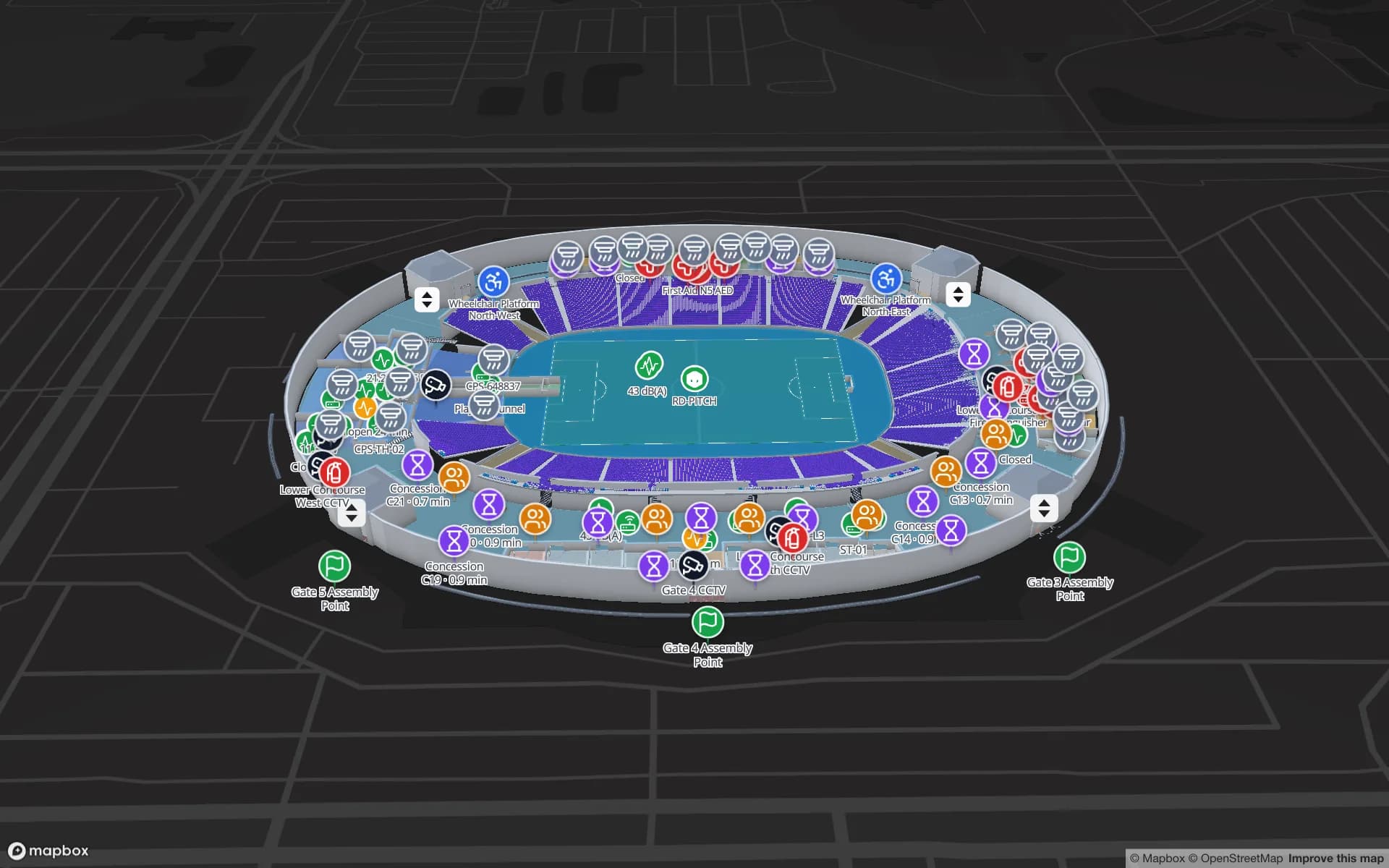
The image at the top of this post is Crown Park’s lower concourse in the viewer with all 21 layers switched on. Green flags mark the assembly points outside Gates 1 to 5, red crosses mark the first aid and AED points, hourglass markers sit on the concession stands, and people icons show crowd counters and staff around the ring. A wheelchair platform, CCTV cameras, environment sensors and the lifts sit on the same plan, and a noise sensor on the pitch reads 43 dB(A).
Thirty thousand seats as rack cells
Seats are the part people expect to be hard. At Crown Park every one of the 30,513 seats is a cell in its seating section. The trick is that a seating block is just a grid — rows and seat numbers, exactly like a warehouse rack’s rows and columns. So a block is drawn with the Rack tool: two clicks for the footprint, a cell size that matches the seat spacing, and a rotation that lines the block up with the bowl. The editor works out the number of rows and columns from the footprint.
Every cell has a fixed address — row and column, plus a level on stacked racks — and can hold a bin: a small record with a status, a code, a capacity, notes, an external code and custom properties. For seating, that gives you:
- A status per seat — for example sold, held, accessible or out of use — painted by style rules, where the first matching rule wins.
- An external code — the seat reference your ticketing system already uses, so a table row lands on the right cell with Match by external code.
- A table on top — Crown Park’s Row Allocations table sits behind the Seating & Row Allocations report, and a table like it can colour sections or rows on the map through a data link.
Gates, crowd counters and queues: from question to layer
Crowd management on a map starts with the questions the control room asks, then picks the data and display mode that answers each one. Crown Park’s gate and crowd data sit in two tables, Turnstile Scans and Crowd Counters, behind the Gates & Turnstiles, Crowd & Occupancy and Crowd Flow reports.
| Question | Data you need | Display mode |
|---|---|---|
| Which gates are busiest right now? | Turnstile scans per gate | Value badge on shape or Pulsing zone activity |
| Which concourse zones are filling up? | A count per zone from crowd counters | Color a shape + style rules |
| Where do people gather over the day? | Positioned counts or events | Heatmap of activity |
| Where are stewards and kit right now? | Positions (lng/lat) per staff tag or crate | Live location marker |
| What does each camera cover? | Camera markers with yaw, angle and distance | Camera field of view |
| How did the concourse fill before kick-off? | A table’s change history | Historical movement |
Queue times work the same way. If your team records the wait at each kiosk or gate — from a handheld app, a counting system, or a steward typing it in — write it to a table with a minutes field. A Value badge on shape shows the number on each concession, and a style rule can colour the stand once the wait passes your threshold. Spatial Map does not measure queues on its own; it shows what your systems send.
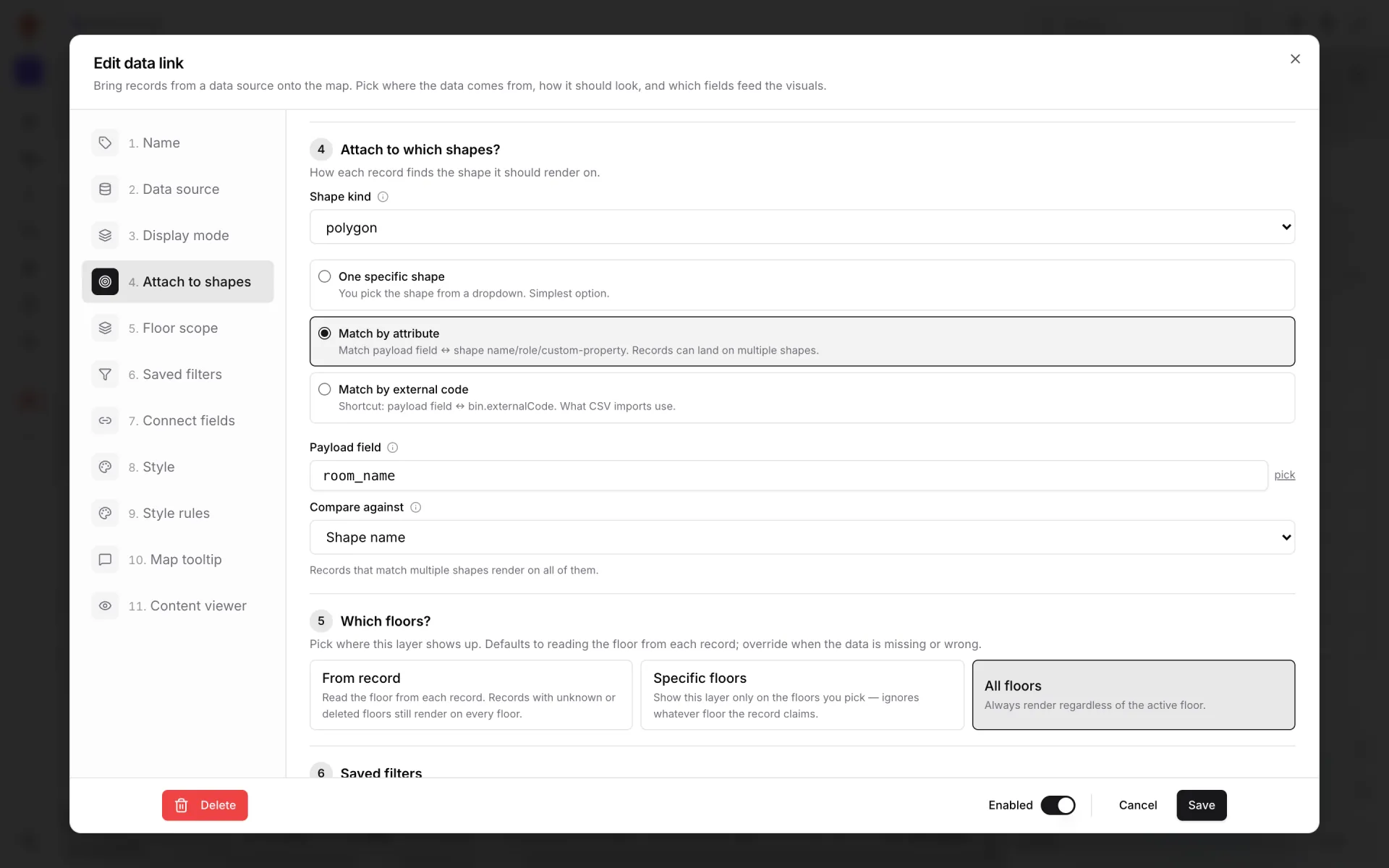
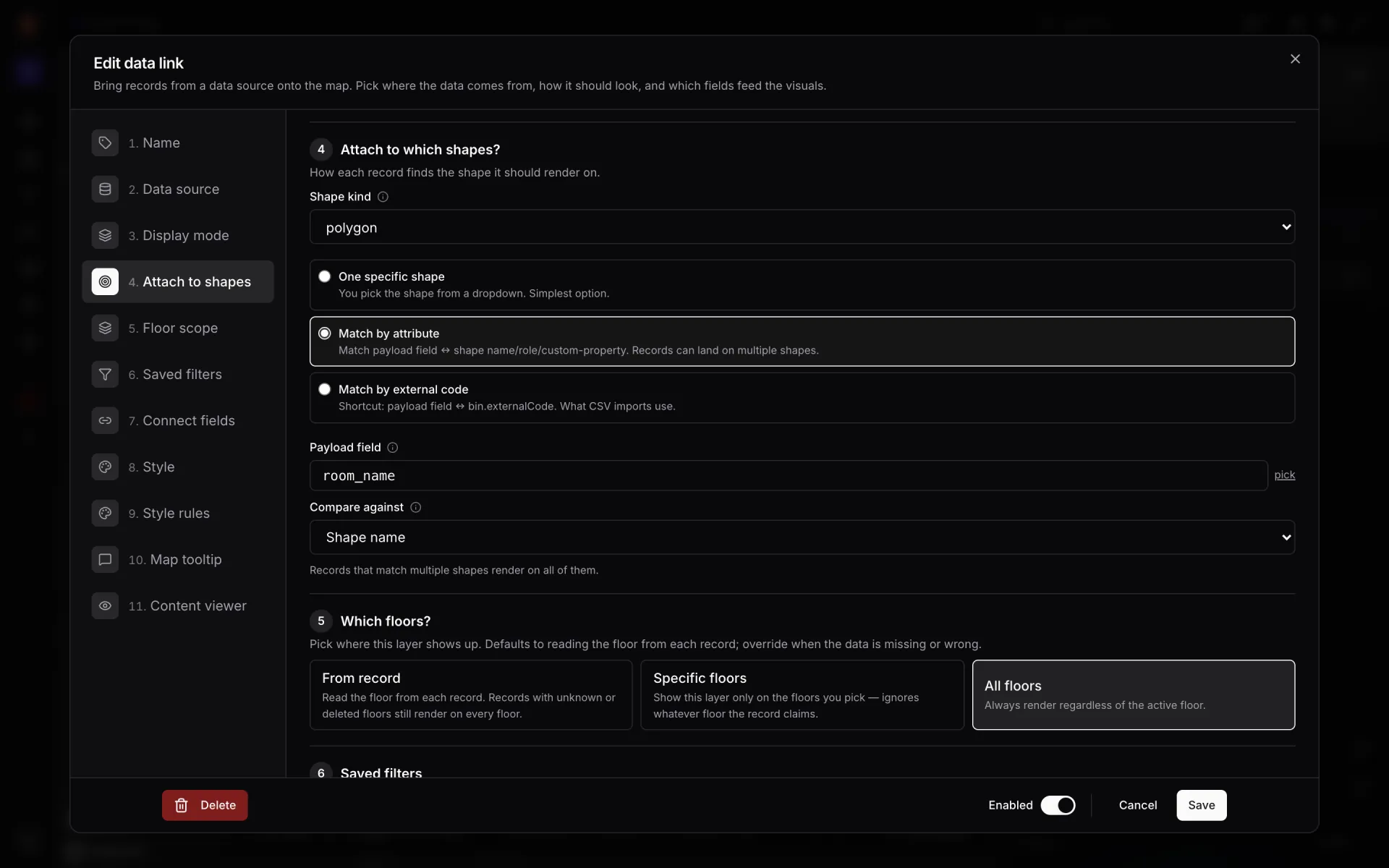
Each layer is a data link: pick a source, a display mode, the shapes it attaches to and the floors it shows on, then the fields for the tooltip and the content panel. The same crowd-counter table can be a coloured zone for the control room and a value badge for a gate supervisor — two links on one source.
Concessions, safety points and match-day reports
The rest of the concourse is just as map-shaped. At Crown Park, food and beverage and the hospitality suites write to F&B Sales and Suite Orders; guest services, restrooms, first aid points, exits and lifts are drawn on the plan. Nine reports are named for match-day jobs: Gates & Turnstiles, Crowd & Occupancy, Crowd Flow, Seating & Row Allocations, Match Operations, Food & Beverage, Hospitality Suites, Guest Services & Restrooms and Safety, Exits & Lifts.
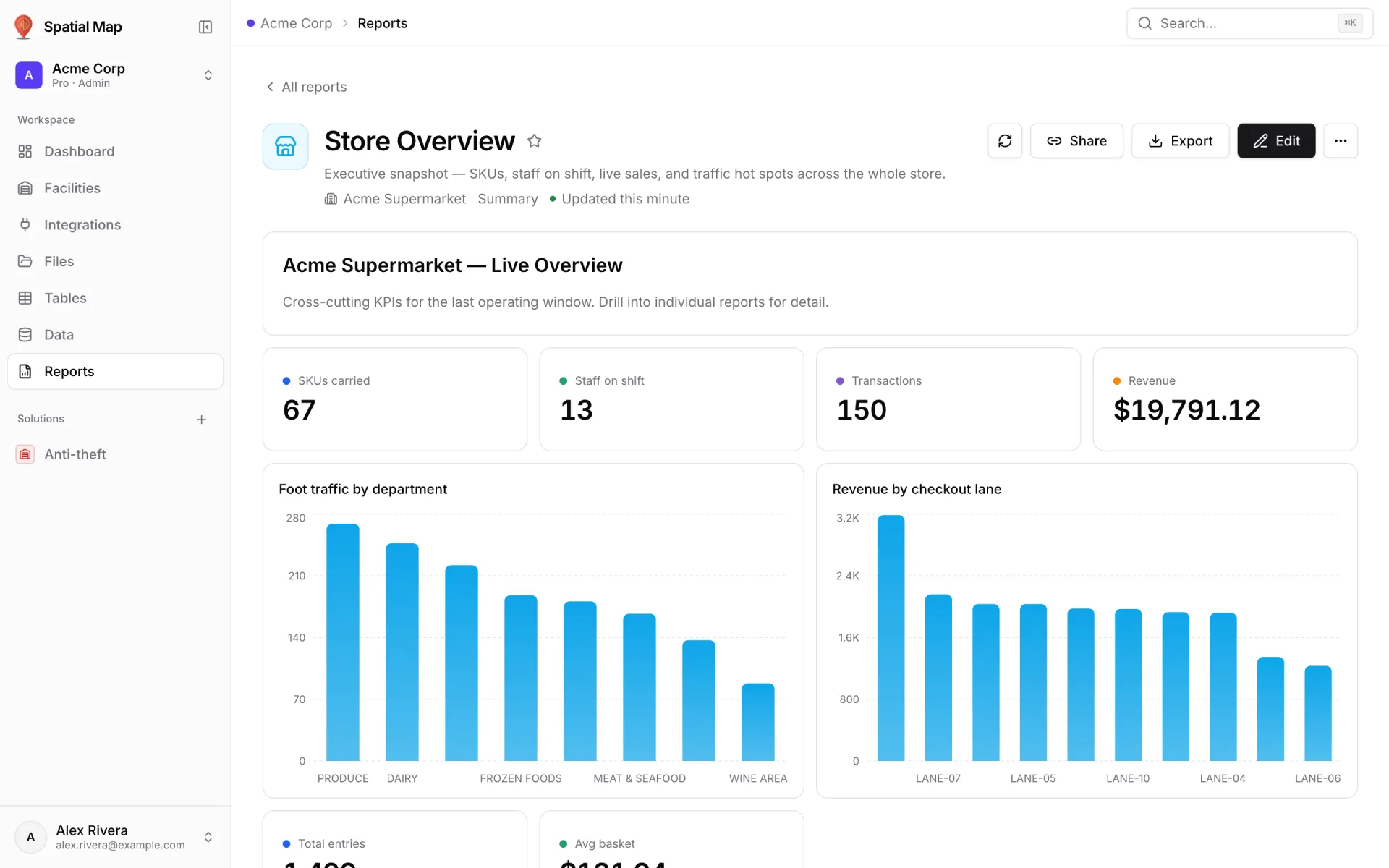
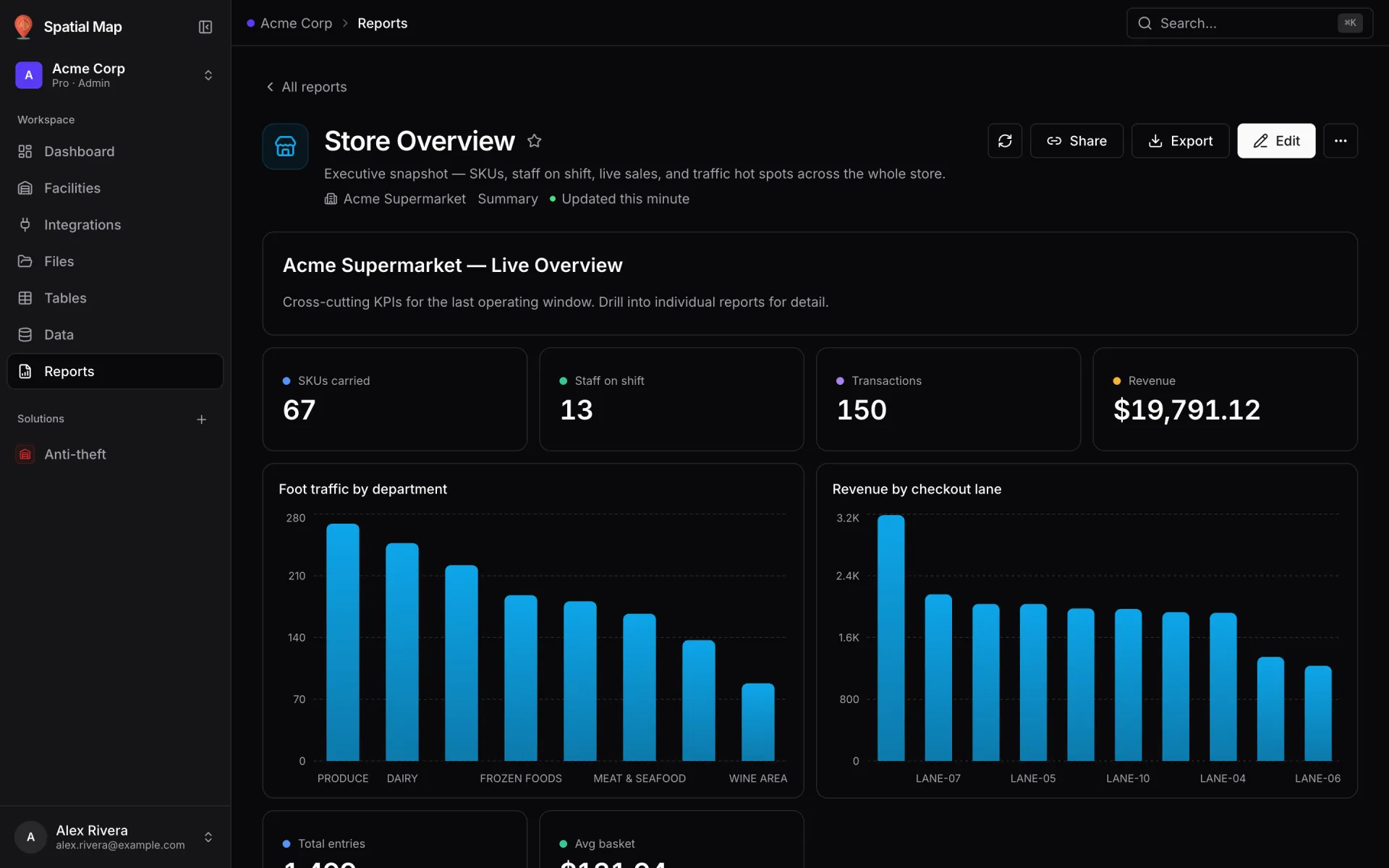
Reports read the same tables as the map, so there is no export step and no second pipeline. A report can be a summary with KPI tiles and charts, a detail list or a history view, and a full-map report puts the list beside the live venue. Every facility also gets eight built-in reports about what is drawn — areas, racks, markers, doors, stairs and lifts — and any report exports to PDF, Excel, CSV or JSON. See reports.
For guest services, the model that drives the control room also gives directions: pick a start and a destination and the viewer draws a walking route around walls and through doors, with turn-by-turn steps — on share links too. Routes stay on one floor; to change level, route to the lift or the stairs first. See wayfinding.
“The map tells you where; the report tells you how many. On match day you want both, from the same data.”
Connecting turnstiles, counters and tills
There are no proprietary connectors to wait for. Any system that can send or serve JSON, or export a file, can feed the map:
- Tables with a write API — create a table, issue an API key per system, and let each one write rows. Changes show up on open maps without a refresh. Best for turnstile scans, counter readings and positions. See the table write API.
- REST pull — Spatial Map fetches an endpoint on a schedule, with no auth, an API key, a bearer token or custom headers.
- File upload — CSV, XLSX, JSON or GeoJSON for data that changes slowly, such as a seating plan or a stewarding rota exported before the match.
- 1Create the source
Tables → Create new table, with the columns your system sends (gate, count, status, minutes), or Integrations → Add integration for a REST API or a file.
- 2Create one data link per layer
In the editor, Data → Manage data links → New link: pick the source, the display mode, the shapes or rack cells it attaches to and which floors it shows on.
- 3Style by value
Add style rules — colour by status or threshold — and tick them on the link. Choose the fields for the tooltip and the content panel.
- 4Group it as a solution
Collect the stadium, its reports and its data sources into one solution so the operations team finds them on one page.
The events counterpart: Lakeside Convention Center
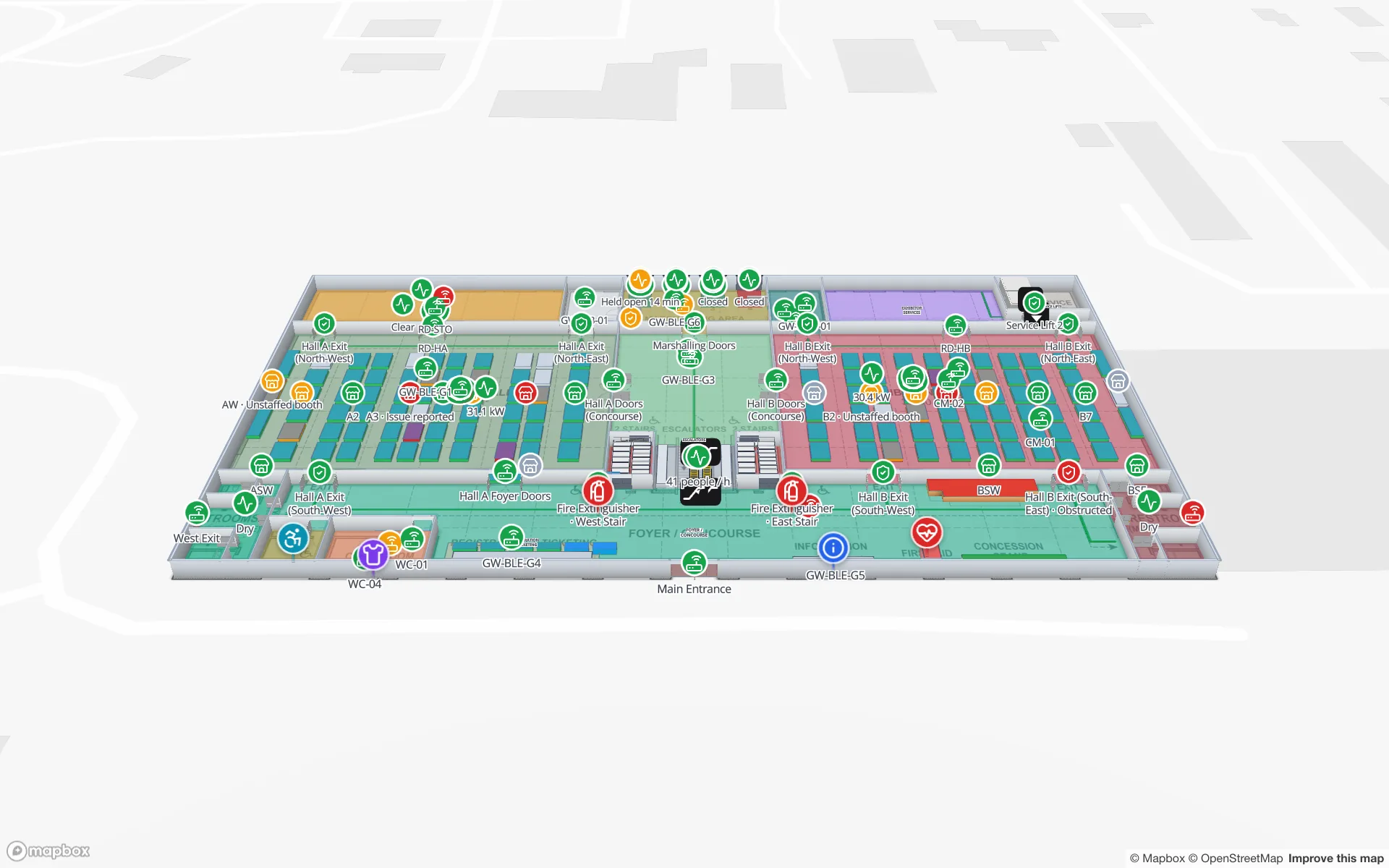
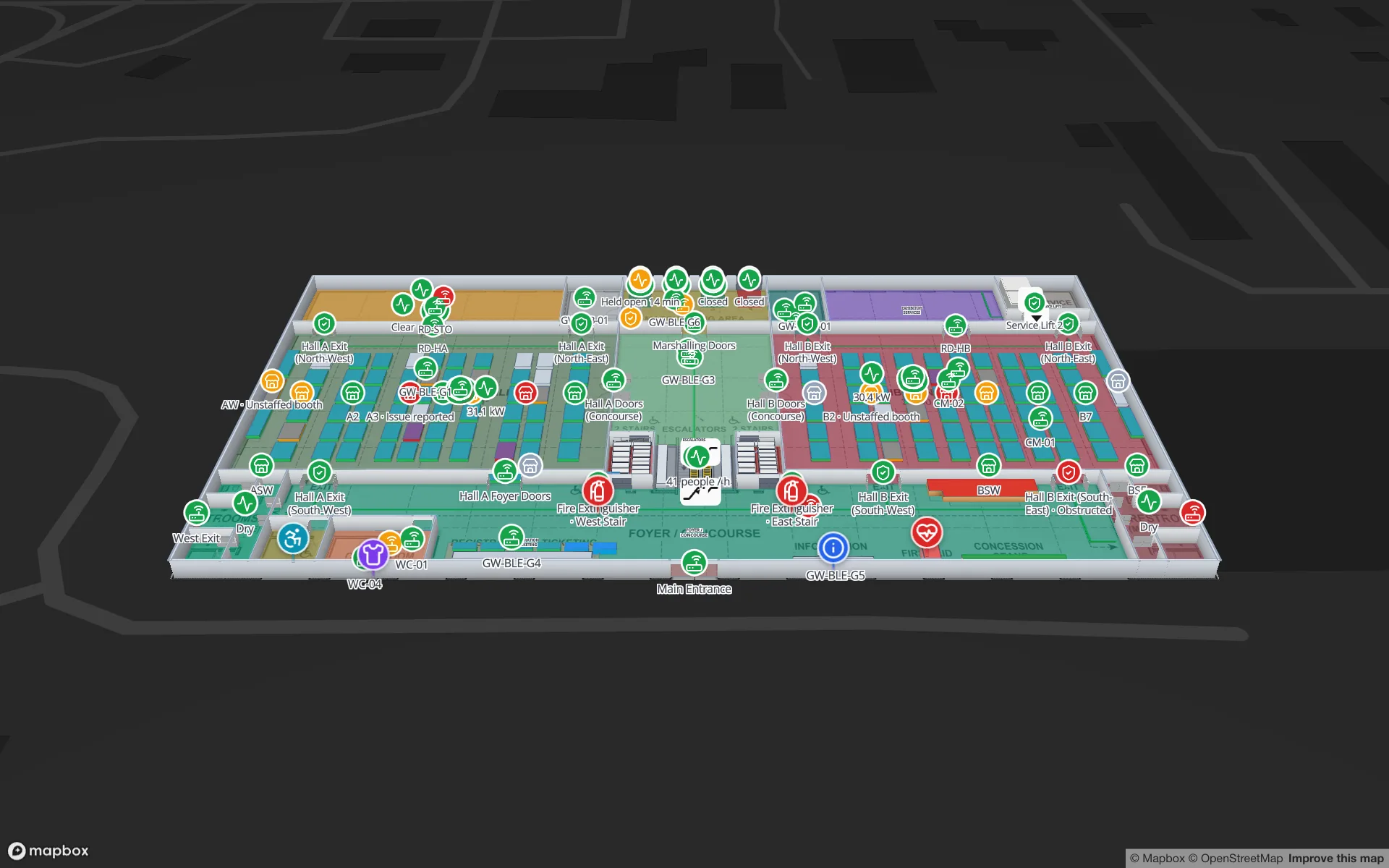
Lakeside Convention Center is the same toolkit pointed at events instead of matches. It has two floors, 26 tables and 21 reports. Exhibition halls carry live occupancy, booths and session rooms carry their bookings, badge scans show registration and access, and freight bookings sit at the loading docks and marshalling areas. RFID tags on crates are read from the docks to the booths, BLE tags locate staff and equipment by hall, and gateways report device health.
| Job | Crown Park tables and reports | Lakeside tables and reports |
|---|---|---|
| Access | Turnstile Scans · Gates & Turnstiles | Badge Scans · Registration & Access Control |
| Crowds | Crowd Counters · Crowd & Occupancy, Crowd Flow | Occupancy Log · Crowd & Occupancy |
| Seats and spaces | Row Allocations · Seating & Row Allocations | Booths, Session Schedule · Exhibitors & Booths, Sessions & Meeting Rooms, Plenary Auditorium Seating |
| Food and hospitality | F&B Sales, Suite Orders · Food & Beverage, Hospitality Suites | Food & Beverage |
| Logistics | Kit-crate RFID tags (device feed) | Freight Bookings · Freight & Loading Docks |
| Services and safety | Guest Services & Restrooms · Safety, Exits & Lifts | Guest Services & Restrooms · Safety, Exits & Lifts |
Stewards, contractors and partners: a view each
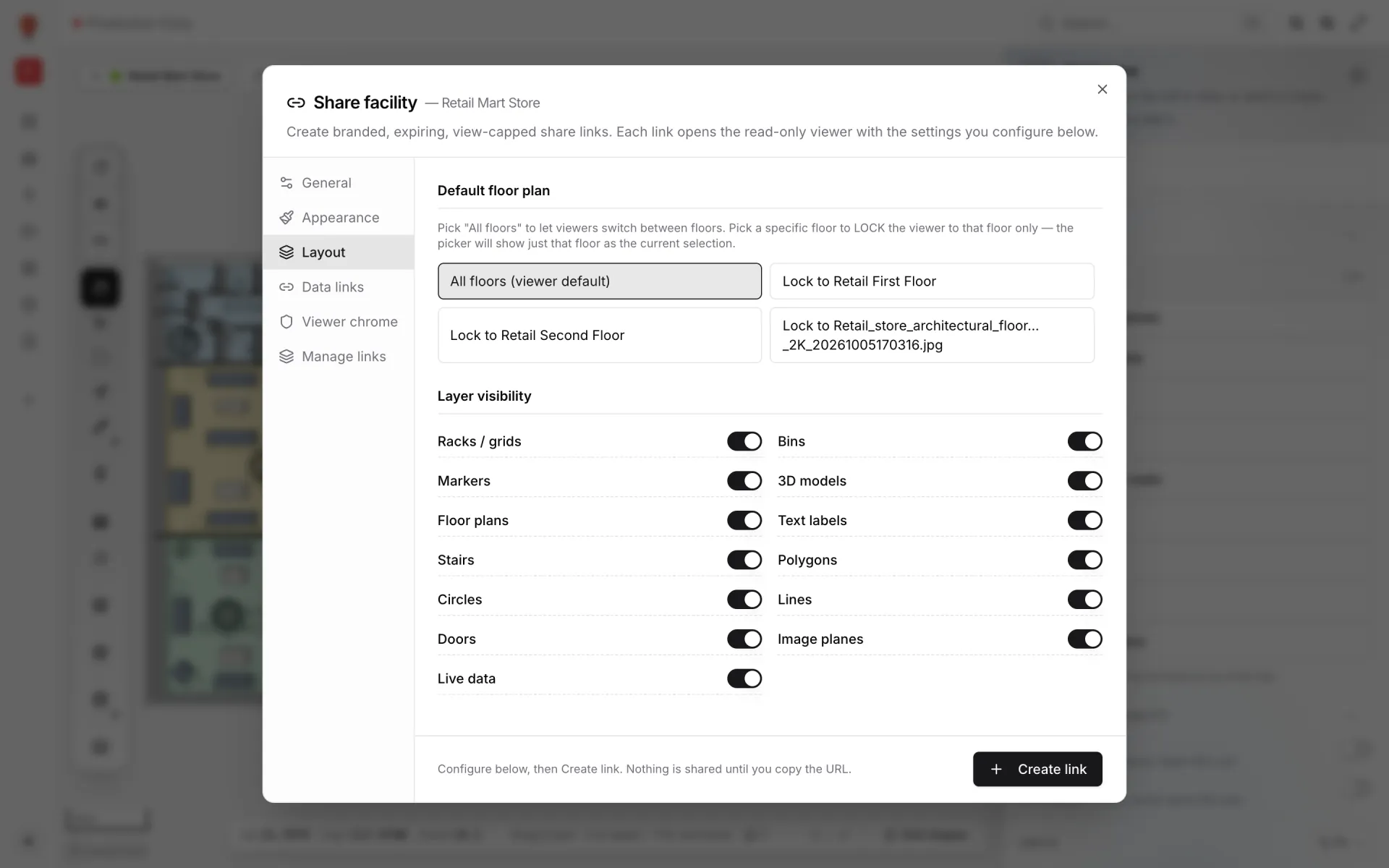
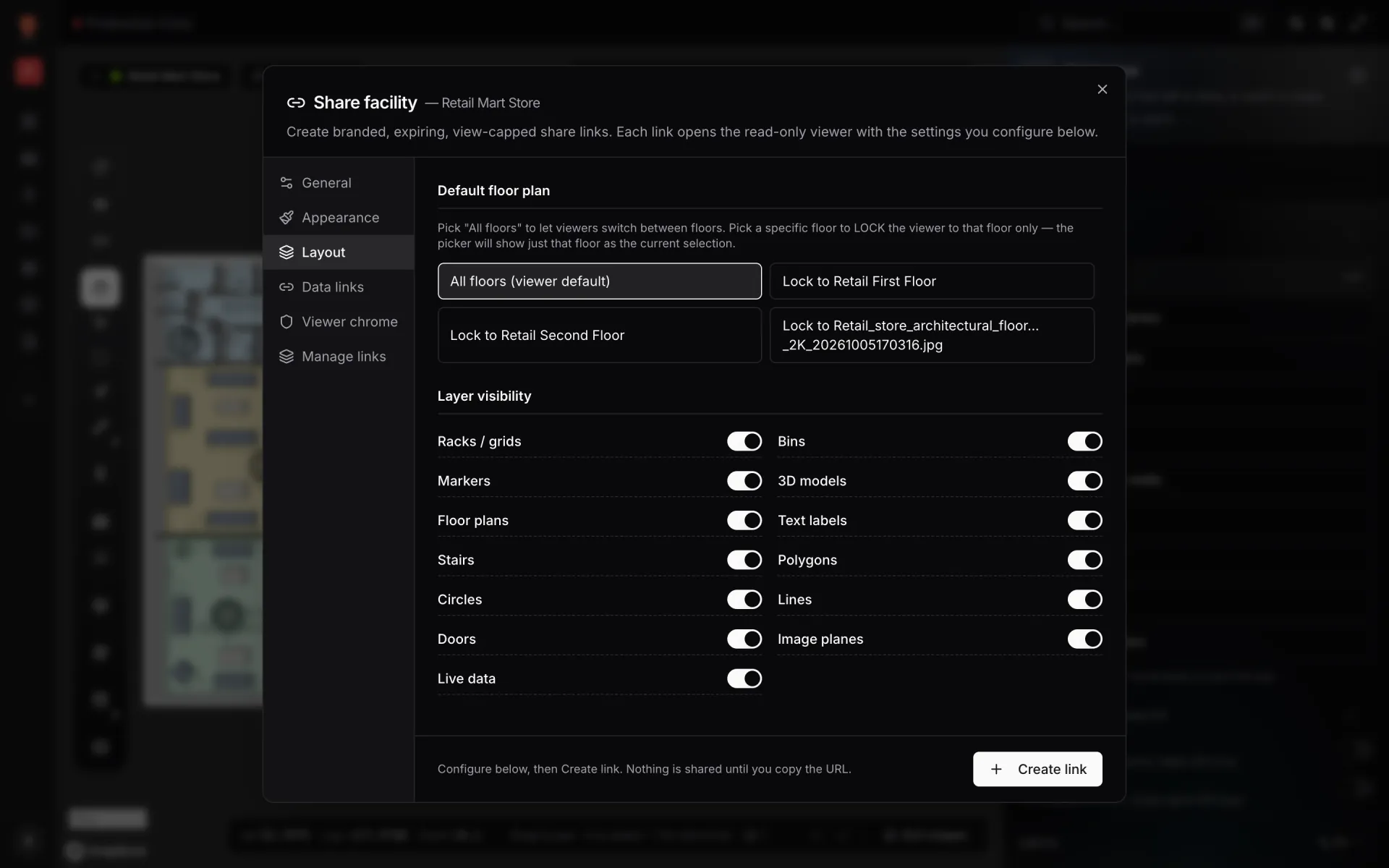
A venue is full of people who need the map but should never edit it: the stewarding company, the cleaning and catering contractors, safety advisers, exhibitors at an event. Share links open a read-only viewer with no account, and each facility can have many, each with its own settings:
- Lock the link to one floor — one concourse for one steward team — or let the viewer switch floors.
- Choose which data links it shows: stewards see crowd counters and exits, the caterer sees the concessions.
- Hide whole shape kinds, or turn live data off entirely.
- Set an expiry — one hour to one year, a custom date, or never — and a maximum number of views, and revoke it any time from Manage links.
Inside your own organisation, members and roles control access: invite colleagues by email — they need a Spatial Map account first — as Owner, Admin, Editor or Viewer. See members and roles. For a step-by-step version, follow the example share a read-only, expiring link with a contractor.
Try it on your own venue
A first version fits in an afternoon: place one concourse plan, draw the gates, concessions and first aid points, and connect one feed — usually turnstile scans or crowd counters. Add seating blocks, the second level and more layers as each system owner comes on board. The example colour rooms by live status walks through the colour-a-shape pattern you will use for zones and kiosks.
The Venue solution page shows how stadiums, terminals, convention centers and museums share the same platform. Related reading: retail footfall heatmaps, indoor wayfinding with turn-by-turn directions and mall operations on one live 3D map.
Start a 7-day free trial with no credit card; the trial holds up to 5 facilities. After that, Pro is $60/month or $600/year for up to 4 facilities — see pricing.
Try the platform your data belongs on.
Spatial Map turns spreadsheets, sensor streams, and CAD drawings into one live 3D facility view — nothing to install, seven-day free trial.
See it live
Keep reading
- IndustrySupply-chain visibility inside the plant: lines, WIP, racks and docks on one live mapSupply-chain dashboards follow the truck to the dock door, then go blind inside the plant. A live indoor map of lines, stations, racks and docks closes that gap. Here is how to build one, using our Summit Assembly Plant demo as the worked example.
- IndustryMall operations on one live 3D map: floors, units, devices and tenantsSecurity, cleaning, the loading dock, building systems and leasing each live in a different tool. A live 3D map of every floor is the one place they can agree on location. Here is how to build one, using our multi-floor Retail Mart demo as the worked example.
- IndustrySupermarket digital twin: staff, traffic and safety on one mapThe POS knows what sold, the rota knows who is in, the inventory system knows what is low — but none of them can tell a store manager where the problem is right now. A live 3D store map can.