
Supermarket digital twin: staff, traffic and safety on one map
How a grocery store digital twin puts live staff, department traffic heat, safety assets and store reports on one 3D map, fed by your POS and inventory.
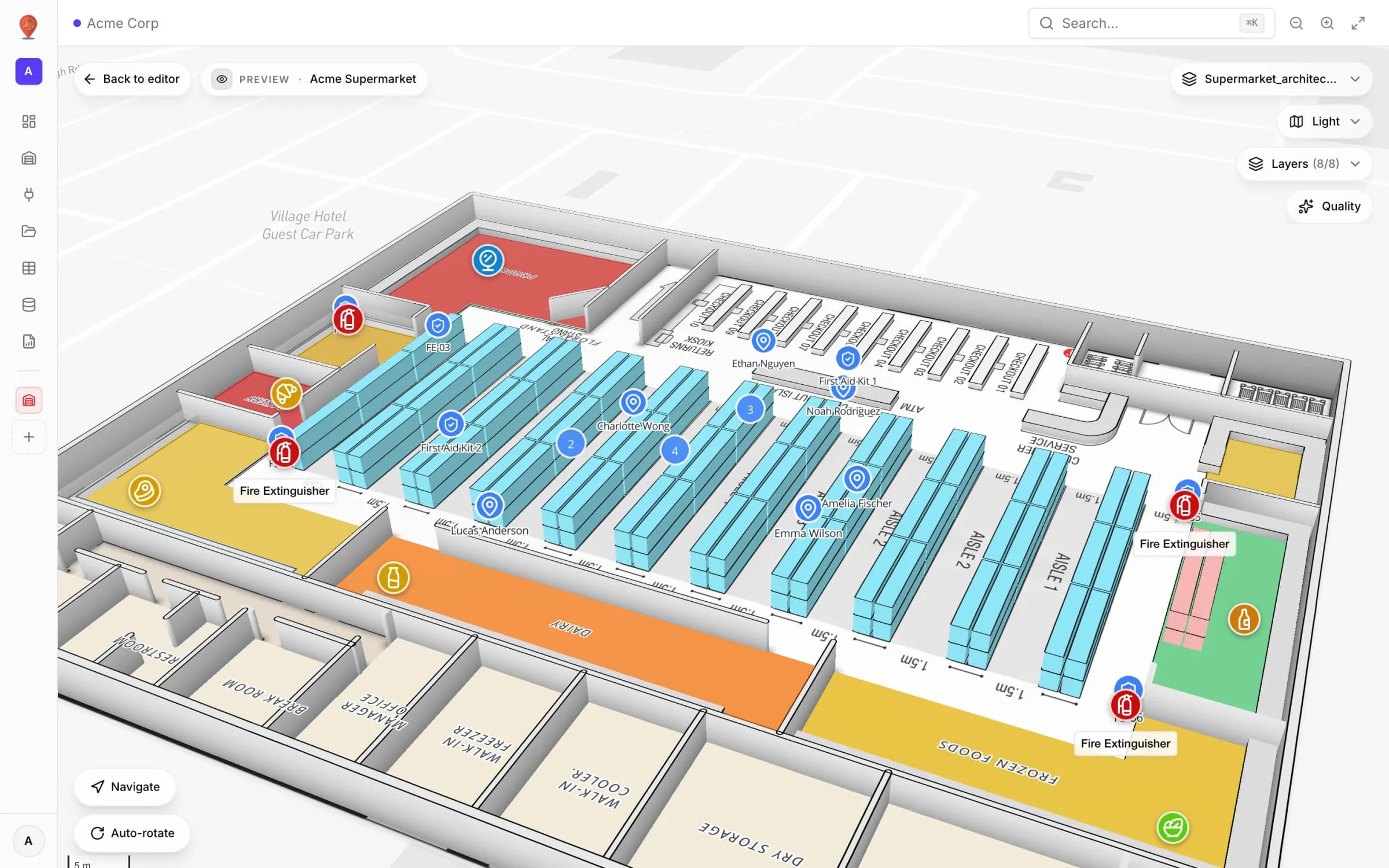
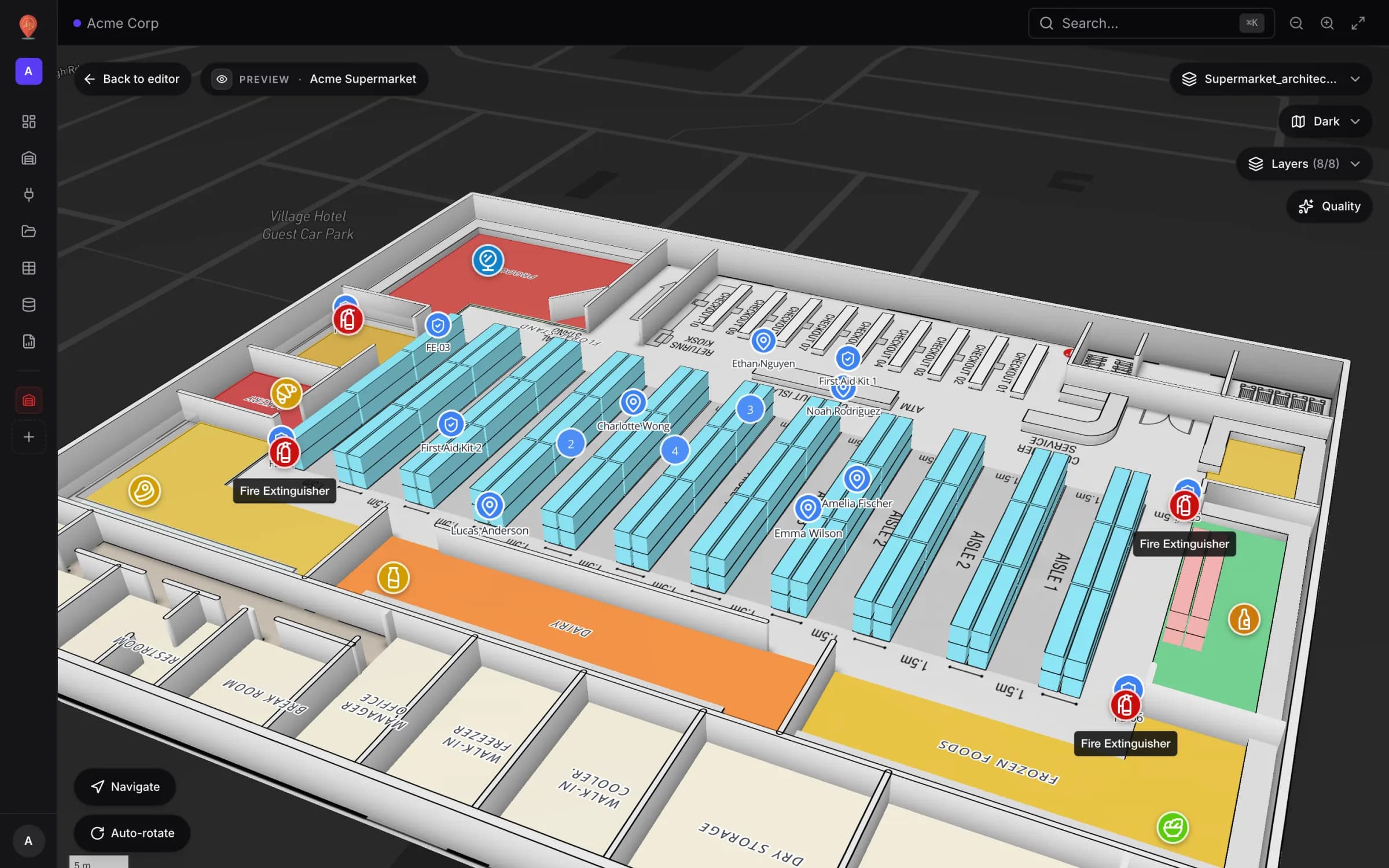
The short version
Why a supermarket needs one live store map
A grocery store runs on half a dozen systems that never look at each other. The POS knows what sold and at which lane. The workforce tool knows who is on shift. The inventory system knows what is running low. A clipboard in the back office knows when the extinguisher by the bakery was last checked. Each answers its own question well — but none of them can answer the store manager’s real question at 5:40 pm on a Friday: where is the problem right now?
That is what a supermarket digital twin is for. It is not another system of record; it is a shared, live picture of the store floor where each system’s data lands on the shape it belongs to — the aisle, the department, the checkout lane, the receiving dock. In Spatial Map that picture is a browser-based 3D map of the store, with live data links and reports built on the same data. This post walks through our demo supermarket to show what that looks like, and how to wire your own systems into it. If you run several store formats, the retail solution overview covers supermarkets, stores and malls in one place.
Building the store layout: aisles, departments and safety points
Retail store layout software usually stops at the planogram. A digital twin starts one level up, with the building itself. You draw the store in the browser editor, usually on top of a plan you already have: a PDF floor plan is scaled from its sheet size, a DWG drawing is rendered as a floor-plan image, and a PNG or JPG works as a backdrop too. Aisles, areas and doors are then traced over it with the drawing tools. An AI Map tool that proposes those shapes for you is on the way — today it shows as “Coming soon” in the Draw menu.
- Aisles and shelving with the Aisle and Rack tools — numbered the same way your planogram numbers them.
- Departments as areas — Produce, Bakery, Dairy, Frozen, Deli and so on — so traffic and stock data can colour a whole department, not a single dot.
- Checkout lanes, the cart corral and the receiving dock as their own shapes, so POS and delivery data has somewhere to land.
- Doors, stairs and lifts for multi-floor stores; areas and doors also drive indoor wayfinding between two points on the same floor.
- Safety points — every fire extinguisher and first-aid kit — placed where they actually hang on the wall.
Live employee positions on the store floor
Labour is the biggest cost a store manager controls, and much of it is spent a few metres from where it is needed. In the demo store, an Employees table holds each person’s role, shift, home department, current zone, picks and transactions today, plus a latitude and longitude. A data link draws it with the Live location marker render mode: one named, colour-coded marker per employee that moves as soon as the row changes — no page refresh, because the viewer receives updates over a live connection.
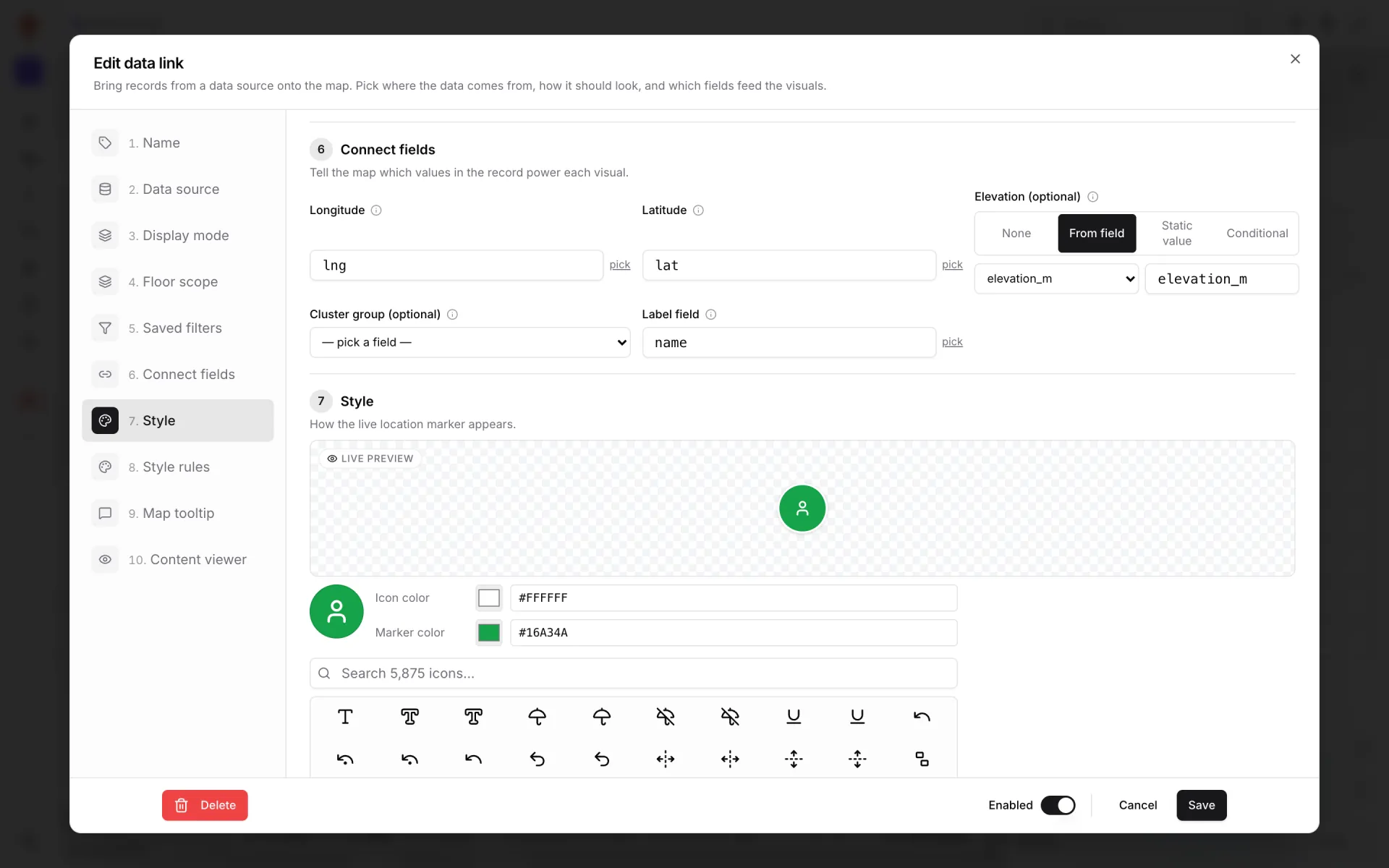
Click a marker and the detail panel shows the fields you chose — role, shift, current zone, transactions today. It is the quickest way to answer "who can open lane 4?" or "is anyone in Produce before the evening delivery?". Where positions come from is up to you: a badge or RTLS system, a handheld app, or a workforce tool that reports the zone each person is assigned to. Spatial Map does not track people on its own; it shows what your systems send. See how sources and render modes work for the other ways to draw the same table.
Customer traffic heat by department
Store heatmap software often means a camera vendor’s dashboard in a separate tab. In the twin, traffic is simply another layer on the same map. The demo’s Customer Traffic table holds anonymised entries, exits, unique visitors and median dwell time per department per 5-minute bucket. The Color a shape render mode tints each department area by its entries, so the busiest parts of the store stand out and quiet ones fade back.
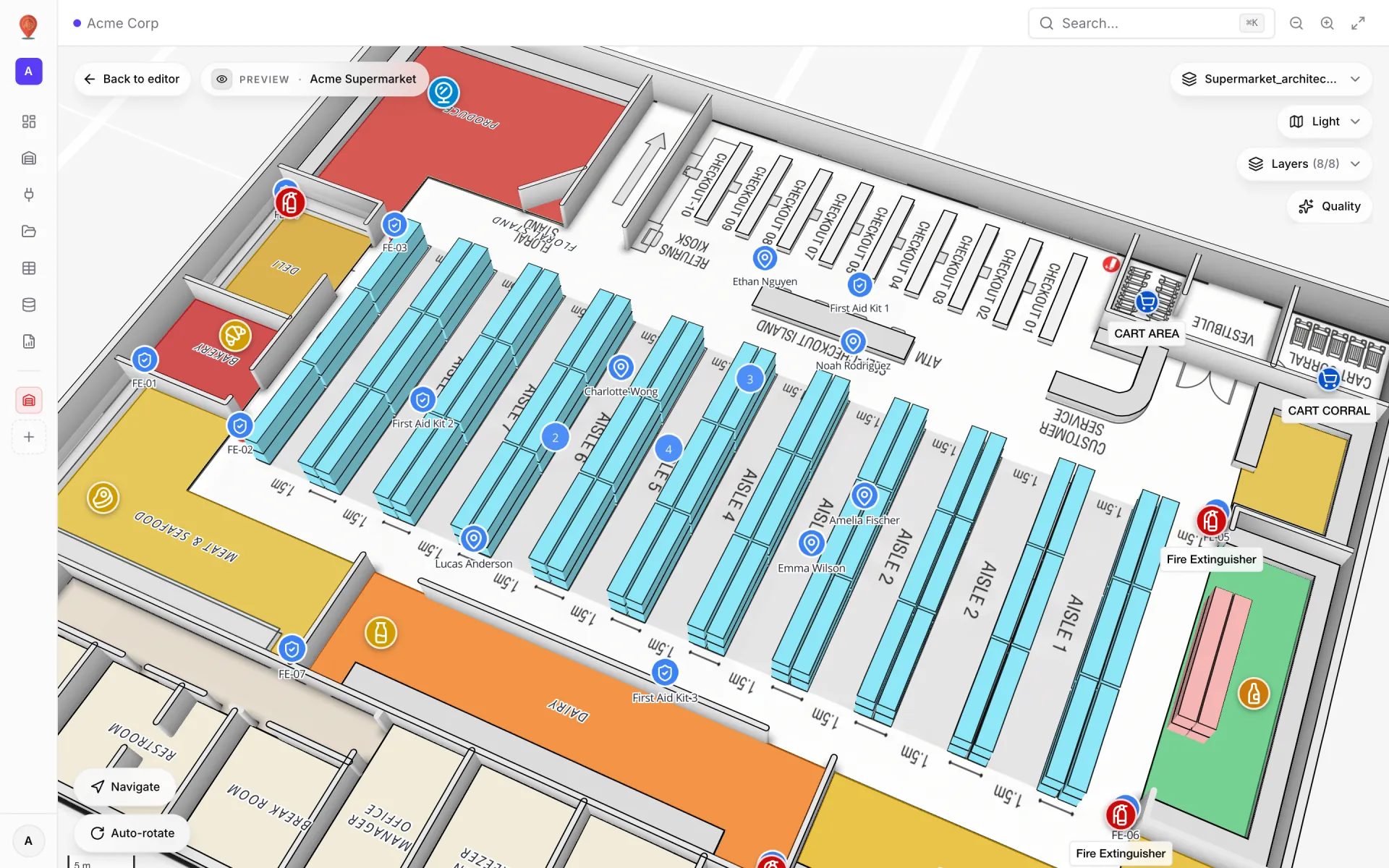
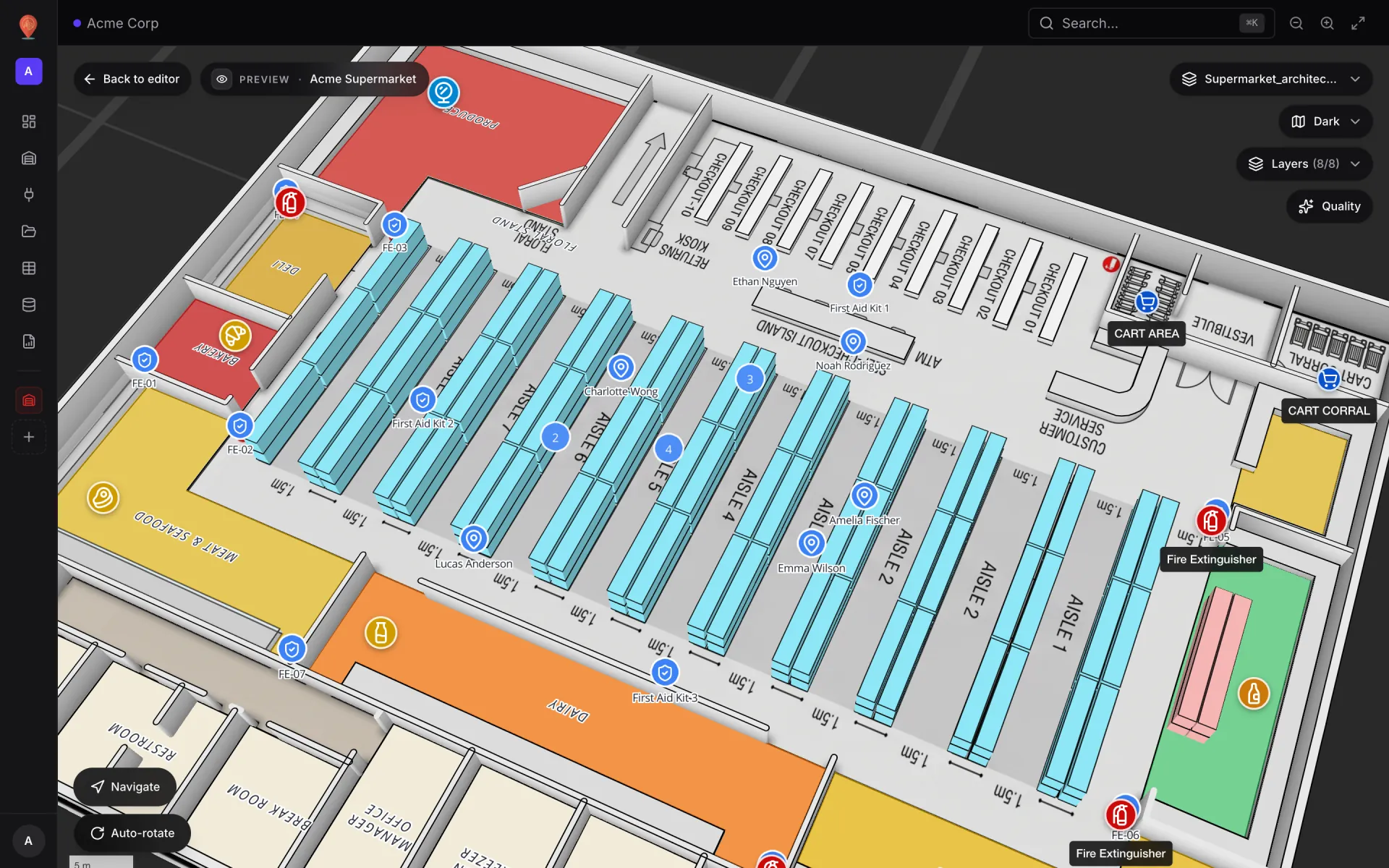
Read next to the staff markers, the picture becomes operational: a deep tint over Bakery with no employee nearby is a staffing gap you can close in ten minutes, not a line in next week’s report. Style rules set the colour ramp and thresholds, and the same table drives the Customer Traffic report shown further down. For the mall-wide version of this idea — entrance counters, capture rate and dwell — read our guide to retail footfall heatmaps.
Safety assets and compliance you can see
Every grocery store keeps a fire-extinguisher register, and in most stores it is a spreadsheet nobody opens until an audit. In the demo, a Safety Assets table lists each extinguisher and first-aid kit with its type, location, last inspection, next due date, status, inspector and — for extinguishers — pressure reading. A data link places each one on the map at its real position, so "where is FE-07 and is it due?" is a click, not a walk around the store.
- Colour markers by status with a style rule — compliant, due soon, overdue — so problems stand out from across the store.
- The Safety Compliance report counts assets, compliant and due-soon items, shows a status donut and lists the registry sorted by next due date.
- Export the registry to PDF or Excel for the inspector, or send a read-only share link that expires after the visit.
Connecting POS, workforce and inventory systems
Spatial Map has no proprietary connectors for particular POS or ERP vendors, and it does not need them. Store systems reach the twin in three plain ways: a table with your own schema and an auto-generated REST write API, where each system gets its own API key; a REST pull that fetches JSON from your system on a schedule, with API-key, bearer or custom-header auth; or a file upload — CSV, XLSX, JSON or GeoJSON — for data that changes daily rather than by the second. A table written through its API is the closest to real time: changes show up on open maps without a refresh. The Tables guide explains schemas, keys and row history.
| Store data | Typical source | On the map | Report in the demo |
|---|---|---|---|
| POS transactions | POS export or REST pull | Report only | Sales Performance, Cashier Performance |
| Employees on shift | Workforce tool, badges or handhelds → table API | Live location marker | Workforce Roster |
| Customer traffic (5-min buckets) | People counters or camera analytics | Color a shape on department areas | Customer Traffic, Store Overview |
| Stock levels | Inventory system → REST or table API | Optional: Color a shape or Value badge on shelves | Stock Health |
| Shelf placements (planogram) | Planogram tool → CSV/XLSX upload | Report only | Shelf Placement Audit |
| Safety assets | Facilities register → table | Live location marker, coloured by status | Safety Compliance |
| Deliveries | Receiving or ERP → REST or file | Report only | Receiving Activity |
| Promotions | Pricing or promo system → file or REST | Report only | Active Promotions |
- 1Create the facility and its layout
Add a facility, place or import the floor plan, then draw aisles, department areas, checkout lanes and safety points. Name departments the way your data names them.
- 2Create one table per feed
In Tables, define the schema with the field types your system sends — text, number, boolean, datetime and so on. Row history is kept automatically.
- 3Point your systems at it
Create an API key for each system and let the POS, workforce or inventory system write rows over REST — or set up a scheduled REST pull or a CSV/XLSX upload where that is simpler. The Health tab on the Integrations page shows which sources need attention.
- 4Add the data links
Bind Employees with Live location marker, Customer Traffic with Color a shape joined on department name, and Safety Assets with markers coloured by status. Pick tooltip and detail-panel fields for each.
- 5Build the reports
Use the report builder to create summary, detail or editable reports on the same tables, then group the facility, reports and data sources in a solution.
- 6Share it
Invite store managers with the Viewer role (they need a Spatial Map account first), or send a read-only share link with an expiry date to a district manager or an auditor.
The store reports a grocery operator actually opens
The map tells you where; reports tell you how much and how often. Because reports in Spatial Map read the same tables as the map, there is no export step and no second pipeline. In the demo supermarket we built the following with the report builder — each one a matter of picking a source, metrics and widgets:
- Store Overview — SKUs carried, staff on shift, transactions, revenue, average basket, foot traffic by department and revenue by checkout lane.
- Sales Performance and Cashier Performance — revenue, basket size, payment mix and lane throughput, then a per-cashier leaderboard.
- Shelf Placement Audit — planogram placements and facings per aisle, placements by department, distinct SKUs.
- Stock Health — units on hand by aisle, restock alerts by aisle, average days of supply and a low-stock list.
- Customer Traffic — entries, unique visitors and dwell by department, plus entries over time.
- Safety Compliance — inspection status, due dates and pressure readings.
- Receiving Activity — deliveries by supplier, pallets by dock bay, delivery status mix.
- Active Promotions — offers by type, discount depth by department, original and sale prices.
- Workforce Roster — staff by role, shift and current zone.
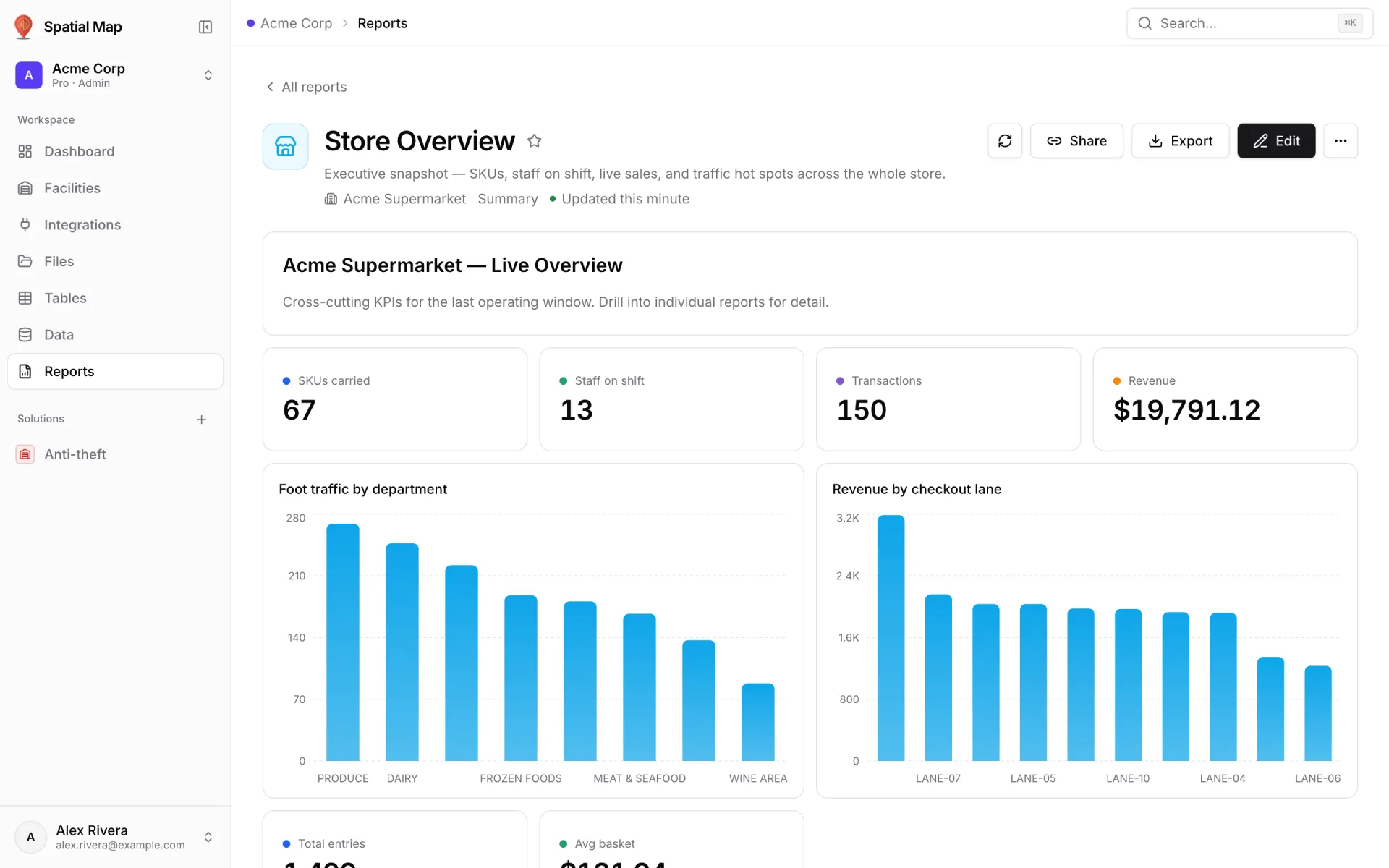
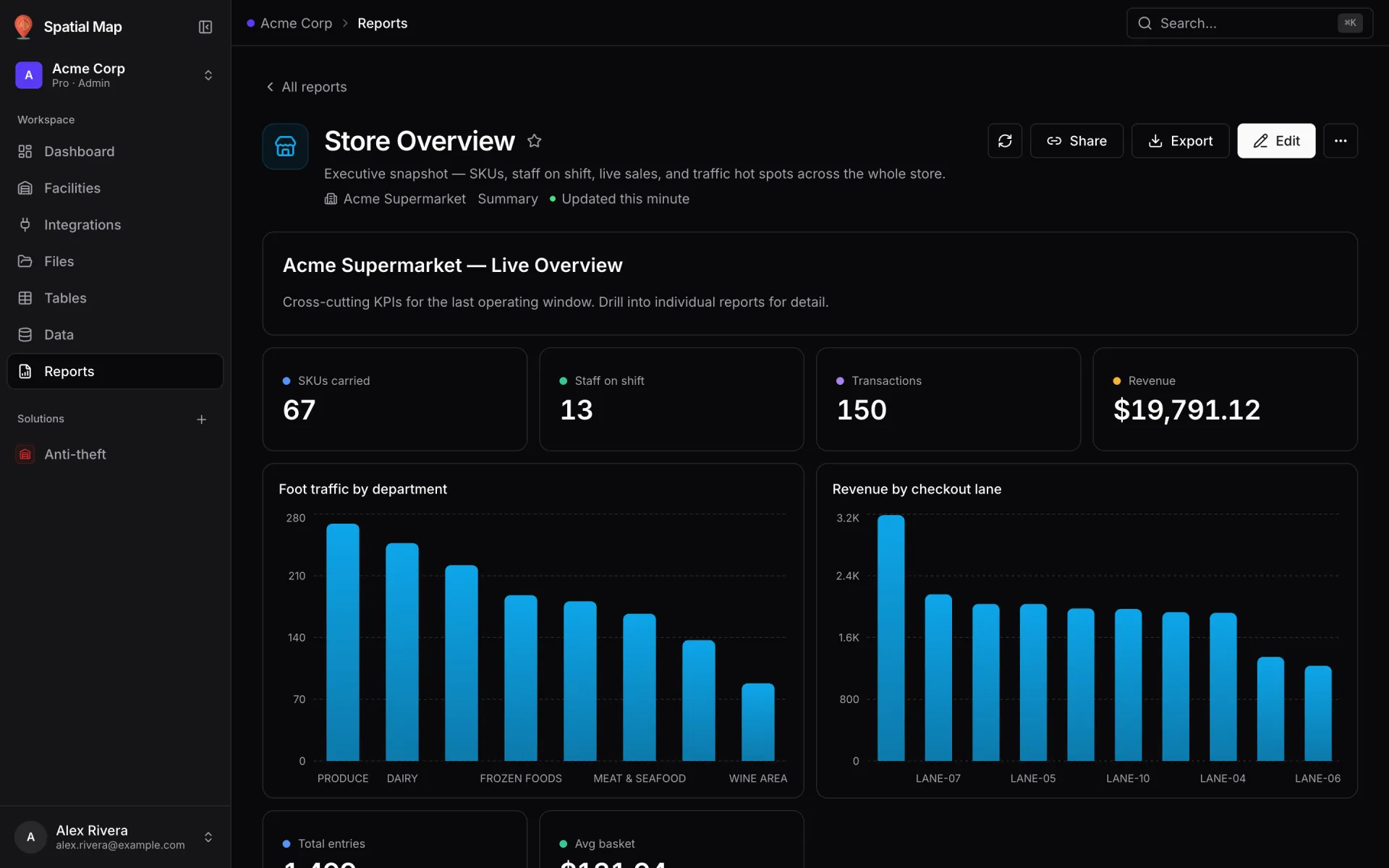
Any report exports to PDF (through the browser’s print dialog), Excel, CSV or JSON, and chart and KPI widgets can also be saved as PNG — handy for the Monday district call. Report filters let one report serve every department instead of ten copies, and a full-map layout puts the live store map in the middle of a report with KPIs around it.
Group it as a solution and try it on your own store
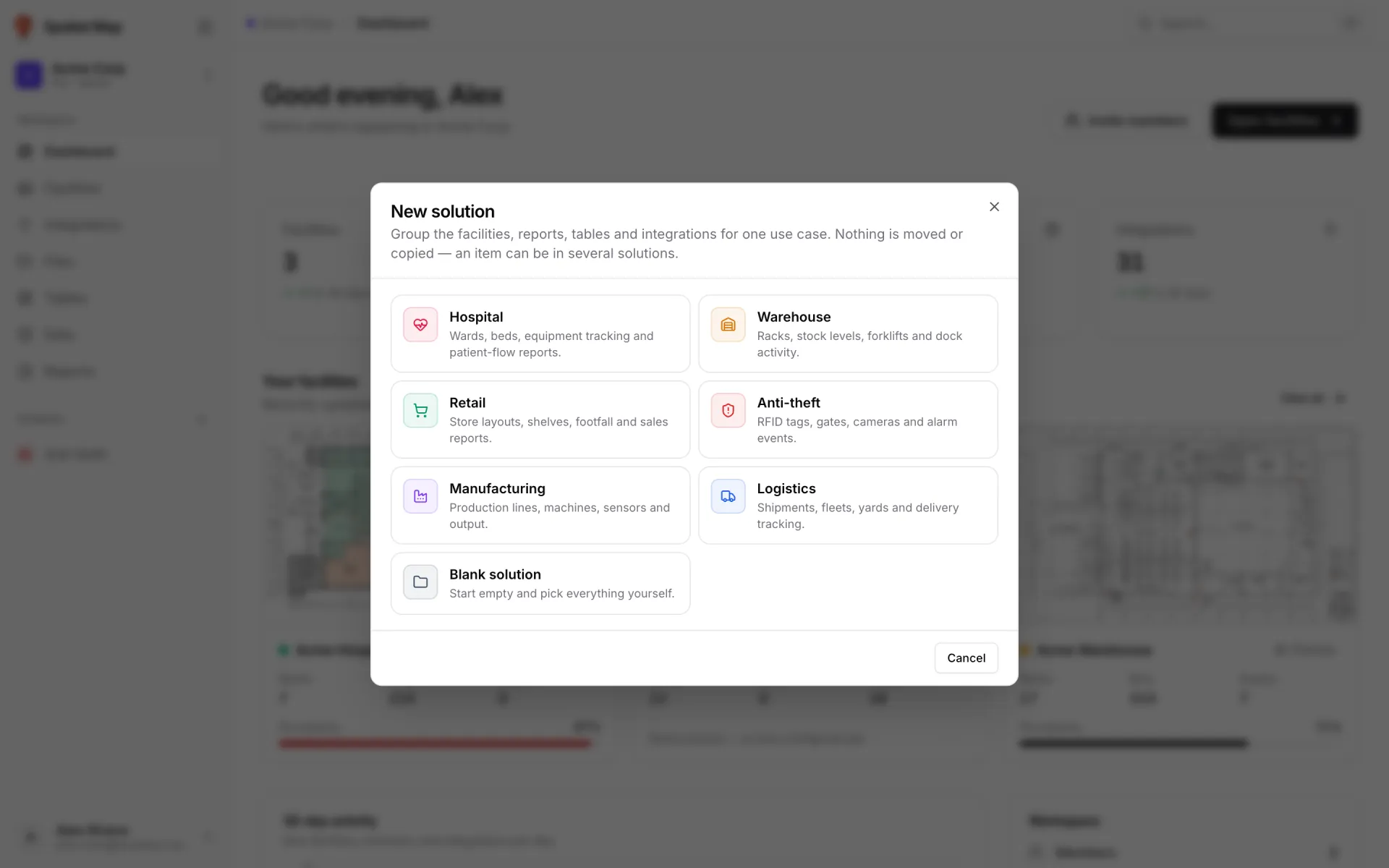
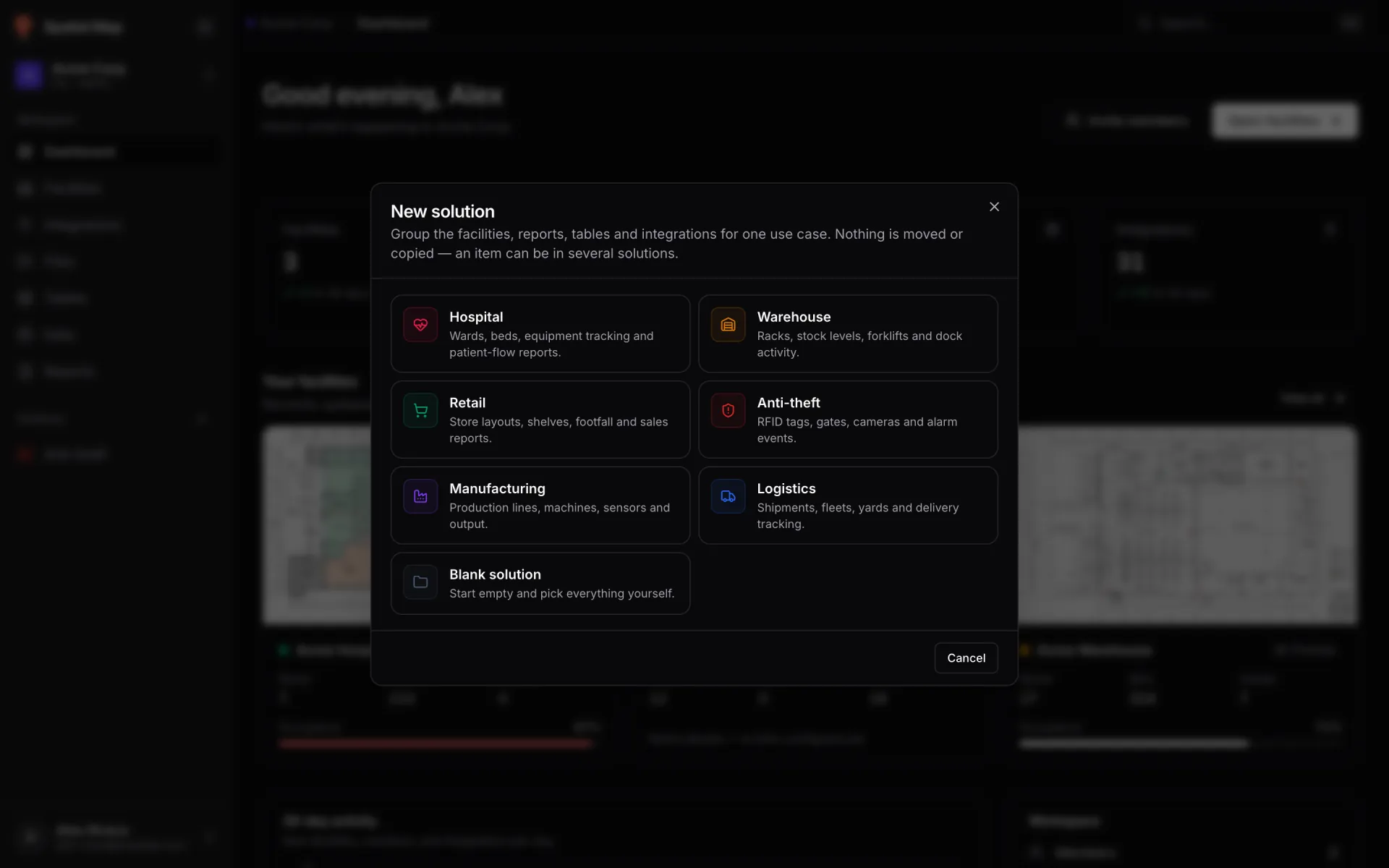
Solutions keep a use case tidy: a named group that points at facilities, reports and data sources, with a home page showing KPIs, reports, live record counts and integration health. The Retail template presets the name, icon and colour and suggests matching items for you to confirm. In our demo workspace the supermarket sits in a solution called Anti-theft, together with its Employees, Customer Traffic and Deliveries tables. One store can belong to several solutions without copying anything, and deleting a solution never deletes data.
You can build this on your own store today. Start a 7-day free trial — no credit card, up to five facilities — then move to Pro at $60 a month or $600 a year, which covers up to four facilities (see pricing). If you would like to see how supermarkets, stores and malls use the same platform first, head to the retail solution page.
Try the platform your data belongs on.
Spatial Map turns spreadsheets, sensor streams, and CAD drawings into one live 3D facility view — nothing to install, seven-day free trial.
Keep reading
- IndustrySupply-chain visibility inside the plant: lines, WIP, racks and docks on one live mapSupply-chain dashboards follow the truck to the dock door, then go blind inside the plant. A live indoor map of lines, stations, racks and docks closes that gap. Here is how to build one, using our Summit Assembly Plant demo as the worked example.
- IndustryStadium and venue operations on a live 3D map: gates, seats, concourses and crewsOn match day, gates, stewards, concessions and guest services each watch a different screen. A live 3D map of the bowl and concourses is where they agree on location. Here is how our Crown Park Stadium demo is built — 30,513 seats included — and how Lakeside Convention Center uses the same tools for events.
- IndustryMall operations on one live 3D map: floors, units, devices and tenantsSecurity, cleaning, the loading dock, building systems and leasing each live in a different tool. A live 3D map of every floor is the one place they can agree on location. Here is how to build one, using our multi-floor Retail Mart demo as the worked example.