
Pharma cold storage and QC on one live map: zones, excursions, holds
Monitor a pharma cold store on a live map: zones tinted from probes, excursions as rows, doors, reefer docks, quarantine and QC holds in one place.
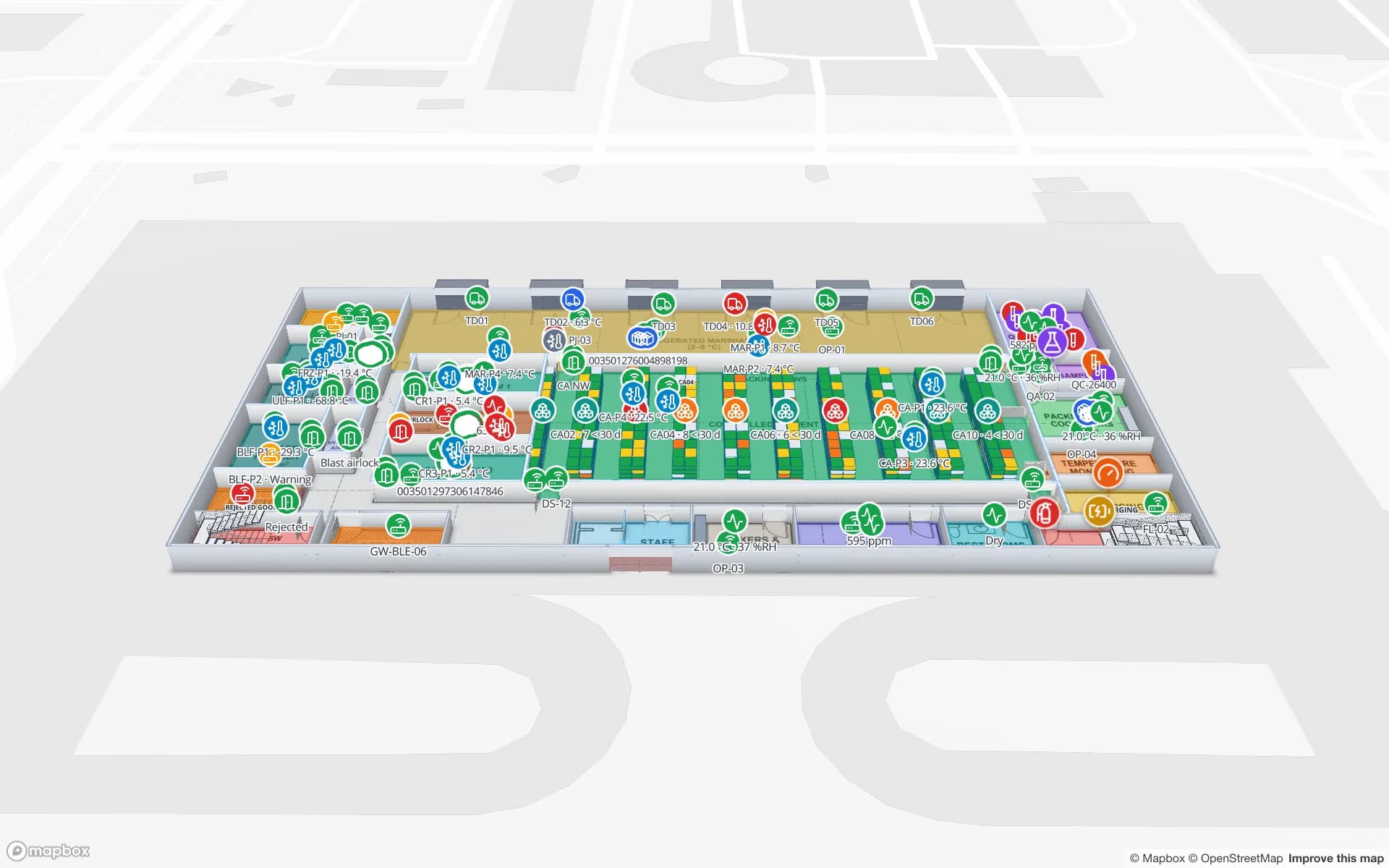
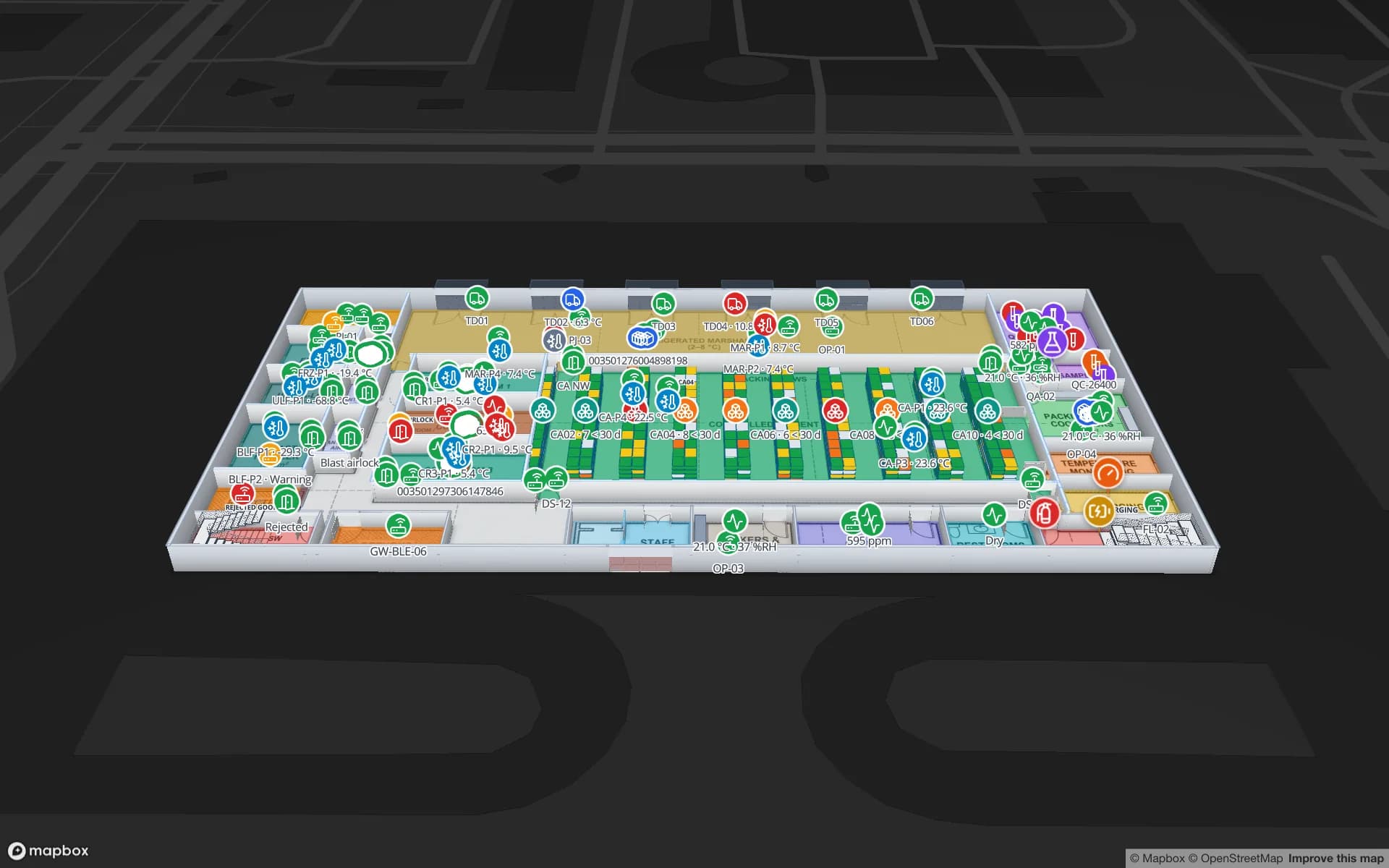
The short version
A probe ID is not a place
Ask a cold-store shift lead what went wrong last night and the answer usually starts with an identifier: probe T-114 ran warm, door 3 was held open, a reefer sat at its dock longer than planned, two pallets went to quarantine. Each identifier lives in a different system — the monitoring software, the door controller, the transport plan, the warehouse system, the QC lab’s sample log — and none of them says where it is, or what sits next to it.
For a pharmaceutical manufacturer or distributor, “where” is most of the question. Which products are in the zone that drifted? Is the door that was held open the one next to it? Is the stock that went on hold still in the quarantine area, or already on a reefer? A live floor plan answers those in one look, because every reading, door event, shipment and sample lands on the room, dock or rack it describes.
Our earlier guide to cold-storage temperature monitoring covers probe placement, colour bands and when an activity heatmap is the right tool. This post zooms out to the whole site — temperature zones, excursions, doors, docks, stock on hold and the QC laboratory — using the Polar Pharma demo as the worked example.
What the Polar Pharma demo maps
Polar Pharma is the Cold Chain demo in our showcase. It has two floors and 1,140 rack locations spread across cold rooms, freezers and controlled-ambient storage, plus reefer docks, quarantine and returns areas, the refrigeration plant and a QC laboratory. Behind the map sit 24 tables and 20 reports — the eight built-in facility reports plus the site’s own.
The layout is drawn like any other facility. Place the floor plan — a PDF scaled from its sheet size, a DWG rendered as a floor-plan image, or a PNG or JPG (CAD and PDF import) — then trace each zone as an area and lay out the storage with the Rack tool, so every location has its own cell. Doors, stairs and lifts tie the two floors together in the 3D viewer. Four kinds of device feed sit on top:
- Sensors — temperature probes, door sensors and refrigeration plant readings.
- RFID — pallet tags read as stock moves between zones and docks.
- BLE tags — trucks and staff located on site.
- Gateways — probe gateway health and last readings.
Temperature zones, tinted from their probes
The base layer is the one everyone looks at first: each cold room, freezer and controlled-ambient zone coloured by what its probes read. In the demo, a Temperature Probes table holds the probes and their readings. Probe markers carry the reading next to their ID, and the zone areas themselves are tinted with the Color a shape display mode.
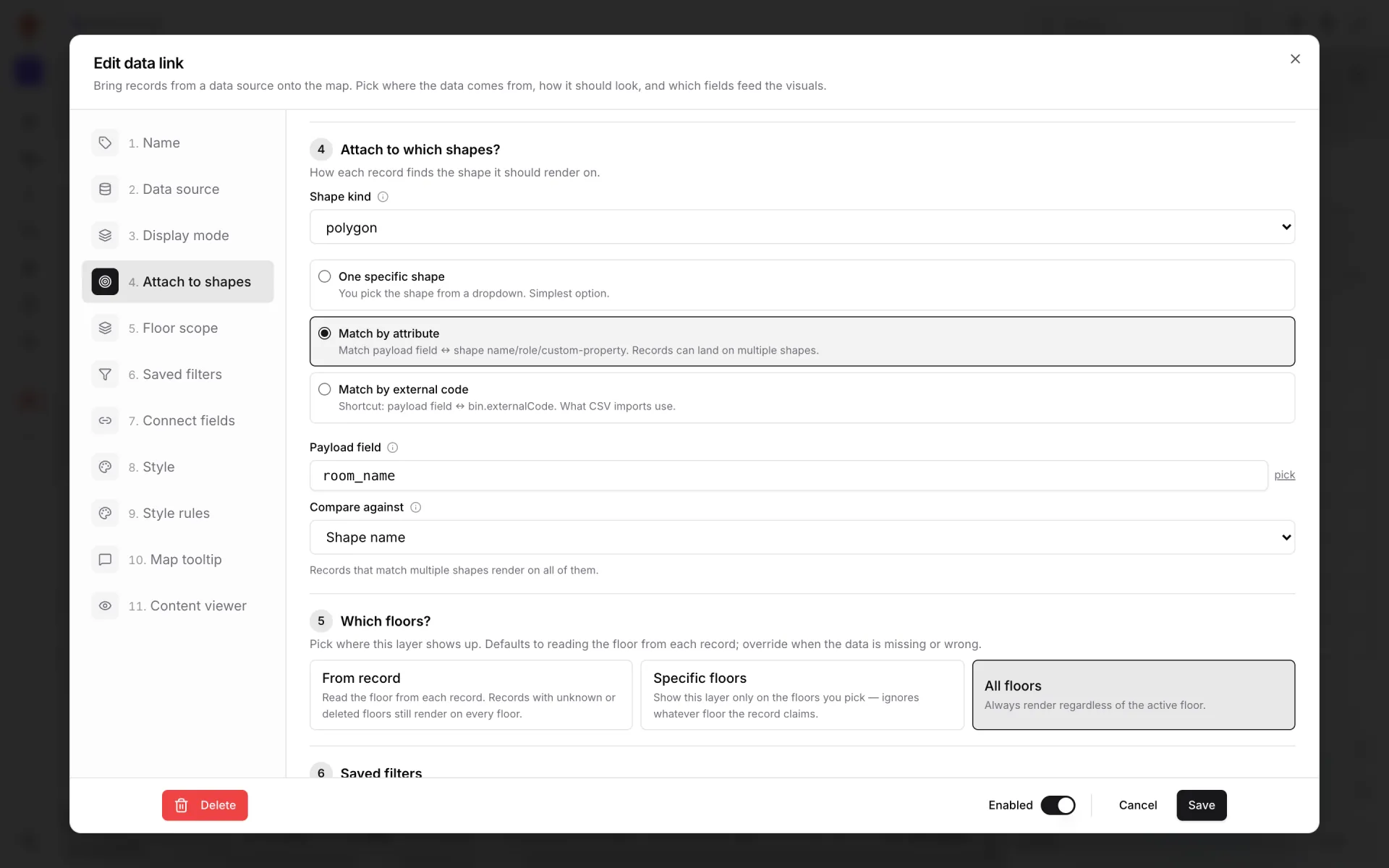
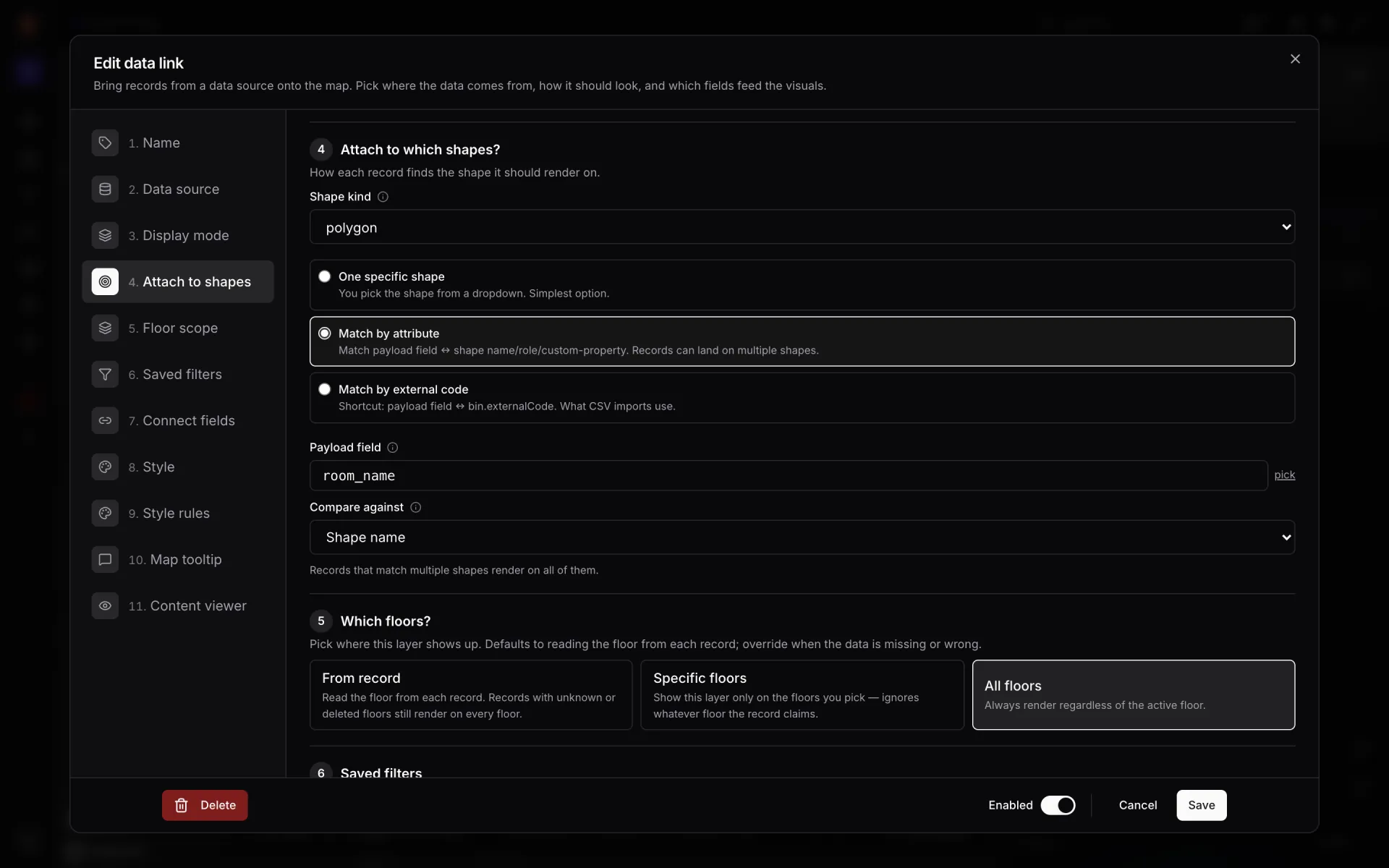
That step is the whole trick. Match by attribute compares a field in each record — a room or zone name — with the shape name, so a reading lands on its zone’s area. From record reads the floor from each record, which matters on a two-floor site. Then style rules turn values into colours. Rules are checked top-down and the first match wins, so put the most severe band first:
| Rule (top to bottom) | Condition (example values) | Colour |
|---|---|---|
| Cold room above range | Zone type is cold room AND temperature > 8 °C | Red |
| Cold room below range | Zone type is cold room AND temperature < 2 °C | Red |
| Freezer too warm | Zone type is freezer AND temperature above its limit | Red |
| Controlled ambient out of range | Zone type is controlled ambient AND temperature > 25 °C | Amber |
| Everything else | No rule matches | The layer’s default colour |
For probe placement and the drift-and-excursion two-band pattern, see the cold-storage guide and the environmental sensors example.
Excursions as rows you can count
A colour tells you something is wrong now. QA needs to know what went wrong, when, for how long and what was done about it. That is why the demo keeps excursions in their own Temperature Excursions table instead of inferring them from colours: one row per excursion, with whatever your monitoring system or shift team records — typically the zone, the probe, start and end time, the worst reading and how it was resolved.
- On the map — excursion rows match zones by name just like readings do, so a zone with an open excursion can carry its own colour, or a Value badge on shape with a count.
- In reports — Temperature Zones & Excursions lists every zone with its current temperature and excursions; Temperature Probes & Mapping shows probe readings and which probe maps to which zone.
- In the history — every write to a table row is kept, so opening a probe or an excursion in the viewer’s detail drawer lists each change with its time.
- Over time — a History report with a time window (say 30 days, bucketed by day) charts excursions per zone, and a Heatmap of activity shows where they keep happening.
The gateway feed matters here too. A probe that stops reporting is not an excursion, but it is a gap in the record. With probe gateway health and last readings on the same map, the team can tell a warm room from a silent probe at a glance.
“The colour tells the shift where an excursion is. The row tells QA what happened, when, and how it was closed.”
Cold-room doors, reefer docks and shipments
Many cold-store excursions start at a door. In the demo, door sensors write to a Door Events table, and the Cold-Zone Doors report lists door events and doors held open. On the map, door markers sit on the actual doorways, so a door held open next to a zone that is warming up is one picture, not two screens.
At the dock, a Reefer Shipments table tracks reefer shipments, and the Reefer Docks & Shipments report shows which shipment is at which dock. RFID pallet tags are read as stock moves between zones and docks, and BLE tags locate trucks and staff on site — so “which pallets left the cold room, and where are they now?” is answered on the same floor plan as the temperatures.
| Question on the floor | Table | Report |
|---|---|---|
| Which zone is out of range, and since when? | Temperature Probes, Temperature Excursions | Temperature Zones & Excursions |
| Which probe belongs to which zone? | Temperature Probes | Temperature Probes & Mapping |
| Which cold-room door is open right now? | Door Events | Cold-Zone Doors |
| Which reefer is at which dock? | Reefer Shipments | Reefer Docks & Shipments |
| Which QC samples are still open? | QC Samples | QC Laboratory |
Controlled-ambient stock, quarantine and the QC lab
Temperature is only half of a pharmaceutical cold store; the other half is status. Stock arrives, waits for release, gets sampled, goes on hold, is rejected or comes back as a return. Polar Pharma puts each of those on the map, with a report for each:
- Controlled Ambient Stock & Expiry — stock in the controlled-ambient zone with its expiry, so locations holding product close to or past expiry can be coloured apart.
- Quarantine, Rejects & Returns — stock on hold and why, in the areas set aside for it.
- QC Laboratory — samples from the QC Samples table, so the lab and the warehouse look at the same list.
- Refrigeration Plant — readings from the plant that keeps the building cold, on the plant room’s own shape.
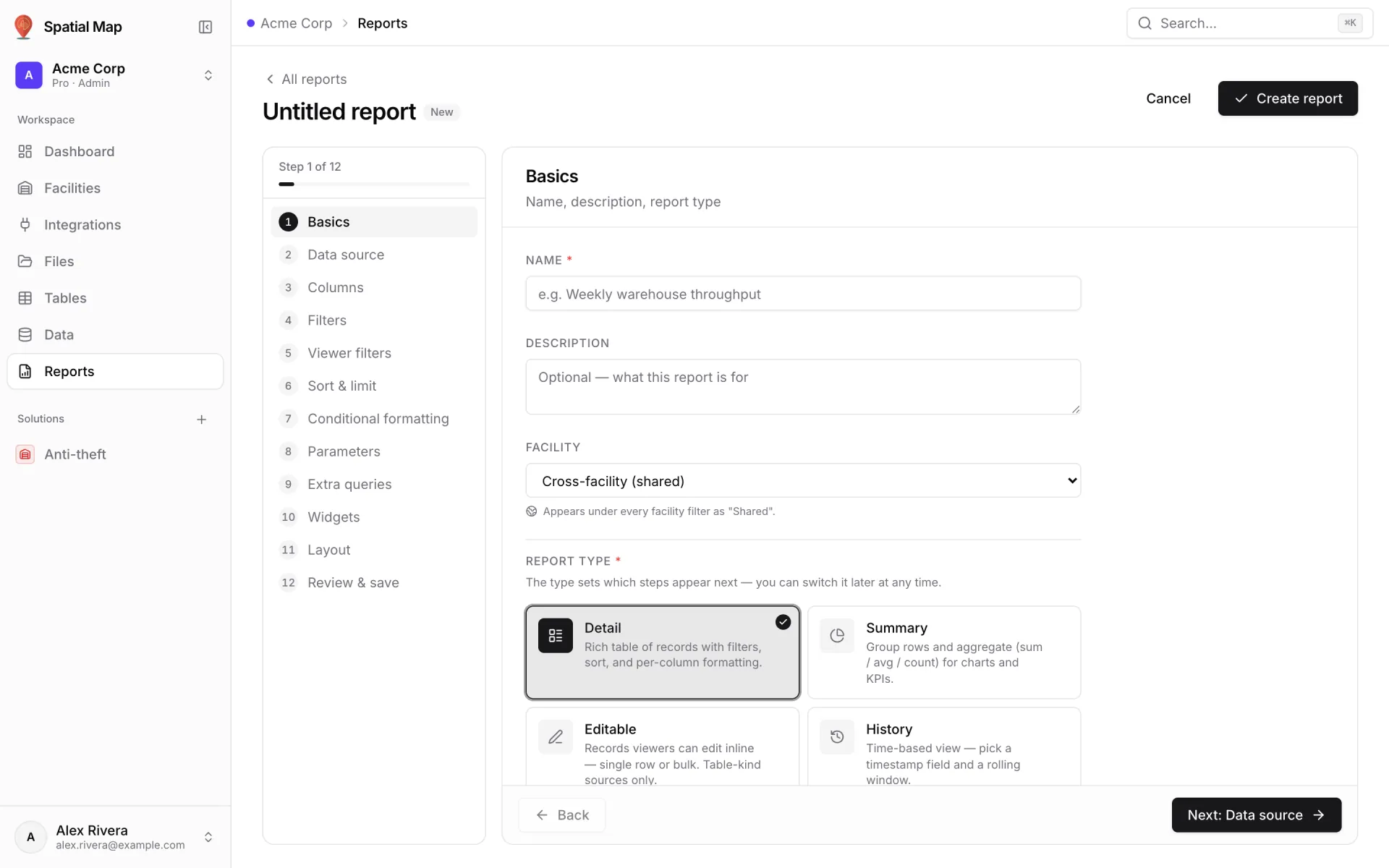
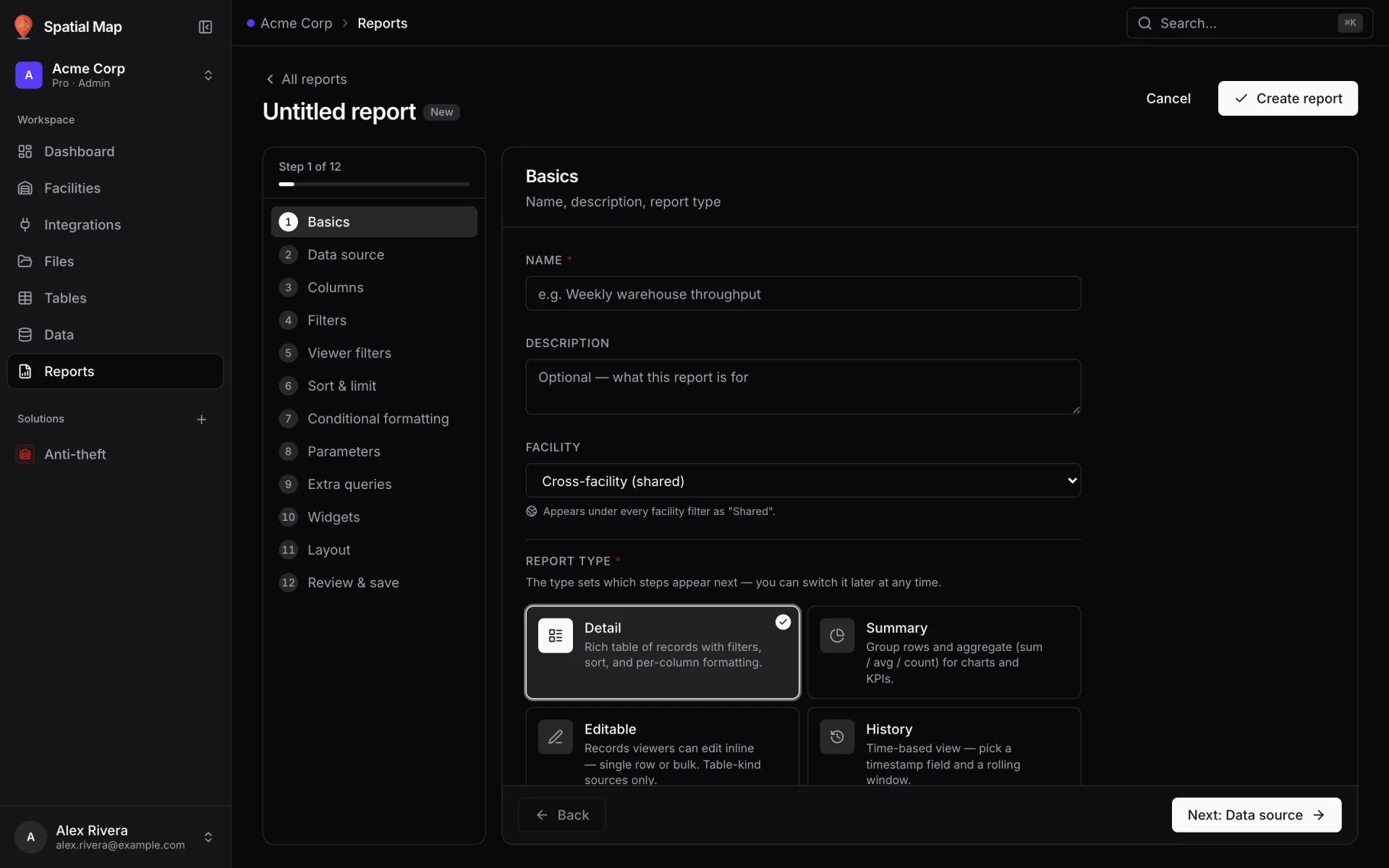
The report builder offers four report types: Detail, Summary, Editable and History. Editable reports let viewers change chosen columns inline, one row or in bulk, on table sources — a good fit if you want the QC team to update a sample’s status from a list instead of a spreadsheet. Changes go straight into the table, so the map follows.
Connecting probes, doors, shipments and the lab
There are no vendor-specific connectors to wait for, and no MQTT or OPC UA client: data arrives over HTTP or as files. Three paths cover a cold store:
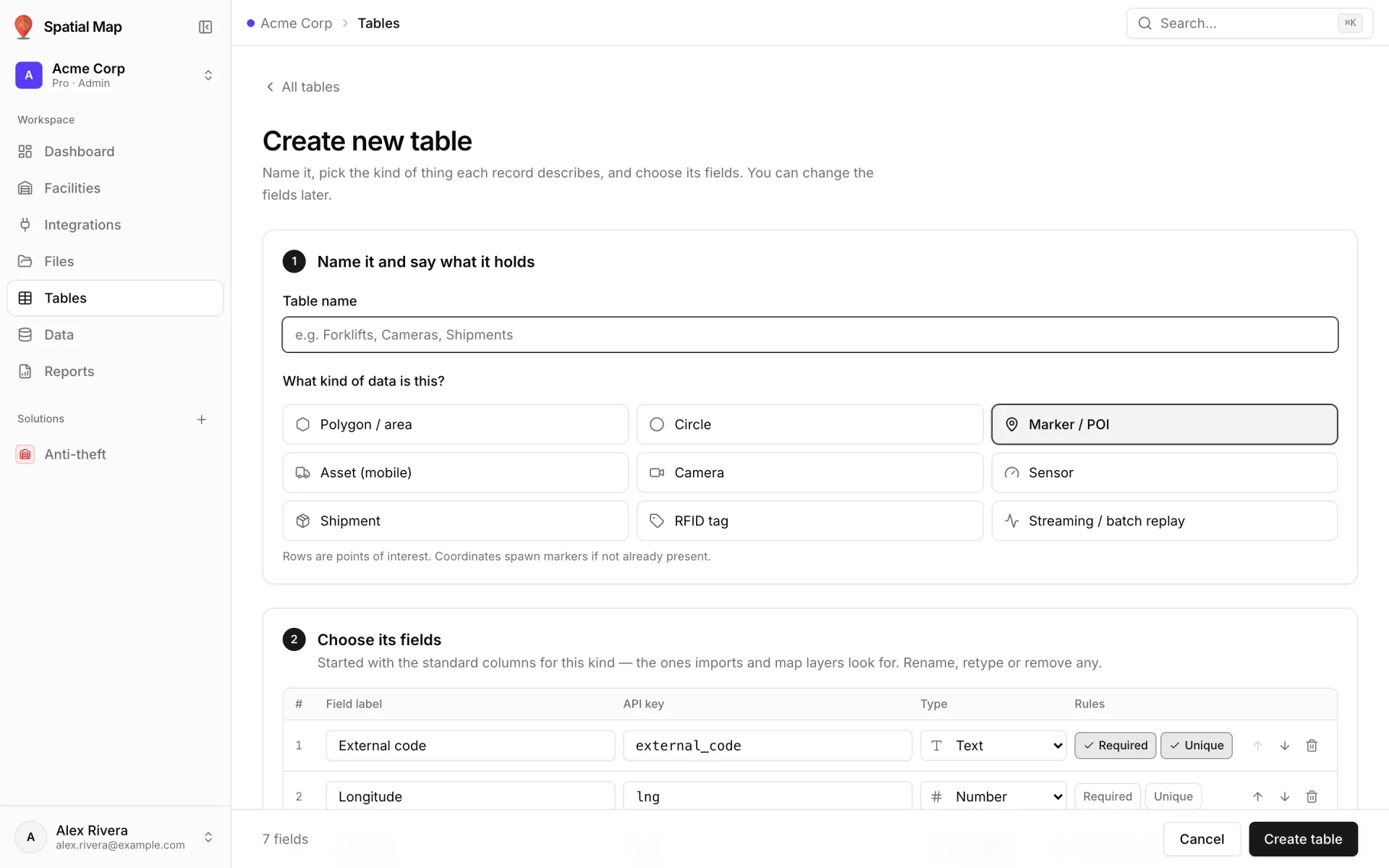
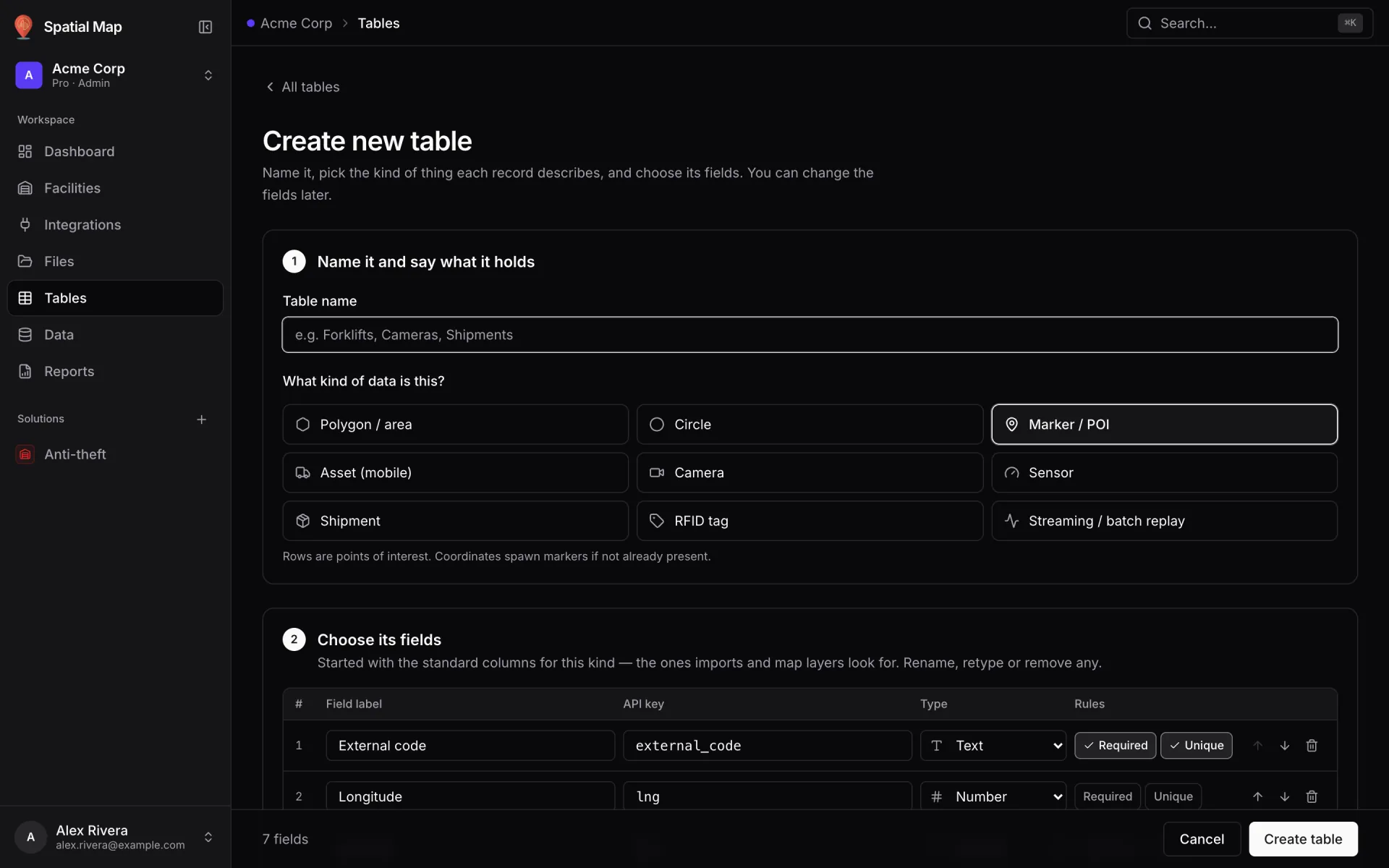
- Tables with a write API — create a table (kind Sensor for probes), issue an API key per system and let the gateway write rows: 60 requests a minute per key, up to 1,000 rows per bulk call. Changes show on open maps without a refresh. See Tables and the table write API.
- REST pull — if the monitoring software or transport system exposes a JSON endpoint, a table can fetch it on a schedule, with an API key, a bearer token or custom headers.
- File uploads — CSV, XLSX, JSON or GeoJSON for data that changes daily, such as refrigeration plant logs or QC results exported from the lab.
- 1Map the site
Place each floor plan, draw zones as areas and storage with the Rack tool, and add doors, docks, the plant room and the QC lab. Name zones the way your monitoring system does.
- 2Create one table per feed
Probes, excursions, door events, reefer shipments, QC samples — each with the fields your systems send.
- 3Point your systems at them
API keys for gateways and controllers, a scheduled REST pull for systems with an endpoint, uploads for daily exports.
- 4Add data links and style rules
Color a shape for zones, markers for probes and doors, value badges for counts — then the colour rules for each.
- 5Build on the reports
A linked-data report is created when you save a table’s first data link. Add your own summaries, history views and editable lists on top.
Evidence for QA, read-only views for everyone else
Reports read the same tables as the map, so there is no second pipeline to keep in step. A full-map report puts the live facility in the middle of the report — a list on one side, KPIs on top, charts beside it — which suits a cold-store control desk.
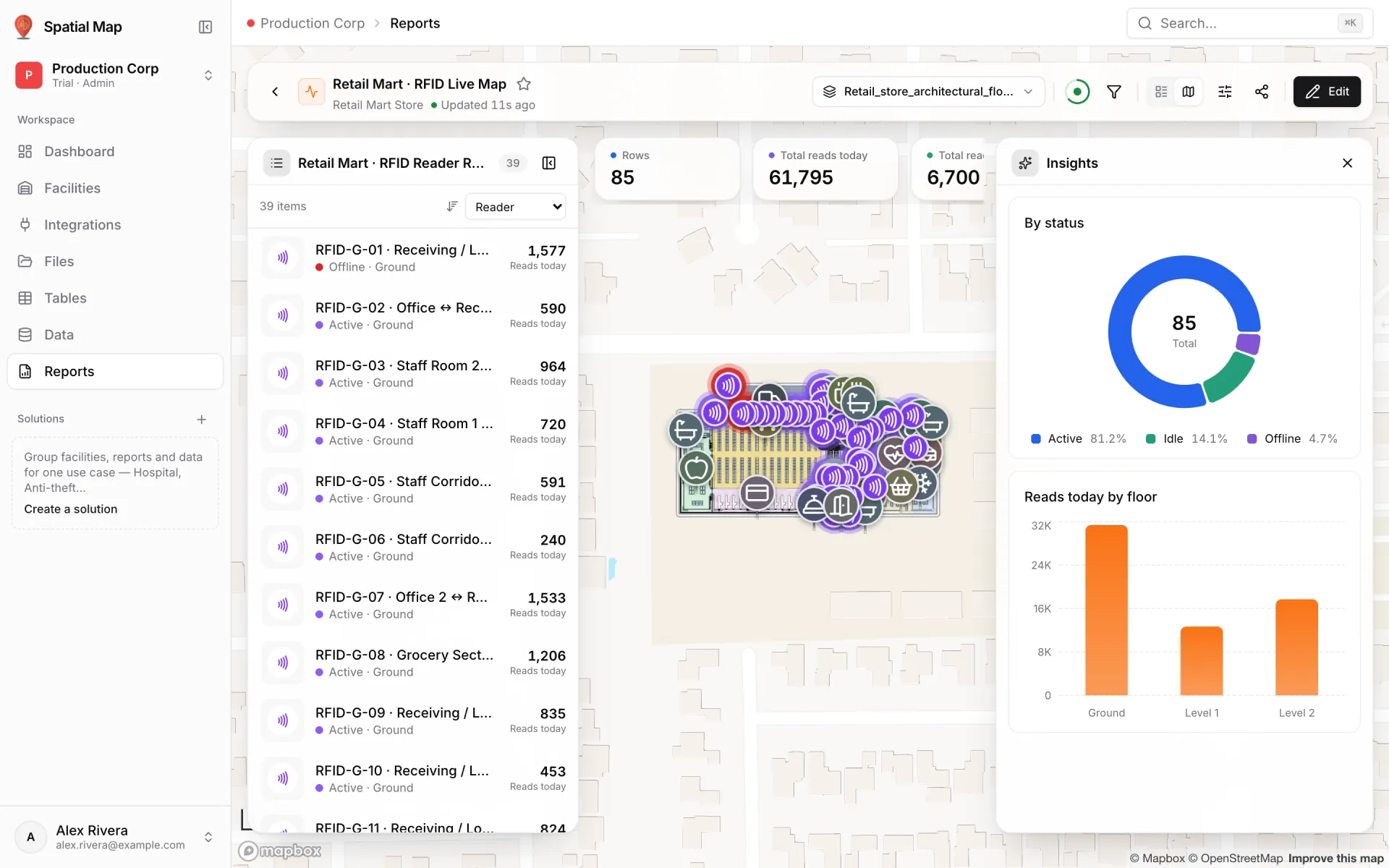
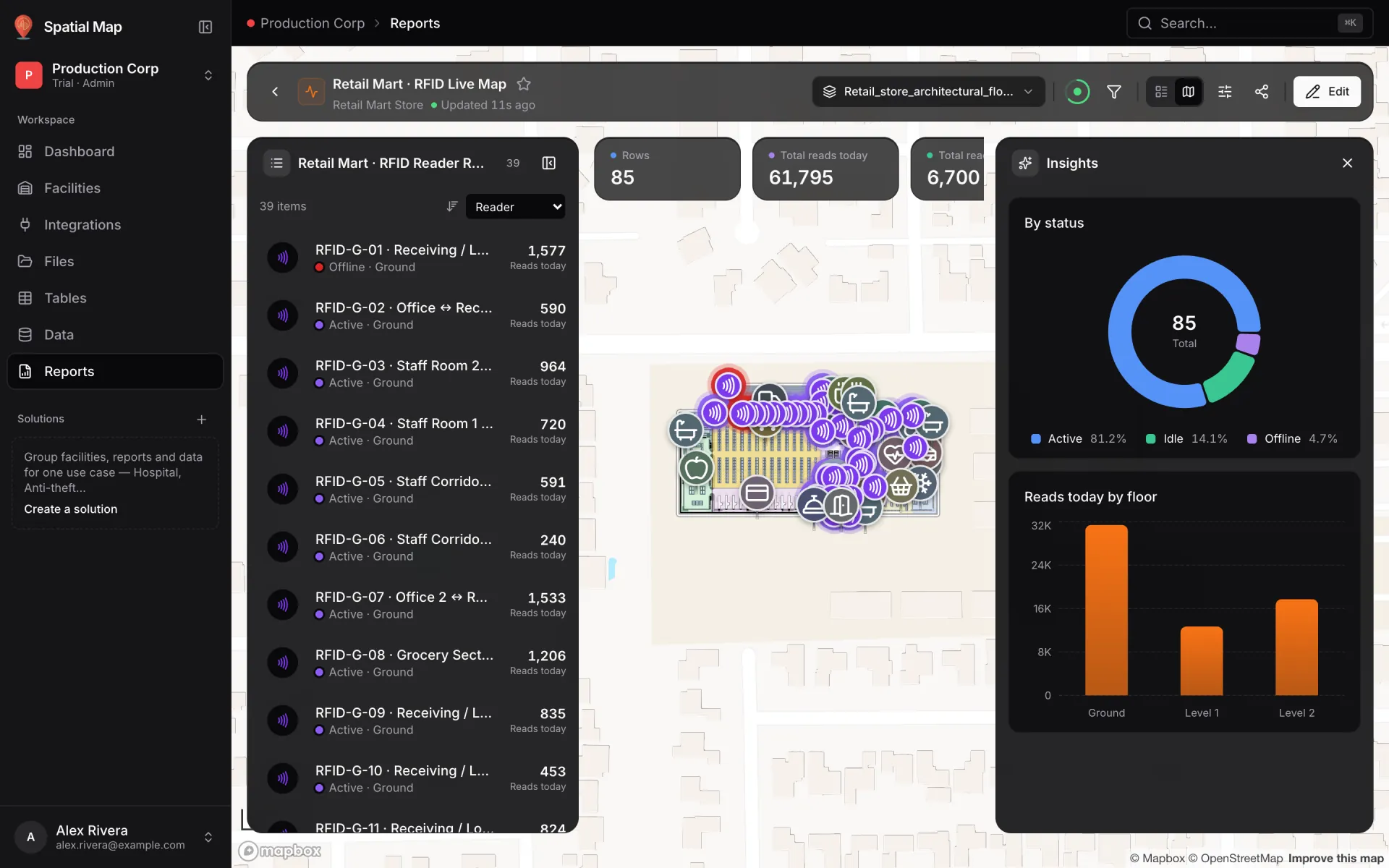
Any report exports to PDF, Excel, CSV or JSON, with an option to print the applied filters (widgets and export). Last week’s excursion list, the door events around it and the quarantine report for the affected stock give the QA team evidence for their own processes — the weekly export example walks through it. Spatial Map does not certify anything; it makes the record easier to find and to read.
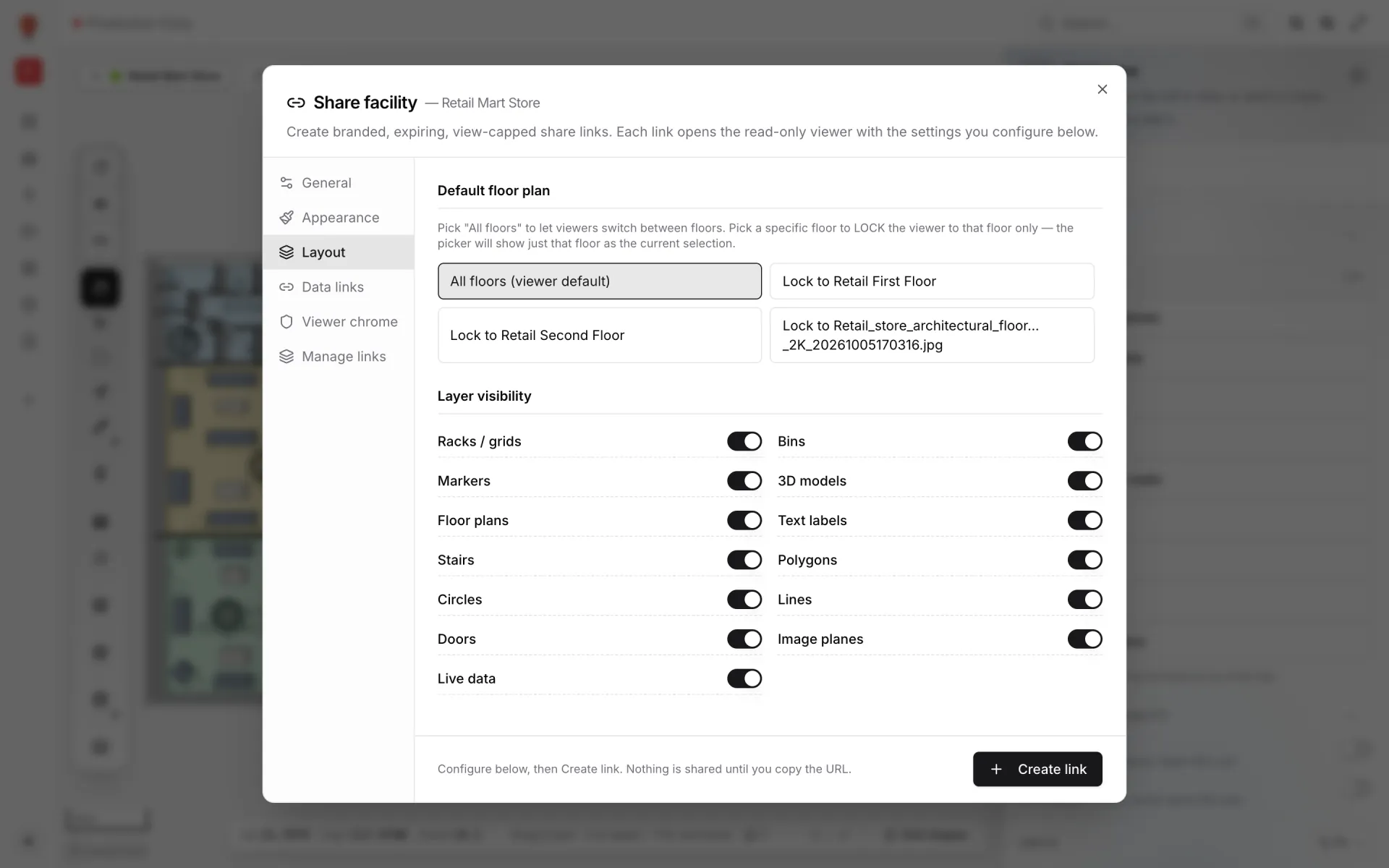
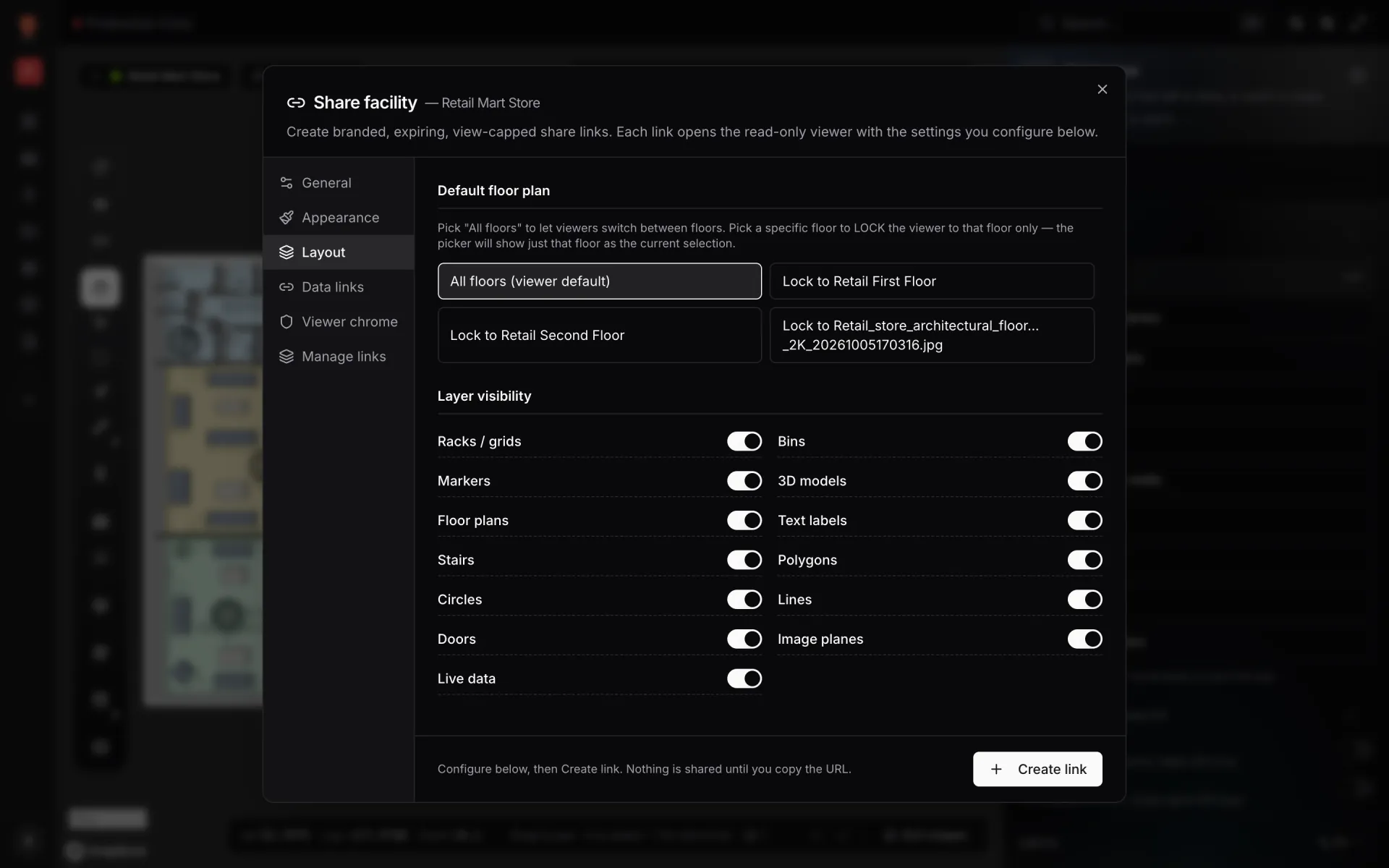
Not everyone who needs to see the site should edit it. Share links open a read-only viewer that can expire, be capped at a number of views, be locked to one floor and show only the layers you choose — for an external auditor, a transport partner or a customer’s quality team. Inside your organisation, members get the Owner, Admin, Editor or Viewer role (they need a Spatial Map account first).
See Polar Pharma, then map your own cold store
Open Polar Pharma in the showcase to see its layout, device feeds and reports, or read the Cold Chain solution for how the pieces fit together. Stock, expiry and rack locations also overlap with the Inventory solution, and a solution in your workspace can group the facility, its reports and its tables on one page. For a store-floor take on the same sensors, read retail shelf stock and cold chain on one map.
A first version fits in a day: one floor plan, the cold rooms as areas, one probe table and one colour rule. Start a 7-day free trial — no credit card, up to five facilities — then Pro is $60 a month or $600 a year for up to four facilities (pricing).
Try the platform your data belongs on.
Spatial Map turns spreadsheets, sensor streams, and CAD drawings into one live 3D facility view — nothing to install, seven-day free trial.
See it live
Keep reading
- Use caseAirport terminal operations on a live map: RFID bag tags, queues and gatesA terminal runs on hand-offs: from check-in to screening, from the gate to the carousel. Each hand-off happens in a place, so each one belongs on a map. Here is how our Silverbay Terminal 2 demo puts bag tags, queues, gates and crowding on one live two-floor view.
- Use caseCross-dock and yard visibility on a live map: dock doors, trailers and gatesA cross-dock runs on timing: which door is turning, which trailer has sat in the yard too long, which gate lane is backing up. Putting the building and the yard on one live map makes those answers visible at a glance. Here is how, using our Eastport Cross-Dock Freight Hub demo.
- Use caseRetail anti-theft on a live map: RFID readers, exits and blind spotsA tag that leaves through a door with a dead reader is invisible. A real walk-through of the Retail Mart demo: 85 readers on three floors, four of them offline — three at the receiving dock.