
Share a read-only, expiring link with a contractor
Contractors, auditors and insurers often need to see a site without joining the workspace. A share link opens the read-only 3D viewer with the settings you choose: it can expire, stop after a number of opens, carry a watermark and leave out live data. A facility can have many links, and you can revoke any of them instantly.
Steps
- 1
Open the share dialog
On Facilities, open the facility’s ⋯ menu and choose Share, or click Create share link in the editor toolbar. "Nothing is shared until you copy the URL."
- 2
Set label, expiry and view cap
On General, set a Label you will recognise ("HVAC contractor — roof survey"), pick Expiry → 7 days and set Maximum views to 20 ("Kill the link automatically after this many opens"). Notes are private to admins.
- 3
Mark it
On Appearance, choose the Basemap style and type a Watermark such as "CONFIDENTIAL — Contractor" — "Small text drawn over the viewer."
- 4
Show only what they need
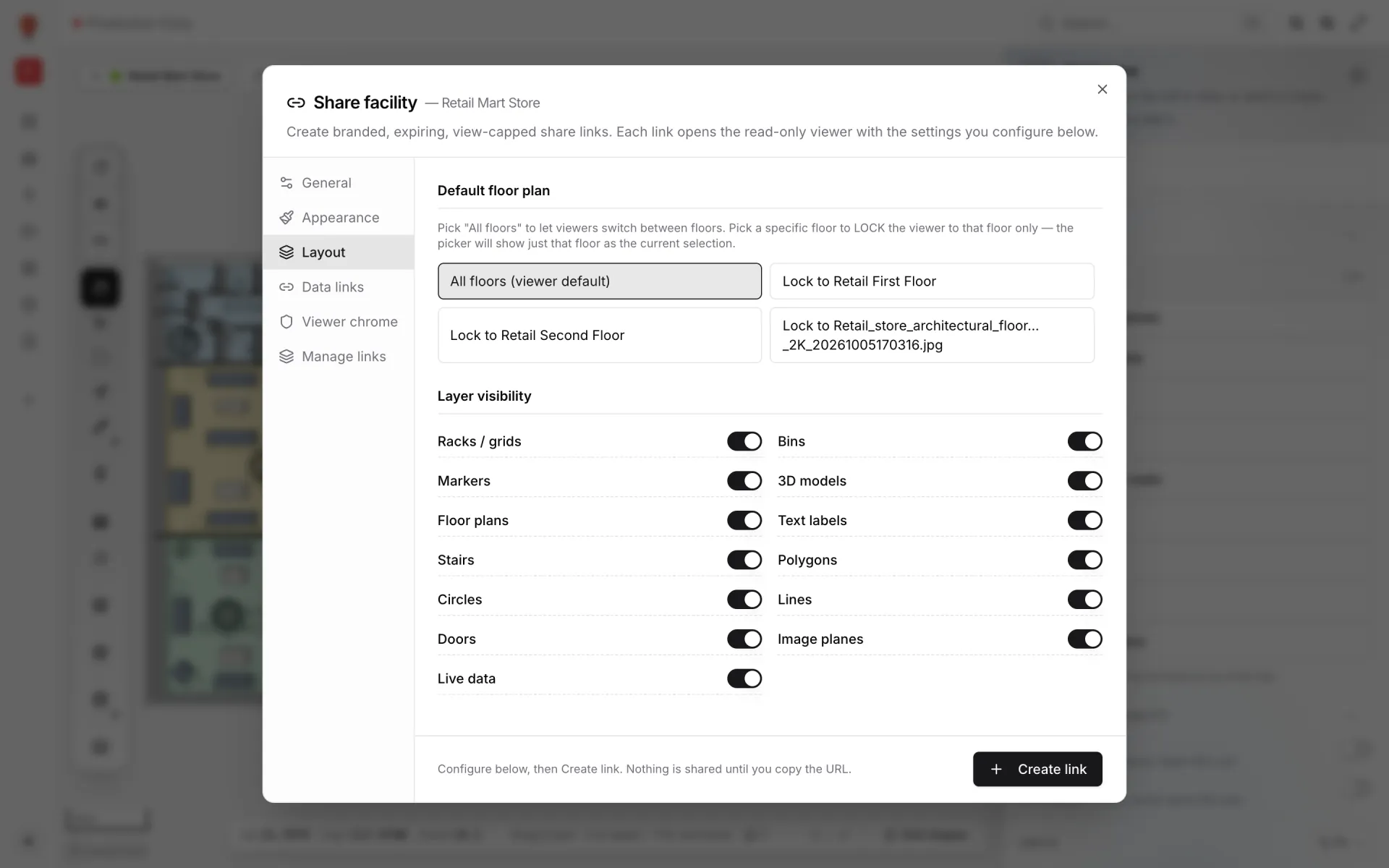
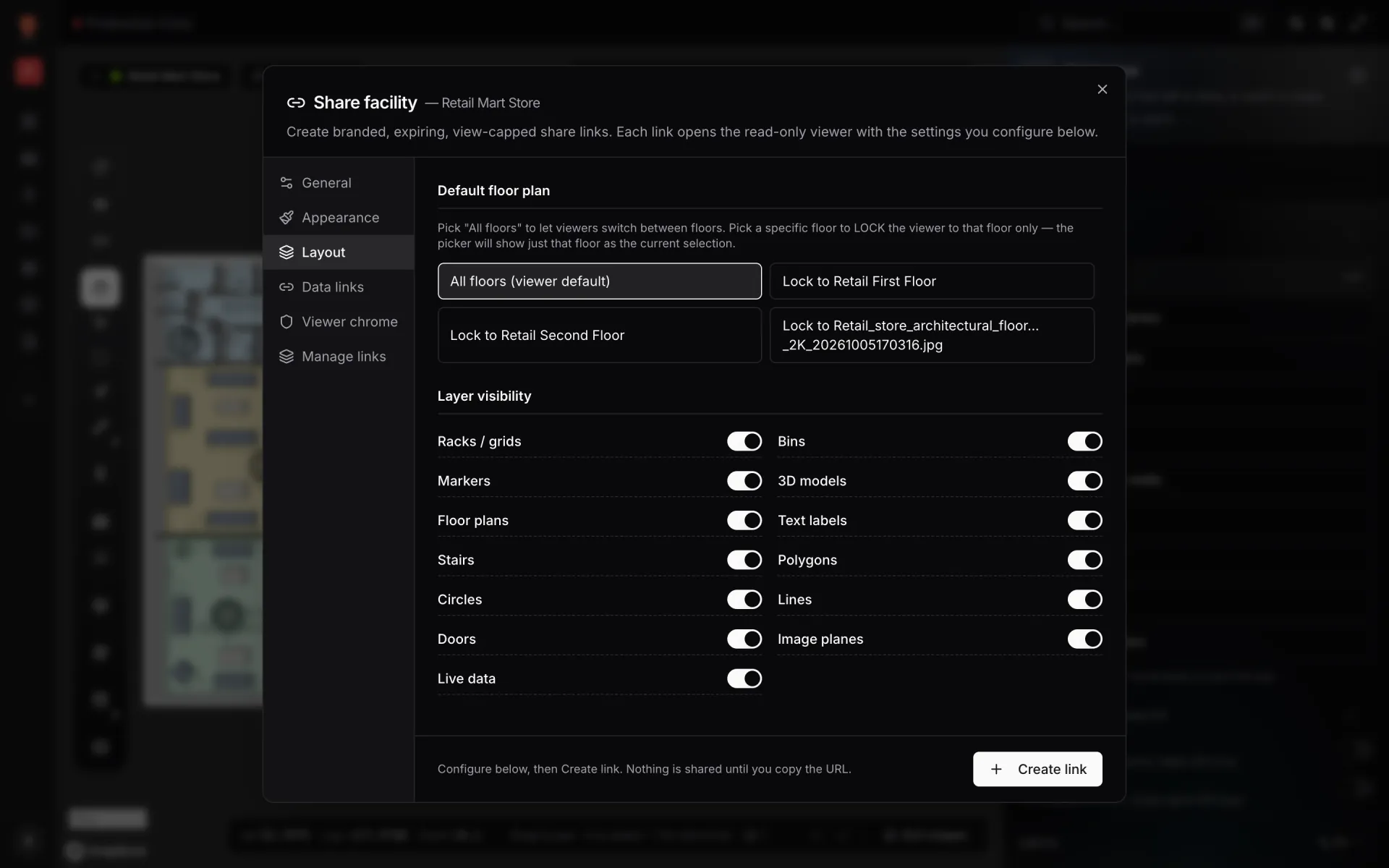
On Layout, set the Default floor plan and use Layer visibility to hide layers that don’t matter to them. On Data links, switch off live layers they shouldn’t see, such as Staff or Room status — "Toggle a config off to hide it entirely for viewers of this link."
- 5
Trim the viewer controls
On Viewer chrome, keep Allow pan / zoom on and turn off what they don’t need: Layers panel, Data link filter, Map style switcher, Floor plan picker or the "Shared view" badge. The Legend, Language switcher, Theme palette picker and Light / dark toggle switches are not active yet.
- 6
Create and send
Click Create link, then Copy URL and send it. The link’s status shows as Active, Expired, View cap reached or Revoked.
- 7
Revoke when the job is done
In Manage links click Revoke. Anyone opening it then sees "This link doesn’t work". Use Edit to extend the expiry instead if the work runs over.