
Mall operations on one live 3D map: floors, units, devices and tenants
Run a shopping mall from one live 3D map: model floors and units, colour them from your data, watch devices, and give each tenant its own read-only link.
Key takeaways
One building, a dozen systems that don’t talk
A mid-size shopping mall is a small city. Security runs patrols and watches the cameras. Housekeeping moves carts between floors. The loading dock juggles delivery slots for dozens of tenants. Facilities watches HVAC, lighting and escalators in the building management system. Leasing debates footfall with the anchor tenants. Each team has its own software, and each answers its own question — but almost none of them can say where.
Lease, maintenance and accounting tools are good at records and poor at space. A mall operations dashboard built on a live 3D map flips the order: the building comes first, and every feed is pinned to the floor, unit, corridor or bay it describes. That is what a mall digital twin should mean in practice — not a pretty render, but the floor plan as the shared index for every system.
Model the building once: floors, units and vertical circulation
Everything starts with the building. In the Spatial Map editor you place each level’s plan — a PDF is scaled from its sheet size, a DWG or DXF drawing is rendered as a floor-plan image, or use a PNG or JPG — and trace units, corridors, the food court, washrooms, service corridors and loading bays as areas on top. The model sits on a real basemap, so car parks and street entrances line up with the building outline.
- Floors — one floor plan per level, with a floor switcher in the viewer.
- Areas — retail units, anchor tenants, the food court and back-of-house as polygons, each with an optional role from a list you edit in the facility settings (for example Retail unit, Food & beverage, Service corridor).
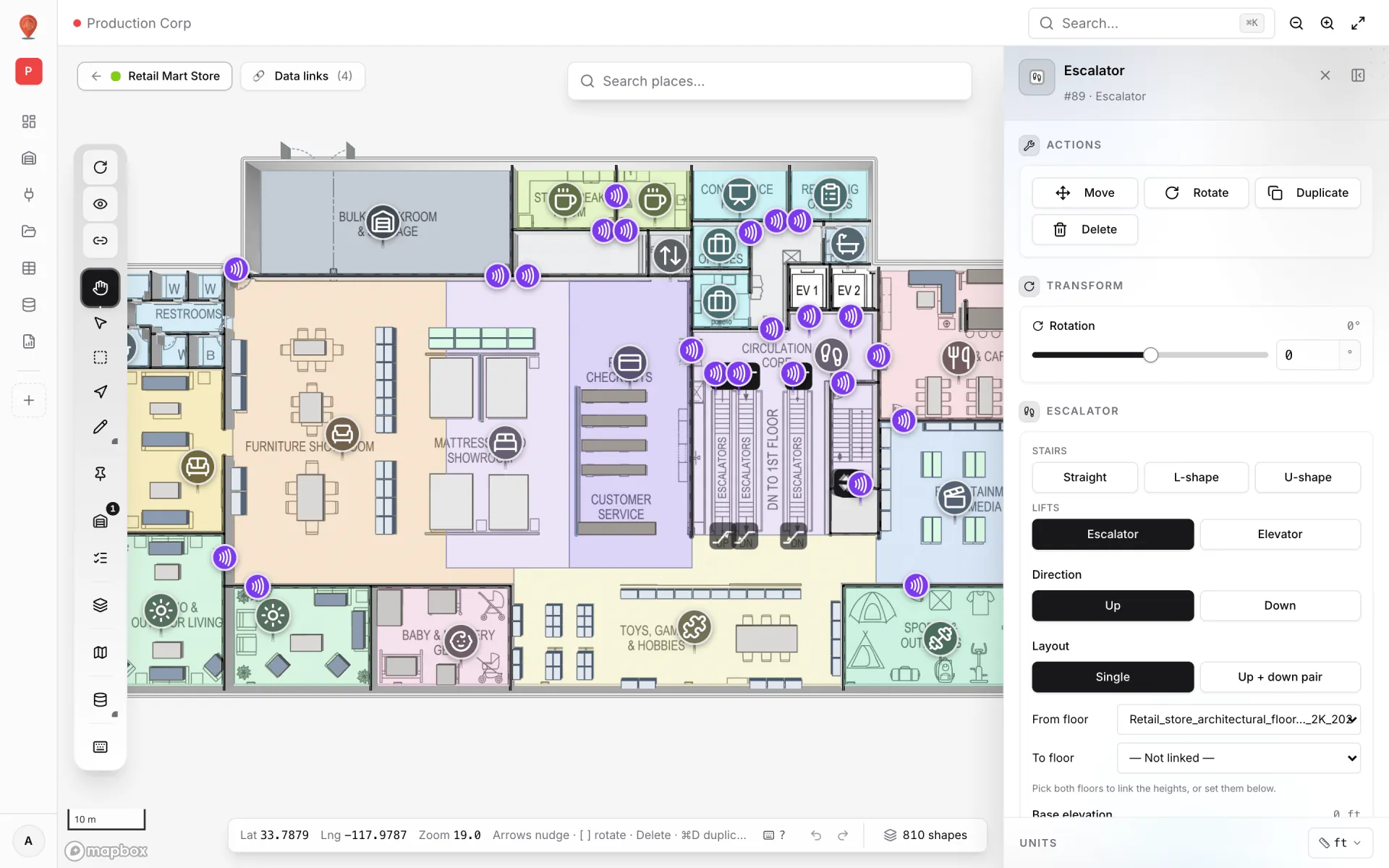
- Stairs, lifts and escalators — drawn in 3D and linked from one floor to the next.
- Markers and text labels — fixed equipment such as fire points, kiosks or reader locations, and unit numbers on the floor.
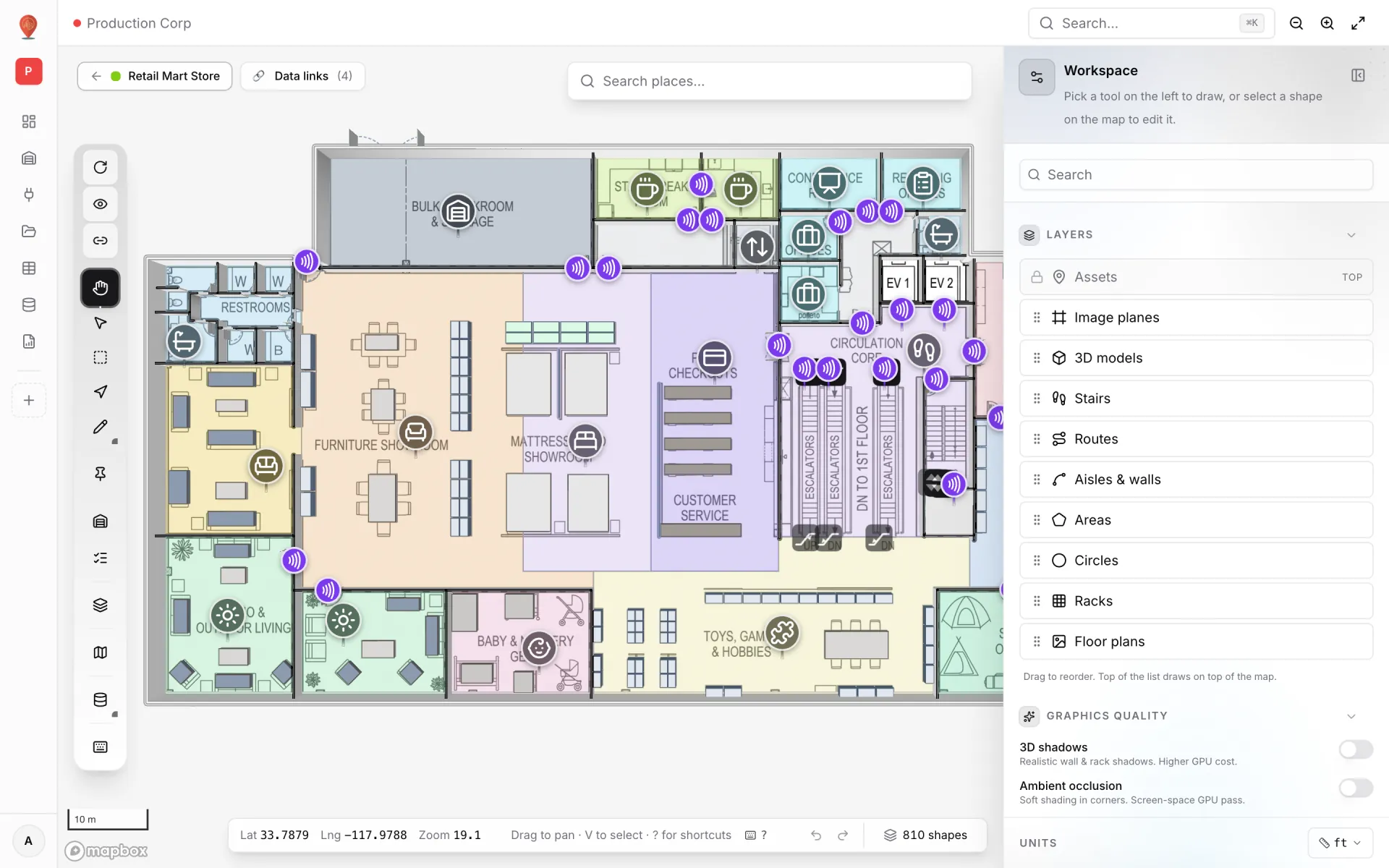
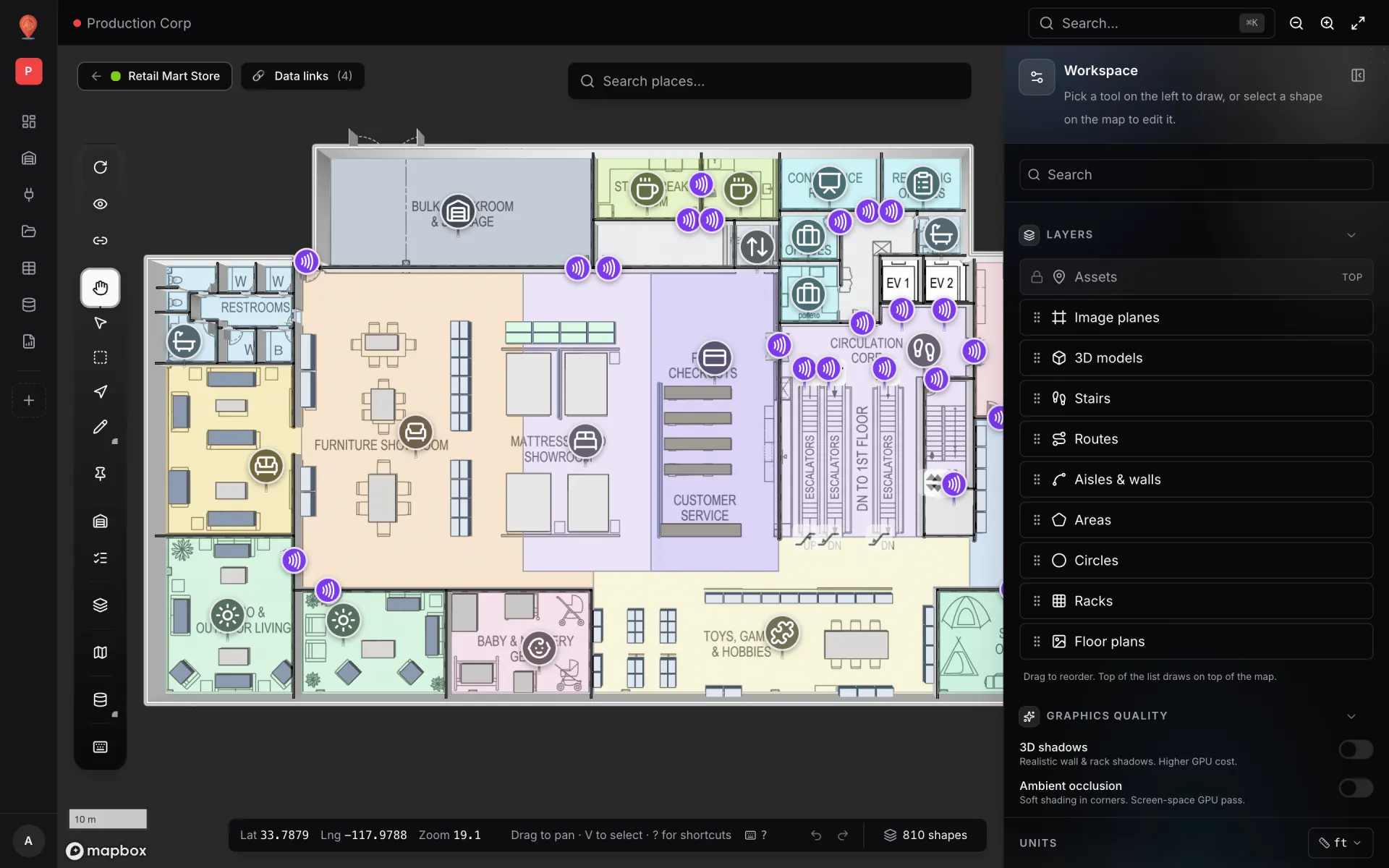
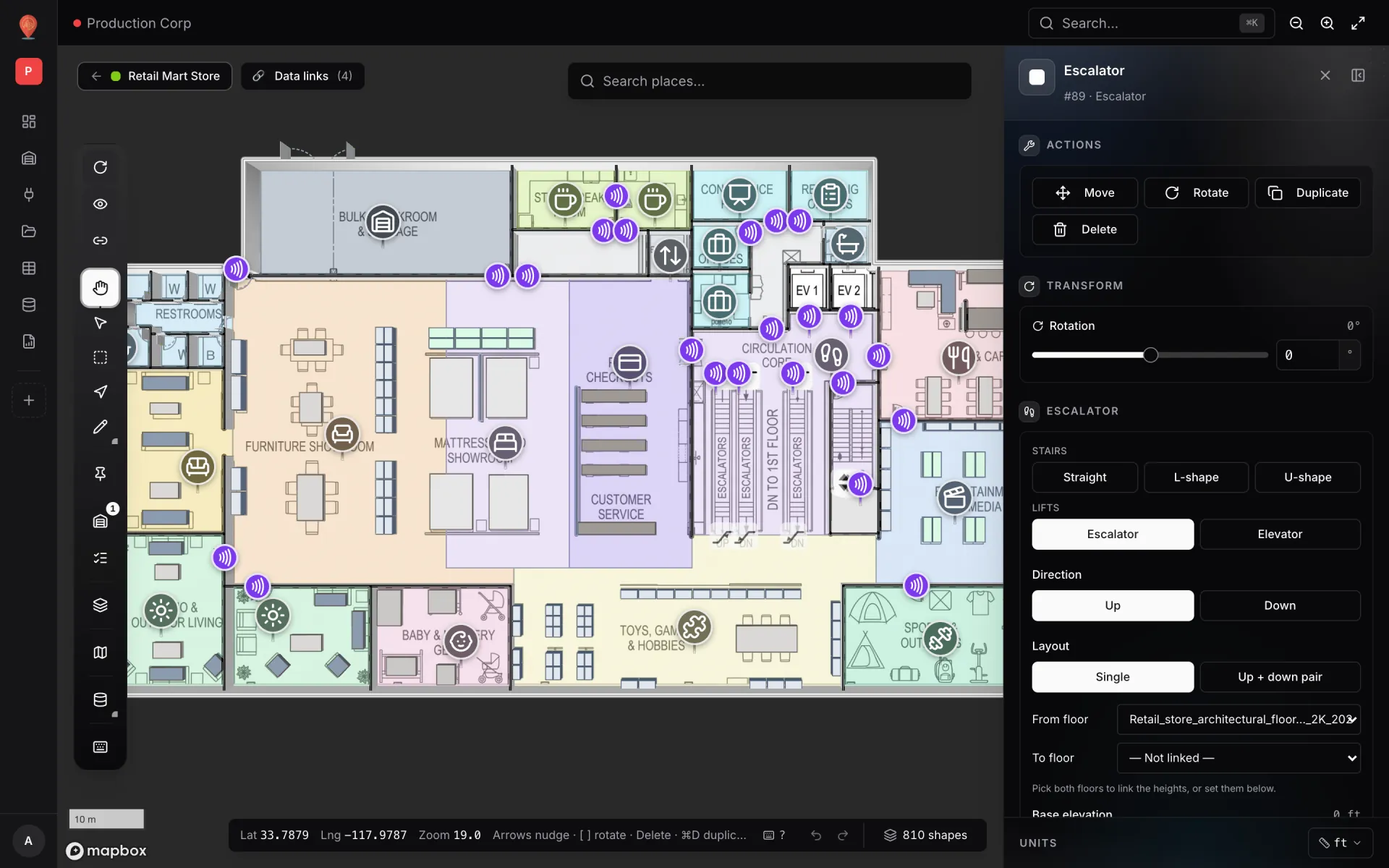
Escalators and lifts are their own tool. Select one and the side panel sets its kind (escalator or elevator), direction, a single unit or an up + down pair, and the floors it connects — so every level reads as part of one building rather than a stack of unrelated drawings. See lifts and escalators.
Live layers: what the multi-floor demo shows
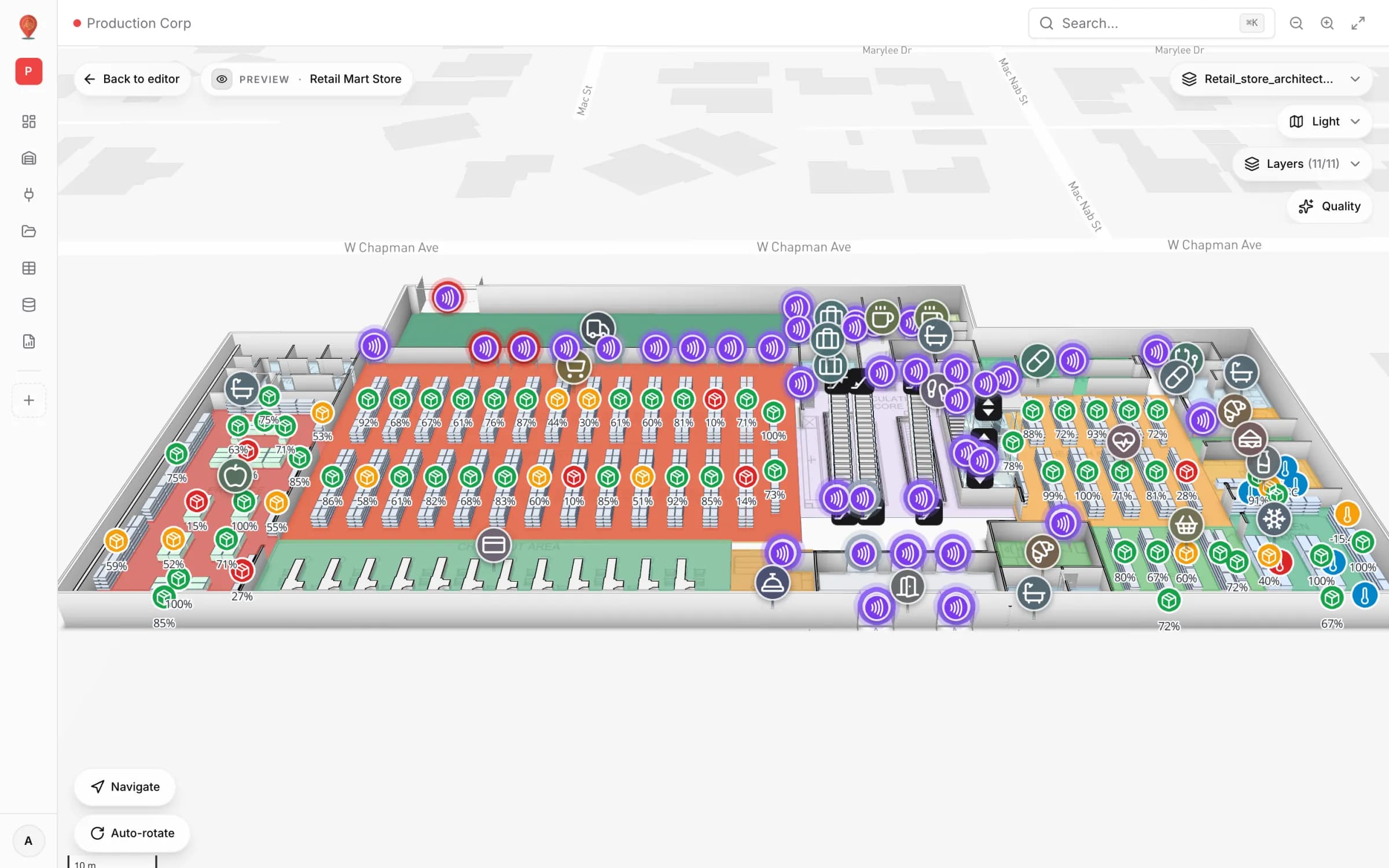
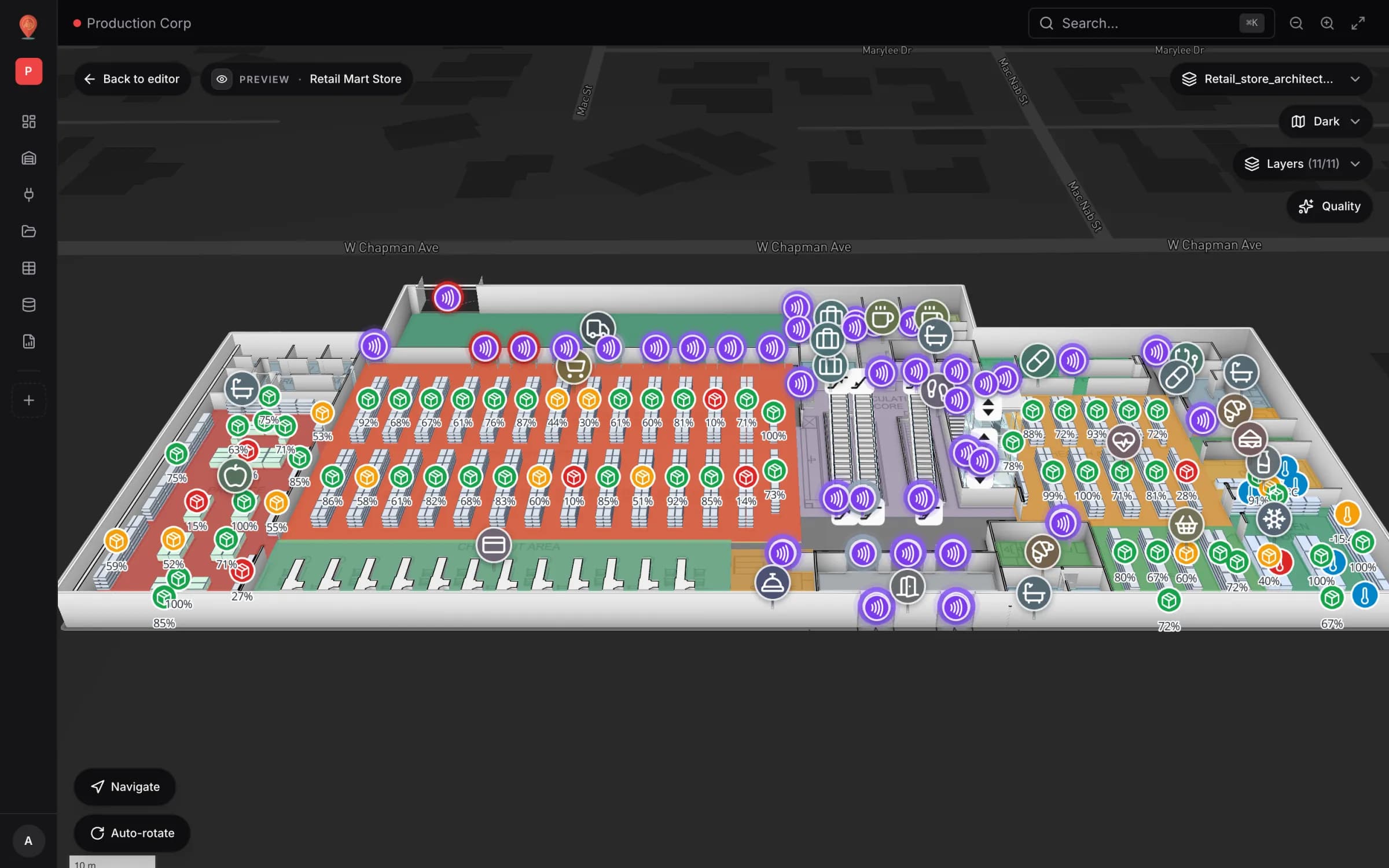
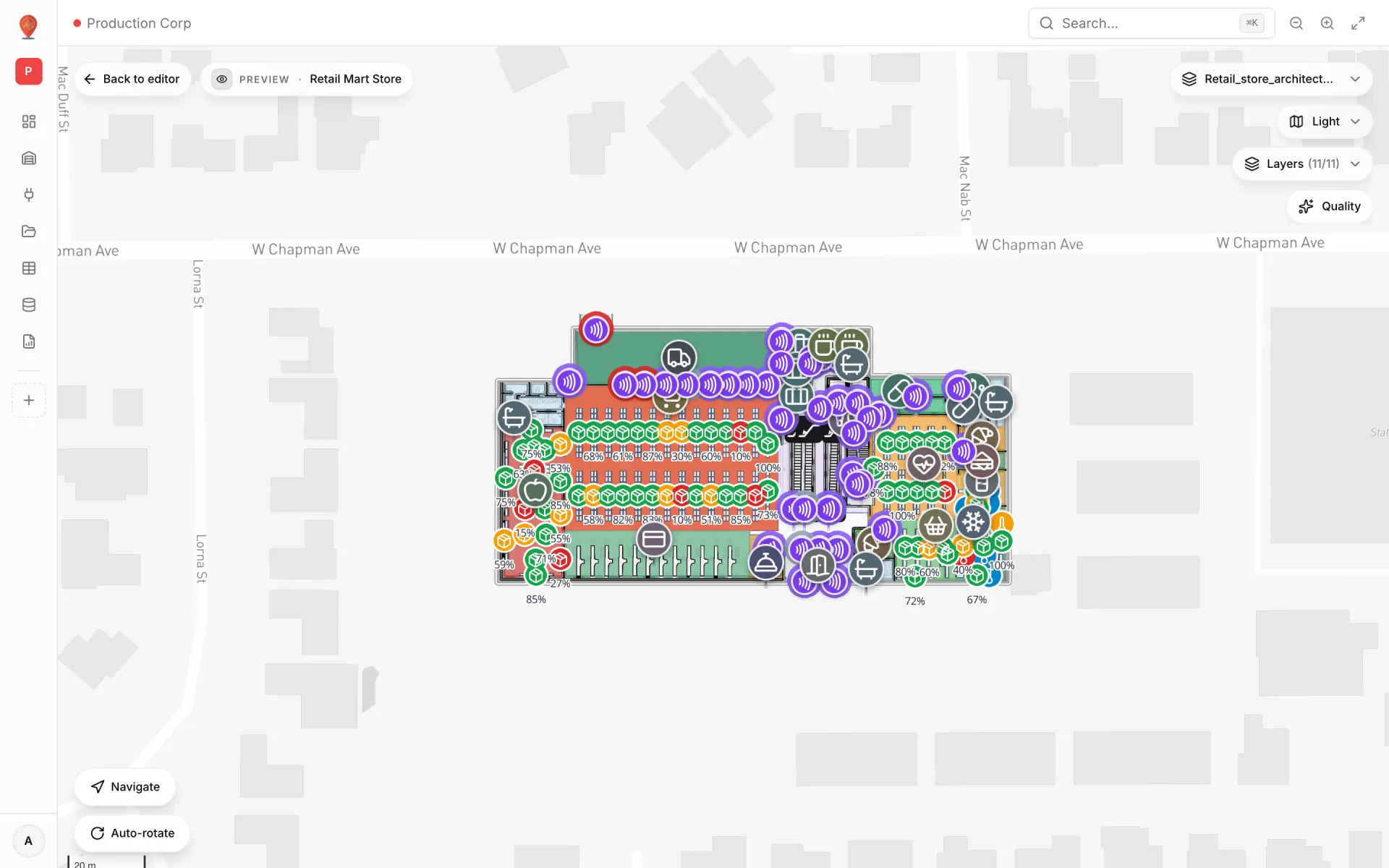
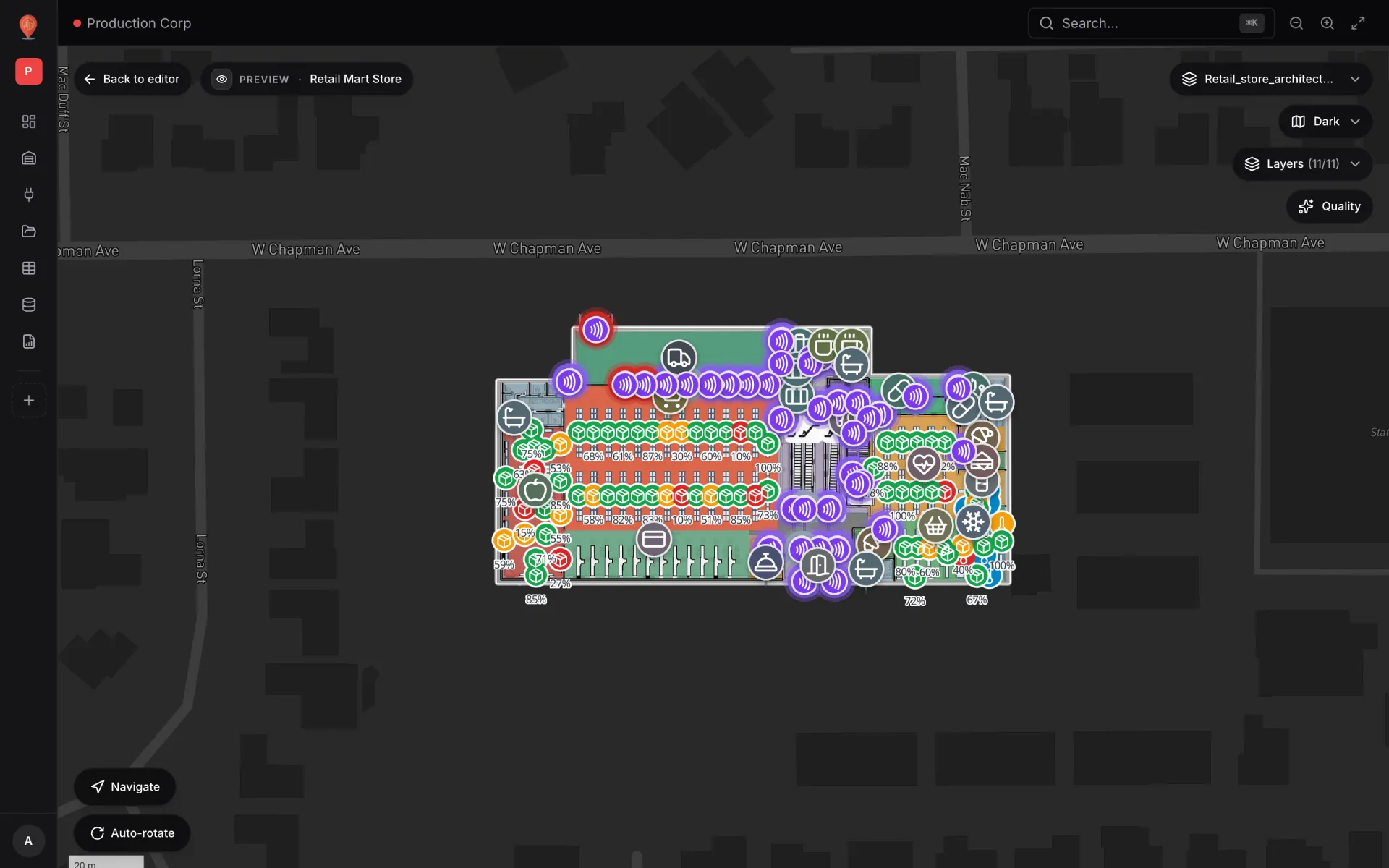
Retail Mart Store carries four live data links across its Ground floor, Level 1 and Level 2. Each one is a layer viewers switch on and off, and each maps neatly onto a mall job:
- Department stock status — a Color a shape link tints 40 departments from a status field, with three style rules: Critical red, Low amber, Healthy green. In a mall the same pattern colours units by lease status, open/closed, cleaning done, or a fault reported.
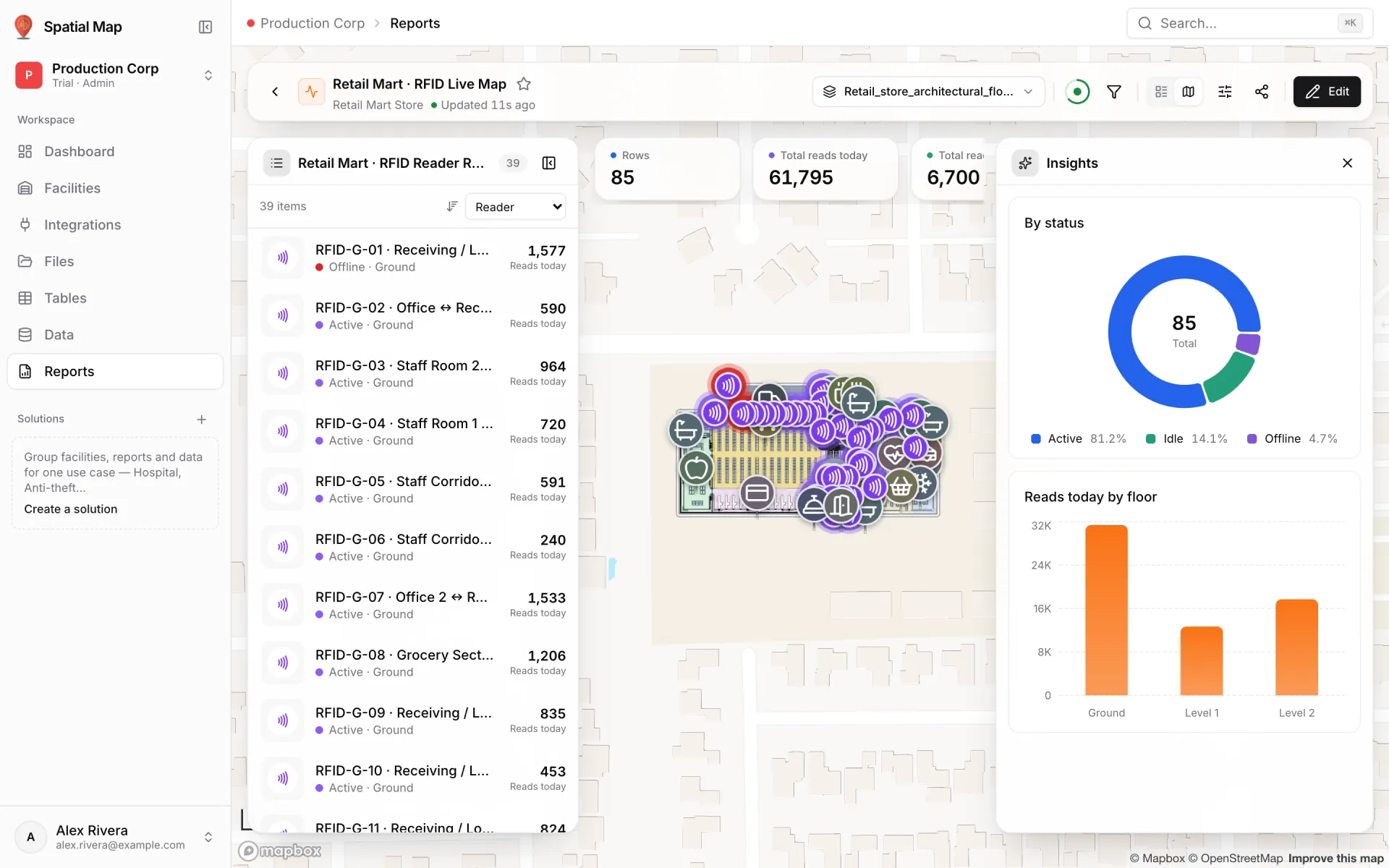
- RFID reader activity — 85 readers shown with Pulsing zone activity, coloured by style rules: Active violet, Idle grey, Offline red. Swap readers for door controllers, people counters or escalator status and you have a device-health layer.
- Cold-chain temperature — seven fridge and freezer probes as Live location markers labelled with their reading. A mall uses the same mode for any positioned sensor or tracked asset: security patrols, cleaning carts, maintenance kit.
- Shelf stock by rack — markers labelled with each rack’s fill percentage. For a centre: occupancy or footfall per unit as a number you can read at a glance.
Other display modes earn their place in a mall too. Camera field of view draws each camera’s cone from its yaw, field-of-view angle and view distance, so coverage and blind spots are visible in 3D. Heatmap of activity turns positioned events — anonymous detections, patrol check-ins — into a density map. Historical movement replays a table’s change log with a player at the bottom of the map. The display modes guide lists all of them.
From operational question to layer
The fastest way to design a mall operations map is to start from the questions the control room asks, then pick the data and display mode that answers each one:
| Question | Data you need | Display mode |
|---|---|---|
| Which units need attention right now? | One row per unit with a status | Color a shape + style rules |
| Are gates, readers and counters online? | One row per device with a status | Pulsing zone activity + style rules |
| Where are patrols, carts and equipment? | Positions (lng/lat) per asset | Live location marker |
| What does each camera actually cover? | Camera shapes with yaw, angle and distance | Camera field of view |
| Where does activity concentrate? | Positioned events | Heatmap of activity |
| How busy is each unit, as a number? | A count or percentage per unit | Value badge on shape |
Connecting your VMS, RFID middleware and BMS
There are no proprietary connectors to wait for. Any system that can send or serve JSON, or export a file, can feed the map:
- Tables with a write API — create a table, issue an API key per system, and let each system write rows. Changes show up on open maps without a refresh. Best for device status and positions.
- REST pull — Spatial Map fetches an endpoint on a schedule, with no auth, an API key, a bearer token or custom headers. A table can do this from our servers; an Integrations REST source is pulled by the browser while a map is open.
- File upload — CSV, XLSX, JSON or GeoJSON for data that changes slowly, such as a tenant list exported from the lease system.
- 1Create the source
Tables → Create new table (pick the kind: Polygon / area for units, Sensor, Camera, Asset (mobile) or RFID tag for devices), or Integrations → Add integration for a REST API or file.
- 2Create one data link per layer
In the editor, Data → Manage data links → New link: pick the source, the display mode, the shapes it attaches to and which floors it shows on.
- 3Style by value
Add style rules in the editor’s side panel — colour by status, team or threshold — and tick them on the link. Choose the fields for the tooltip and the content viewer.
- 4Group it as a solution
Collect the mall, its reports and its data sources into one solution so the operations team sees them, and integration health, on one page.
Wayfinding for guest services, reports for every team
The model that powers the control room also answers the oldest mall question: how do I get to that shop? Pick a start and a destination and Spatial Map draws a walking route around walls and through doors, with turn-by-turn directions. Routes stay on one floor; stairs, lifts and escalators are shown on the map so a visitor can see where to change level. See wayfinding.
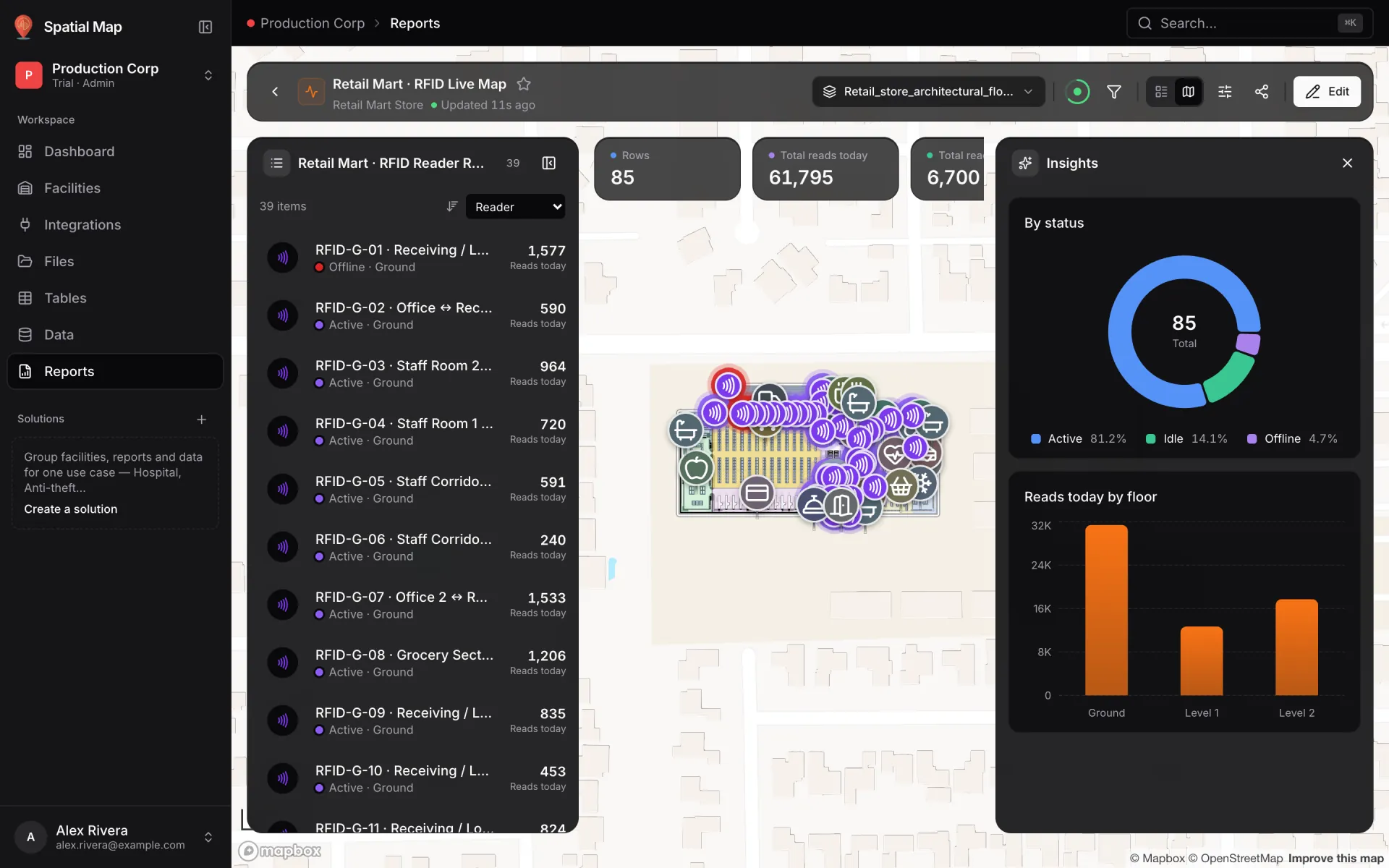
Behind the map, each stream deserves a report. The Retail Mart demo has RFID Live Map, a full-map report: the reader list on the left, the live store in the middle, KPIs on top and an Insights panel with status and per-floor charts. Reports can be filtered, starred and exported to PDF, Excel, CSV or JSON.
Tenants, contractors and your own team: who sees what
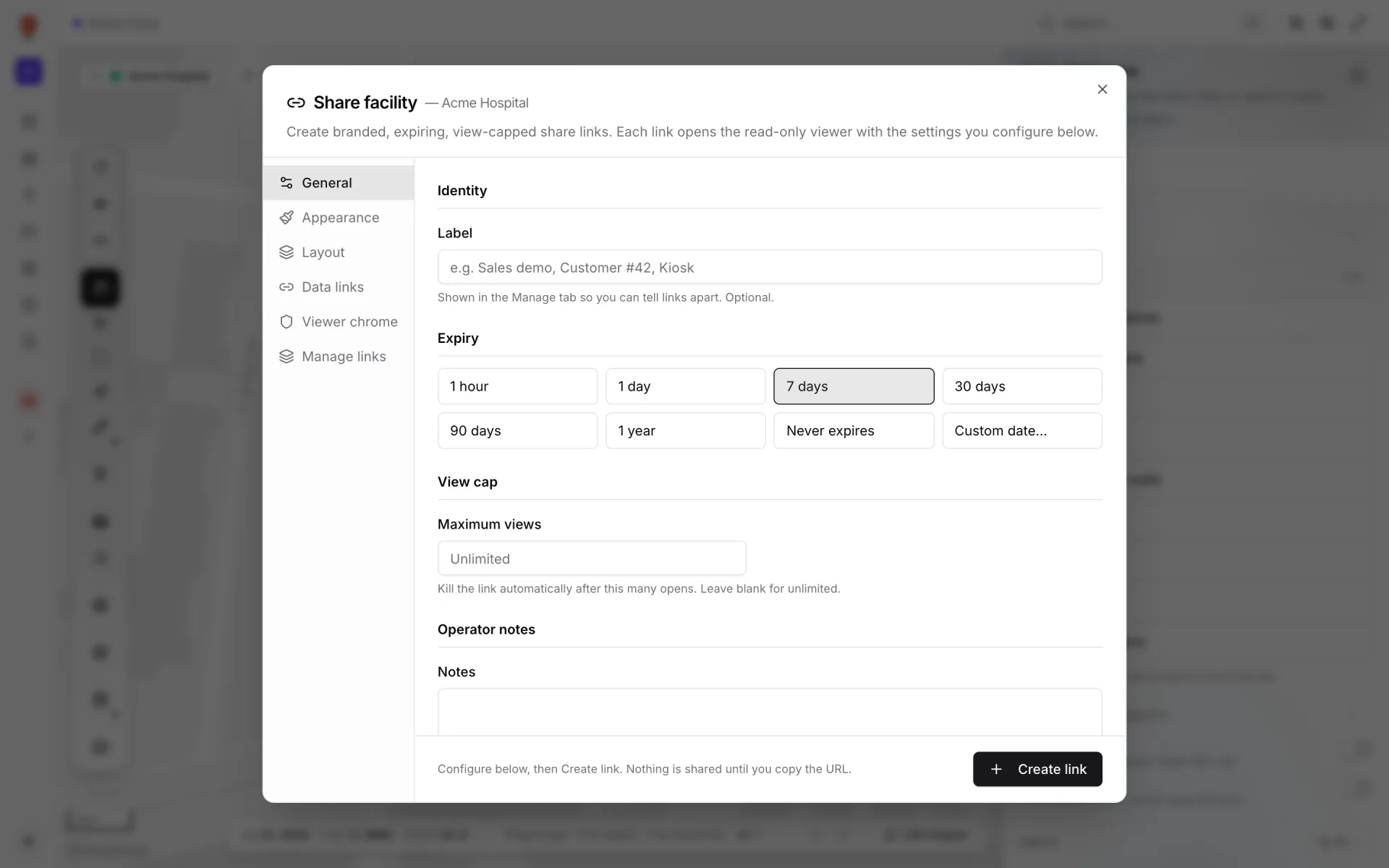
A mall is full of people who need a view of the building but should never edit it: anchor tenants, the cleaning contractor, the security provider, the fire consultant. Share links are built for that. Each facility can have many read-only links, each with its own settings:
- Lock the link to one floor, or let the viewer switch floors.
- Choose which data links it shows — the cleaning contractor sees cleaning assets, not device health.
- Hide whole shape kinds, or turn live data off entirely.
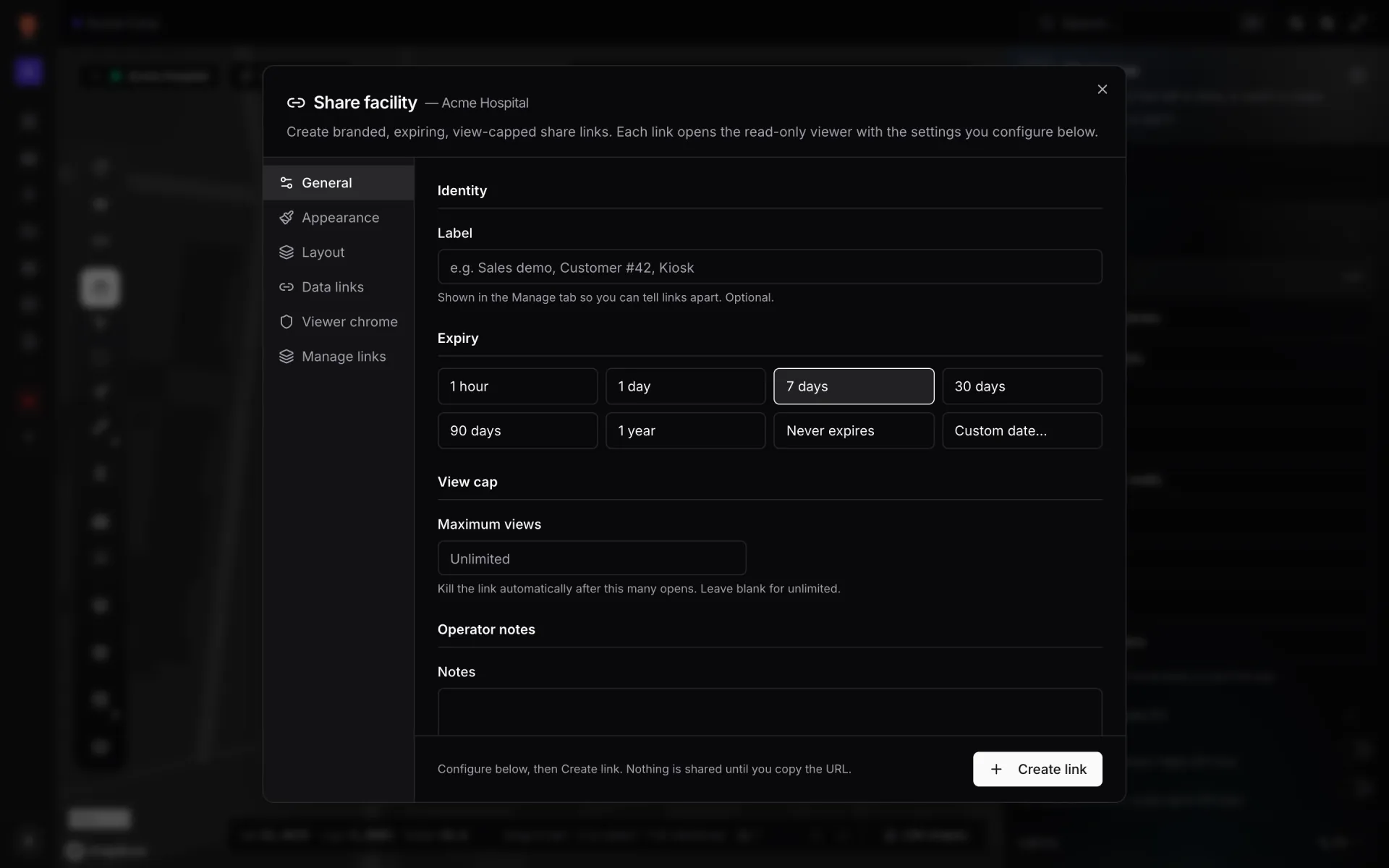
- Set an expiry (one hour to one year, a custom date, or never) and a maximum number of views; revoke it any time from Manage links.
Inside your organisation, members and roles control access. Invite colleagues by email — they need a Spatial Map account first — and give each one of four roles: Owner and Admin manage the workspace and its members, Editor changes the map, data links and reports, and Viewer looks without touching. See members and roles.
Try it on your own centre
A first version fits in an afternoon: place one floor’s plan, draw the anchor tenants and the main mall, and connect one live feed — usually device status or the delivery schedule. Add layers and floors as each system owner comes on board.
Start a 7-day free trial with no credit card; the trial holds up to 5 facilities. After that, Pro is $60/month or $600/year for up to 4 facilities — see pricing. For the bigger picture, visit the shopping mall solution page.
Try the platform your data belongs on.
Spatial Map turns spreadsheets, sensor streams, and CAD drawings into one live 3D facility view — nothing to install, seven-day free trial.
See it live
Keep reading
- IndustrySupply-chain visibility inside the plant: lines, WIP, racks and docks on one live mapSupply-chain dashboards follow the truck to the dock door, then go blind inside the plant. A live indoor map of lines, stations, racks and docks closes that gap. Here is how to build one, using our Summit Assembly Plant demo as the worked example.
- IndustryStadium and venue operations on a live 3D map: gates, seats, concourses and crewsOn match day, gates, stewards, concessions and guest services each watch a different screen. A live 3D map of the bowl and concourses is where they agree on location. Here is how our Crown Park Stadium demo is built — 30,513 seats included — and how Lakeside Convention Center uses the same tools for events.
- IndustrySupermarket digital twin: staff, traffic and safety on one mapThe POS knows what sold, the rota knows who is in, the inventory system knows what is low — but none of them can tell a store manager where the problem is right now. A live 3D store map can.