
Colour rooms by live status
A Room status data link reads a rooms table and tints each room by its status. The link finds each room by name, and style rules pick the colour. When a row changes, the tint changes on every open map. The table and names below are an example — use whatever your own system calls them.
Steps
- 1
Name the rooms
Each room must be an area whose name matches the room in your data — "Room 101", "Room 102", "Meeting Room A" and so on. Matching ignores case and punctuation, so "room101" finds Room 101. See Draw rooms, walls, stairs and lifts.
- 2
Create the rooms table
Go to Tables → Create new table, name it "Rooms" and pick Polygon / area. Add the fields: room_name and status (Text, Required), notes (Text) and minutes_in_status (Number). Remove starter columns you don’t need and click Create table.
- 3
Fill it
Add one row per room on the Records tab with Add row (status Available, In use, Cleaning or Out of service), or have your booking or facilities system write them through the table write API.
- 4
Create the link
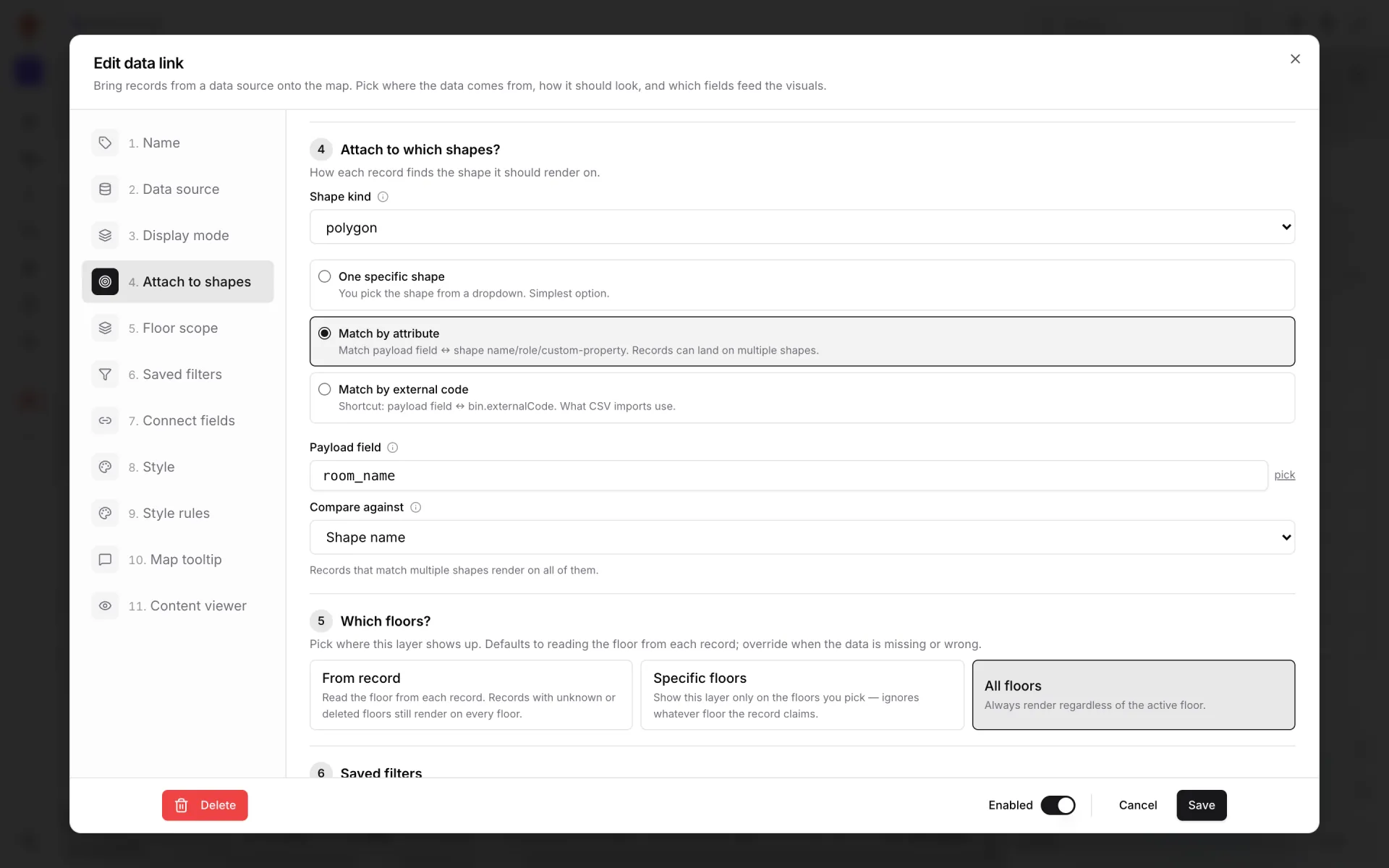
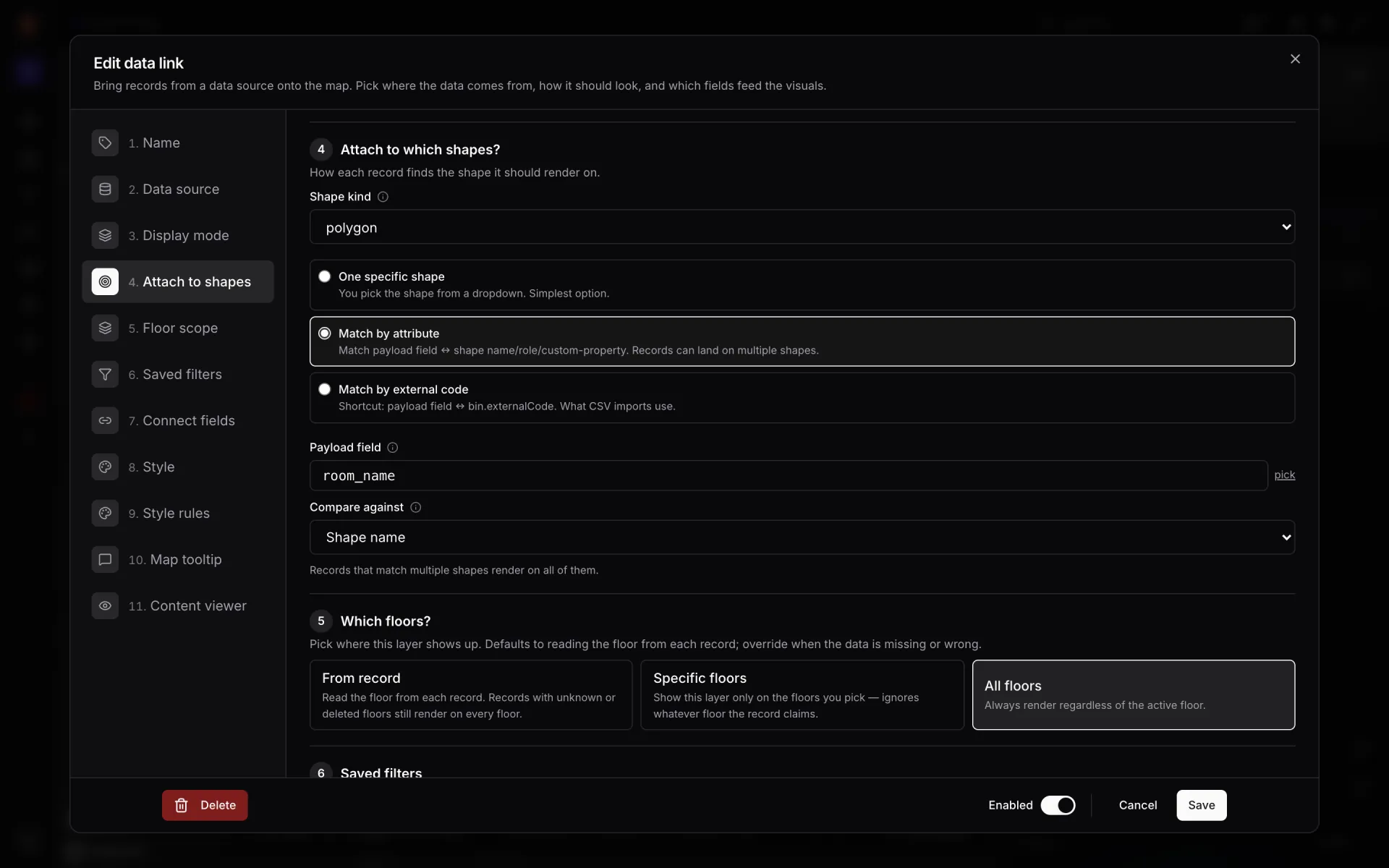
In the editor open Data links → New link. Name it "Room status", pick the table under Pick a data source and choose Color a shape. Under Attach to which shapes? set Shape kind to polygon, choose Match by attribute, set Payload field to room_name and Compare against to Shape name. Add room_name, status and notes to the Map tooltip fields and save.
- 5
Create the status rules
Close the dialog and, with nothing selected, scroll the side panel to Style rules → Add rule. Name it "Room available", Scope Polygon, pick the link under Suggest fields from data-link layer, add the condition status = Available and set Paint when matched → Fill to green. Repeat for "Room in use" (amber), "Room cleaning" (purple) and "Room out of service" (grey).
- 6
Add an overdue rule — and order it
Add "Cleaning overdue": Combine → All match (AND), conditions status = Cleaning and minutes_in_status > 60, Fill red. Rules run in ascending Priority and the first match wins, so give this rule the lowest number (for example 5, with the status rules at 10–20); otherwise "Room cleaning" matches first and the red never shows.
- 7
Tick the rules on the link
Edit the link again and, in its Style rules step, tick the five rules (the step counts how many are picked), then Save. Open Preview: change a row’s status in Records and the room re-tints without a refresh.
Related
More live data on the map recipes
- Track staff and equipment with live markersShow staff badges and RTLS-tagged equipment as named live markers that move as positions update, with a detail drawer and history for every asset.
- Stock by bin on a rack gridDraw racks, import stock per bin from a spreadsheet and colour every bin occupied, empty, blocked, reserved or picking with rack-cell style rules.
- Environmental sensors with live readings on the mapPlace temperature, CO₂, pressure and fridge sensors on the floor plan with their latest reading as the label, coloured by status with marker style rules.
- RFID gate readers on a retail floorShow every RFID reader in a multi-floor store as a pulsing ring with its reads in the last hour, coloured active, idle or offline, plus a full-map report.