
Retail footfall heatmaps: map store and mall traffic zone by zone
Retail footfall heatmaps zone by zone: where people counters go, which display mode fits your data, and colour thresholds set with style rules.
What this guide covers
The four metrics worth painting
Retail teams drown in counting data and starve for decisions. Four metrics do the work of dozens: entries per zone per hour, capture rate (entries into a store or department ÷ entries into the space around it), dwell time, and cross-visit. Everything else is a variation. See how this fits a retail store and a shopping mall.
Where the counters go
- Every building entrance — the denominator for everything else.
- Every department or tenant entrance you want a capture rate for — the metric needs a pair.
- Corridor pinch points — dwell only makes sense on a stretch you can define.
- The food court or café perimeter — often the earliest sign of how the day will go.
- Escalator and lift landings — the anchor for cross-floor visits in a multi-level building.
Zone counts or positioned events: pick the right display mode
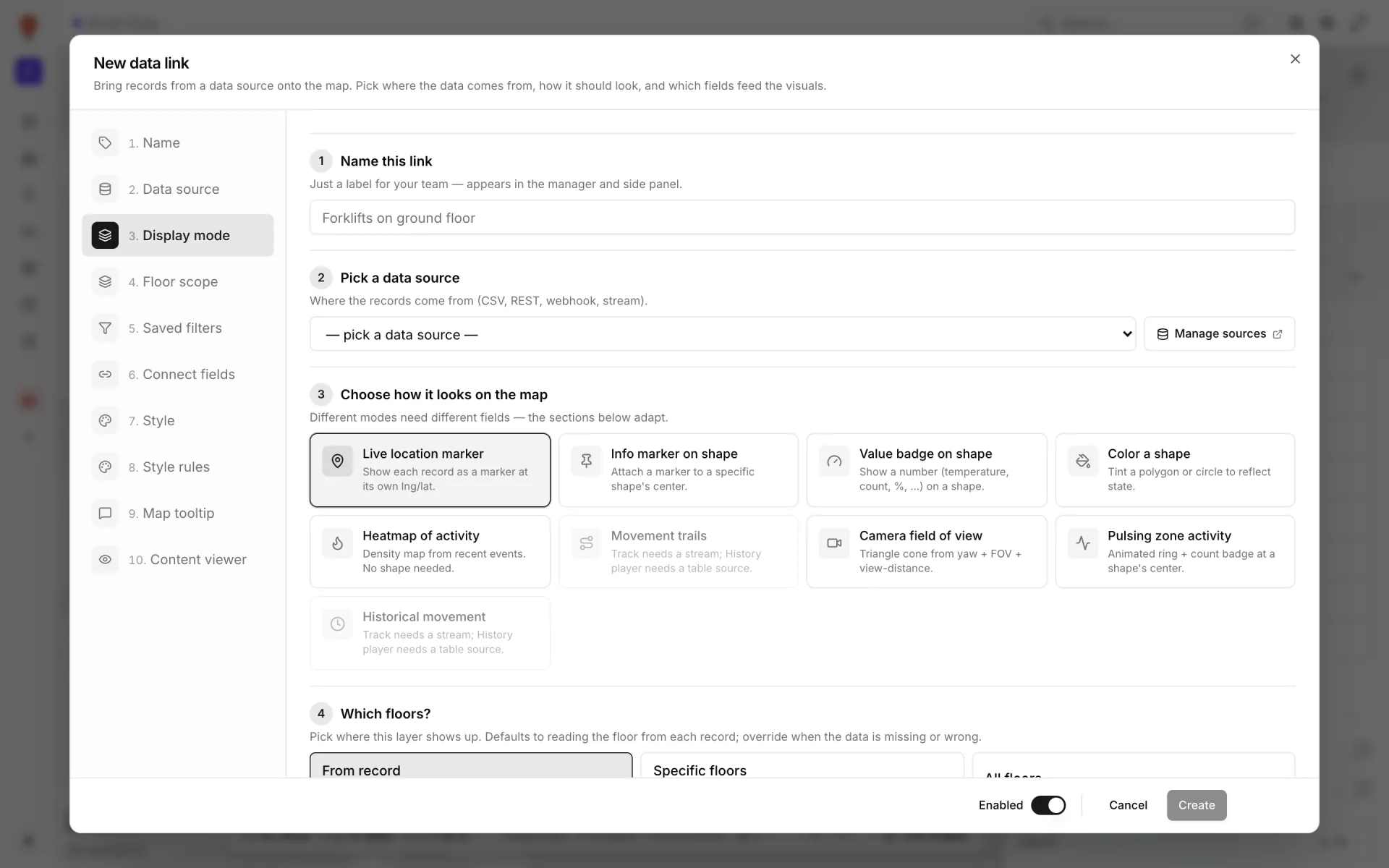
Footfall data arrives in one of two shapes, and Spatial Map has a display mode for each. Most people counters report a number per zone per time bucket. Camera analytics, Wi-Fi positioning or RFID reads can instead give you one record per detection with its own longitude and latitude.
| What your system sends | Display mode | What appears on the map |
|---|---|---|
| A count per zone (entries, exits, dwell) | Color a shape | Each area tinted by its own numbers; style rules set the colour bands |
| A count you want to read as a number | Value badge on shape | The value (e.g. 46 entries or a 12 % capture rate) written on the area |
| One record per detection, with lng/lat | Heatmap of activity | A density glow where detections cluster — no shapes needed |
Heatmap of activity counts records, not values: each record adds the same weight, scaled by the Heatmap intensity slider (0.5–3×), and Heatmap radius (10–80 px) controls how far each one spreads. For a table source, Density source decides what is counted: Live rows (one per record), or Change history (weighted by events) over the last hour, 24 hours, 7 days or 30 days — so a table you update on every detection builds up a picture of where people actually went.
How the demo supermarket paints its traffic
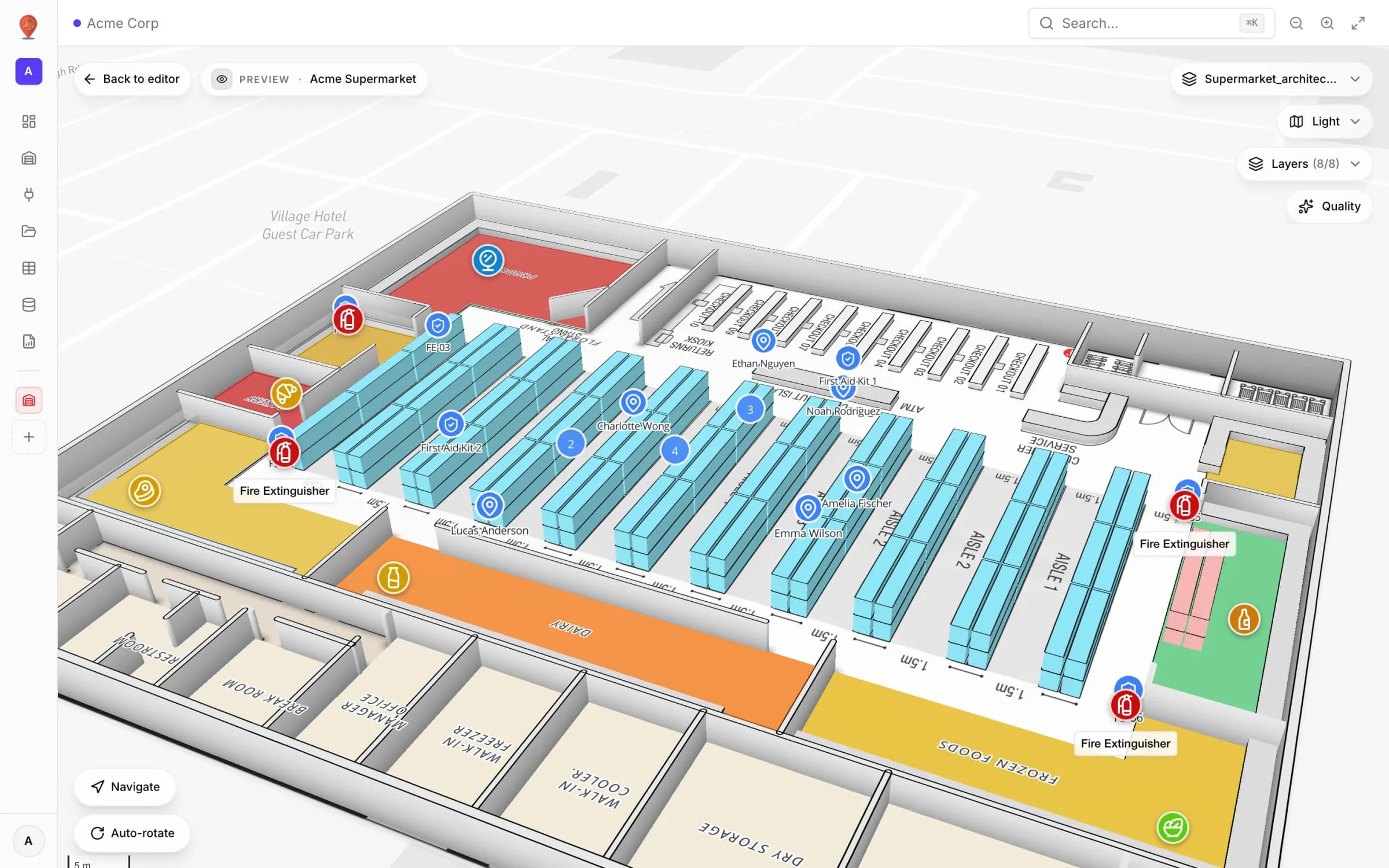
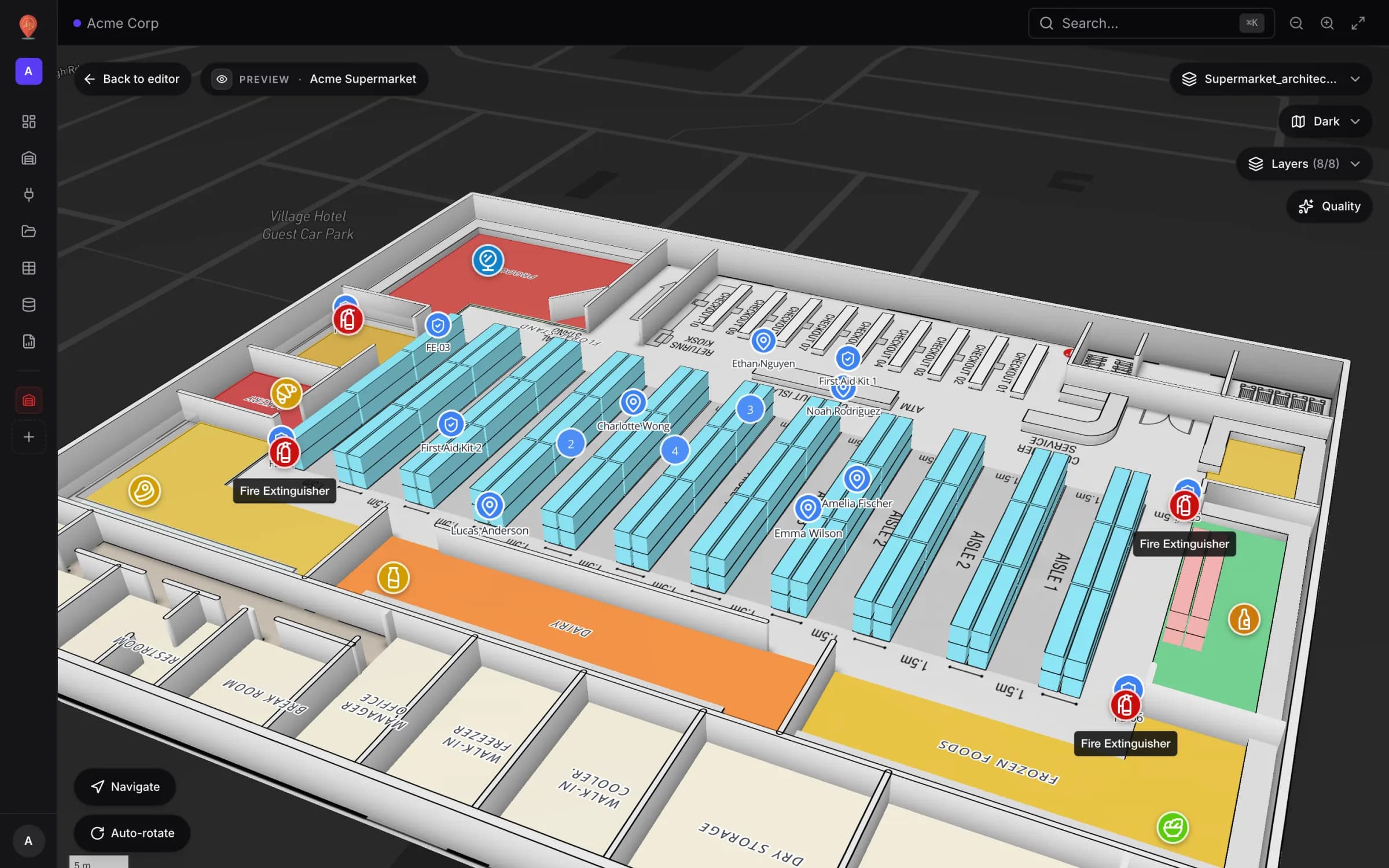
Our Acme Supermarket demo keeps footfall in a table called Customer Traffic (kind Polygon / area). Each row is one department in one five-minute bucket, with zone_name, entries, exits, dwell_median_s and unique_visitors. Eight departments are counted, among them Produce, Dairy, Bakery, Frozen Foods, Deli, Meat & Seafood and Wine Area.
A Color a shape data link named “Customer Traffic (heat)” matches each row to the area whose name equals zone_name. Five style rules, checked top-down with the first match winning, turn the entries value into a colour band:
| Style rule | Condition | Fill |
|---|---|---|
| Traffic — Very hot | entries ≥ 40 | Red |
| Traffic — Hot | entries ≥ 30 | Orange |
| Traffic — Warm | entries ≥ 20 | Yellow |
| Traffic — Cool | entries ≥ 10 | Green |
| Traffic — Cold | everything else | Blue |
Hover an area and the tooltip shows the bucket time, entries, exits, median dwell and unique visitors. The same map carries the Employees and Safety Assets layers, so “Bakery is red and nobody is near it” is visible at a glance. The full store walkthrough is in our supermarket digital twin post.
Wire it up end to end
- 1Get the counts in
The simplest path is a table: Tables → Create new table, kind Polygon / area, then create an API key so your counting system writes rows itself (each key is limited to 60 requests a minute). If the vendor exposes a JSON endpoint, the table’s Pull from a REST API option fetches it on a schedule from our servers. Integrations → Add integration also offers REST API (pulled by the browser while a map is open, so the endpoint must allow CORS) and Upload file for CSV, XLSX, JSON or GeoJSON exports.
- 2Name the areas to match
In the editor, make sure each department or unit is an area whose name equals the zone name in your data. Matching ignores case and punctuation.
- 3Create the data link
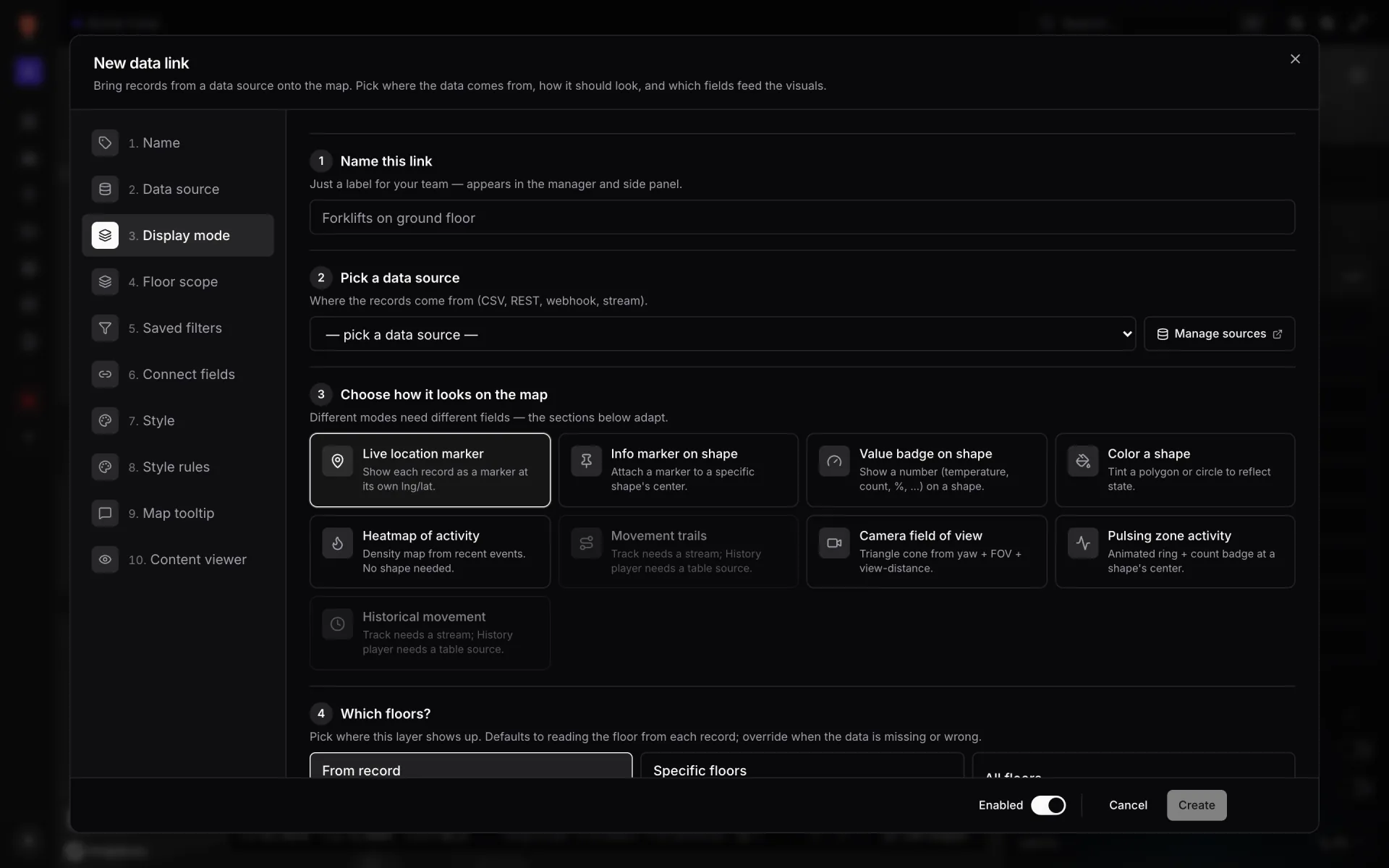
Data → Manage data links → New link. Pick the table as the data source and Color a shape as the display mode, then attach it to areas by attribute: your zone field compared against the shape name.
- 4Add the colour bands
With nothing selected, scroll the editor’s side panel to Style rules and click Add rule for each band: a condition such as entries ≥ 40 and a Fill colour under Paint when matched. Back in the data link, tick the rules in its Style rules section.
- 5Add capture rate if you need it
Compute the ratio upstream (store entries ÷ zone entries), send it as a field, and add a Value badge on shape link that writes it on each frontage.
- 6Give viewers one-click views
Under Saved filters, add a filter such as “Hot zones only” (entries ≥ 30). Viewers pick it as a chip; they never edit the conditions.
What the tenant or area manager should see
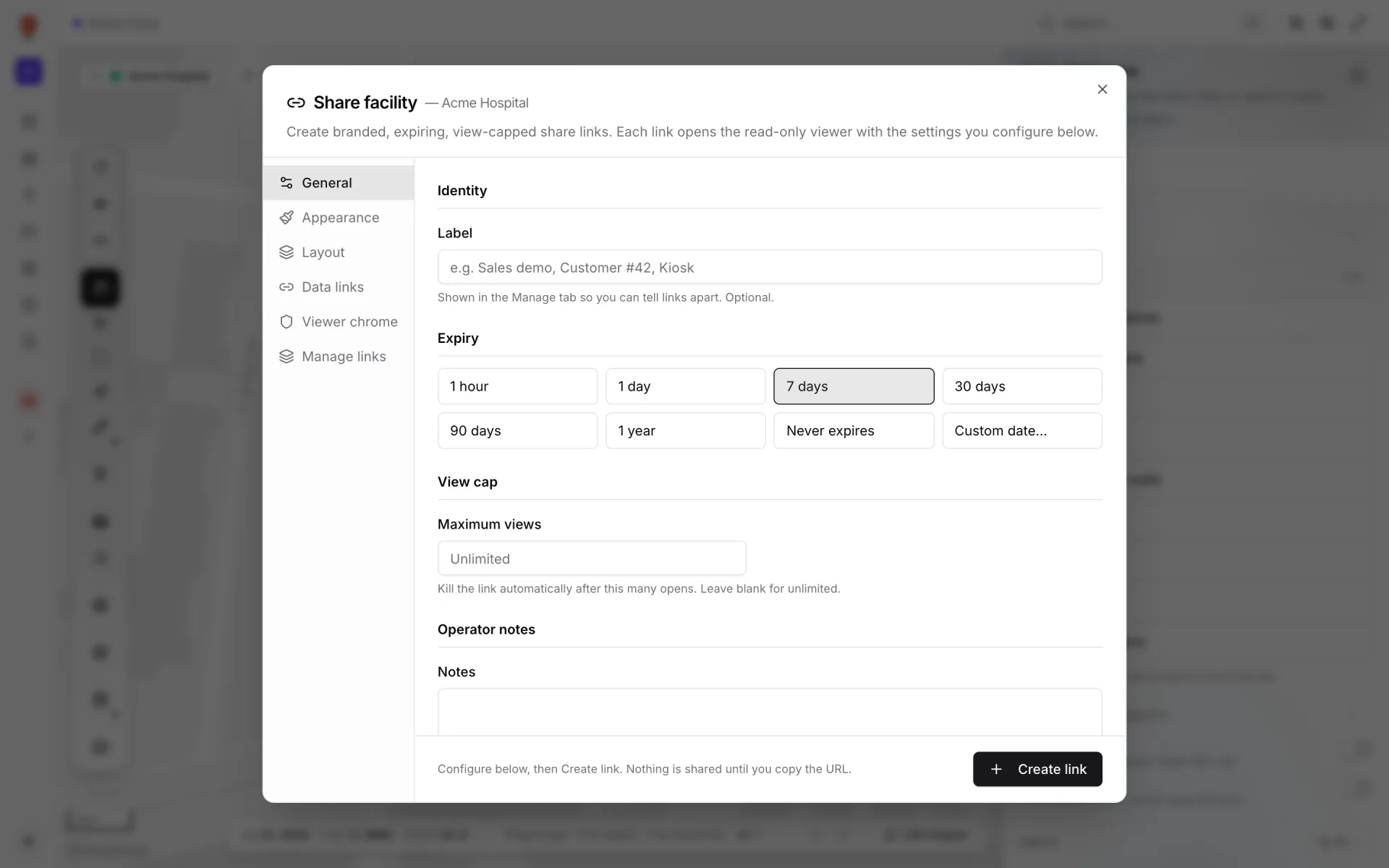
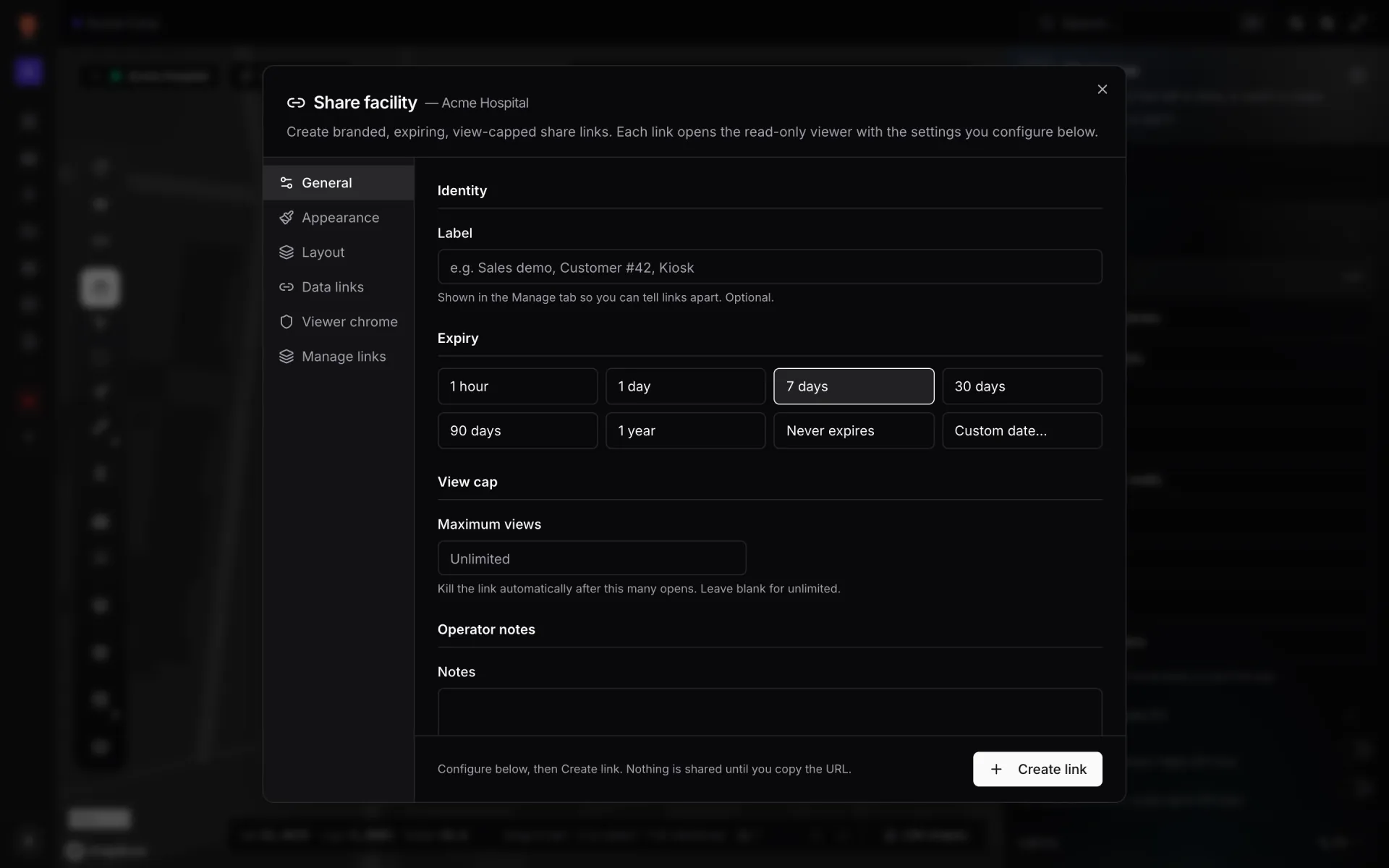
Conversations with a tenant or an area manager go better when they can see their own frontage on the map. A share link opens a read-only viewer without an account. In Share facility you give the link a label, an expiry (one hour to one year, a custom date, or never) and an optional cap on the number of views; choose which data links it shows; and can lock it to one floor. Revoke it any time from Manage links.
For the trend rather than the live picture, build a report on the same table — the demo workspace has a Customer Traffic report for the supermarket — and export it as PDF, Excel, CSV or JSON.
Try the platform your data belongs on.
Spatial Map turns spreadsheets, sensor streams, and CAD drawings into one live 3D facility view — nothing to install, seven-day free trial.
See it live
Keep reading
- IndustrySupply-chain visibility inside the plant: lines, WIP, racks and docks on one live mapSupply-chain dashboards follow the truck to the dock door, then go blind inside the plant. A live indoor map of lines, stations, racks and docks closes that gap. Here is how to build one, using our Summit Assembly Plant demo as the worked example.
- IndustryStadium and venue operations on a live 3D map: gates, seats, concourses and crewsOn match day, gates, stewards, concessions and guest services each watch a different screen. A live 3D map of the bowl and concourses is where they agree on location. Here is how our Crown Park Stadium demo is built — 30,513 seats included — and how Lakeside Convention Center uses the same tools for events.
- IndustryMall operations on one live 3D map: floors, units, devices and tenantsSecurity, cleaning, the loading dock, building systems and leasing each live in a different tool. A live 3D map of every floor is the one place they can agree on location. Here is how to build one, using our multi-floor Retail Mart demo as the worked example.