
Indoor wayfinding software: turn-by-turn directions on your floor plan
How Spatial Map turns walls, doors and racks into walkable routes, with turn-by-turn directions in the viewer’s Navigate panel and on share links.
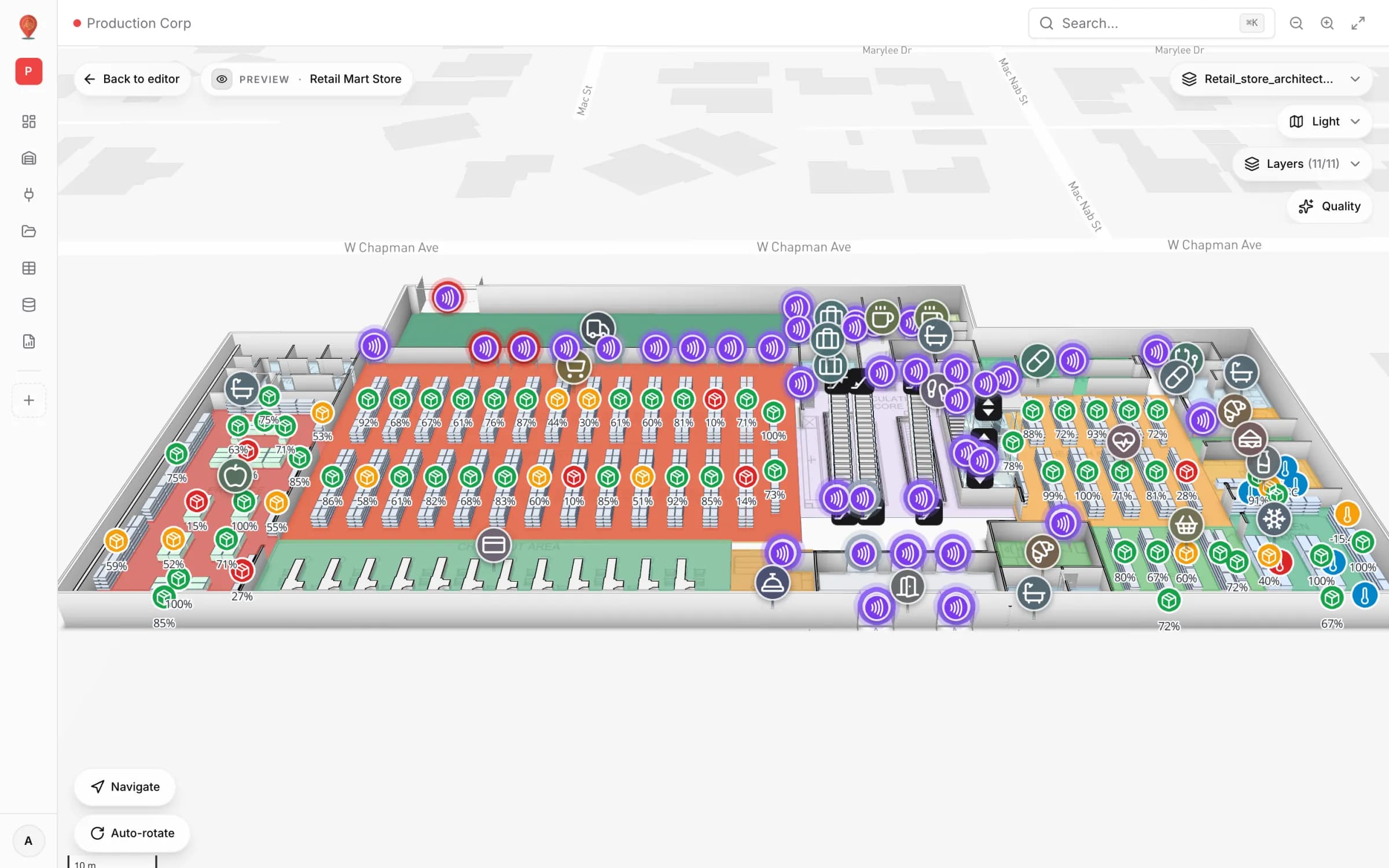
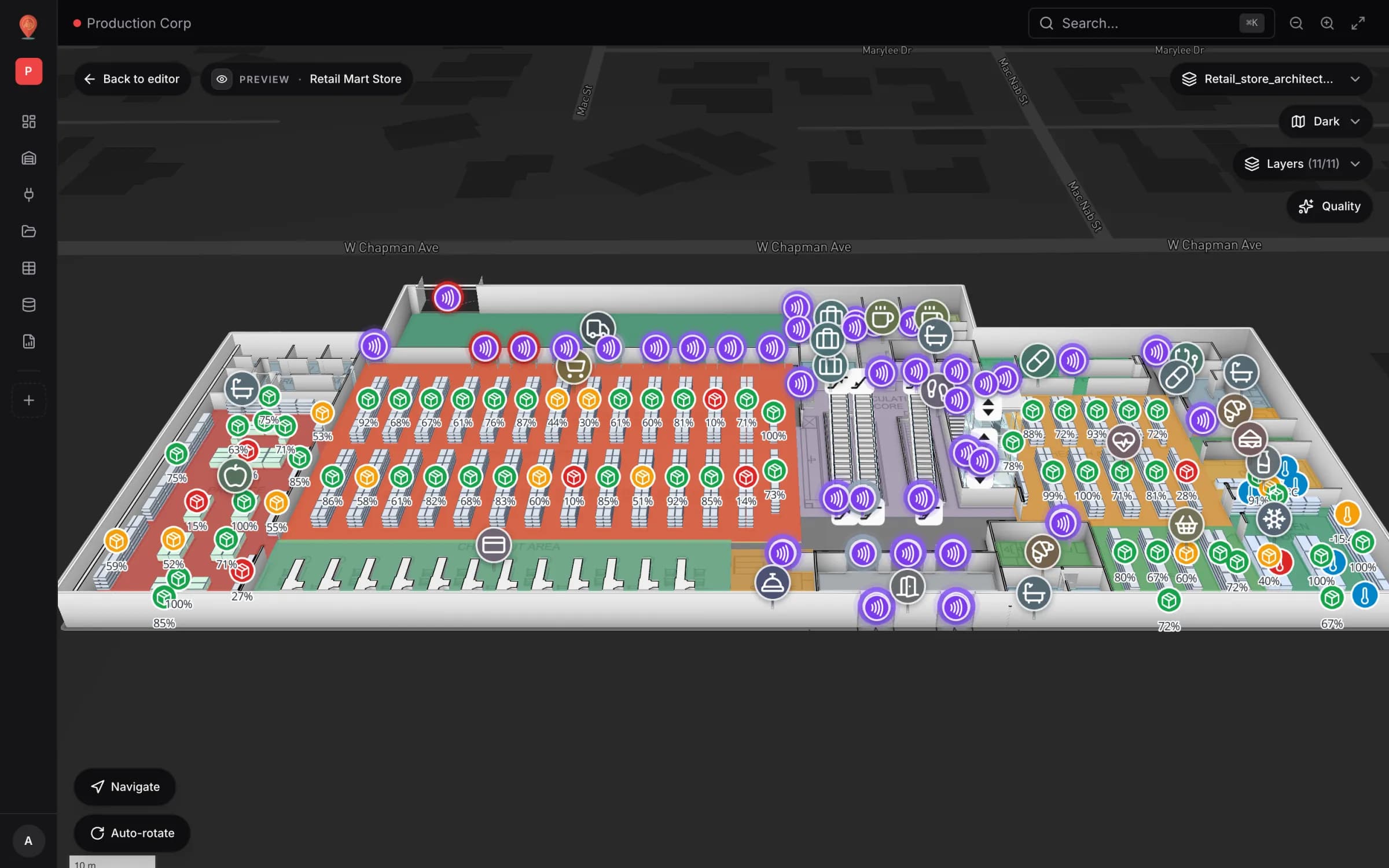
The short version
Why airports, venues, malls and big stores need indoor wayfinding
GPS stops at the front door. Inside an airport terminal, a convention center, a university campus, a shopping mall or a large store, people find their way by signs, by asking someone, or by guessing, and every wrong turn has a cost. In a terminal it is a passenger who heads for the wrong end of the concourse; at a convention it is a visitor who misses the start of a session. In a store it is a shopper who gives up on the department they came for, or a new team member who can’t find the stockroom.
Indoor wayfinding software needs three things: an accurate indoor map, a routing engine that understands walls and doors, and directions people can follow. The expensive one is usually the first: keeping a separate wayfinding dataset in sync with a building that changes every quarter. Spatial Map does not keep a separate dataset. Routes come from the same floor plan you maintain for operations, so when a wall moves in the editor, the directions move with it. If you are planning an airport, venue or mall map, a retail store map or a campus or office map, wayfinding comes with the drawing. The demo workspace has several buildings to explore: Silverbay International Airport Terminal 2, Lakeside Convention Center, Westbrook University, Harborview Corporate Campus and the three-floor Retail Mart Store.
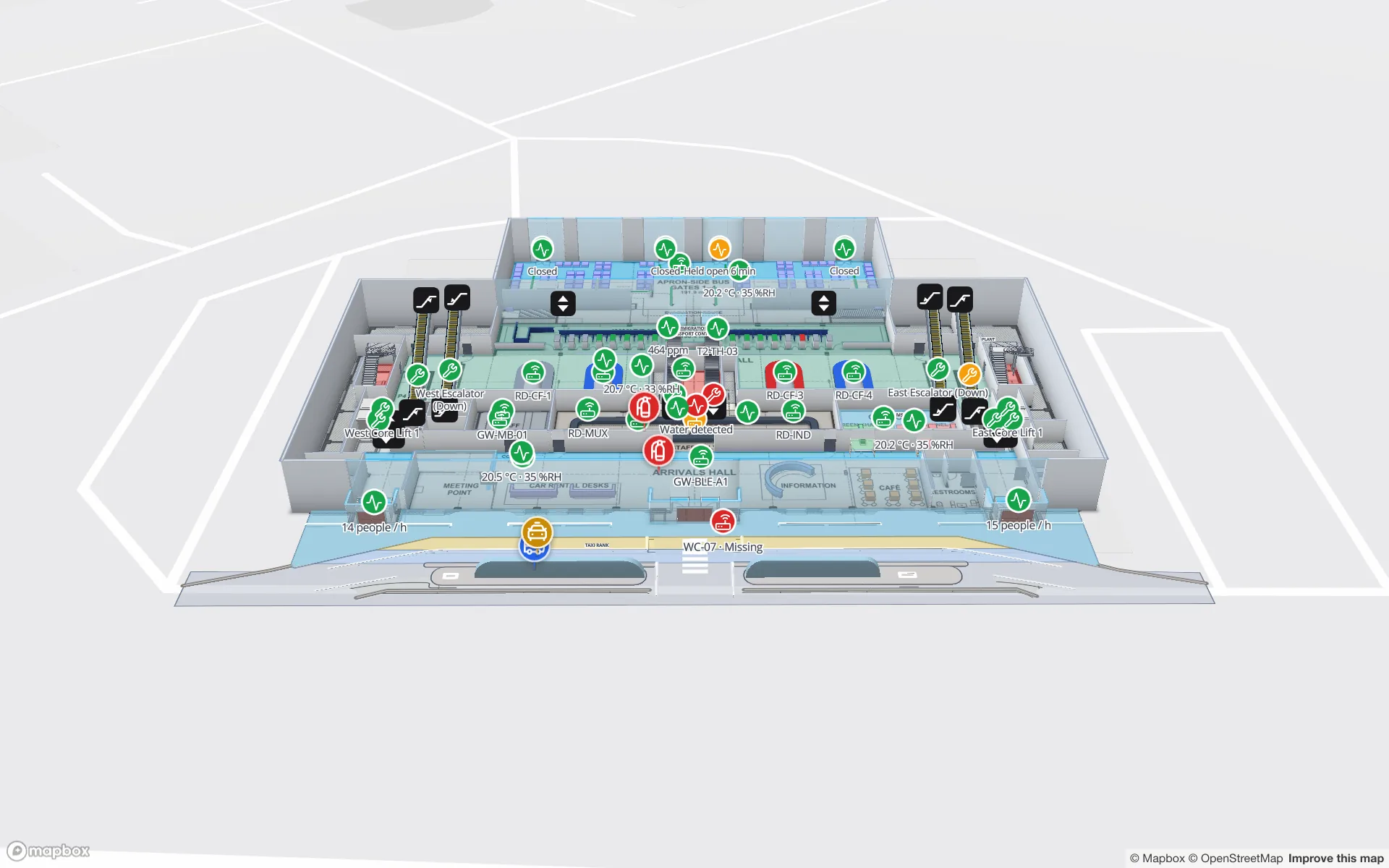
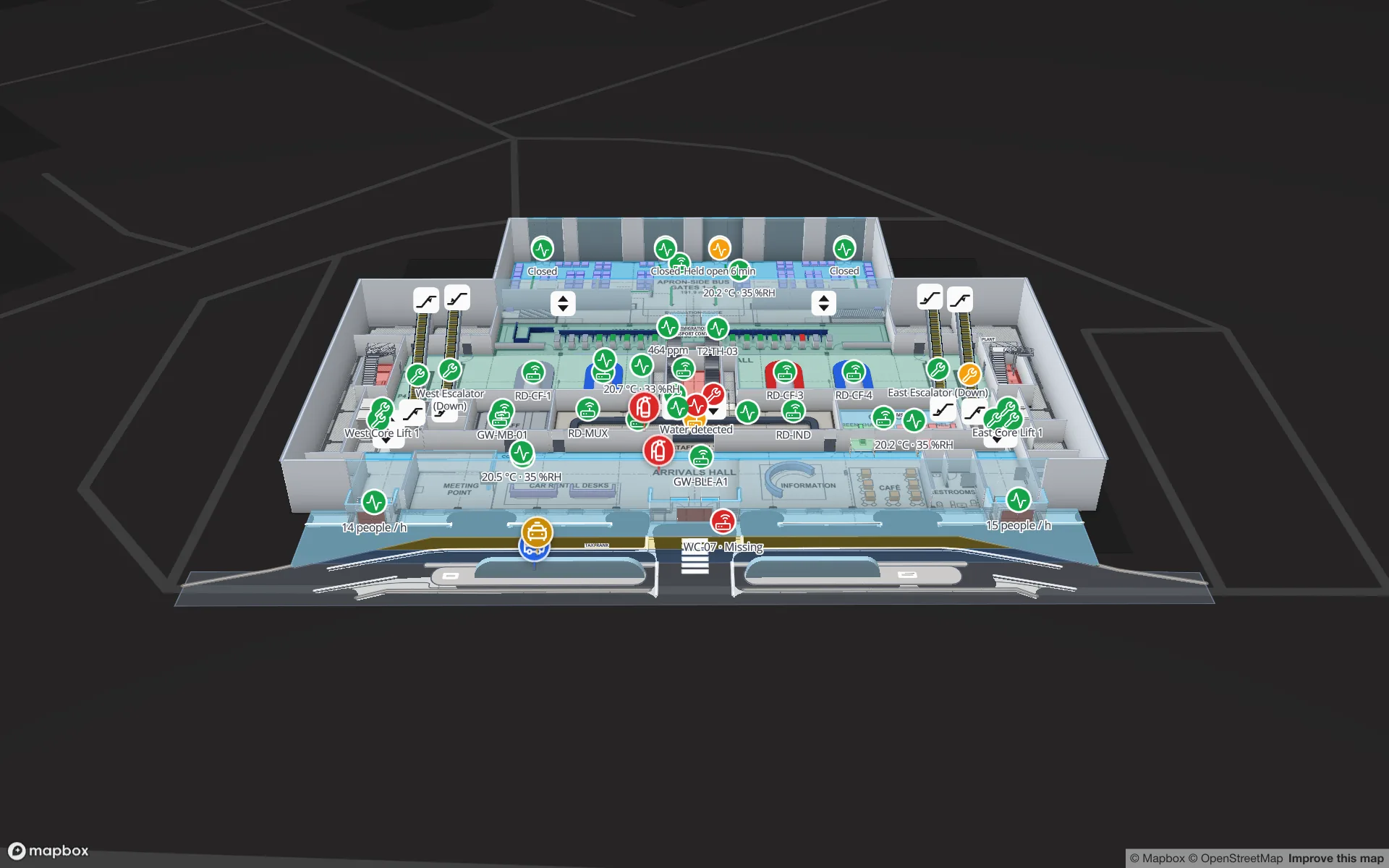
How the walkable network is built from your drawing
There is no wayfinding layer to author. When someone asks for a route, Spatial Map reads the shapes on the current floor and turns them into a walkability grid of 25 cm squares, fine enough to thread a standard door with room to spare. Each shape kind plays one role:
| Shape kind | Role in routing | What to check |
|---|---|---|
| Area (P) | Walkable floor: rooms, halls, shops, departments | Areas never block on their own; walls do |
| Aisle / wall (L), including Magic walls | Barrier, as thick as the line’s wall thickness | Every aisle line counts as a wall, so don’t use one as a centre line |
| Door (D) | Opening: clears a gap in the wall it sits on | A wall with no gap or door can’t be walked through |
| Rack (G) | Obstacle: every rack cell is blocked | Shelving is routed around, through the aisles |
| Stairs, lifts, escalators (S) | Not used: the route doesn’t change floor | Use them as the handover point between floors |
| Route (Y) | A drawn path; the router ignores it | Use it for fixed routes you want everyone to see |
| The floor-plan image | Ignored | Walls that exist only in the picture block nothing until you draw them |
Then A* does the search. It moves in four directions on the grid with a small cost for every change of direction and a slight preference for cells away from walls. The raw result is cleaned up in a few passes: straight runs are merged, corners are pulled tight and each segment is centred in its corridor. What you see is a few long, clean legs that turn at junctions, not a staircase of grid steps.
- Clearance. Walls and racks are padded by about 0.3 m, roughly half a person’s width, so a gap narrower than about 0.6 m counts as closed.
- Hidden shapes don’t count. Hide a door in the editor and the router treats it as shut.
- Clicks inside an obstacle snap. Click inside a rack or a wall and the point moves to the nearest open spot within 3 m.
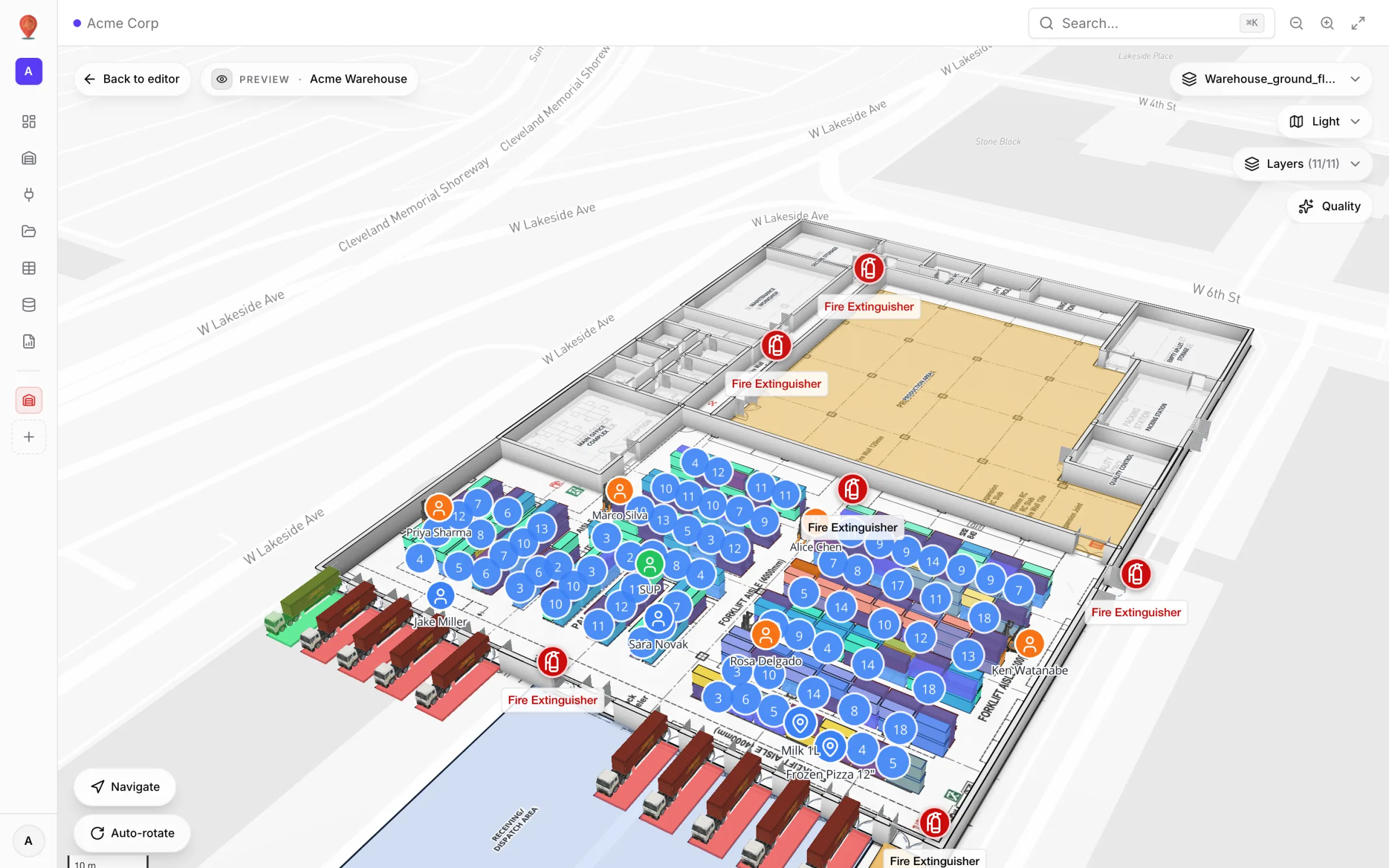
Turn-by-turn indoor directions in the Navigate panel
In the read-only viewer, a Navigate button sits at the bottom left of the map, above Auto-rotate. Press it and it turns green and reads Stop navigating; while it is on, clicks on the map place route points instead of opening shape details. Click your start point, then your destination, and the route is drawn with a Directions panel beside it. A third click starts a new route. In pitched 3D views the line is lifted over raised areas so it stays visible.
The Directions panel works the way a pedestrian navigation app does:
- A summary: total distance, an estimated walking time based on an average adult pace of 1.35 m/s (“4 min walk”), and the number of turns.
- A first step with a compass heading (“Head NE”), because indoors there is no street name to start from.
- Distance-based steps such as “In 24 m, turn right” or “In 8 m, bear left”. Changes of direction under 15° are folded into “continue straight”; sharp turns and U-turns are called out.
- “Arrive at destination” as the last step.
- Clear failure states instead of a misleading line: No path found, Start point is blocked or Destination is blocked.
Nothing is saved: closing the route or reloading the page clears it. The wayfinding docs list every state and what triggers it.
Multi-floor trips: stairs, lifts and escalators
Terminals, venues and malls are rarely single-storey, so here is exactly how floors work today. In the viewer, the route is computed on the floor you pick in the floor switcher, from that floor’s walls, doors and racks. Stairs, lifts and escalators are not part of the search, so a trip from a ground-floor entrance to a second-floor department is two legs with a handover at the lift.
- 1Leg 1
On the starting floor, route from where you are to the stairs, lift or escalator you want to use.
- 2Switch floors
Pick the destination level in the floor switcher.
- 3Leg 2
Route from where the lift or stairs arrive to the destination.
What makes the handover readable is how vertical transport is drawn. Lifts and escalators come from the Stairs & lifts tool. An escalator has a direction (Up or Down), a layout (Single or Up + down pair) and a From floor and To floor; an elevator lists its Floors served and its stops. Each carries a wayfinding icon on the map, and a lift marked Out of service is drawn greyed out with a strike-through, so nobody is sent to a lift that is switched off. The lifts and escalators guide covers every setting.
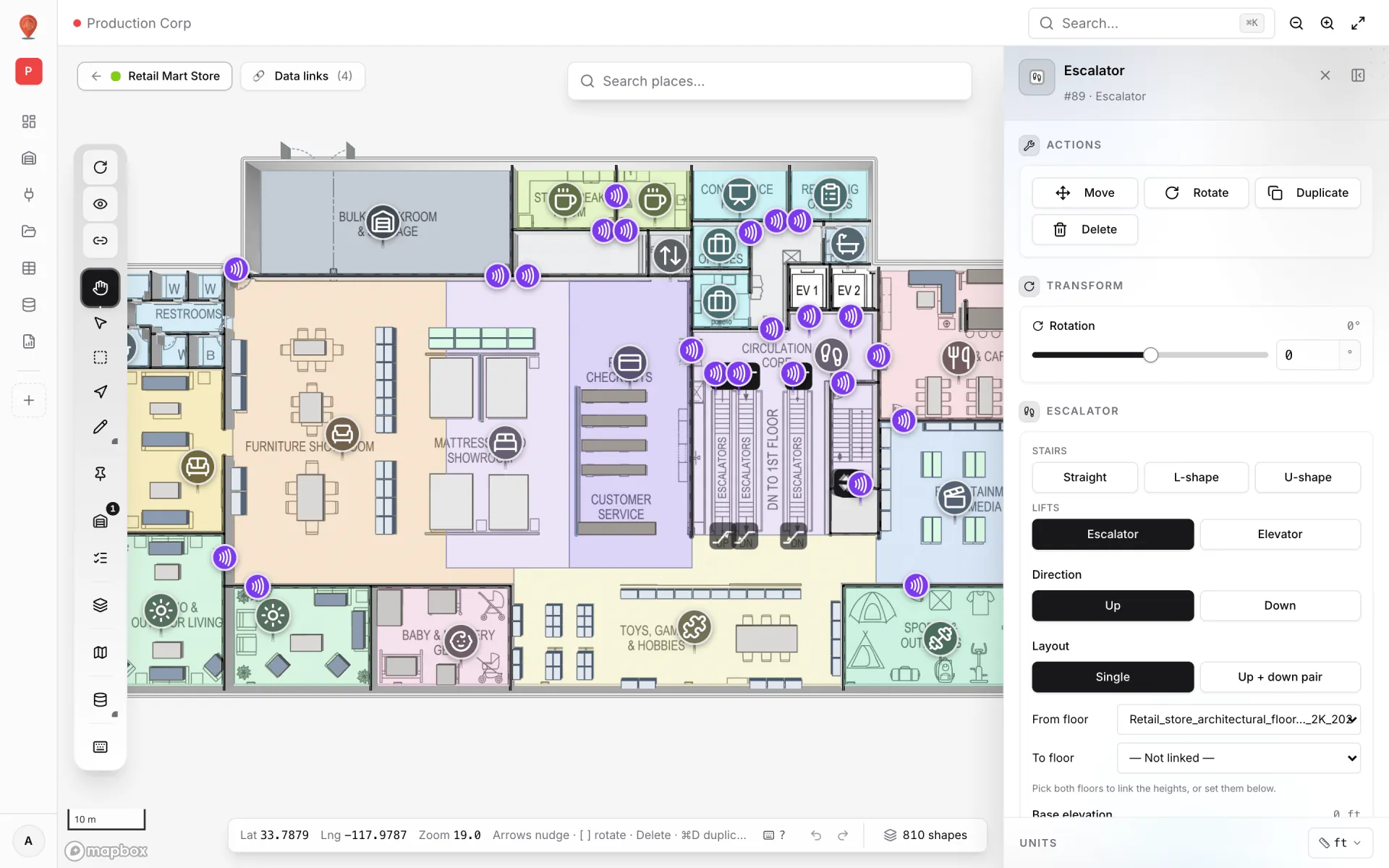
Test any A→B in the editor with Route preview (N)
- 1Open the facility and show one floor
Route preview uses the shapes on the floor plans that are visible in the editor, plus shapes with no floor. Hide the other floors first.
- 2Press N
Or click the arrow labelled “Route from A to B (indoor wayfinding)” on the toolbar. The cursor becomes a crosshair.
- 3Click A, then B
The path is computed at once and the Directions panel shows the same steps your visitors will see.
- 4Fix what the route reveals
A route that slips through a wall means a missing wall segment; “No path found” usually means a missing door. Fix the shape and click again: there is no rebuild step.
Accessibility and day-to-day changes
Wayfinding is an accessibility feature first, so it is worth being precise. The router finds the shortest sensible walk on a floor while keeping about 0.3 m clear of walls and racks. It does not choose a lift over stairs for you, and it doesn’t check door widths against wheelchair requirements. The step-free choice is made at the handover, and you can make it easy:
- Route leg 1 to the lift, not the stairs, whenever you prepare step-free directions for a visitor guide, an event confirmation or a kiosk script.
- Keep lift status current. A lift set to Out of service shows a greyed, struck-through icon.
- Draw doors at their real width and only where people can actually pass: a staff-only door on the map is a door the router will use.
- Treat the walking time as a typical adult pace. Wheelchair users, travellers with luggage and anyone pushing a trolley will take longer.
- Hide a door in the editor to model a closure (building works, cleaning, a fire door held shut) and re-test with N.
Try the platform your data belongs on.
Spatial Map turns spreadsheets, sensor streams, and CAD drawings into one live 3D facility view — nothing to install, seven-day free trial.
See it live
Keep reading
- Deep-diveWhat is indoor mapping? A practical guide (2026)Indoor mapping turns a building’s floor plans into a structured, multi-floor digital map. This guide explains how indoor maps are made, how they become digital twins, and how to choose software.
- Deep-diveAI floor plan to digital twin: what’s coming, and how to do it todayAI that turns a floor plan into rooms and walls is the most requested shortcut in digital-twin projects. Ours, AI Map, is in development and not usable yet. Here is what it is being built to do, and the workflow that gets you the same result today.
- Deep-diveMapbox GL marker occlusion: hiding HTML markers behind 3D floors, walls and racksMapbox’s Marker occludedOpacity only reacts to 3D terrain — not to your floor slabs, walls or racks. Here is the analytic depth test we run instead, and the symbol‑layer traps we hit along the way.