
Retail shelf monitoring on a live store map: stock and cold chain
Map shelf stock by rack, colour departments by stock status and watch fridge temperatures and RFID readers on one live 3D store map, fed by a table API.
What this guide covers
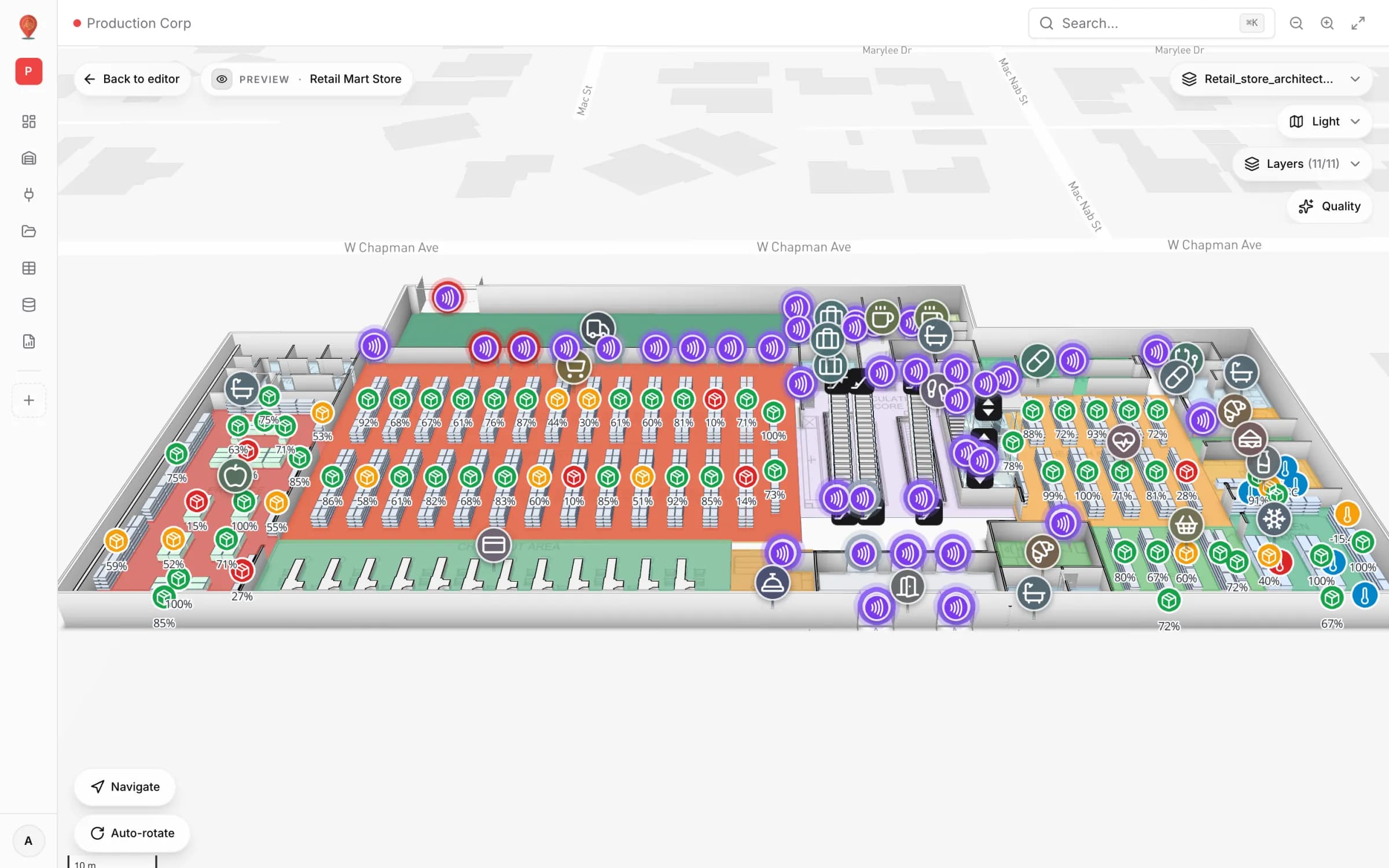
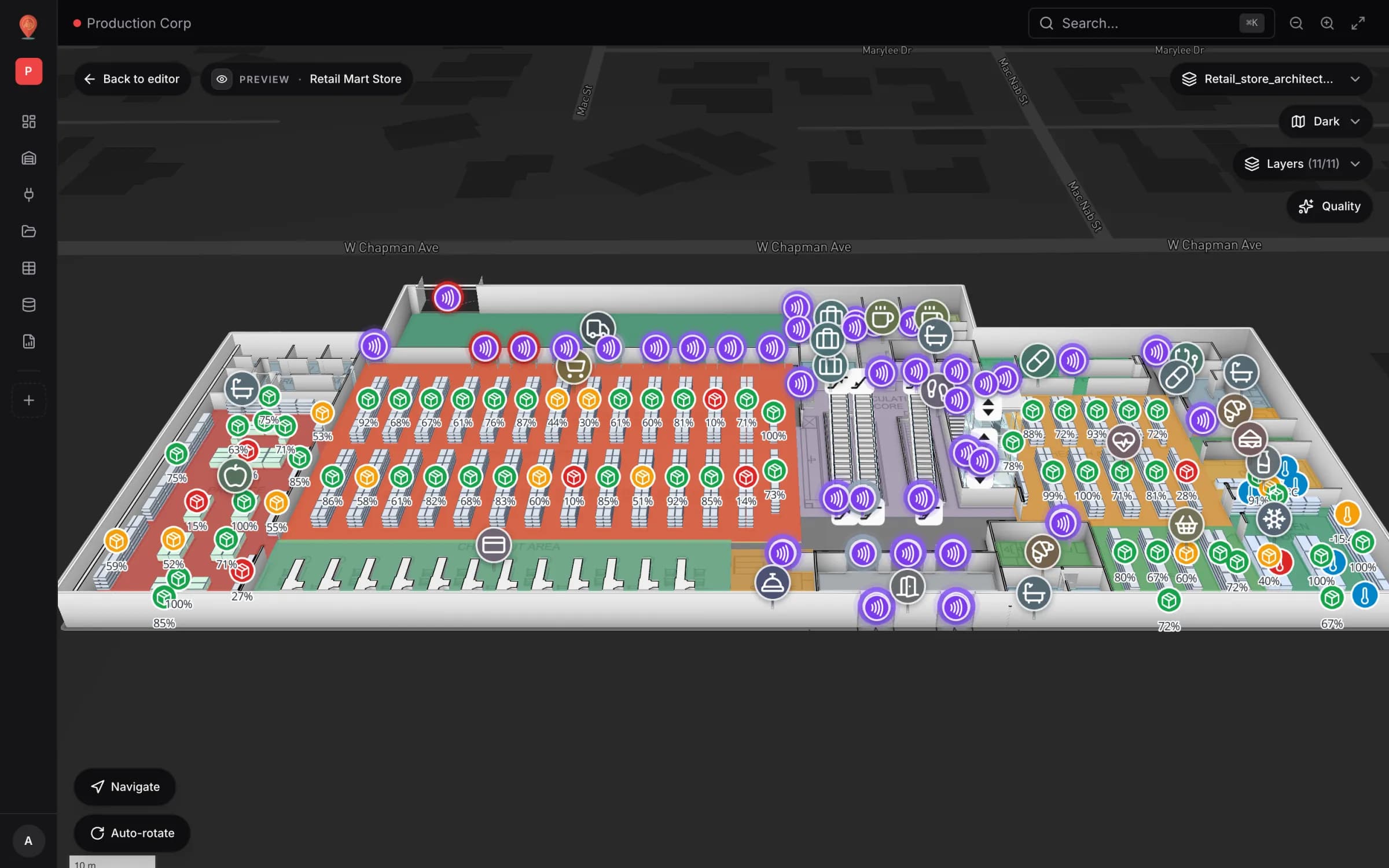
Store teams already collect the data: handheld cycle counts, fridge probes, RFID portal reads, the department manager’s morning walk. What they rarely have is one place where all of it sits on the store itself. This guide walks through our Retail Mart Store demo — three levels, escalators and lifts, four live layers — and shows how to wire the same thing for your own stores.
Why out-of-stock detection belongs on a map
An out-of-stock is a location problem before it is an inventory problem. The ERP knows the SKU is at zero; the replenishment associate needs to know which rack, which aisle, which floor. Lists sort by SKU or by value — the store is sorted by geography. When every rack carries its fill level and every department is tinted by status, the shift lead reads the whole floor at a glance and walks straight to the red.
That is the idea behind shelf monitoring on a map: keep your counts and sensors where they are, and give them a place to land. Spatial Map does not replace your WMS, ERP or replenishment logic. It binds their numbers to shapes and positions on the floor plan, refreshes open maps when a table changes, and lets anyone with a share link see the same picture in a browser. The retail solution shows how stores, supermarkets and malls use it.
Model the store once: floors, racks, departments, fridges
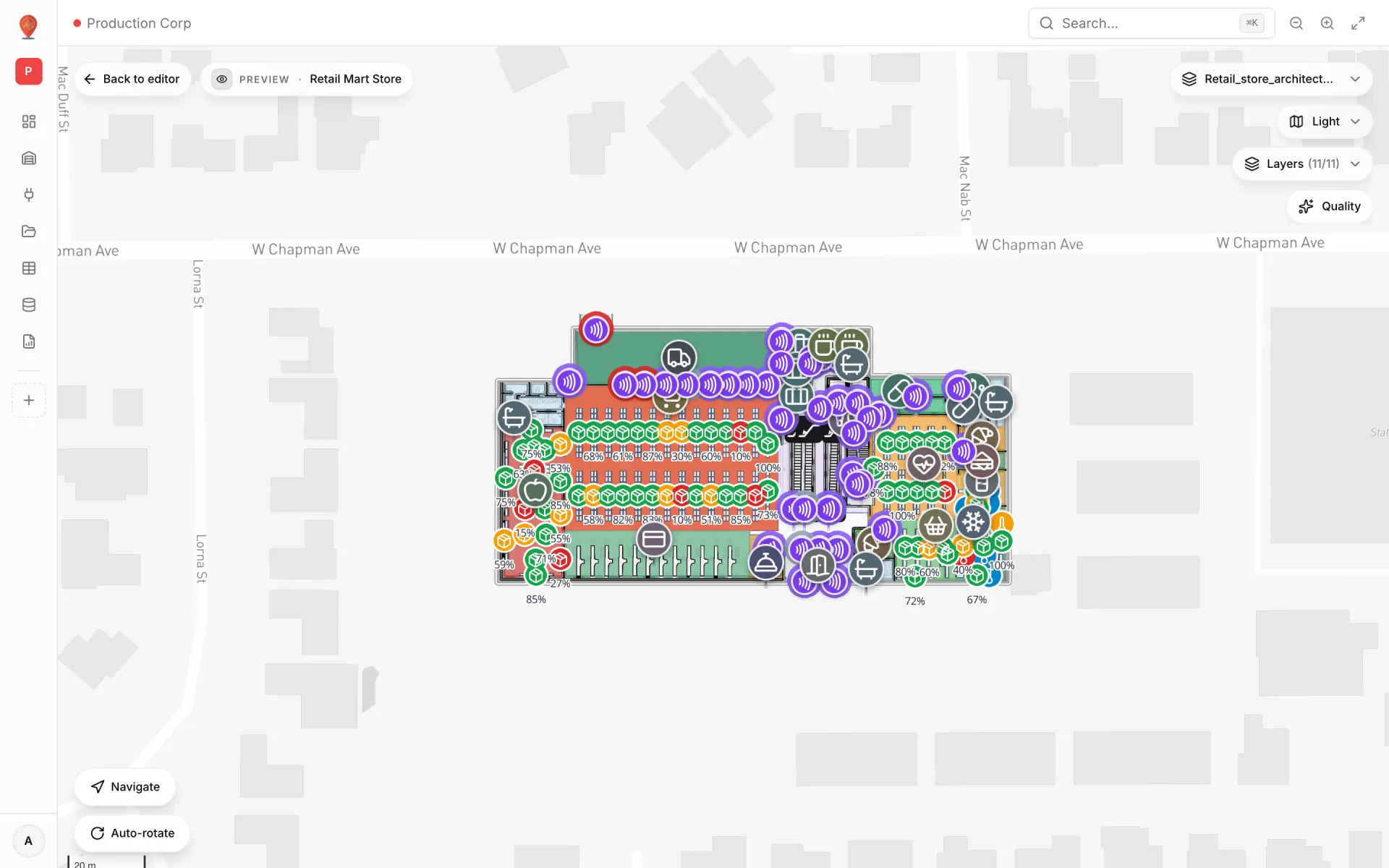
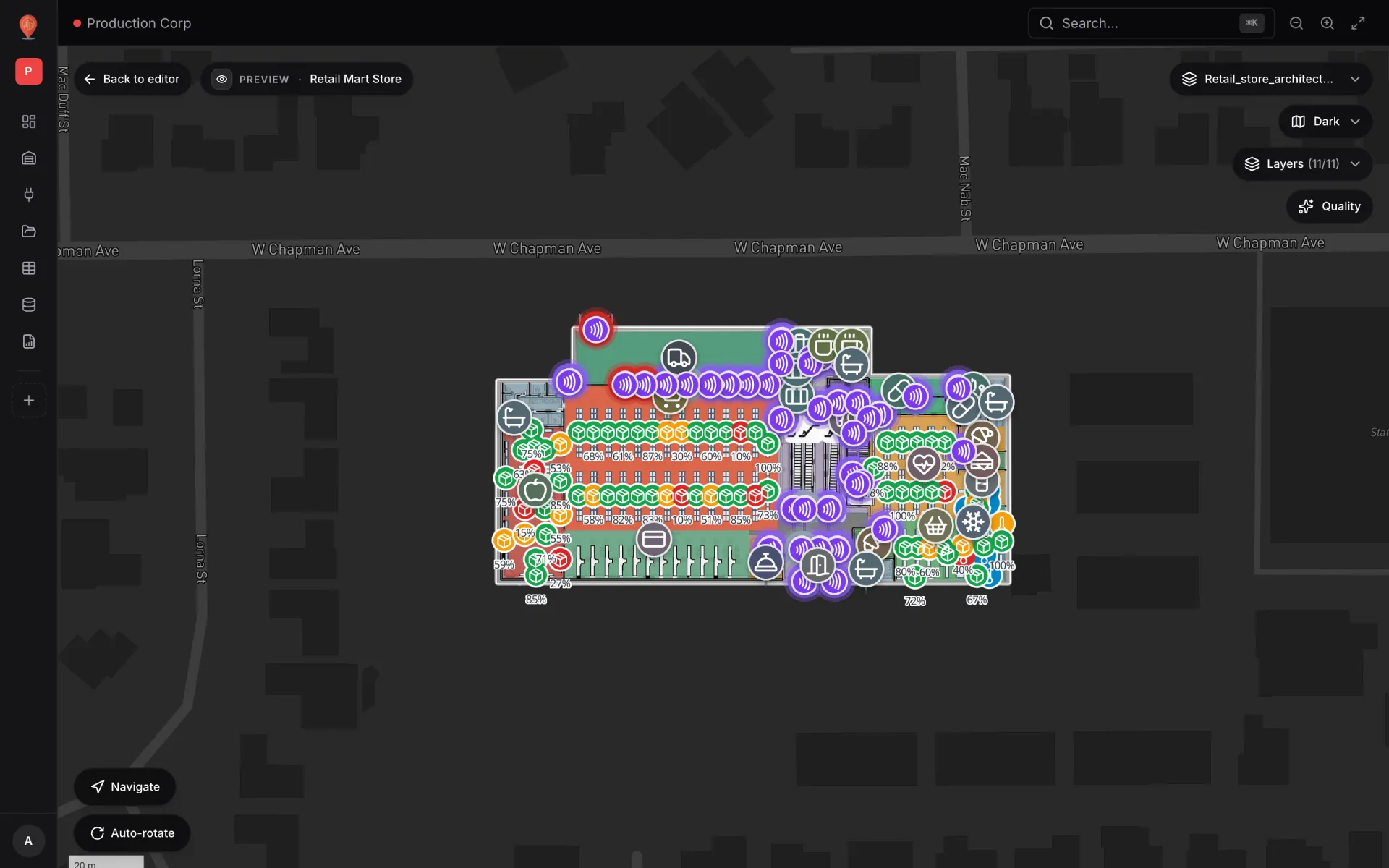
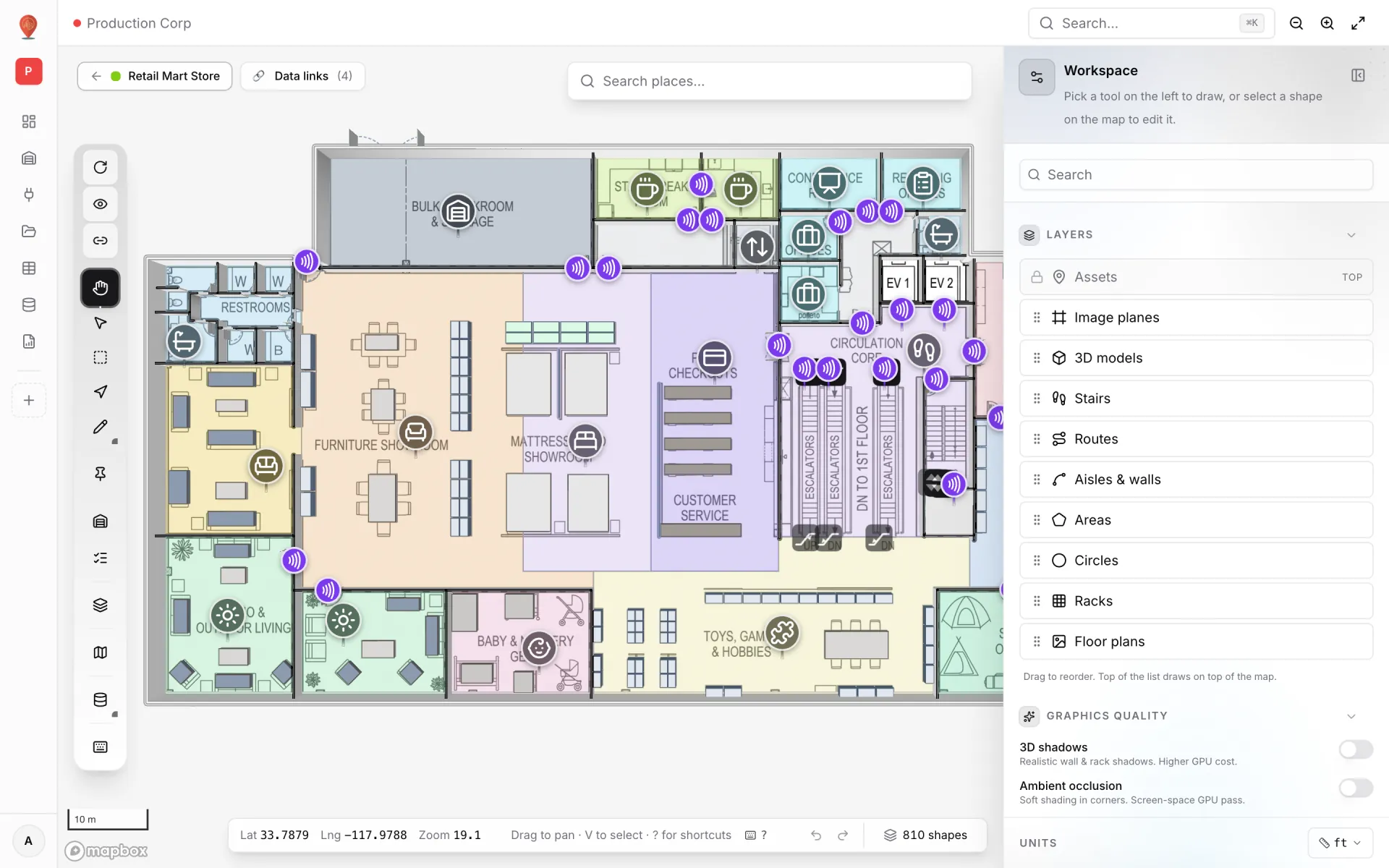
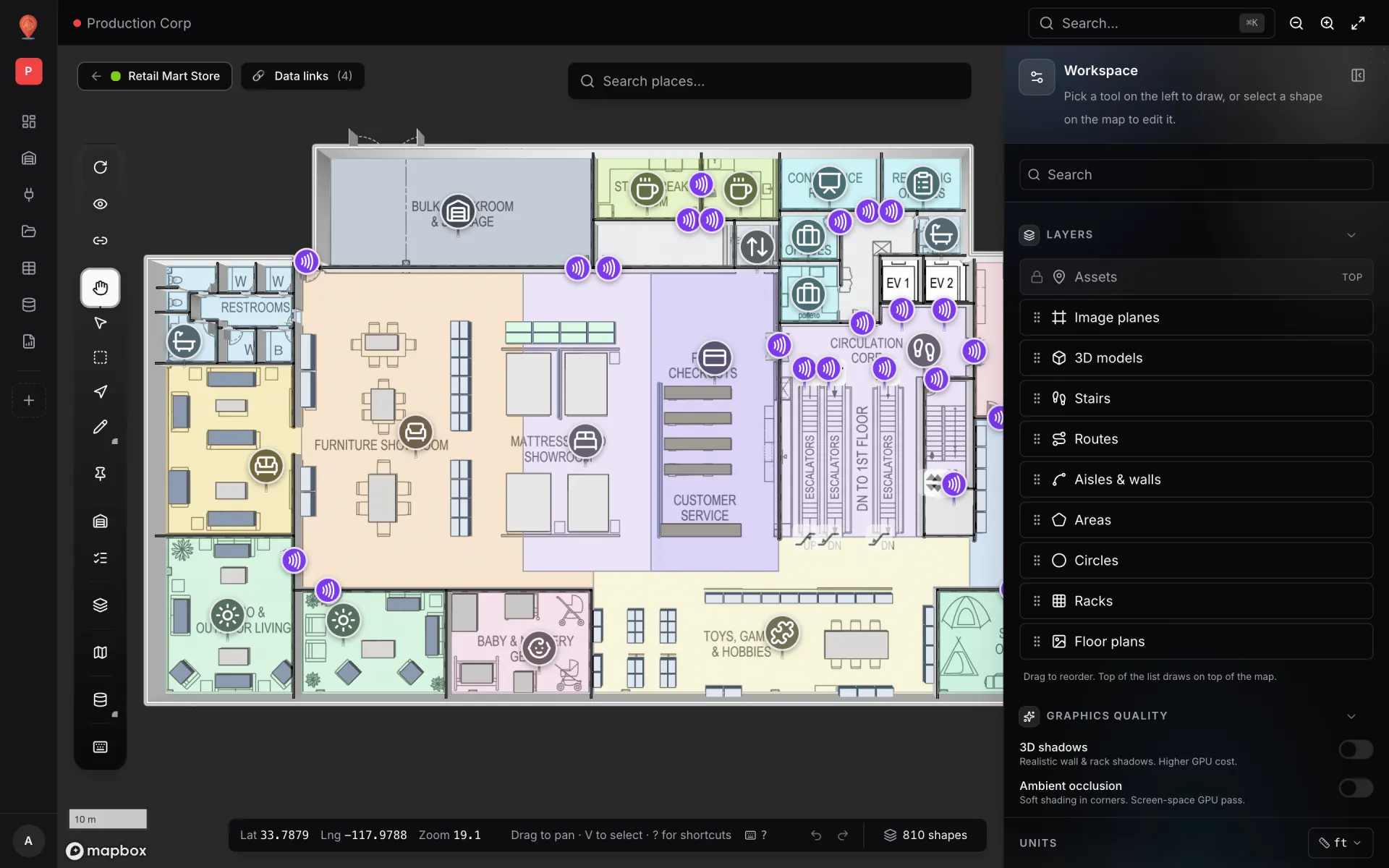
Everything starts with geometry. Place the store’s floor plan in the editor — a PDF is scaled from its sheet size, a DWG or DXF drawing is rendered as a floor-plan image, and a PNG or JPG works too — then draw over it. In the demo each level (Ground, Level 1, Level 2) has its own plan, connected by escalators and lifts that render in 3D, and the viewer’s floor switcher moves between them.
- Racks and gondolas — drawn with the Rack tool; in the demo, the shelf-stock markers sit at each rack’s position.
- Departments — drawn as areas (Bakery, Dairy, Frozen Food, Fresh Produce, Electronics & Appliances…) so their status can tint the floor.
- Fridges and freezers — the probes that measure them are placed where they really are.
- RFID readers — one marker or area per reader or gate, so its status pulses where it lives.
- Escalators, lifts and stairs — they connect the floors in 3D. Wayfinding routes stay on one floor and show where to change level.
Four live layers in one store
The demo runs four data links side by side. Viewers switch them on and off in the Layers panel, so the cold-chain technician can hide stock and the replenishment lead can hide temperatures.
| Layer | Display mode | What it shows in the demo |
|---|---|---|
| Shelf stock by rack | Live location marker | 167 racks, each labelled with its fill level (e.g. 76 %): 130 OK, 22 Low, 15 Critical |
| Department stock status | Color a shape | 40 departments across three floors, tinted by status |
| RFID reader activity | Pulsing zone activity | 85 readers, labelled with reads in the last hour |
| Cold-chain temperature | Live location marker | 7 fridge and freezer probes, labelled with the current reading |
Department stock status is where Color a shape shines: a department is a large area, and tinting it gives a store-level read that a single rack marker cannot. The colours come from style rules. You write a rule once in the editor’s Style rules panel — condition status = Critical, fill red — and tick it on every link that should use it. Rules run top-down and the first match wins. The demo uses three for departments (Critical red, Low amber, Healthy green) and three for readers (Offline red, Idle grey, Active violet).
Cold-chain monitoring for fridges and freezers
Cold chain in a store has a different rhythm from a distribution centre: open-front cases spread across the sales floor, doors opened by customers all day, and a back-room freezer that matters as much as the front. The demo has seven probes — two on the Dairy chillers (set point 3 °C) and five on the Frozen Food freezers (set point −18 °C). Each record carries the reading, set point, humidity, battery level, door-open events today and the time of the last reading.
Thresholds are style rules on the reading. Rules can combine conditions (All match (AND)), so one rule can say “a freezer reading above −15 °C” and another “a chiller above 5 °C”. Order the most urgent first:
| Rule (illustrative) | Conditions | Paint |
|---|---|---|
| Freezer too warm | unit_type = Freezer AND temperature_c > −15 | Red |
| Freezer drifting | unit_type = Freezer AND temperature_c > −17 | Amber |
| Chiller too warm | unit_type = Chiller AND temperature_c > 5 | Red |
| Battery low | battery_pct < 20 | Grey |
- One marker per probe, placed at the case it measures — not at the gateway.
- Separate rules for chilled and frozen, because one threshold cannot fit both. Use your own food-safety limits; the values above are examples.
- A Cold-Chain Sensors report listing every probe with its latest reading, next to the map.
- Per-row history, so “when did freezer island 1 start warming?” has a timestamped answer.
Feed it: tables, API keys and a write API
The simplest way to get counts and readings onto the map is a table. You define the schema — text, numbers, booleans, dates and more — and Spatial Map generates a REST API for it. Handheld count apps, an IoT gateway or a nightly script write rows with an API key. If your data already sits behind an HTTP endpoint, the table can pull from that URL on a schedule instead.
- 1Create the table
Tables → Create new table. Pick the kind (Marker / POI or Sensor for probes, Polygon / area for departments) and add fields such as rack_name, department, units_on_hand, capacity_units and status. Each row is identified by a stable key — the rack code works well.
- 2Create an API key
Open the table’s API & access tab and create a key per system. Each key can write to that one table only and can be revoked without breaking the others.
- 3Add a data link
In the editor, Data → Manage data links → New link: pick the table, a display mode (Live location marker for racks and probes, Color a shape for departments) and tell it how to find each record’s place — coordinates, or a field matched against shape names.
- 4Add the rules
Write healthy / low / critical rules once in the Style rules panel, then tick them on the link. Put the most urgent first so it wins.
curl -X POST https://app.spatialmap.io/api/v1/public/tables/rows \
  -H "Authorization: Bearer sgv_tbl_..." \
  -H "Content-Type: application/json" \
  -d '{
    "entityKey": "G-A10-85",
    "payload": {
      "rack_name": "A10",
      "department": "Grocery Section",
      "floor": "Ground",
      "units_on_hand": 1314,
      "capacity_units": 1728,
      "fill_label": "76%",
      "status": "OK",
      "lat": 33.78801,
      "lng": -117.97911
    }
  }'
The endpoint is an upsert: posting the same entityKey again updates the row instead of creating a duplicate, and every write is recorded in the row’s history. For a full store count, POST /rows/bulk takes up to 1,000 rows in one request. Each key is limited to 60 requests a minute, so batch your writes rather than sending one call per scan.
Daily-count reports, audits and history
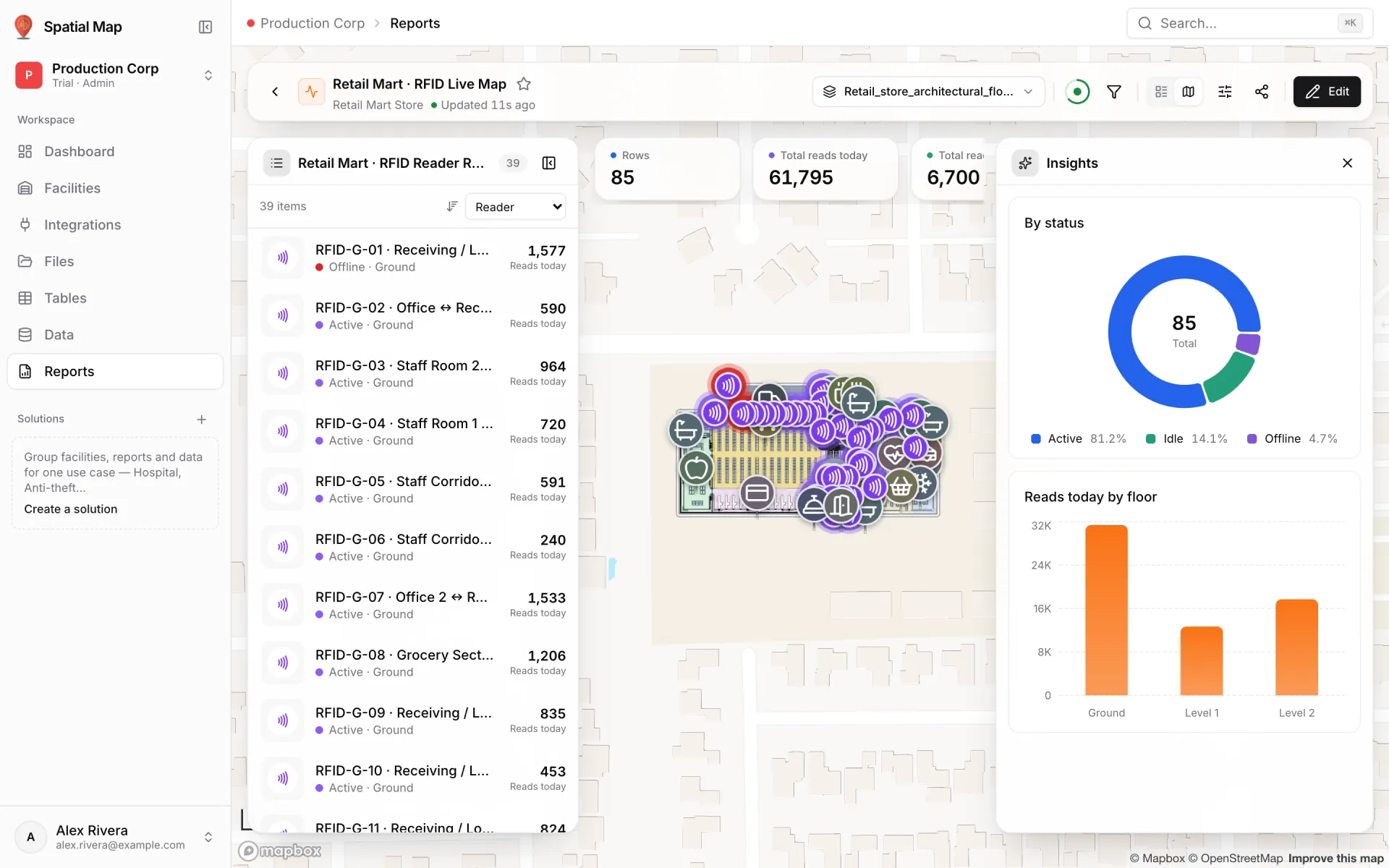
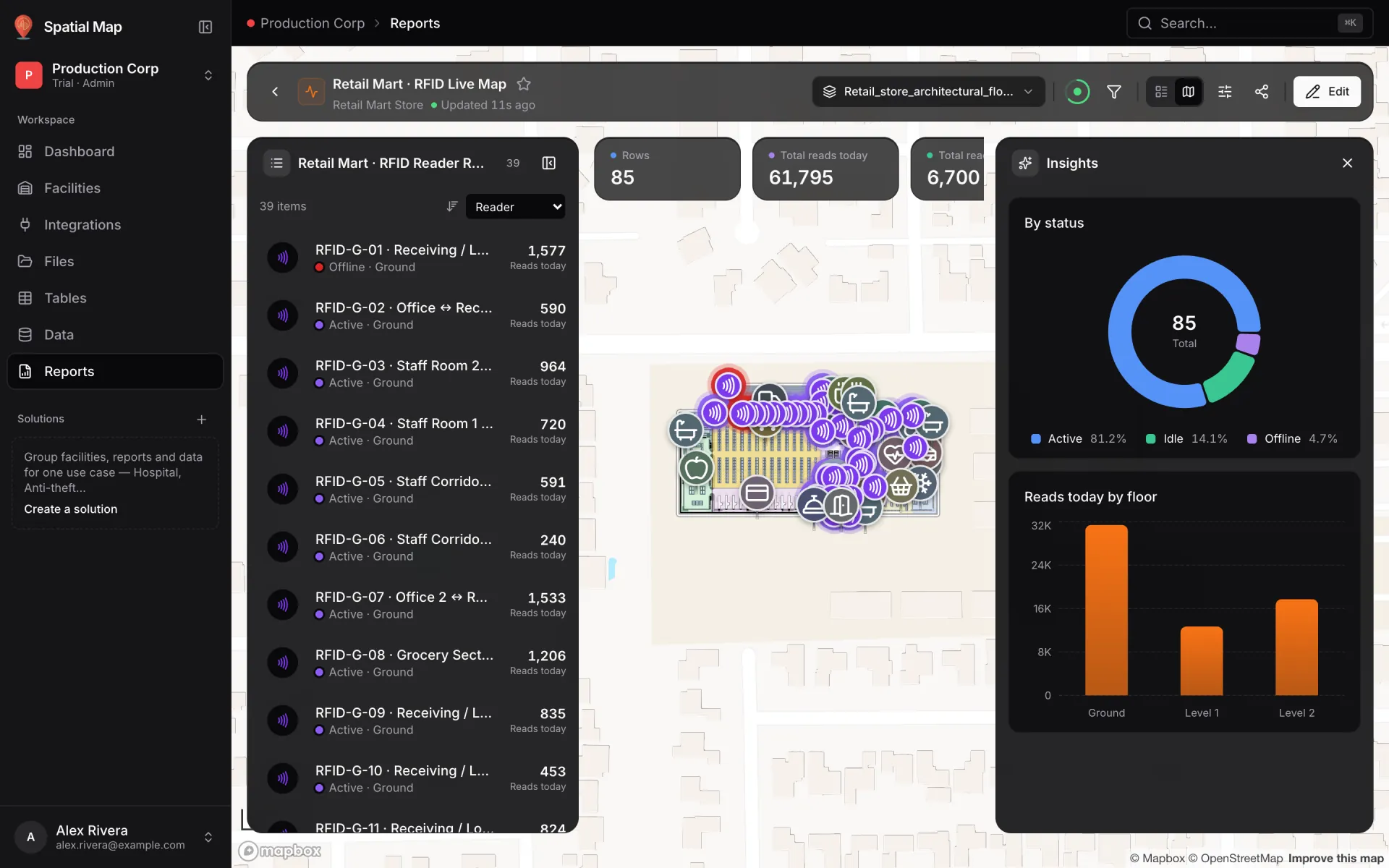
The map answers “where”; reports answer “how much, and since when”. The demo store has a report for each table — Shelf Stock (daily count), Department Stock (daily count), RFID Reader Reads and Cold-Chain Sensors — plus RFID Live Map, a full-map report with the reader list on the left, the live store in the middle and KPIs and charts around it.
- Daily-count reports — KPIs, tables and charts, filtered by department or floor.
- Cold-chain report — every probe with its latest reading, set point and status.
- Exports — PDF and Excel for audits, plus CSV and JSON, and a PNG per chart.
- History — open any rack or probe in the viewer and its per-row history lists every change with what changed.
Try it on your own store
You can rebuild this in an afternoon: place one floor plan, draw the departments and racks, create a table and post a few rows. Start a 7-day free trial — no credit card, up to 5 facilities — and use the Retail template under Solutions to group the store with its reports and data. Pro is $60/month or $600/year for up to 4 facilities (pricing); the retail solution page shows the bigger picture.
Try the platform your data belongs on.
Spatial Map turns spreadsheets, sensor streams, and CAD drawings into one live 3D facility view — nothing to install, seven-day free trial.
See it live
Keep reading
- Use caseAirport terminal operations on a live map: RFID bag tags, queues and gatesA terminal runs on hand-offs: from check-in to screening, from the gate to the carousel. Each hand-off happens in a place, so each one belongs on a map. Here is how our Silverbay Terminal 2 demo puts bag tags, queues, gates and crowding on one live two-floor view.
- Use caseCross-dock and yard visibility on a live map: dock doors, trailers and gatesA cross-dock runs on timing: which door is turning, which trailer has sat in the yard too long, which gate lane is backing up. Putting the building and the yard on one live map makes those answers visible at a glance. Here is how, using our Eastport Cross-Dock Freight Hub demo.
- Use casePharma cold storage and QC on one live map: zones, excursions, holdsA probe ID, a door number and a sample ID only become actionable once you can see which room, dock or rack they belong to. Here is how a pharmaceutical cold store and QC area run on one live map, using our two-floor Polar Pharma demo as the worked example.