
Airport terminal operations on a live map: RFID bag tags, queues and gates
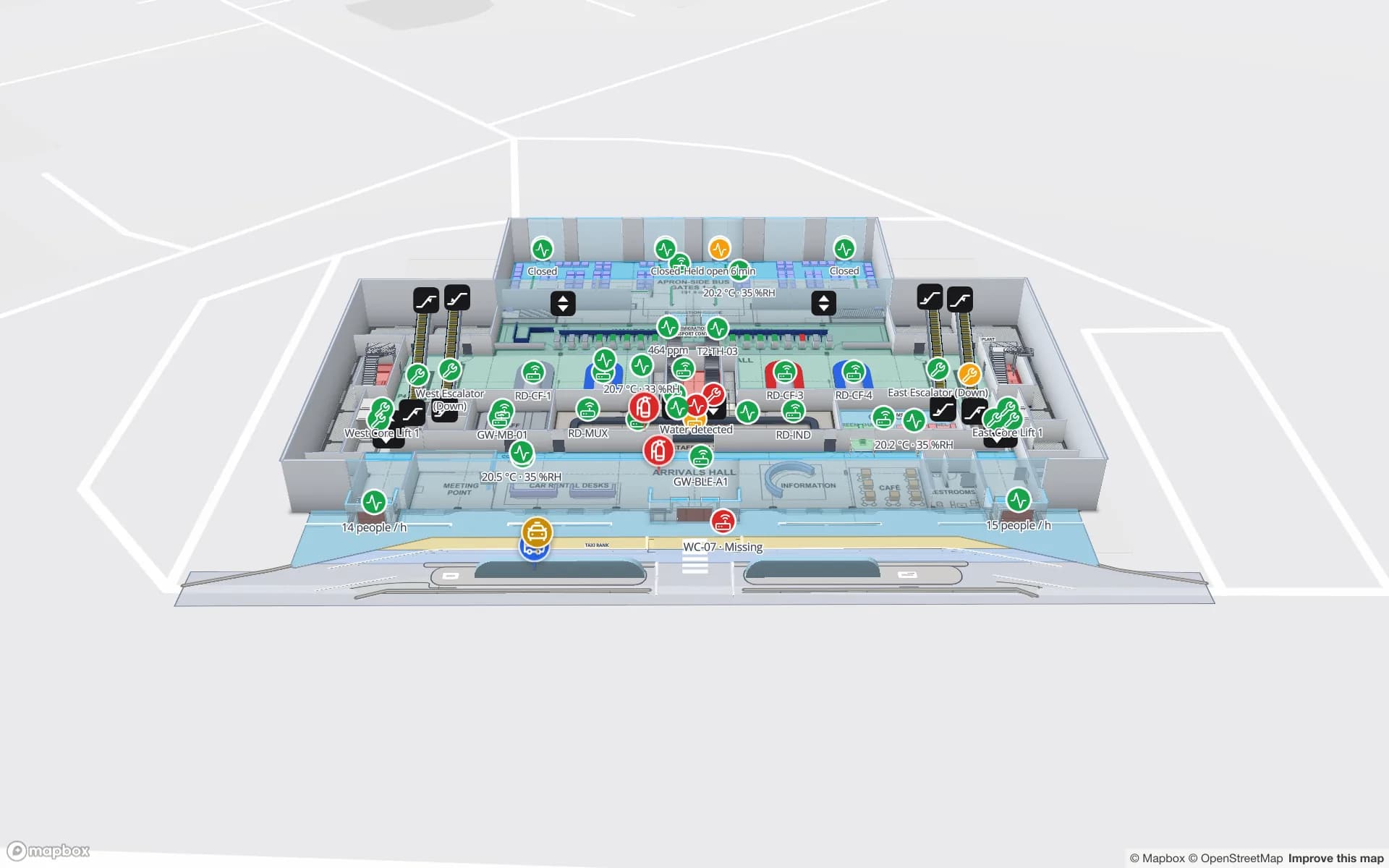
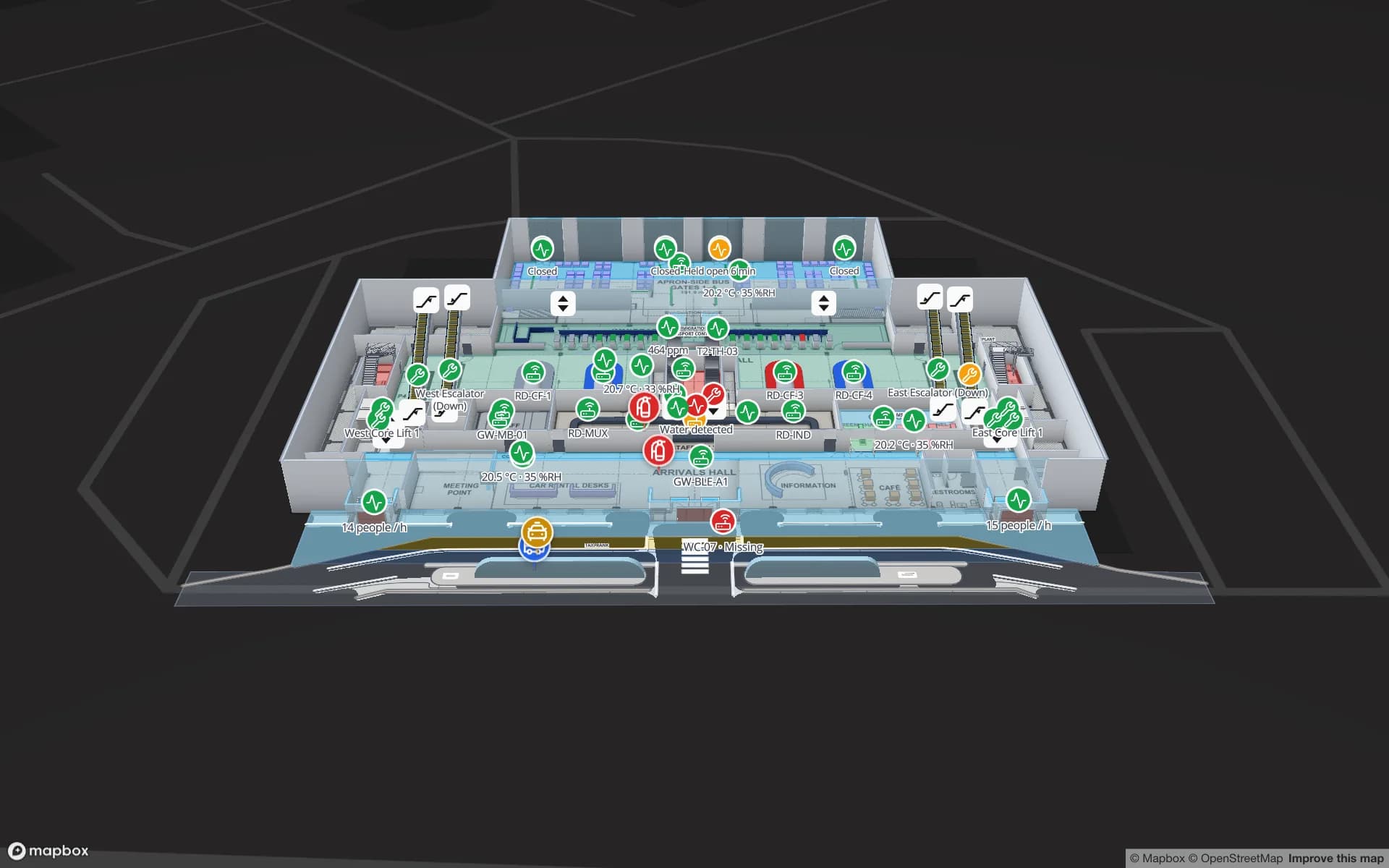
Baggage RFID tracking from bag drop to carousel, plus security, immigration, gates and terminal crowding on one live two-floor map of the airport terminal.
Key takeaways
A terminal is a chain of hand-offs
Follow one passenger through a terminal and count the systems. Check-in and bag drop belong to one team, the screening lanes to another, border control to a third. Gates run off the flight schedule, baggage reclaim off the arrivals feed, and lifts, escalators and jet-bridges off the building and maintenance systems. Retail, food, lounges and restrooms each have their own operators. Every one of these tools knows its own numbers. Very few of them know where those numbers sit in the building.
That is the gap a live terminal map fills. Instead of another dashboard of totals, the plan of each floor becomes the shared index: the bag-drop island, security lane 4, the immigration hall, a gate and its jet-bridge, carousel 3. Every feed lands on the shape it describes, so the operations centre, the duty manager and the baggage team read the same picture. In Spatial Map that picture is a browser-based 3D map with live data links, and reports built on the same tables.
Model both floors once
Everything starts with the building. In the editor you place each floor’s plan — a PDF is scaled from its sheet size, a DWG drawing is rendered as a floor-plan image, or use a PNG or JPG — at true scale on a real basemap, so the kerb, the forecourt and the airside edge line up with the terminal outline. Then you trace what operations care about. In Silverbay that means:
- Check-in islands, security lanes and immigration booths — drawn as areas, so each one can be coloured or badged from its own row of data.
- Gates with jet-bridges — the gate areas the departures feed attaches to, plus the bridges whose status is reported alongside the lifts and escalators.
- Baggage reclaim, retail, food and lounges — carousels, shops, cafés, lounges and restrooms as areas and markers.
- Lifts and escalators — drawn in 3D and linked from one floor to the next, so the two levels read as one building.
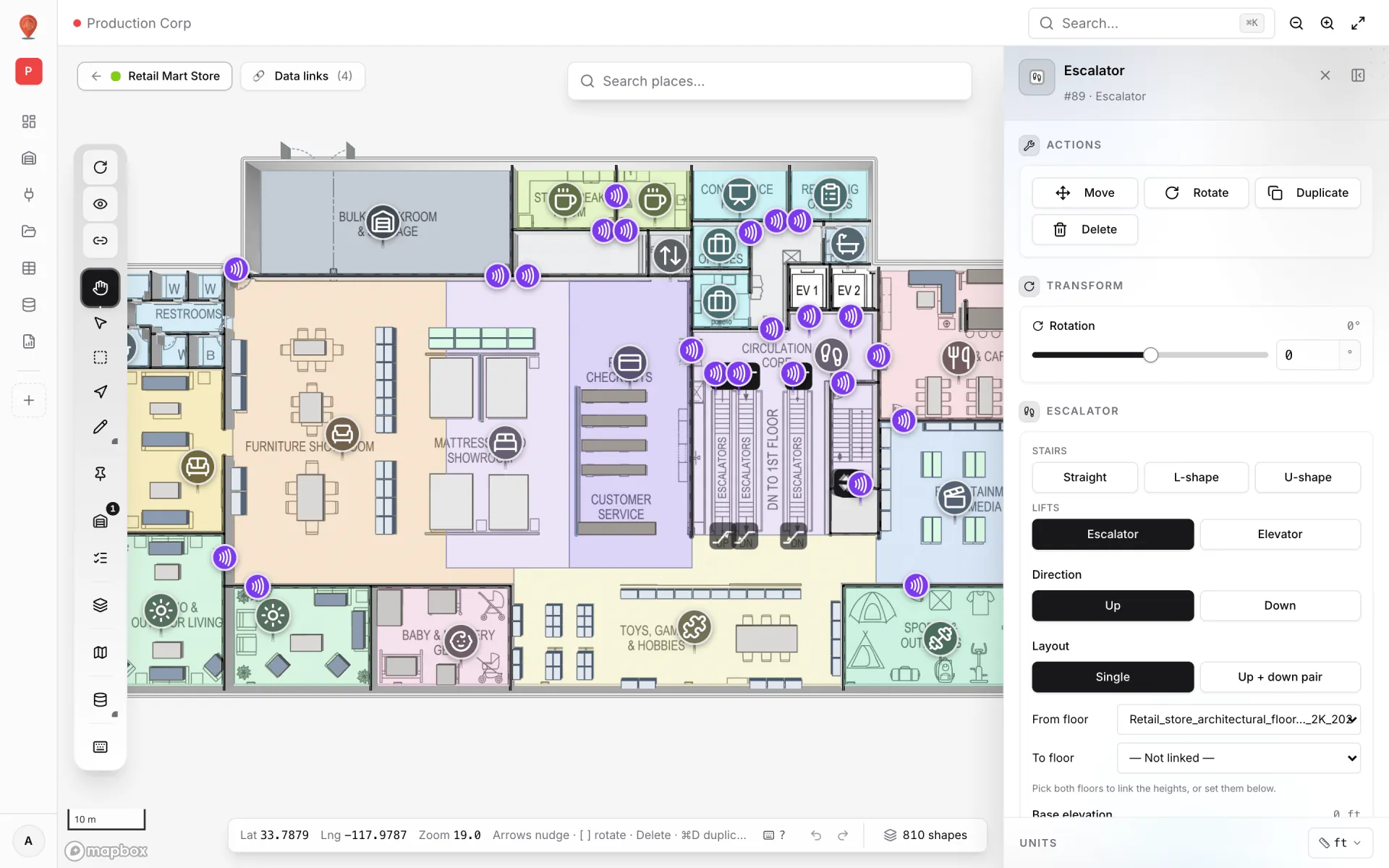
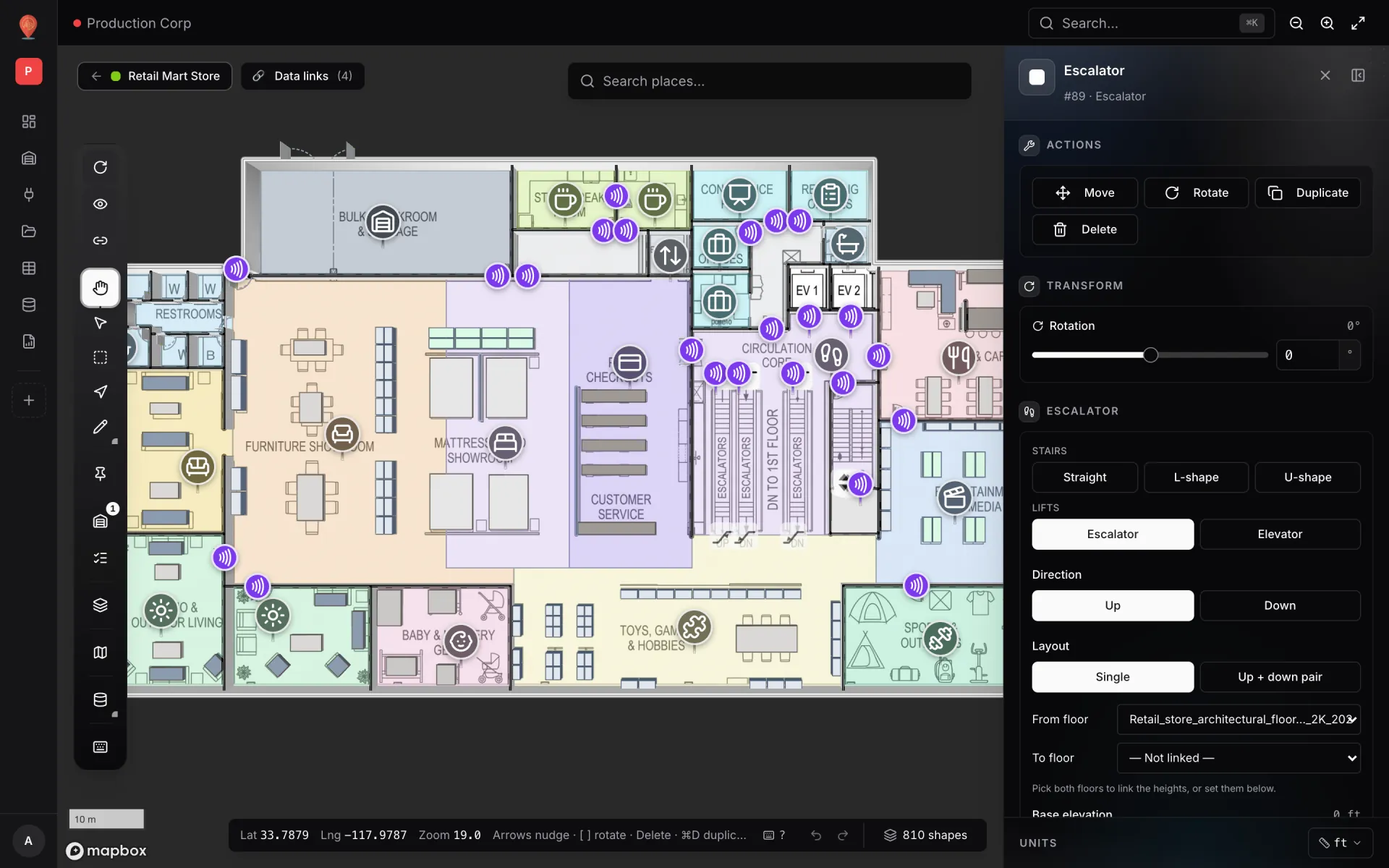
Select a lift or escalator and the side panel sets its kind, its direction, a single unit or an up + down pair, and the floors it connects. The lifts and escalators guide covers the details, and the multi-floor example walks through stacking levels and linking them, step by step.
RFID bag tags: every read is a row
Baggage tracking with RFID is simpler than it sounds. A tag on the bag carries an ID. Fixed readers sit at known points along the bag’s journey — the bag drop, the belts and transfer points, the carousel. Each time a bag passes a reader, the reader or its middleware produces one read: which tag, which read point, what time. Each read is a row. Spatial Map does not talk to readers itself; it stores and shows the rows your system sends.
In the Silverbay demo that feed lands in a table called Bag Tags, next to Baggage Carousels for the reclaim belts themselves. A row needs only a few fields to be useful on a map:
- Tag ID — the key that identifies the bag.
- Read point — named exactly like the area or marker on the map: the bag drop, a belt reader, carousel 3.
- Read time — when the reader saw the tag.
- Flight and floor — so a saved filter can narrow the layer to one flight, and the floor scope can read the level from each row.
There are two ways to shape the table, and the table write API supports both. Append one row per read and you get an event log: count reads per read point, chart them by hour, or draw them as a Heatmap of activity. Or keep one row per tag and update its read point at each read: the map then shows where each bag is now, and the table’s change log keeps every earlier read. Open a point’s detail drawer and its History section lists those changes; if the rows carry coordinates, a Historical movement layer replays them with a player — see table history. Either way, batch reads into bulk calls: each API key allows 60 requests a minute, and a bulk call counts as one.
From operational question to layer
The quickest way to design a terminal map is to start from the questions the operations centre asks, then pick the data and the display mode that answer each one. The table names below are the ones in the Silverbay demo; the display modes are the ones we would reach for.
| Question | Data | Display mode |
|---|---|---|
| Where are the bags for this flight? | Bag Tags — one row per read, or per tag | Live location marker or Heatmap of activity |
| Which security lanes are slow? | Security Throughput — passengers per lane | Value badge on shape + style rules |
| Is the immigration queue growing? | Immigration Queue Log — queue readings over time | Color a shape + a chart in the report |
| Which flight leaves from which gate? | Departure Flights — one row per flight with its gate | Info marker on shape |
| Which carousel has which arrival? | Baggage Carousels — one row per carousel | Info marker on shape + style rules |
| Which terminal zones are crowded? | Occupancy sensors per terminal zone | Color a shape or Heatmap of activity |
| Is every lift, escalator and jet-bridge running? | One row per unit with a status | Pulsing zone activity + style rules |
Style rules do the colouring, and the first matching rule wins, so a lane over its threshold turns amber before the generic green rule is reached. Saved filters narrow a link to the rows that matter — only open lanes, or only flights still to board — and the tooltip and content panel show just the fields you pick. The display modes guide lists all nine modes, and style rules explains how ordering works.
21 reports, one per job
The map tells you where; reports tell you how many and how fast. Reports in Spatial Map read the same tables as the map, so there is no export step and no second pipeline. Silverbay carries 21 reports. Eight are the built-in facility reports every facility gets, which count what is drawn on the plan. Among the others are the terminal’s own reports, each named with a “Silverbay ·” prefix:
- Gates & Departures — departures by gate, from the Departure Flights table.
- Check-in & Bag Drop — the check-in islands and the bag-drop end of the bag-tag feed.
- Security Screening — throughput per security lane, from Security Throughput.
- Immigration & Border Control — the immigration booths and the Immigration Queue Log.
- Arrivals & Baggage Reclaim — the carousels and the reclaim end of the bag-tag feed.
- Terminal Crowding — live occupancy by terminal zone.
- Retail, F&B & Lounges and Restrooms & Passenger Services — the commercial and service side of the terminal.
- Lifts, Escalators & Jet-bridges — the status of everything that moves people between levels and onto aircraft.
Any report with a facility map & list can be opened as a full-map report: the live terminal fills the screen, the list floats on the left, key numbers run along the top and charts sit in an Insights panel. It updates itself every 30 seconds by default, which suits a wall screen in the operations centre. Reports can be filtered, starred and exported to PDF, Excel, CSV or JSON, and the full-map command center example builds one from scratch.
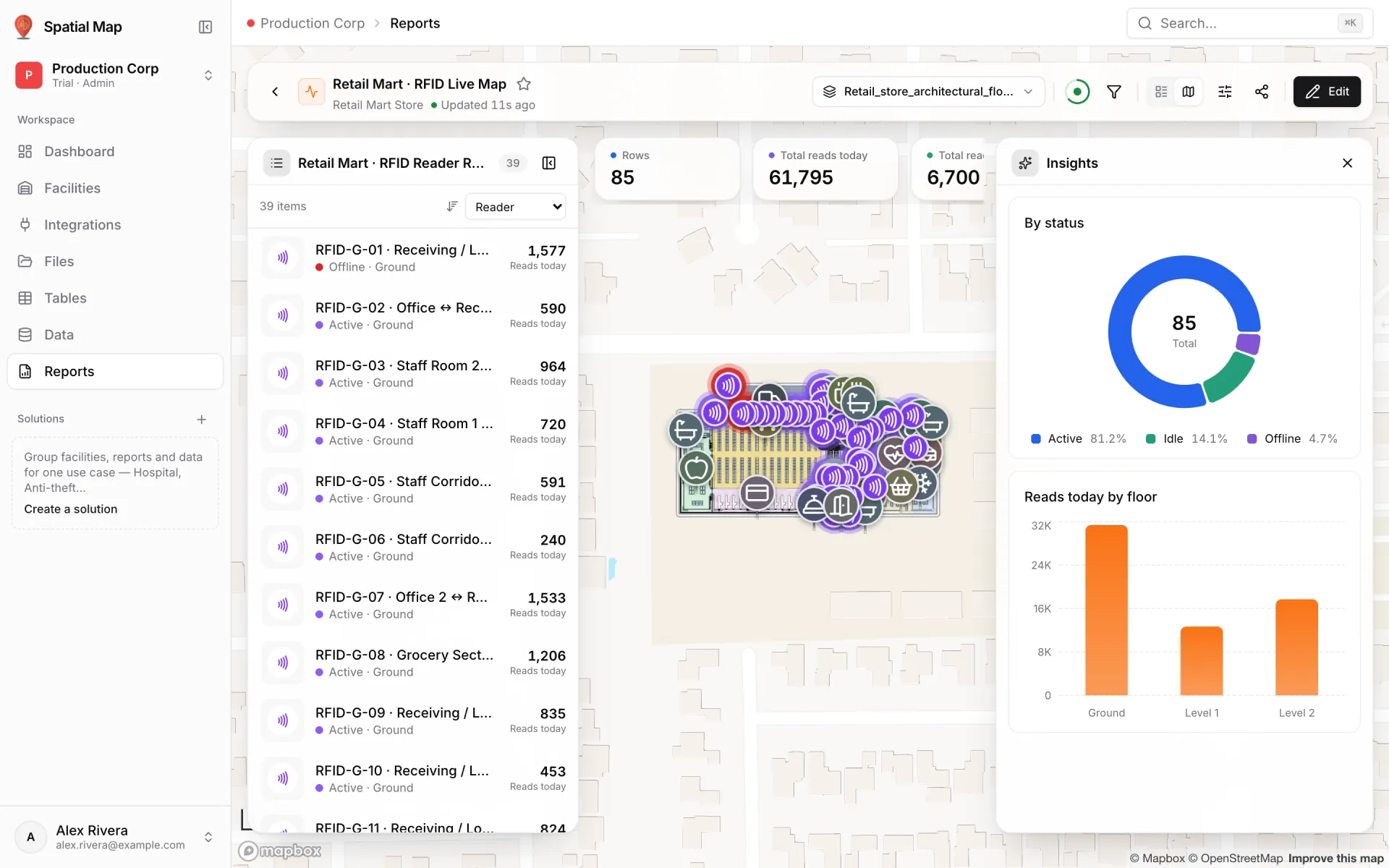
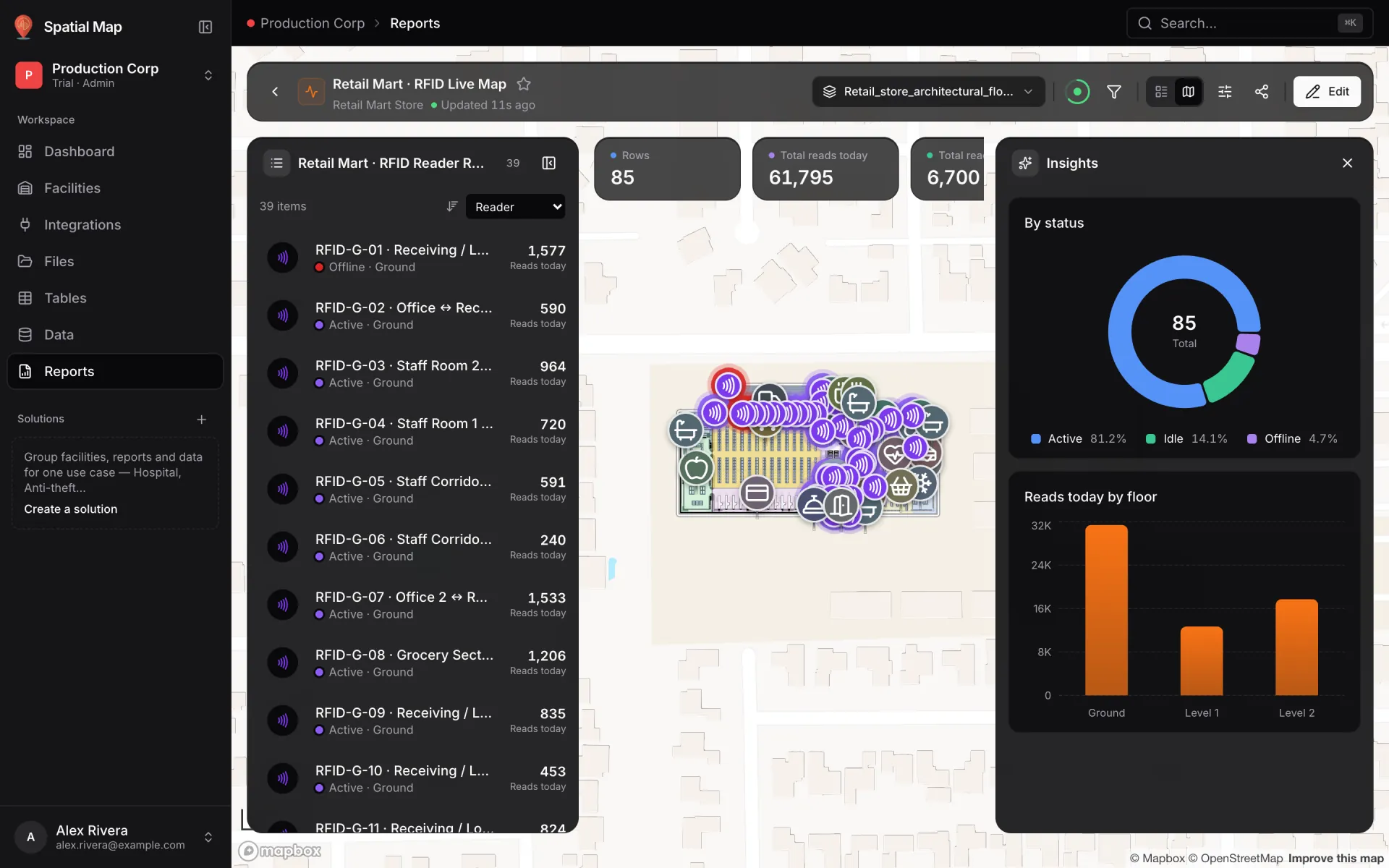
The screenshot shows the same pattern on a retail demo: readers on doorways instead of bag-drop and carousel read points, reads today instead of bags. Swap the source and the layout carries over to a terminal unchanged.
Lifts, escalators, jet-bridges and passenger services
A terminal on two floors depends on its vertical circulation. When a lift is out, passengers with reduced mobility need another way up; when an escalator stops, the queue moves somewhere else. Silverbay draws its lifts and escalators in 3D between the two levels, and its Lifts, Escalators & Jet-bridges report keeps every unit’s status in one list. On the map, a status layer with style rules makes a stopped unit stand out at a glance.
The same approach covers the passenger side of the building:
- Restrooms — a status or cleaning field per restroom, coloured by style rules.
- Retail, food and lounges — occupancy or opening state per unit as a value badge.
- Passenger equipment and staff — BLE tags located in the terminal, shown as live location markers. More in real-time indoor asset tracking.
- Device and gateway health — the last event per gateway, so a silent reader is visible on the map before its gap shows up in a report.
The model that powers the operations centre also answers the passenger’s question: how do I get there? Pick a start and a destination and the viewer draws a walking route around walls and through doors, with turn-by-turn steps — on share links too. Routes stay on one floor; to change level, route to the lift or escalator first. See wayfinding and our guide to indoor turn-by-turn directions.
A read-only view for every partner
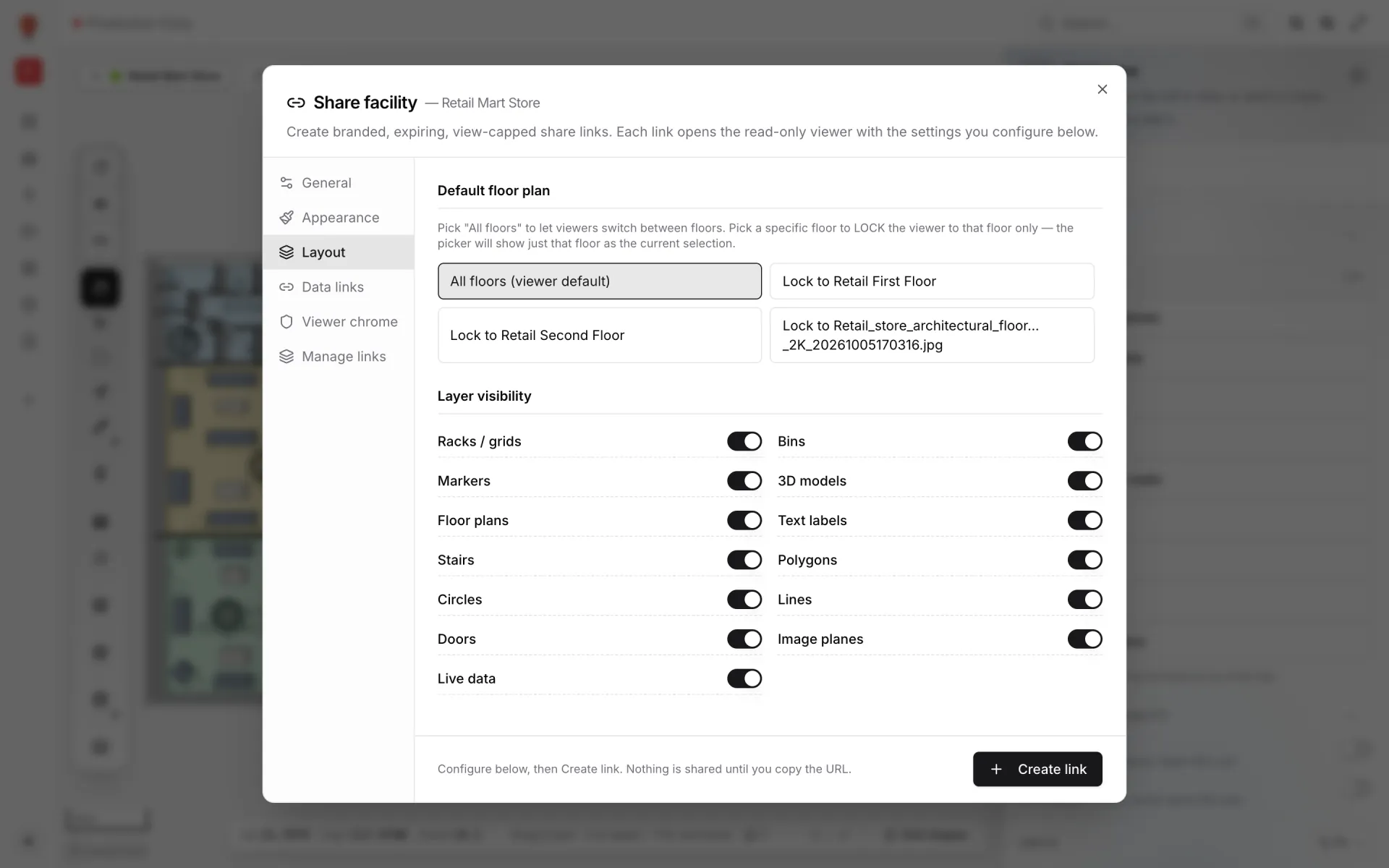
An airport is full of organisations that need to see the terminal but should never edit it: ground handlers, the cleaning contractor, retail operators, the security provider. Share links open a read-only viewer with no account. Each facility can have many links, each with its own settings:
- Lock the link to one floor — arrivals only, for the reclaim team — or let the viewer switch floors.
- Choose which data links it shows: the cleaning contractor sees restrooms, not bag tags.
- Hide whole shape kinds, or turn live data off.
- Set an expiry and a maximum number of views, and revoke the link at any time.
“Every hand-off in a terminal happens in a place. Put the places on one map and the hand-offs stop getting lost.”
Try it on your own terminal
Start small. Place one floor’s plan, draw the bag-drop islands and the carousels, and connect one feed — usually the bag-tag reads or the carousel assignments. Add security, immigration, gates and crowding as each system owner comes on board, then the second floor. Group the facility, its reports and its data sources into a solution so the operations team finds them on one page.
Start a 7-day free trial with no credit card; the trial holds up to 5 facilities. After that, Pro is $60/month or $600/year for up to 4 facilities — see pricing.
- Walk through the demo on the Silverbay showcase page.
- See stadiums, terminals, convention centres and museums on the Venue solution page.
- Wire up your readers with our step-by-step RFID integration guide.
- Push rows from your middleware with the table write API.
Try the platform your data belongs on.
Spatial Map turns spreadsheets, sensor streams, and CAD drawings into one live 3D facility view — nothing to install, seven-day free trial.
See it live
Keep reading
- Use casePharma cold storage and QC on one live map: zones, excursions, holdsA probe ID, a door number and a sample ID only become actionable once you can see which room, dock or rack they belong to. Here is how a pharmaceutical cold store and QC area run on one live map, using our two-floor Polar Pharma demo as the worked example.
- Use caseRetail anti-theft on a live map: RFID readers, exits and blind spotsA tag that leaves through a door with a dead reader is invisible. A real walk-through of the Retail Mart demo: 85 readers on three floors, four of them offline — three at the receiving dock.
- Use caseRetail shelf monitoring on a live store map: stock and cold chainAn out-of-stock is a location problem before it is an inventory problem. Here is how our multi-level Retail Mart demo puts shelf counts, department status, cold-chain probes and RFID readers on one live map — and how to wire your own store the same way.