
Environmental sensors with live readings on the map
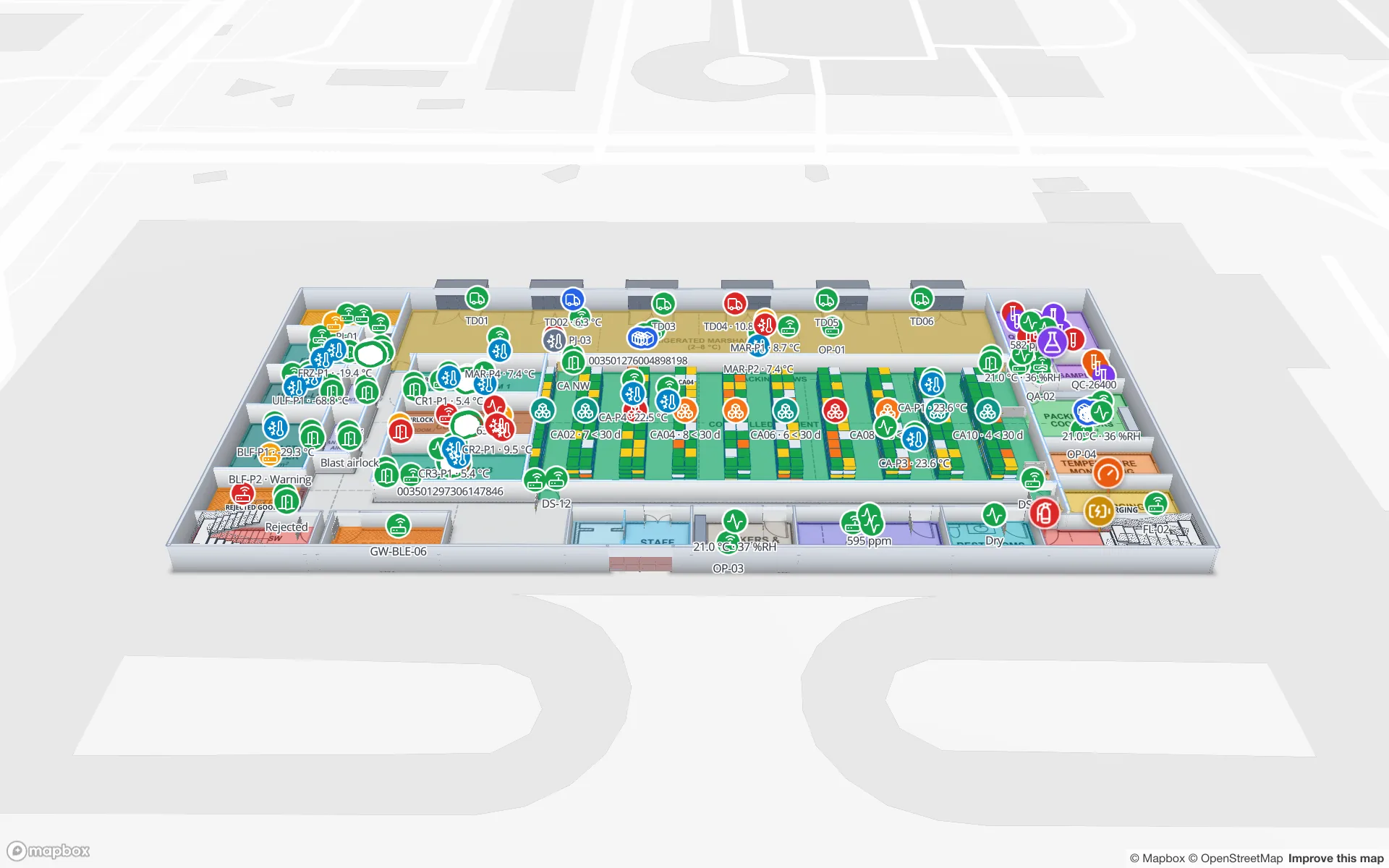
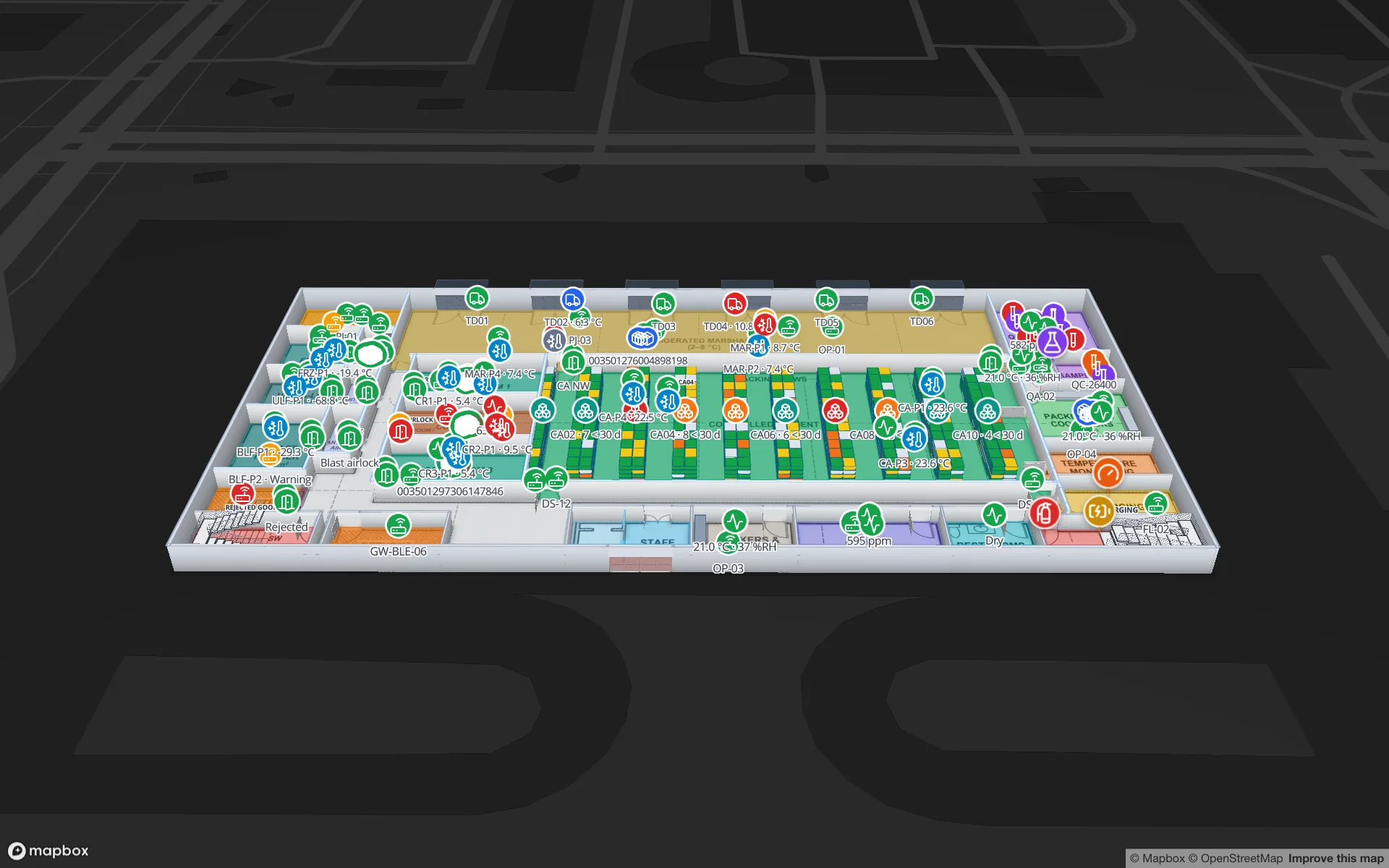
An Environmental sensors layer labels every sensor with its latest reading ("21.8 °C", "595 ppm") — room climate, fridges and freezers, CO₂ monitors, pressure. The Polar Pharma demo shown here labels its probes the same way. The gateway writes one row per sensor and updates it on every reading.
Steps
- 1
Create the sensor table
Tables → Create new table, name "Environmental Sensors", kind Sensor. Add fields such as sensor_name, sensor_type, location, status (Normal, Warning or Offline), reading_label (Text, for example "4.3 °C"), temperature_c, humidity_pct, co2_ppm, battery_pct (Number), lat, lng and elevation_m (Number).
- 2
Feed the readings
Have the gateway upsert one row per sensor and send a partial update with the new values and reading_label on every reading — Push rows into a table with the write API shows the calls. Each change is kept in the row’s History.
- 3
Create the marker layer
In the editor: Data links → New link, name "Environmental sensors", pick the table and choose Live location marker. In Connect fields set Longitude lng, Latitude lat, Elevation (optional) → From field elevation_m and Label field reading_label, so the reading itself is the label.
- 4
Style it
Pick a thermometer icon and a blue Marker color under Style. Add sensor_type, location, status, temperature_c, humidity_pct and last-reading time to the Map tooltip, then save.
- 5
Colour by status
In the side panel’s Style rules, add rules with Scope Marker, suggested fields from the "Environmental sensors" link: status = Warning → Fill amber, status = Offline → Fill grey. Edit the link and tick both rules in its Style rules step.
- 6
Use it
In Preview the sensors sit in their own Sensors group of the Layers panel, so you can hide everything else and look only at readings. When a sensor belongs to a room rather than a point, the Value badge on shape mode shows the number on the room’s area instead.
Related
More live data on the map recipes
- Colour rooms by live statusTint every room green, amber, purple or grey from a rooms table with a Color a shape data link and style rules — and flag overdue cleaning in red.
- Track staff and equipment with live markersShow staff badges and RTLS-tagged equipment as named live markers that move as positions update, with a detail drawer and history for every asset.
- Stock by bin on a rack gridDraw racks, import stock per bin from a spreadsheet and colour every bin occupied, empty, blocked, reserved or picking with rack-cell style rules.
- RFID gate readers on a retail floorShow every RFID reader in a multi-floor store as a pulsing ring with its reads in the last hour, coloured active, idle or offline, plus a full-map report.