
Retail anti-theft on a live map: RFID readers, exits and blind spots
How a demo store maps 85 RFID readers, pulses each by activity, spots offline gates at the dock and groups it all into an Anti-theft solution.
In short
Loss prevention is a “where” question
RFID loss prevention stands or falls on coverage. A tag that leaves through a door with a dead reader is invisible, however good the rest of the system is. Reader software usually tells you a reader is offline in a device list; it rarely shows which opening that leaves unwatched. Put the readers on the floor plan and the answer takes one glance.
Spatial Map is not an EAS or RFID system and doesn’t sound alarms. It is the map, the report and the history on top of the readers you already run — the same idea as the anti-theft solution page, shown here with real demo data.
The store and its readers
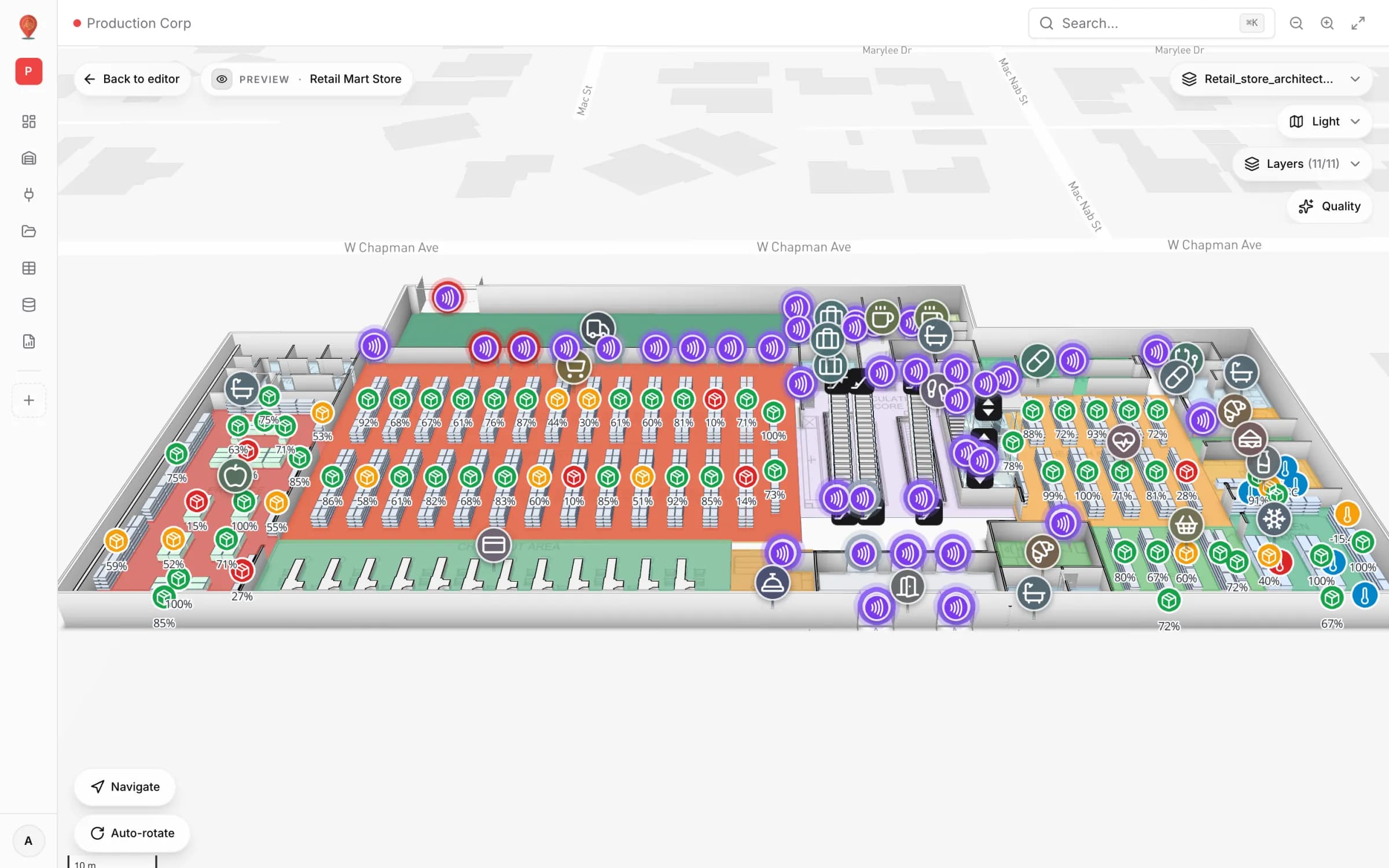
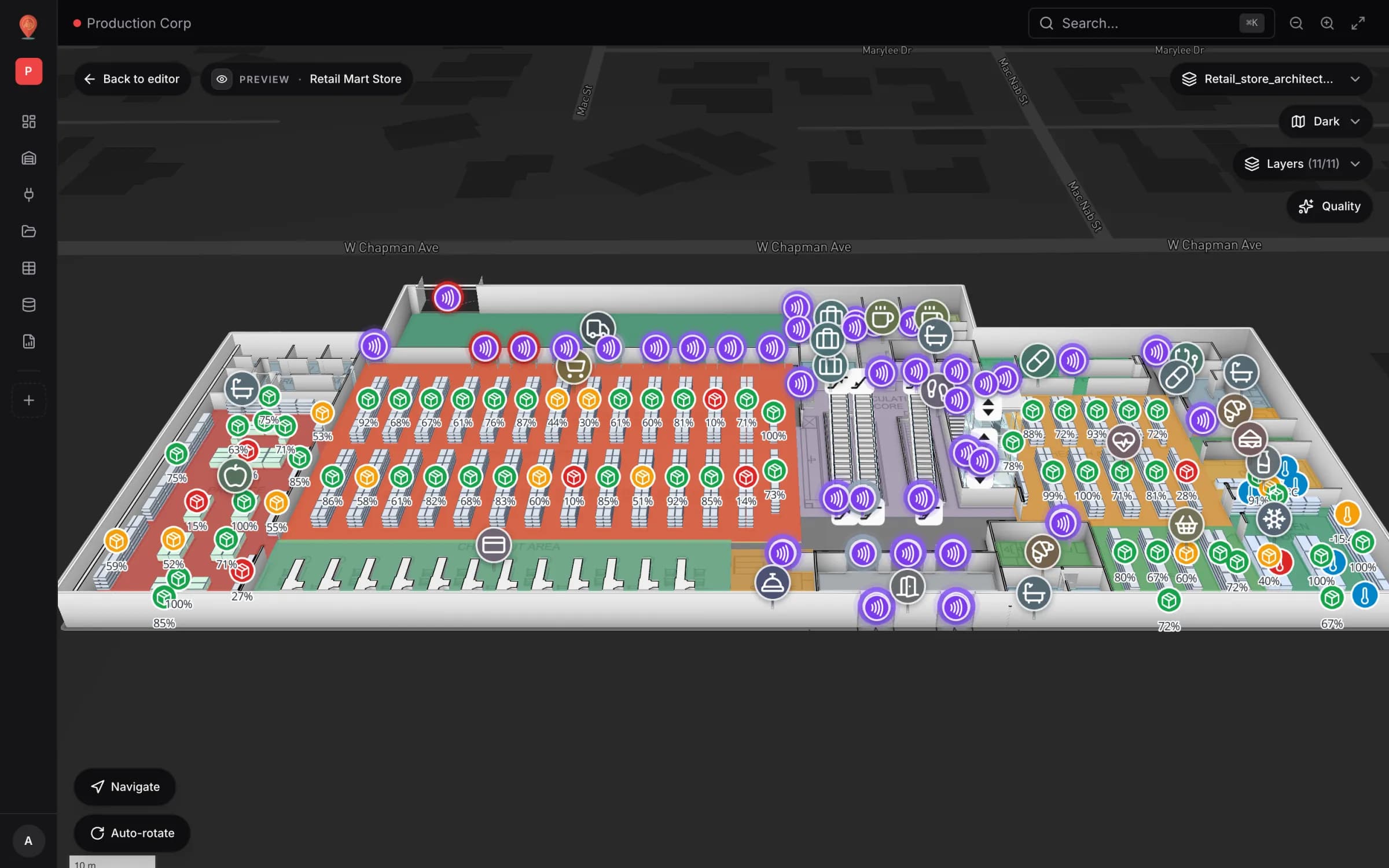
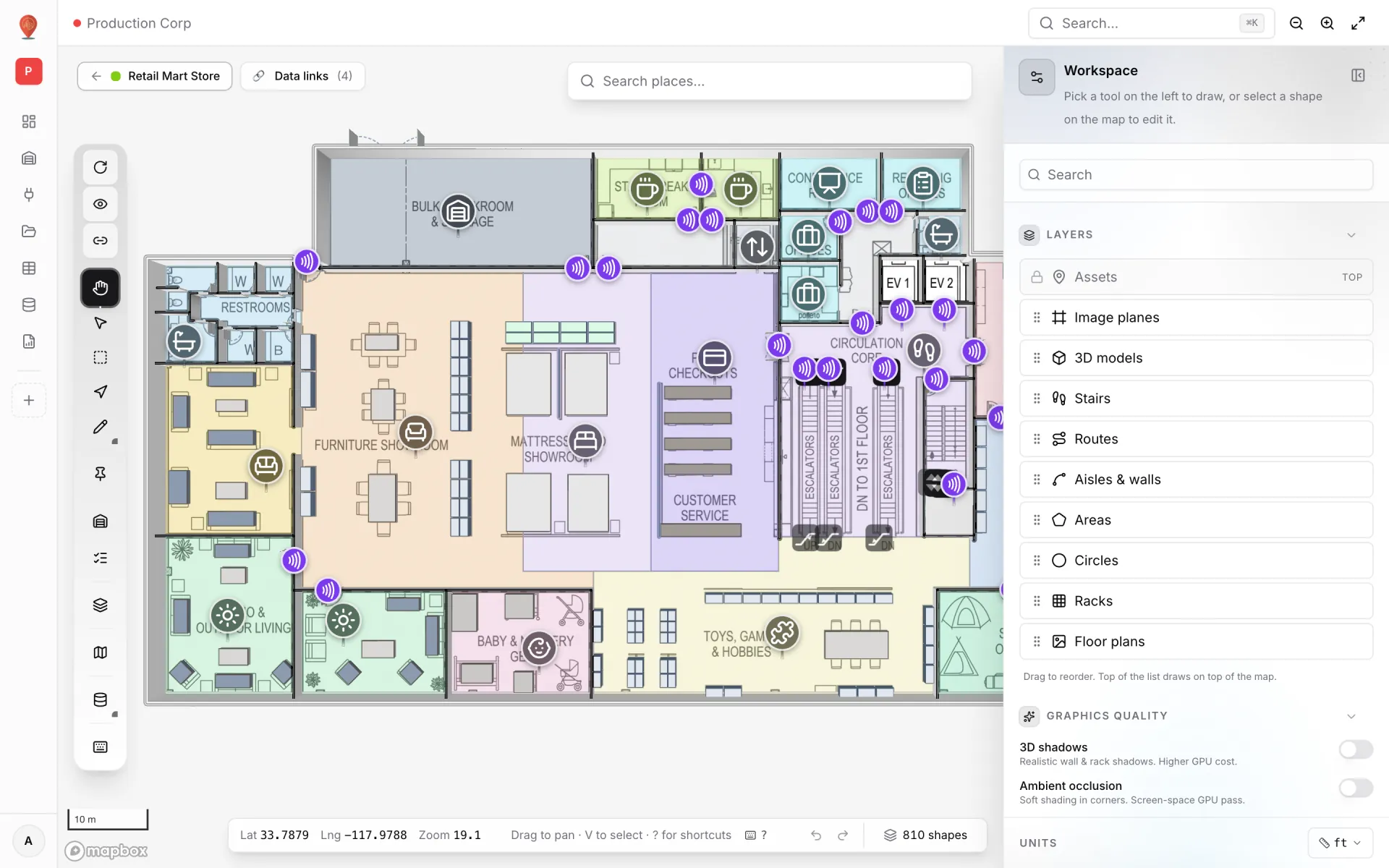
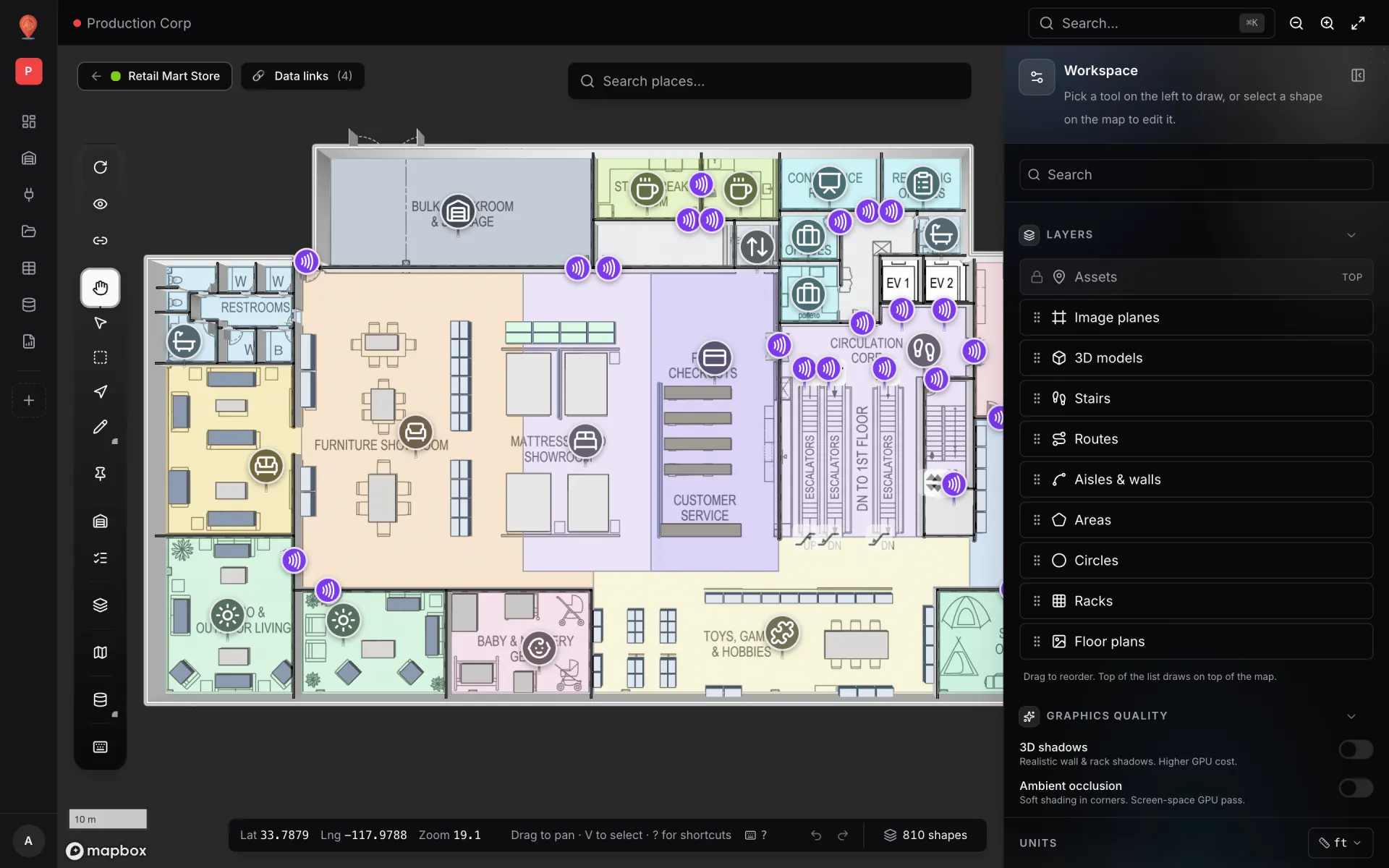
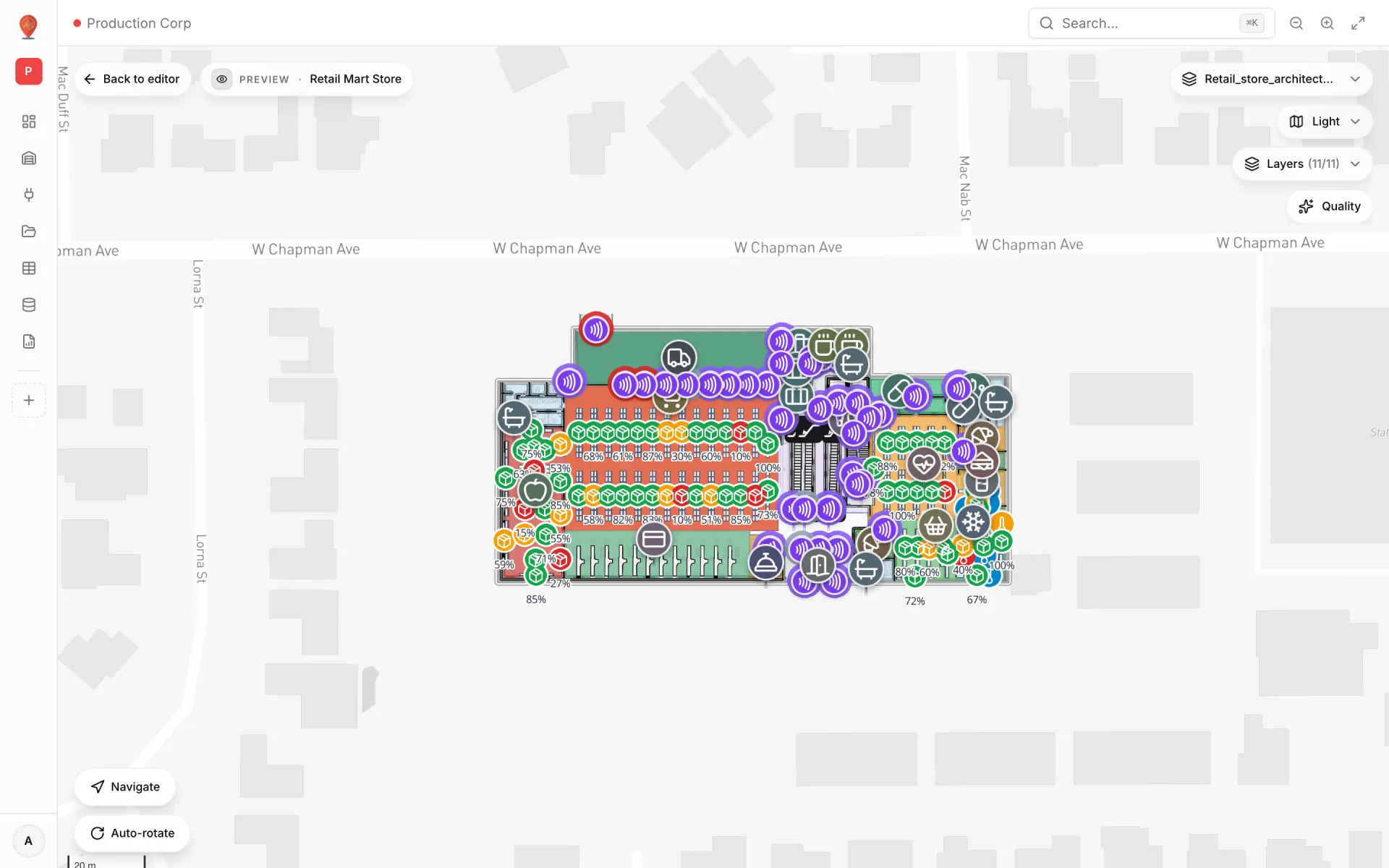
Retail Mart Store is a three-level demo store (Ground, Level 1, Level 2) with departments, stock racks, escalators and lifts. Each RFID reader is a marker named after the opening it covers — RFID-G-01 · Receiving / Loading Docks ↔ Outside, RFID-G-26 · Bakery ↔ Deli — so the name alone tells you where to walk. All numbers below were read from the demo data on 11 October 2026.
| Location type | Readers | Where |
|---|---|---|
| Gate | 66 | Doorways between rooms, entrances, the receiving dock |
| Escalator | 9 | Escalator landings |
| Elevator | 9 | Lift doors |
| Stairs | 1 | A stair landing |
How tag reads get in
Readings land in a table: Retail Mart · RFID Reader Reads — 85 rows, 18 fields, created with the RFID tag kind. Reader ID is required and unique; it is the row key. The demo keeps one row per reader with its running numbers rather than one row per tag read, which keeps the map light and the report quick. One row:
{
  "reader_id": "RFID-G-02",
  "reader_name": "RFID-G-02 · Office ↔ Receiving / Loading Docks",
  "reader_type": "Gate",
  "floor": "Ground",
  "status": "Active",
  "reads_today": 590,
  "reads_last_hour": 56,
  "unique_tags_today": 288,
  "in_count_today": 294,
  "out_count_today": 296,
  "last_read_at": "2026-10-08T09:25:12Z",
  "last_tag_epc": "E2801121130DB42AB66C7A7B",
  "last_sku": "SKU-339201 Frozen Peas 1kg",
  "last_direction": "Out",
  "alerts_today": 2,
  "rssi_dbm": -59.4,
  "firmware": "4.2.1",
  "elevation_m": 2.4
}
Your reader middleware — or a small bridge script — keeps those rows current in one of two ways:
- 1Push with the write API
On the table’s API & access tab, create a key — one per system, so you can revoke one without breaking the rest. Send it as a bearer token. Each key is limited to 60 requests a minute and the bulk endpoints take up to 1,000 rows, so batch all 85 readers into one call every few seconds instead of one call per read. `PATCH /rows/bulk` merges only the fields you send.
- 2Or let Spatial Map pull
Turn on Pull from a REST API on the same tab. Spatial Map fetches your URL on a schedule — every 30 seconds at the fastest — and upserts every item it returns.
curl -X PATCH https://<your API host>/api/v1/public/tables/rows/bulk \
  -H "Authorization: Bearer sgv_tbl_..." \
  -H "Content-Type: application/json" \
  -d '{"rows": [
    {"entityKey": "RFID-G-02", "patch": {"status": "Active", "reads_last_hour": 56, "reads_today": 590,
      "last_read_at": "2026-10-08T09:25:12Z", "last_direction": "Out"}},
    {"entityKey": "RFID-G-01", "patch": {"status": "Offline", "reads_last_hour": 0}}
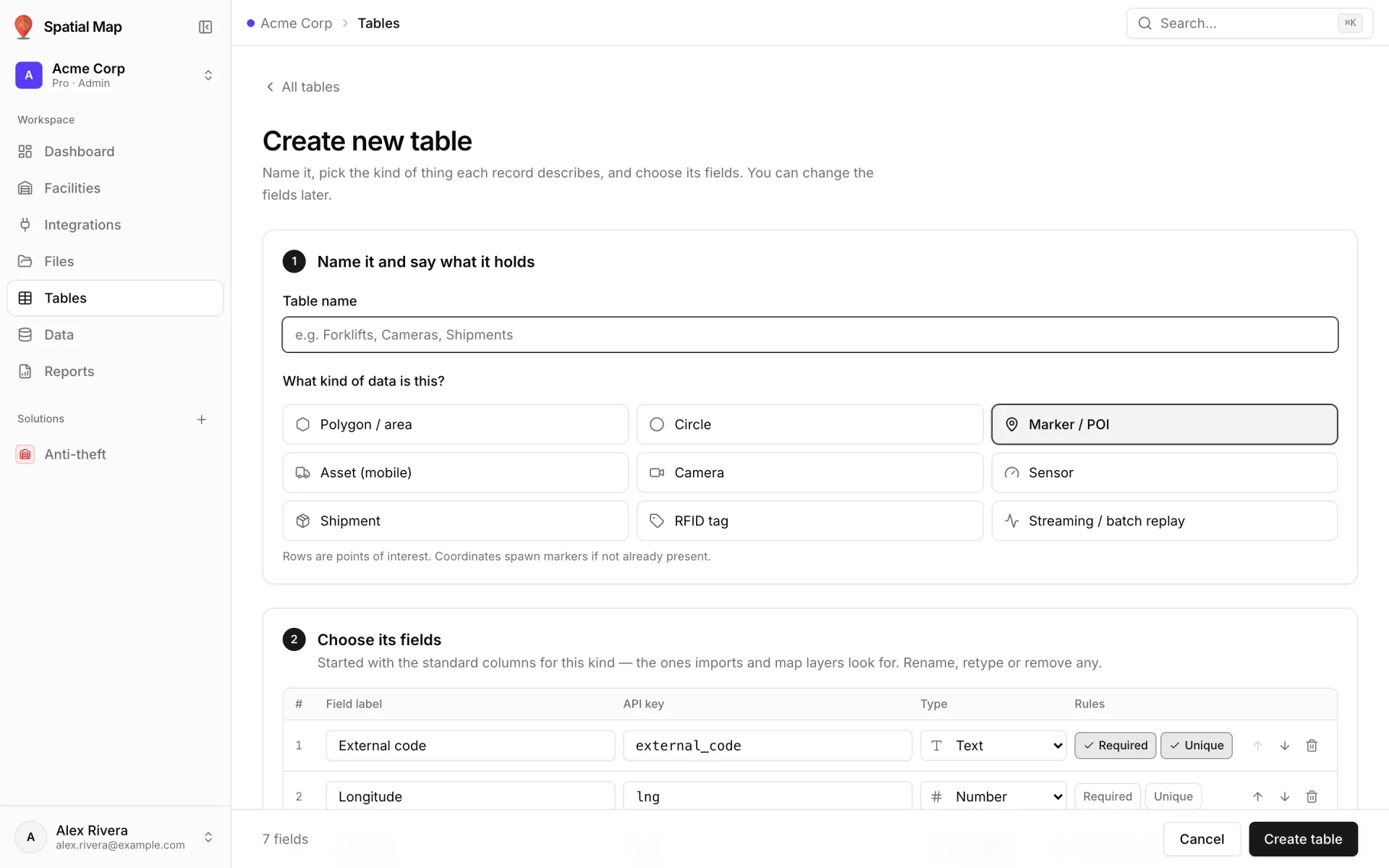
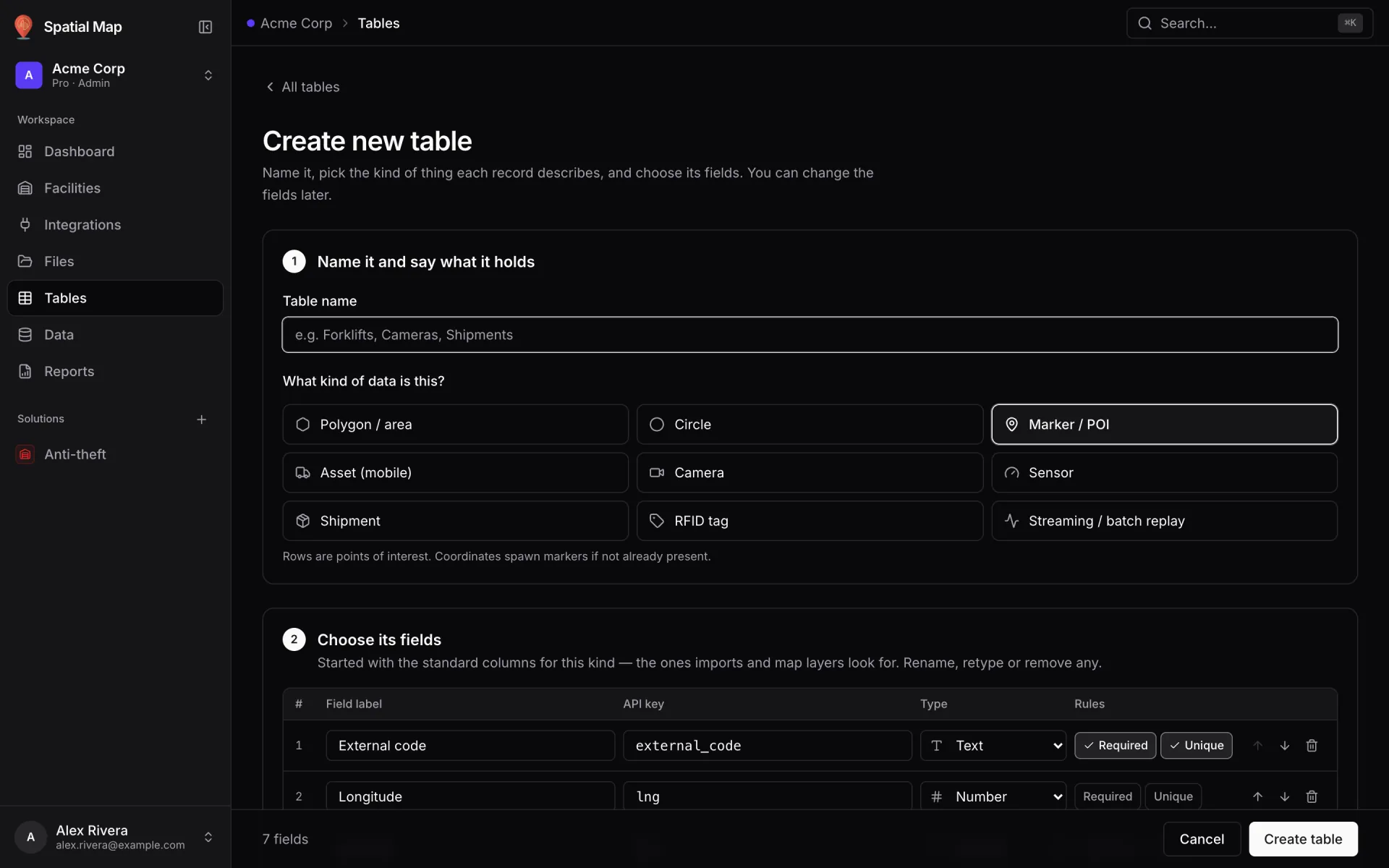
]}'Starting from scratch? On Create new table, pick RFID tag under “What kind of data is this?”; the table starts with that kind’s standard columns, which you can rename or remove.
Drawing it: Pulsing zone activity
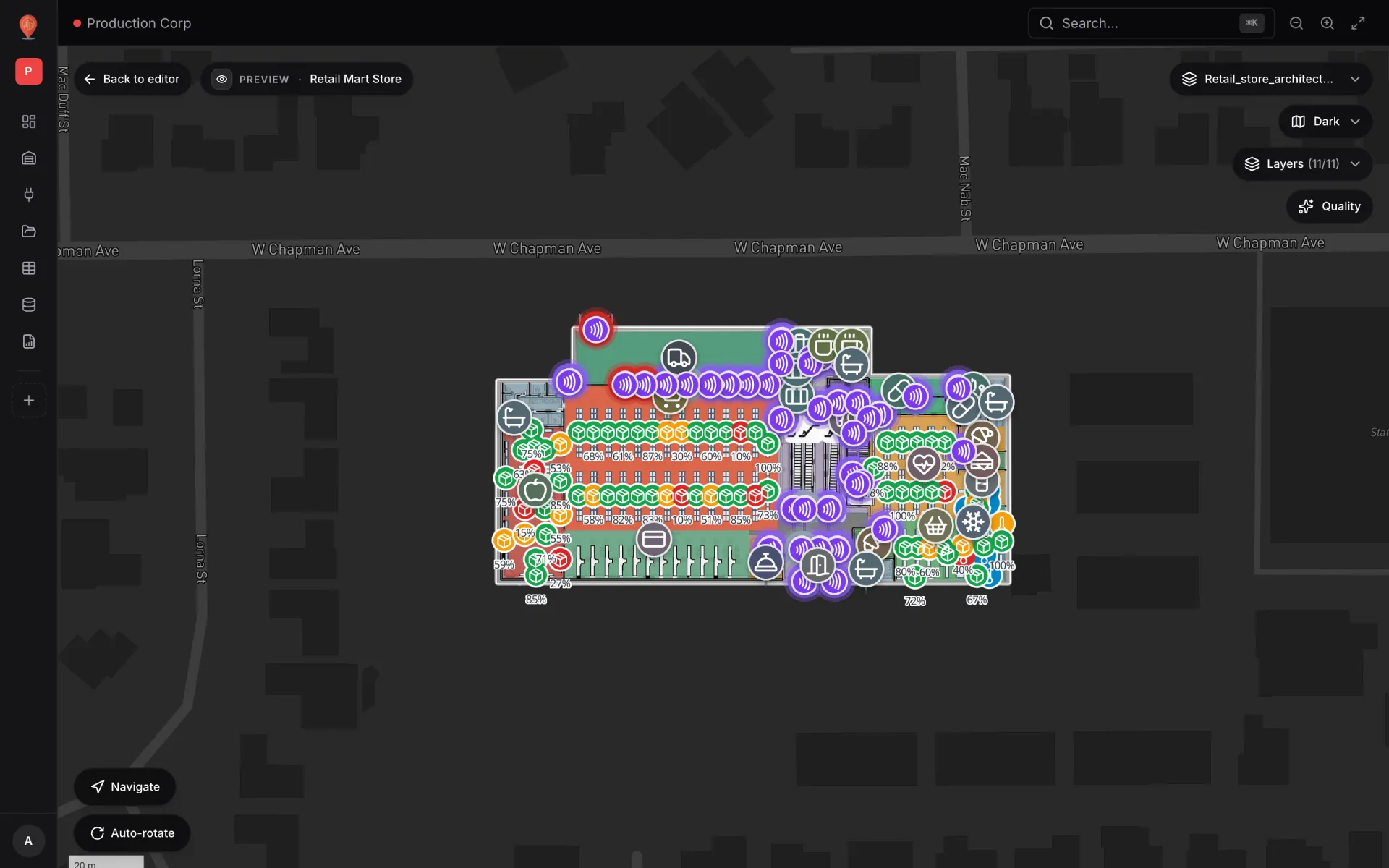
The data link RFID reader activity turns rows into visuals (render modes):
- Display mode: Pulsing zone activity — an animated ring with a count badge at each reader; the badge shows `reads_last_hour`.
- Attach to shapes — shape kind marker, Match by attribute: `reader_name` ↔ the marker’s name.
- Floor scope: From record — the `floor` field maps Ground, Level 1 and Level 2 to the store’s three floor plans, so each reader appears on its own level.
- Map tooltip — trigger Hover, On click Open tooltip / content panel, with 16 fields from Reader ID to firmware.
| Style rule | Condition | Colour | Priority |
|---|---|---|---|
| Retail · RFID offline | status equals Offline | Red | 10 |
| Retail · RFID idle | status equals Idle | Grey | 20 |
| Retail · RFID active | status equals Active | Violet | 30 |
The RFID Live Map report
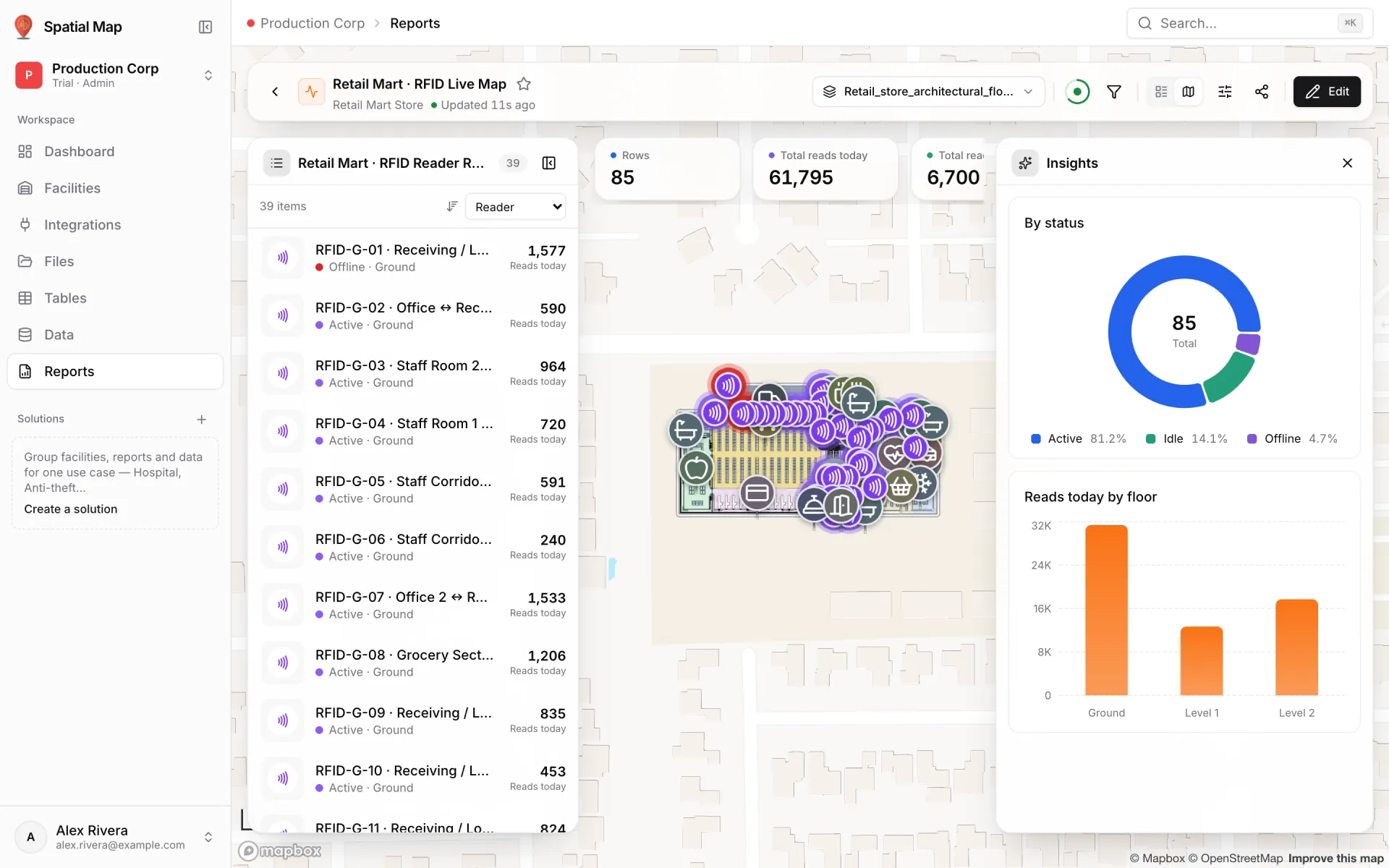
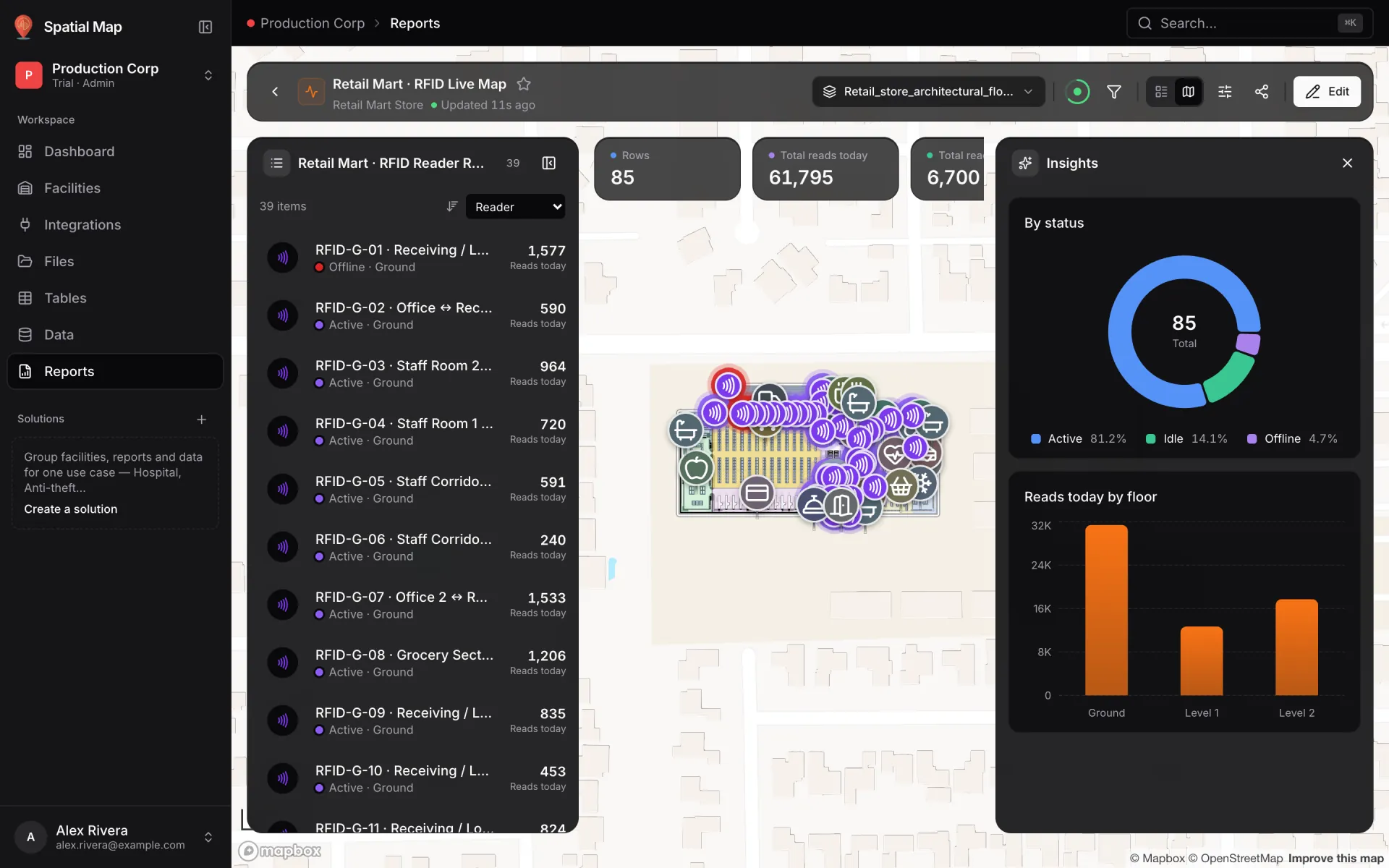
Retail Mart · RFID Live Map is a full-map report: reader list on the left, KPI cards along the top, the Insights panel on the right and the store in between. Filters: Floor, Status and Search by reader.
- KPIs: Rows 85 · Total reads today 61,795 · Total reads last hour 6,700 · Total unique tags today (summed per reader, so a tag seen by two readers counts twice).
- By status: Active 81.2%, Idle 14.1%, Offline 4.7%.
- Reads today by floor: Ground 31,401 · Level 1 12,681 · Level 2 17,713.
- With the ground-floor plan selected, the list shows its 39 readers, each with status and reads today.
What the demo data flags
- Four readers are offline, and three of them guard the receiving dock: RFID-G-01 (dock ↔ outside, last read 8 October, 04:30 UTC), RFID-G-15 and RFID-G-16 (dock ↔ grocery). That is the door goods come in by — the gap to close first.
- The fourth, RFID-L2-22, sits between Music & Books and Entertainment & Media on Level 2.
- Twelve readers are idle. Idle isn’t broken, but an idle reader on an exit during opening hours deserves a walk-by.
- The readers reported 38 exit alerts today. The Exit alerts today field puts each count on the reader that raised it, one click away in the content panel.
Group it: an Anti-theft solution
- 1Click + next to Solutions
In the sidebar, under the workspace pages.
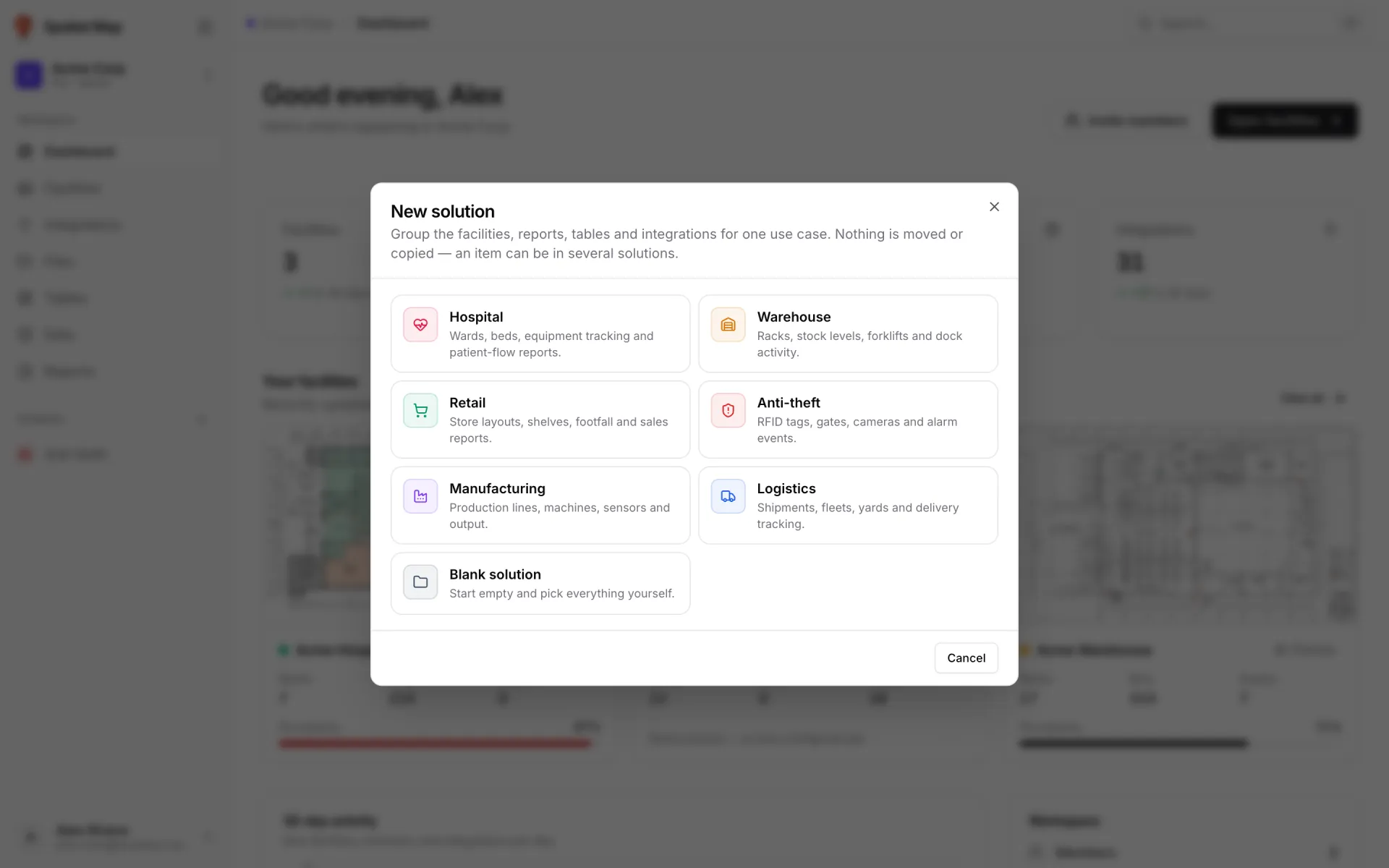
- 2Pick Anti-theft
“RFID tags, gates, cameras and alarm events.” Its keywords — theft, security, rfid, tag, alarm, gate, camera, alert — pre-tick the items whose name matches: the RFID Reader Reads table, the RFID Live Map report and the RFID Reader Reads report.
- 3Tick the store yourself
Retail Mart Store contains none of the keywords, so tick it on the Facilities tab, then click Create solution.
Nothing is moved or copied — the same store can sit in a Retail solution too. The solution gets its own home, sidebar entry and scope bar. See Solutions.
An audit trail without extra work
Every write to a table row is kept in a change log. Open a reader in the viewer’s detail drawer and its history lists each update with the fields that changed — useful when someone asks when RFID-G-01 went quiet. See Table history in the viewer.
Build your own
Create a table and a key with the write API, link it with style rules, add a full-map report and group it in a solution. For reader placement and antenna basics, read Integrating RFID readers with an indoor map; for stock and cold chain in the same store, see Retail shelf monitoring on a live store map.
Try the platform your data belongs on.
Spatial Map turns spreadsheets, sensor streams, and CAD drawings into one live 3D facility view — nothing to install, seven-day free trial.
See it live
Keep reading
- Use caseAirport terminal operations on a live map: RFID bag tags, queues and gatesA terminal runs on hand-offs: from check-in to screening, from the gate to the carousel. Each hand-off happens in a place, so each one belongs on a map. Here is how our Silverbay Terminal 2 demo puts bag tags, queues, gates and crowding on one live two-floor view.
- Use caseCross-dock and yard visibility on a live map: dock doors, trailers and gatesA cross-dock runs on timing: which door is turning, which trailer has sat in the yard too long, which gate lane is backing up. Putting the building and the yard on one live map makes those answers visible at a glance. Here is how, using our Eastport Cross-Dock Freight Hub demo.
- Use casePharma cold storage and QC on one live map: zones, excursions, holdsA probe ID, a door number and a sample ID only become actionable once you can see which room, dock or rack they belong to. Here is how a pharmaceutical cold store and QC area run on one live map, using our two-floor Polar Pharma demo as the worked example.