
Cross-dock and yard visibility on a live map: dock doors, trailers and gates
Put dock doors, trailer yard slots, gates, yard tractors and pallet flow on one live map of your cross-dock, with a report for each area of the site.
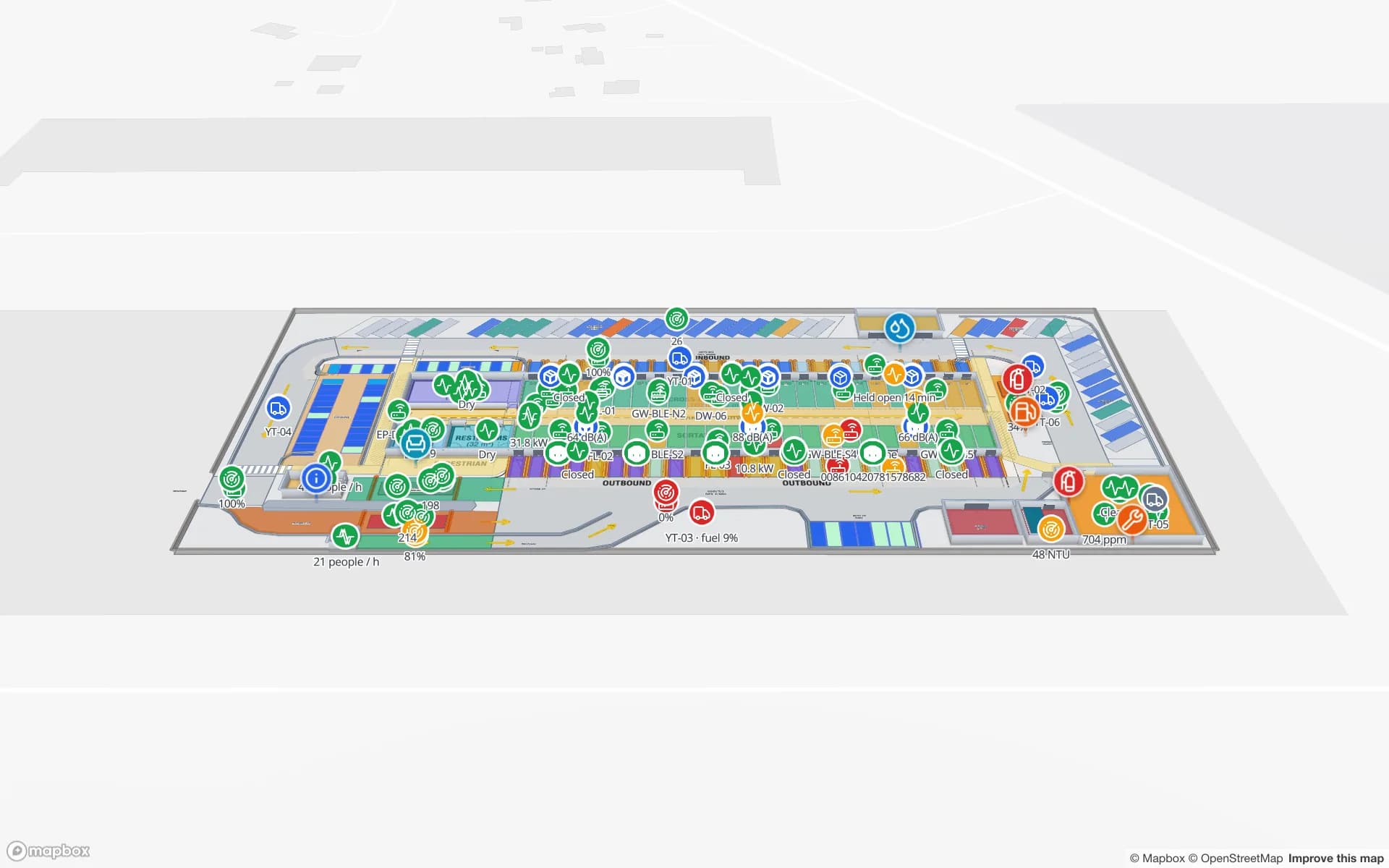
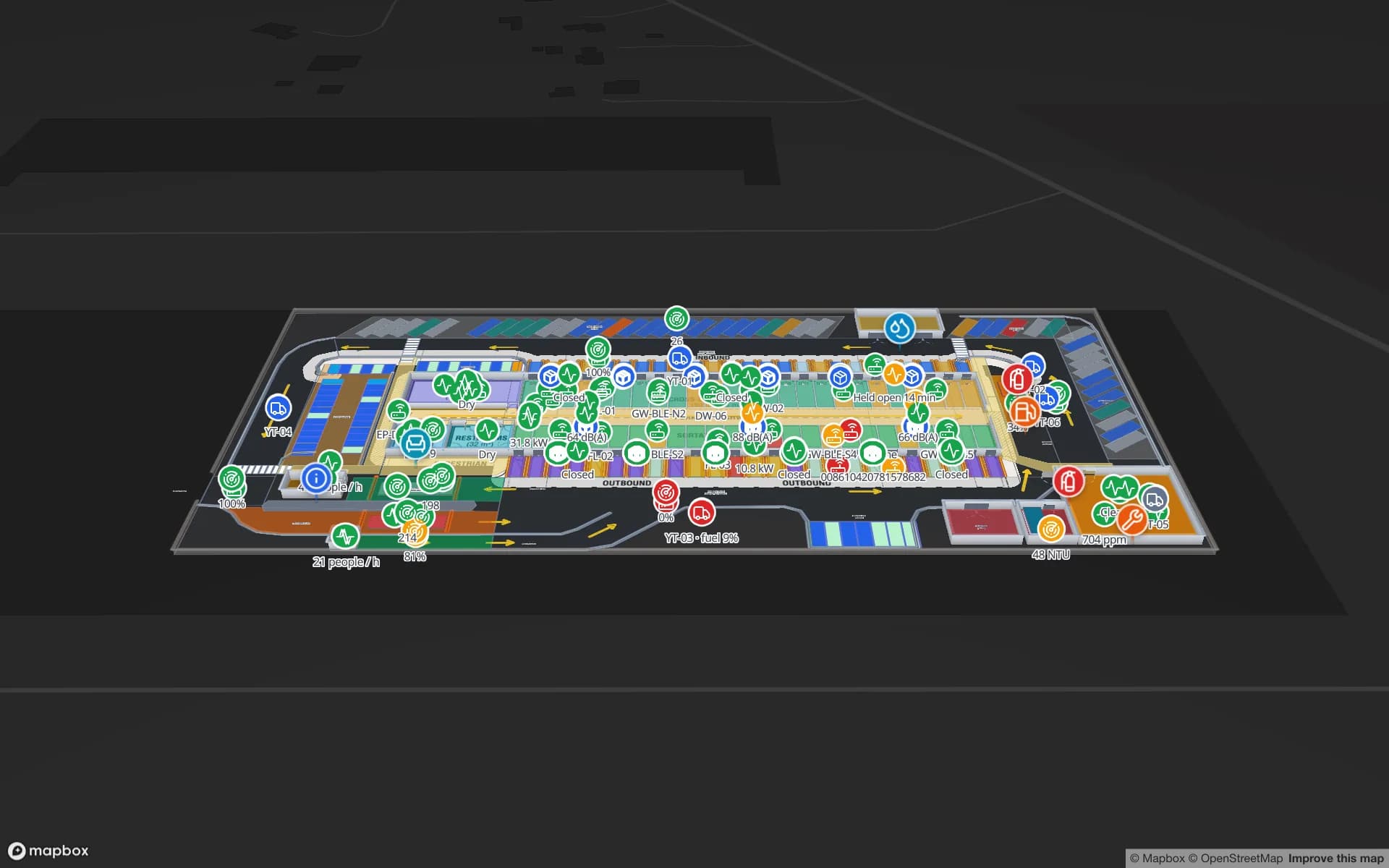
Key takeaways
Why the yard is the blind spot of a cross-dock
A cross-dock lives or dies on flow. A trailer arrives at the gate, crosses the weighbridge, waits in a yard slot, is pulled to a door by a yard tractor and unloads onto sortation lanes — and the freight leaves through another door a few hours later. Every step is recorded somewhere: the gate log, the yard spreadsheet, the dock schedule, the WMS, the telematics portal. Almost none of those systems show where things are in relation to each other.
So the shift lead asks the radio. Which doors are free? Which trailer has been sitting in row C since this morning? Why is the inbound gate backed up? A live map of the building and the yard turns those questions into something you read at a glance. It doesn’t replace your yard or transport system — it puts their data on the site plan, so everyone looks at the same picture.
| Part of the site | Demo table | Eastport report |
|---|---|---|
| Trailer yard slots | Yard Slots | Trailer Yard |
| Dock doors | Dock Turns | Dock Doors |
| Gate lanes and weighbridges | Gate Transactions | Gate & Weighbridges |
| Yard tractors | Tractor Moves | Yard Tractors |
| Sortation lanes | Pallet Transfers | Cross-Dock Flow |
| Parking | — | Parking |
| Washes, fuel and the workshop | — | Washes, Fuel & Workshop |
| Site sensors | — | Site Sensors |
The middle column names five of Eastport’s 24 tables.
Model the building and the yard once
Everything starts with the site plan. Place it in the editor — a PDF is scaled from its sheet size, a DWG is rendered as a picture, or use a PNG or JPG — and it sits at true scale on a real-world basemap, so the yard, gate lanes and access roads line up with the building. Eastport is a single floor, 01-site-plan, that holds both the cross-dock building and the yard around it.
- Areas for each dock door, yard slot, gate lane, weighbridge, parking bay, wash bay, fuel island and the workshop, each with an optional role from a list you edit in the facility settings (for example Dock door, Yard slot, Gate lane).
- Sortation lanes as areas inside the building, so pallet counts and status can colour them.
- Walls and doors for the building shell. Doors snap to walls and let walking routes through — see the Door tool.
- Markers for fixed equipment: gate readers, cameras, sensors, fire points.
- 3D models of trucks, trailers and forklifts from the model library or your own .glb files — see 3D models.
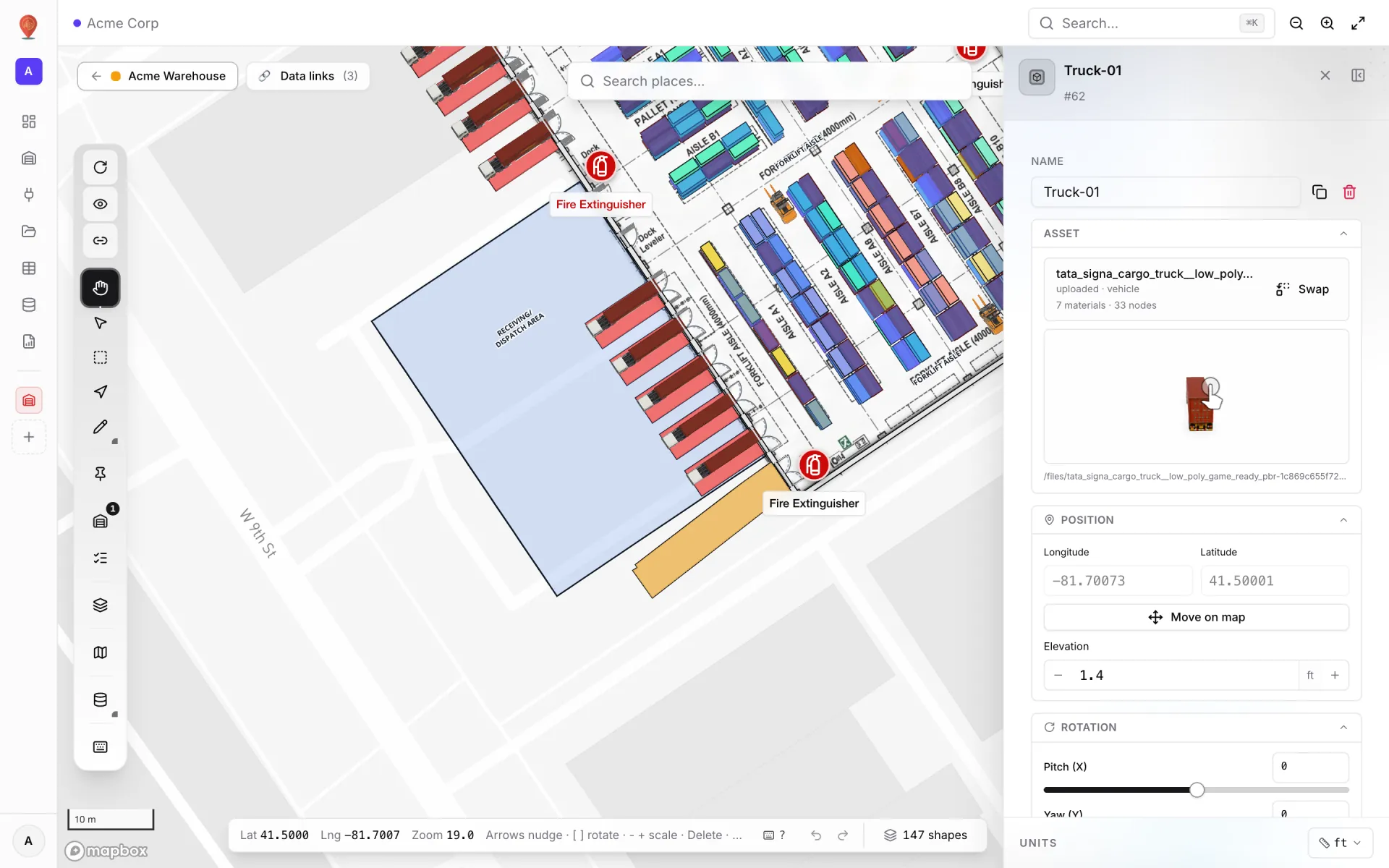
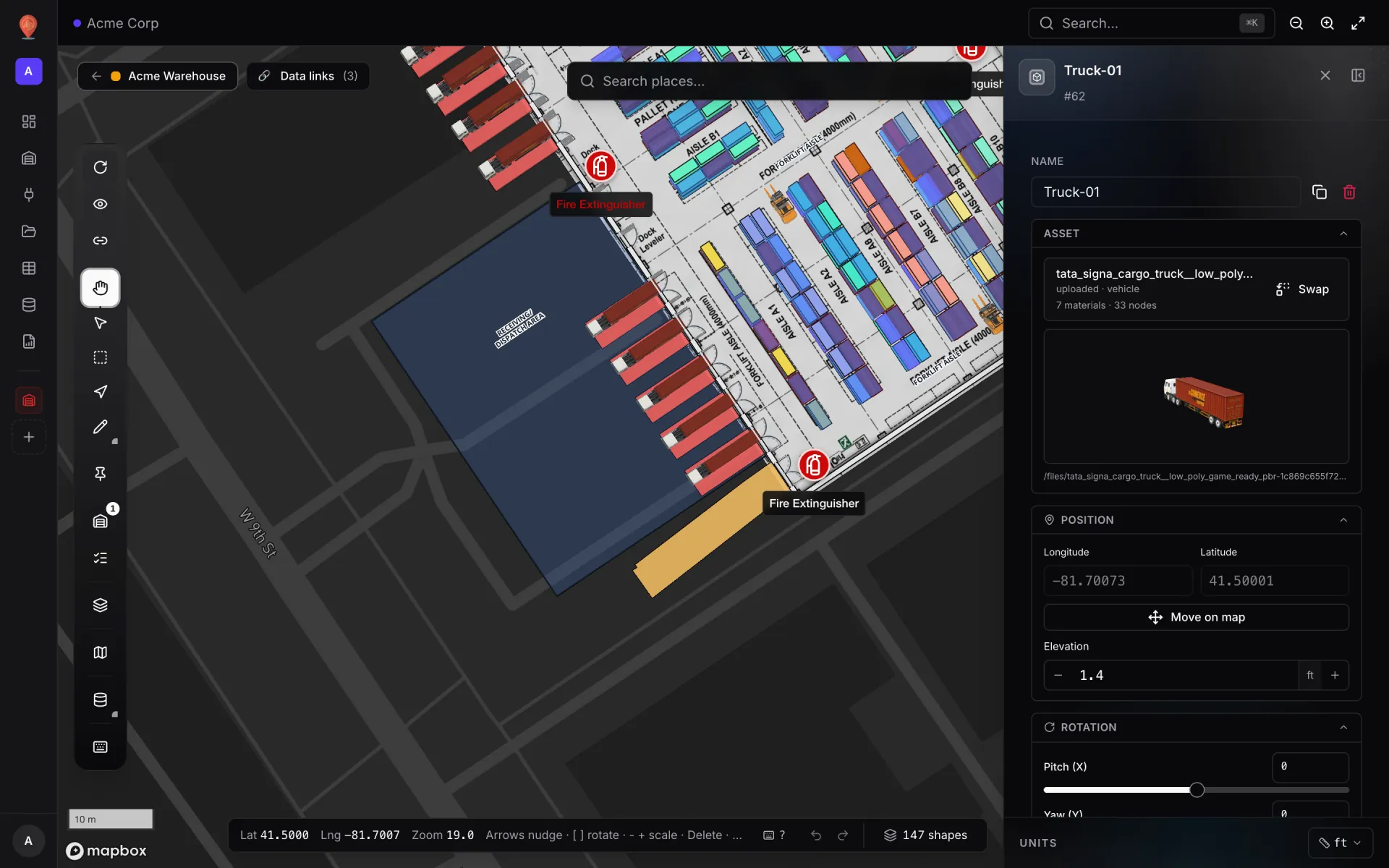
Dock doors and turns: what each door is doing now
A dock door has a small, well-defined state: free, assigned, loading or unloading, done. Keep the turns in a table — Eastport’s is called Dock Turns — with a field for each thing the dock cares about, for example `door`, `status`, `trailer` and `turn_started`. Then add a Color a shape data link that attaches each row to its door area by name, tick a few style rules, and the doors repaint as the rows change.
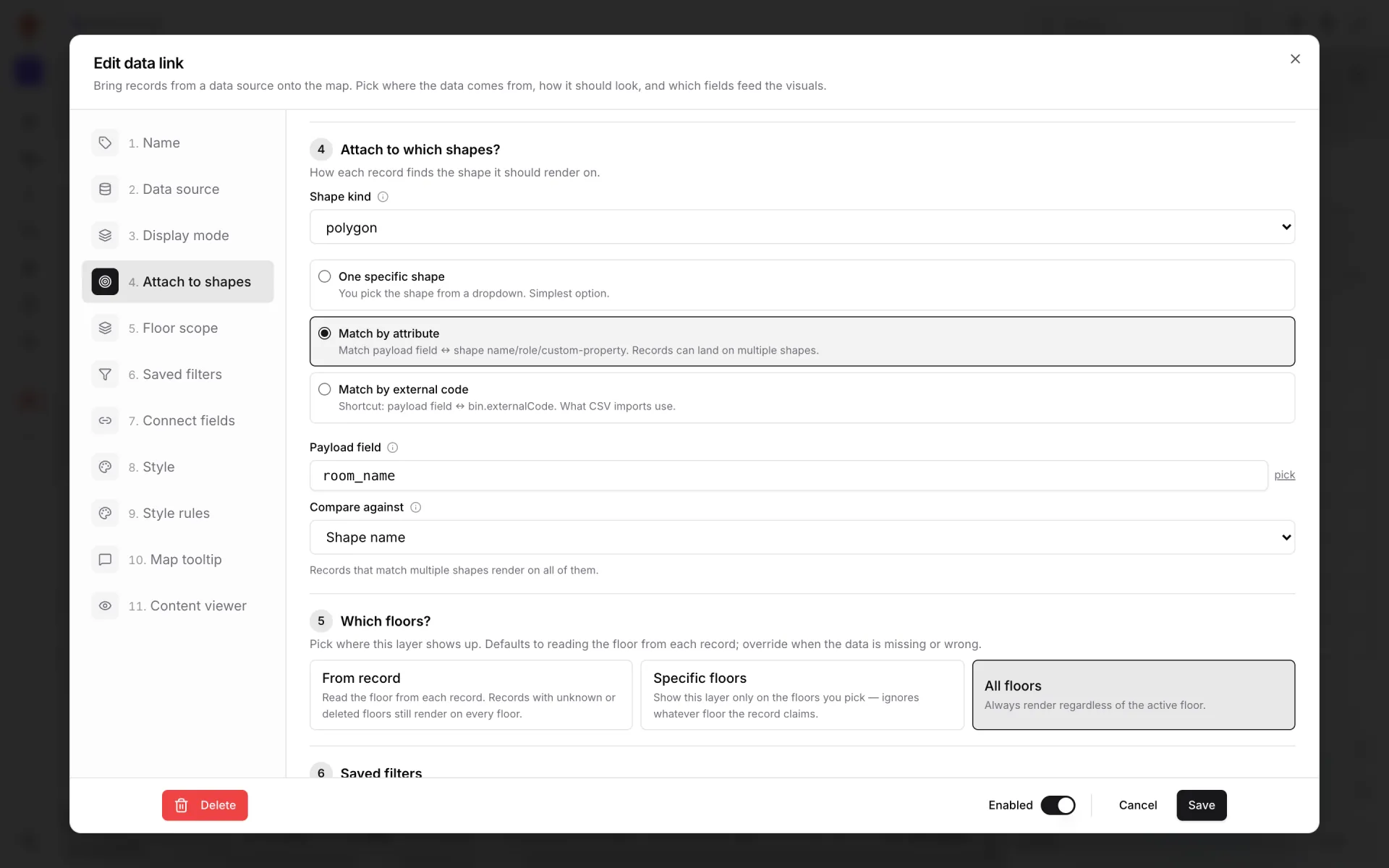
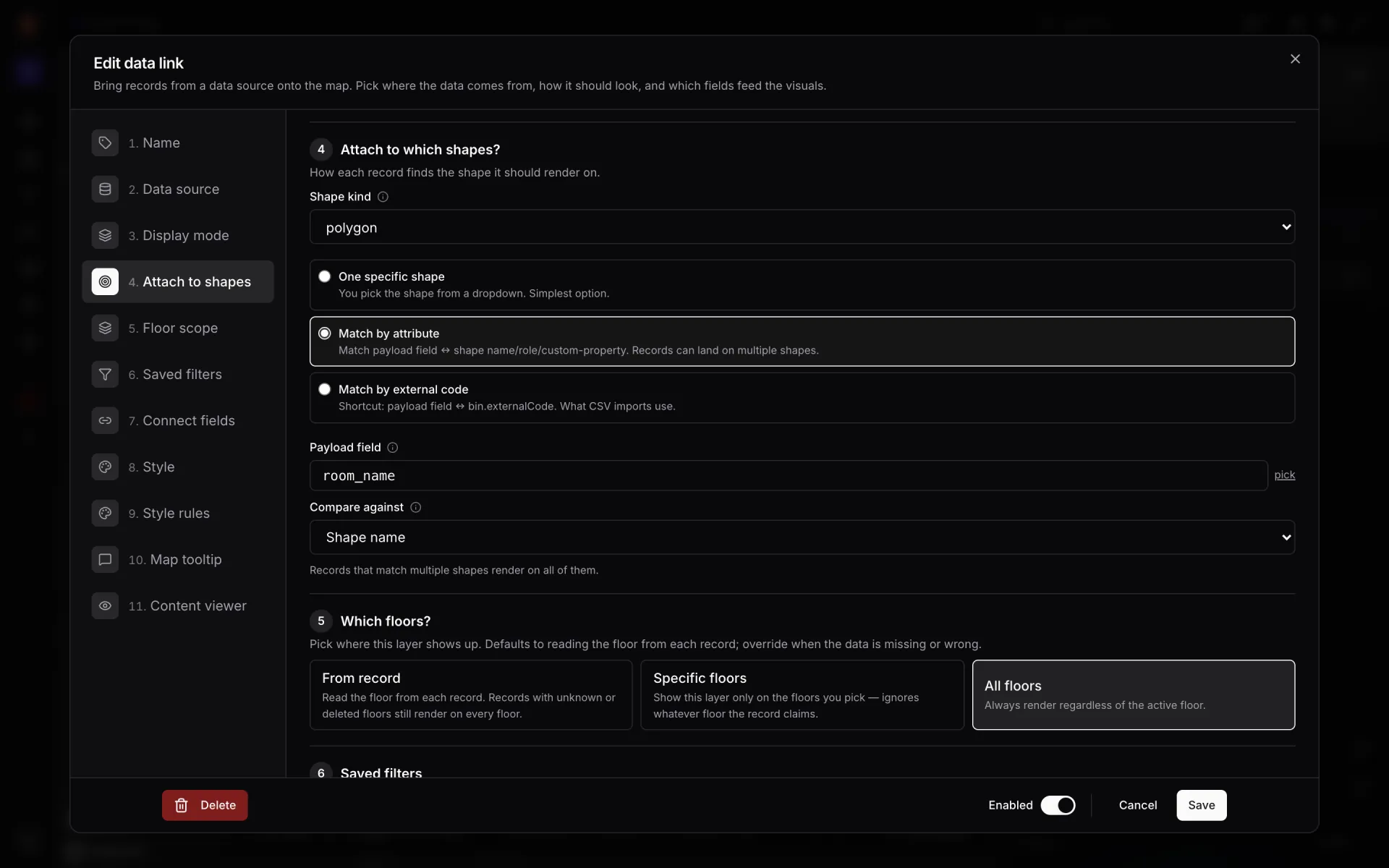
The screenshot matches a `room_name` field; for doors you would pick `door` instead. Two more display modes help at the door. Value badge on shape prints a number on each door — trailers turned today, or minutes since the turn started if your system sends it. Pulsing zone activity puts an animated ring and count on a busy door. On the Eastport map, door markers read “Closed” or “Held open 14 min” straight from their data.
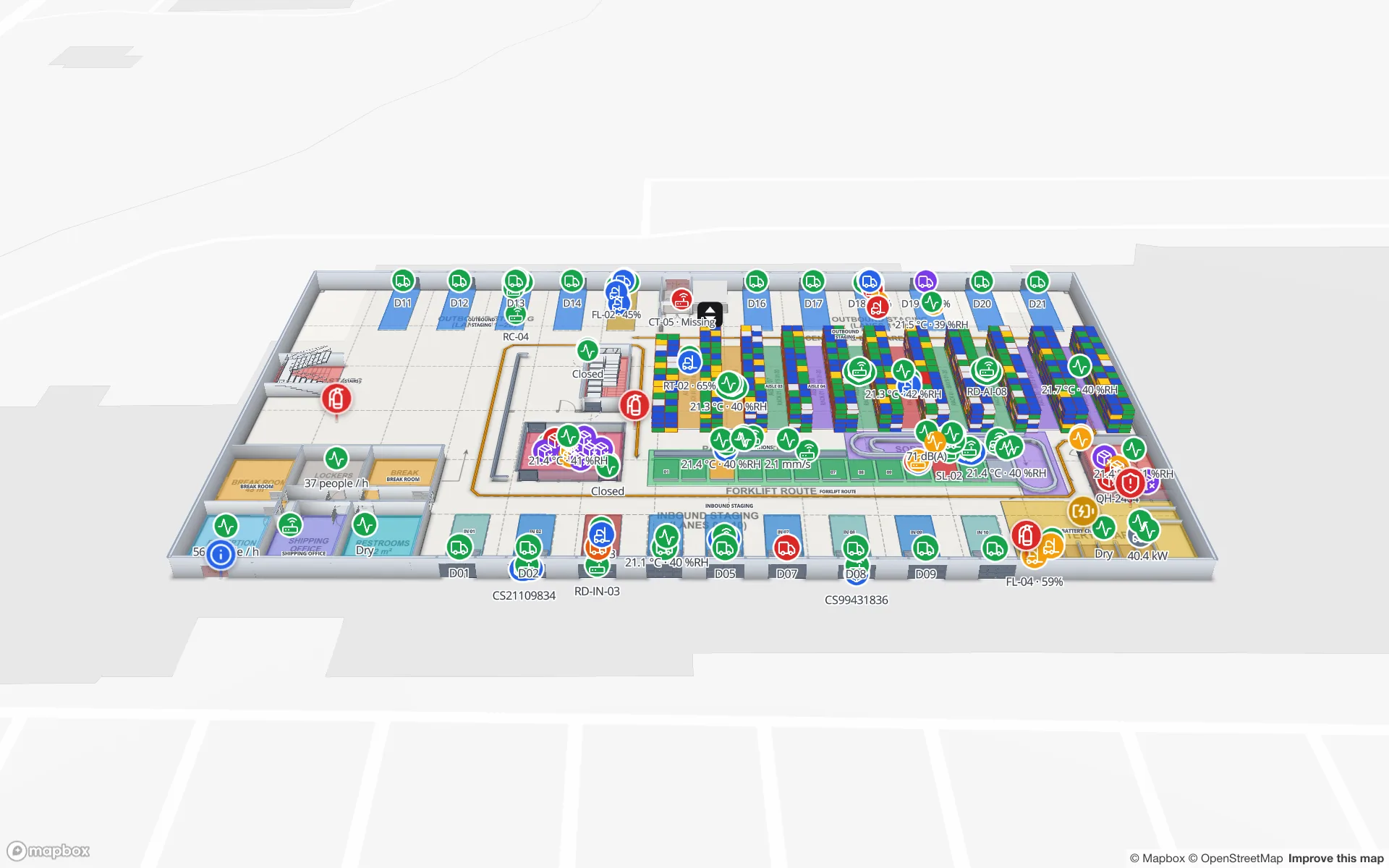
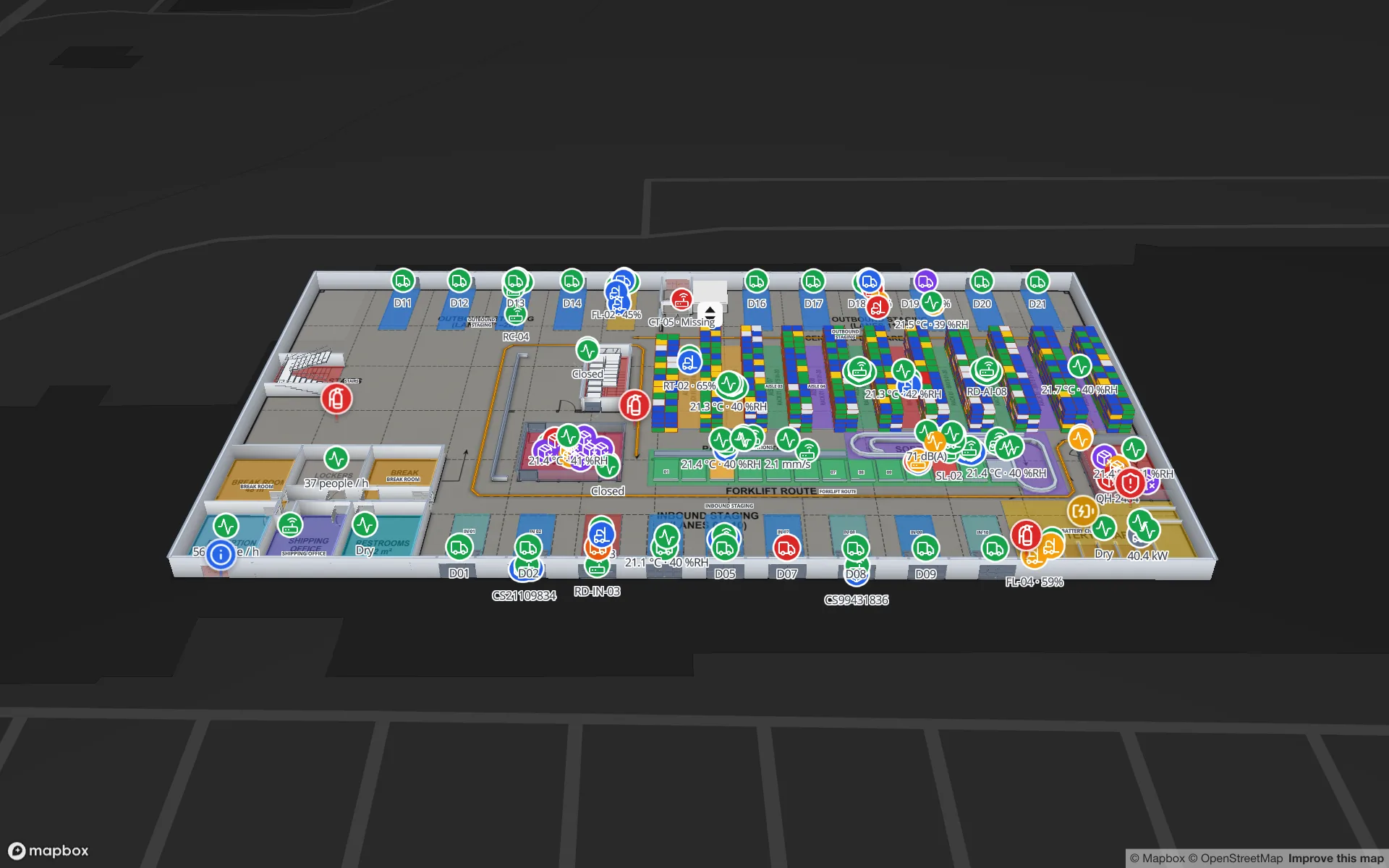
At Crestline Fulfillment Center the same idea joins the dock to the warehouse. Numbered dock doors (D01, D02 … D21) line two walls, inbound and outbound staging lanes sit between the doors and the racks, and the Staged Pallets and Trailer Visits tables feed the Docks & Trailer Yard report — so inbound freight and stock show up on the same map.
Yard slots and dwell time, coloured by your own rules
Each yard slot is an area, and each slot has a row in a table such as Eastport’s Yard Slots: which trailer is in it, its status and — if you want to see dwell — a number for how long it has been there. A Color a shape link tints the slots, and the tooltip and content panel show the trailer, its reference and any other field you choose.
Style rules are tried from the lowest priority number up, and the first rule that matches paints the slot. Put the most urgent condition first:
| Priority | Rule | Condition | Paint |
|---|---|---|---|
| 10 | Yard · dwell over 4 h | `minutes_in_slot` > 240 | Red fill |
| 20 | Yard · dwell over 2 h | `minutes_in_slot` > 120 | Amber fill |
| 30 | Yard · occupied | `status` = occupied | Blue fill |
| 40 | Yard · empty | `status` = empty | Grey fill, low opacity |
A trailer that has sat in its slot for five hours matches the first rule and paints red; the occupied rule never gets a turn. Swap the order and every occupied slot paints blue, whatever its dwell. A rule can also set a label template such as `{trailer}` or `{minutes_in_slot} min`, so the number is readable on the slot itself. See style rules.
curl -X PATCH https://app.spatialmap.io/api/v1/public/tables/rows/C-14 \
  -H "Authorization: Bearer $SPATIALMAP_TABLE_KEY" \
  -H "Content-Type: application/json" \
  -d '{"status": "occupied", "trailer": "TR-4471", "minutes_in_slot": 185}'
A `PATCH` merges only the fields you send, so a script that recalculates dwell every few minutes can update one number without touching the rest of the row. The table write API also takes bulk upserts of up to 1,000 rows in one call.
Gates, weighbridges, yard tractors and site services
Every arrival and departure passes the gate. Eastport logs them in Gate Transactions and reports on them in Gate & Weighbridges. On the map, gate lanes and weighbridges are areas: colour them by lane status, or show a Value badge on shape with today’s count.
Yard tractors move trailers between slots and doors. If your telematics can send positions into a table or expose them over REST, each tractor becomes a Live location marker at its longitude and latitude. The Eastport screenshot shows tractors labelled YT-01 to YT-06, and a label can carry any field — one reads “YT-03 · fuel 9%”. Their moves are logged in Tractor Moves and summarised in the Yard Tractors report.
To see where a tractor has been, set a data link on the table to Historical movement: the viewer gets a History player at the bottom of the map that replays the table’s recorded changes. See row history and the History player.
- Parking — truck and car bays as areas, coloured occupied or free. Eastport report: Parking.
- Washes, fuel and the workshop — bays and islands coloured by status, with the vehicle in each shown in the tooltip. Eastport report: Washes, Fuel & Workshop.
- Site sensors — markers labelled with their live reading, with uptime in the record. Eastport report: Site Sensors.
Pallets, forklifts and crews on the dock floor
Inside the building, the question changes from “where is the trailer?” to “where is the freight?”. At Eastport, RFID tags on pallets are read as they move through the cross-dock, the transfers land in the Pallet Transfers table, and the Cross-Dock Flow report follows them through the sortation lanes. On the map, colour each lane by pallets waiting, or put a value badge with the count on it, so a lane that is filling up stands out.
Forklifts and crews carry BLE tags. Whatever your RTLS calls them, the map needs one row per tag with a position: a Live location marker link draws them, clustering keeps a busy dock readable, and Heatmap of activity turns positions into a density map that shows where congestion builds up near the doors. The live markers recipe walks through the setup.
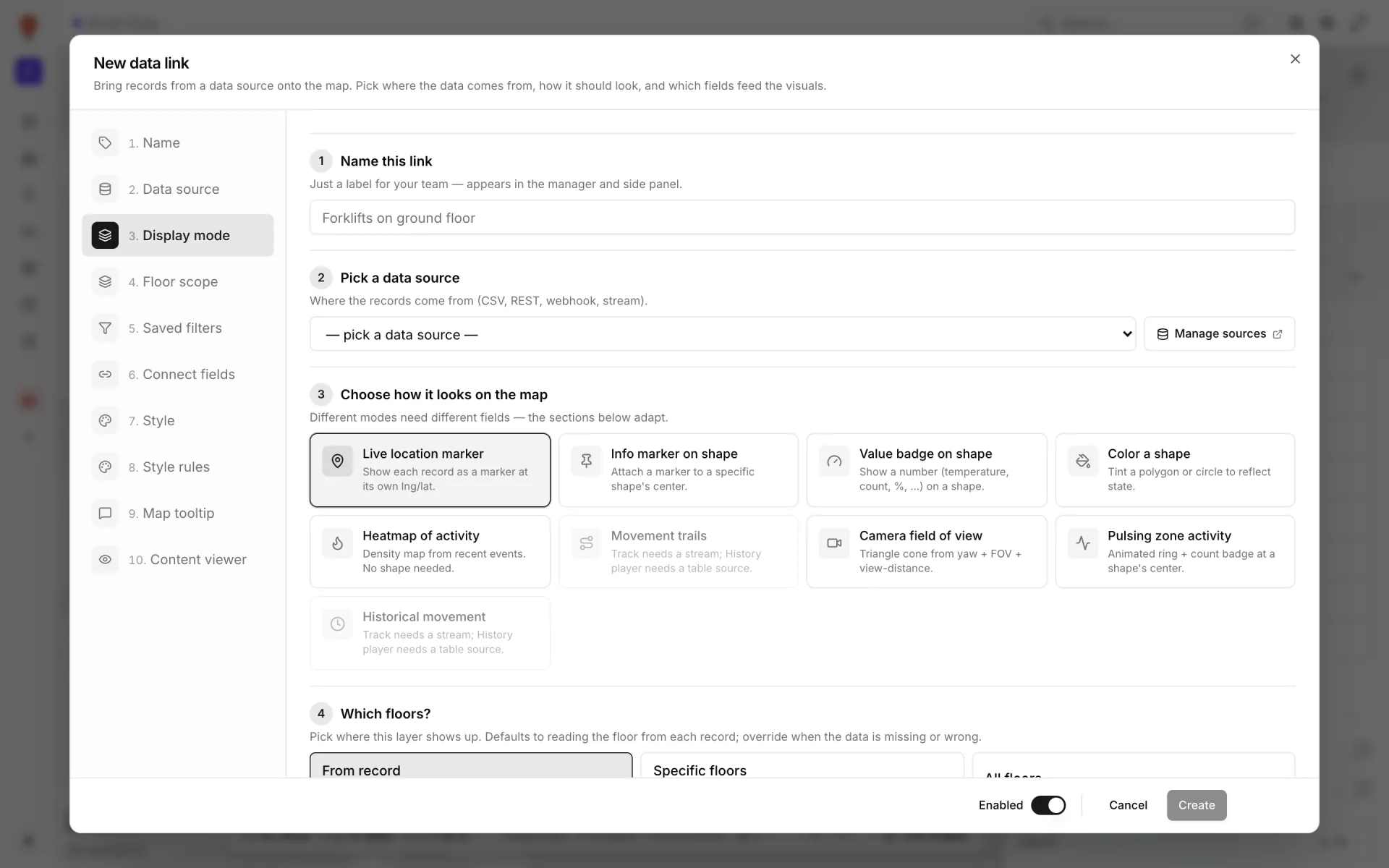
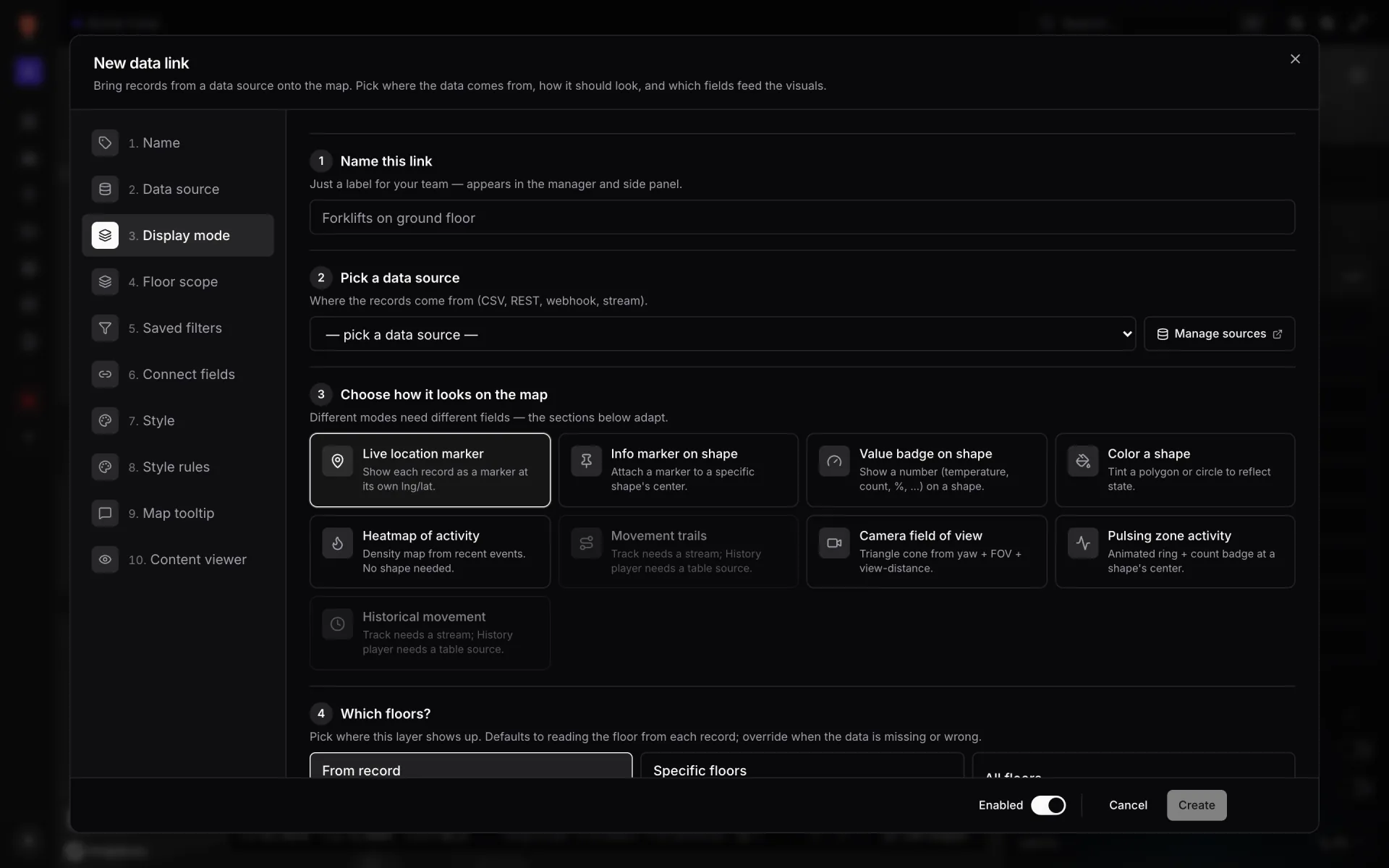
“Map the state, not the event log: one row per door, slot and lane, kept current, is something a shift lead reads at a glance.”
Connecting your yard, gate and dock systems
There are no vendor connectors to wait for. Anything that can send or serve JSON, or export a file, can feed the map:
- Tables with a write API — one table per stream (doors, slots, gate transactions, positions) and one API key per system. Rows are keyed by your own ID, such as a door or slot name, and open maps update without a refresh.
- REST pull — a table can call your yard or transport system’s endpoint on a schedule from our servers, so it keeps going with no map open. An Integrations REST source is pulled by the browser while a map is open.
- File upload — CSV, XLSX, JSON or GeoJSON for slow-changing data such as the slot list or a carrier roster.
- 1Create the tables
Tables → Create new table. Use Polygon / area for doors, slots and lanes; Asset (mobile) for tractors, forklifts and crews; Sensor for site sensors; Shipment or RFID tag where they fit.
- 2Feed them
Give each system its own key on the API & access tab, or switch on Pull from a REST API.
- 3Link them to the map
In the editor, Data → Manage data links → New link: pick the table, the display mode, the shapes it attaches to and the floor scope.
- 4Style and group
Tick style rules on each link, choose the tooltip fields, then group the site, its reports and its tables into a solution.
For the integration side in depth — polling, pushing and keys — read the WMS integration guide and the scheduled REST polling recipe.
A report for every part of the site
Every facility gets 8 built-in reports about what is drawn on its map, and every table you link gets a live report of its own. On top of those, Eastport has a report per area of the site: Trailer Yard, Dock Doors, Gate & Weighbridges, Yard Tractors, Cross-Dock Flow, Parking, Washes, Fuel & Workshop and Site Sensors.
Build your own in the report builder. A Summary report gives KPI cards and charts — doors in use, trailers in the yard, gate transactions today. A Detail report lists records with filters and sort. An Editable report lets the yard team correct a slot in place. A History report charts a timestamp field over a rolling window, such as gate transactions per hour. Switch any of them to a full-map report and the list floats over the live site plan.
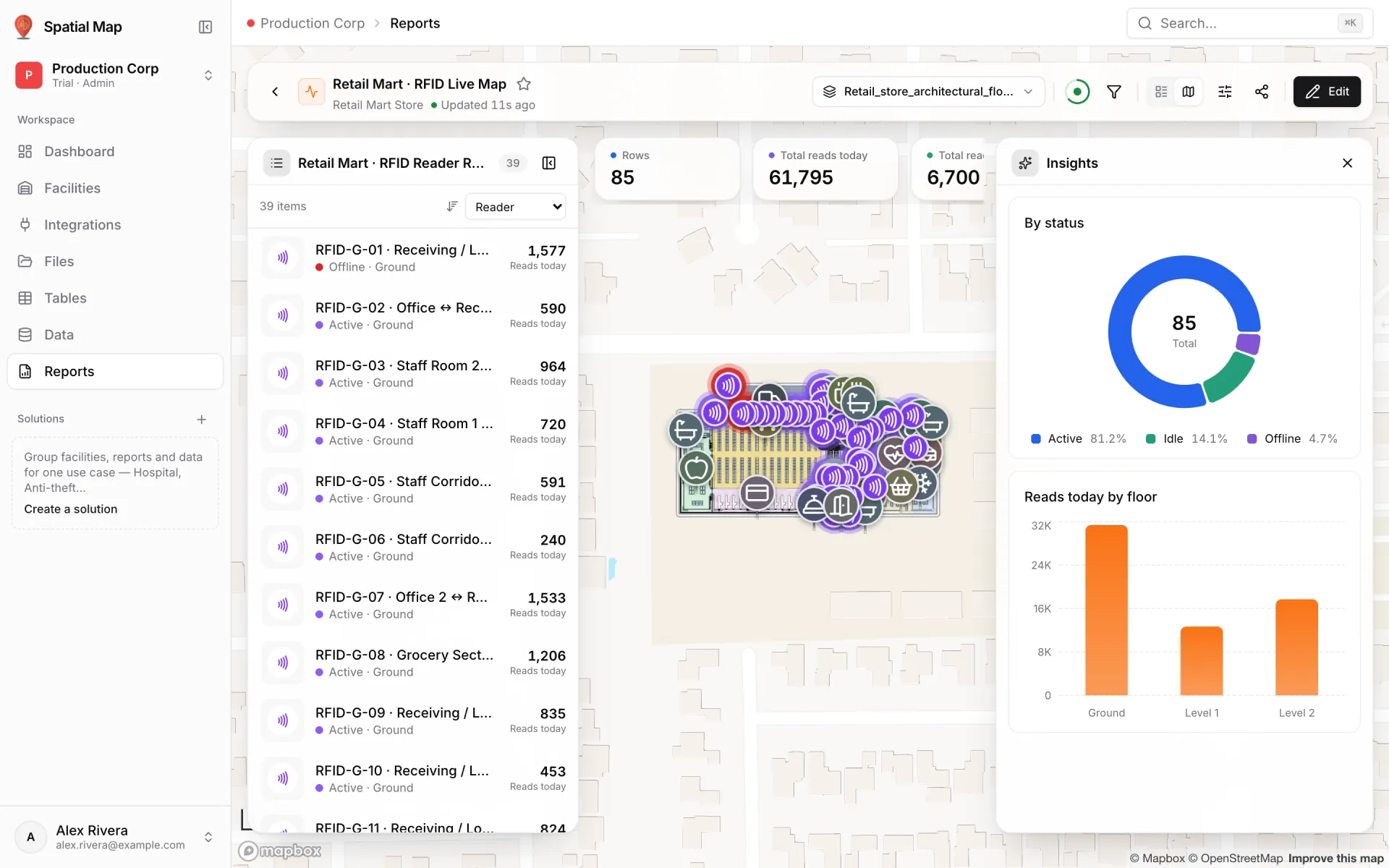
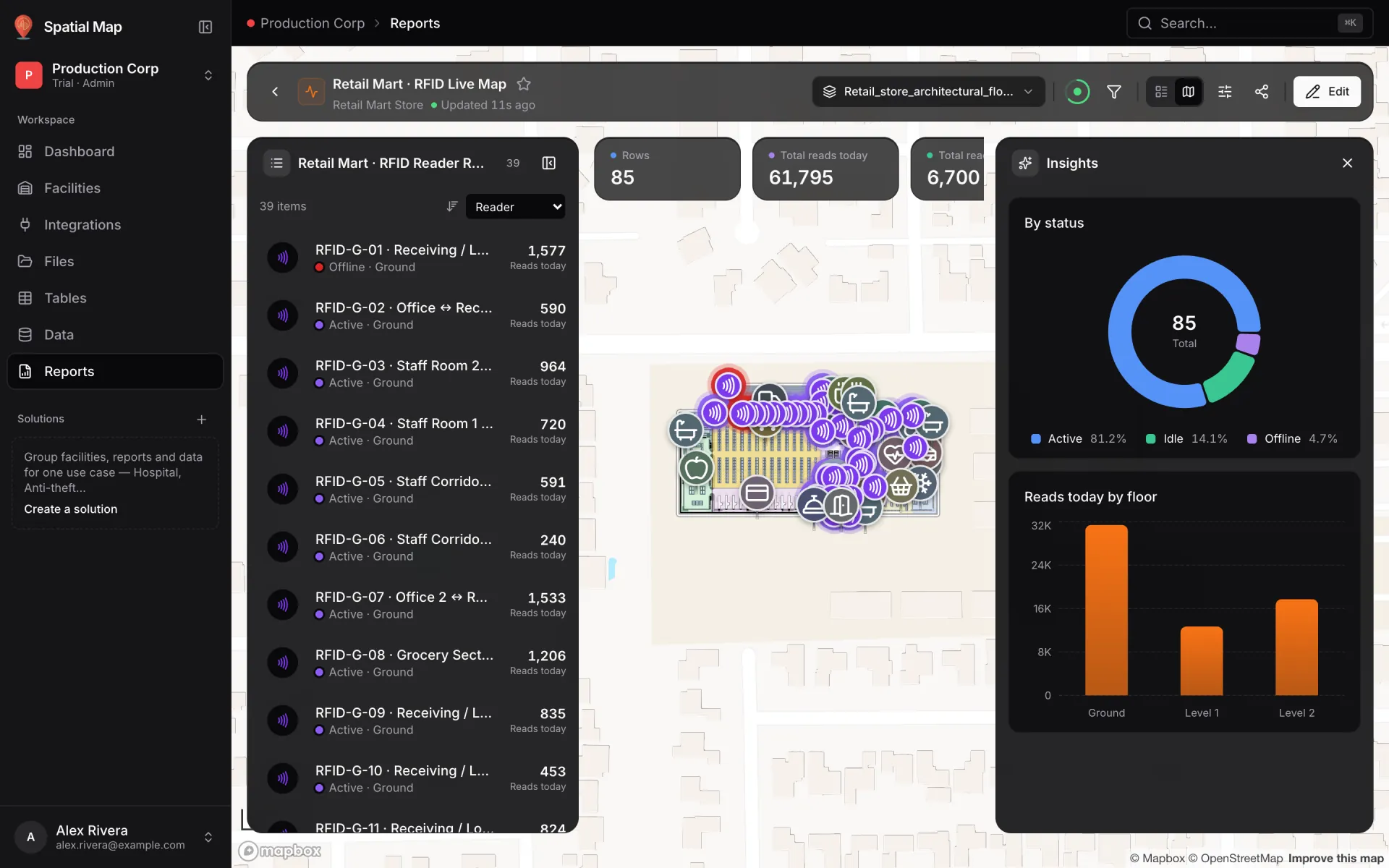
Reports can be filtered, starred and exported to PDF, Excel, CSV or JSON. For a step-by-step build, see warehouse KPI dashboards with a live 3D map.
Some people need the view but not the editor: a haulier’s dispatcher, the security contractor at the gate, an auditor. Give each a read-only share link limited to the layers they should see, with an expiry and a view cap, and revoke it from Manage links when the job ends.
Map your own site
A first version fits in an afternoon: place the site plan, draw the doors and the yard slots, and connect one table — usually door status or slot occupancy. Add gates, tractors, pallets and crews as each system comes on board, then group everything in a solution.
See the bigger picture on the Logistics solution page, walk through Eastport and Crestline (also part of the Inventory solution), and read the display modes guide before you build your first layer.
Start a 7-day free trial with no credit card; the trial holds up to 5 facilities. After that, Pro is $60/month or $600/year for up to 4 facilities — see pricing.
Try the platform your data belongs on.
Spatial Map turns spreadsheets, sensor streams, and CAD drawings into one live 3D facility view — nothing to install, seven-day free trial.
See it live
Keep reading
- Use casePharma cold storage and QC on one live map: zones, excursions, holdsA probe ID, a door number and a sample ID only become actionable once you can see which room, dock or rack they belong to. Here is how a pharmaceutical cold store and QC area run on one live map, using our two-floor Polar Pharma demo as the worked example.
- Use caseRetail anti-theft on a live map: RFID readers, exits and blind spotsA tag that leaves through a door with a dead reader is invisible. A real walk-through of the Retail Mart demo: 85 readers on three floors, four of them offline — three at the receiving dock.
- Use caseRetail shelf monitoring on a live store map: stock and cold chainAn out-of-stock is a location problem before it is an inventory problem. Here is how our multi-level Retail Mart demo puts shelf counts, department status, cold-chain probes and RFID readers on one live map — and how to wire your own store the same way.