
Cold storage temperature monitoring on a live, colour-coded floor plan
Put every cold-room and freezer probe on a live floor plan, colour readings with threshold rules, and keep the reading history auditors ask for.
What this guide covers
Cold-chain operators live with a paradox: the freezers are more reliable than ever, and the compliance paperwork is heavier than ever. The gap between “the equipment is fine” and “the auditor is satisfied” is where a spatial view earns its keep. A floor plan where every probe shows its reading lets the shift lead answer “is anything drifting?” at a glance — and every reading written to a table is kept in that row’s history for when QA has to prove it.
Temperature map or activity heatmap?
People say “temperature heatmap”, but what a cold-room team needs is usually simpler and more honest: each probe or room coloured by its own reading. Spatial Map does not interpolate between probes — a colour on the map always belongs to a real measurement. That is done with ordinary data links plus style rules:
| What you want to see | Display mode | Colour comes from |
|---|---|---|
| Each probe with its reading, where it hangs | Live location marker | Style rules on the reading; the reading as the label |
| Each cold room or case tinted by temperature | Color a shape | Style rules on the reading |
| The number written on the room | Value badge on shape | The reading itself; style rules for the colour |
| Where events pile up (door openings, excursions) | Heatmap of activity | Density of positioned records |
Heatmap of activity is a density map: every record adds weight where it sits, regardless of its value. It is the right tool for questions like “where do excursions keep happening?” — for example, a table where each excursion or door-open event is a row with a position, shown with Change history (weighted by events) over the last 7 or 30 days.
Where to put the probes
Every reading a probe emits is one point in space. If the probes are all clumped near the door because that is where the cabling reached, the map will be confidently wrong. Two rules cover most sites: one probe per bay or case at product height, and one near every airflow inlet and outlet.
- Bay corners or case ends at product height — the coldest and warmest spots.
- Airflow inlet and outlet — short-cycling shows here before it reaches product.
- The dock threshold — the first place warm air bleeds in.
- Any spot the last audit flagged — put a probe there permanently.
What it looks like in the demo store
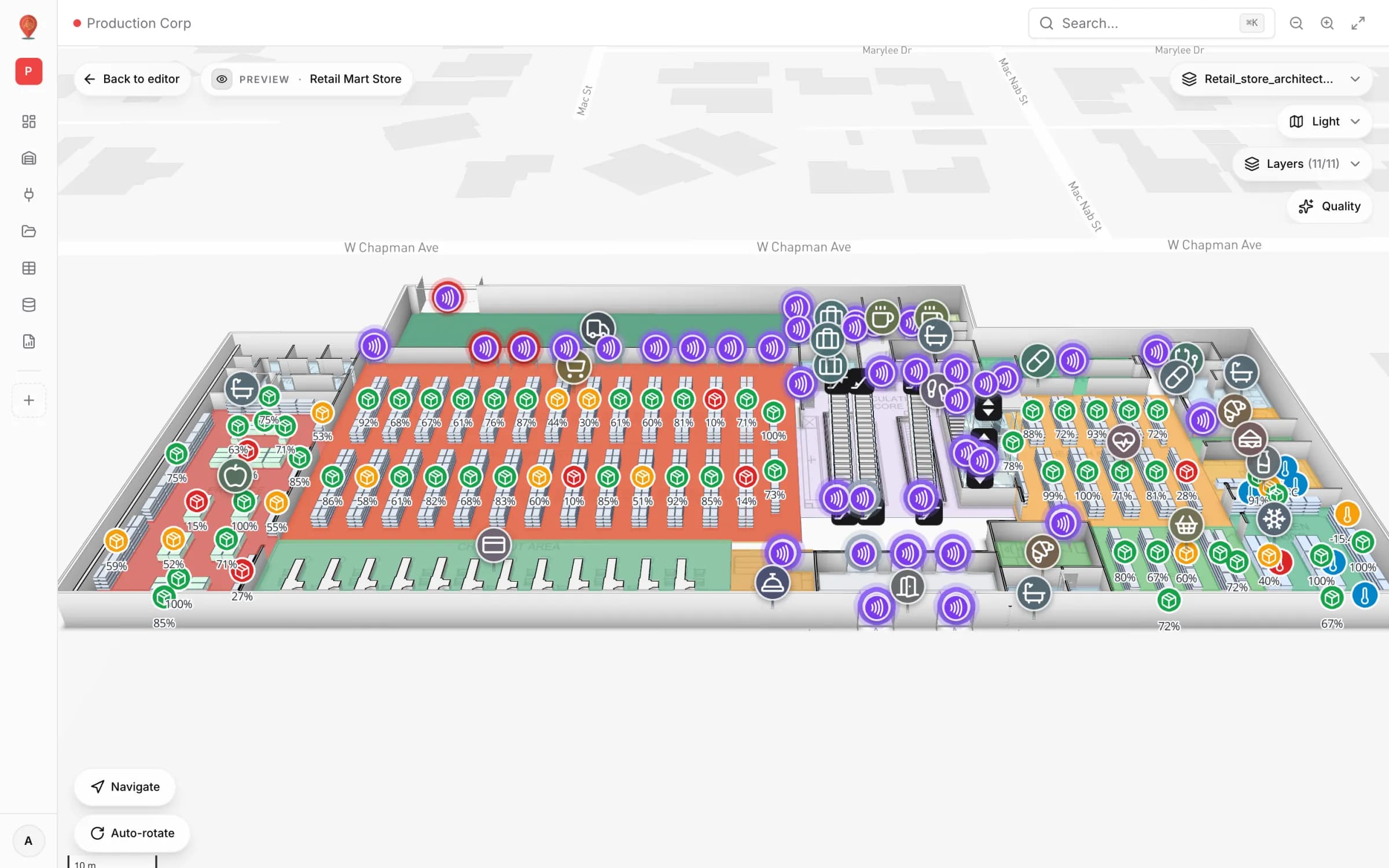
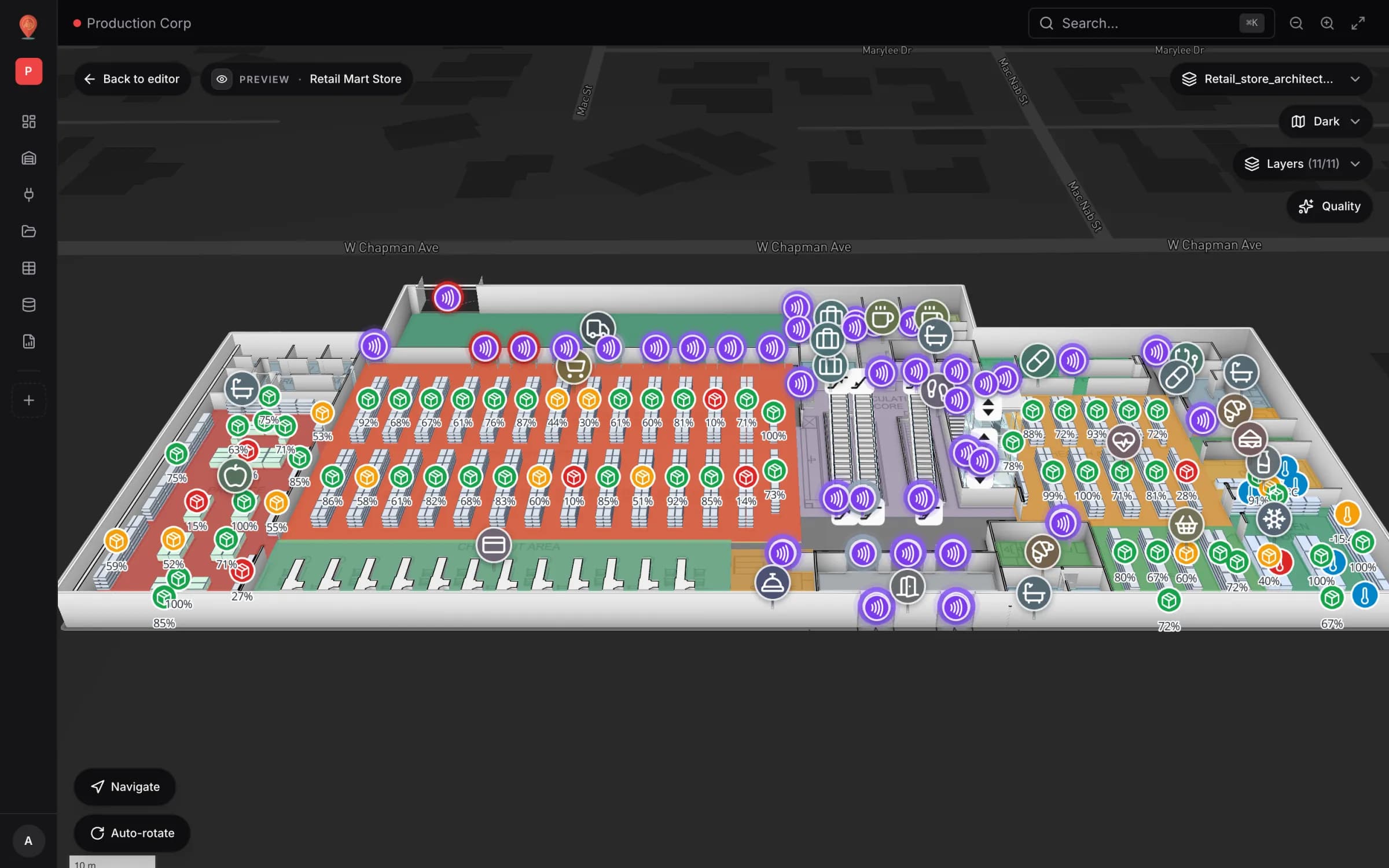
Our Retail Mart Store demo has a “Cold-chain temperature” layer fed by a sensor table with seven probes: two on the Dairy chillers (set point 3 °C) and five on the Frozen Food freezers (set point −18 °C). Each record carries temperature_c, setpoint_c, humidity_pct, battery_pct, door_open_events_today, status and last_reading_at, plus the probe’s position and floor.
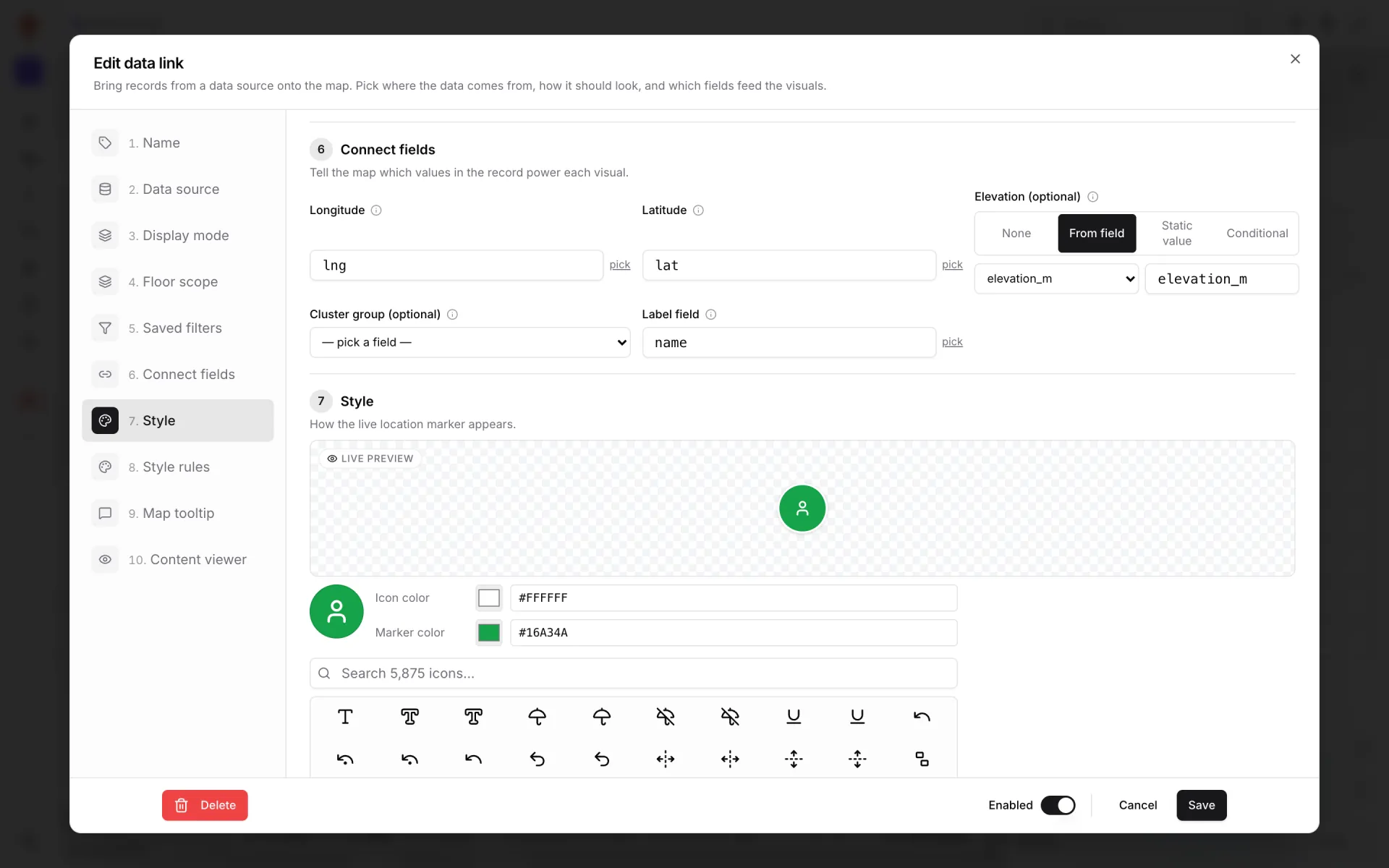
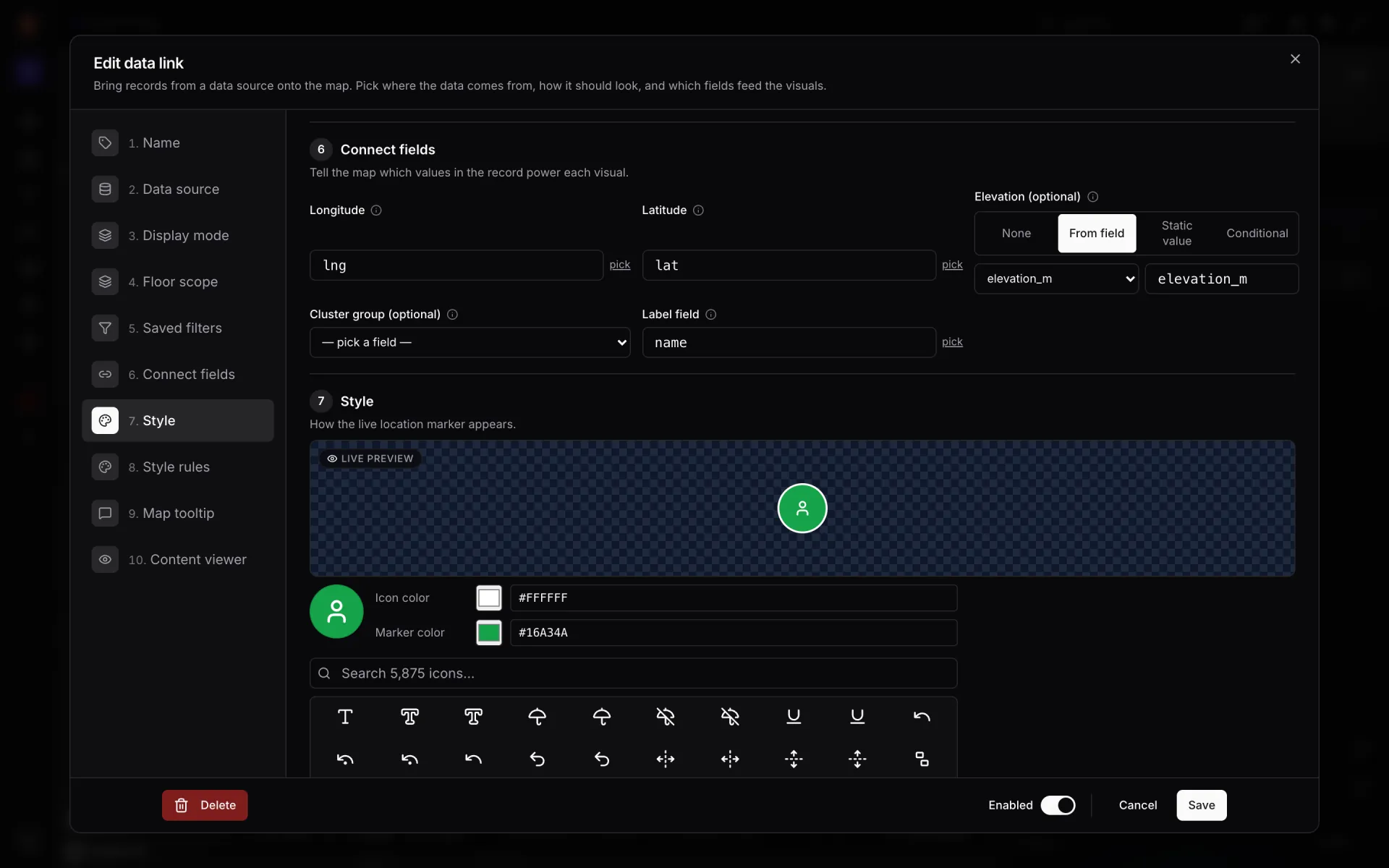
The link is a Live location marker with a thermometer icon, labelled with the reading (for example 3.3 °C), placed on the right floor from the record’s floor field. At the moment of our capture one freezer island read −11.8 °C against a −18 °C set point — exactly the case a threshold rule should paint red. Hover a marker and the tooltip shows sensor name, location, reading, set point, humidity, door openings and battery.
Wire the feed
Most cold-chain sensor stacks already publish somewhere: a vendor cloud with a REST endpoint, a BMS that can export or call out over HTTP, or a gateway you control. Spatial Map has no MQTT, Modbus or OPC UA connector — it takes data over HTTP. Pick the shortest path.
- 1Create a sensor table
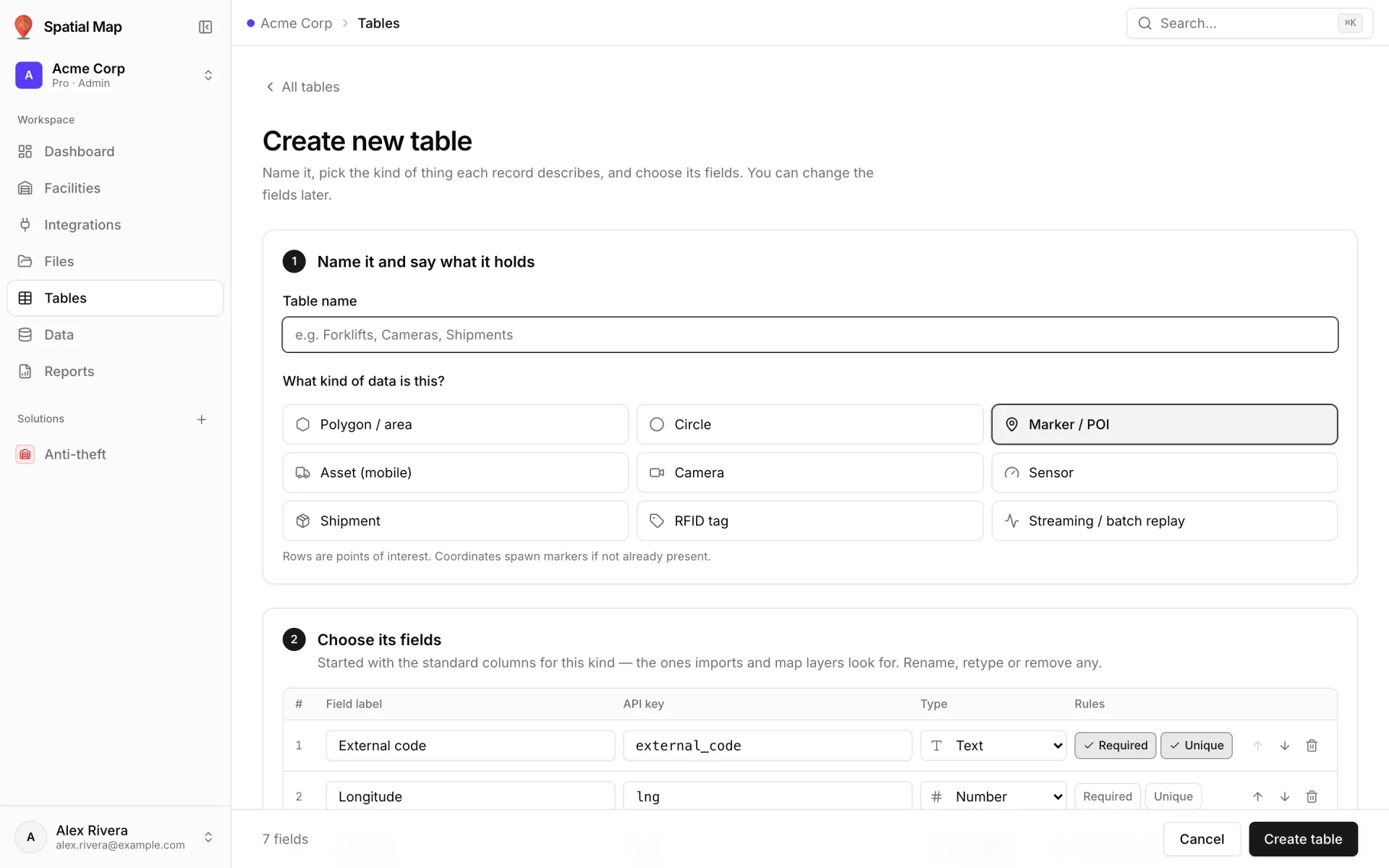
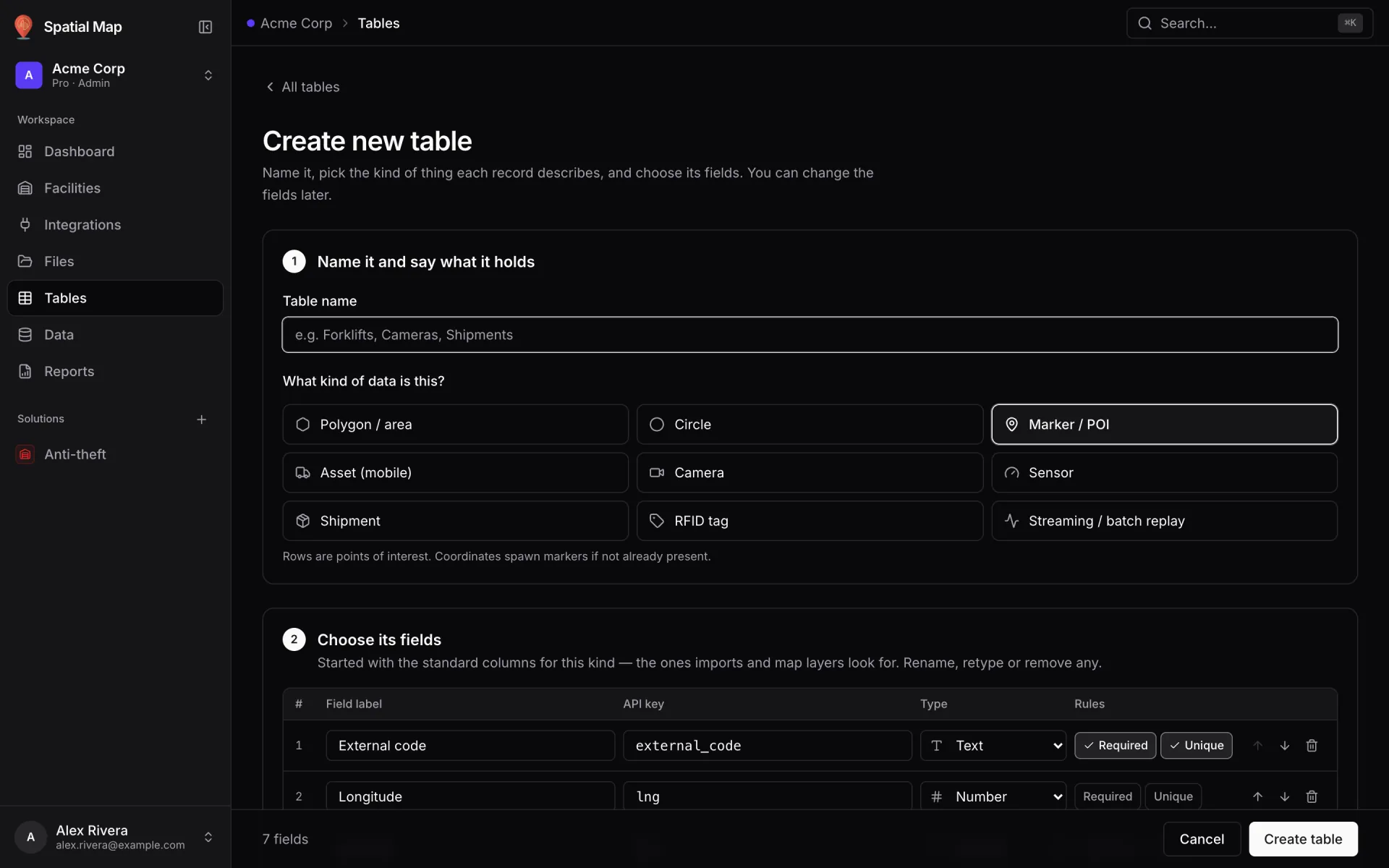
Tables → Create new table, kind Sensor. Add the fields your probes send — reading, set point, unit type, battery — plus a location name or longitude and latitude. The sensor ID makes a good row key.
- 2Get readings in
Let your gateway write rows with an API key from the table’s API & access tab (60 requests a minute per key; batch up to 1,000 rows per bulk call). Or, if the vendor cloud has a readings endpoint, use the table’s Pull from a REST API so our servers fetch it on a schedule.
- 3Bind readings to the map
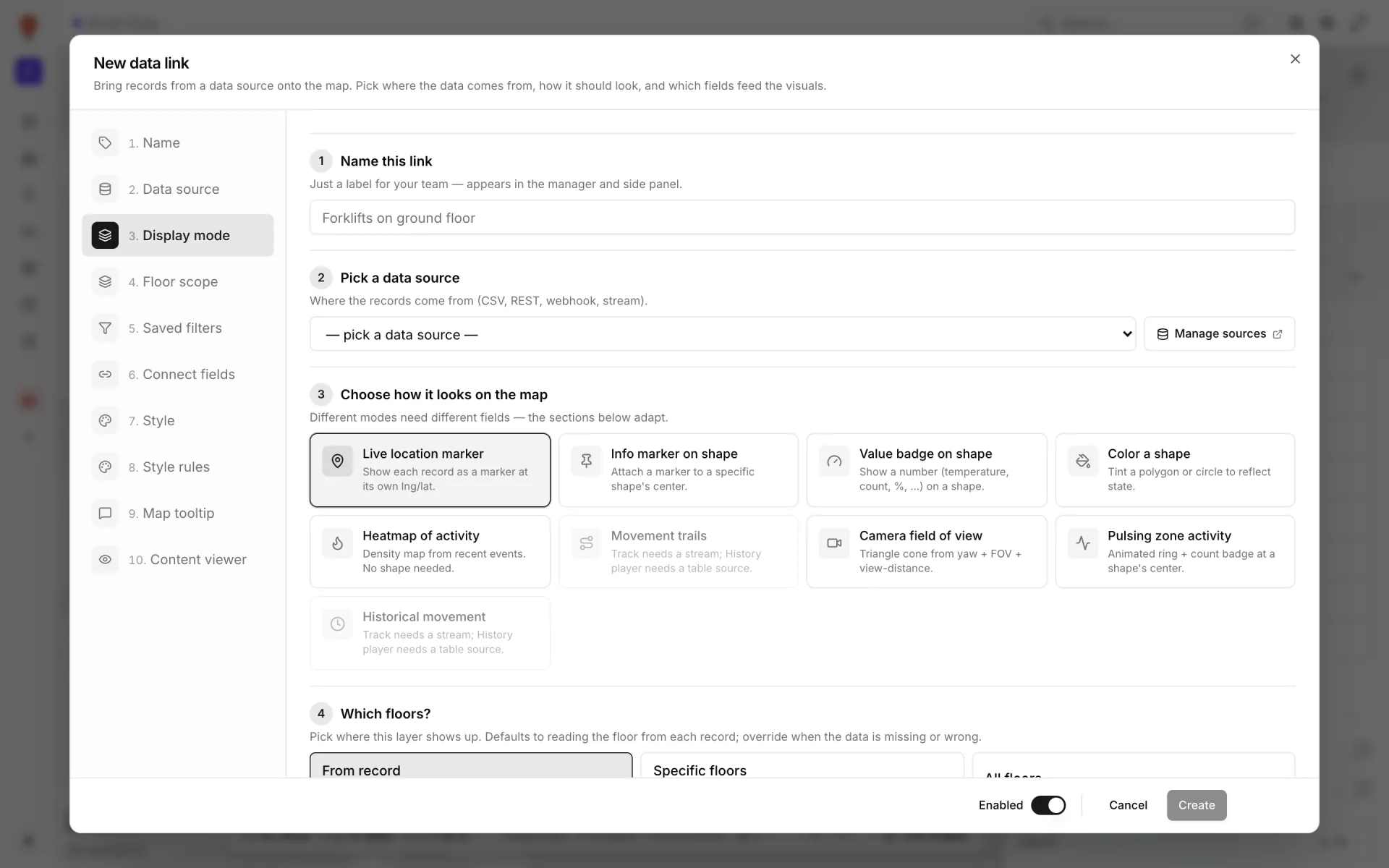
In the editor: Data → Manage data links → New link. Pick the table and a display mode — Live location marker for probes, Color a shape or Value badge on shape for rooms — and match each record by coordinates or by name.
- 4Add the colour bands
In the editor’s side panel, Style rules → Add rule for drift and for excursion (next section), then tick both on the link. Add the reading, set point and battery to the Map tooltip.
Two colour bands, not fifty
It is tempting to configure a rule per probe. Don’t. Two bands cover nearly every real event: drift (the reading creeping above target) and excursion (a hard breach of the permitted range). A style rule can combine conditions with All match (AND), so one pair of rules per unit type is enough:
| Rule (illustrative) | Conditions | Paint when matched |
|---|---|---|
| Freezer excursion | unit_type = Freezer AND temperature_c > −15 | Fill red |
| Freezer drift | unit_type = Freezer AND temperature_c > −17 | Fill amber |
| Chiller excursion | unit_type = Chiller AND temperature_c > 5 | Fill red |
| Chiller drift | unit_type = Chiller AND temperature_c > 4 | Fill amber |
Rules run top-down and the first match wins, so put excursions above drift. Everything that matches no rule keeps the layer’s default colour — blue for “in range”. Use your own food-safety limits; the values above are examples.
The audit trail regulators actually ask for
Auditors want a continuous record of readings, a record of what happened when a limit was crossed, and a plan for what happens next. Every write to a table row is kept in that row’s history: open a probe in the viewer and its History lists each change with its time. The Data screen lets you filter records by source and time and Export CSV, and a report on the sensor table exports to PDF or Excel for the audit file.
When the map is wrong but the fridge is fine
If the map shows a warm case and the thermometer next to the probe is cold, work outward from the sensor: the probe first (battery, calibration date), then the bridge (last successful run on the Integrations Health tab, or the table’s last write), then the map binding (did someone rename the area the record matches?). Very often the answer is a tired probe battery — the demo’s records carry battery_pct for exactly that reason, and a “battery low” rule makes it visible.
For a store-floor version with shelf stock and RFID next to the cold chain, read retail shelf monitoring on a live store map. Try it on your own site with a 7-day free trial — no card needed, up to five facilities; Pro is $60 a month or $600 a year for up to four (pricing).
Try the platform your data belongs on.
Spatial Map turns spreadsheets, sensor streams, and CAD drawings into one live 3D facility view — nothing to install, seven-day free trial.
See it live
Keep reading
- IndustrySupply-chain visibility inside the plant: lines, WIP, racks and docks on one live mapSupply-chain dashboards follow the truck to the dock door, then go blind inside the plant. A live indoor map of lines, stations, racks and docks closes that gap. Here is how to build one, using our Summit Assembly Plant demo as the worked example.
- IndustryStadium and venue operations on a live 3D map: gates, seats, concourses and crewsOn match day, gates, stewards, concessions and guest services each watch a different screen. A live 3D map of the bowl and concourses is where they agree on location. Here is how our Crown Park Stadium demo is built — 30,513 seats included — and how Lakeside Convention Center uses the same tools for events.
- IndustryMall operations on one live 3D map: floors, units, devices and tenantsSecurity, cleaning, the loading dock, building systems and leasing each live in a different tool. A live 3D map of every floor is the one place they can agree on location. Here is how to build one, using our multi-floor Retail Mart demo as the worked example.