
Track staff and equipment with live markers
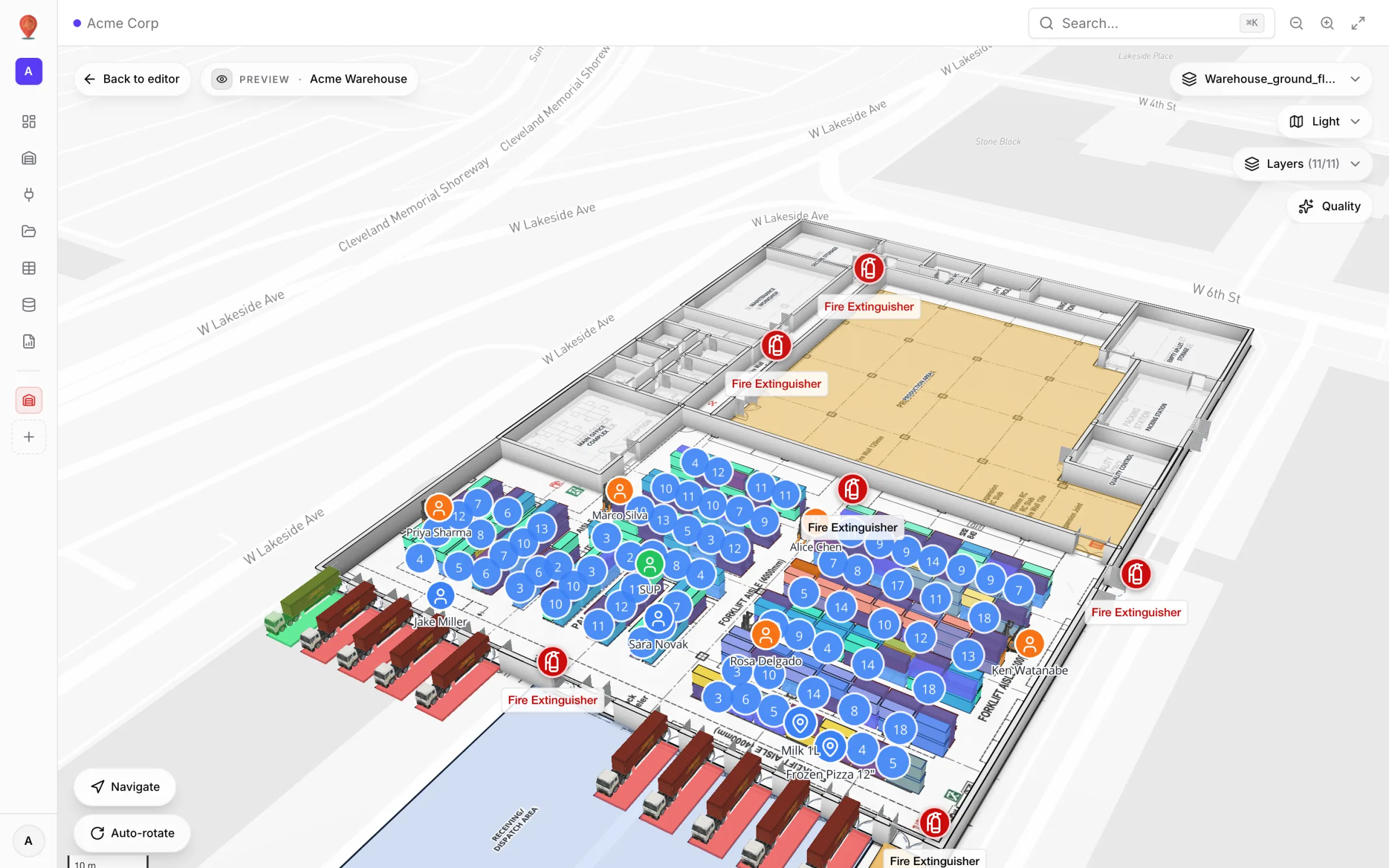
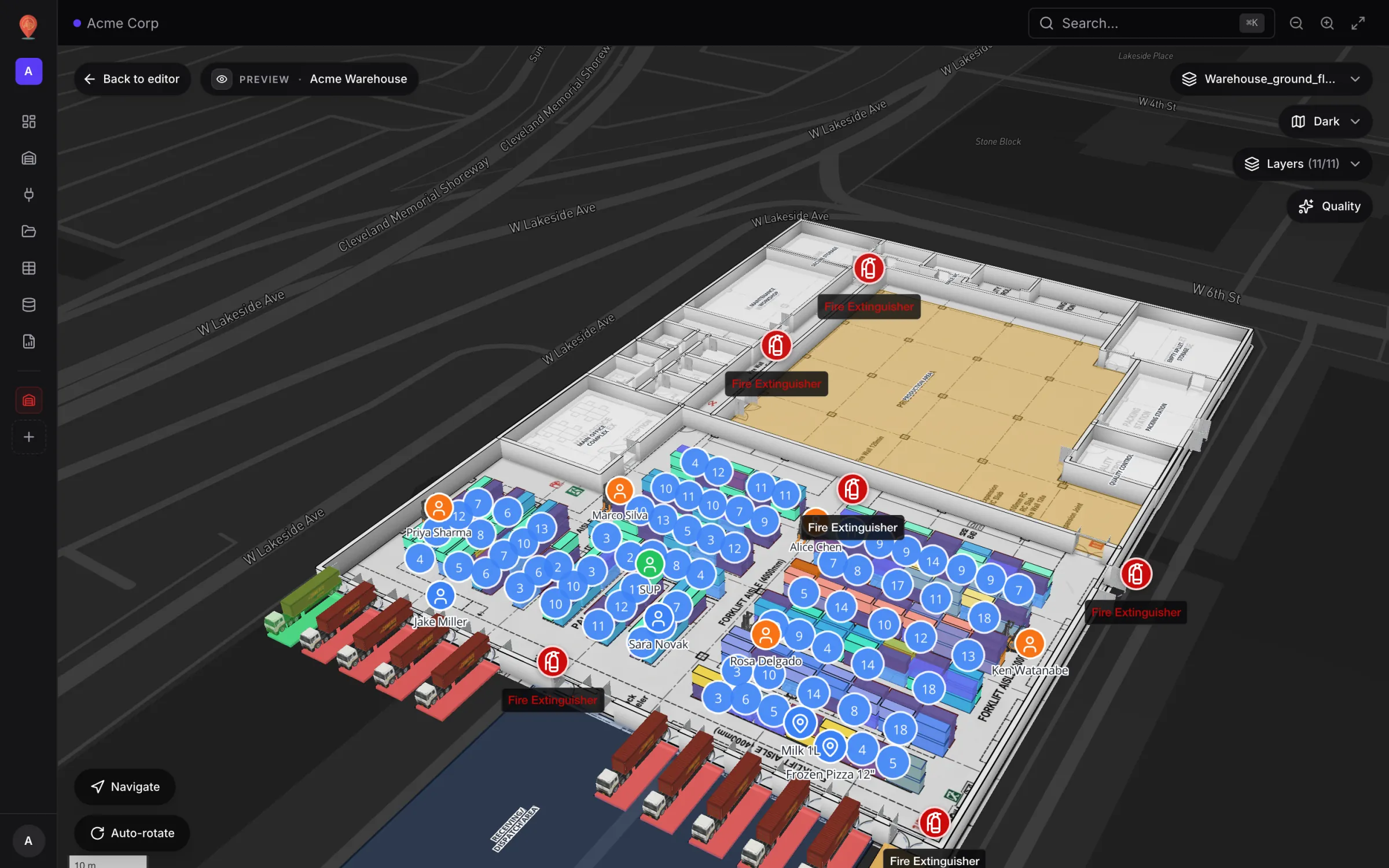
Two marker layers cover most tracking needs: Staff (one badge per person) and Equipment (forklifts, pallet jacks, carts and other tagged assets). Each is a table your positioning system writes to, and a Live location marker data link that draws every row at its own coordinates — like the named workers moving through Acme Warehouse.
Steps
- 1
Create the two tables
Tables → Create new table, both with kind Asset (mobile). "Staff": badge_id, name, role, zone, status, lat, lng, elevation_m. "Equipment": asset_tag, asset_name, asset_type, status, battery_pct, next_service_due, lat, lng, elevation_m. lat and lng are Number fields.
- 2
Feed the positions
Your RTLS or badge system upserts one row per badge or tag, keyed by badge_id or asset_tag, and sends a partial update whenever a position changes — see Push rows into a table with the write API. For a first test, type a few rows on the Records tab.
- 3
Link the staff layer
In the editor: Data links → New link, name "Staff", pick the table and choose Live location marker. In Connect fields set Longitude to lng, Latitude to lat, Elevation (optional) → From field elevation_m, and Label field to name. Leave Cluster nearby markers off so every person stays visible.
- 4
Style it
Under Style, search the icon library for "user" and set the Marker color (for example green). Under Which floors? keep From record if rows carry a floor, or choose All floors for a single-level building. Add role, zone and status to the Map tooltip and save.
- 5
Repeat for equipment
Create a second link, "Equipment", on the equipment table with the label field asset_name, a truck icon and a blue marker. To colour by state, add a Style rules rule with Scope Marker — for example status = Maintenance → Fill red — and tick it on the link.
- 6
Use it in the viewer
Open Preview. The Layers panel lists both links with an eye (show/hide) and a power toggle. Click a marker to open its drawer: every field (asset tag, battery, next service due…) plus a History of the row’s changes. Update a row and the marker moves without a refresh.
Related
More live data on the map recipes
- Colour rooms by live statusTint every room green, amber, purple or grey from a rooms table with a Color a shape data link and style rules — and flag overdue cleaning in red.
- Stock by bin on a rack gridDraw racks, import stock per bin from a spreadsheet and colour every bin occupied, empty, blocked, reserved or picking with rack-cell style rules.
- Environmental sensors with live readings on the mapPlace temperature, CO₂, pressure and fridge sensors on the floor plan with their latest reading as the label, coloured by status with marker style rules.
- RFID gate readers on a retail floorShow every RFID reader in a multi-floor store as a pulsing ring with its reads in the last hour, coloured active, idle or offline, plus a full-map report.