
Warehouse KPI dashboards with a live 3D map: a builder tutorial
Build a warehouse KPI dashboard with a live 3D rack map: the guided report builder, bin occupancy reports, viewer filters and PDF/Excel exports.
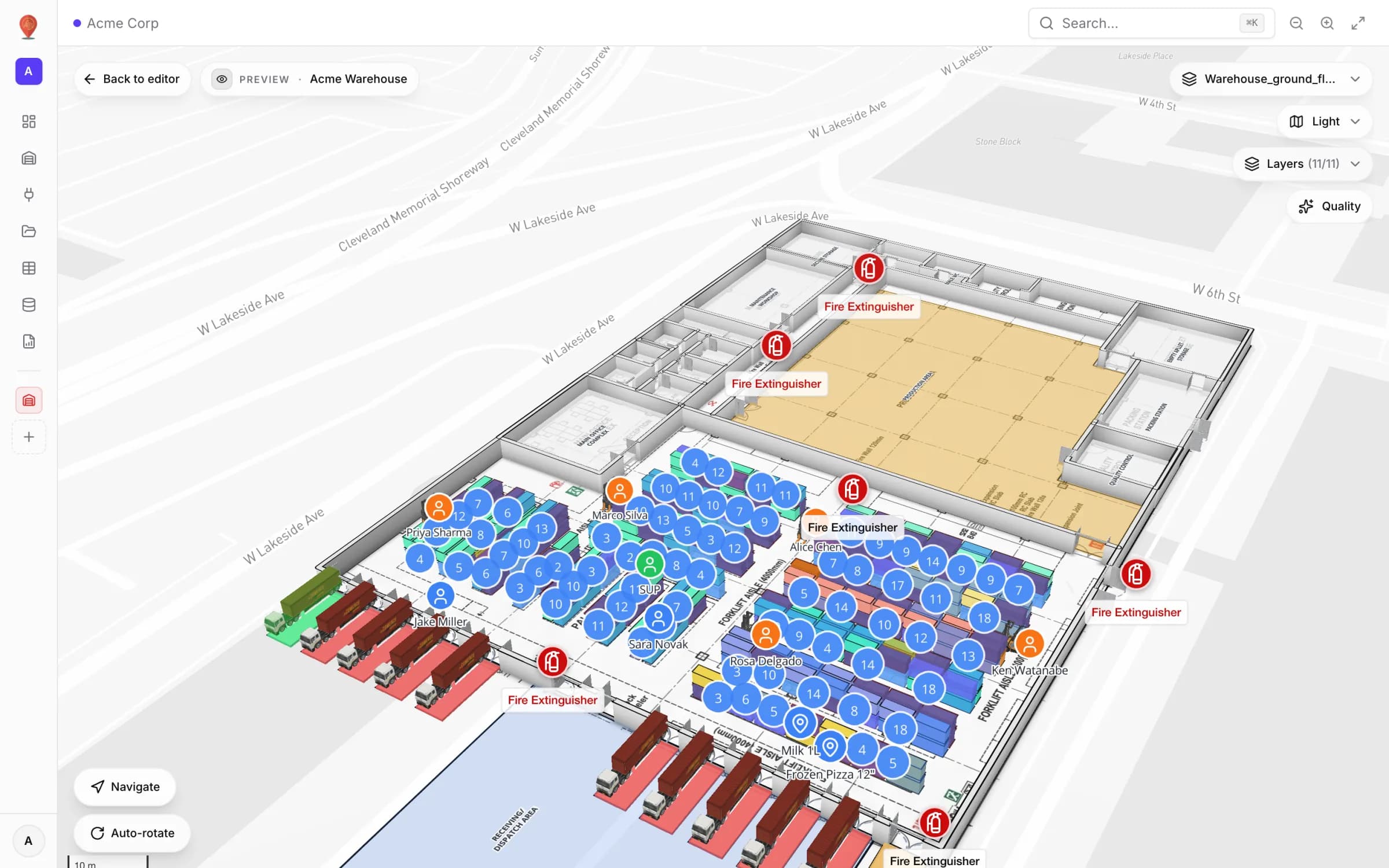
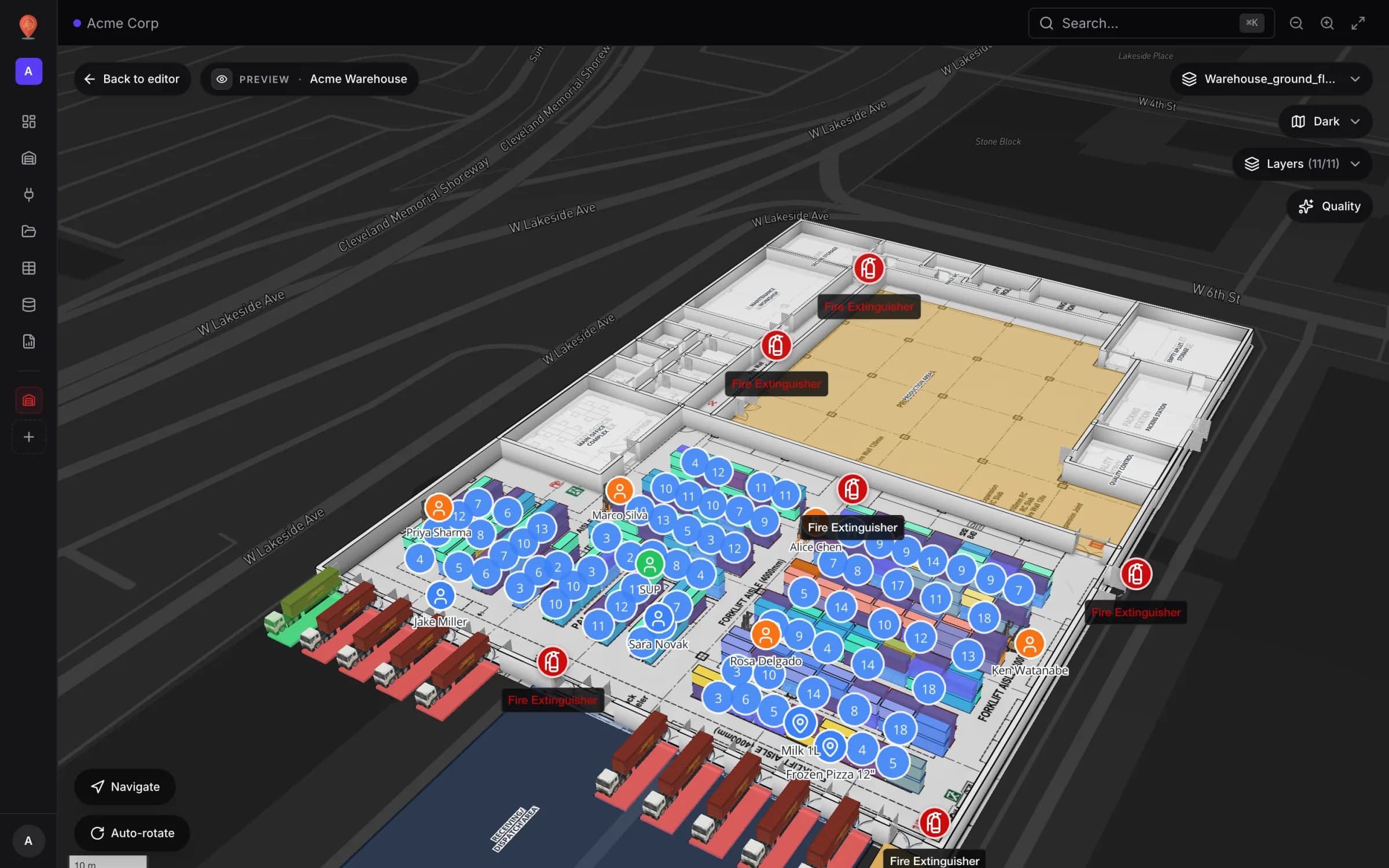
What you will build
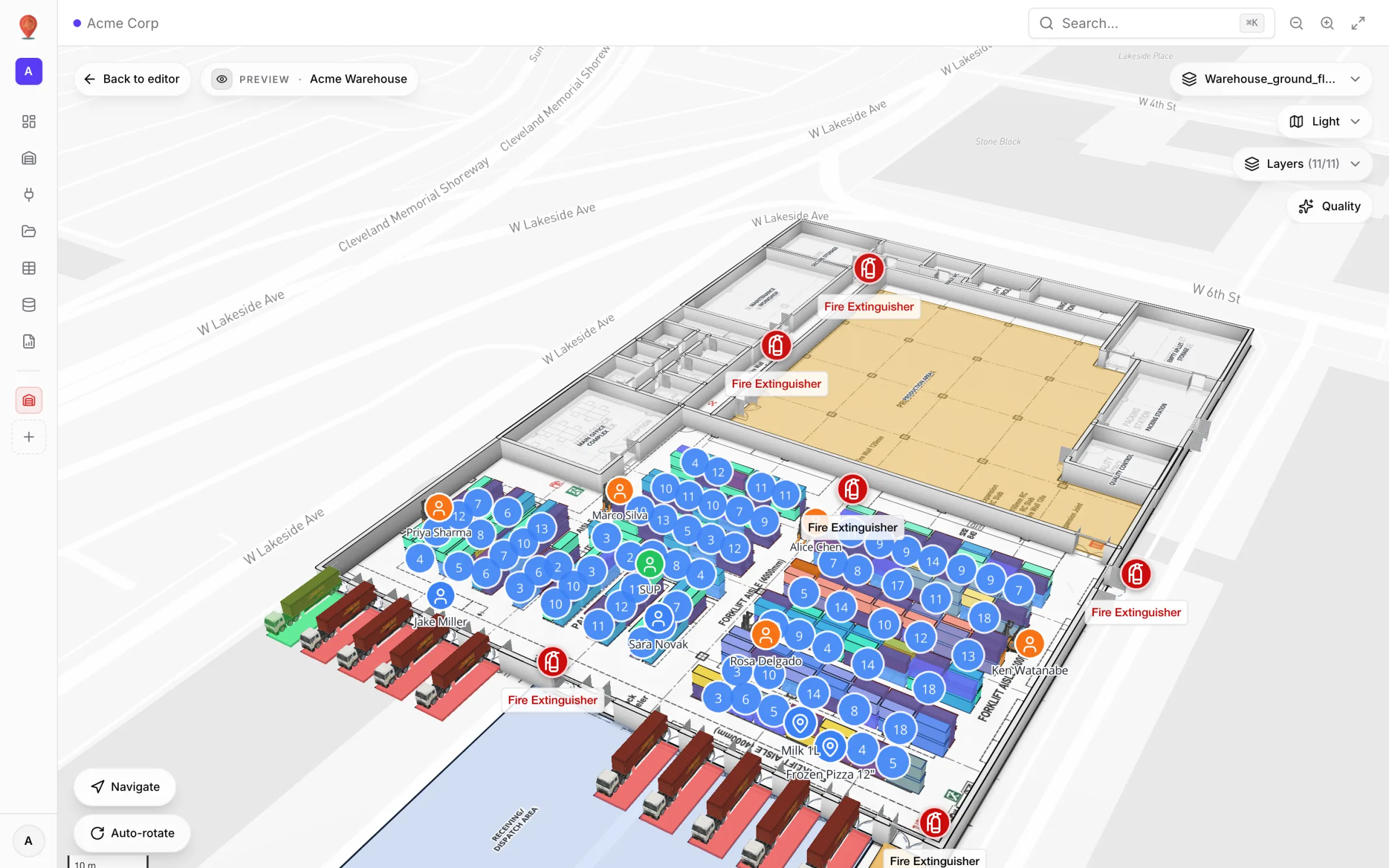
Most warehouse dashboard software stops at a grid of charts. The number says 66% of bins are occupied; it doesn’t say which aisle is full, which bays are blocked, or where the next pallet should go. In Spatial Map a report can carry the live 3D map of the facility next to its KPIs, so one page answers both “how much” and “where”. This tutorial walks through the report builder end to end, using the real Rack Inventory report from our Acme Warehouse demo as the running example.
Why a warehouse KPI dashboard needs the map in it
A warehouse KPI dashboard is usually built far from the floor: data is exported from the WMS, reshaped in a BI tool, and turned into charts nobody can trace back to a physical location. Supervisors then walk the aisles to find out what the chart meant.
Spatial Map works the other way round. Reports read the same tables and integrations that already drive your live facility map, so a bin occupancy report and the 3D rack view can’t disagree — they are two views of the same records. And because the map is just another widget, you can drop it into any report right next to the numbers.
Everything starts on the Reports screen: KPI cards for Reports, Starred, Updated this week and Need setup across the top, then tabs to narrow the list by facility and by kind of report. You can show it as a grid or a list, and owners and admins can import a report from JSON or start a new one. The reports documentation covers the screen in detail.
Start with the 8 reports every facility already has
You never start from a blank page. As soon as you create a facility, Spatial Map adds a set of eight facility reports built from what you draw on the map:
- Overview — the whole facility at a glance: totals, what’s on each floor, and every area, rack, marker and door on the map.
- Floors — every floor with its plan, height and contents.
- Areas — zones, rooms and offices with their size, type and floor.
- Racks — racks and shelving with bays, levels and the area they stand in.
- Markers & sensors — markers, RFID readers and points of interest by type and area.
- Walls & doors — wall lengths and every door by type and floor.
- Stairs, lifts & escalators — vertical transport and the floors each one connects.
- Labels & 3D models — text labels and 3D models placed in the facility.
Operational reports — stock, activity, equipment — start from your own data. Every table you link to the facility gets a report of its own, and anything beyond that you build in the wizard. That is what the rest of this guide is about.
Anatomy of a bin occupancy report
Our running example is the Rack Inventory report in the Acme Warehouse demo. Its source is the Rack Inventory table: one row per bin — 314 of them across 17 racks — with fields such as bin code (A-B01-L1), aisle, bay, level, status, SKU, ABC class, temperature zone, quantity, weight and expiry date. Right now 208 bins are occupied (66%), 84 are empty, 11 blocked, 6 reserved and 5 being picked.
Nobody built this report by hand. When the Rack Inventory table was linked to the racks — a data link that colours each rack cell, matched on its bin code — Spatial Map created a report for that table on its own, from the table’s own fields:
- Four KPIs: Rows, Total bay / column, Total level and Total quantity on hand.
- A By status donut — the whole occupancy picture in one shape.
- A Top 10 by bay / column bar chart, so you can see where stock concentrates.
- A Facility map & list widget — the bins as a searchable list beside the live map, drawn in the link’s own colours; pick a bin to open its record next to the map.
- A filter bar with the table’s status and a search box.
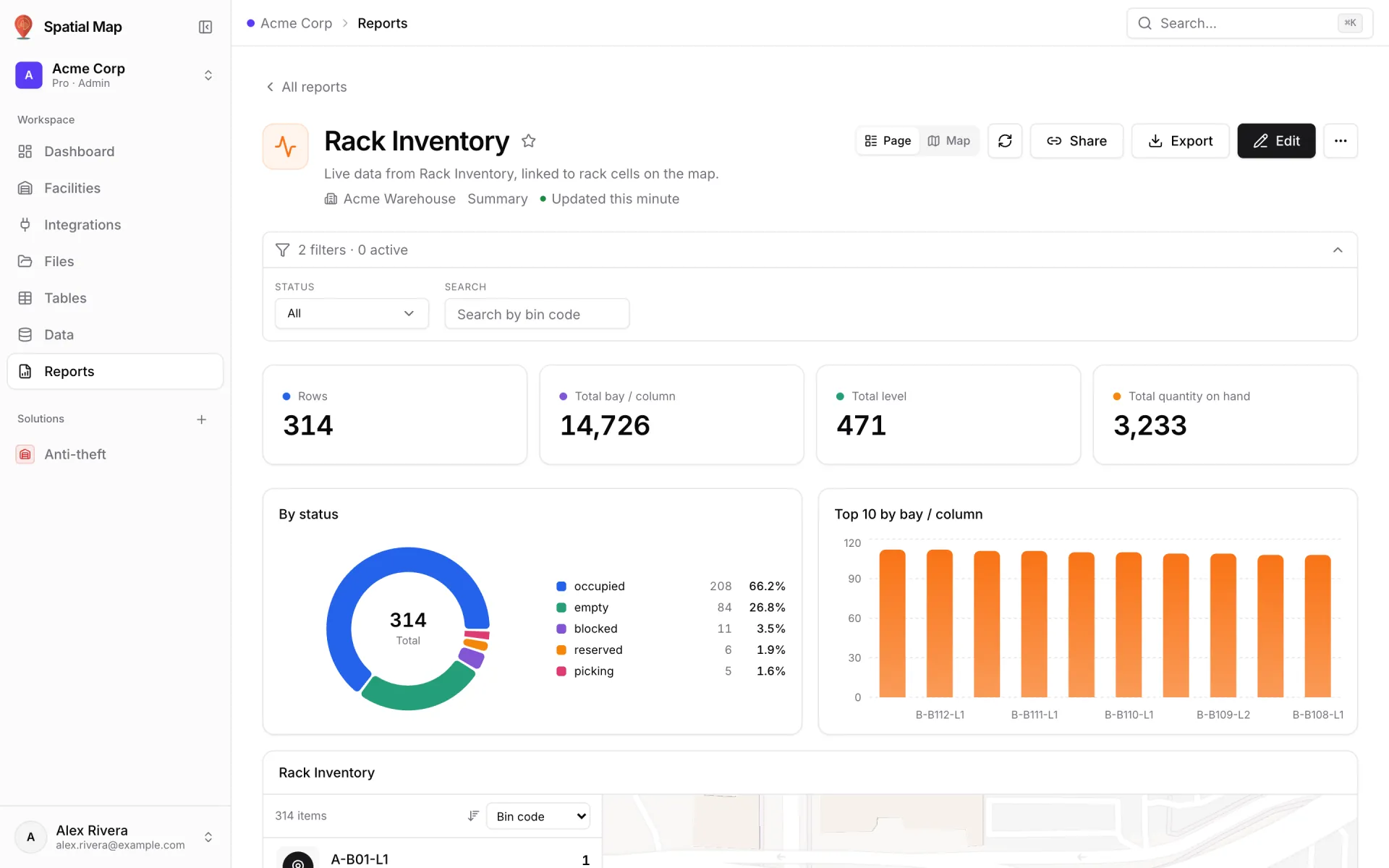
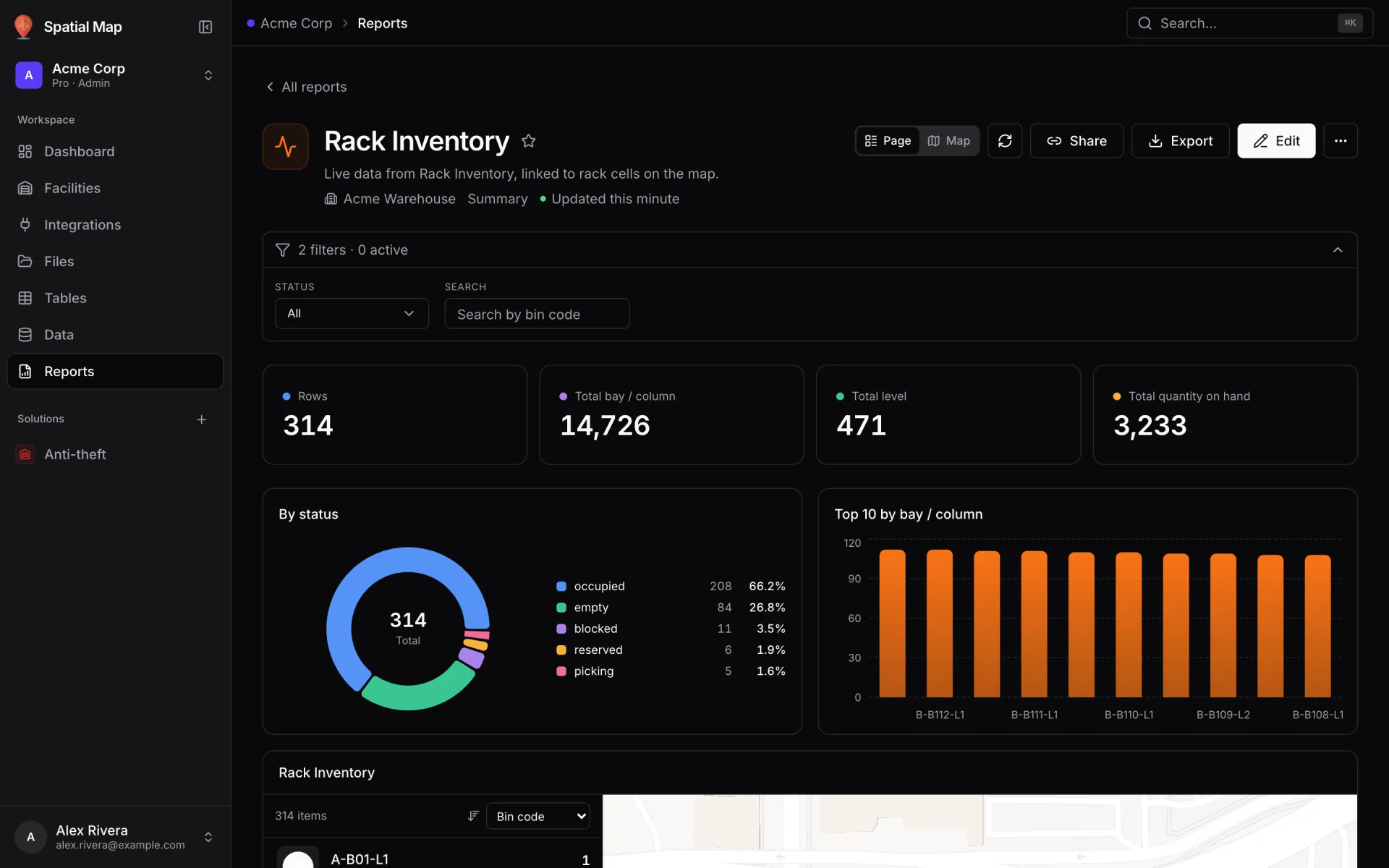
The map widget is the difference between a chart and an answer. The donut says 11 bins are blocked; the map shows whether they sit in one aisle or are scattered across the building — and that decides whether you send one person or reorganise a zone.
Build it: the guided report builder
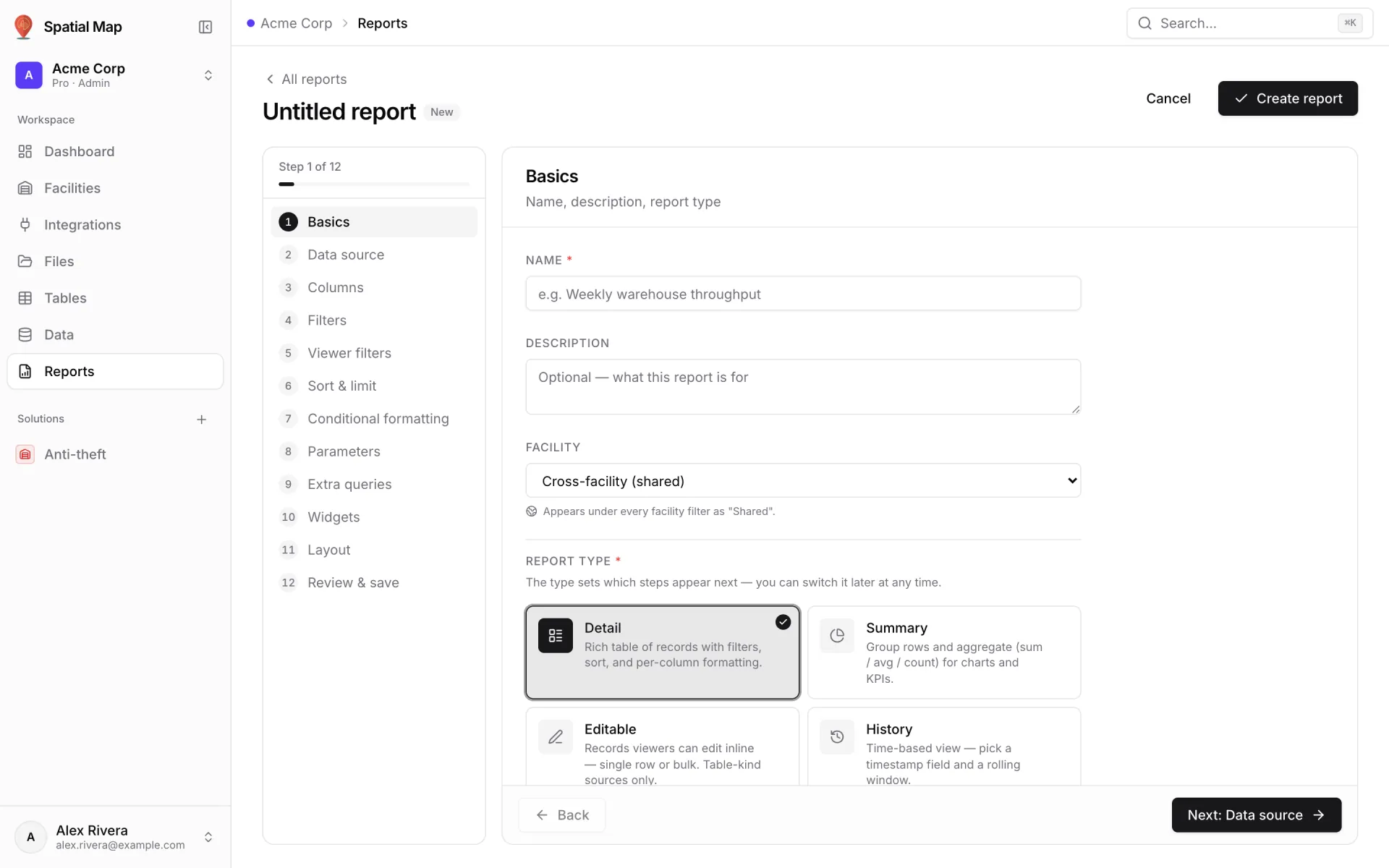
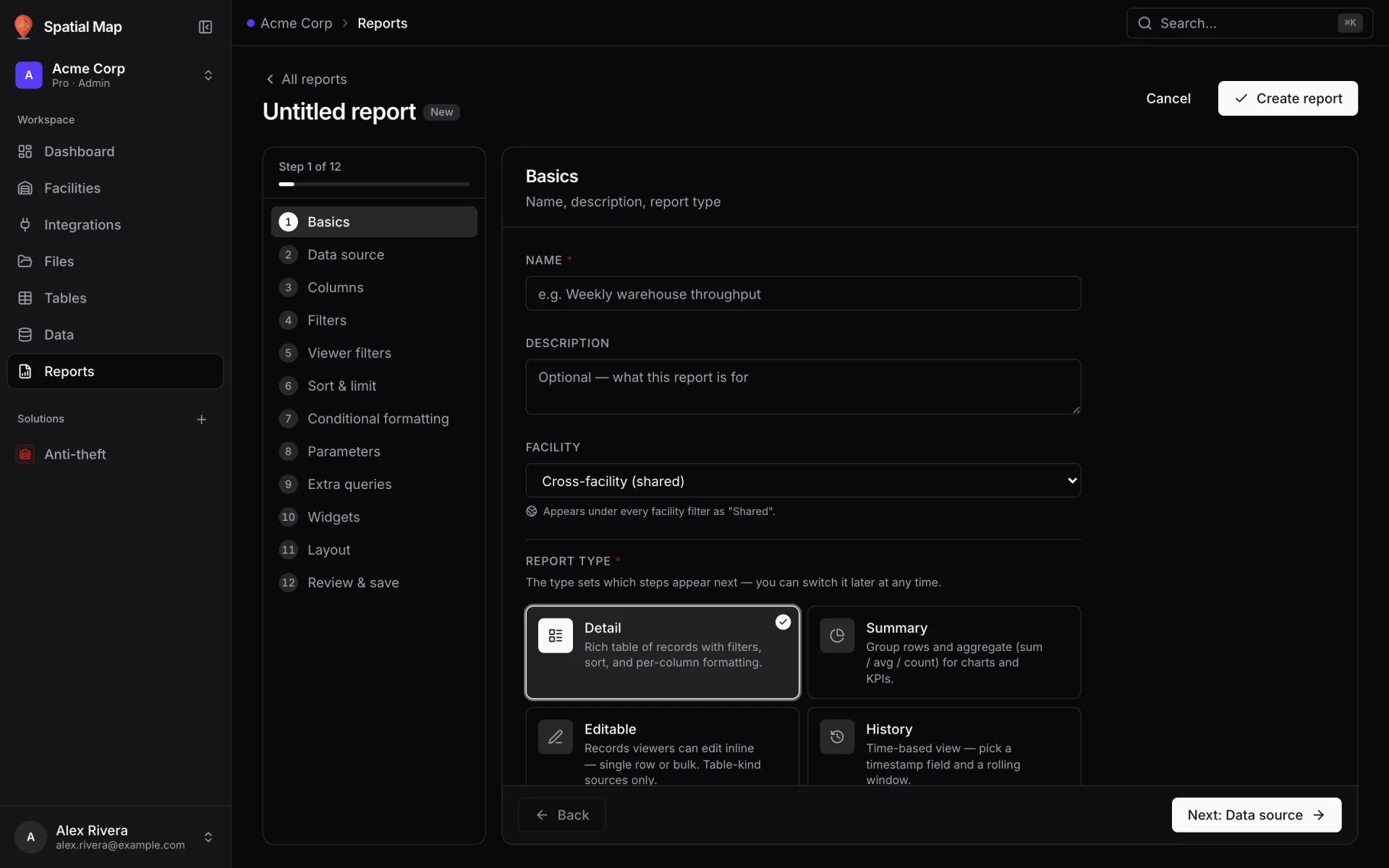
Click New report on the Reports screen and the builder opens as a guided wizard: a rail of steps on the left, the current step on the right, each with a one-line hint. The report type you pick decides how many steps you see — 12 for a Detail report, 13 for Summary, Editable and History, which each add one step of their own. The report builder docs cover every option; here is the path for a bin occupancy report, which is a Summary report. Steps 1 to 7 shape the data:
- 11. Basics
Name the report (say, “Bin Occupancy”), add a description, and pick a type. Summary fits here: it groups rows and aggregates them for charts and KPIs. Detail, Editable and History are the other three types.
- 22. Data source
Choose the table or feed the report reads from — here, the Rack Inventory table. Any table or integration in the workspace can be a source.
- 33. Columns
Pick which fields to show and how: bin code, status, SKU, quantity, expiry date. Custom columns live here too — combine or compute columns from raw data, for example a fill rate from current weight over weight capacity.
- 44. Filters
Narrow which rows appear. An occupancy report keeps every bin; a “problem bins” report might keep only status = blocked.
- 55. Viewer filters
Add filters your viewers can change from the filter bar — floor, area, type, a search box, date ranges — shown as dropdowns, multi-selects, buttons or yes/no toggles.
- 66. Sort & limit
Set the default ordering and a row cap — for example bays by bin count, descending, capped at 10 for the bar chart.
- 77. Conditional formatting
Colour cells based on their value: blocked in red, reserved in amber, empty in grey. These colours carry through to the Excel export.
Steps 8 to 13 turn that data into a dashboard:
- 18. Group & aggregate
Roll rows up into totals, averages and counts. Group by status and count bins — that is the data behind the donut.
- 29. Parameters
Runtime prompts viewers can change to reslice the report — a date, a dropdown, a slider. More on these below.
- 310. Extra queries
Extra named queries that widgets can bind to: same source, different slice. The donut reads “bins by status”, the bar reads “top bays”, a KPI reads the total — all from one table.
- 411. Widgets
Add KPI cards, charts, notes and the Facility map & list on top of the primary view, and bind each one to a query.
- 512. Layout
Arrange the widgets, toggle the filters bar, and choose Document, Grid or Full map.
- 613. Review & save
Check the report and who can see it before saving. This is also where you can download the report spec as JSON.
14 widget kinds and three layouts
The palette in the Widgets step offers 14 kinds. Grouped by the job they do:
- Map: Facility map & list.
- Numbers: KPI, and Big value + delta.
- Charts: line, bar, area, pie, donut, scatter plot and heatmap.
- Tables: data table — plus an editable table, which comes with the Editable report type.
- Text and structure: note, alert banner and divider.
The Layout step then decides how they sit on the page:
- Document — widgets flow down the page like a printed report. Good for weekly summaries that get read top to bottom.
- Grid — place and size widgets freely on a grid. Good for a dashboard on a wall screen.
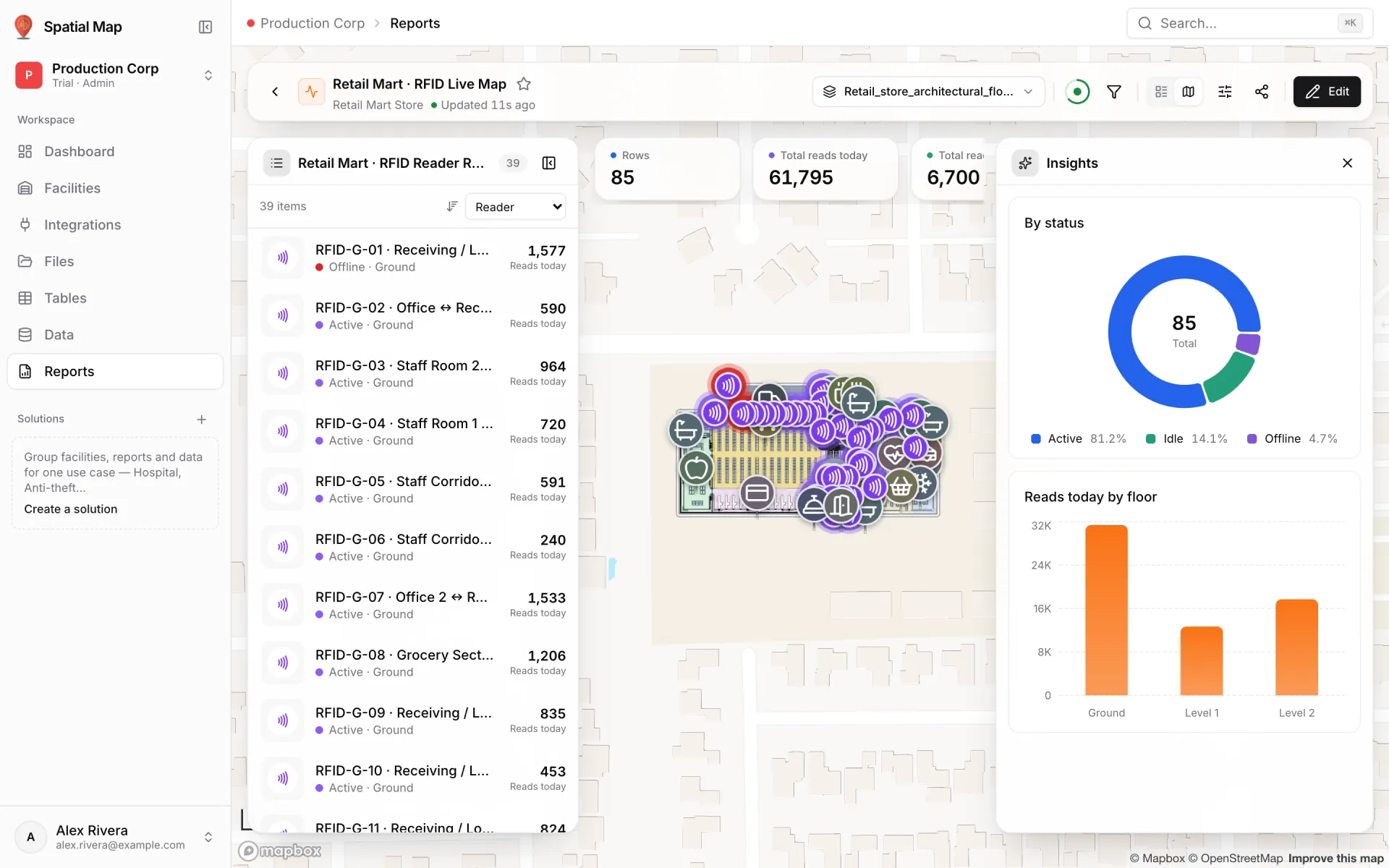
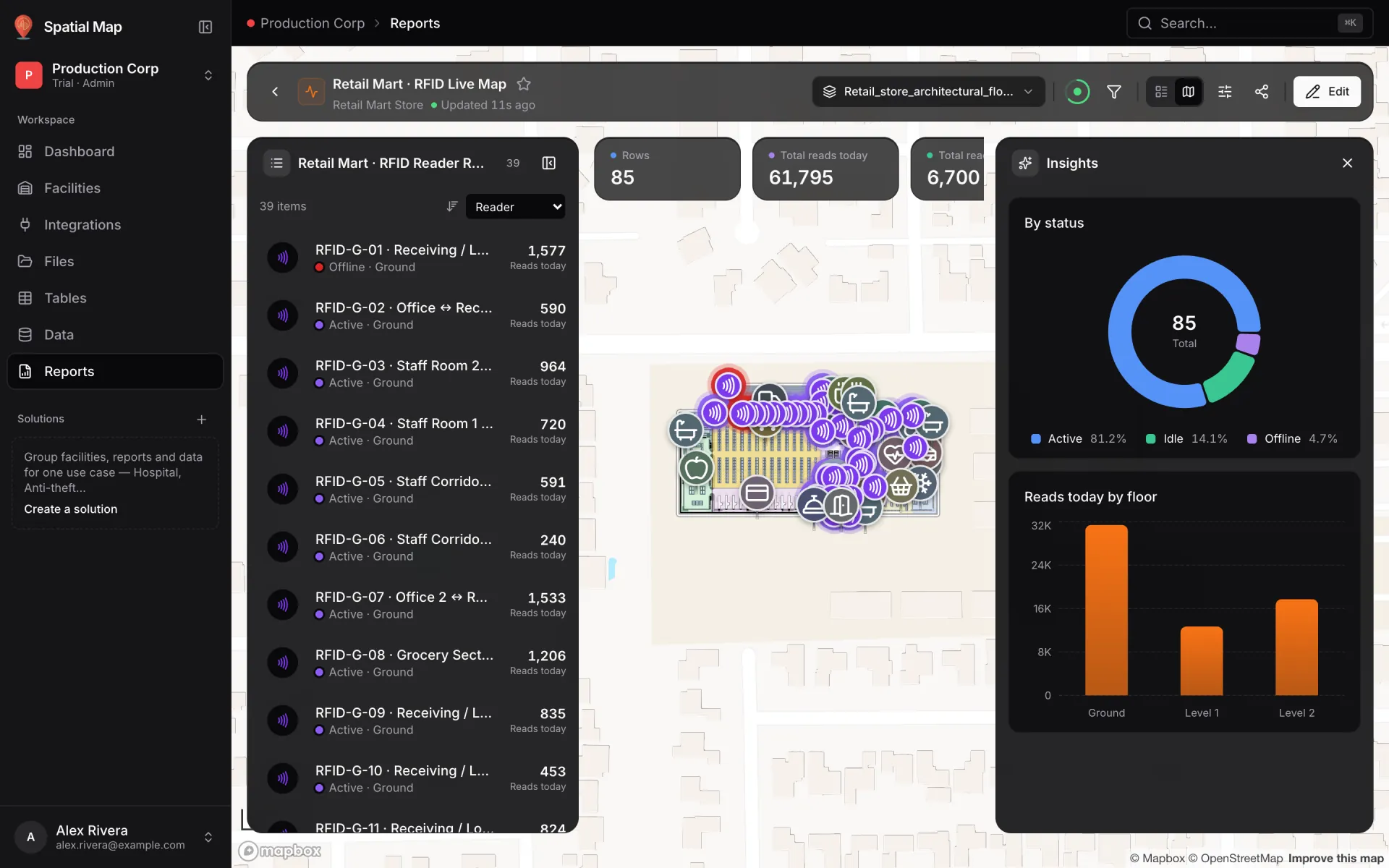
- Full map — the facility map & list fills the page; KPI and big-value widgets float in a strip along the top, charts and tables stack in an Insights panel on the right, and widgets you mark as hidden can be switched on by viewers from Panels.
Make it interactive: viewer filters and parameters
A static dashboard answers one question. Three features let a single report answer many.
Viewer filters live in a filter bar at the top of the report. Pick a floor, an area or a status, and every widget reading that source narrows at once — the same report serves the whole building or one aisle.
Parameters are runtime prompts that queries reference directly, so viewers can reslice the report without editing it. Typical inputs are a dropdown, a button group, a date or date range, a slider, a text box or a checkbox. The Items Expiring Soon report in our demo uses an “Expires on or before” date: move the date and the list of expiring items, sorted soonest first, follows.
Conditional formatting is the final layer: colour cells by value so a blocked bin or an item two days from expiry stands out before anyone reads the number.
Five warehouse reports worth building
The Acme Warehouse demo runs on four sources: Rack Inventory (314 bins), Inventory Items (646 items), Warehouse Workers and a Pick Events log. These five reports cover the questions a shift lead asks most often, and every one is built with the same wizard:
| Report | Data source | Widgets |
|---|---|---|
| Rack Inventory | Rack Inventory (bins) | Bins-by-status donut, top-10 bays bar chart, Facility map & list |
| Rack Health Dashboard | Rack Inventory (bins) | Four big values (total, blocked, expiring within 30 days, empty pick-faces), bins-by-status bar, ABC class donut, temperature-zone bars, full bin table |
| Warehouse Activity Overview | Pick Events log | Total events big value, events-by-type bar (picks, moves, sells, returns), breakdown table |
| Forklift Utilization | Pick Events log | Total events big value, trips-per-forklift donut, breakdown table |
| Items Expiring Soon | Inventory Items | “Expires on or before” date parameter, category dropdown, expiring-items table sorted soonest first with a quantity total |
Try it on your own warehouse
Start a 7-day free trial — no credit card, and up to 5 facilities in the trial workspace. Draw or import your floor plan, bring in your bin data, and the 8 facility reports appear on their own; your first bin occupancy report is one wizard run away. When you are ready, Pro is $60/month or $600/year — see pricing.
Running a warehouse? The warehouse solution page shows the full set-up: racks, stock levels, forklifts and dock activity in one workspace.
Try the platform your data belongs on.
Spatial Map turns spreadsheets, sensor streams, and CAD drawings into one live 3D facility view — nothing to install, seven-day free trial.
See it live
Keep reading
- TutorialFrom spreadsheet to spatial: turning a bin inventory CSV into a live rack mapA CSV in a shared drive helps no one on the floor. The same CSV painted on your rack layout is a shift meeting.
- TutorialWMS integration guide: REST, webhooks and WebSockets for a live warehouse mapYour WMS may speak REST, webhooks or WebSockets. Spatial Map pulls REST endpoints, imports files and receives pushes as table API writes — here is how to pick a path and wire it, with working curl and a small relay.
- TutorialFrom a CAD or PDF floor plan to a 3D browser map, step by stepPick the sheet or the layers, confirm the scale or units, drop the plan onto the map and line it up. The drawing arrives as a true-size picture; the 3D building is what you trace on top. Here is the whole path, with what it does and doesn’t do.