
Real‑time indoor asset tracking: from RTLS tag to a live marker on your floor plan
Put RTLS, BLE, UWB or Wi‑Fi positions on a live indoor map: pick the tag tech, relay positions into a table, map them and replay where assets went.
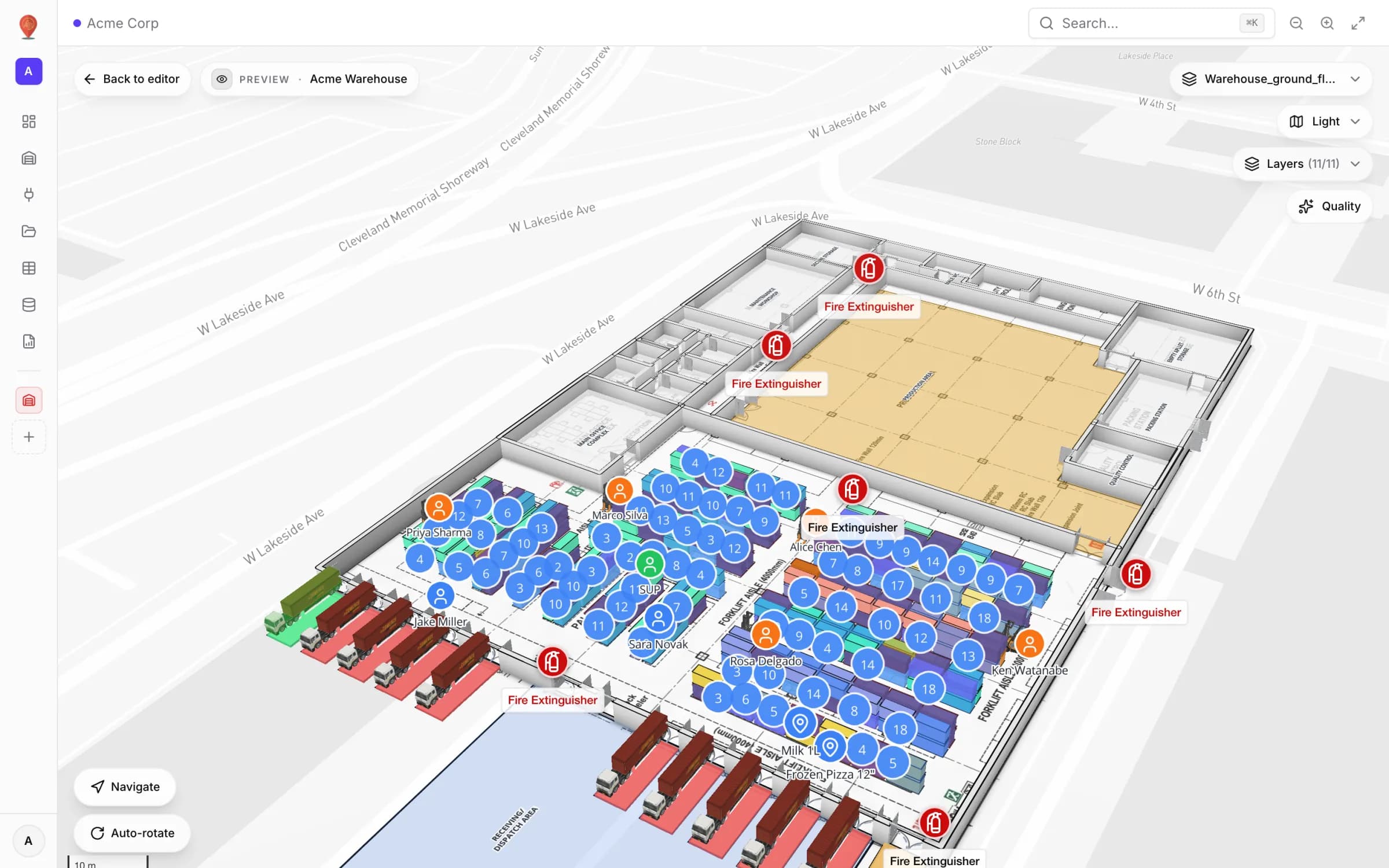
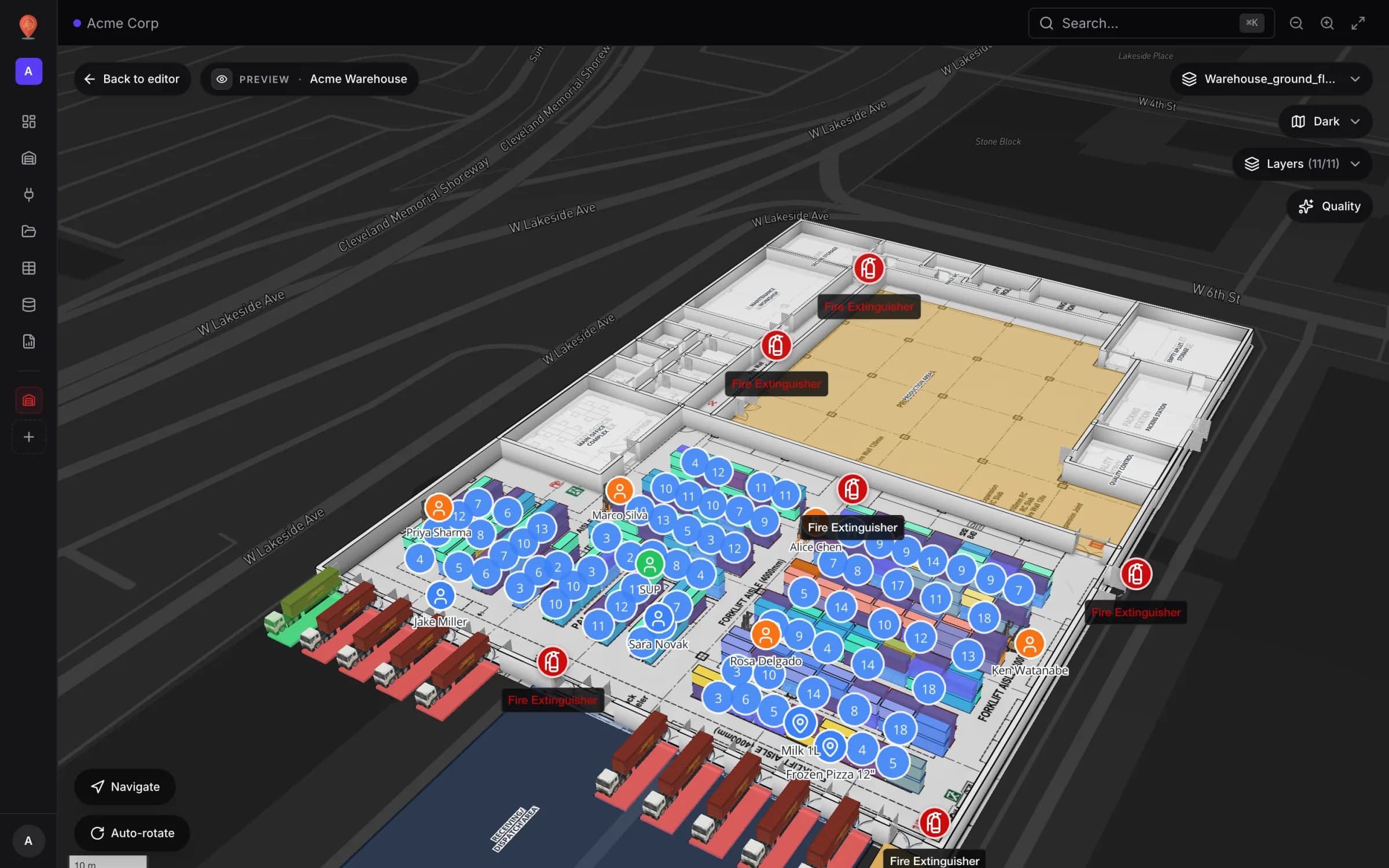
What this walk‑through covers
Which tag technology?
Start from the question, not the radio. "Which room is the projector in?", "Where exactly is the forklift in this aisle?" and "Did this cart pass the dock door?" are three different questions, and each technology answers one of them well. Spatial Map does not care which one you choose: it needs an ID and a position (or a read point) per row.
| Technology | What it tells you | Typical granularity | What you install | Good fit |
|---|---|---|---|---|
| BLE tags + gateways | Roughly where a tag is — usually which room or zone | Room or zone, down to a few metres; depends on gateway density and the building | Battery tags, BLE gateways or receivers | Tools, carts, portable equipment, staff badges |
| UWB | A precise x/y (often z) position | Sub‑metre is achievable with dense, carefully surveyed anchors | Powered anchors, a site survey, tags | Forklifts, robotic handling, equipment where every metre matters |
| Passive UHF RFID | That a tag passed a read point | Presence at a gate, door, lift or shelf — not a continuous track | Fixed readers and antennas at choke points, low‑cost labels | Pallets, totes, consumables, doorway and gate inventory |
| Wi‑Fi location | Where a Wi‑Fi device is, from your wireless network | A few metres, varying a lot with access‑point layout | Existing access points plus a location engine | Laptops, tablets, Wi‑Fi tags you already own |
RFID behaves differently from the other three: instead of a moving dot you get reads at fixed readers. Our Retail Mart demo shows that pattern — 85 readers at gates, lifts and escalators drawn as pulsing zones. See integrating RFID readers with an indoor map.
Wire the pipeline
Spatial Map is not a positioning engine and never talks to tags or anchors. The engine you already run computes positions; a small relay — a script, a serverless function or your integration middleware — turns its feed into table rows. There is no webhook, stream or WebSocket ingest to set up inside the app: the table write API is the push path.
- 1Create the table
In Tables, create a table of kind Asset (mobile) with the fields your markers and tooltips need. For example: asset_tag, asset_name, asset_type, status, location, battery_pct, last_seen, lat, lng and elevation_m, plus status_color if your relay picks the colour. See Tables.
- 2Create a key
On the table’s API & access tab, Create key. The key starts with sgv_tbl_, is shown once, and can write to that one table only — give each system its own key so you can revoke one without breaking the rest. Copy the exact base URL and curl examples from the same tab.
- 3Convert to latitude / longitude
Most engines report x/y in metres in a local frame. Convert to WGS84 before sending (one affine transform from two or three surveyed points), and send height in metres (elevation_m) so the marker sits at the right level in 3D.
- 4Batch and send
Every few seconds, send the tags that moved or changed status in one POST /rows/bulk — up to 1,000 rows in one transaction. Invalid rows come back in errors[] while the valid ones commit; a missing required field or a duplicate unique value is rejected.
- 5Patch instead of overwrite
POST replaces a row’s whole payload. If the table also holds data your engine doesn’t know (asset name, owning department), create each row once, then send positions with PATCH /rows/bulk, which merges only the fields you send.
# 1) Create or replace rows (full payload) — once per asset,
#    or whenever its master data changes
curl -X POST https://app.spatialmap.io/api/v1/public/tables/rows/bulk \
  -H "Authorization: Bearer $SPATIALMAP_TABLE_KEY" \
  -H "Content-Type: application/json" \
  -d '{"rows":[
    {"entityKey":"EQ-0103","payload":{"asset_tag":"EQ-0103","asset_name":"Pallet jack 03",
      "asset_type":"Pallet jack","status":"In use","location":"Dock 2","battery_pct":76,
      "lat":42.4637,"lng":-5.8802,"elevation_m":0.9,"status_color":"#2563eb",
      "last_seen":"2026-10-11T16:28:03Z"}},
    {"entityKey":"EQ-0149","payload":{"asset_tag":"EQ-0149","asset_name":"Torque wrench 02",
      "asset_type":"Tool","status":"Available","location":"Tool crib",
      "lat":42.46345,"lng":-5.88047,"elevation_m":0.9,"status_color":"#16a34a",
      "last_seen":"2026-10-11T16:28:01Z"}}
  ]}'

# 2) Every few seconds: patch only the tags that moved or changed
curl -X PATCH https://app.spatialmap.io/api/v1/public/tables/rows/bulk \
  -H "Authorization: Bearer $SPATIALMAP_TABLE_KEY" \
  -H "Content-Type: application/json" \
  -d '{"rows":[
    {"entityKey":"EQ-0103","patch":{"lat":42.46336,"lng":-5.88014,"location":"Dock 4",
      "last_seen":"2026-10-11T16:28:09Z"}}
]}'What happens next: each write is stored, added to the row’s change log and announced to every open map, which re‑fetches that layer straight away; a 30‑second refresh is the safety net. End to end, a marker trails the real asset by your engine’s latency plus your batch interval. A few seconds is realistic; sub‑second tracking is not what this pipeline is for.
Turn rows into moving markers
A data link decides how table rows appear on a facility. For tracking, the mode is Live location marker: every row becomes a marker at its own latitude and longitude. A typical tracking setup has two, one per table:
- Equipment reads an Equipment table of kind Asset (mobile) — tools, carts, pallet jacks, test gear, anything with a tag. lng/lat place the marker, elevation_m lifts it, asset_name labels it and an icon marks it as equipment; colour comes from a field such as status_color or from style rules on a status like Available, In use or Maintenance.
- Staff reads a Staff table of the same kind, keyed by badge ID. Same mode with a person icon, labelled with the person’s name and coloured by role or status.
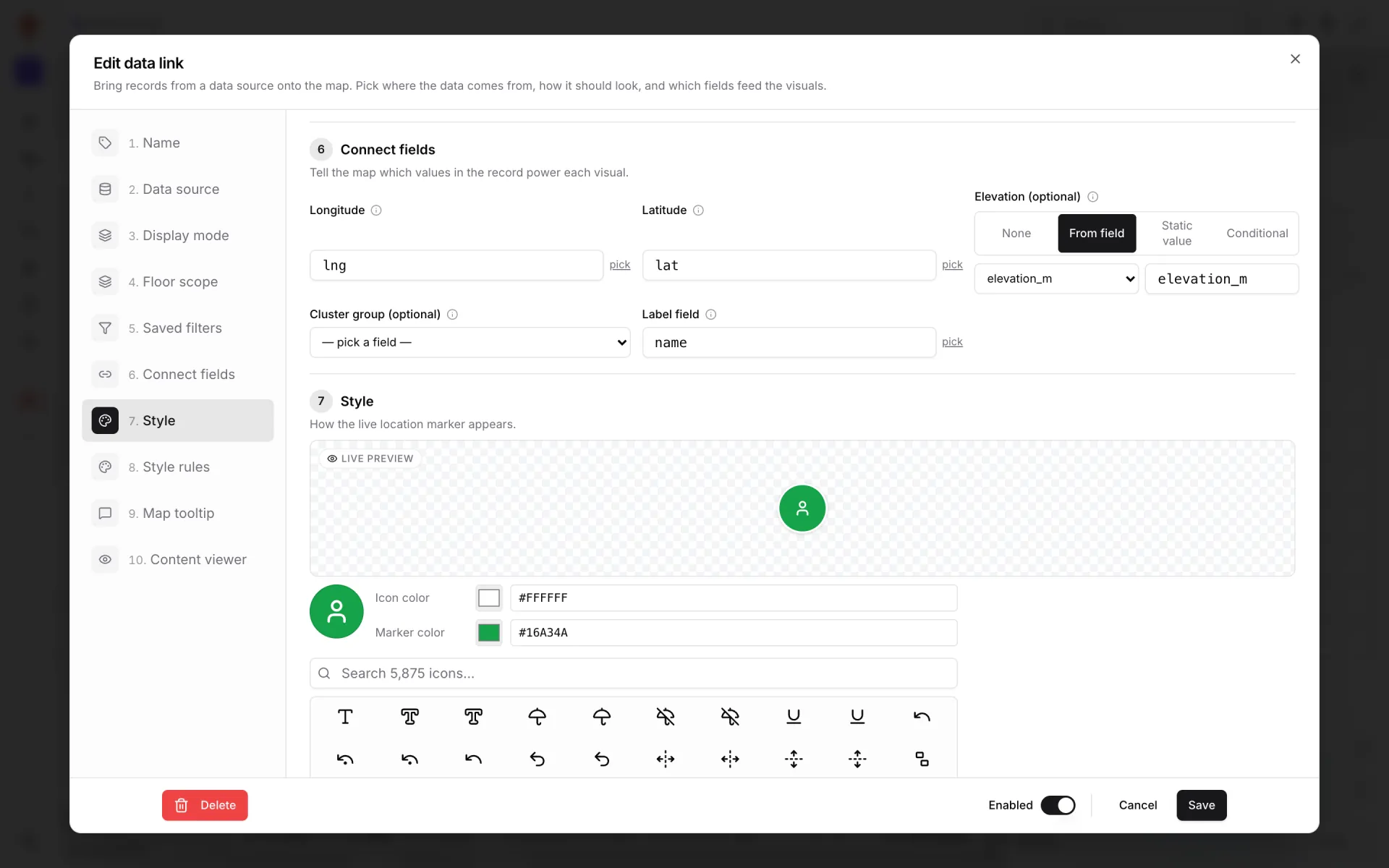
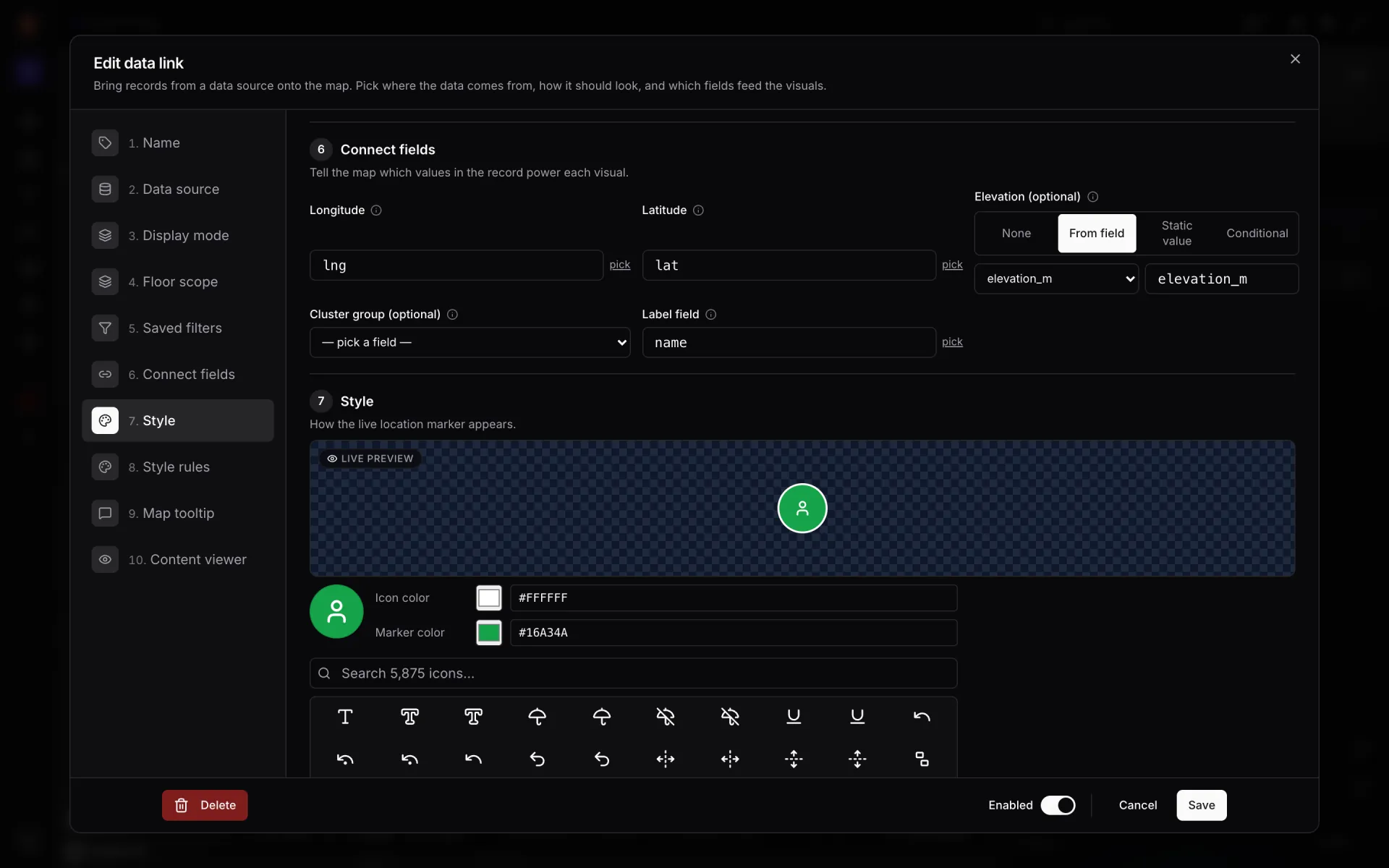
Connect fields is where you point the link at your own column names — they don’t have to be called lat and lng (field mapping). Colour can come straight from a field such as status_color, or from style rules that map values like In use or Maintenance to colours. The Map tooltip step picks what shows on hover or click; an equipment link might show asset tag, type, status, location, battery and last seen.
Floors: a link can show its records on all floors, on specific floors, or on the floor named in each record. If your engine reports a level such as "Level 1", send it as a field and choose From record in the floor scope; each marker then appears only on its own floor.
What people see on the map
In the viewer or a share link, both layers sit on the 3D floor plan with the rest of the facility. The Layers panel lists the data‑link layers next to areas, stairs, racks and floor plans, so a shift lead can hide the staff badges and look only at equipment, or switch a layer off entirely (layers panel).
BLE‑tag layers like these run in several facilities of the demo workspace: tools and crews on the shop floor of Summit Assembly Plant, forklifts and crews on the dock at Eastport Cross‑Dock Freight Hub, tools and equipment room by room at Northgate Electronics, and staff, visitors and equipment by zone at Harborview Corporate Campus, where the asset register and equipment checkout sit on the same three‑floor map.
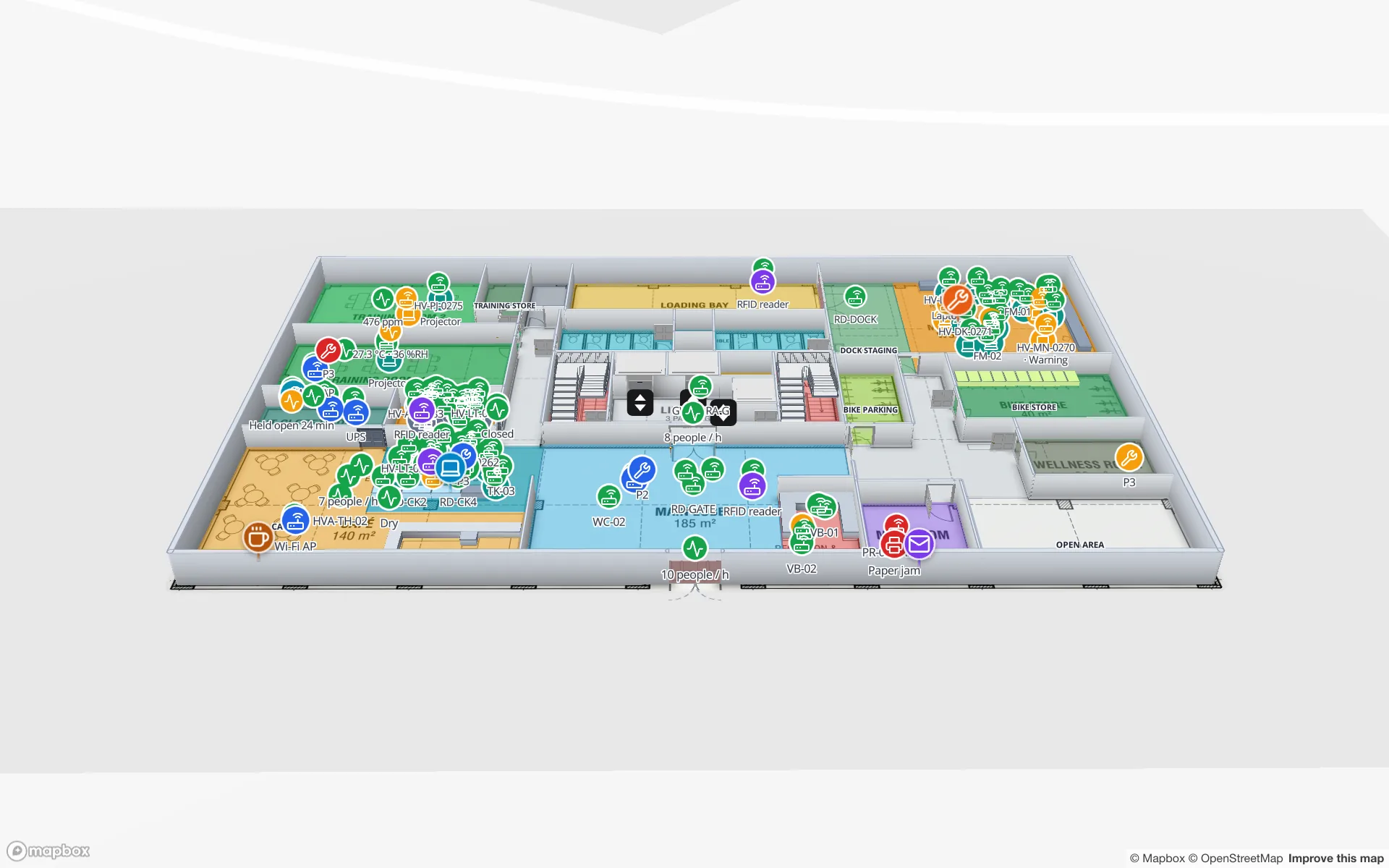
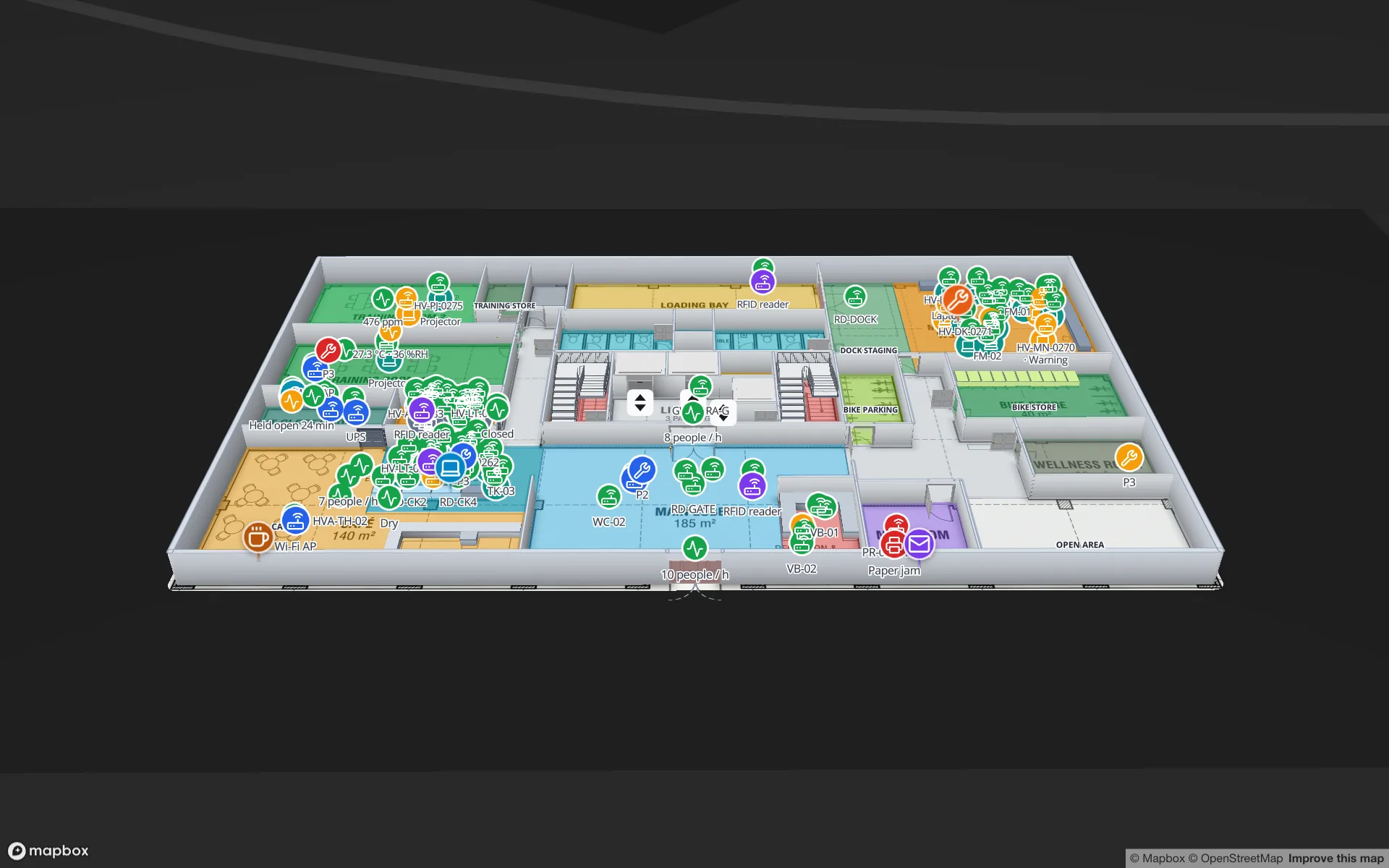
Click a marker to open the detail drawer: every property of the row — asset tag, status, location, battery, last seen, coordinates — and underneath, a History section with the row’s own change timeline.
Where has it been? History and replay
Every write through the API is kept as an event with a full snapshot of the row. That gives you two ways to look back, both described in table history & playback:
- Per asset — the drawer’s History lists each create, update and delete for that row, newest first, with the fields that changed. It answers "when did pallet jack 03 go to Maintenance, and where was it then?"
- Whole layer — add a second data link on the same table in Historical movement mode. While it is visible, a History player appears at the bottom of the map: pick a window (1h, 24h, 7d or 30d), press play or drag the scrubber, and each marker jumps to where its asset was at that moment. Speed is history per second of playback, from 15s/s to 30m/s.
What breaks first
Where to go next
For the asset‑management side of this story — an asset register, equipment checkout and tracked equipment on one map — see the asset management solution and the Harborview Corporate Campus showcase; for tools and crews on a shop floor, see Summit Assembly Plant, and for forklifts and crews on a dock, Eastport Cross‑Dock Freight Hub. The docs cover each piece: data links, the table write API, and the tutorial track staff and equipment with live markers, which builds the same pipeline from an empty table, step by step.
Try the platform your data belongs on.
Spatial Map turns spreadsheets, sensor streams, and CAD drawings into one live 3D facility view — nothing to install, seven-day free trial.
See it live
- RFID Loss Prevention & Anti-Theft Map
- Indoor Asset Management Map & Equipment Tracking
- Cross-Dock & Yard Management Map in Live 3D
- Manufacturing Digital Twin & Plant Floor Map
- Harborview Corporate Campus — Building A
- Ridgeline Data Center
- Westbrook University — Science Building
- Eastport Cross-Dock Freight Hub
- Summit Assembly Plant
- Production Museum
Keep reading
- Use caseAirport terminal operations on a live map: RFID bag tags, queues and gatesA terminal runs on hand-offs: from check-in to screening, from the gate to the carousel. Each hand-off happens in a place, so each one belongs on a map. Here is how our Silverbay Terminal 2 demo puts bag tags, queues, gates and crowding on one live two-floor view.
- Use caseCross-dock and yard visibility on a live map: dock doors, trailers and gatesA cross-dock runs on timing: which door is turning, which trailer has sat in the yard too long, which gate lane is backing up. Putting the building and the yard on one live map makes those answers visible at a glance. Here is how, using our Eastport Cross-Dock Freight Hub demo.
- Use casePharma cold storage and QC on one live map: zones, excursions, holdsA probe ID, a door number and a sample ID only become actionable once you can see which room, dock or rack they belong to. Here is how a pharmaceutical cold store and QC area run on one live map, using our two-floor Polar Pharma demo as the worked example.