
Model a multi-floor store with escalators and lifts
Retail Mart Store has three levels: a ground floor at 0 m, "Retail First Floor" at 4.27 m and "Retail Second Floor" at 8.53 m (14 ft per storey). Each level is a floor plan at its own elevation. Escalators and lifts are drawn with the stairs tool and linked to floor plans, so their heights follow when a floor moves.
Steps
- 1
Add one floor plan per level
Press I and place each level’s plan over the same footprint. Rename each one from the side-panel header ("Retail First Floor", "Retail Second Floor").
- 2
Lift each floor to its height
Select an upper plan and set its elevation under 3D & Altitude, for example 4.27 m for the first floor and 8.53 m for the second. Keep the ground floor at 0.
- 3
Draw each level’s layout
Set Default floor plan for new shapes in the toolbar to the level you are working on, then draw departments (P), shelving (G) and labels (T). Switch the default and repeat for the next level.
- 4
Add escalators
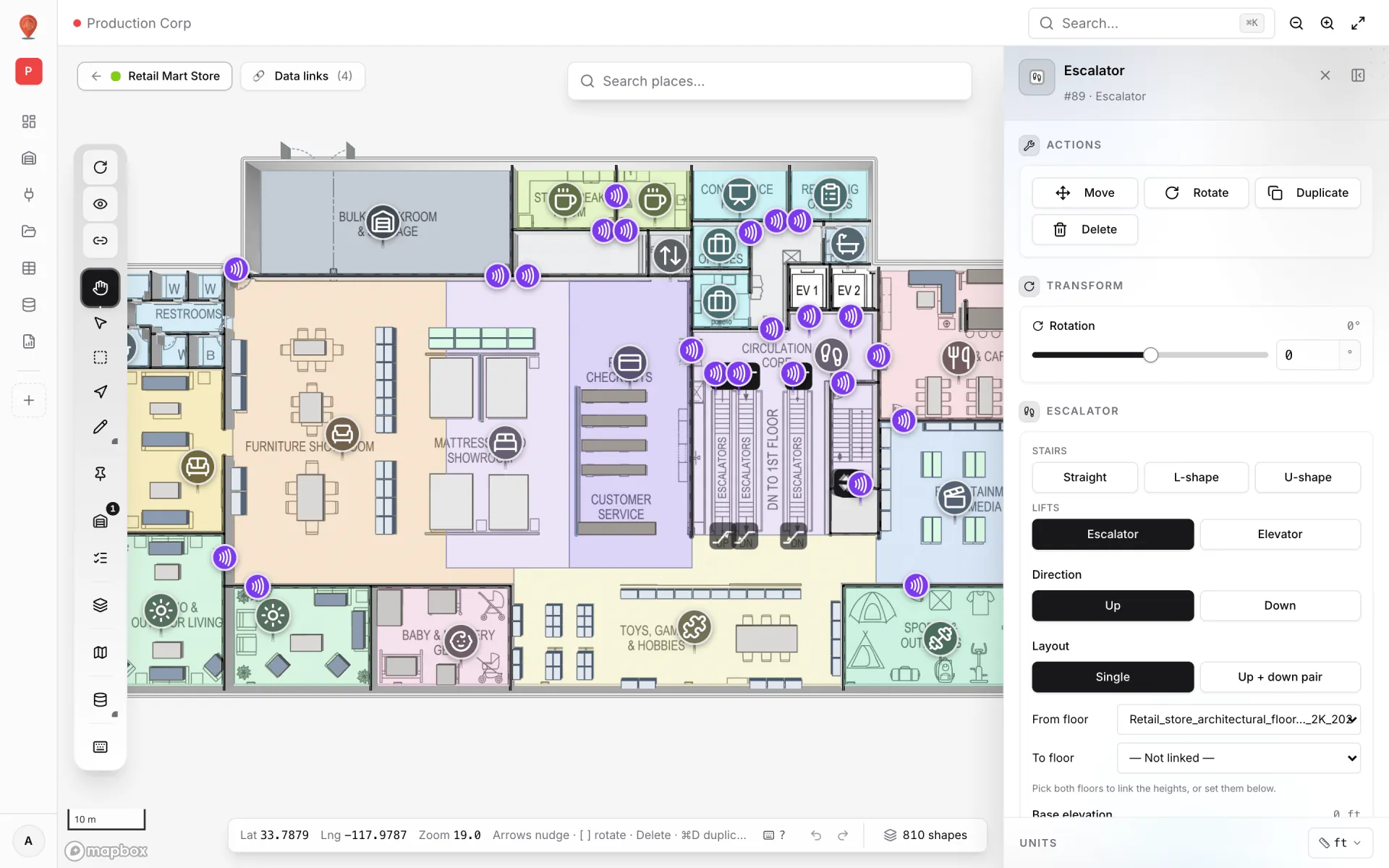
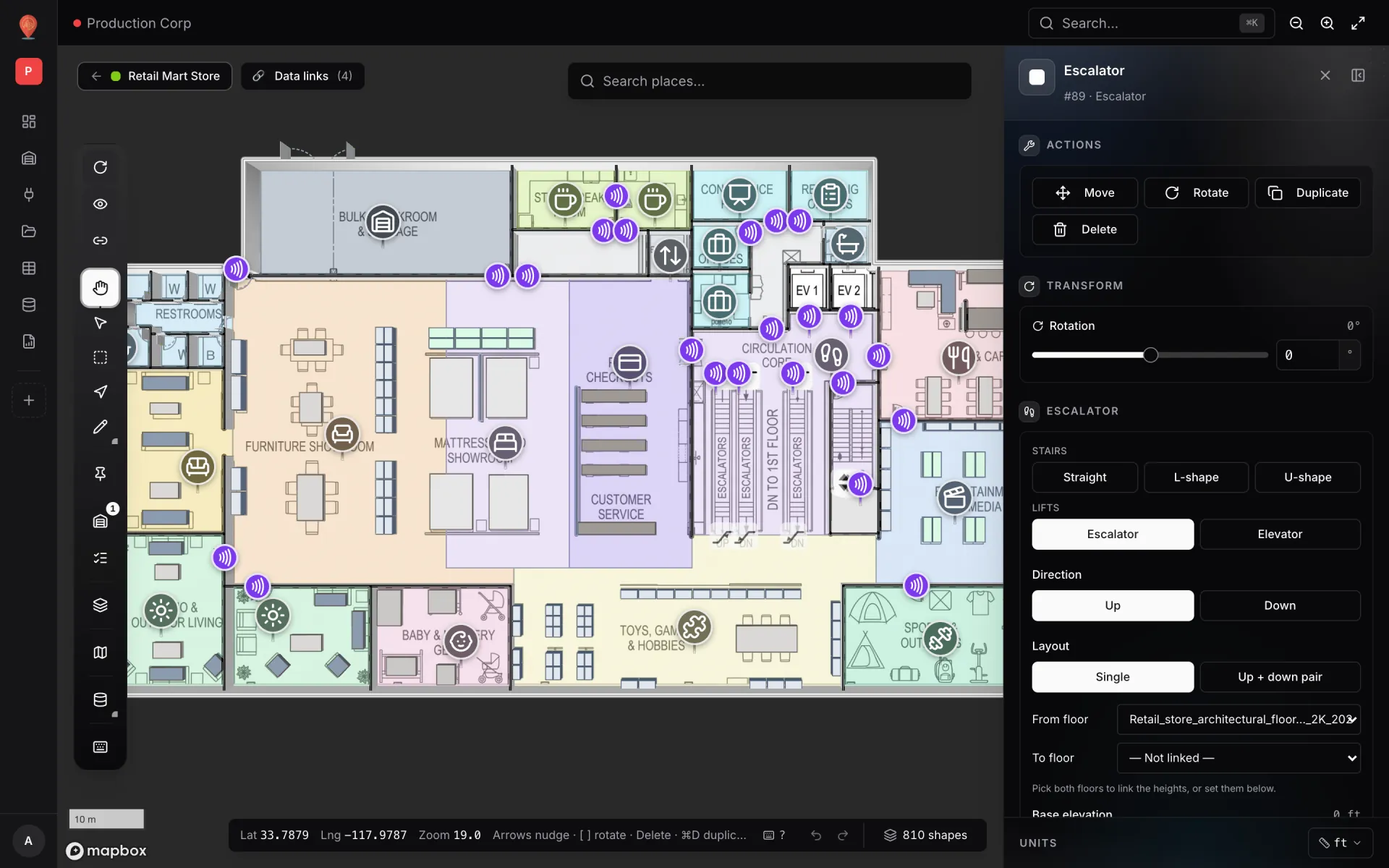
Press S and choose Escalator. "Click the bottom landing of the escalator", then click towards the top landing. Set Direction (Up or Down), Layout (Single or Up + down pair — "The second unit sits to the right and runs the other way"), then pick From floor and To floor: "Heights follow the linked floors — moving a floor plan up or down moves the escalator with it."
- 5
Check the incline
With Fit length to incline on, the length follows the rise. The panel checks the result against EN 115 / ASME A17.1 and warns when it is "Steeper than 35° — not allowed for escalators" or when "Over 30° is only allowed up to 6 m rise". Set Step width (0.6, 0.8 or 1.0 m) and turn on Moving steps if you want animated treads.
- 6
Add lifts
With the same tool choose Elevator, click the two front corners of the door side, then tick Floors served — "Doors open on each ticked floor and the shaft runs from the lowest to above the highest." Set Shaft (Glass or Solid), Shaft depth and Door width.
- 7
Mark status and review
Each escalator or lift has a Status: In service or Out of service. Open Preview and use the floor picker (All Floors or one level) to step through the building; the built-in Stairs, lifts & escalators report lists every unit.
Related
More drawing & 3d recipes
- Turn a PDF floor plan into a 3D facilityImport an architectural PDF at true scale, pick the sheet, place it on the map, then trace rooms and generate walls so the plan becomes a 3D facility.
- Draw rooms, walls, stairs and liftsDraw a floor on top of a placed floor plan, step by step: named rooms with roles, magic walls, U-shaped stairs, lift shafts and text labels, ready for 3D.